Overview #
The Sessions Module in the ERPat System serves as the central hub for scheduling, managing, and tracking all service appointments and sessions. It provides a clear overview of upcoming, ongoing, and past appointments, allowing staff to efficiently manage customer bookings, assign resources, and update session statuses in real-time.
This module ensures smooth operational workflow by centralizing appointment details, tracking session progress, maintaining customer service history, and facilitating communication between staff and clients.
Key Features #
- Create and manage detailed appointment session records.
- Assign services, staff members, and specific time slots to sessions.
- Track the real-time status of each session.
- View a timeline or calendar of all scheduled sessions.
- Record session notes, outcomes, and follow-up actions.
- Filter and search sessions by date, service, customer, staff, or status.
- Maintain a complete history of all session interactions and updates.
Accessing the Sessions Module #
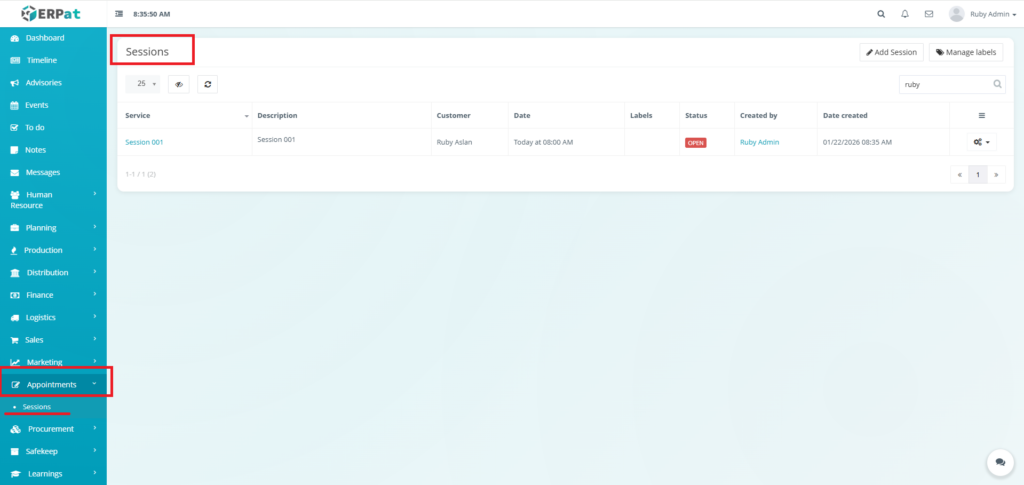
- Log in to the ERPat System.
- Navigate to Appointments from the primary sidebar.
- Select Sessions.
Sessions Listing Page #
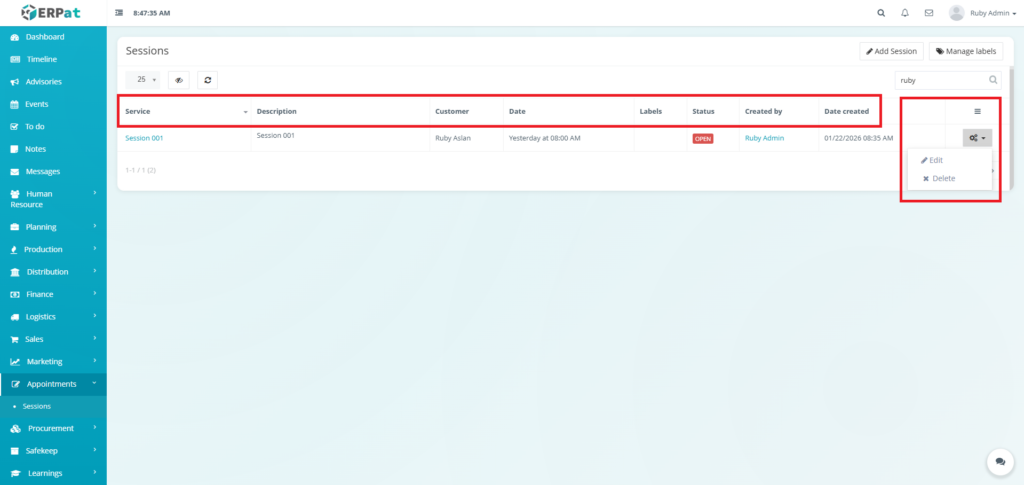
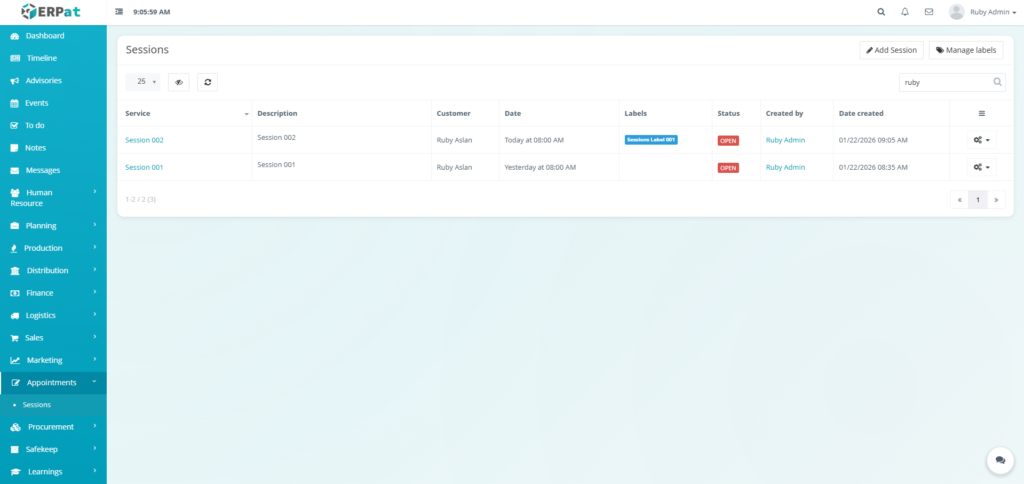
The Sessions page displays a comprehensive table of all scheduled and past sessions with the following columns:
- Service – The type of service booked.
- Description – Details pertaining the session.
- Customer – The name of the client for the session.
- Date – The scheduled date and time of the appointment.
- Labels – Any tags or categories associated with the session.
- Status – The current state of the session.
- Created By – The staff member who created the session record.
- Date Created – The timestamp when the session was initially booked.
- Actions – Edit or Delete controls.
Page Control and Tools #
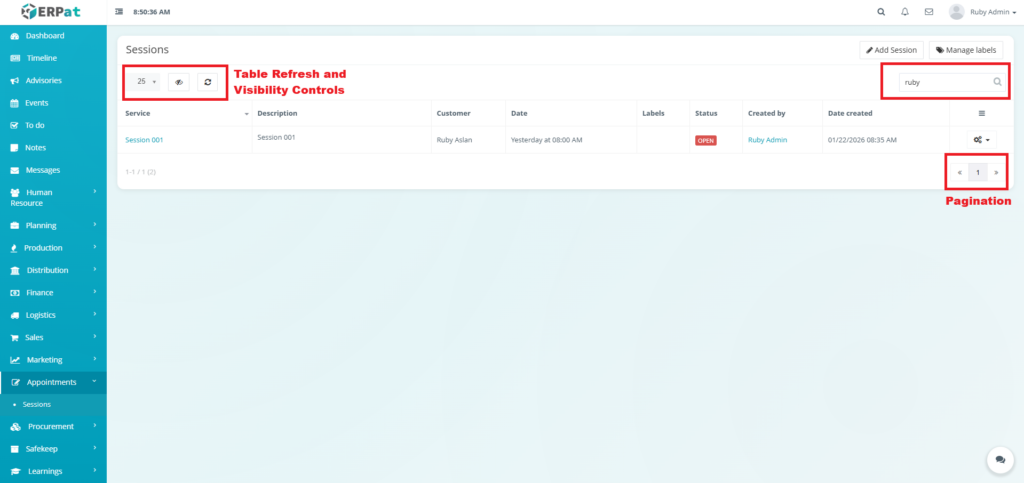
- Search Bar
- Pagination
- Table Refresh and Visibility Controls
Steps for Adding a Session #
STEPS #
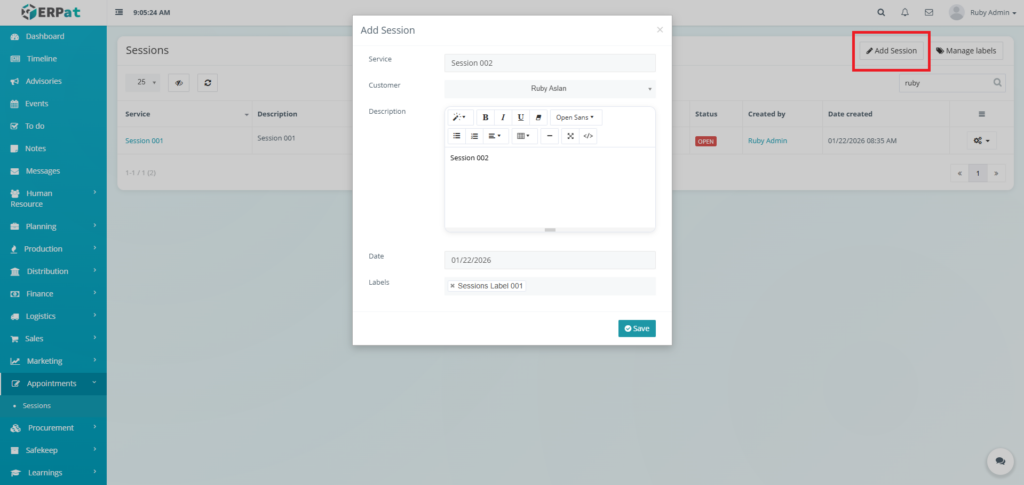
- Click the “Add Session” button.
- Fill in the necessary details.
- Click the Save button to add the new session.
Result #
The new session appears in the Sessions listing with a default status OPEN
Steps for Editing a Session #
STEPS #
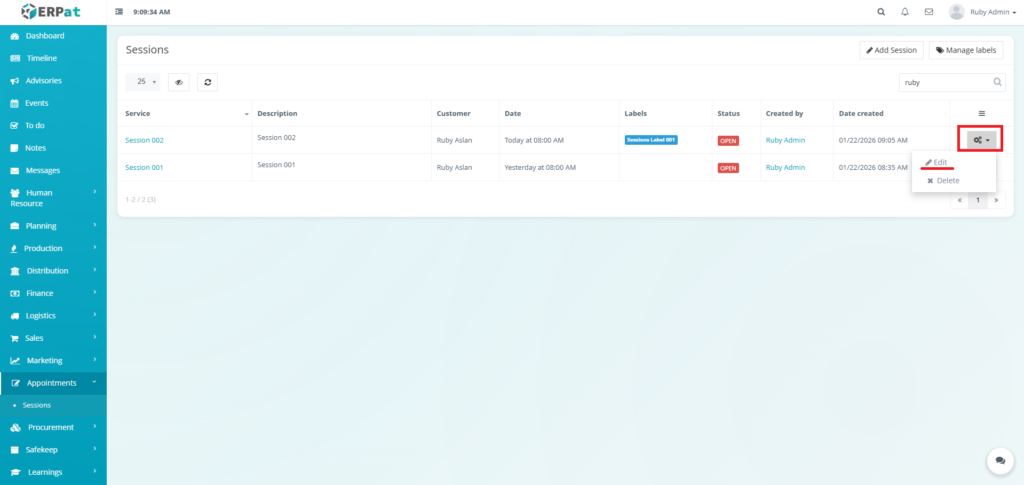
- Click the actions icon in the table.
- Click the Edit option in the dropdown.
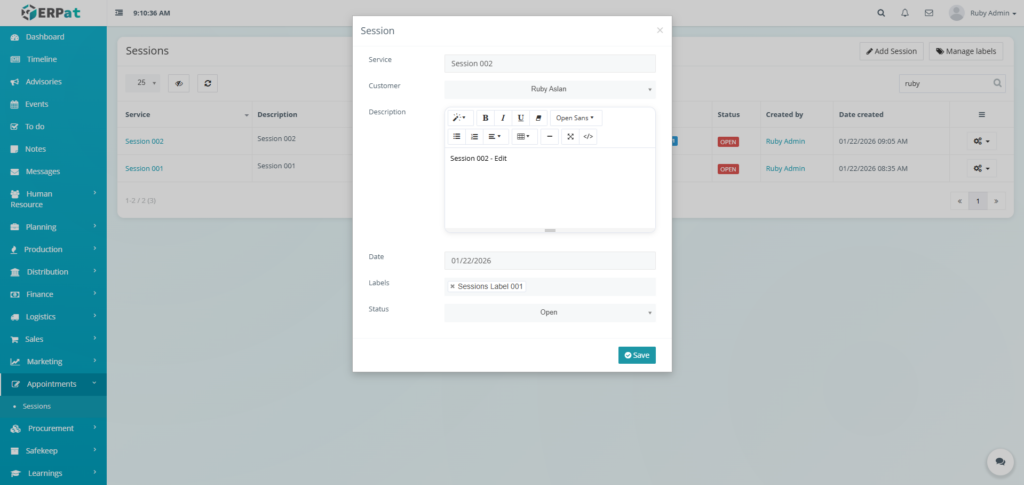
- Modify the necessary details
- Click the Save button to apply the changes.
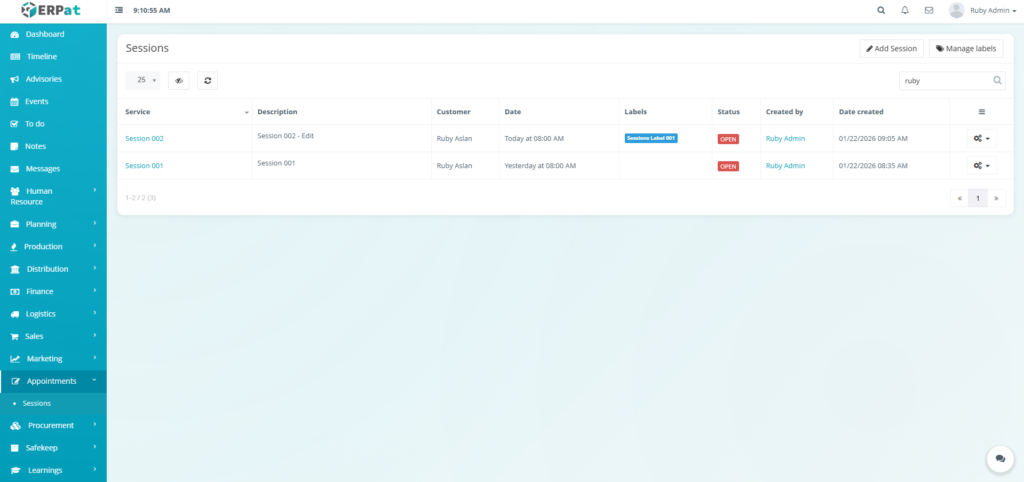
Result #
Steps for Deleting a Session #
STEPS #
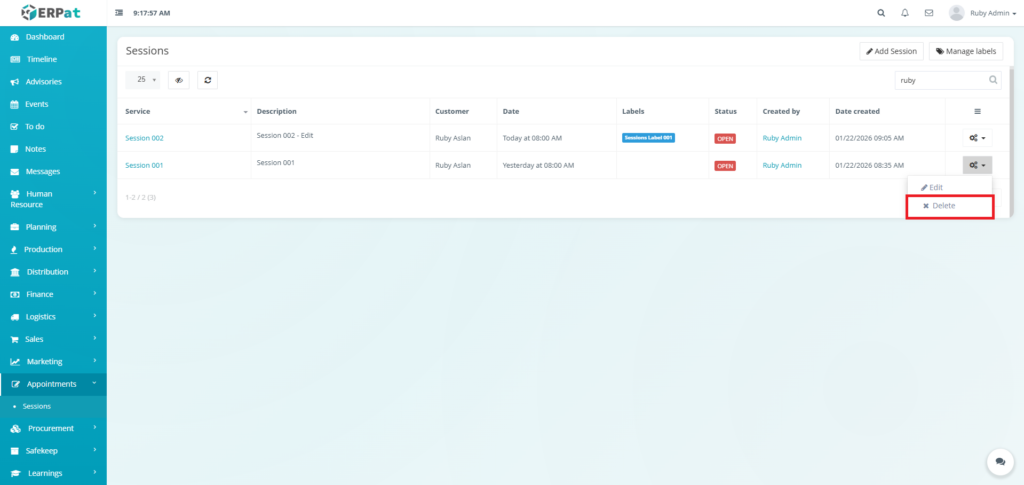
- Click the actions icon in the table.
- Click the Delete option in the dropdown.
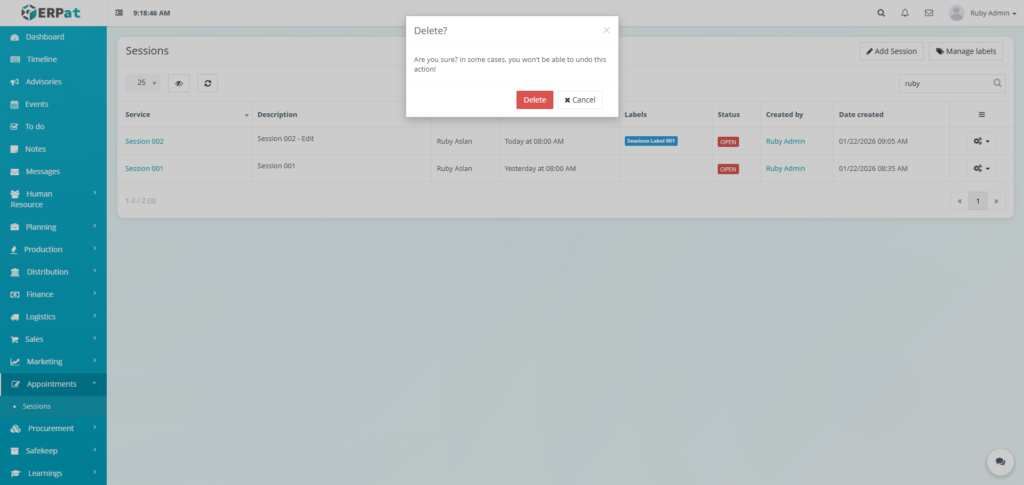
- Click the Delete button to remove the session.
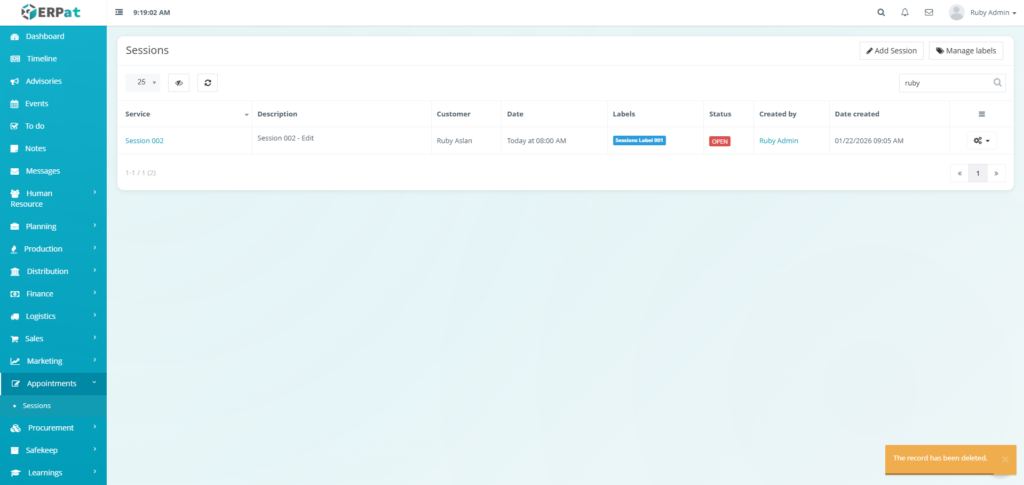
Result #
Steps for Adding Members in the Session #
STEPS #
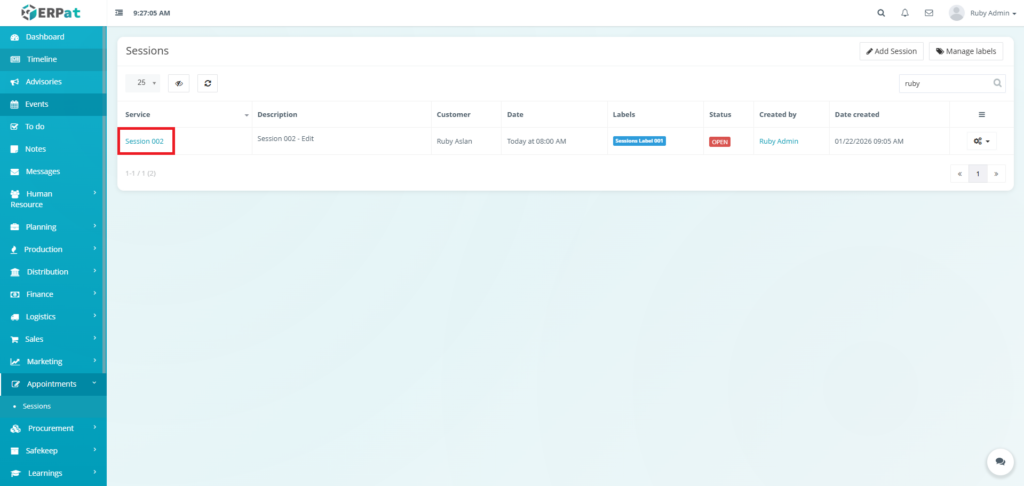
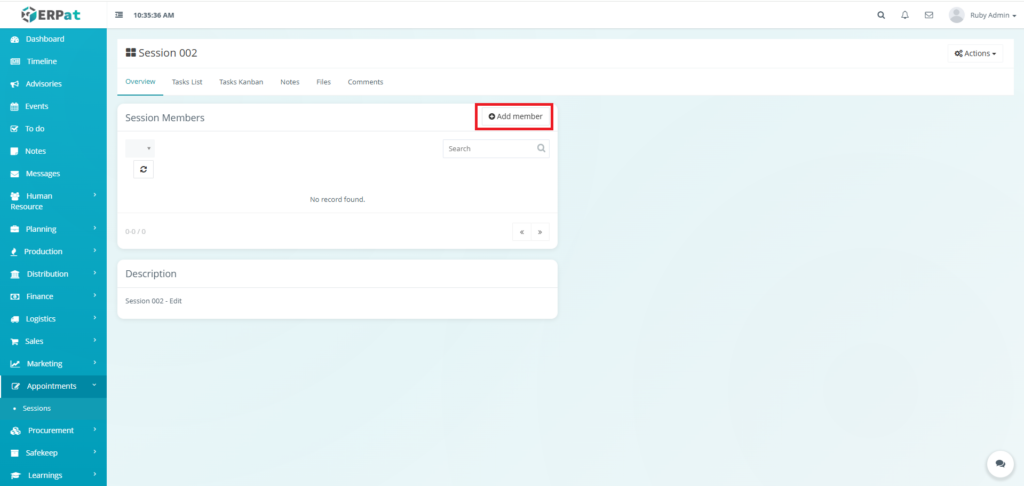
- Click the Service of the Session
- Click the “Add Member” button in the newly opened interface.
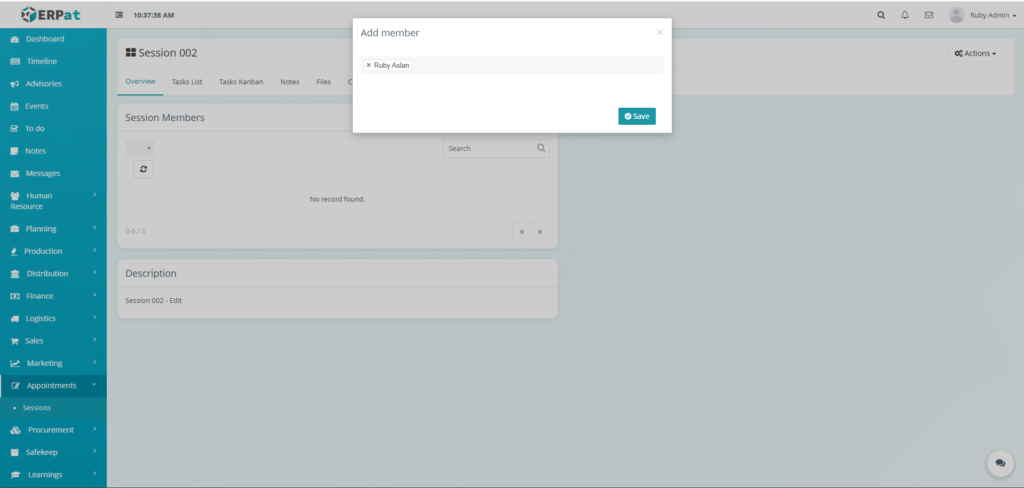
- Add the employee’s included in the session.
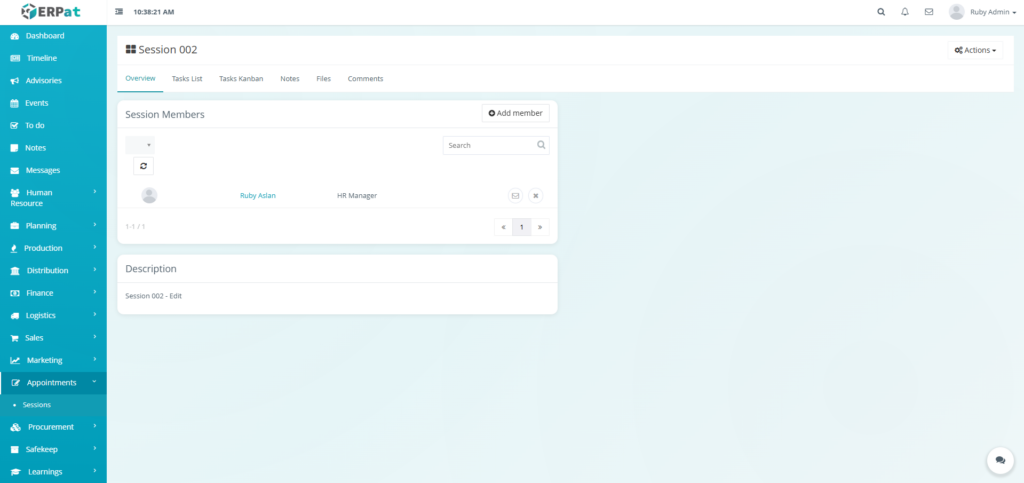
- Click the Save button to add the member into the session.
Result #
Sessions Actions #
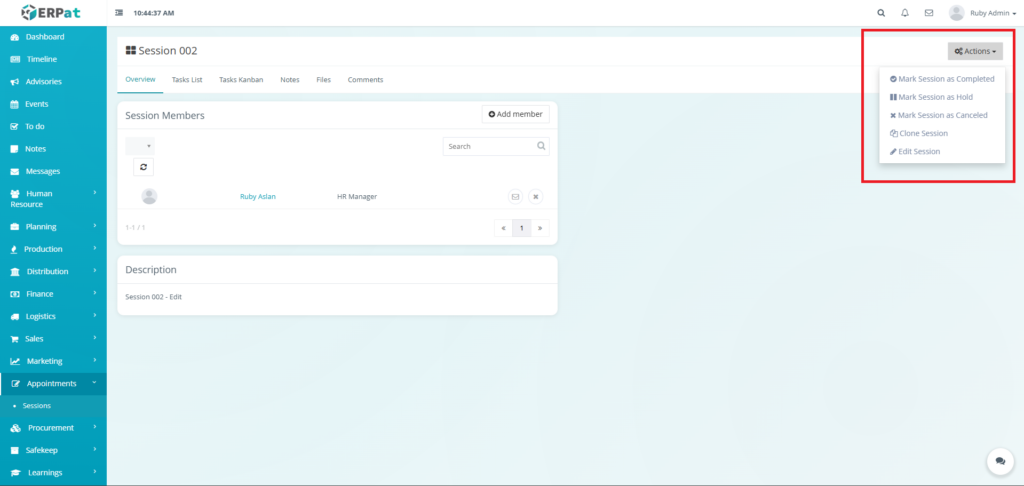
- Mark Session as Completed – used to update session status to Completed.
- Mark Session as Hold – used to update session status to Hold.
- Mark Session as Cancelled – used to update session status to Cancelled.
- Clone Session – for duplicating the session.
- Edit Session – for modifying details pertaining the session.
Sessions Item Tabs #
Overview #
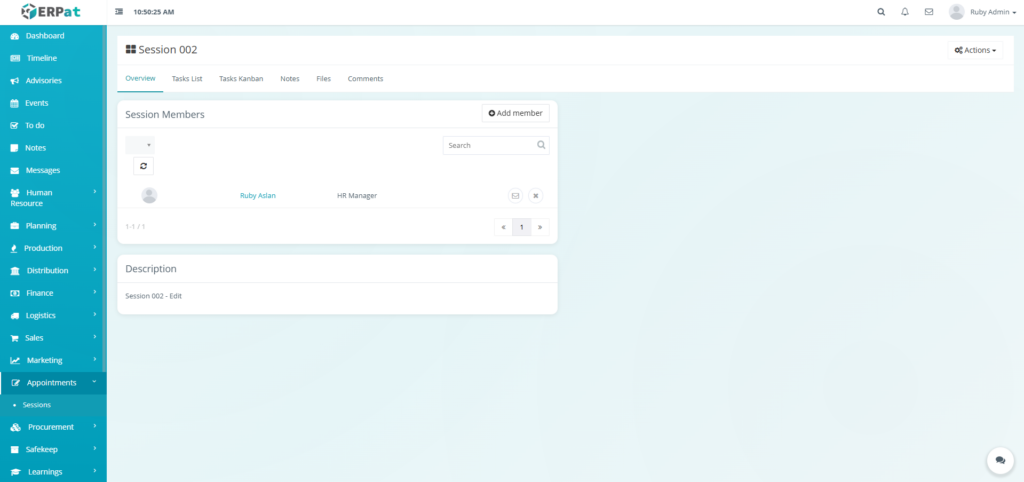
This tab provides a high-level summary of the specific session, displaying the designated Session Members and a Description field to outline the session’s purpose.
Task List #
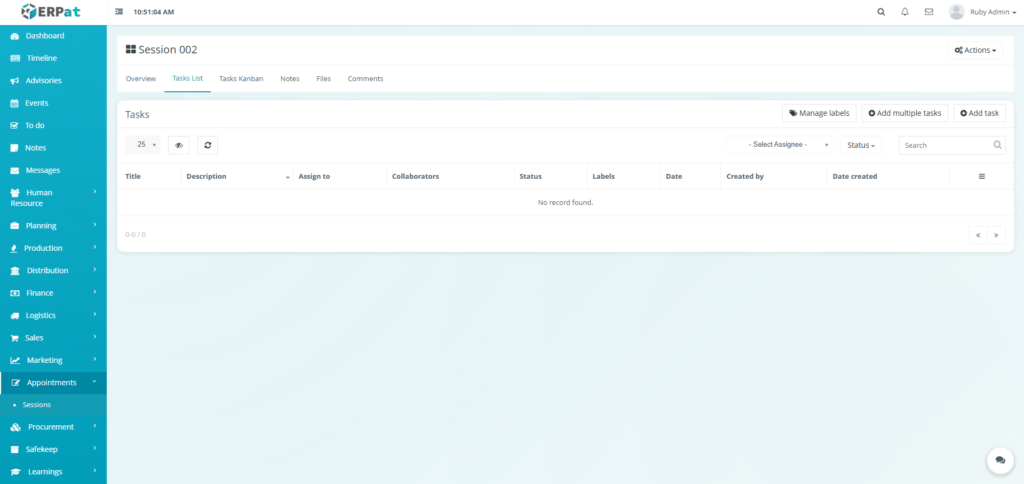
A structured, tabular view used to manage individual tasks. It allows users to track details like Title, Assignee, Status, and Due Dates, while providing options to add or “Manage labels” for better organization.
Task Kanban #
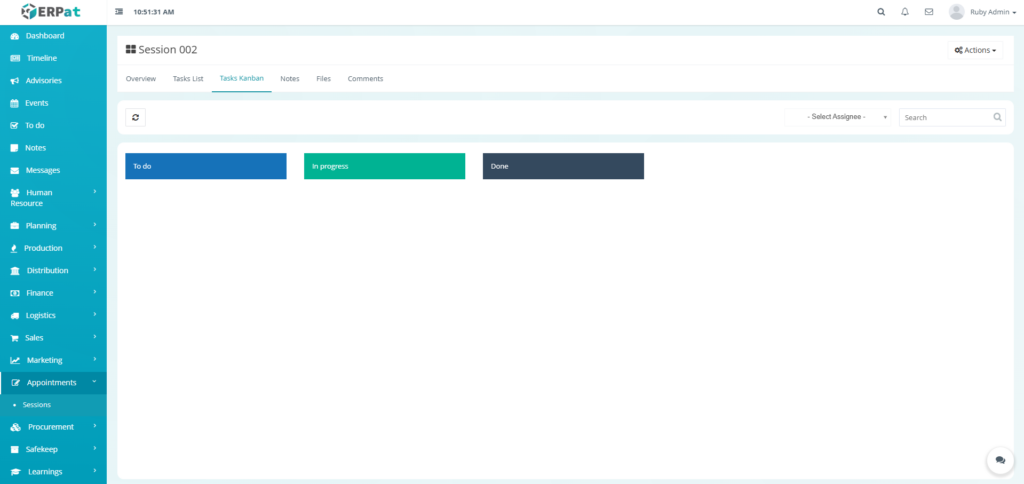
A visual workflow board that organizes tasks into vertical columns To do, In progress, and Done allowing teams to track the real-time progression of work at a glance.
Notes #
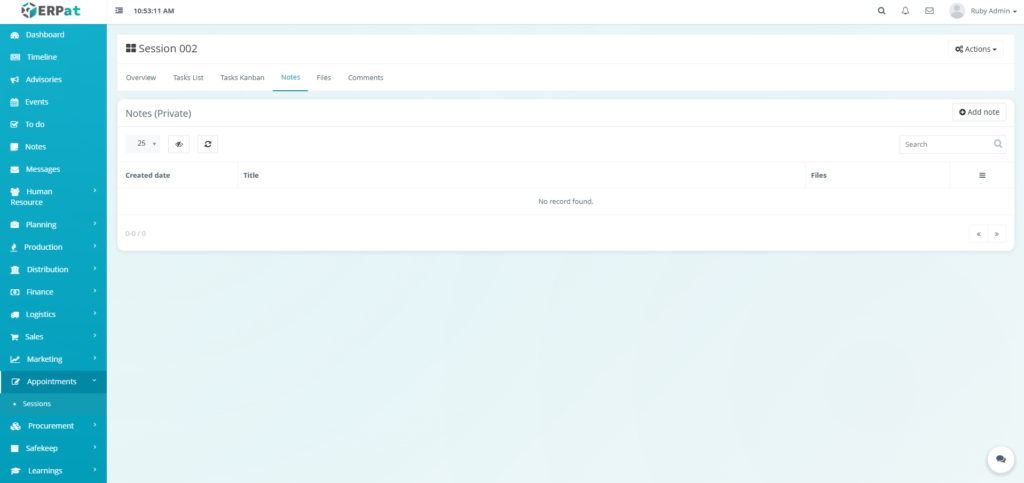
A dedicated space for capturing session-specific documentation, such as meeting minutes, brainstorming ideas, or internal reminders relevant to the project or team.
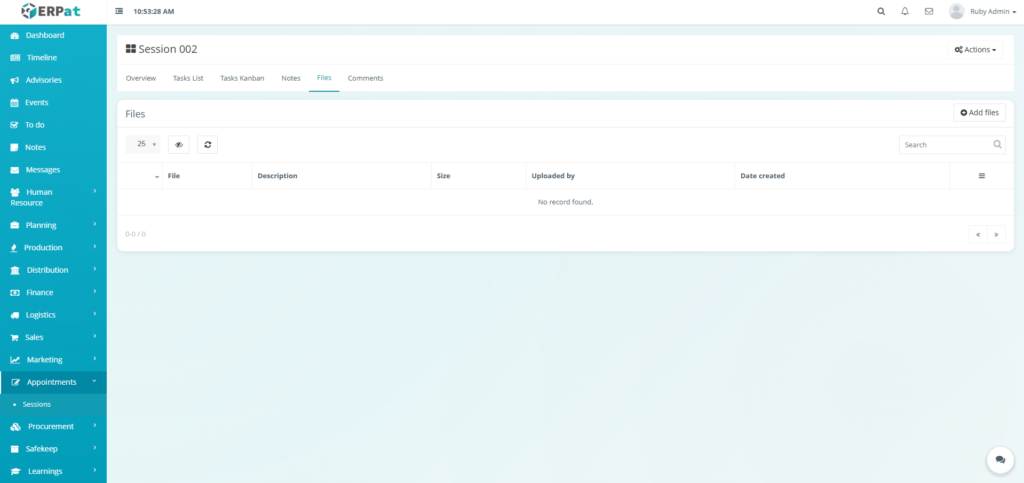
Files #
A centralized repository for all digital assets related to the session, where team members can upload, store, and access documents or resources needed for their operations.
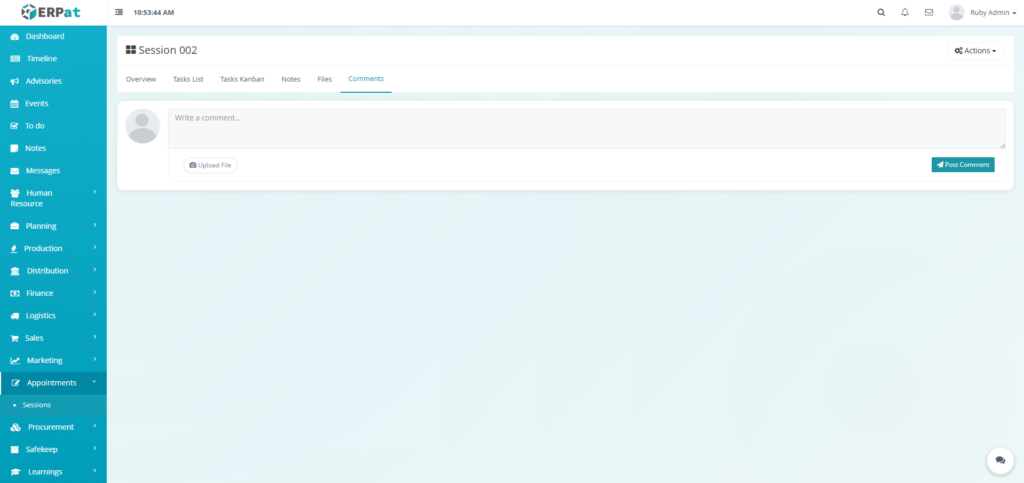
Comments #
A collaborative communication hub where members can provide feedback, discuss task updates, and foster engagement directly within the session’s context.
Permissions and Access Control #
- Session management is typically available to roles involved in operations and customer service, such as Administrators, Managers, and Front-desk Staff.
- Permissions can be configured to control who can create, edit, or cancel sessions.
Best Practices #
- Always confirm session details with the customer at the time of booking.
- Update the session status promptly to reflect its real-time progress.
- Use notes to record specific customer preferences or important session details for future reference.
- Regularly review the upcoming sessions timeline to prepare resources and staff.
Audit & Logs #
All actions within the Sessions Module, including creation, editing, status updates, and deletions, are automatically logged with a timestamp and user attribution. This creates a reliable audit trail for customer service history and operational review.
Last Updated: [January 22, 2026] Module Owner: Appointments IS – ERPat System


