Human Resource Information System

9
  • Establishment Module
  • Recruitment Module
  • Employee Module
  • Department Module
  • Schedule Module
  • Attendance Module
  • Disciplinary Module
  • Leaves Module
  • Holidays Module

Appointments Information System

1
  • Sessions Module

ERPat Dashboard

1
  • Dashboard

Internal Staff Modules

7
  • Employee Profile
  • Timeline Module
  • Advisories Module
  • Events Module
  • To Do Module
  • Notes Module
  • Messages Module

Learnings Information System

3
  • Courses Module
  • Certifications Module
  • Skillsets Module

Production Information System

3
  • Manufacturing Order Module
  • Bill of Materials Module
  • Units Module

Distributions Information System

2
  • Warehouse Module
  • Pallets Module

Finance Information System

6
  • Accounts Module
  • Vouchers Module
  • Journals Module
  • Payments Module
  • Expenses Module
  • Banks Module

Logistics Information System

4
  • Delivery Module
  • Transfer Module
  • Vehicles Module
  • Drivers Module

Sales Information System

7
  • Invoices Module
  • Estimates Module
  • Items Module
  • Brands Module
  • Clients Module
  • Customers Module
  • Stores Module

Procurement Information System

3
  • Purchases Module
  • Returns Module
  • Vendors Module

Safekeep Information System

1
  • Assets Module

Marketing Information System

5
  • Leads Module
  • Campaigns Module
  • Forms Module
  • Raffle Draw Module
  • Event Pass Module

Help Center Information System

4
  • Tickets Module
  • Internal Wiki Module
  • Knowledge Base Module
  • Pages Module

Planning Information System

4
  • All Projects Module
  • View Gantts Module
  • My Tasks Module
  • Timesheets Module

Security Information System

5
  • Kiosk Module
  • Offsite Access Module
  • Device Management Module
  • Locked Accounts Module
  • Access Logs Module

Reports Information System

5
  • Attendance Module
  • BIR Compliance
  • Financial Analysis Module
  • Sales Summary Module
  • System Logs Module

Settings Information System

8
  • System Settings
  • Components Settings
  • Customization Settings
  • Security Settings
  • Client Settings
  • Customer Settings
  • Vendor Settings
  • Setup Settings

Compensation

6
  • Payrolls Module
  • Commissions Module
  • Earnings & Deductions Module
  • De Minimis Benefits Module
  • Salary History Module
  • Loans Module
  • Home
  • Docs
  • Safekeep Information System
  • Assets Module
View Categories

Assets Module

3 min read

Overview #

The Assets Module in the ERPat System is a centralized asset management workspace that supports the complete asset lifecycle—from asset creation and classification to location assignment, grouping, labeling, and record maintenance.

It enables administrators and authorized users to register company-owned assets, assign them to structured categories and locations, organize them into groups, and manage labels for filtering and reporting. By consolidating asset information into a single module, the system ensures proper tracking, accountability, structured classification, and audit transparency.

Key Features #

  • Create and manage asset records
  • Assign assets to Categories, Groups, and Locations
  • Clone existing asset entries
  • Manage asset labels with color tagging
  • Structured classification system (Category, Group, Location)
  • Search, filter, and pagination controls
  • Export-ready structured listing
  • Role-based access and control
  • Complete audit trail for asset changes

Accessing the Assets Module #

  • Log in to the ERP System.
  • Navigate to the left sidebar menu.
  • Click Assets.

You will be directed to the Assets Browse page displaying all existing asset records.

Assets – Browse #
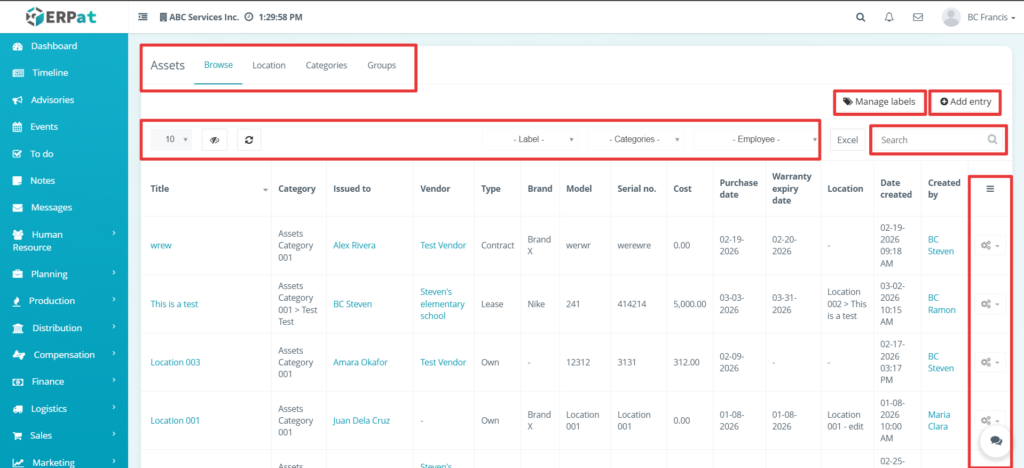
Page Controls and Tools #

  • Action Button
  • Add Entry
  • Table controls
  • Pagination

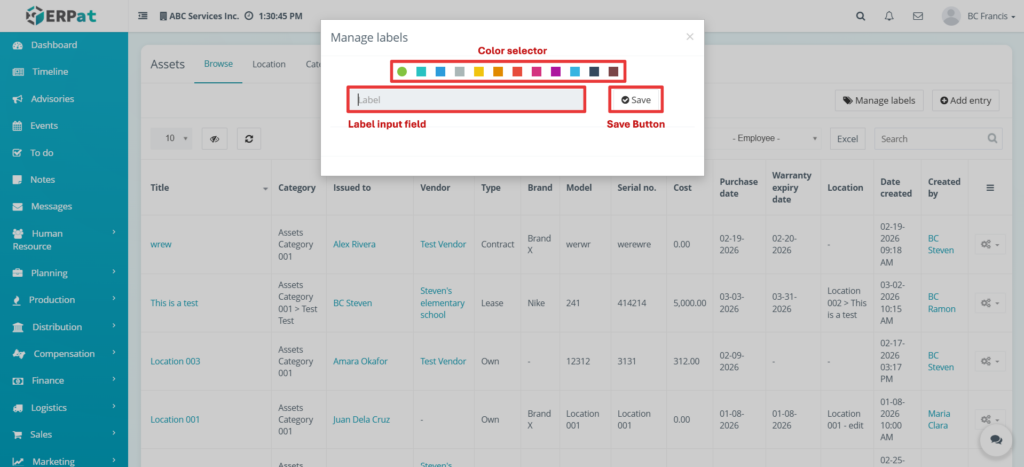
Assets – Manage Labels #

This page allows users to create and manage asset labels.

Assets – Action Button #
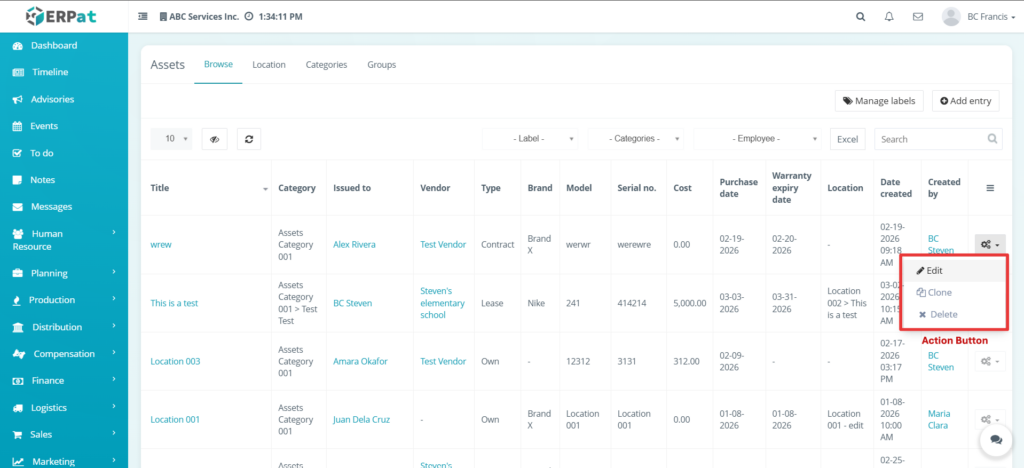
The Action Button provides quick access to asset-level operations.

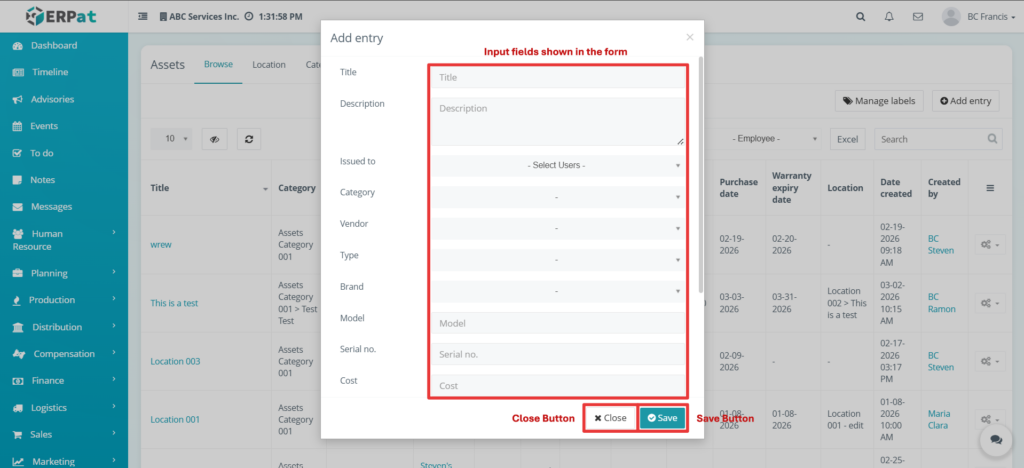
Steps for Adding a New Asset Entry #

STEPS

  1. Click the Add Entry button.
  2. Fill in the required information fields.
  3. Click the Save button.

Result #

The new asset entry will appear in the Browse listing page.

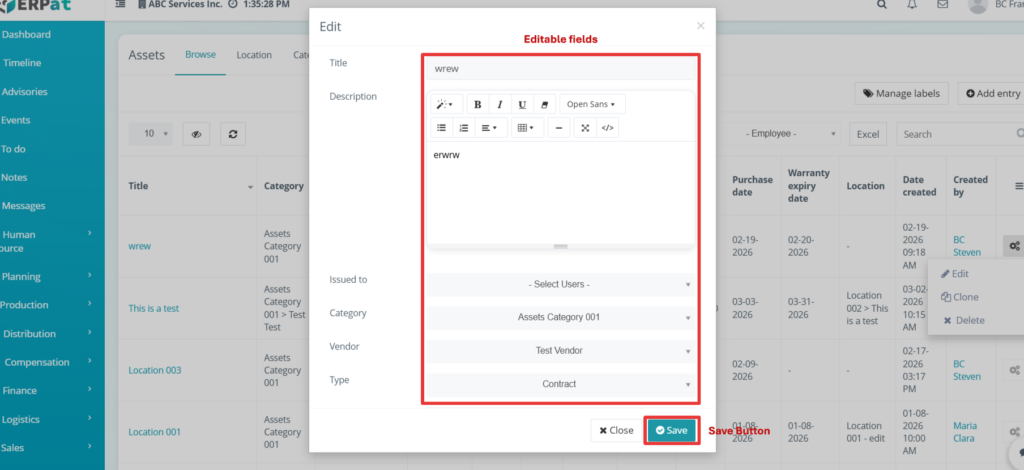
Steps for Editing an Asset Entry #

STEPS

  1. Click the Action icon from the Browse table.
  2. Select the Edit option.
  3. Update the necessary details.
  4. Click the Save button.

Result #

The asset record is updated and reflected in the listing.

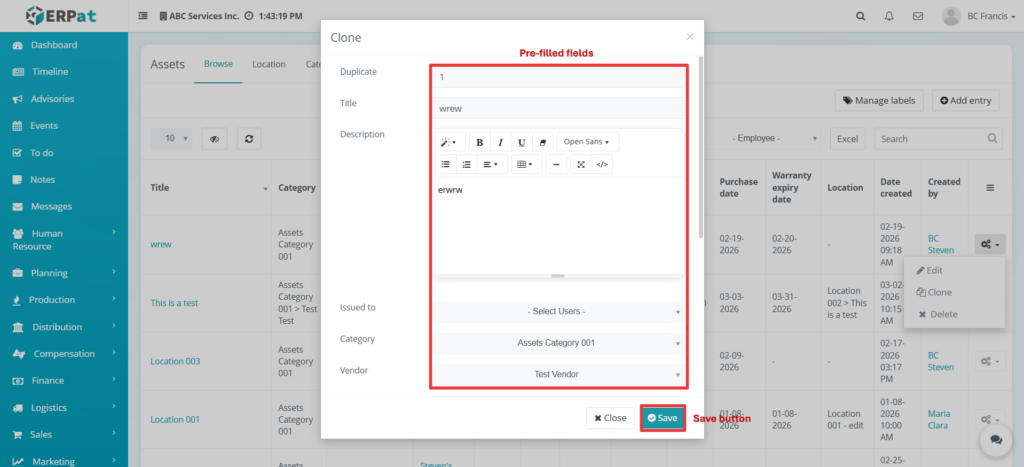
Steps for Cloning an Asset Entry #

STEPS

  1. Click the Action icon.
  2. Select the Clone option.
  3. Review the duplicated information.
  4. Click Save.

Result #

A new duplicated asset record is created.

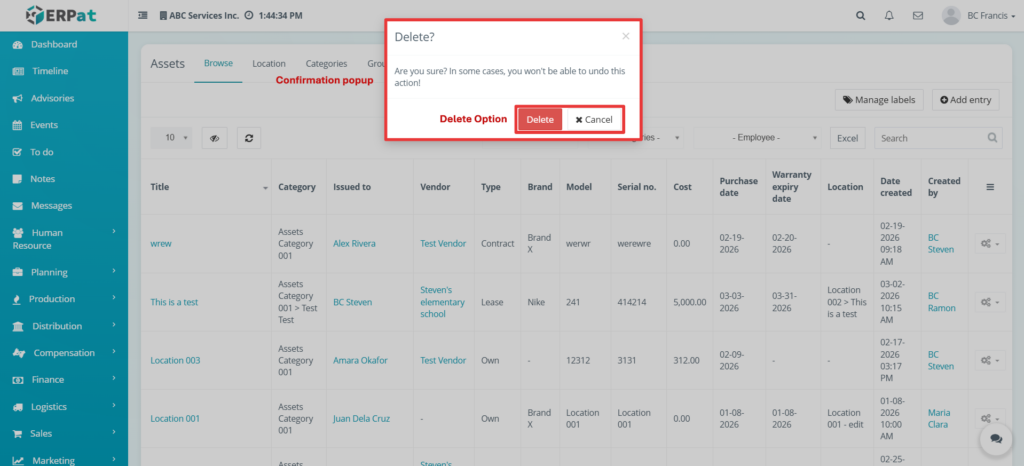
Steps for Deleting an Asset Entry #

STEPS

  1. Click the Action icon.
  2. Select the Delete option.
  3. Confirm deletion.

Result #

The selected asset record is permanently removed.

Assets – Location #
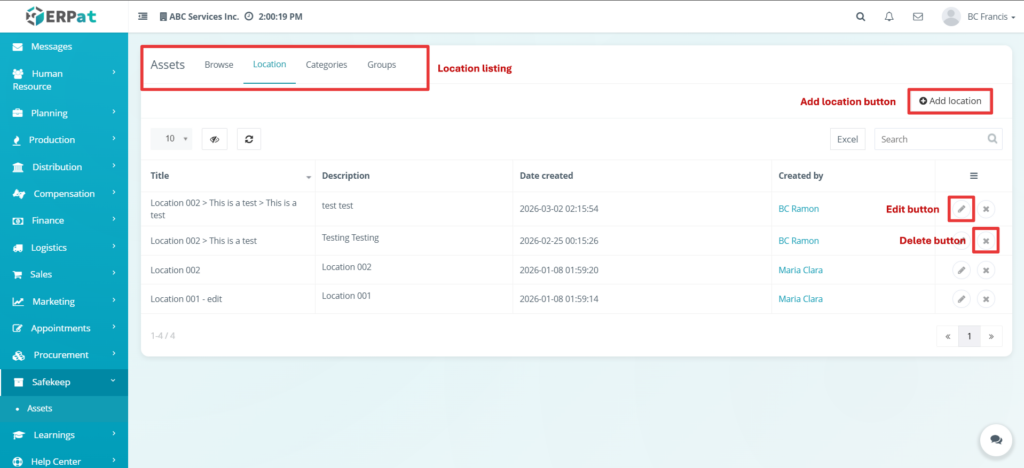
This page manages asset locations.

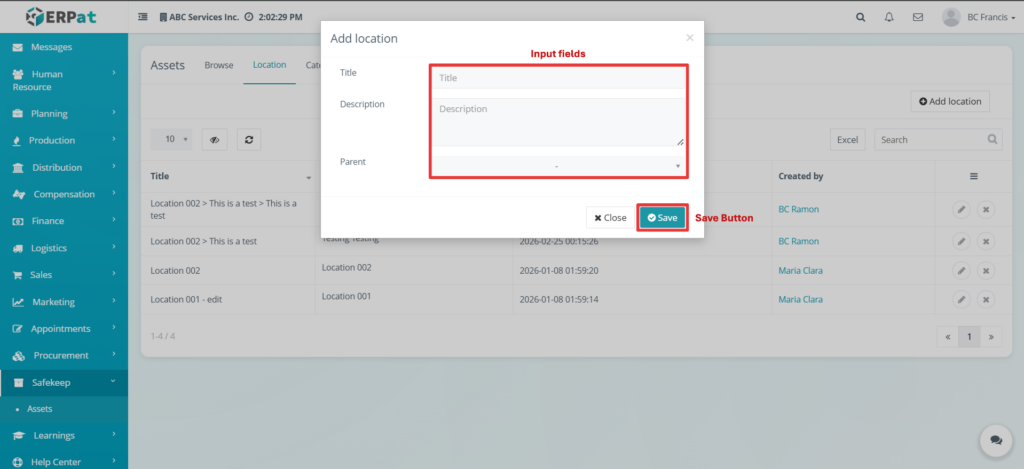
Steps for Adding a Location #

STEPS

  1. Click Add Location.
  2. Fill in required details.
  3. Click Save.

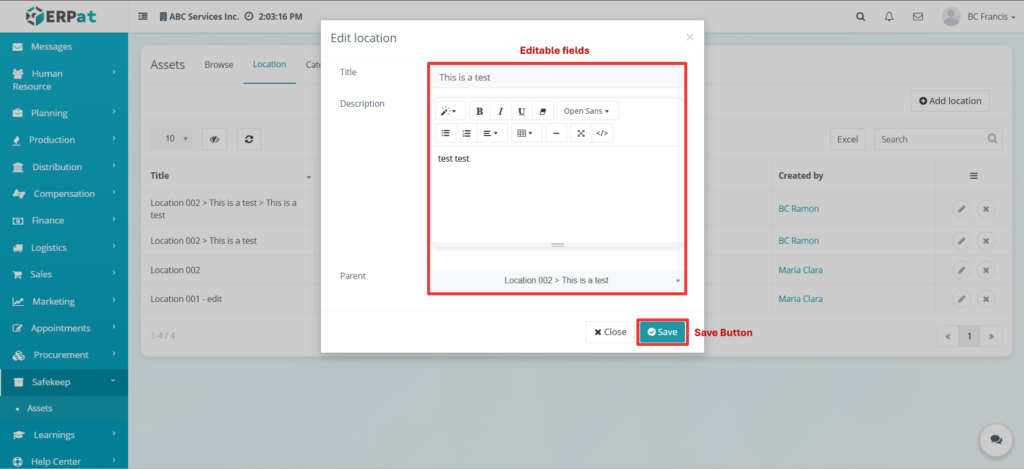
Steps for Editing a Location #

STEPS

  1. Click the Edit icon.
  2. Modify the details.
  3. Click Save.

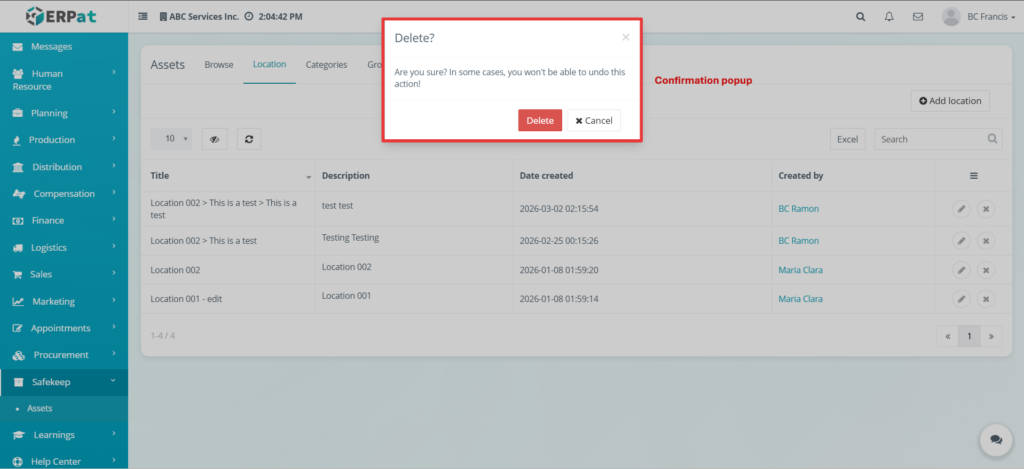
Steps for Deleting a Location

STEPS

  1. Click the Delete icon.
  2. Confirm deletion.

Assets – Categories #
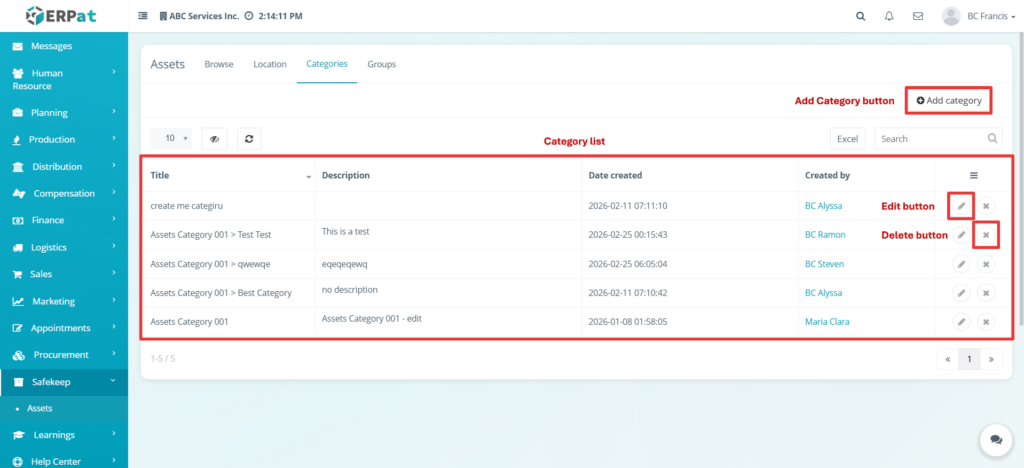
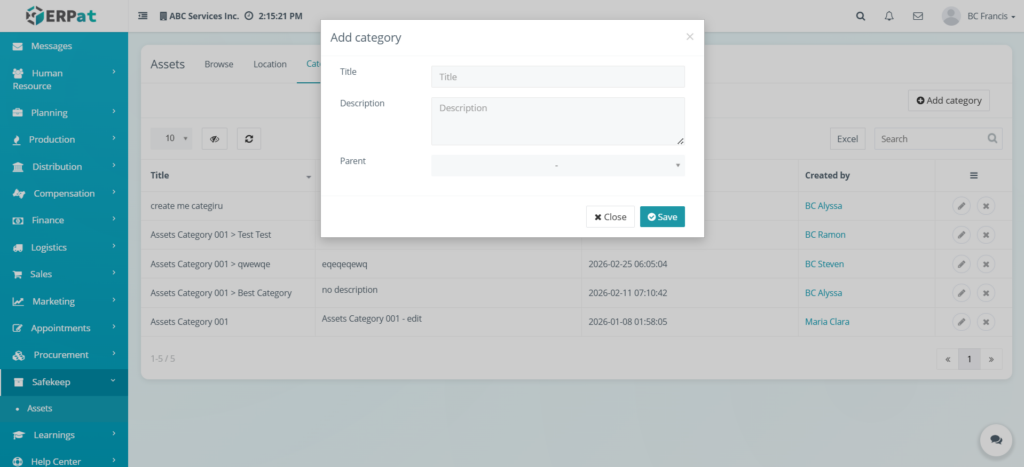
Steps for Adding a Category #

STEPS

  1. Click Add Category.
  2. Enter required information.
  3. Click Save.

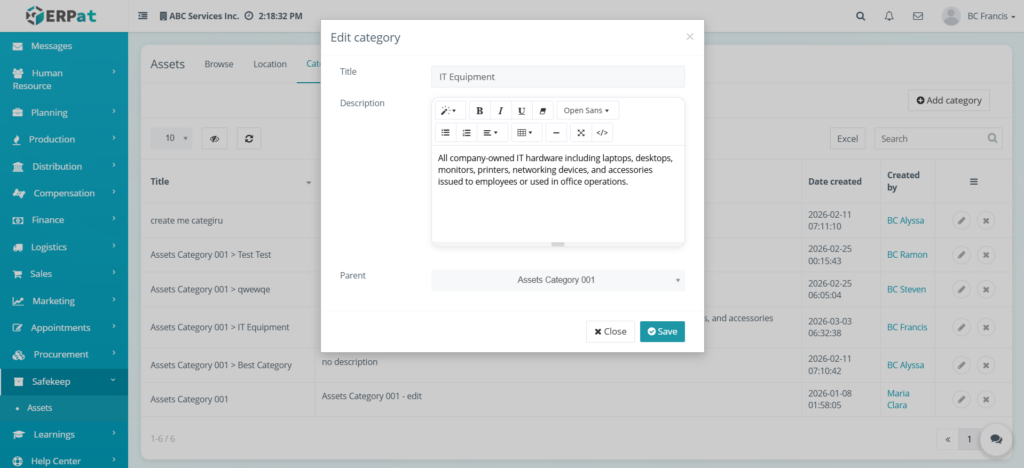
Steps for Editing a Category #

STEPS

  1. Click Edit icon.
  2. Modify details.
  3. Click Save.

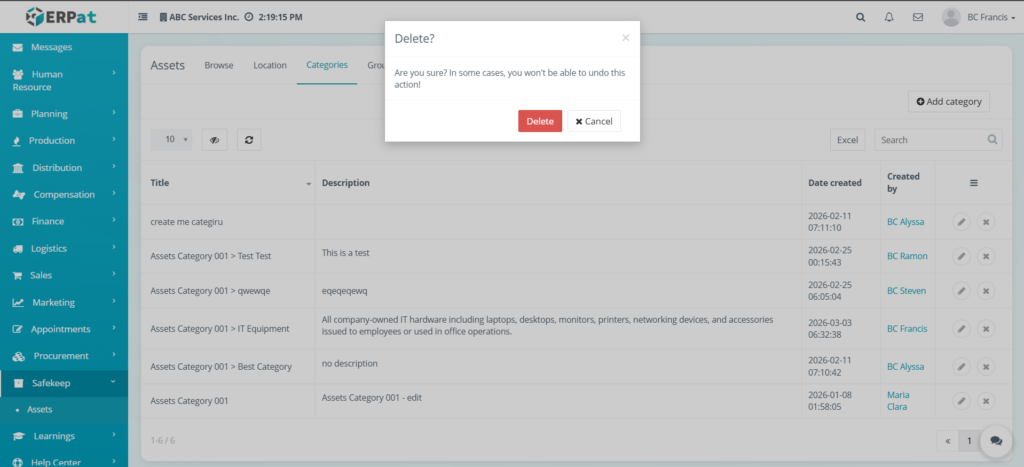
Steps for Deleting a Category #

STEPS

  1. Click Delete icon.
  2. Confirm deletion.

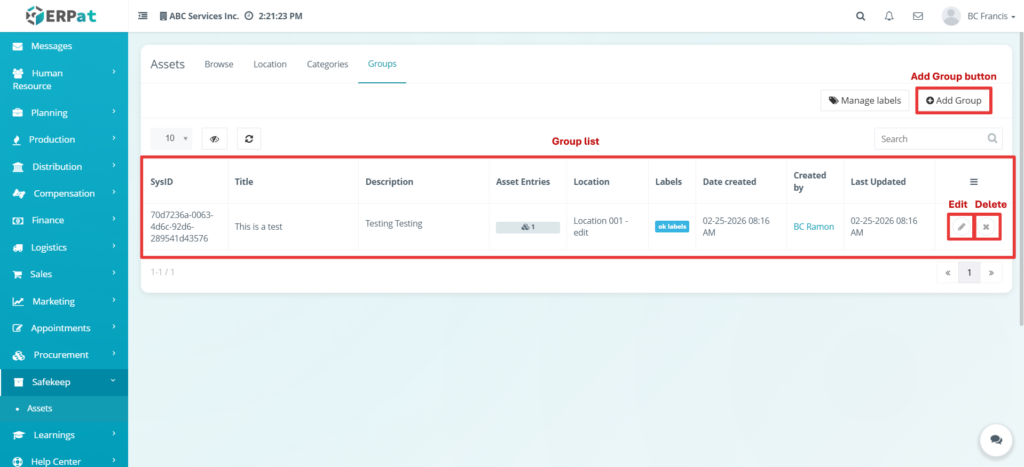
Assets – Groups #

STEPS

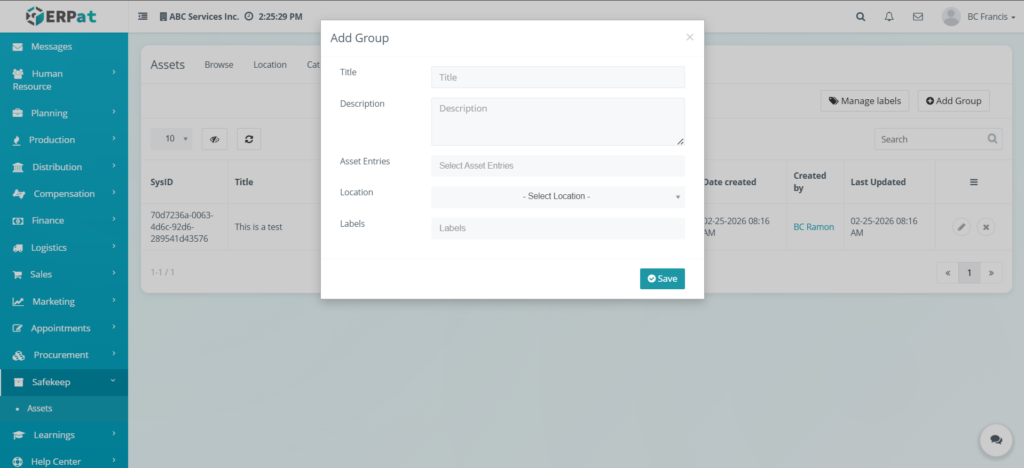
  1. Click Add Group.
  2. Enter required details.
  3. Click Save

Steps for Editing a Group #

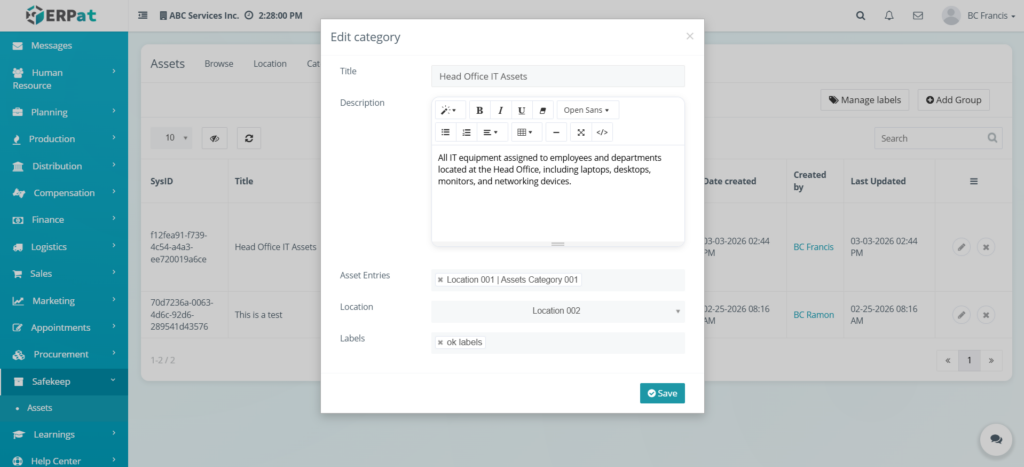
STEPS

  1. Click Edit icon.
  2. Modify details.
  3. Click Save.

Steps for Deleting a Group #

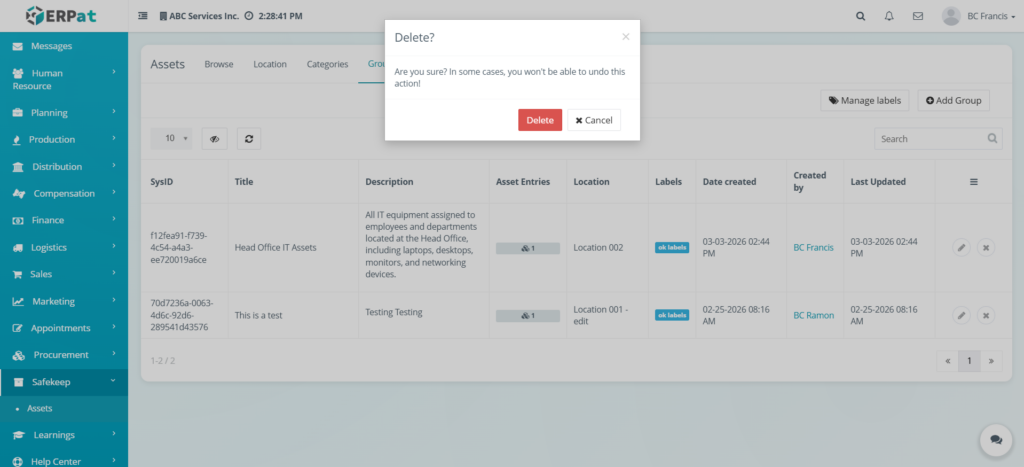
STEPS

  1. Click Delete icon.
  2. Confirm deletion.

Permissions and Access Control #

  • Asset management is restricted to authorized roles.
  • Add, Edit, Clone, and Delete functions depend on system permissions.

Audit & Logs #

All asset-related actions are logged with timestamps and user attribution for monitoring and compliance.

Last Updated: [March 03, 2026] Module Owner: Safekeep IS – ERPat System

What are your Feelings

Share This Article :

  • Facebook
  • X
  • LinkedIn
  • Pinterest
Still stuck? How can we help?

How can we help?

Updated on March 4, 2026

Leave A Comment Cancel reply

Table of Contents
  • Overview
  • Key Features
  • Accessing the Assets Module
  • Assets – Browse
  • Page Controls and Tools
  • Assets – Manage Labels
  • Assets – Action Button
  • Steps for Adding a New Asset Entry
  • Result
  • Steps for Editing an Asset Entry
  • Result
  • Steps for Cloning an Asset Entry
  • Result
  • Steps for Deleting an Asset Entry
  • Result
  • Assets – Location
  • Steps for Adding a Location
  • Steps for Editing a Location
  • Assets – Categories
  • Steps for Adding a Category
  • Steps for Editing a Category
  • Steps for Deleting a Category
  • Assets – Groups
  • Steps for Editing a Group
  • Steps for Deleting a Group
  • Permissions and Access Control
  • Audit & Logs
We use cookies to ensure that we give you the best experience on our website. If you continue to use this site we will assume that you are happy with it.