Overview #
The Delivery Module under Logistics is used to manage and track delivery transactions within the system. It records essential details such as customer information, assigned drivers, vehicles, and delivery status. This module ensures efficient coordination of delivery operations and provides visibility into shipment progress, supporting logistics planning and execution.
Each delivery record contains transaction and assignment details, ensuring consistent tracking across logistics and related modules.
Key Features #
- Centralized management of delivery records
- Tracking of delivery assignments (driver and vehicle)
- Customer and address information storage
- Delivery status monitoring
- Integration with Sales and Logistics modules
- Export (Excel) functionality for reporting
- Secure role-based access
Accessing the Delivery Module #
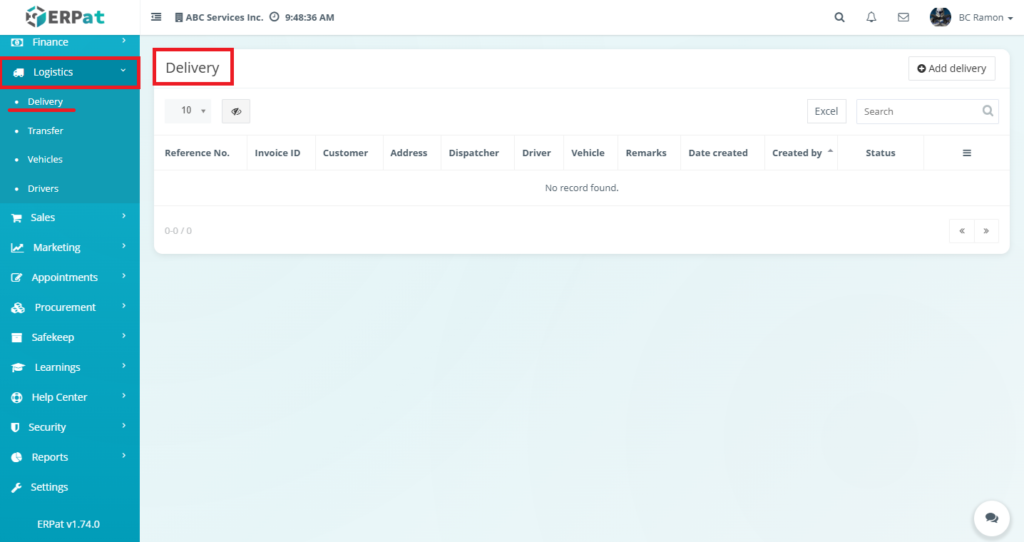
- Log in to the ERPat System.
- Navigate to Logistics from the main sidebar.
- Select Delivery.
You will be directed to the Delivery listing page displaying all existing records.
Delivery Listing Page #
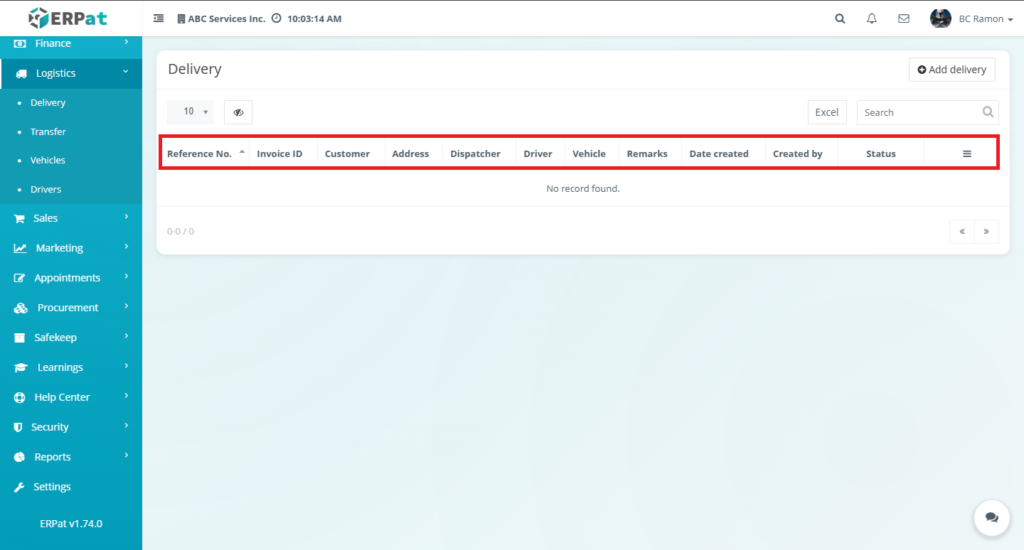
The listing page provides an overview of all delivery records with the following information:
- Reference No. – Unique identifier for the delivery
- Invoice ID – Linked sales invoice
- Customer – Name of the customer
- Address – Delivery location
- Dispatcher – Assigned personnel managing the delivery
- Driver – Assigned driver
- Vehicle – Assigned vehicle
- Remarks – Additional notes or instructions
- Date Created – Record creation date
- Created By – User who created the record
- Status – Current delivery status (e.g., Pending, In Transit, Completed)
- (≡) Actions – Edit or Delete controls
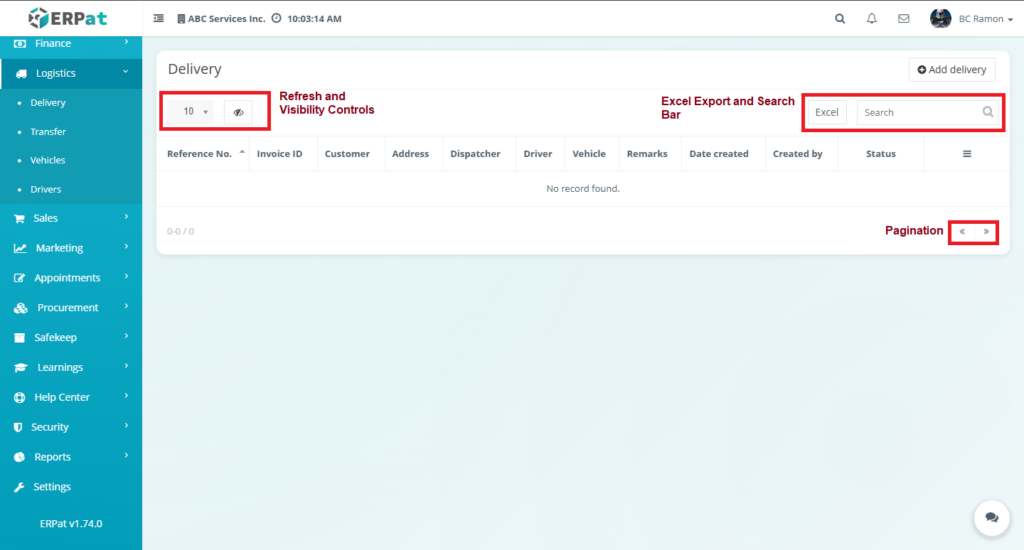
Additional controls:
- Refresh and visibility controls
- Excel export for reporting
- Search bar for quick lookup
- Pagination for large datasets
Steps for Adding a New Delivery #
STEPS #
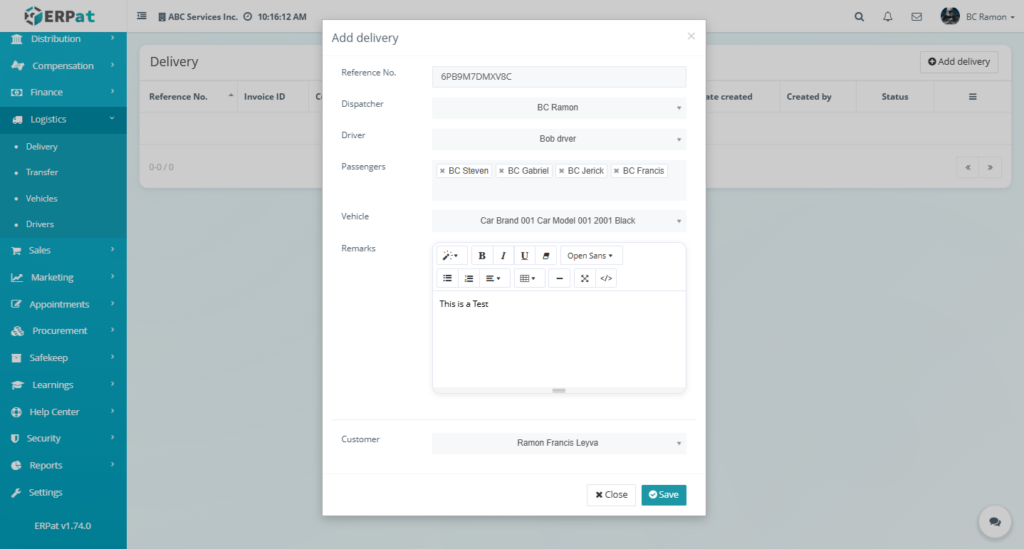
- Click the Add Delivery button located at the top-right of the page.
- Fill in the required fields:
- Reference No.
- Invoice ID
- Customer
- Address
- Dispatcher
- Driver
- Vehicle
- Remarks (optional)
- Review the information for accuracy.
- Click Save to create the delivery record.
Result #
The newly added delivery will appear in the listing and will be available for tracking and management.
Steps for Editing a Delivery #
STEPS #
- Locate the delivery from the listing.
- Click the Edit (✎) icon under the Actions column.
- Update the necessary fields.
- Click Save to apply changes.
Notes: #
- Changes will reflect across all linked logistics and sales modules.
- Assigned driver and vehicle updates will affect delivery tracking.
Steps to Delete a Delivery #
STEPS #
- Locate the delivery to be removed.
- Click the Delete (✖) icon under the Actions column.
- Confirm the deletion when prompted.
Delivery Status Indicator #
Displays the current state of the delivery process, such as:
- Pending
- Dispatched
- In Transit
- Completed
Used for monitoring delivery progress and operational efficiency.
Search and Filtering #
- Use the Search field to find deliveries by reference number, customer, or driver.
- Pagination controls help navigate through multiple records efficiently.
Permissions and Access Control #
- Only authorized Logistics or Admin roles can add, edit, or delete delivery records.
- View-only access may be granted to supervisory or monitoring roles.
Best Practices #
- Ensure accurate assignment of drivers and vehicles.
- Use clear and consistent reference numbers.
- Update delivery status in real-time for accurate tracking.
- Avoid deleting records that are already completed or linked to invoices.
Audit & Logs #
All create, update, and delete actions for delivery records are logged for audit and compliance purposes within the ERPat System.
Last Updated: [March 18, 2026] Module Owner: Logistics IS – ERPat System


