Overview #
The To Do Module is used to create, manage, and track task-based activities within the ERP system. It allows users to record action items, assign collaborators, set deadlines, attach supporting files, and monitor task progress.
This module supports internal coordination, accountability, and task visibility across departments. Tasks can be categorized, filtered, marked as completed, and exported for reporting purposes.
Key Features #
- Quick task creation using title-only input
- Detailed task editing via popup modal
- Multiple collaborator assignment
- Label tagging for categorization
- Due date and reminder configuration
- Repeat task option
- File attachment support
- Task status management (To Do / Done)
- Excel export functionality
- Search, filter, and sorting capabilities
- Secure role-based task access
Accessing the To Do Module #
- Log in to the ERP System
- Navigate to the left sidebar menu.
- Click To Do.
You will be directed to the To Do listing page displaying all existing records.
To Do Listing Page #
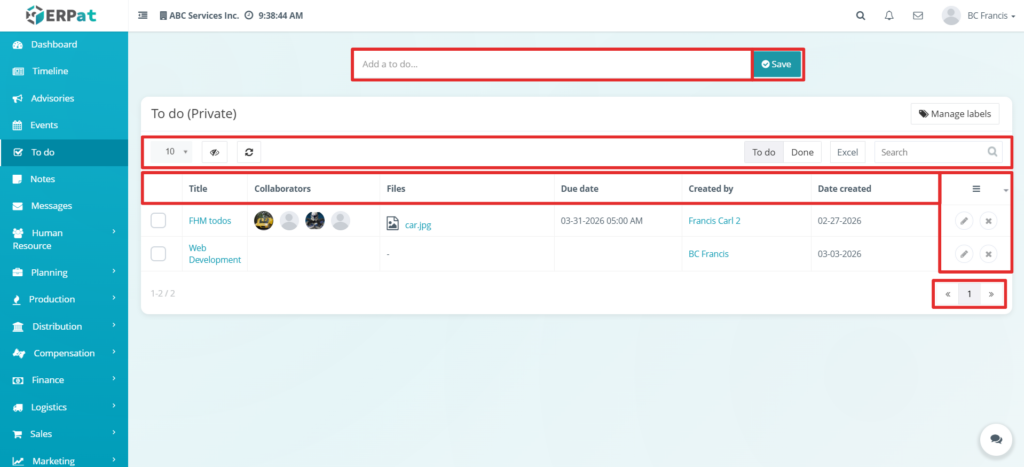
The listing page provides an overview of all created tasks with the following information:
- Checkbox – Select task record
- Title – Name of the task
- Collaborators – Assigned users
- Files – Attached documents (if any)
- Due Date – Configured deadline
- Created By – User who created the task
- Date Created – System-generated creation date
- Actions – Edit or Delete controls
Additional Controls: #
- Sorting options for organizing records
- Filter controls for task visibility
- Reload button to refresh records
- To Do tab (active tasks)
- Done tab (completed tasks)
- Excel export (downloadable report)
- Search bar for quick lookup
- Pagination controls for navigating multiple records
Steps for Adding a New To Do #
STEPS
- Locate the “Add a to do…” input field at the top of the page.
- Enter the task title (Title is required).
- Click Save.
The task will immediately appear in the listing table.
Result #
The newly added To Do will be displayed in the To Do listing page and is available for further editing and assignment.
Steps for Editing a To Do #
STEPS
- Locate the task from the listing.
- Click the Edit (✏️) icon under the Actions column.
- The Edit popup modal will appear.
- Update or add the following fields as needed:
- Title
- Description
- Collaborators (multiple users)
- Labels
- Due Date
- Remind Me
- Repeat (checkbox option)
- Upload File (attachment support)
- Click Save to apply changes.
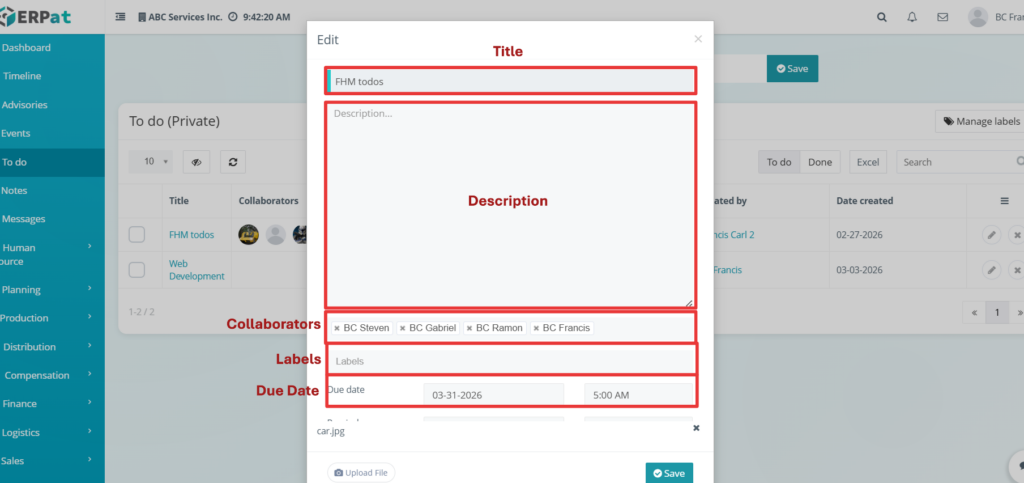
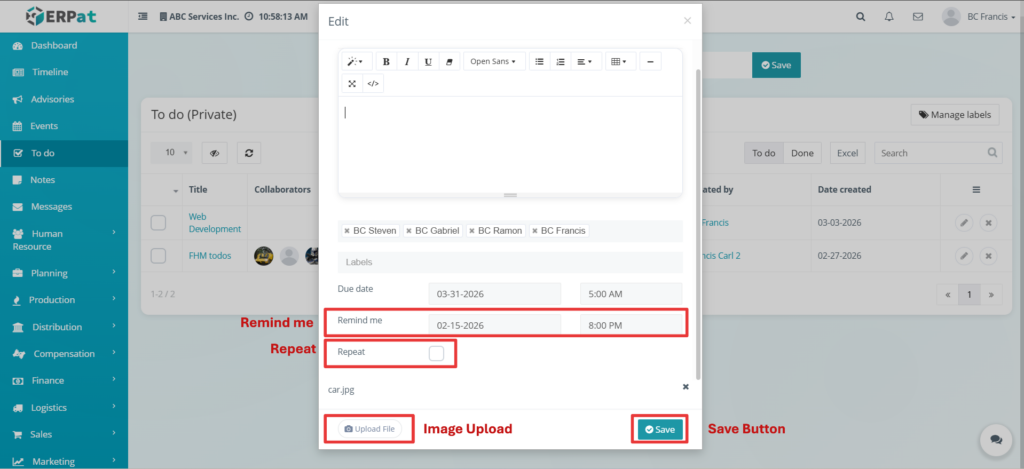
NOTES:
- Multiple collaborators can be assigned to a single task.
- File attachments are linked directly to the task record.
- Due date and reminder settings assist in deadline tracking.
- Repeat option enables recurring task behavior.
Steps to Delete a To Do #
STEPS
- Locate the task to be removed.
- Click the Delete (✖) icon under the Actions column.
- Confirm the deletion when prompted.
The selected To Do will be permanently removed from the system.
Label Management #
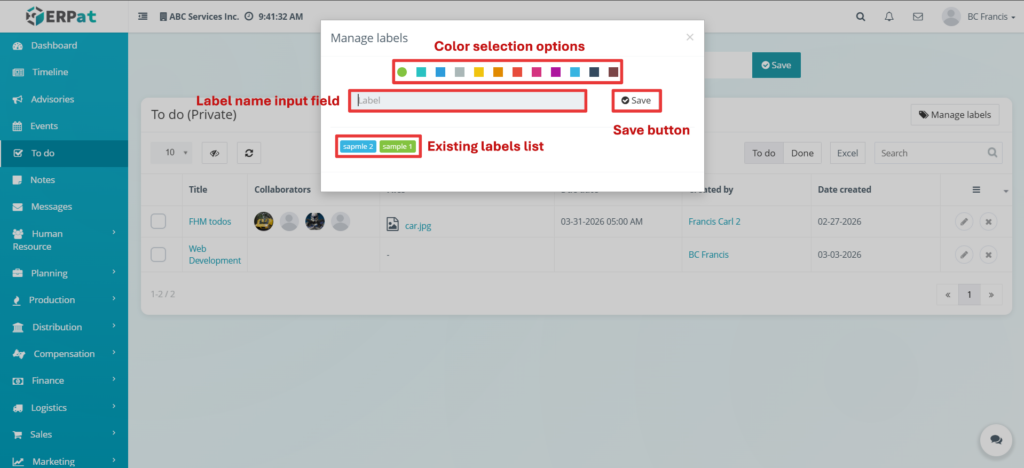
Users can manage task labels directly from the listing page.
- Click Manage Labels.
- Select a color.
- Enter the label name.
- Click Save.
Labels help categorize and visually organize tasks.
Search and Filtering #
- Use the Search field to find tasks by title.
- Switch between To Do and Done tabs to filter by task status.
- Use sorting and filtering controls to refine task visibility.
- Pagination controls allow efficient navigation through multiple records.
Permissions and Access Control #
- Users can create and manage their own tasks.
- Only authorized users can edit or delete tasks they created (depending on role configuration).
- Administrative roles may have extended visibility and management permissions.
Best Practices #
- Use clear and action-oriented task titles.
- Assign collaborators for accountability.
- Set due dates for time-sensitive tasks.
- Use labels consistently for better organization.
- Avoid deleting tasks that may be required for tracking history.
Audit & Logs #
All create, update, and delete actions for To Do records are logged within the ERP system for monitoring and accountability purposes.
Last Updated: [March 3, 2026] Module Owner: Home IS – ERP System


