Overview #
The System Module is used to configure core system-wide settings within the ERPat system. It allows administrators to manage general system behavior, display preferences, calendar configurations, financial settings, and company information.
These settings serve as the foundation for how the system operates, ensuring consistency across the modules.
Key Features #
- Centralized system configuration management
- Customizable display and interface settings
- Calendar and time configuration control
- Financial formatting and payroll setup
- Company information management
- System-wide behavior customization
- Secure administrative access
Accessing the System Module #
STEPS #
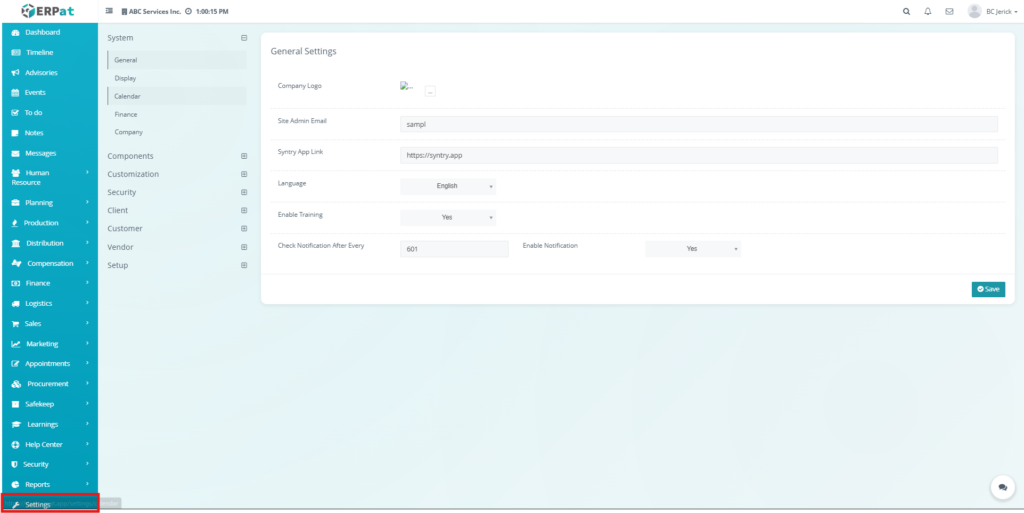
- Navigate to the left sidebar menu
- Click Settings
General Tab #
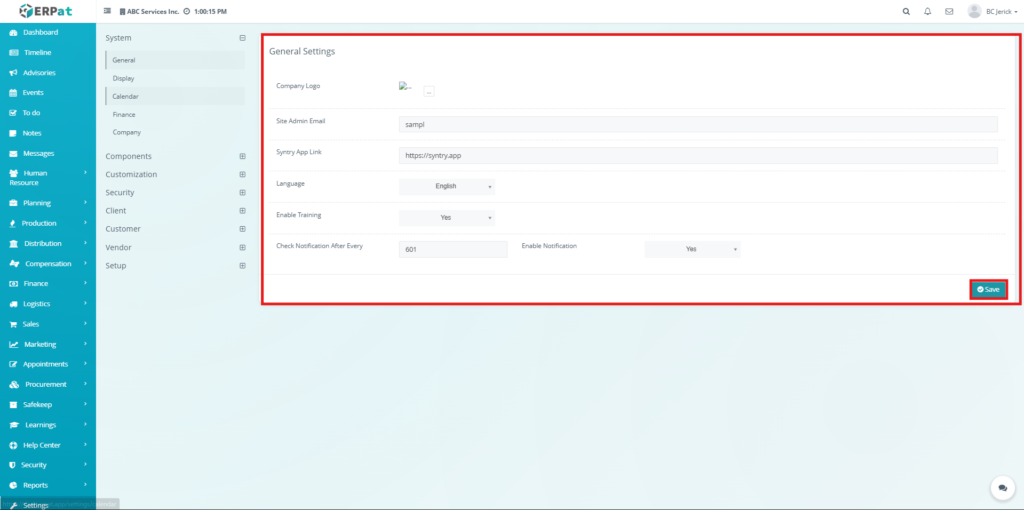
The General Tab is used to configure basic system settings such as company branding, system email, application links, language preferences, and notification behavior.
General Settings #
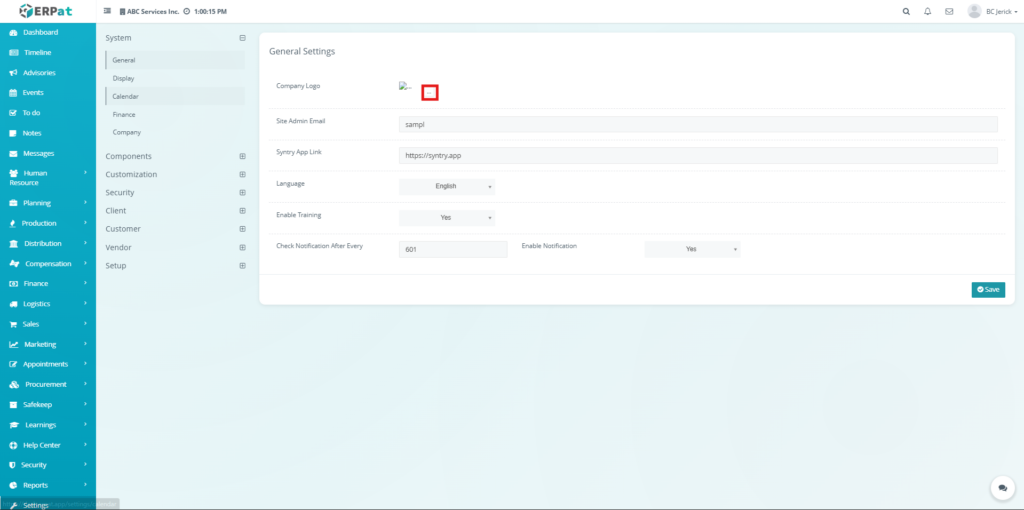
Company Logo – Upload and display the company logo
Site Admin Email – Primary system email for administrative use
Syntry App Link – External application or system link
Language – Default system language
Enable Training – Enables training-related features
Check Notification After Every – Interval value for notification checking
Enable Notification – Toggle system notifications on or off
Steps for Configuring General Settings #
STEPS
- Upload or update the Company Logo
- Enter the Site Admin Email
- Provide the Syntry App Link if applicable
- Select the preferred Language
- Set Enable Training option
- Enter value for notification checking interval
- Toggle Enable Notification as needed
- Click Save
Result #
The system will apply the updated general settings across all modules
Notes #
- Company logo is used for branding across the system
- Notification settings affect system alerts and updates
Display Tab #
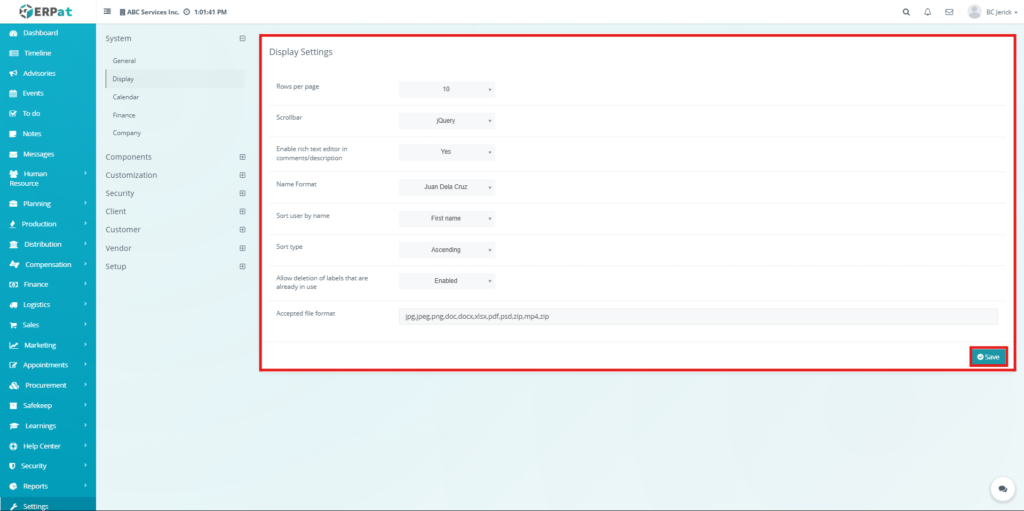
The Display Tab is used to control how data and interface elements are presented throughout the ERPat system. It allows administrators to customize viewing preferences and formatting behavior.
Display Settings #
- Rows per page – Number of records displayed per page
- Scrollbar – Type of scrollbar used in the interface
- Enable rich text editor – Enables formatting tools in comments and descriptions
- Name Format – Format of user names (e.g., Juan Dela Cruz)
- Sort user by name – Determines sorting basis (First name or Last name)
- Sort type – Ascending or Descending order
- Allow deletion of labels that are already in use – Enables or restricts deletion
- Accepted file format – Defines allowed file upload formats
Steps for Configuring Display Settings #
STEPS #
- Select preferred Rows per page
- Choose Scrollbar type
- Enable or disable rich text editor
- Set Name Format
- Select user sorting method
- Choose Sort type
- Enable or disable label deletion
- Define accepted file formats
- Click Save
Result #
Display preferences will be applied across all modules and listing pages
Notes #
- Accepted file formats control uploads system-wide
- Sorting settings affect how records are displayed
Calendar Tab #
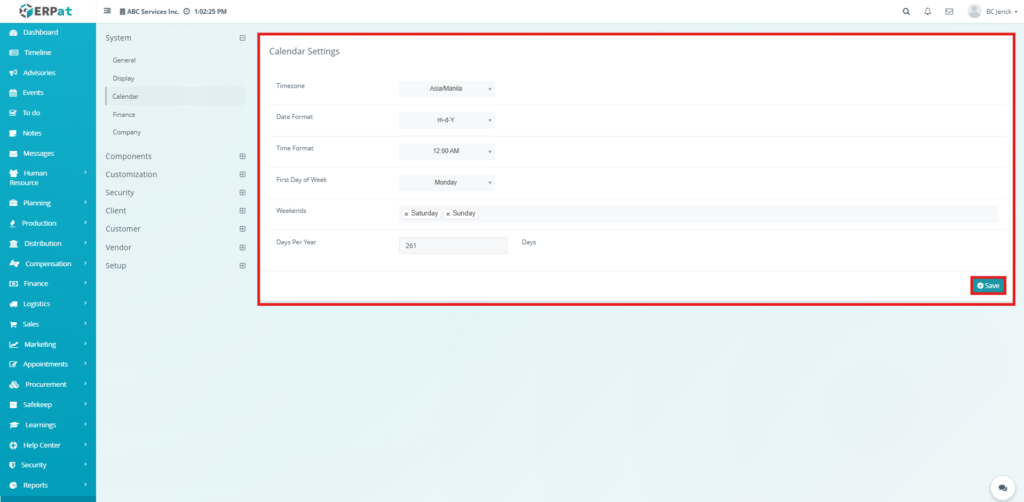
The Calendar Tab is used to configure date, time, and scheduling preferences within the ERPat system. These settings affect attendance, scheduling, and reporting modules.
Calendar Settings #
- Timezone – Defines system timezone
- Date Format – Format used for displaying dates
- Time Format – Format used for displaying time
- First Day of Week – Defines start of the week
- Weekends – Selected days considered as weekends
- Days Per Year – Total working or calendar days
Steps for Configuring Calendar Settings #
STEPS #
- Select the appropriate Timezone
- Choose preferred Date Format
- Select Time Format
- Set the First Day of Week
- Select Weekend days
- Enter Days Per Year
- Click Save
Result #
Calendar and time configurations will be applied across scheduling, attendance, and reports
Notes #
- Timezone affects all time-based records
- Weekend settings impact attendance and scheduling logic
Finance Tab #
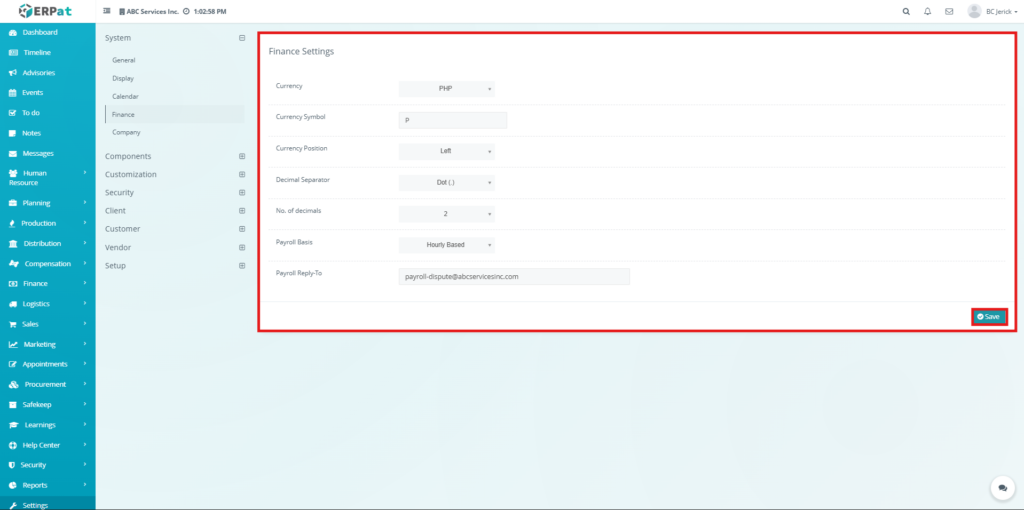
The Finance Tab is used to configure financial system settings including currency, formatting, and payroll preferences. These settings ensure consistency in financial records and reports.
Finance Settings #
- Currency – Default currency used in the system
- Currency Symbol – Symbol representation (e.g., ₱)
- Currency Position – Placement of currency symbol (Left or Right)
- Decimal Separator – Format for decimal values
- No. of decimals – Number of decimal places
- Payroll Basis – Payroll calculation type (e.g., Hourly Based)
- Payroll Reply-To – Email used for payroll-related communication
Steps for Configuring Finance Settings #
STEPS #
- Select Currency
- Enter Currency Symbol
- Choose Currency Position
- Select Decimal Separator
- Set number of decimals
- Choose Payroll Basis
- Enter Payroll Reply-To email
- Click Save
Result #
Financial settings will be applied across payroll, transactions, and reports
Notes #
- Currency settings affect all financial computations
- Payroll settings impact salary and compensation calculations
Company Tab #
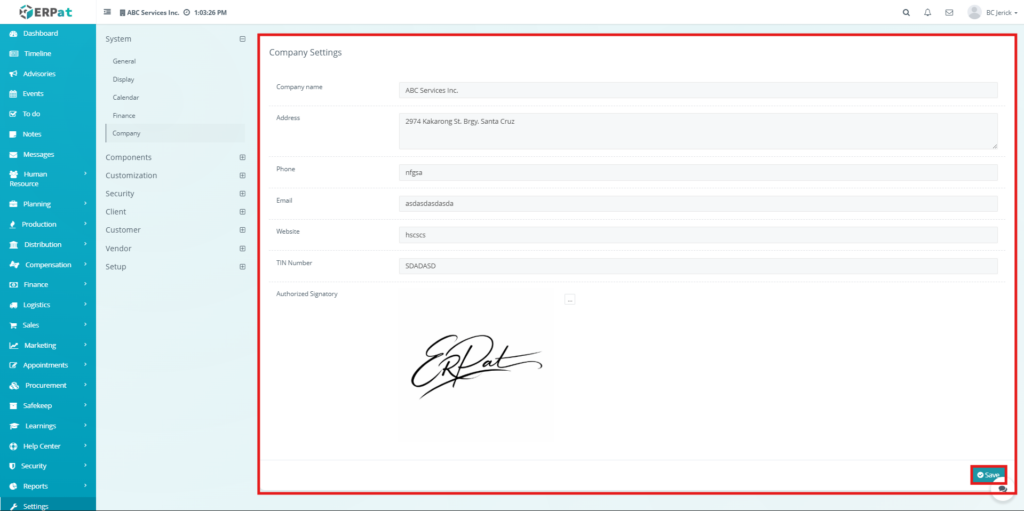
The Company Tab is used to manage company-related information within the ERPat system. This includes business details, contact information, and authorized signatory configuration.
Company Settings #
- Company Name – Name of the organization
- Address – Company address details
- Phone – Contact number
- Email – Company email address
- Website – Company website link
- TIN Number – Tax identification number
- Authorized Signatory – Uploaded signature for official documents
Steps for Configuring Company Settings #
STEPS #
- Enter Company Name
- Provide Address details
- Enter Phone number
- Input Email address
- Enter Website
- Provide TIN Number
- Upload Authorized Signatory
- Click Save
Result #
Company information will be updated and reflected across system documents and reports
Notes #
- Authorized signatory is used in official documents
- Ensure accurate company details for reporting and compliance
Search and Filtering #
The System Module is configuration-based and does not include listing filters. All changes are applied directly through input fields and dropdown selections.
Permissions and Access Control #
Access to the System Module depends on assigned user roles.
Typical permissions include:
- Only administrators can modify system settings
- Authorized users may view configuration values
- System settings are protected to prevent unauthorized changes
Best Practices #
- Ensure all system settings are reviewed before deployment
- Use consistent formats for dates, currency, and names
- Restrict access to system configuration to administrators only
- Regularly update company and financial information
- Validate file formats to prevent upload issues
Audit & Logs #
All changes made within the System Module are recorded in system logs to ensure transparency and accountability.
Logged activities include:
- Updates to general system settings
- Display configuration changes
- Calendar and timezone updates
- Financial configuration changes
- Company information updates
Last Updated: [March 26, 2026] Module Owner: System Module – ERPat System


