Overview #
The Purchase Returns section under the Procurement Module allows users to manage and track returned purchase transactions within the ERPat system. This feature helps organizations record items returned to suppliers, maintain accurate financial records, and ensure proper documentation of return transactions.
Users can create return records linked to purchase orders, monitor return amounts, document remarks, and track when the return was created and by whom. The system also provides tools for searching, filtering, exporting, and organizing return records.
This module supports efficient procurement management by maintaining a clear record of returned goods and ensuring transparency in supplier transactions.
Key Features #
- Centralized purchase return record management
- Return records linked to purchase transactions
- Supplier tracking for returned items
- Return amount recording
- Remarks or notes for return transactions
- Creation date tracking
- User activity tracking (created by)
- Export purchase return records to Excel
- Search and filtering tools for quick lookup
- Adjustable record display count
- Column sorting for organized viewing
- Pagination controls for large datasets
Accessing the Purchase Returns Module #
Steps #
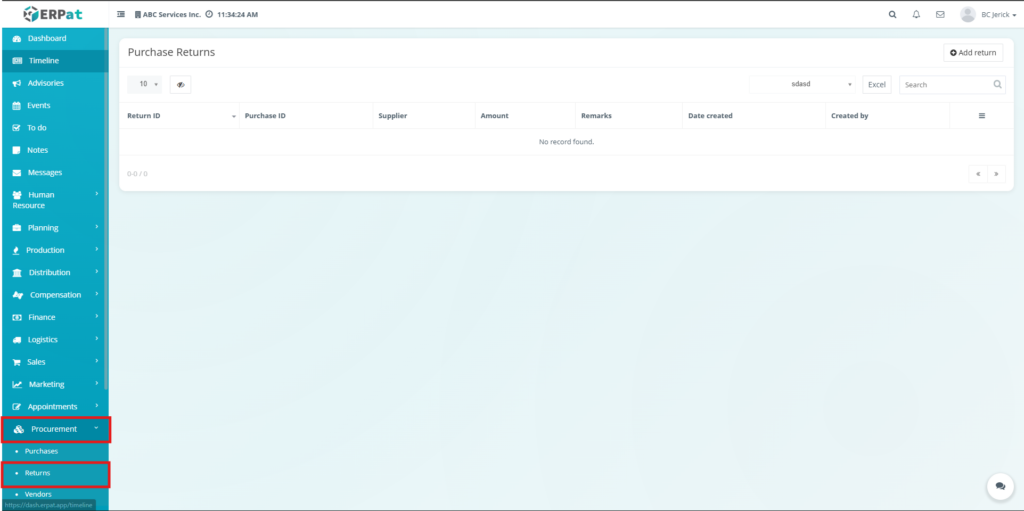
- Navigate to the left sidebar menu.
- Click Procurement to expand the module options.
- Select Returns.
The system will redirect you to the Purchase Returns listing page where all return records are displayed.
Purchase Returns Listing Page
The Purchase Returns listing page provides an overview of all purchase return transactions recorded in the system.
Information Displayed #
The table includes the following fields:
- Return ID – Unique identifier for the return record
- Purchase ID – Associated purchase transaction ID
- Supplier – Supplier linked to the purchase return
- Amount – Total value of the returned items
- Remarks – Additional notes related to the return
- Date Created – Date when the return record was created
- Created By – User who recorded the return transaction
- Actions – Available record management options
Additional Controls #
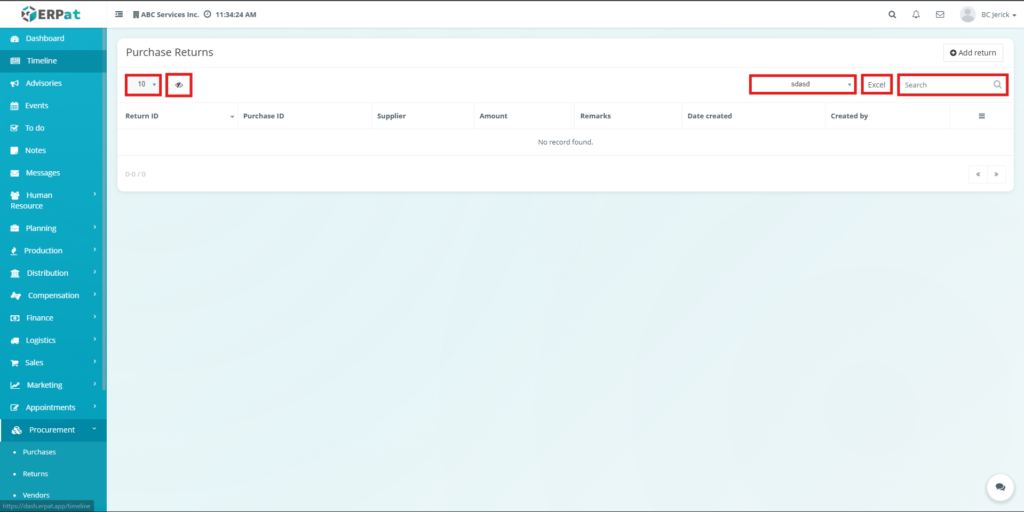
The Purchase Returns page contains several controls that help manage and navigate records efficiently.
- Record Display Dropdown – Allows users to select how many records are displayed per page.
- Column Visibility Button – Displays or hides specific table columns depending on user preference.
- Filter Dropdown – Allows filtering of records based on selected criteria.
- Excel Export Button – Exports the purchase return records into an Excel file for reporting or offline use.
- Search Bar – Allows users to quickly locate return records using keywords.
Steps for Adding a Purchase Return #
STEPS #
- Navigate to the Purchase Returns module.
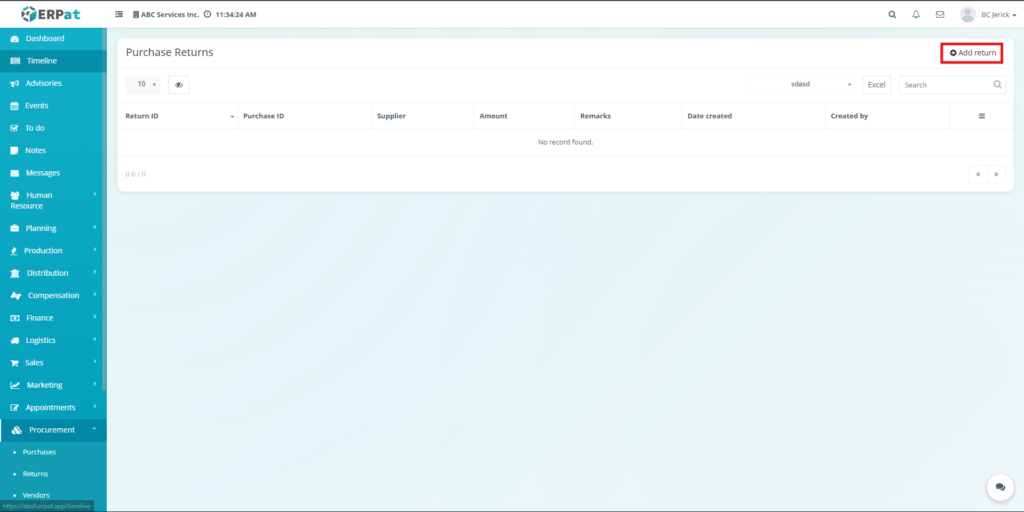
- Click the Add Return button located in the upper-right corner.
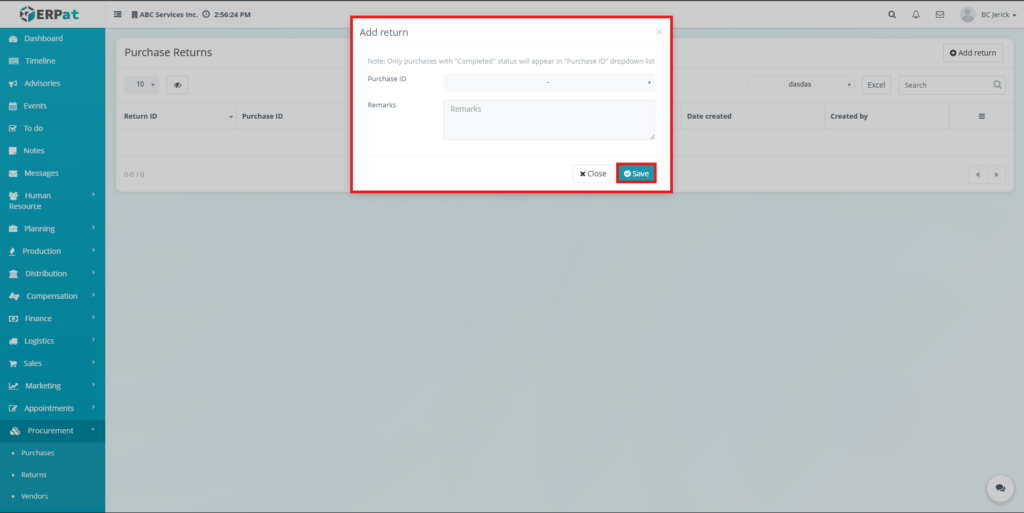
- A purchase return form will appear.
- Enter the required details such as:
- Purchase reference
- Supplier
- Return amount
- Remarks or notes
- Review the information entered.
- Click Save.
Result #
The newly created return record will appear in the Purchase Returns listing table, where it can be viewed and managed.
Purchase Returns Table Structure #
The table organizes return records into structured columns to allow easy monitoring and management.
Table Columns #
- Return ID – Unique identifier assigned to each purchase return transaction.
- Purchase ID – Reference ID of the original purchase transaction.
- Supplier – Name of the supplier associated with the returned purchase.
- Amount – Total monetary value of the returned items.
- Remarks – Optional notes describing the reason or context for the return.
- Date Created – Timestamp indicating when the return record was created.
- Created By – User who recorded the return entry.
Search and Filtering #
Users can quickly locate purchase return records using the available filtering tools.
- Search Field – Find records using keywords related to return transactions.
- Filter Dropdown – Narrow down records using predefined filtering options.
- Column Sorting – Sort records by Return ID, Purchase ID, Date Created, or other columns.
- Pagination Controls – Navigate between pages when multiple records exist.
These tools help users efficiently manage and locate purchase return records in large datasets.
Permissions and Access Control #
- Authorized users can create purchase return records.
- Role-based permissions determine who can edit or delete records.
- Administrative roles typically have full access to manage procurement return data.
Best Practices #
- Always verify the associated Purchase ID before creating a return record.
- Enter clear remarks to document the reason for the return.
- Regularly export records for reporting and reconciliation purposes.
- Review return records periodically to maintain procurement accuracy.
- Ensure only authorized personnel manage purchase return entries.
Audit & Logs #
All create, update, and delete actions related to purchase return records are logged within the ERPat system to maintain accountability and traceability.
Last Updated: March 16, 2026 Module Owner: Purchase Returns (ERPat System)


