Overview #
The System Logs Module is used to track and monitor all system-generated activities within the ERPat system. It provides a centralized record of user actions, system events, and module interactions for auditing, troubleshooting, and security purposes.
Each log entry contains detailed information such as the timestamp, affected component, executed action, and the user responsible, ensuring full transparency and traceability across the system.
Key Features #
- Centralized system activity logging
- Real-time tracking of user and system actions
- Detailed log information including components and messages
- Severity level classification (Info, Critical, etc.)
- Advanced search and filtering tools
- Date-based log navigation
- Excel export for reporting
- Pagination for efficient record browsing
- Detailed log viewing per entry
- Secure role-based access
Accessing the System Logs Module #
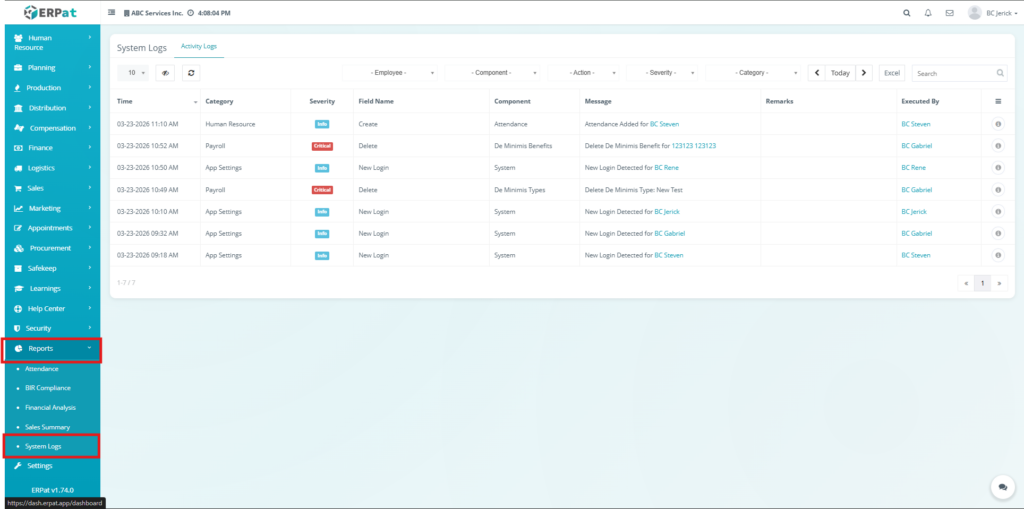
- Log in to the ERPat System.
- Navigate to Reports from the main sidebar.
- Select System Logs.
- You will be directed to the System Logs page displaying all recorded activities.
System Logs Listing Page #
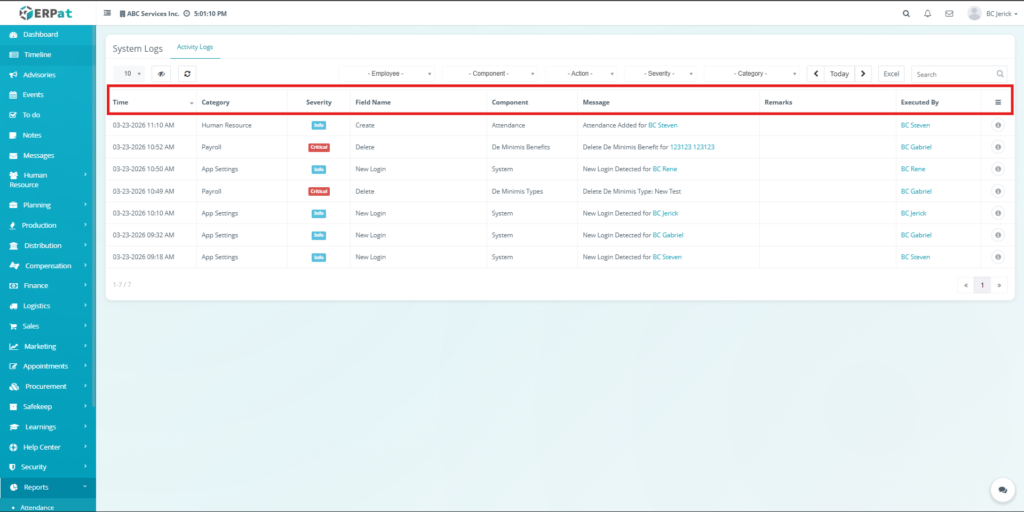
The listing page provides an overview of all system logs with the following information:
- Time – Date and time when the action occurred
- Category – Module where the activity was performed
- Severity – Level of importance (e.g., Info, Critical)
- Field Name – Type of action performed (e.g., Create, Delete, New Login)
- Component – System component affected (e.g., Attendance, System)
- Message – Description of the action
- Remarks – Additional system-generated details
- Executed By – User who performed the action
- Actions – View details control
Additional controls: #
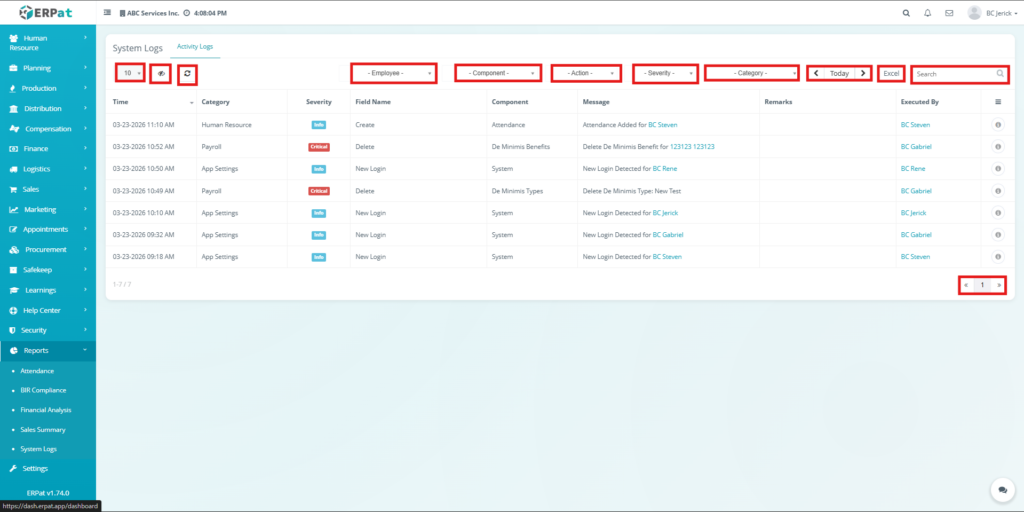
- Entries dropdown for selecting number of records per page
- Column visibility toggle
- Refresh button for real-time updates
- Date filter (e.g., Today)
- Excel export button
- Search bar for quick lookup
- Pagination controls
Steps to View Log Details #
STEPS #
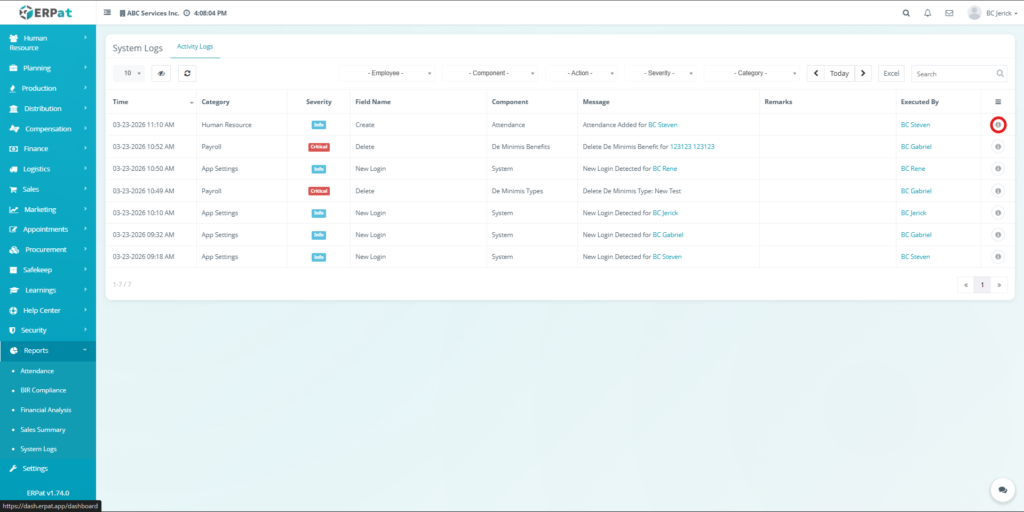
Click the View (ⓘ) icon under the Actions column.
Review the detailed log information displayed in the popup window.
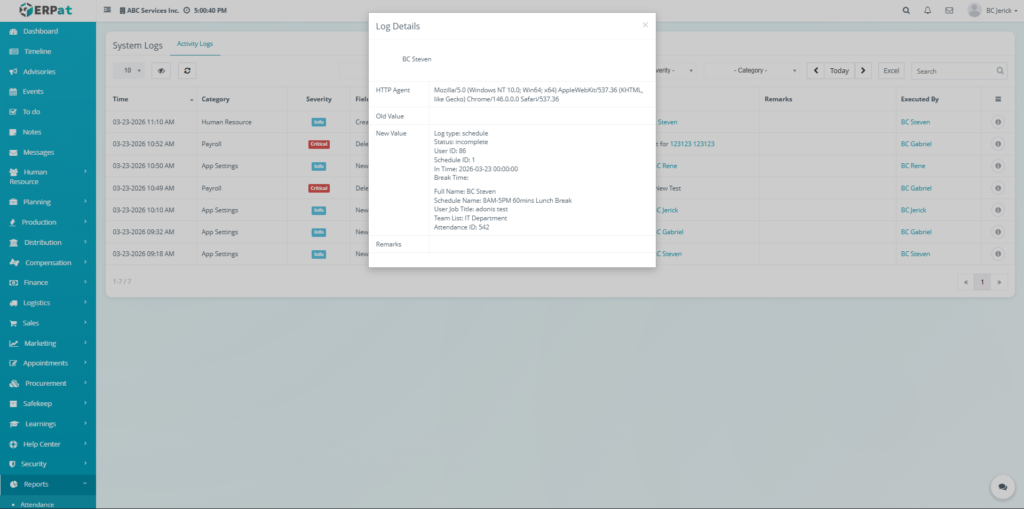
Result #
The system displays complete information about the selected log, including action details, user activity, and system-generated data for audit purposes.
Search and Filtering #
- Use the Employee filter to view logs performed by a specific user.
- Use the Component filter to display logs related to a specific system component.
- Use the Action filter to narrow results based on actions such as Create, Delete, or Login.
- Use the Severity filter to view logs by importance level.
- Use the Category filter to isolate logs from specific modules.
- Use the Date selector to filter logs based on a selected date.
- Use the Search field to find logs using keywords.
Permissions and Access Control #
- Only authorized users can access the System Logs module.
- Administrative roles typically have full visibility of all logs.
- Access to filtering and export features may depend on assigned permissions.
Best Practices #
- Regularly review logs to monitor system activity.
- Use filters to quickly locate relevant records during troubleshooting.
- Export logs when preparing reports or audits.
- Pay attention to critical severity logs as they may indicate system issues.
- Restrict access to logs to authorized personnel only.
Audit & Logs #
All system activities including user actions, logins, updates, and deletions are automatically recorded in the System Logs module to ensure accountability and traceability.
Logs are system-generated and cannot be modified, ensuring data integrity for audit and compliance purposes.
Last Updated: [March 25, 2026] Module Owner: Reports Module – ERPat System


