The Attendance Module manages employee timekeeping, work hours, and attendance-related records within the ERPat system. It provides HR administrators and supervisors with tools to monitor daily attendance, clock-in and clock-out activity, overtime, absences, and rest days. This module ensures accurate time tracking for payroll computation, compliance, and workforce monitoring.
Key Features #
- Daily, custom, and detailed attendance tracking
- Employee clock-in and clock-out monitoring
- Manual and bulk attendance entry
- Overtime and override management
- Time-off and absence tracking
- Late, undertime, overbreak, and night differential computation
- Attendance summary and reporting
- Export attendance data to Excel
- Department- and employee-based filtering
- Audit logging of attendance action
Accessing the Employee Module #
- Log in to the ERPat System.
- From the main sidebar, navigate to Human Resource
- Select Attendance
- You will be directed to the Attendance with multiple attendance views.

Attendance Navigation Tabs #
The Attendance Module contains the following tabs:
- Daily
- Custom
- Detailed
- Clocked In
- TIme Off
- Override
- Summary
- Export

Each tab provides a specific view and function for attendance management.
Attendance Daily Listing Page #
The Attendance Daily Listing Page displays daily attendance records in a summarized table format.
Displayed Information #
- Employee – Employee name
- Department – Assigned department
- Schedules – Assigned work schedule
- In Date – Clock-in date
- In Time – Clock-in time
- Out Date – Clock-out date
- Out Time – Clock-out time
- Duration – Total worked time
- Worked – Computed working hours
- Overtime – Total overtime hours
- Holiday – Holiday indicator
- Night – Night differential hours
- Lates – Late minutes
- Overbreak – Excess break time
- Undertime – Undertime hours
- Status – Attendance status

Page Controls and Tools #
- Log Type filter
- Employee filter
- Department filter
- Log Status filter
- Date selector (Today / Previous / Next)
- Search bar
- Export to Excel
- Pagination controls
- Refresh and table view controls

Attendance Custom Listing Page #
The Attendance Custom Listing Page allows viewing attendance records within a custom date range.
Displayed Information #
- Employee – Employee name
- Department – Assigned department
- Schedules – Assigned work schedule
- In Date / In Time – Clock-in details
- Out Date / Out Time – Clock-out details
- Duration – Total attendance duration
- Worked – Total worked hours
- Overtime – Overtime hours
- Holiday – Holiday indicator
- Night – Night differential
- Lates – Late minutes
- Overbreak – Overbreak time
- Undertime – Undertime hours
- Status – Attendance status

Tools #
- Custom date range selector
- Department filter
- Employee filter
- Log Type and Log Status filters
- Export to Excel

Attendance Detailed Listing Page #
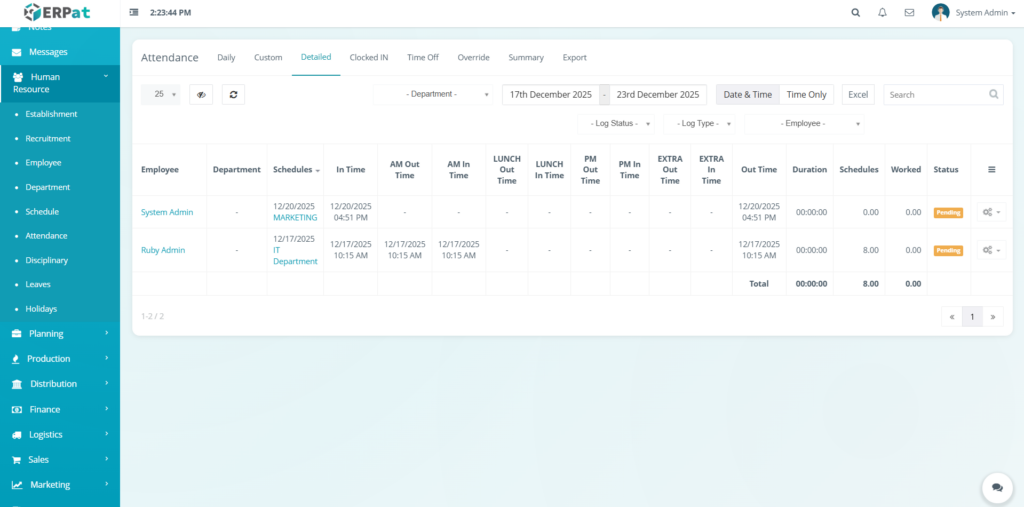
The Attendance Detailed Listing Page shows granular time logs per employee for a selected date.
Displayed Information #
- Employee – Employee name
- Department – Assigned department
- Schedules – Assigned schedule
- In Time – Initial clock-in
- AM Out Time – Morning clock-out
- AM In Time – Morning clock-in
- Lunch Out Time – Lunch break out
- Lunch In Time – Lunch break in
- PM Out Time – Afternoon clock-out
- PM In Time – Afternoon clock-in
- Extra Out Time – Additional clock-out
- Extra In Time – Additional clock-in
- Out Time – Final clock-out
- Duration – Total computed duration
- Worked – Total worked hours
- Status – Attendance status
View Options #
- Date & Time view
- Time Only view

Attendance Add Multiple #
Steps #
- Click the Add Multiple.
- Fill in the required fields:
- User
- Log type
- Clocked IN
- Clocked OUT Duration
- Duration
- Note
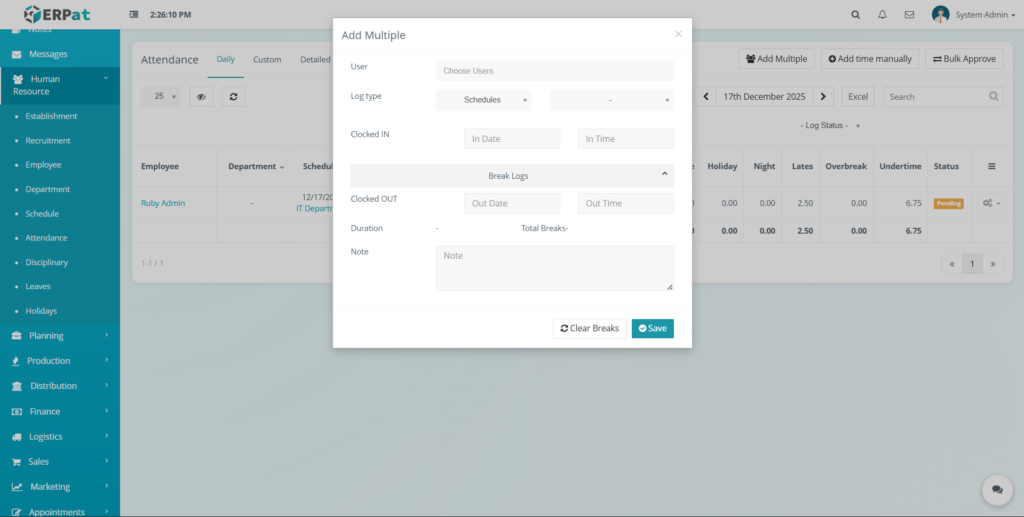
3. Click Save button to add multiple the attendance.

Attendance Add Time Manually #
Steps
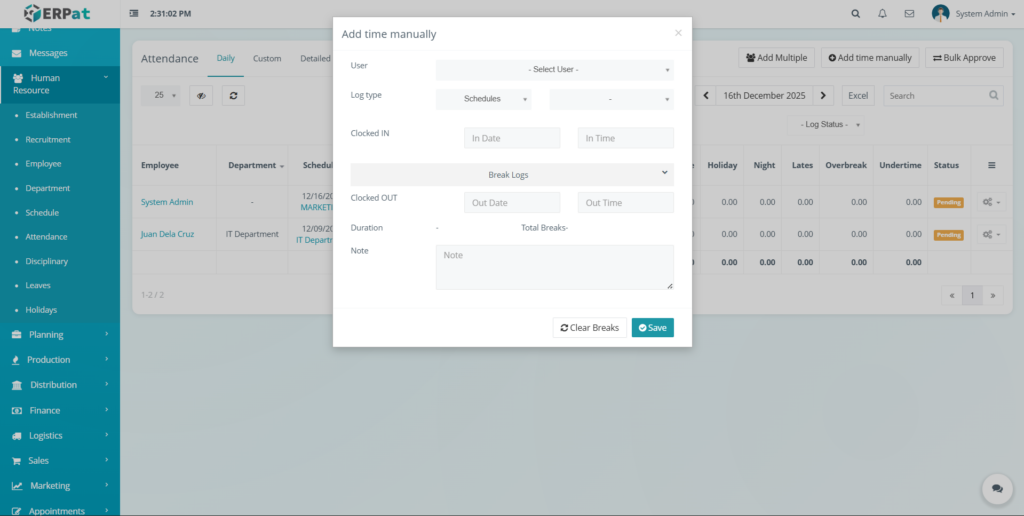
- Click the Add time manually button.
- Select the employee.
- Enter the date and time details.
- Click Save to apply the attendance entry.
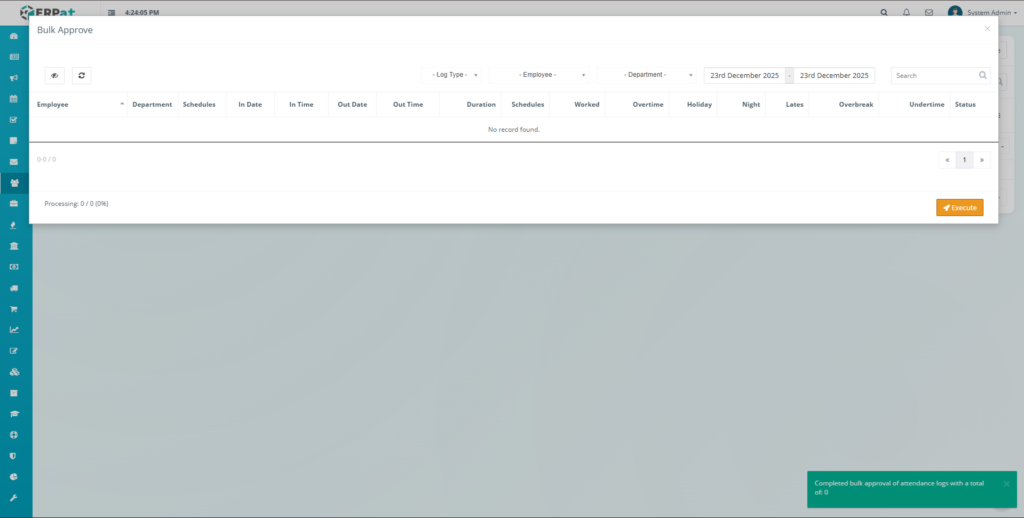
Attendance Bulk Approve #
Steps
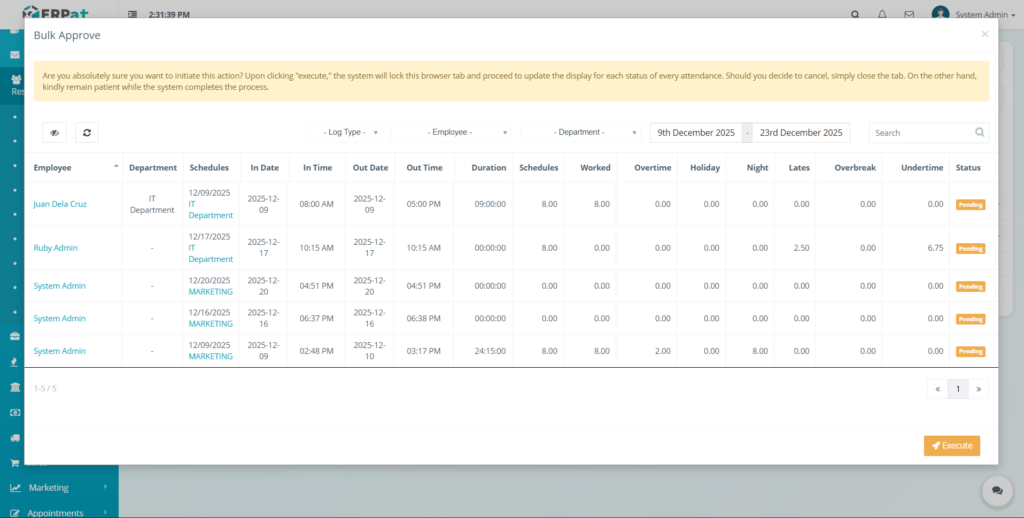
- Click the Bulk Approve button.
- Select attendance records.
- Confirm approval to validate record.
Attendance Approval #
The Attendance Approval feature allows authorized users to review and approve attendance records before they are finalized for payroll and reporting.
Approval Actions #
- Approve – Confirms the attendance record as valid
- Reject – Returns the attendance record for correction
- Pending – Indicates attendance awaiting approval
Steps #
- Navigate to Human Resource → Attendance.
- Select the relevant attendance tab (Daily, Custom, or Detailed).
- Locate the attendance record.
- Click the Approve or Reject action.
- Confirm the action to update the attendance status.
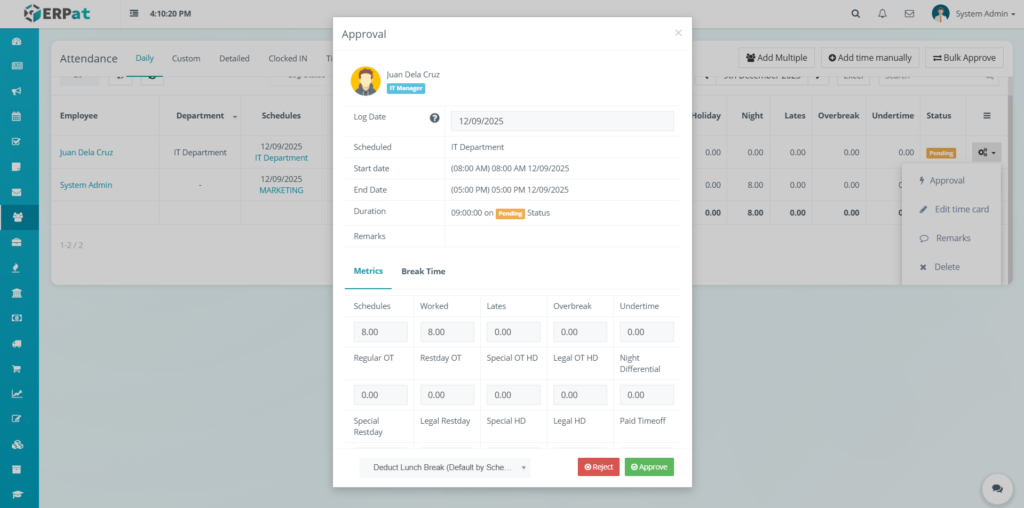
Approved records are locked from unauthorized modification and become eligible for payroll processing.
Attendance Edit Time Card #
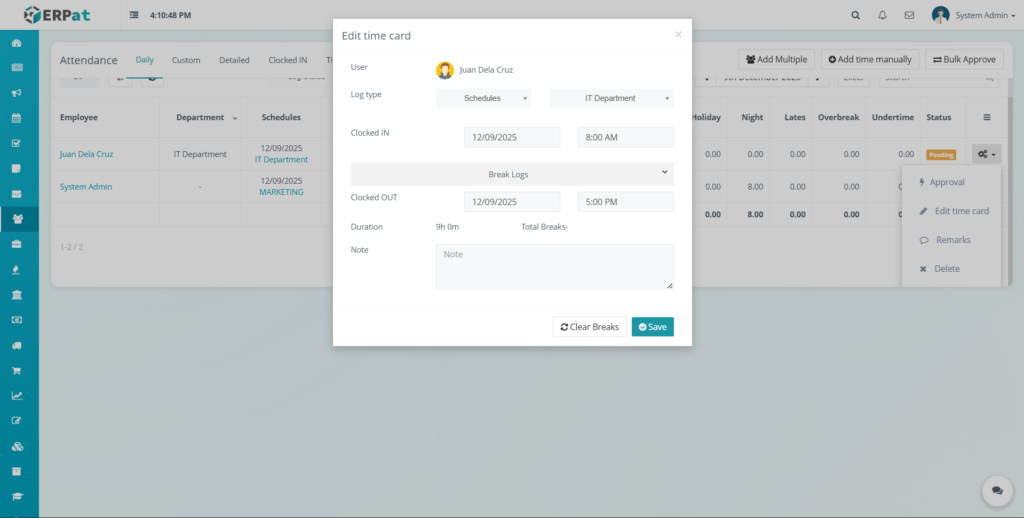
The Edit Time Card feature allows HR or Admin users to correct clock-in, clock-out, and break time entries.
Editable Fields #
- In Date and In Time
- Out Date and Out Time
- Break In and Break Out times
- Overtime entries
- Schedule assignment
Steps #
- Navigate to Human Resource → Attendance.
- Select the appropriate attendance view.
- Click the Actions button of the employee record.
- Select Edit Time Card.
- Update the necessary time fields.
- Click Save to apply the changes.
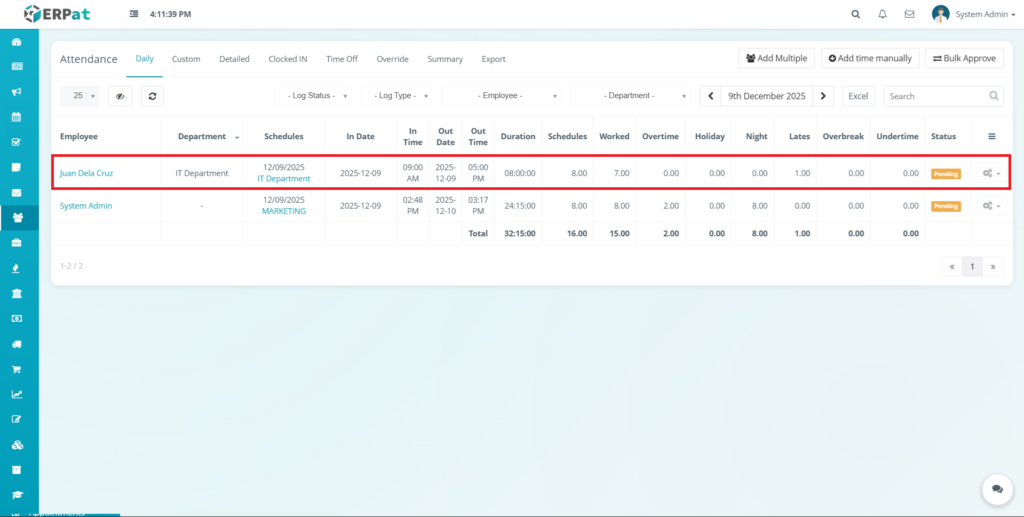
All edits are logged for audit purposes.
Attendance Remarks #
The Remarks feature allows users to add notes or explanations to attendance records for documentation and reference.
Common Use Cases #
- Late arrival justification
- Manual override explanation
- System or biometric error notes
- Supervisor comments
Steps #
- Navigate to Human Resource → Attendance.
- Locate the attendance record.
- Click the Actions button.
- Select Add Remarks or Edit Remarks.
- Enter the remarks or explanation.
- Click Save to apply the remarks.
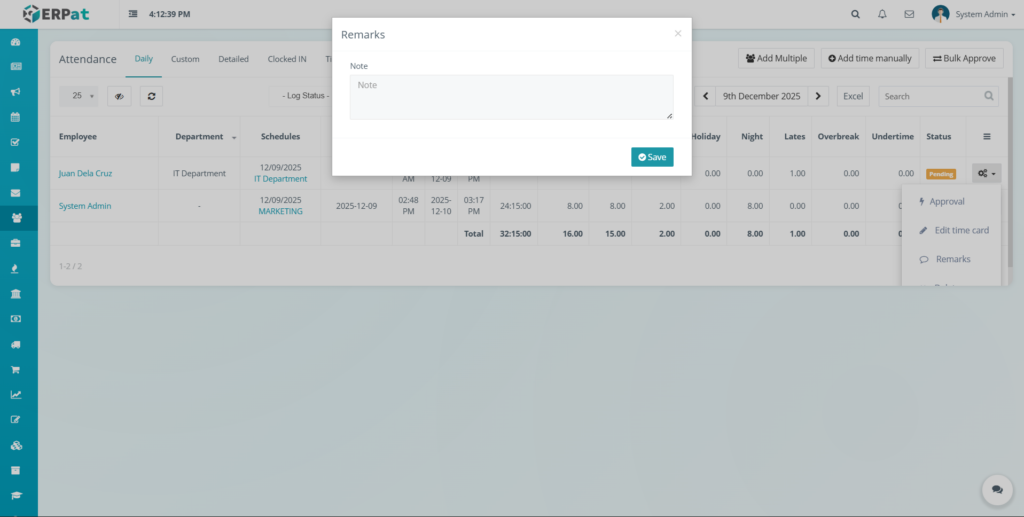
Remarks are visible to authorized users and included in audit logs.
Attendance Delete Record #
The Delete Attendance feature allows authorized users to permanently remove invalid or erroneous attendance records.
Steps #
- Navigate to Human Resource → Attendance.
- Select the attendance record to be removed.
- Click the Actions button.
- Select Delete.
- Confirm the deletion in the popup dialog.
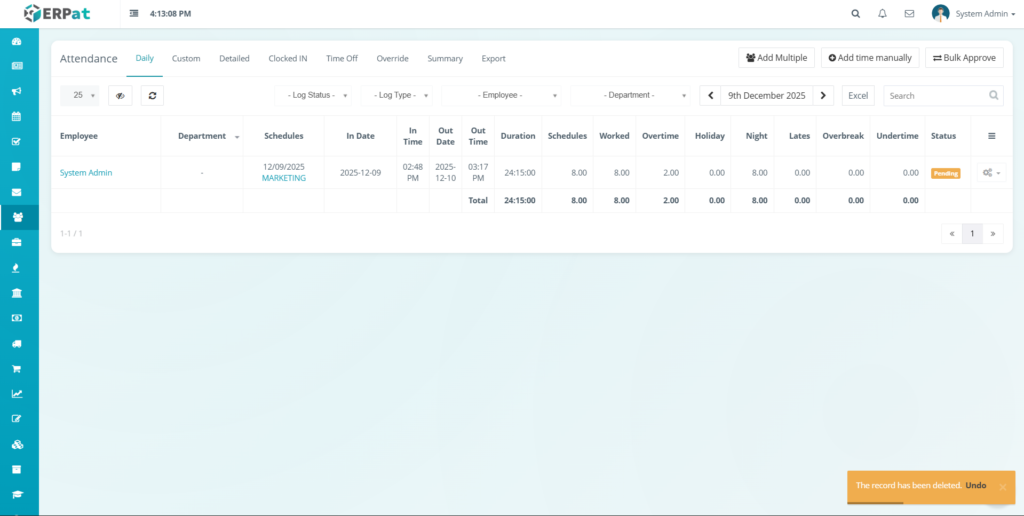
Deletion actions are restricted to Admin roles and are fully logged for compliance.
Attendance Clocked In Listing Page #
The Clocked In Page displays employees who have active or historical clock-in records.
Displayed Information #
- User – Employee name
- Department – Assigned department(s)
- Schedules – Assigned schedule
- In Date – Date of clock-in
- In Time – Time of clock-in
- Duration – Running or total duration
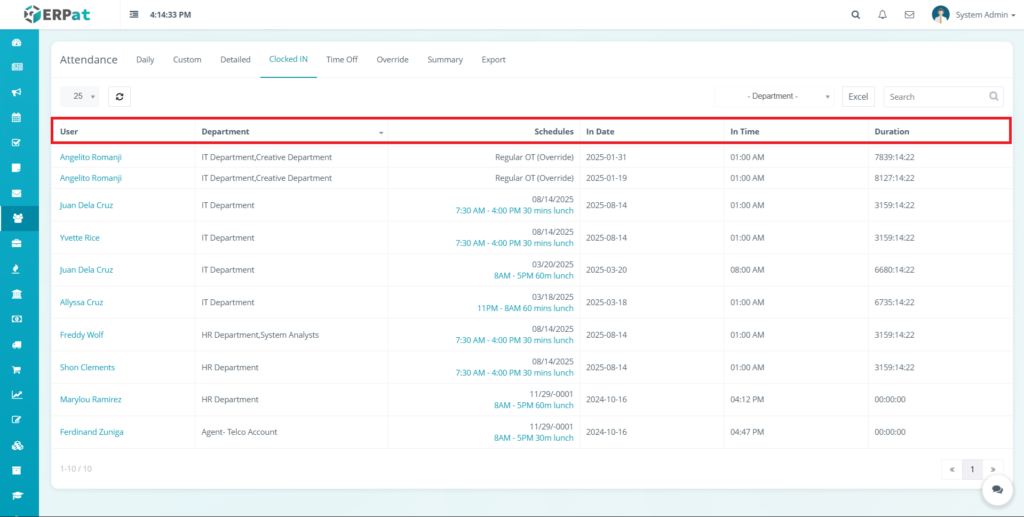
This page helps monitor currently clocked-in employees and historical clock-in data.
Attendance Time Off Listing Page #
The Time Off Page manages employee absences, leaves, and scheduled time off.
Displayed Information #
- Employee – Employee name
- Department – Assigned department
- Date – Time-off date
- Scheduled – Assigned work schedule
- Status – Time-off status
- Remarks – Additional notes or comments

Tools #
- Employee filter
- Department filter
- Status filter
- Date selector

Attendance Override Listing Page #
The Override Page allows administrators to manually manage employee clock-in and clock-out actions.
Displayed Information #
- Employee – Employee name
- Department – Assigned department
- Schedules – Assigned schedule
- Status – Clock-in status (e.g., Not clocked in yet, Clock started)
- Clock In / Clock Out – Manual control buttons

Actions #
- Clock In – Manually clock in an employee
- Clock Out – Manually clock out an employee

Attendance Summary Listing Page #
The Attendance Summary Page provides a consolidated view of attendance metrics per employee.
Displayed Information #
- Employee – Employee name
- Department – Assigned department
- Duration – Total attendance duration
- Schedules – Assigned schedule
- Worked – Total worked hours
- Lates – Total late time
- Overbreak – Total overbreak
- Undertime – Total undertime
- Absent – Absence count
- Regular OT – Regular overtime
- Restday OT – Rest day overtime
- Special OT HD – Special holiday overtime
- Legal OT HD – Legal holiday overtime
- Night Diff – Night differential
- Special Restday – Special rest day hours
- Legal Restday – Legal rest day hours
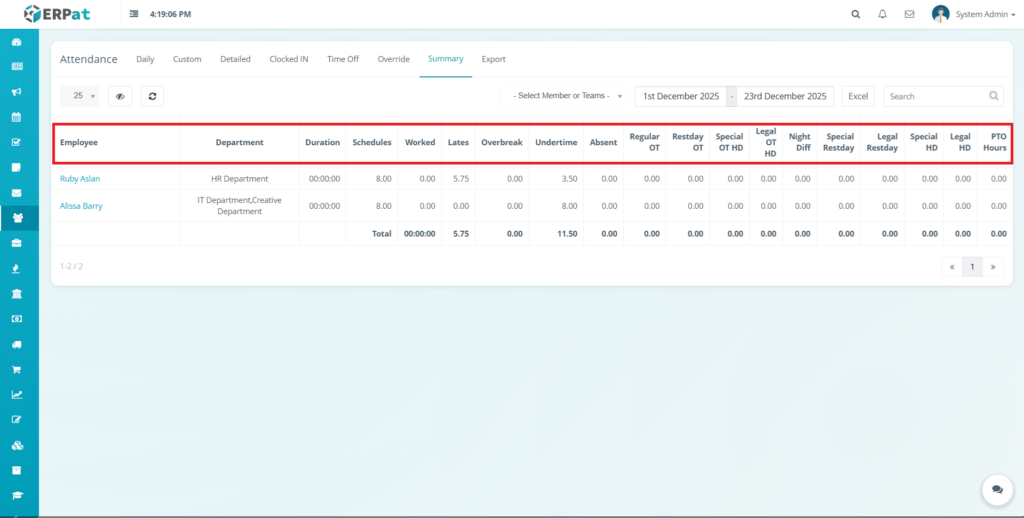
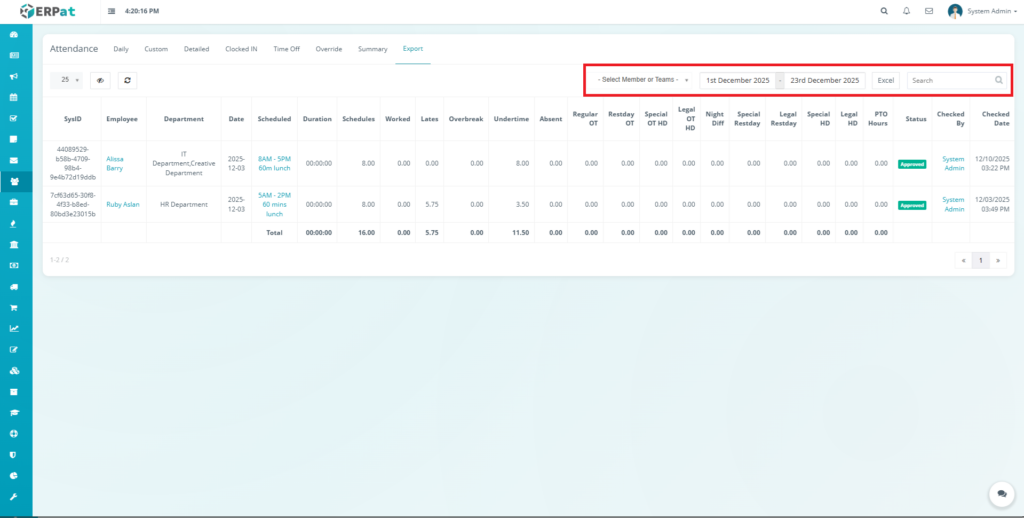
Attendance Export Page #
The Export Page allows downloading attendance data for reporting and payroll processing.
Displayed Information #
- SysID – System-generated identifier
- Employee – Employee name
- Department – Assigned department
- Date – Attendance date
- Scheduled – Assigned schedule
- Duration – Attendance duration
- Worked – Worked hours
- Lates – Late minutes
- Overbreak – Overbreak time
- Undertime – Undertime hours
- Absent – Absence indicator
- Regular OT – Regular overtime
- Restday OT – Rest day overtime
- Special OT HD – Special holiday overtime
- Legal OT HD – Legal holiday overtime
- Night Diff – Night differential

Export Options #
- Select Member or Teams
- Date range selector
- Export to Excel
Permissions and Access Control #
Only authorized HR or Admin roles can add, edit, override, or approve attendance records.
Supervisors may be granted view-only or limited approval access depending on assigned roles.
Best Practices #
Ensure employees clock in and out accurately.
Review late, undertime, and overbreak reports regularly.
Use override and manual entry features sparingly and with proper authorization.
Validate attendance records before payroll processing.
Audit & Logs #
All attendance-related actions (clock-in, clock-out, overrides, approvals, and edits) are logged for audit and compliance purposes within the ERPat System.
Last Updated: December 23, 2025
Module Owner: Human Resource IS – ERPat System


