Overview #
The Disciplinary Module is used to record, track, and manage employee disciplinary cases within the ERPat System. It provides HR and management with a structured way to document policy violations, assign involved parties, monitor case status, and ensure due process and compliance with company rules and labor regulations.
This module supports transparent disciplinary handling by maintaining complete records, status tracking, acknowledgements, and audit logs.
Key Features #
- Centralized disciplinary case management
- Support for weekly, monthly, and yearly disciplinary views
- Categorization of disciplinary offenses
- Assignment of subjects, participants, and compliance officers
- Case status tracking
- Label-based classification of disciplinary entries
- Filtering, search, and export to Excel
- Role-based access and audit logging
Accessing the Disciplinary Module #
- Log in to the ERPat System.
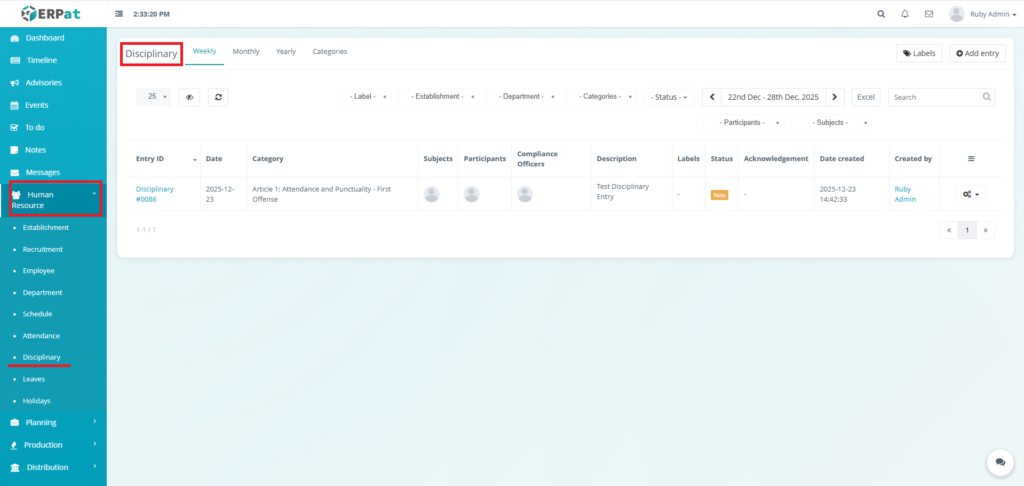
- Navigate to Human Resource from the main sidebar.
- Select Disciplinary.
Disciplinary Listing Page Tabs #
The Disciplinary Listing Page is divided into the following tabs:
- Weekly – Displays disciplinary entries grouped by week
- Monthly – Displays disciplinary entries grouped by month
- Yearly – Displays disciplinary entries grouped by year
Disciplinary Listing Page #
- Entry ID – Unique disciplinary reference number
- Date – Date of the incident or record
- Category – Type of violation (e.g., Attendance, Dress Code, Compliance)
- Subjects – Employee(s) directly involved in the case
- Participants – Witnesses or related participants
- Compliance Officers – Assigned HR or compliance officers
- Description – Case description or remarks
- Labels – Custom disciplinary labels
- Status – Current case status
- Acknowledgement – Employee acknowledgement status
- Date Created – Record creation timestamp
- Created By – User who created the entry
- Actions – Edit, Mark as Open, View, Assign Label or Delete controls

Page Controls and Tools #
Top Action Buttons #
- Labels – Create and manage disciplinary labels
- Add Entry – Create a new disciplinary record
Filters and Utilities #
- Subjects filter
- Label filter
- Establishment filter
- Department filter
- Categories filter
- Status filter
- Participants filter
- Date Filter
- Week Selector
- Month selector
- Year selector
- Search bar
- Export to Excel
- Pagination controls
- Refresh and table view controls


Disciplinary Listing Page Add Entry #
STEPS #
- Click the Add entry button.
- Fill the necessary fields.
- Click the Save button to add entry.

Result #

Disciplinary Listing Page View Entry #
STEPS #
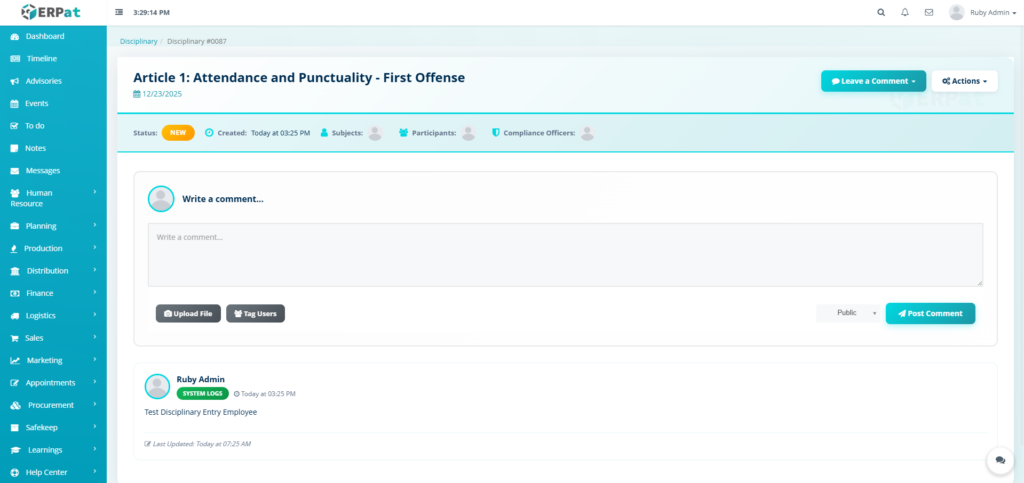
- Click Entry ID.

Result #
Disciplinary Listing Page View Entry Comment #
STEPS #
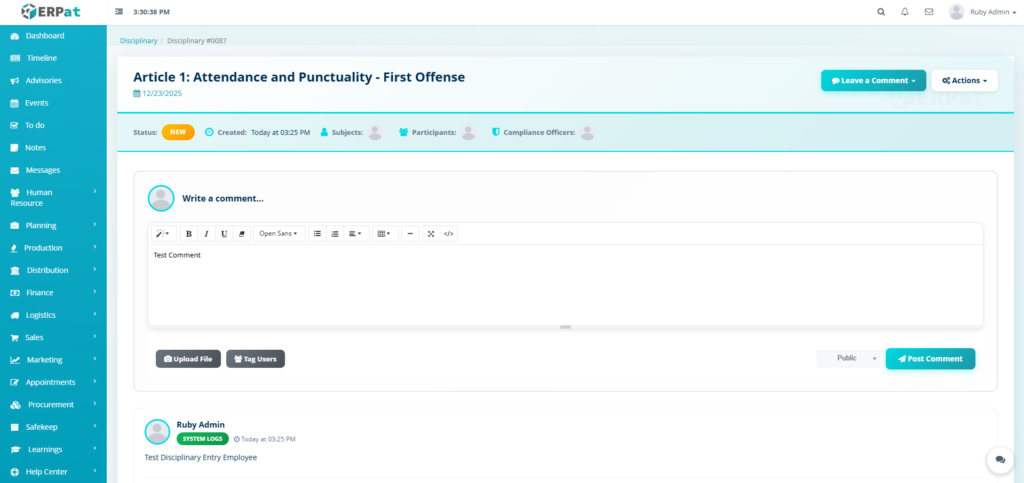
- Input the necessary details.
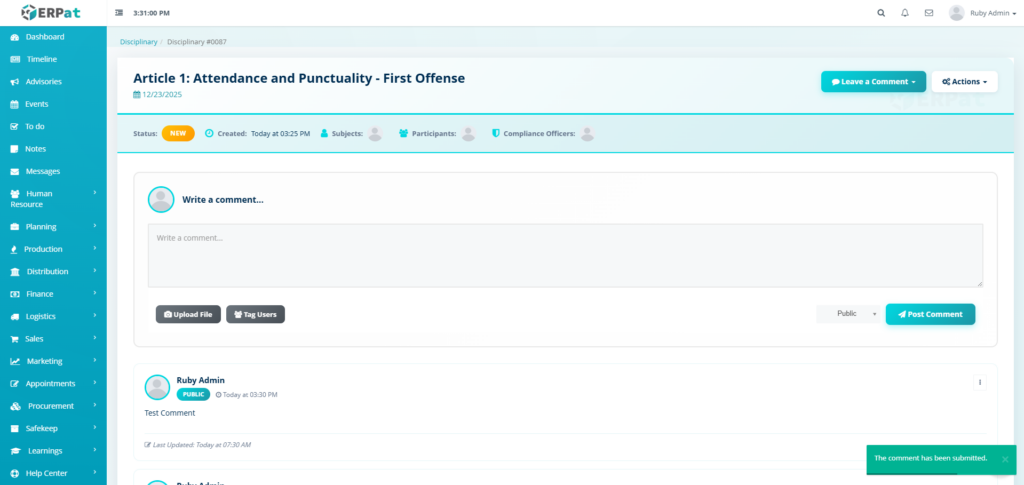
- Click the Post Comment button to post the comment.
Result #
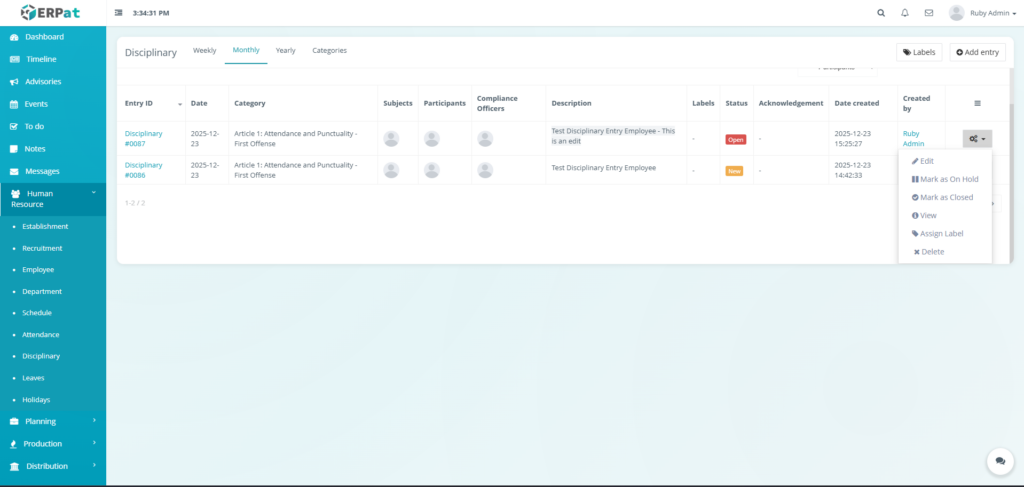
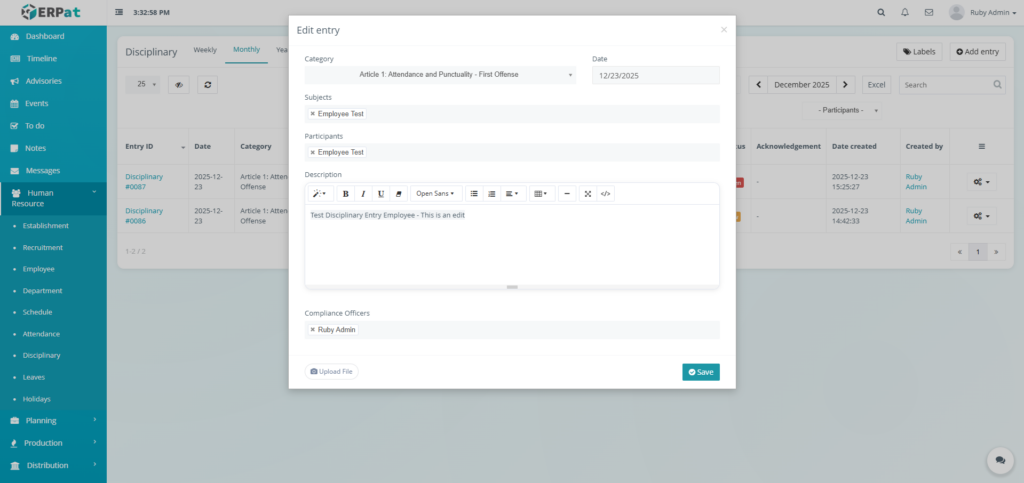
Disciplinary Listing Page Edit Entry #
STEPS #
- Click the actions button.
- Click the Edit option in the actions dropdown.
- Fill in the necessary changes.
- Click the Save button to apply the changes.
Result #

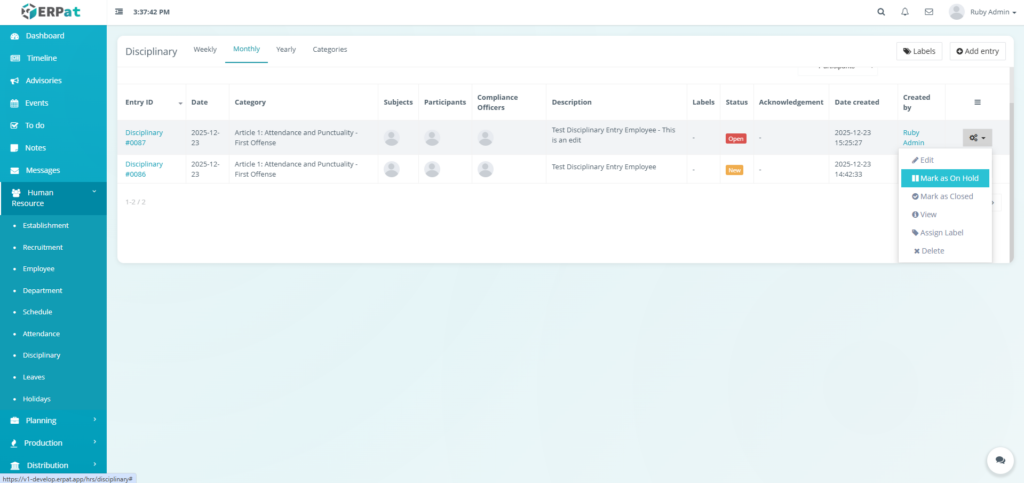
Disciplinary Listing Page Mark as On Hold Entry #
STEPS #
- Click the actions button.
- Click the Mark as On Hold option in the actions dropdown.
Note:
- You can reopen the entry by following the steps of Disciplinary Listing Page Mark as On Hold Entry but what is different is the option being clicked is Mark as Open.

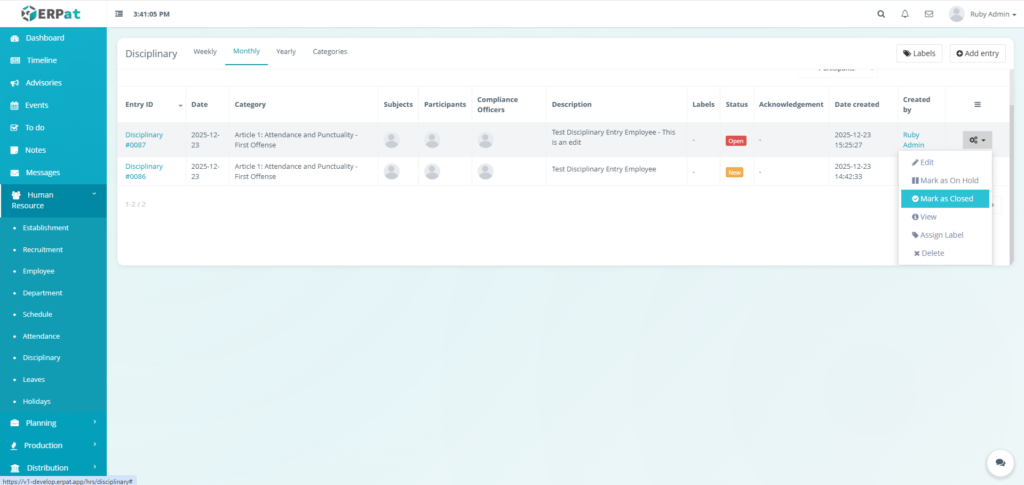
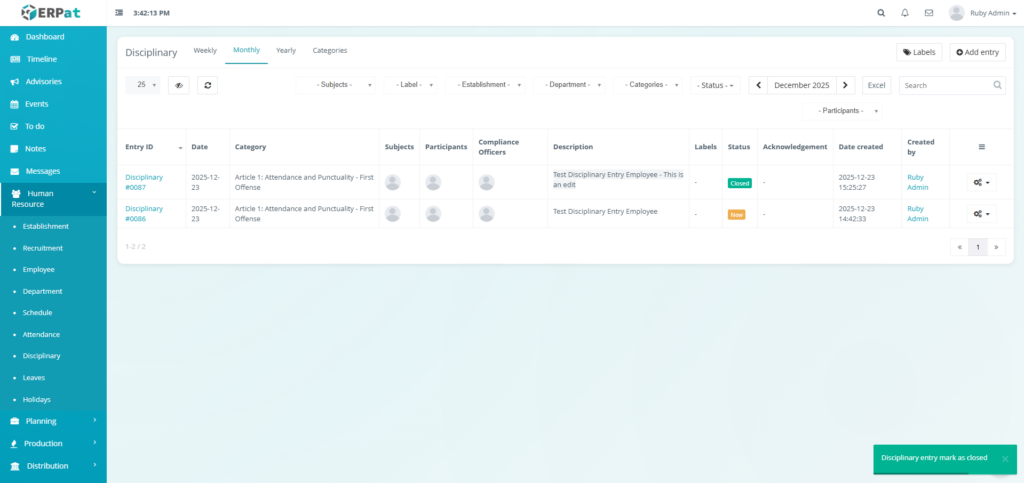
Disciplinary Listing Page Mark as Closed Entry #
STEPS #
- Click the actions button.
- Click the Mark as Closed option in the actions dropdown.
Disciplinary Listing Page View Entry #
STEPS #
- Click the actions button.
- Click the View option in the actions dropdown.


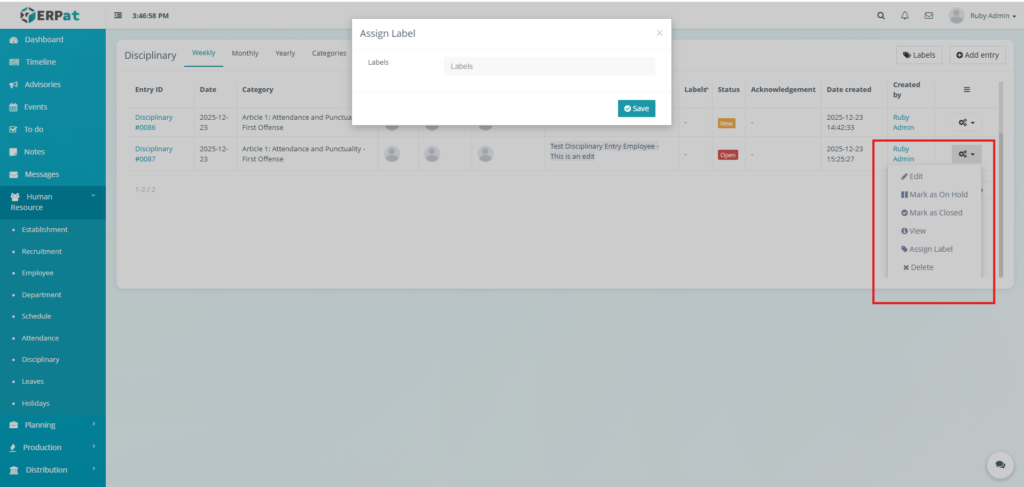
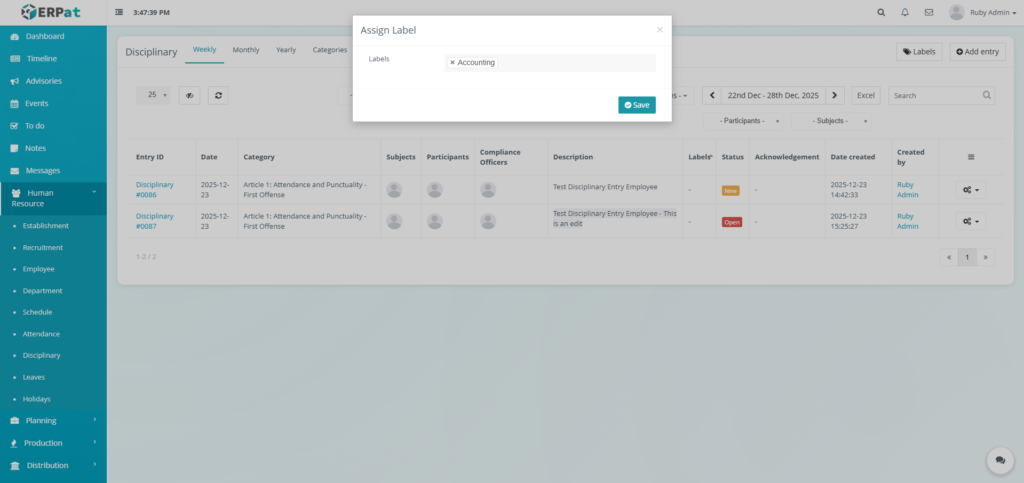
Disciplinary Listing Page Entry Assign Label #
STEPS #
- Click the actions button.
- Click the Assign Label option in the actions dropdown.
- Assign the necessary label.
- Click the Save button to assign the label.
Result #

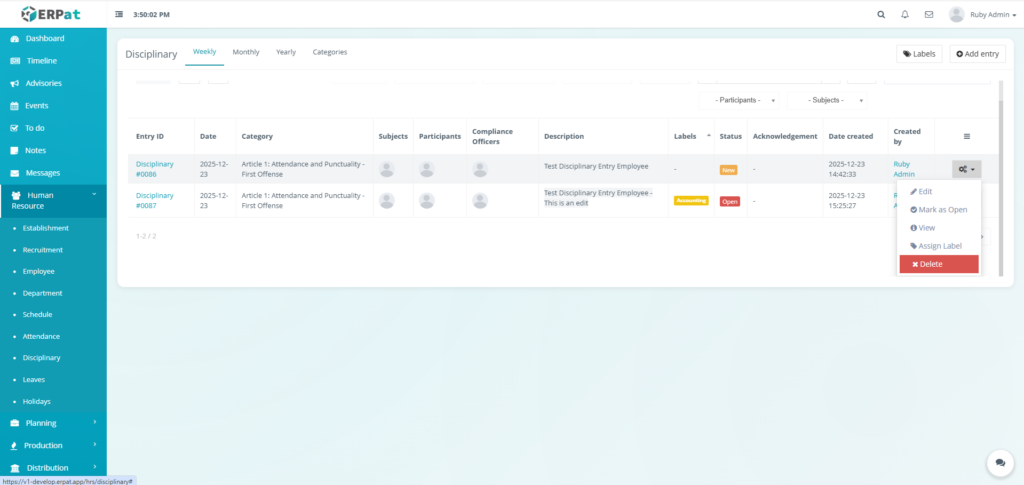
Disciplinary Listing Page Delete Entry #
STEPS #
- Click the actions button.
- Click the Delete option in the actions dropdown.
- Click the Delete button to delete the entry.

Result #
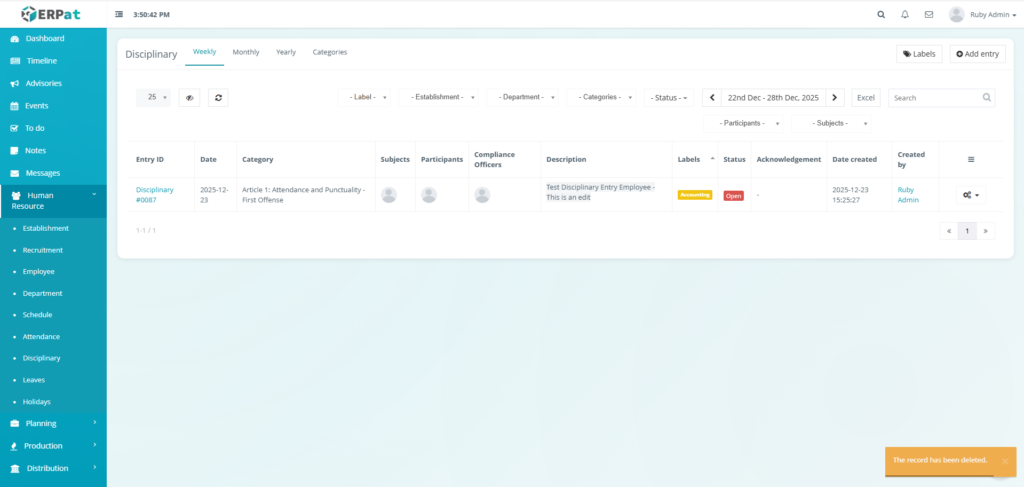
Disciplinary Categories Listing Page #
The Disciplinary Categories Listing Page displays the defined company policies and their corresponding administrative actions in a table format with the following information:
- Title – The name or reference number of the specific disciplinary policy (e.g., Article 9: Compliance with Laws).
- Description – A brief explanation of the specific violation or conduct covered by the policy.
- Action – The prescribed disciplinary consequence or administrative step to be taken (e.g., Written warning, Immediate termination).
- Compliance Officers – The personnel or roles responsible for overseeing and enforcing the specific policy.
- Date created – The calendar date when the disciplinary category was officially recorded in the system.
- Created by – The system user or administrator who added the disciplinary category.
- Actions – Edit or Delete controls.
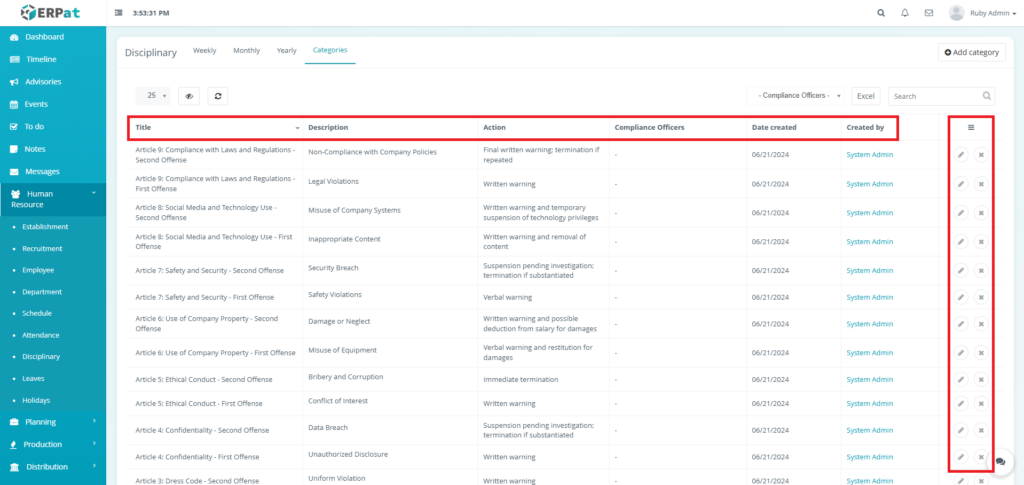
Disciplinary Categories Listing Page Add Category #
STEPS #
- Click the Add category button.
- Fill the necessary fields.
- Click the Save button to add the violation category.

Result #
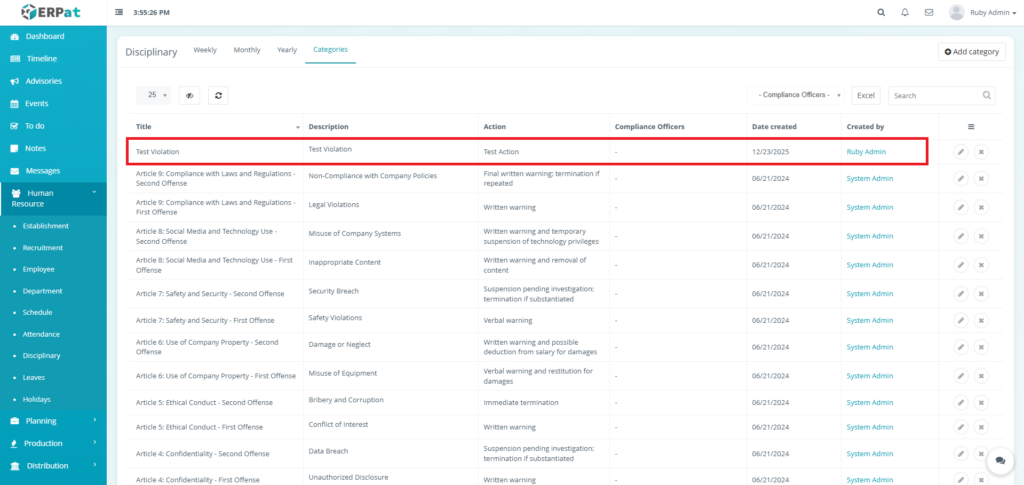
Disciplinary Categories Listing Page Edit Category #
STEPS #
- Click the Edit icon on the actions section in the table.
- Fill the necessary changes.
- Click the Save button to apply the changes.
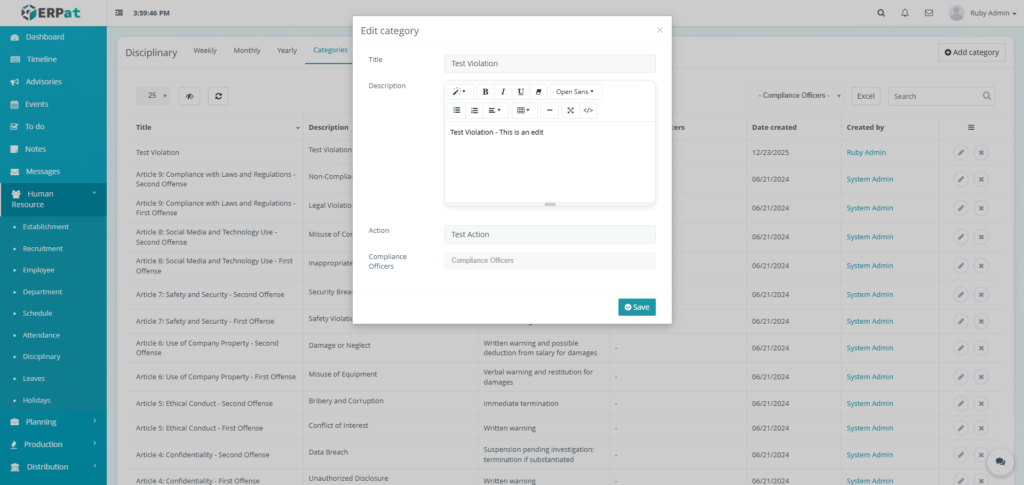
Result #

Disciplinary Categories Listing Page Delete Category #
STEPS #
- Click the Delete icon on the actions section in the table.
- Click the Delete button to delete the entry.

Result #

Permissions and Access Control #
- Only authorized HR Admin or compliance roles can add, edit, or manage disciplinary entries.
- Supervisors may have limited access based on role configuration.
- Sensitive disciplinary data is protected by role-based permissions.
Best Practices #
- Clearly describe incidents and violations
- Assign correct categories and compliance officers
- Update case status promptly
- Use labels consistently for reporting
- Maintain records for audit and legal reference
Audit & Logs #
All employee-related actions (create, update, status change) are logged for audit and compliance purposes within the ERPat System.
Last Updated: [December 23, 2025] Module Owner: Human Resource IS – ERPat System


