Overview #
The Dashboard Module serves as the central overview panel of the ERPat System. It provides users with real-time summaries, performance indicators, task management tools, and quick access to essential system information. The dashboard displays configurable widgets such as attendance status, total hours worked, leave approvals, leave credits, events, to-do lists, birthday celebrants, project updates, and user activity. It allows users to customize layouts by adding, arranging, hiding, or removing widgets according to their operational needs. This module enhances productivity by consolidating key system data into a single, interactive workspace.
Key Features #
- View real-time attendance status (Clock In / Clock Out)
- Display total hours worked
- Show pending leave approvals
- Monitor leave credit balances
- View events and calendar access
- Manage private to-do lists
- Track birthday celebrants
- View project summaries (open, starred, completed, timeline)
- Monitor task statuses and Kanban boards
- Display logged-in and online users
- Track total project hours
- Add new dashboards
- Edit dashboard layouts
- Add, remove, hide, and rearrange widgets
- Drag-and-drop widget positioning
- Add new layout rows
- Save or Save & Show dashboard configurations
Accessing the Dashboard Module #
STEPS #
- Log in to the ERPat System.
- Click Dashboard from the primary sidebar.
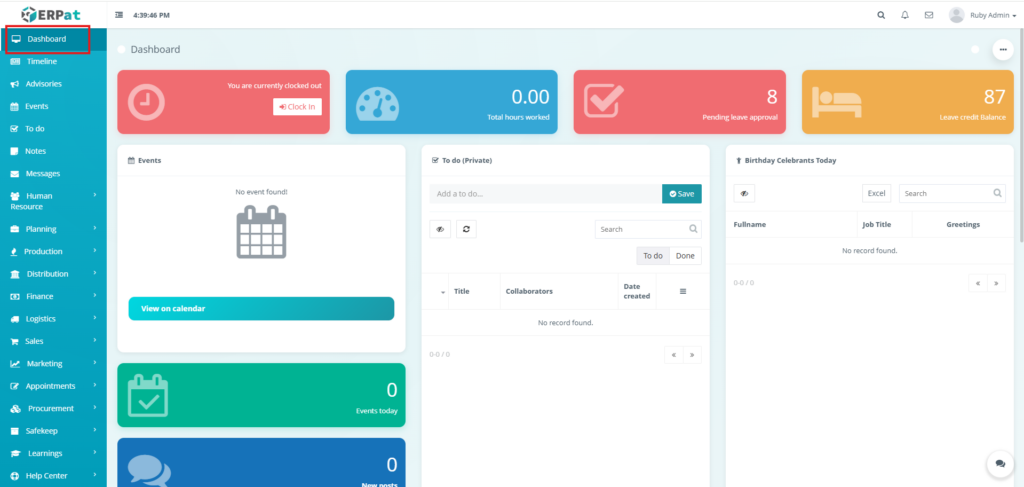
Default Dashboard View #
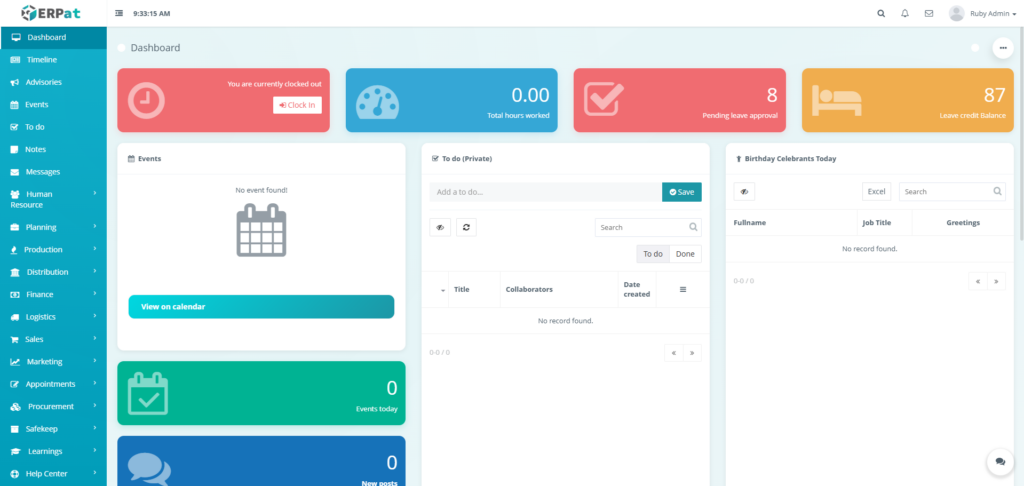
This default dashboard display for users contains:
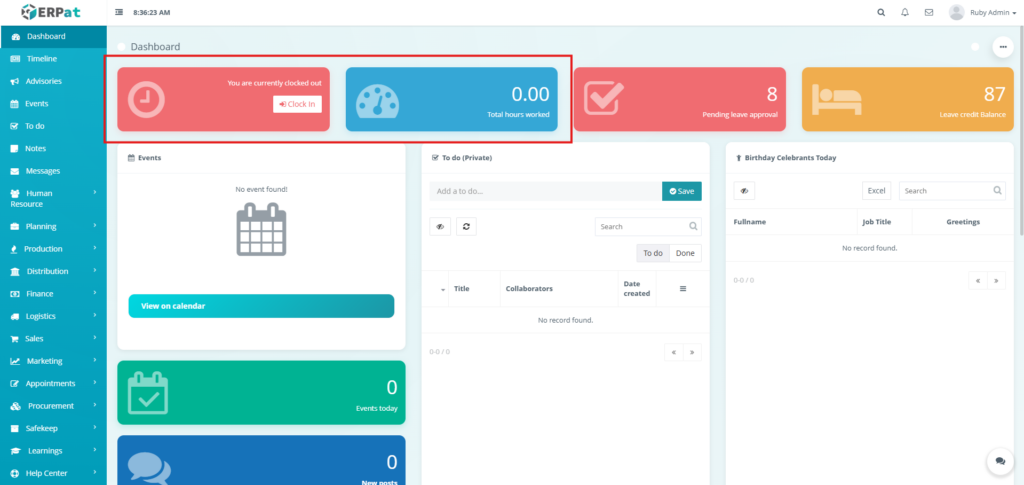
Attendance Widget #
- Displays current clock status (Clocked In / Clocked Out)
- Provides Clock In button when user is clocked out
- Shows total hours worked
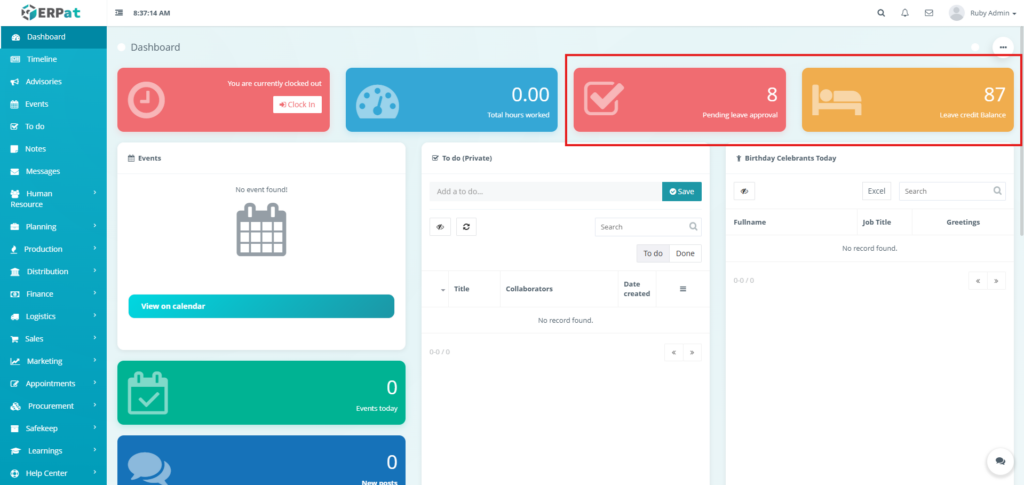
Leave Monitoring Widgets #
- Displays number of pending leave approvals
- Shows current leave credit balance
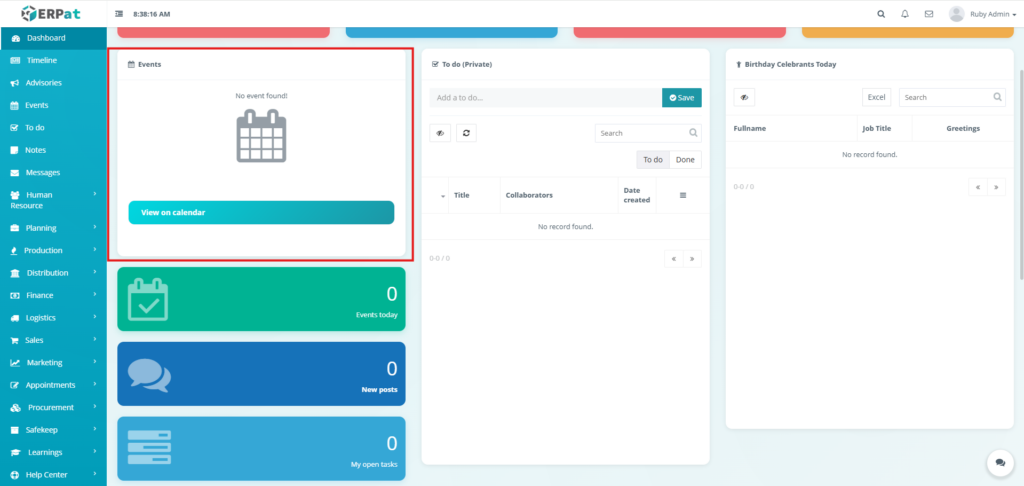
Events Section #
- Displays upcoming or current events
- Shows “No event found” when empty
- Provides View on Calendar button
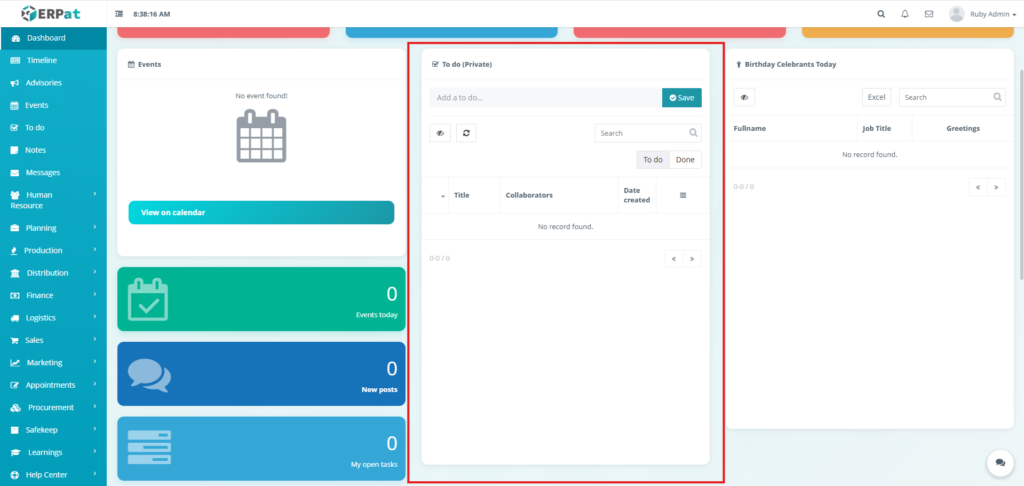
To Do (Private) #
- Add personal tasks
- Save tasks
- Search tasks
- Filter between To Do and Done
- View collaborators and date created
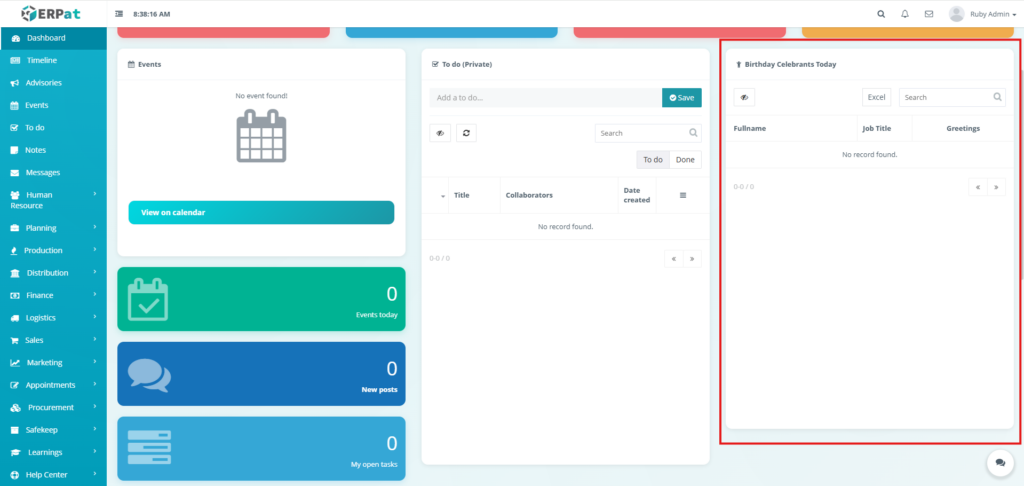
Birthday Celebrants Today #
- Lists employees celebrating birthdays
- Search and export (Excel) options
- Pagination support
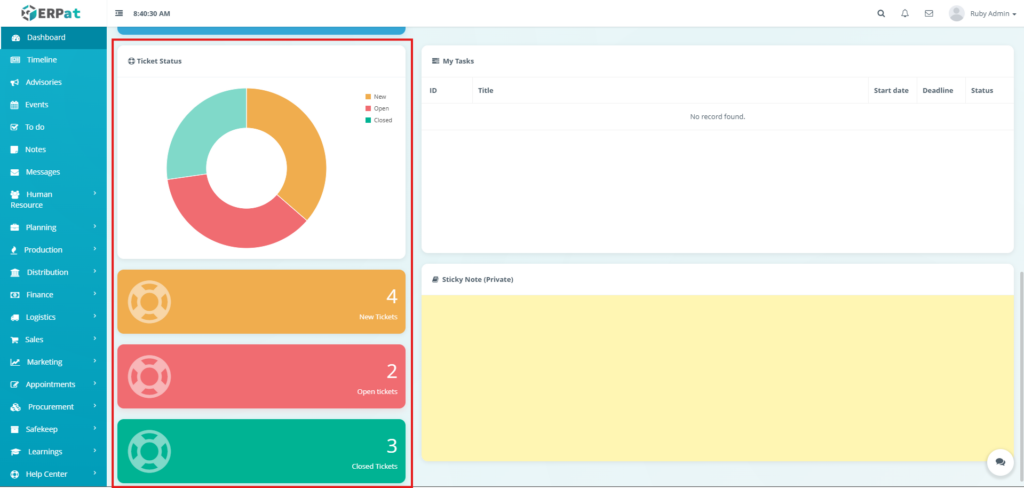
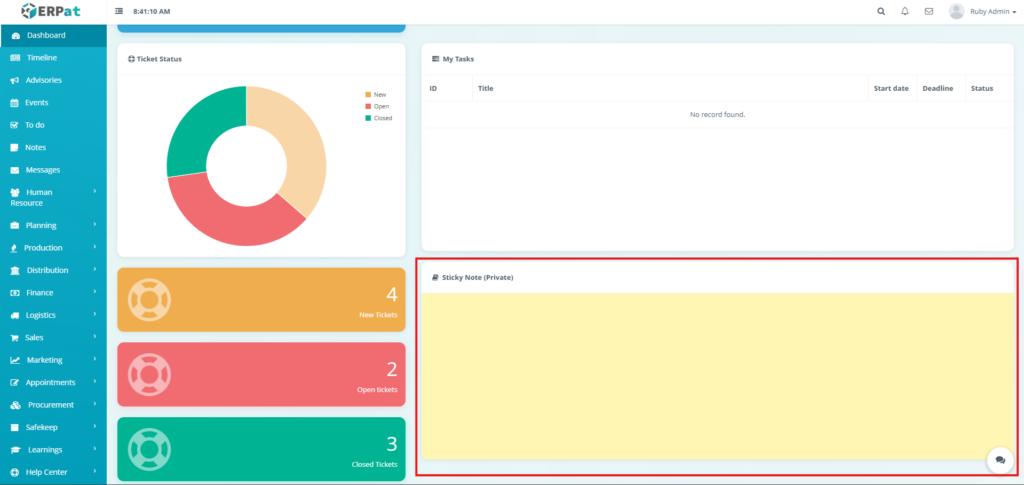
Tickets Overview Widget #
- Chart for visualization of current situation of the Tickets
- Detailed breakdown of the Tickets’ status
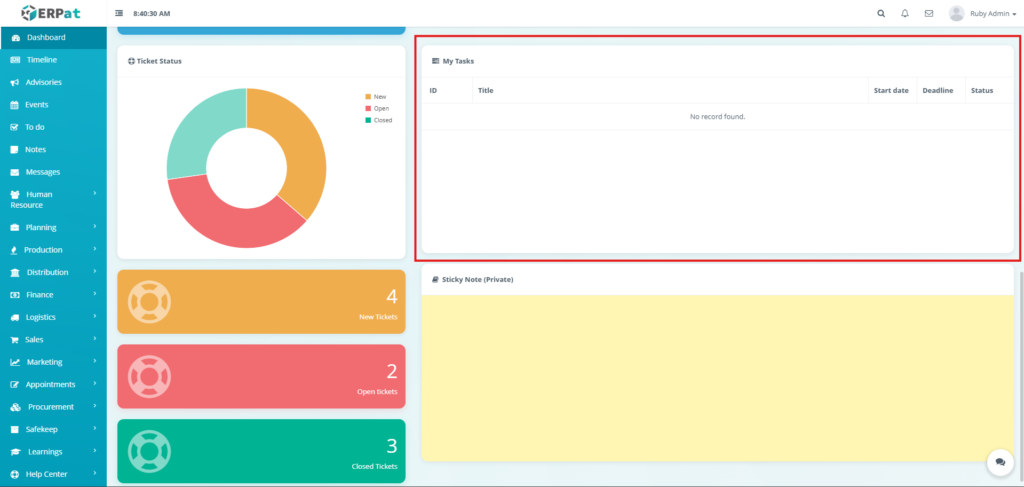
My Tasks Widget #
- Display tasks assigned to the Employee
Sticky Notes (Private) #
- Persistent notes in the dashboard
Steps for Adding a New Dashboard #
STEPS #
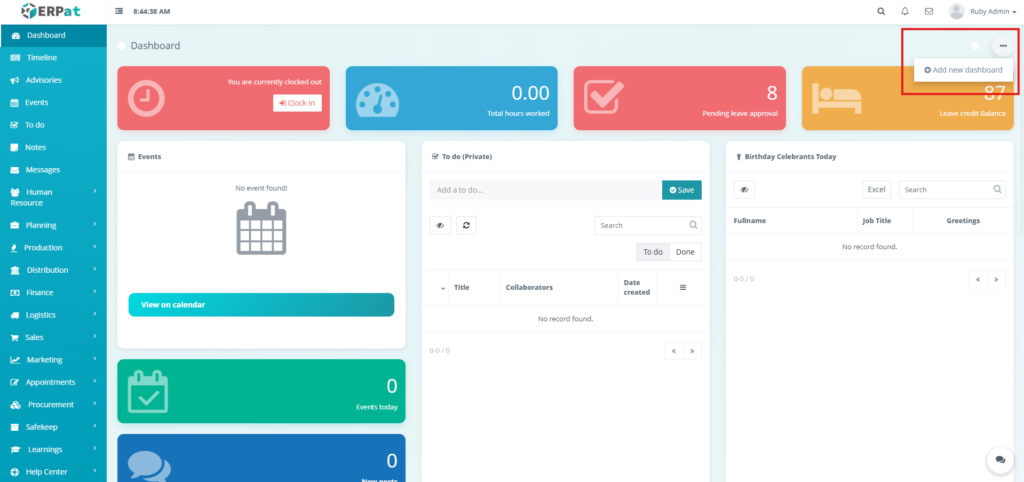
- Click the Horizontal Triple Dot at the Top-right corner
- Click the Add new Dashboard option
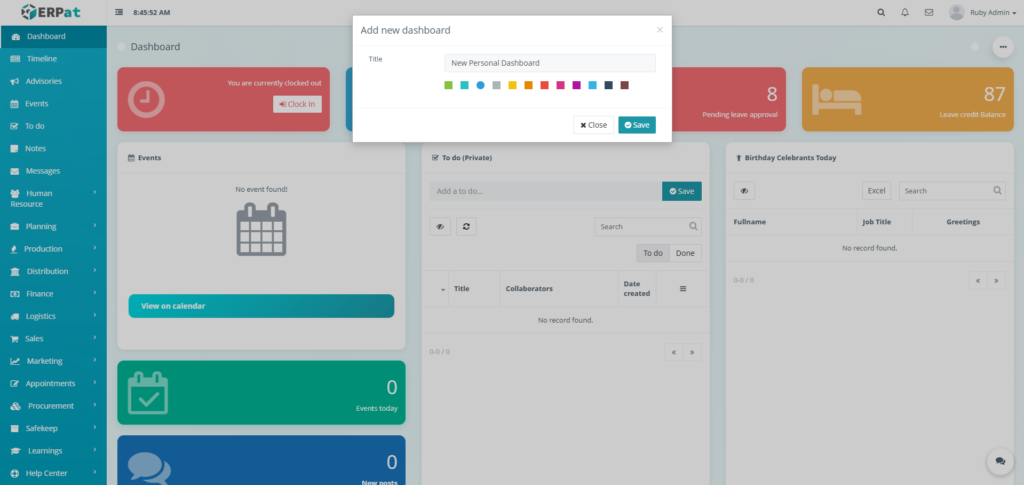
- Fill in the new title of the new dashboard
- Select a color to represent the dashboard
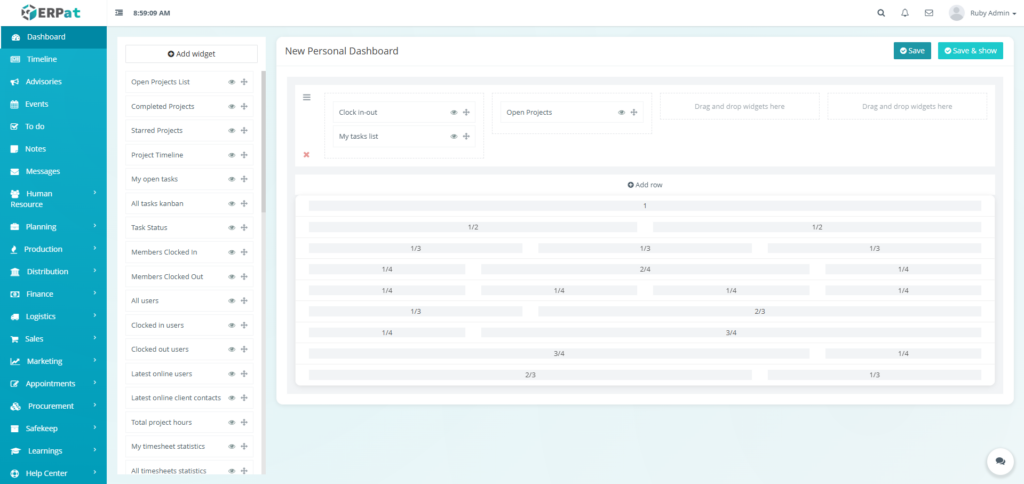
- In the redirected page Click the Add row
- Select the layout division of widgets in that row
- Drag the widgets selected
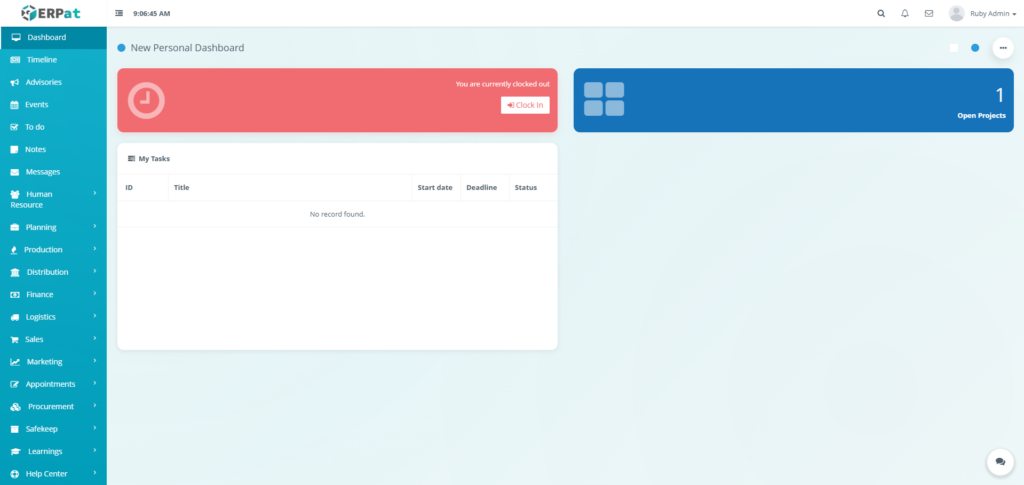
- Click the Save & show button to add the new dashboard
Result #
Steps for Editing the Widgets Contained in the Customized Dashboard #
STEPS #
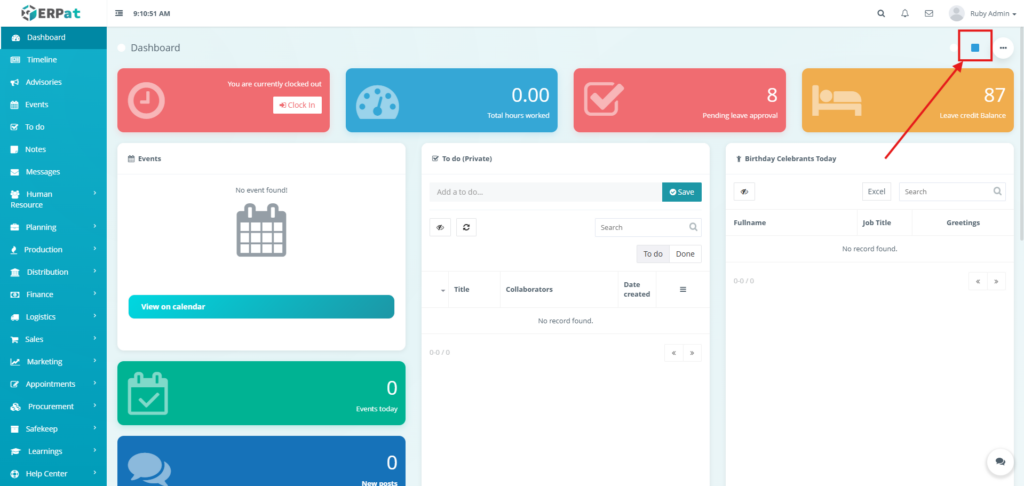
- Navigate to the customized dashboard
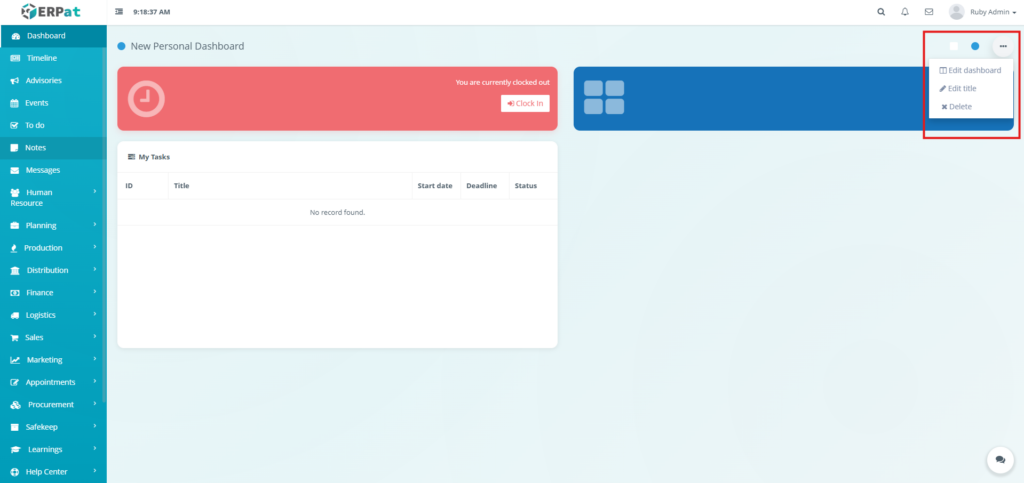
- Click the Horizontal Triple Dot at the Top-right corner
- Click the “Edit dashboard” option
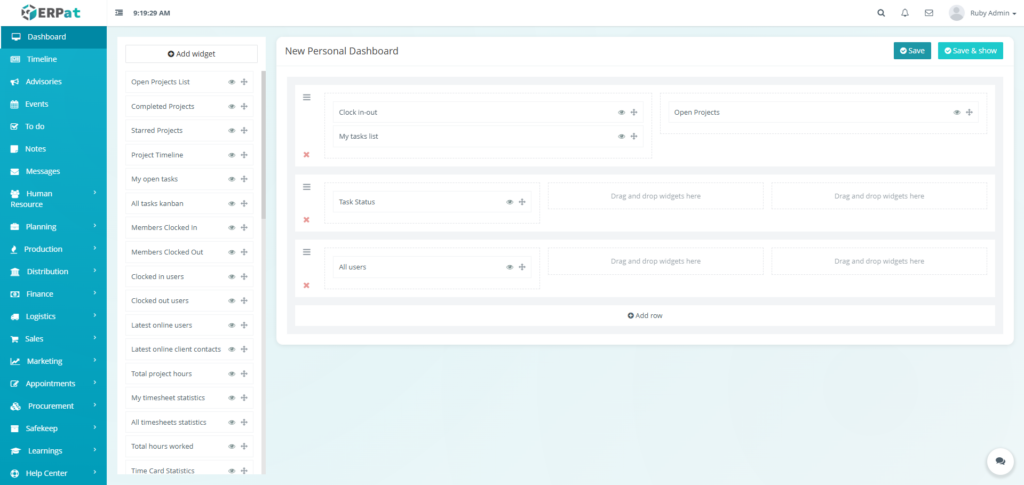
- In the redirected page Click the Add row
- Select the layout division of widgets in that row
- Drag the widgets selected
- Click the Save & show button to apply the changes to the dashboard
Result #
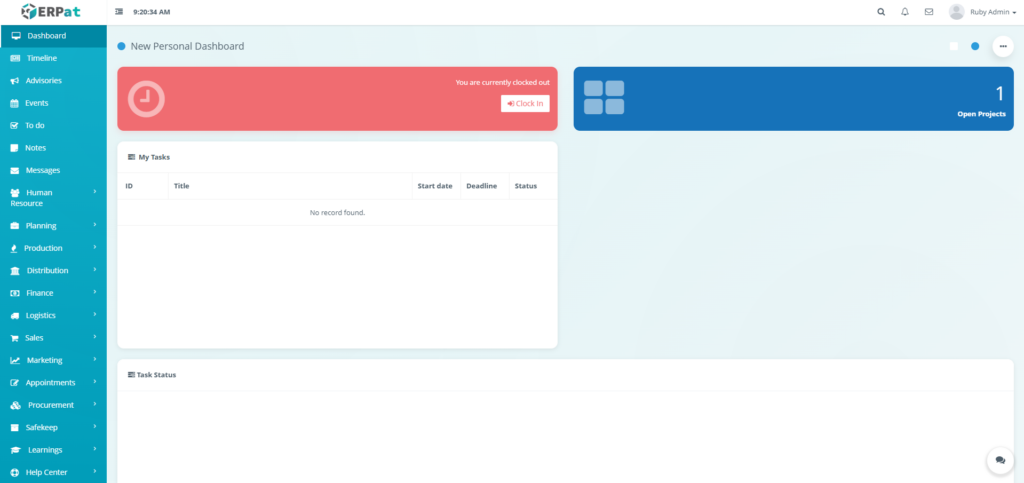
Steps for Deleting a Customized Dashboard #
STEPS #
- Navigate to the customized dashboard
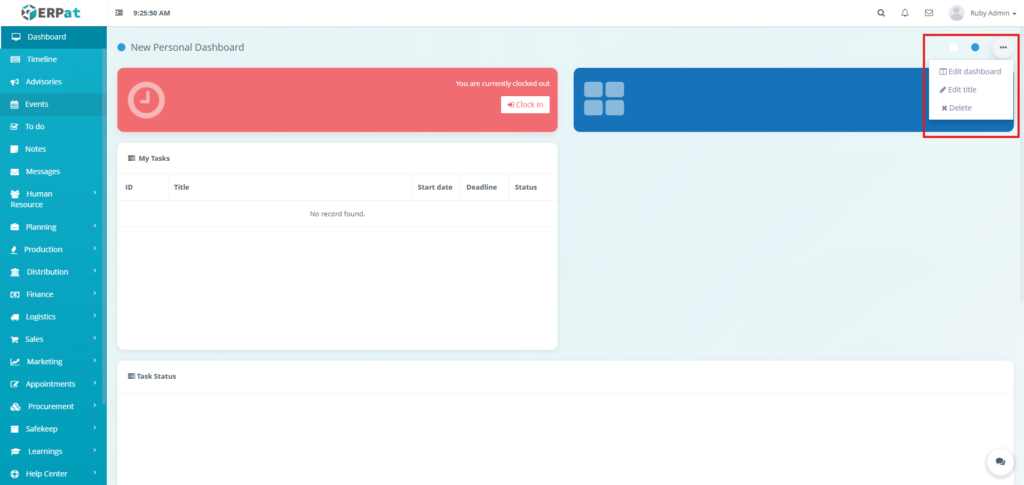
- Click the Horizontal Triple Dot at the Top-right corner
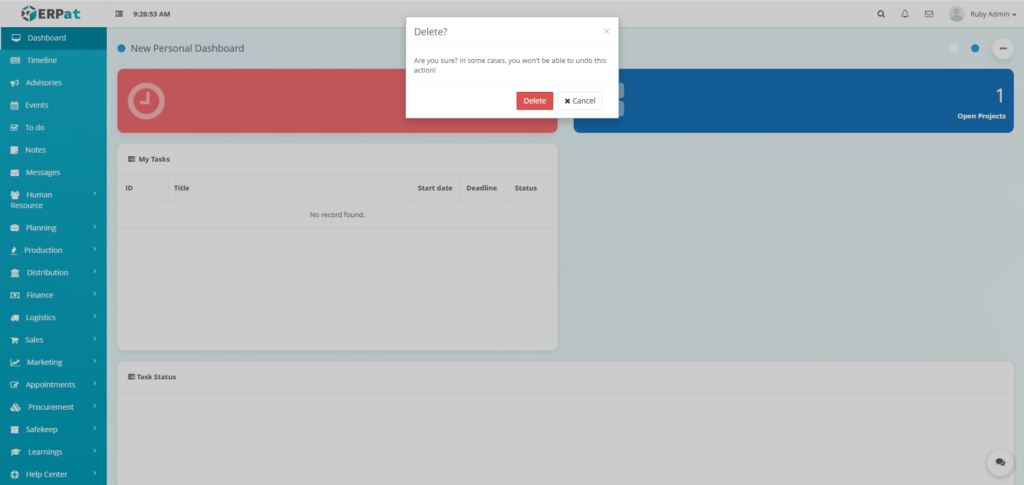
- Click the Delete option
- Click Delete button to remove the selected customized dashboard
Result #
Permissions and Access Control #
- All users can view their personal dashboard
- Widget visibility depends on user role and module access
- Dashboard customization may be restricted to authorized roles
Best Practices #
- Customize dashboard to reflect daily operational priorities
- Use widgets relevant to assigned modules
- Periodically review layout for efficiency
- Avoid overcrowding the dashboard for better readability
Audit & Logs #
Dashboard layout changes are saved per user. System activity such as attendance and task updates reflect real-time data from their respective modules.
Last Updated: [February 13, 2026] Module Owner: Dashboard – ERPat System


