Human Resource Information System

9
  • Establishment Module
  • Recruitment Module
  • Employee Module
  • Department Module
  • Schedule Module
  • Attendance Module
  • Disciplinary Module
  • Leaves Module
  • Holidays Module

Appointments Information System

1
  • Sessions Module

ERPat Dashboard

1
  • Dashboard

Internal Staff Modules

6
  • Timeline Module
  • Advisories Module
  • Events Module
  • To Do Module
  • Notes Module
  • Messages Module

Learnings Information System

3
  • Courses Module
  • Certifications Module
  • Skillsets Module

Production Information System

3
  • Manufacturing Order Module
  • Bill of Materials Module
  • Units Module

Distributions Information System

2
  • Warehouses Module
  • Pallets Module

Finance Information System

7
  • Payrolls Module
  • Payments Module
  • Expenses Module
  • Loans Module
  • Taxes Module
  • Accounts Module
  • Vouchers Module

Logistics Information System

4
  • Delivery Module
  • Transfer Module
  • Vehicles Module
  • Drivers Module

Sales Information System

7
  • Invoices Module
  • Estimates Module
  • Items Module
  • Brands Module
  • Clients Module
  • Customers Module
  • Stores Module

Procurement Information System

3
  • Purchases Module
  • Returns Module
  • Supplier Module

Safekeep Information System

1
  • Assets Module

Marketing Information System

5
  • Leads Module
  • Campaigns Module
  • Forms Module
  • Raffle Draw Module
  • Event Pass Module

Help Center Information System

4
  • Tickets Module
  • Internal Wiki Module
  • Knowledge Base Module
  • Pages Module

Planning Information System

4
  • All Projects Module
  • View Gantts Module
  • My Tasks Module
  • Timesheets Module

Security Information System

3
  • Device Management Module
  • Locked Accounts Module
  • Access Logs Module

Reports Information System

4
  • Attendance Module
  • Financial Analysis Module
  • Sales Summary Module
  • System Logs Module

Settings Information System

7
  • Setup Settings
  • Client Settings
  • Security Settings
  • Maintenance Settings
  • Customization Settings
  • Components Settings
  • System Settings

Compensation

6
  • Loans
  • Salary History
  • De Minimis Benefits
  • Earnings & Deductions
  • Commissions
  • Payrolls
  • Home
  • Docs
  • Internal Staff Modules
  • Notes Module
View Categories

Notes Module

2 min read

Overview #

The Notes Module is a private, user-specific note-taking and personal information management system within the ERPat platform. It enables individual users to create, organize, and quickly retrieve personal notes, reminders, and reference information in a secure, private workspace.

This module provides a streamlined interface for capturing thoughts, meeting notes, task reminders, or any other personal documentation without cluttering shared organizational spaces, ensuring that personal notes remain accessible only to their creator.

Key Features #

  • Private Note Storage – All notes are visible only to the creator
  • Title-Based Organization – Clear labeling for easy identification
  • Search Functionality – Find notes by title or content keywords
  • Date Tracking – Automatic timestamps for creation and updates
  • Label System – Optional categorization using message labels

Accessing the Notes Module #

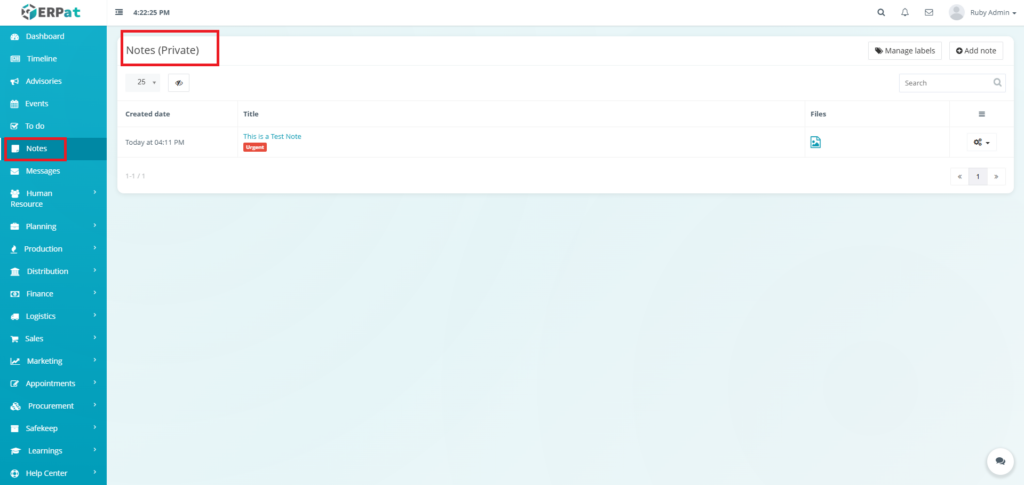
  1. Log in to the ERPat System.
  2. Navigate to the Notes section from the sidebar.
  3. The notes list will display your private notes.
Notes – Steps for Adding a Note #

STEPS #

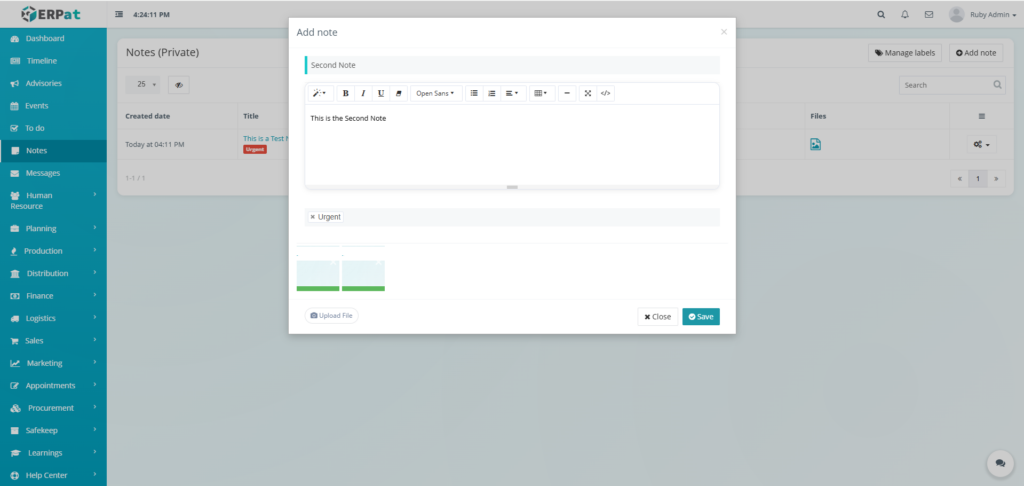
  1. Click the “Add note” button.
  2. Fill in the necessary details.
  3. Click the Save button to add the note.
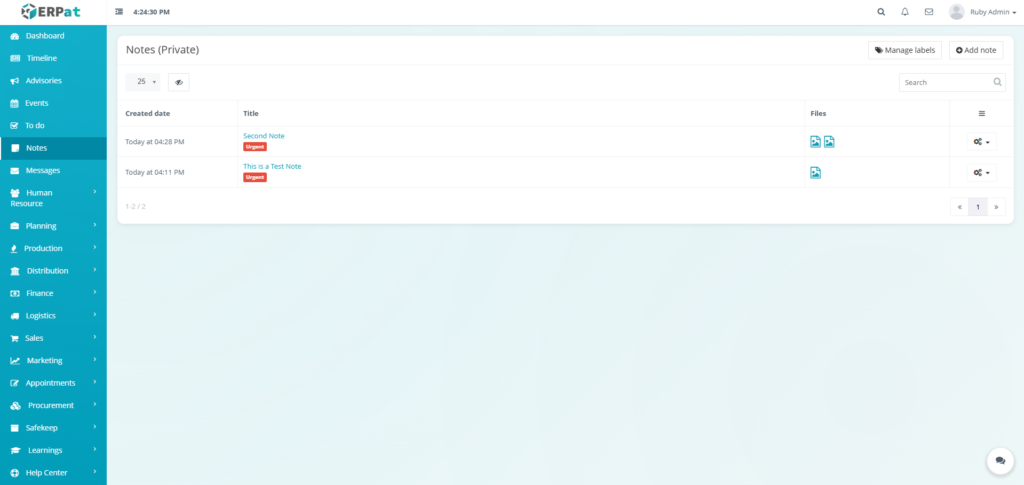
Result #
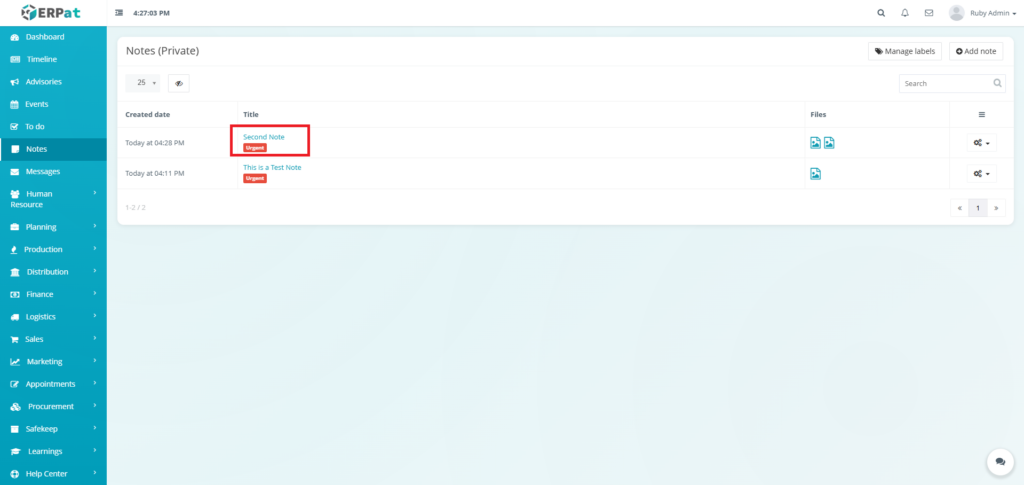
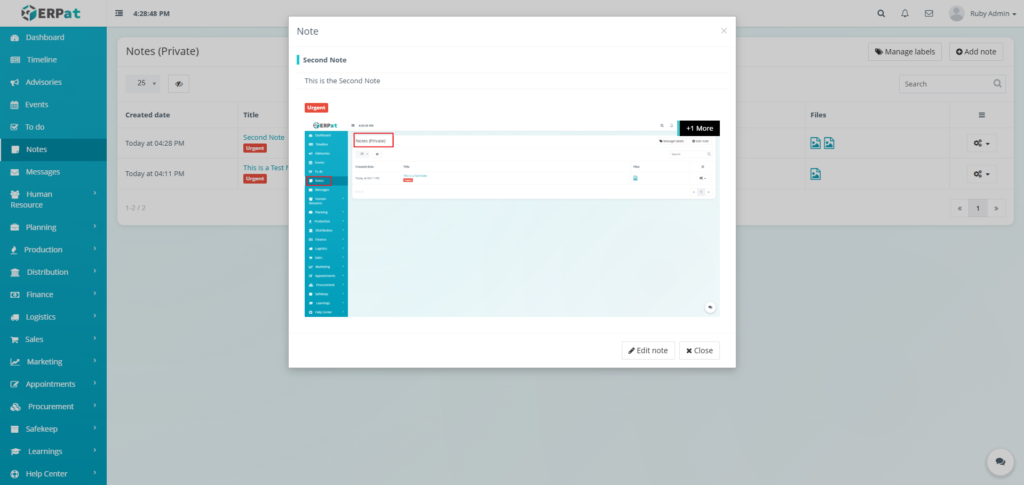
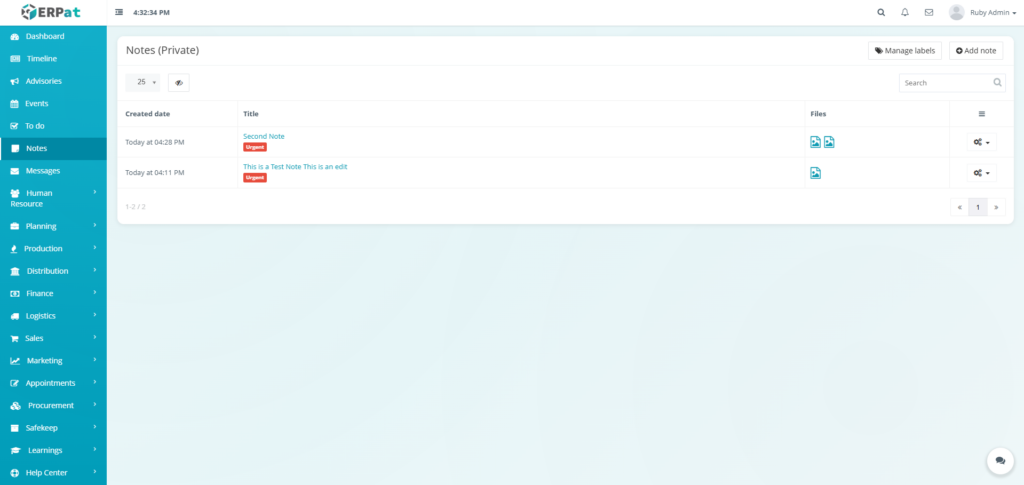
Notes – Steps for Viewing a Note #

STEPS #

  1. Click the Title of the Note

Result #

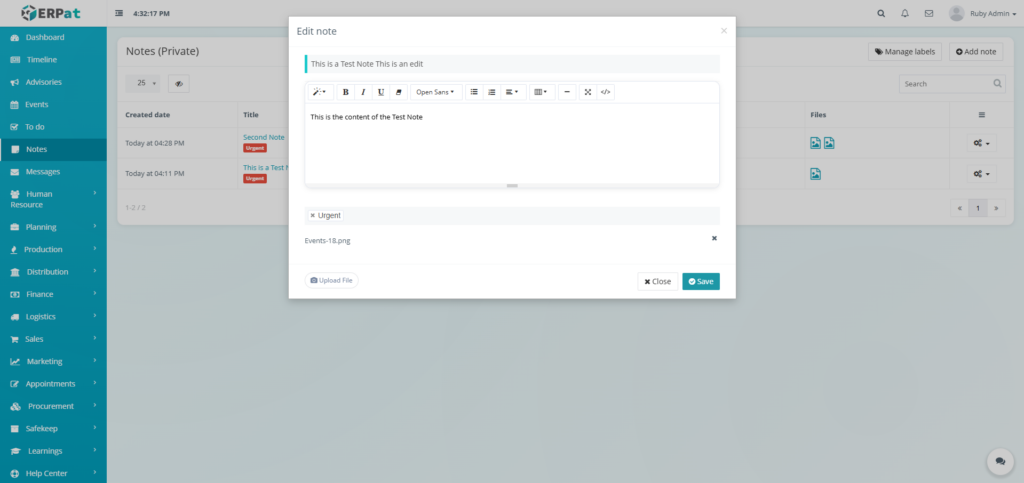
Notes – Steps for Editing a Note #

STEPS #

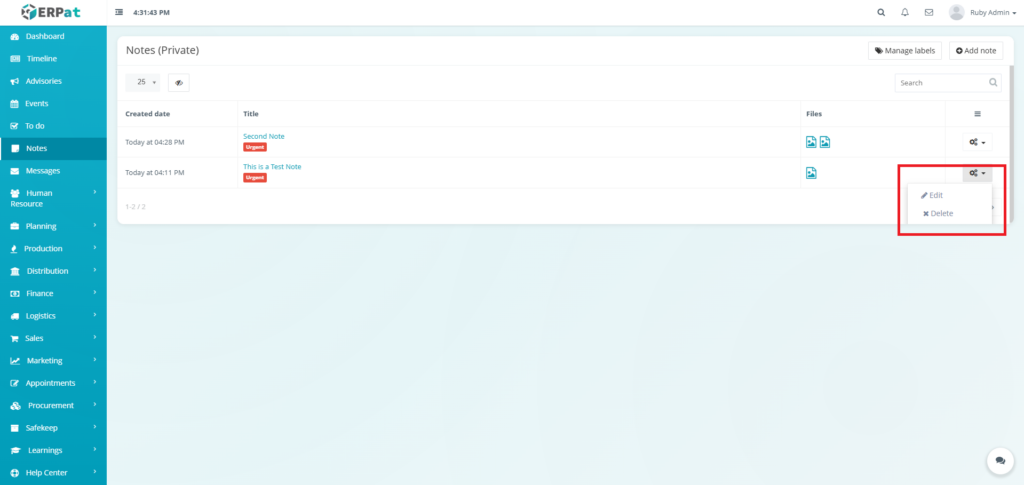
  1. Click the actions icon.
  2. Click the Edit option in the
  3. Fill in the necessary details.
  4. Click the Save button to apply the changes.
Result #
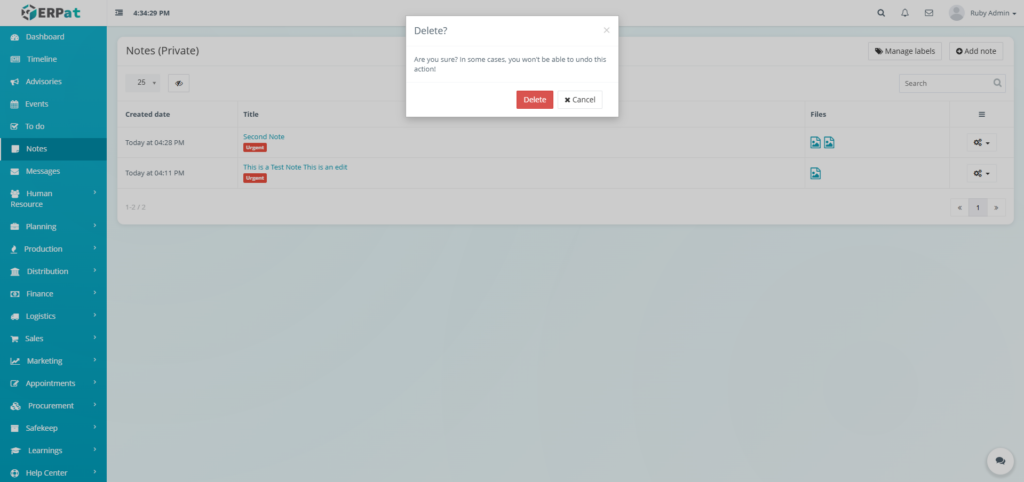
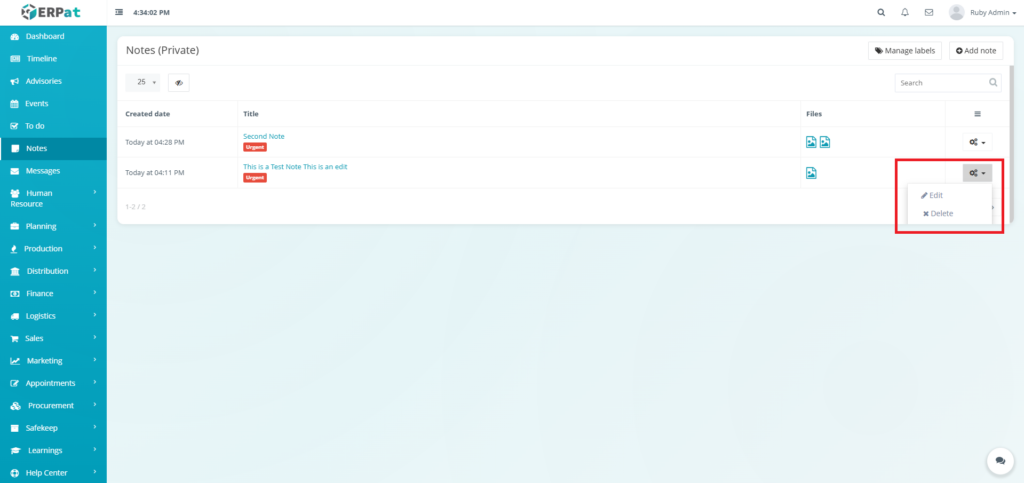
Notes – Steps for Deleting a Note #

STEPS #

  1. Click the actions icon.
  2. Click the Delete option in the
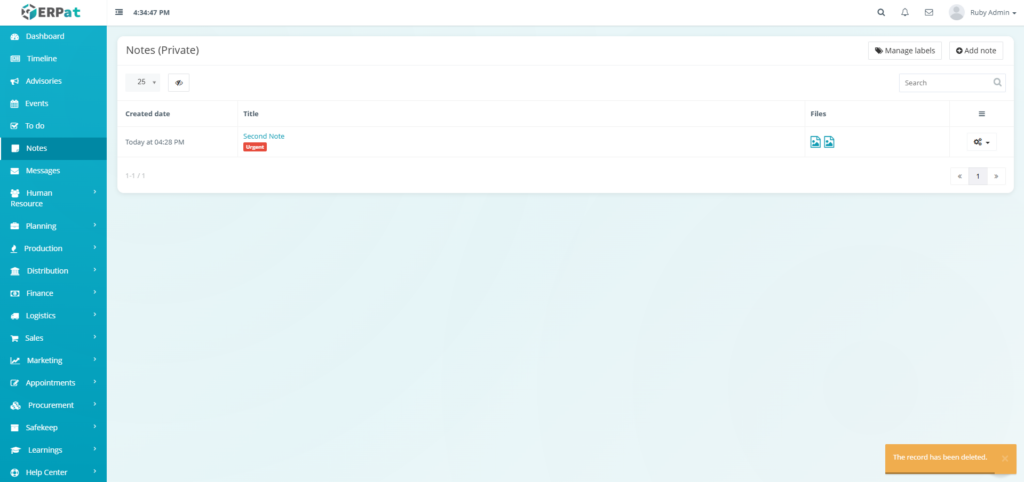
  3. Click the Delete button to remove the note.
Result #
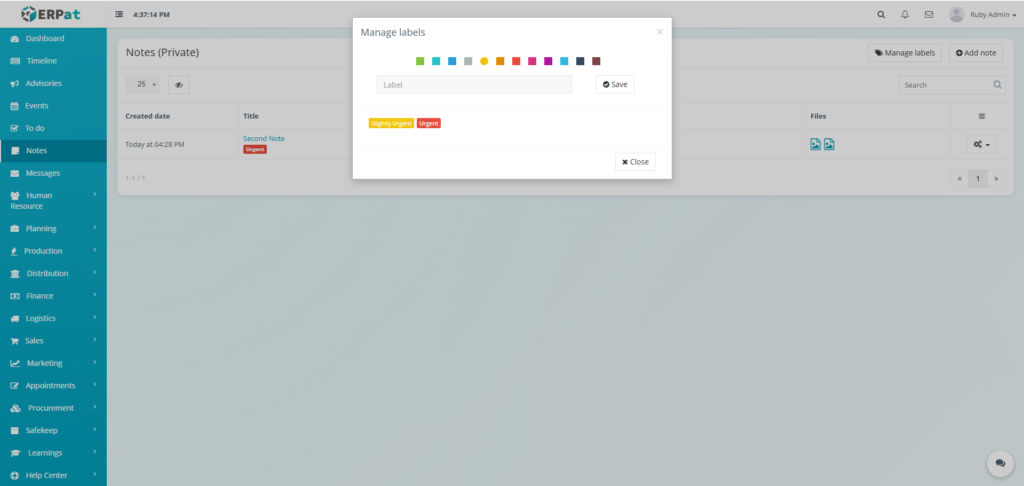
Notes – Steps for Adding a Label #

STEPS #

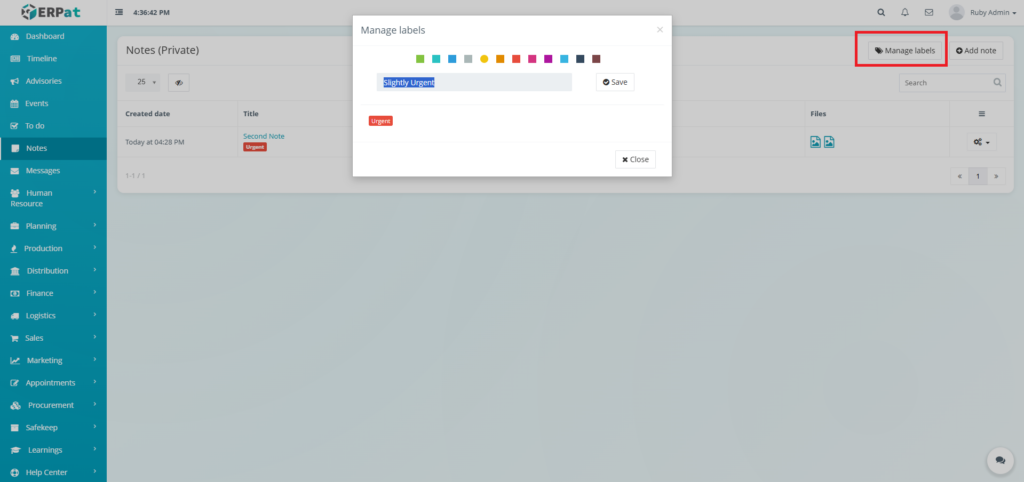
  1. Click the “Manage labels” button.
  2. Fill in the label.
  3. Select color for the label.
  4. Click the Save button to add the label.
Result #

Permissions and Access Control #

  • Individual Users – Full access to view, create, edit, and delete their own private notes only.
  • System Administrators – Cannot access user’s private notes without explicit permission.
  • Other Users – No access to another user’s private notes.

Best Practices #

  • Use Descriptive Titles – Make notes easily identifiable at a glance.
  • Regular Cleanup – Archive or delete outdated notes monthly.
  • Label Consistently – Use a small set of labels for better organization.
  • Leverage Search – Use keywords in titles and content to improve searchability.

Audit & Logs #

While notes are private, system logs track creation and modification timestamps for user reference. Note content is not audited for privacy, but access patterns may be logged for security purposes.

Last Updated: [January 05, 2026] Module Owner: Home IS – ERPat System

What are your Feelings

Share This Article :

  • Facebook
  • X
  • LinkedIn
  • Pinterest
Still stuck? How can we help?

How can we help?

Updated on January 5, 2026
Messages ModuleTo Do Module

Leave A Comment Cancel reply

Table of Contents
  • Overview
  • Key Features
  • Accessing the Notes Module
  • Notes - Steps for Adding a Note
    • STEPS
  • Result
  • Notes - Steps for Viewing a Note
    • STEPS
  • Result
  • Notes - Steps for Editing a Note
    • STEPS
  • Result
  • Notes - Steps for Deleting a Note
    • STEPS
  • Result
  • Notes - Steps for Adding a Label
    • STEPS
  • Result
  • Permissions and Access Control
  • Best Practices
  • Audit & Logs
We use cookies to ensure that we give you the best experience on our website. If you continue to use this site we will assume that you are happy with it.