Overview #
The Advisories Module is a centralized notification and announcement system within the ERPat platform that allows authorized users to create, share, and manage important advisories across the organization. It serves as a formal communication channel for distributing time-sensitive information, policy updates, system alerts, and organizational announcements to targeted audiences.
This module ensures that critical information is delivered in a structured, trackable, and auditable manner, with clear visibility into publication timelines, audience reach, and advisory lifecycle.
Key Features #
- Advisory Creation – Structured forms for drafting advisories with metadata
- Audience Targeting – Controlled sharing with specific viewers or groups
- Search & Filter – Quick retrieval of advisories by date, creator, or keywords
- Audit Trail – Timestamped creation and last-updated records
Accessing the Advisories Module #
- Log in to the ERPat System.
- Navigate to the Advisories section from the sidebar.
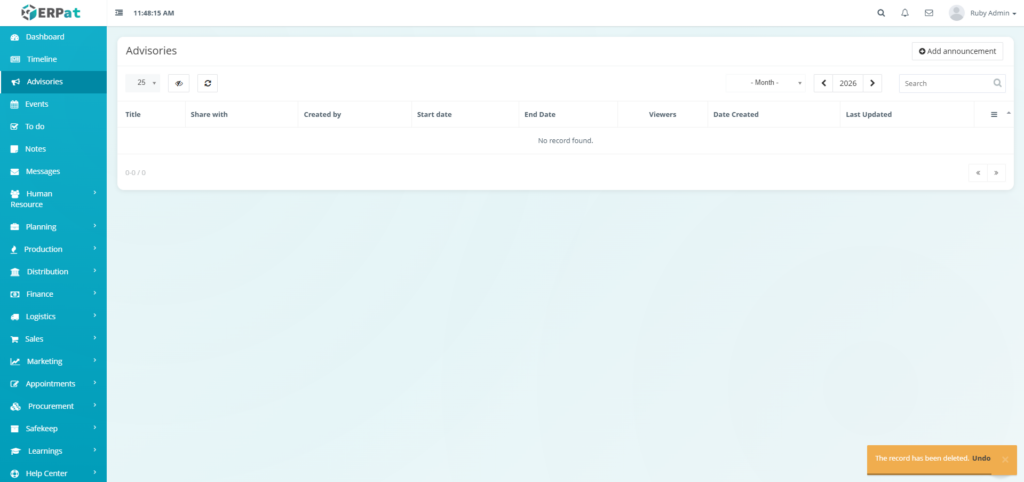
- The advisories list will display, showing current and past advisories.
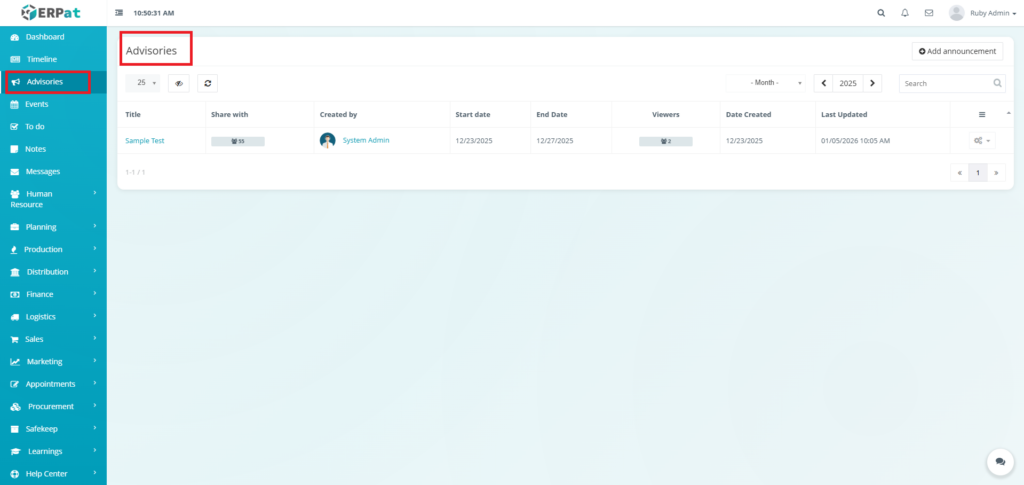
Advisory List View #
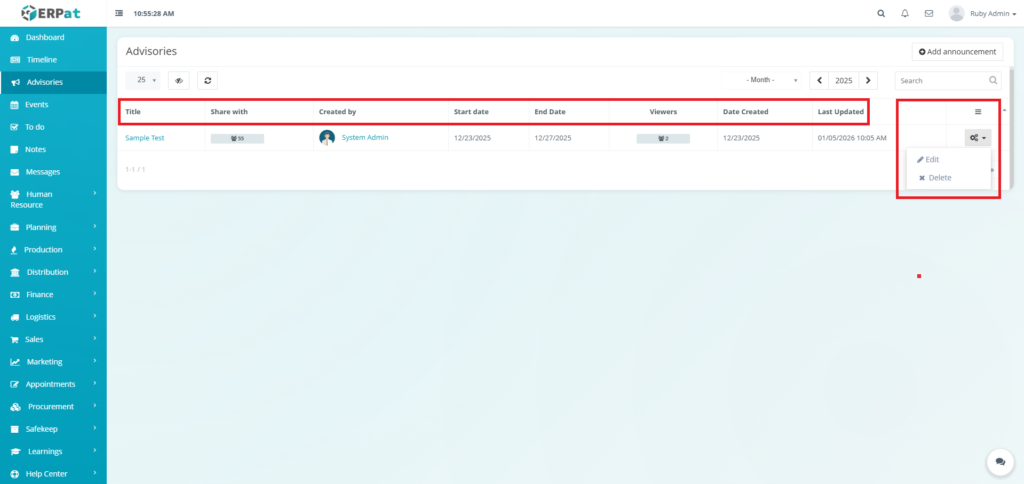
The advisory list provides a tabular overview with the following columns:
- Title – Title of the advisory (clickable to view the post).
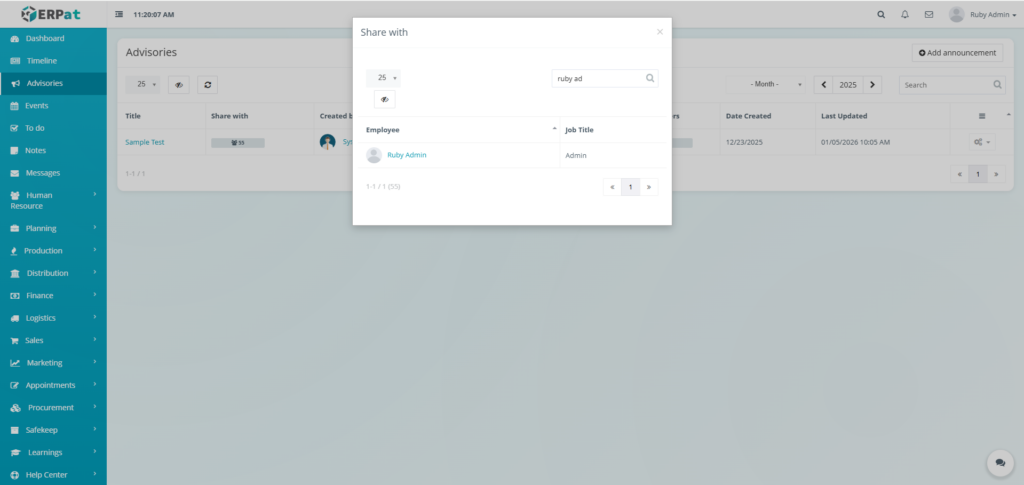
- Share with – Target audience or viewers.
- Created by – Name of the advisory creator.
- Start date – Date when the advisory becomes active.
- End Date – Date when the advisory expires.
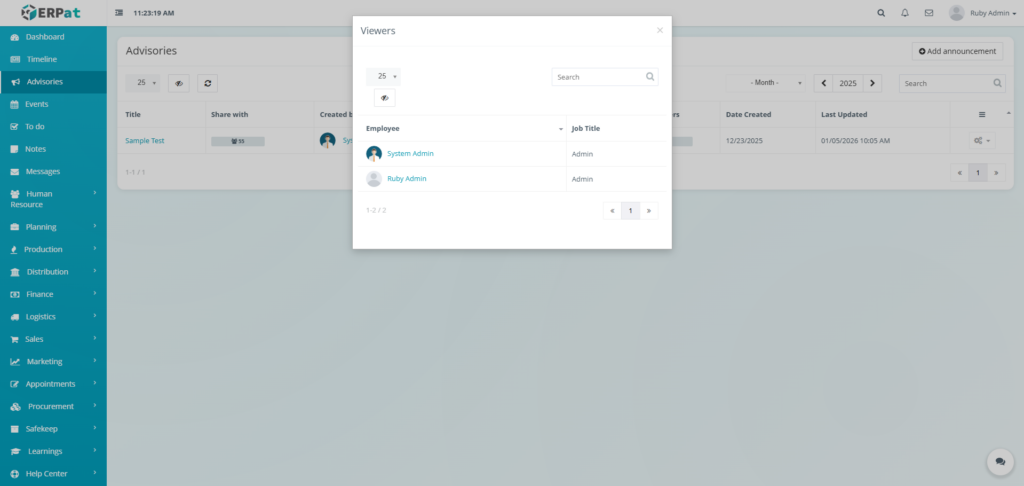
- Viewers – Audience that has viewed the advisory.
- Date Created – Timestamp of advisory creation.
- Last Updated – Timestamp of the most recent edit.
- Actions – Edit or Delete controls.
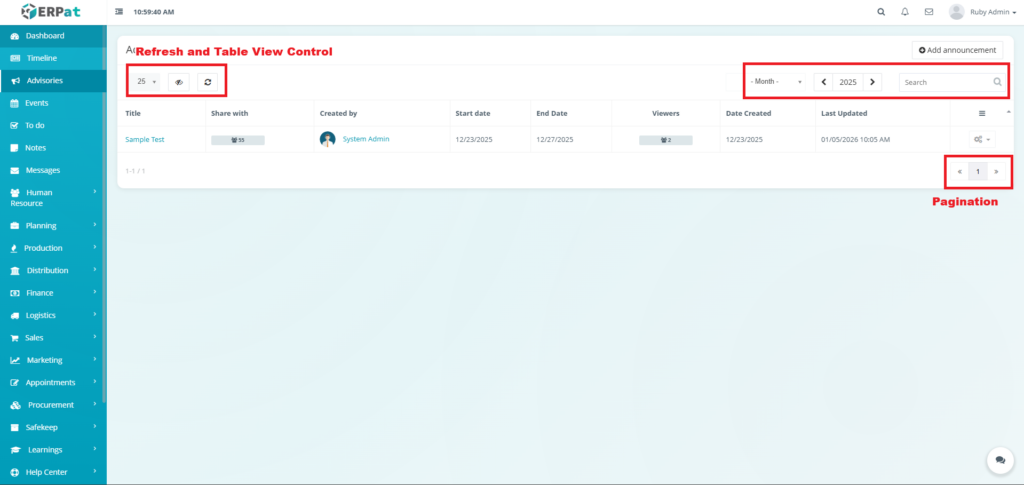
Page Control and Tools #
- Month Selector
- Year Selector
- Search Bar
- Pagination
- Refresh and Table View Control
Advisories View Announcement #
STEPS #
- Click the Title of the advisory.
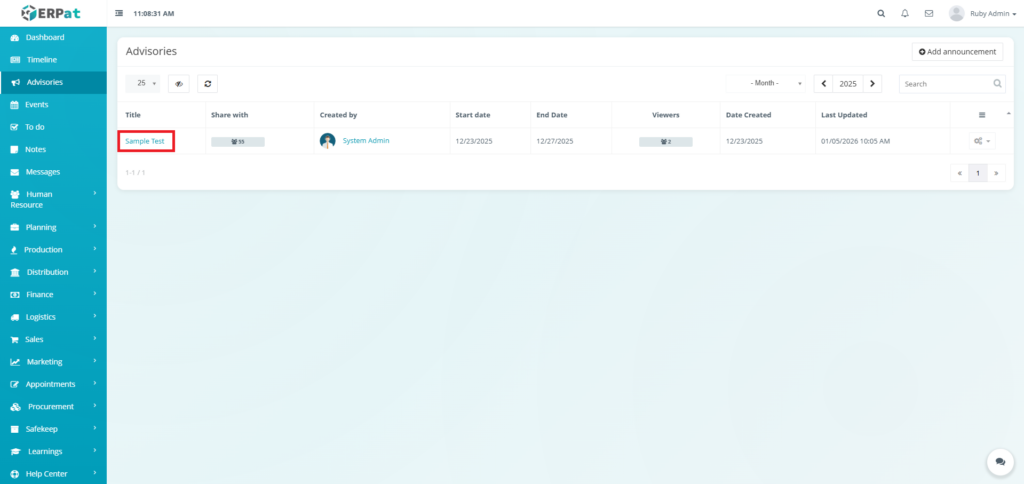
Result #
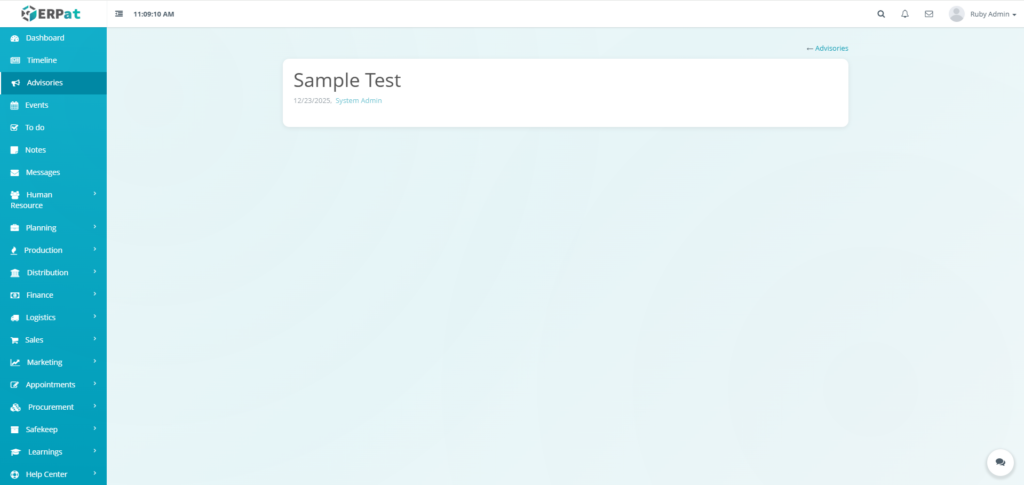
Advisories View Shared With #
STEPS #
- Click the icon within the column “Share with” and the row of the announcement.
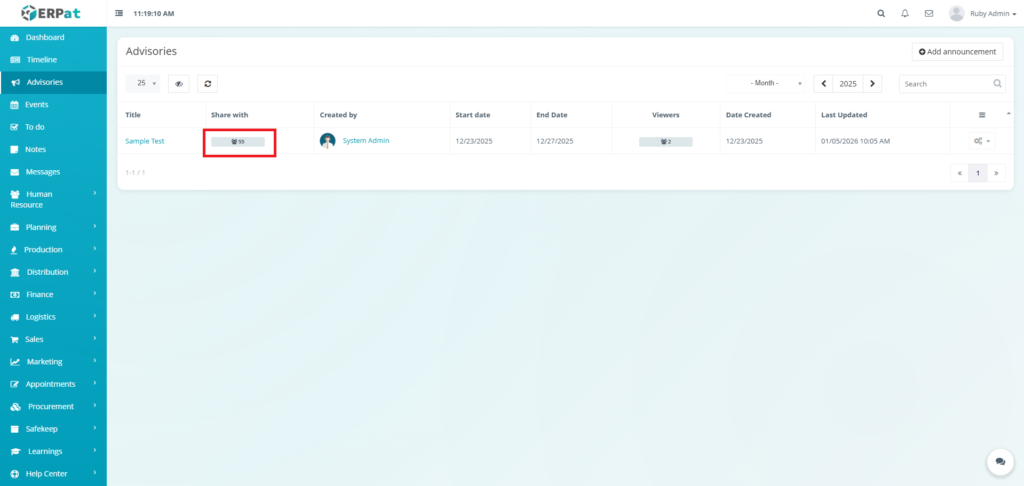
Result #
Advisories View Viewers #
STEPS #
- Click the icon within the column “Viewers” and the row of the announcement.
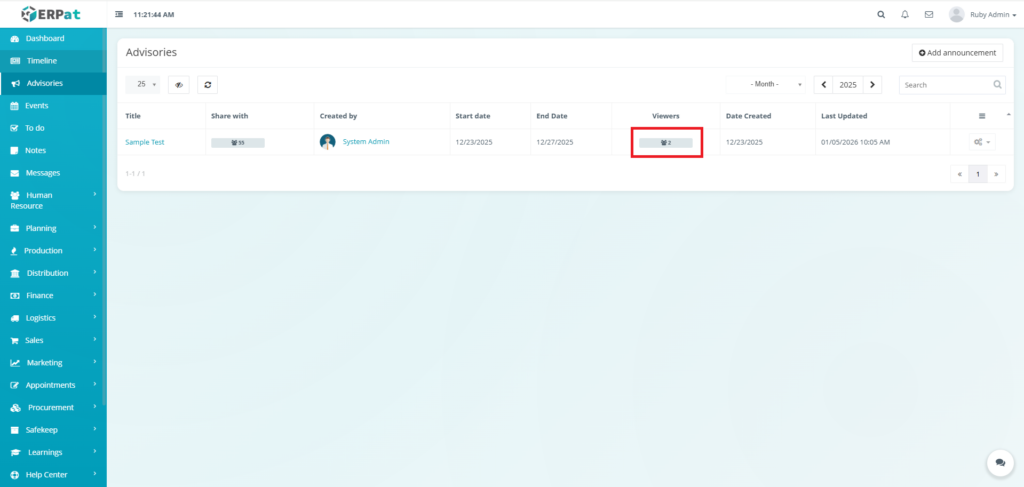
Result #
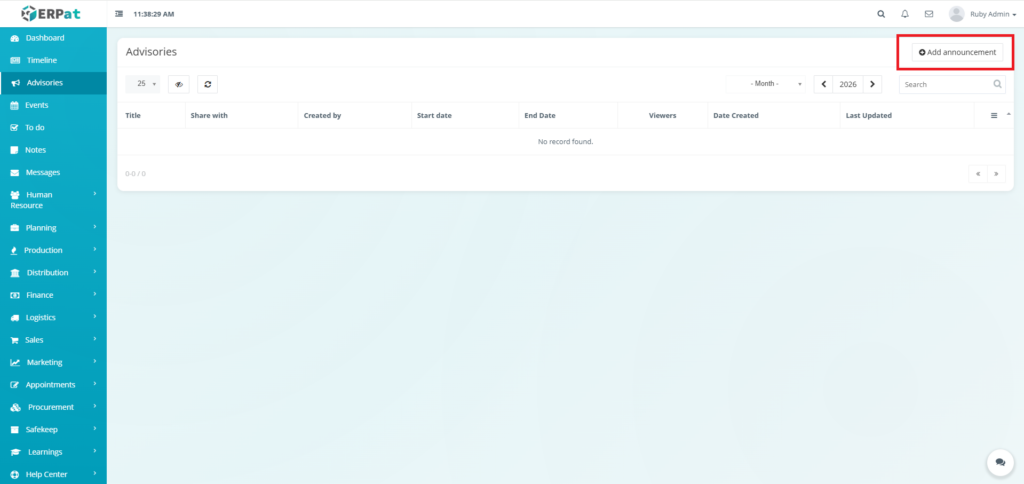
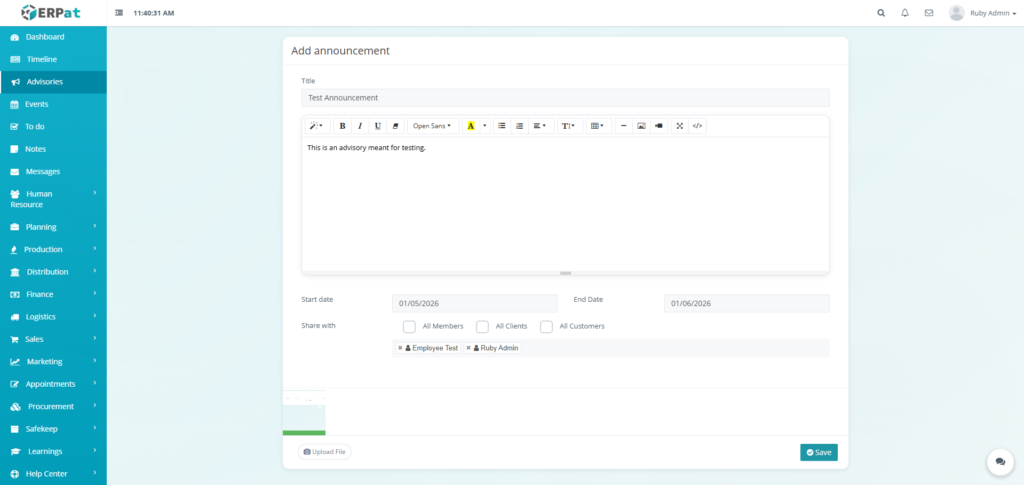
Advisories Add Announcement #
STEPS #
- Click the “Add announcement” button.
- Fill the necessary details in the form.
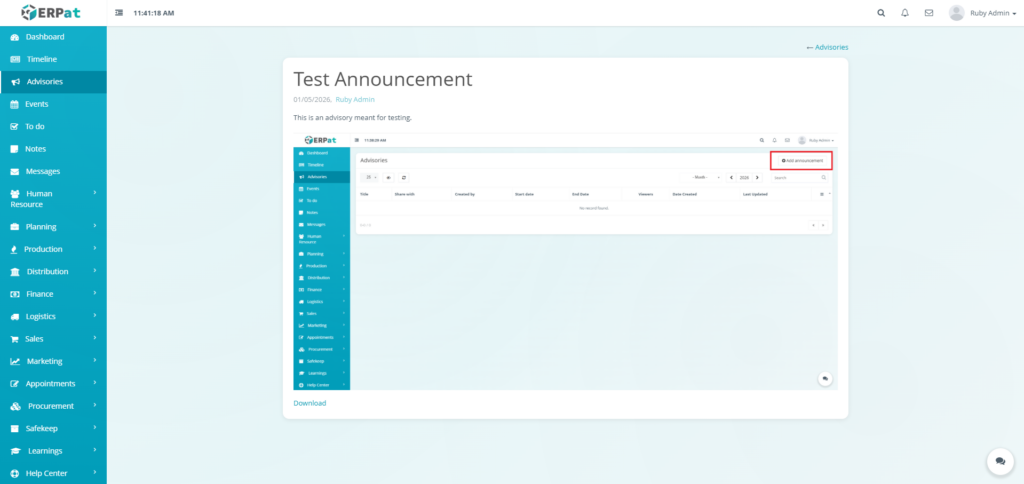
- Click the Save button to post the advisory.
Result #
Advisories Edit Announcement #
STEPS #
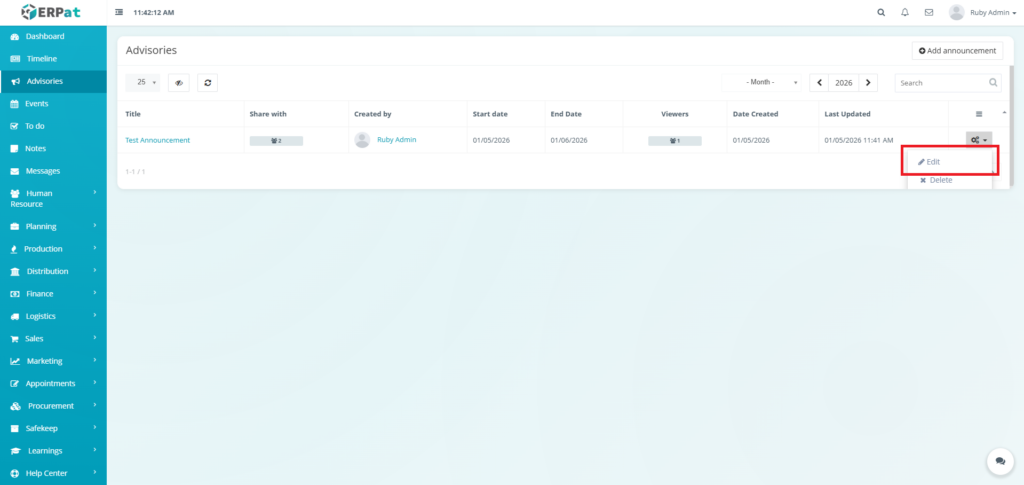
- Click the actions icon.
- Click the Edit option in the dropdown
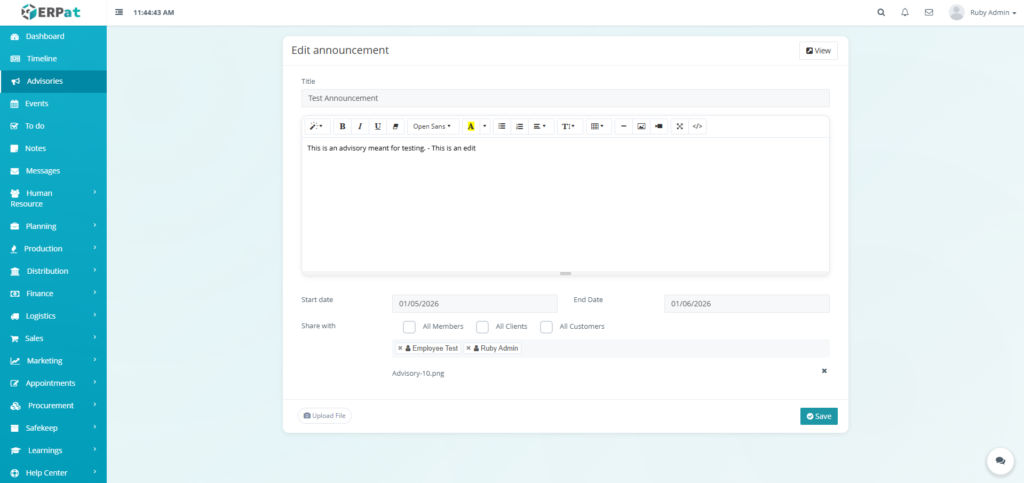
- Fill the necessary details in the form.
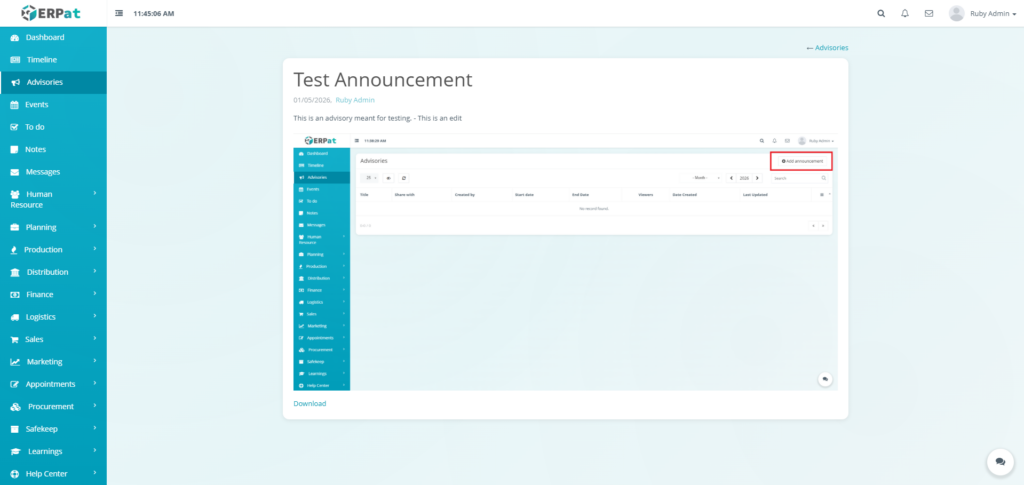
- Click the Save button to apply the changes.
Result #
Advisories Delete Announcement #
STEPS #
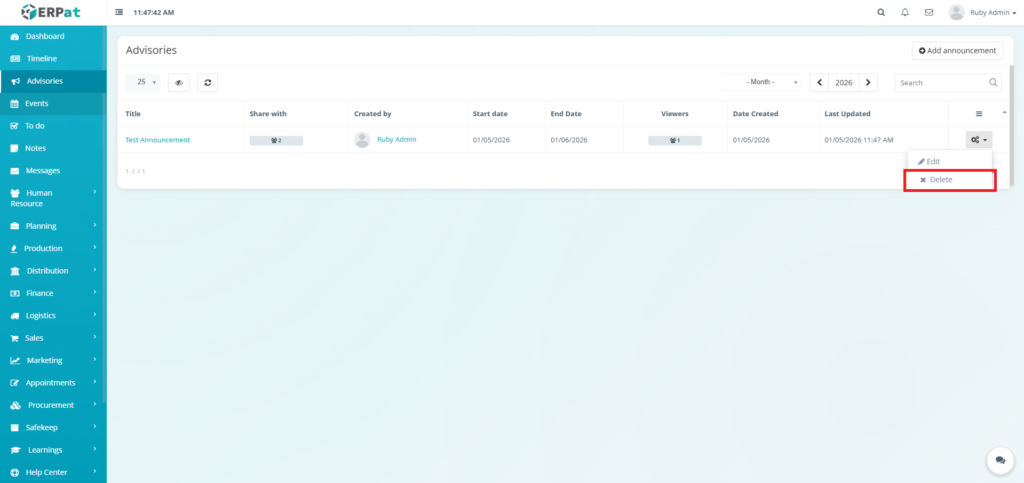
- Click the actions icon.
- Click the Delete option in the dropdown
Result #
Permissions and Access Control #
- Employees can submit leave applications.
- HR Admin and authorized roles can approve, reject, and manage leave credits.
- Only authorized roles can modify leave types and credits.
Best Practices #
- Keep Titles concise and action-oriented (e.g., “MANDATORY: System Maintenance”).
- Use Categories consistently to help employees filter through historical announcements.
- Archive old advisories to keep the active list manageable.
Audit & Logs #
All actions related to advisories (creation, publication changes, and deletions) are logged for audit and compliance purposes within the ERPat System.
Last Updated: [January 05, 2026] Module Owner: Home IS – ERPat System


