Overview #
The Department Module is used to organize employees into structured organizational units within the ERPat System. It allows HR and administrators to define Teams and Groups, assign department heads, track employee membership, and maintain clear organizational hierarchy.
This module supports workforce structuring, reporting, access control, and integration with other HR modules such as Employee, Schedule, Attendance, and Payroll.
Key Features #
- Centralized department and organizational unit management
- Support for Teams and Groups classification
- Assignment of department heads
- Automatic employee count tracking per department
- Search and filtering of departments
- Role-based edit and delete controls
- Audit tracking for department changes
Accessing the Department Module #
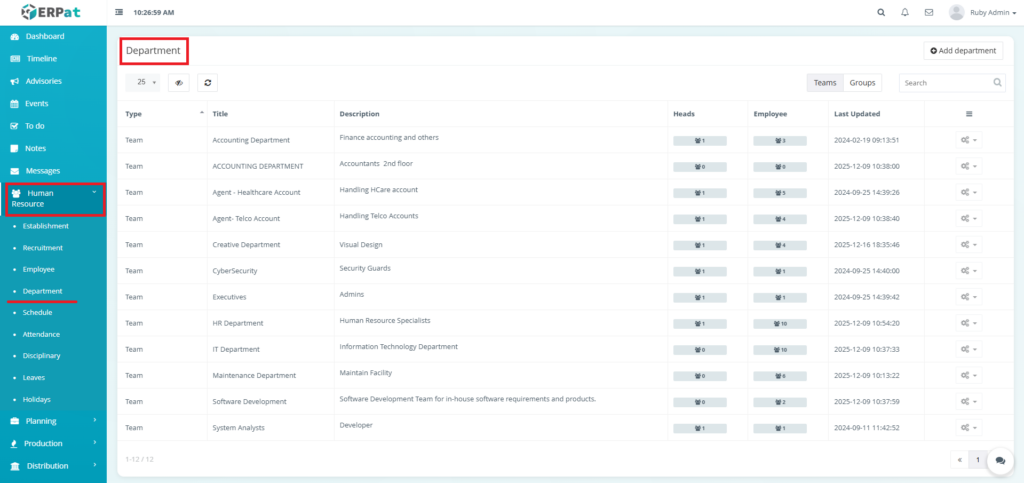
- Log in to the ERPat System.
- Navigate to Human Resource from the main sidebar.
- Select Department.
Department Types #
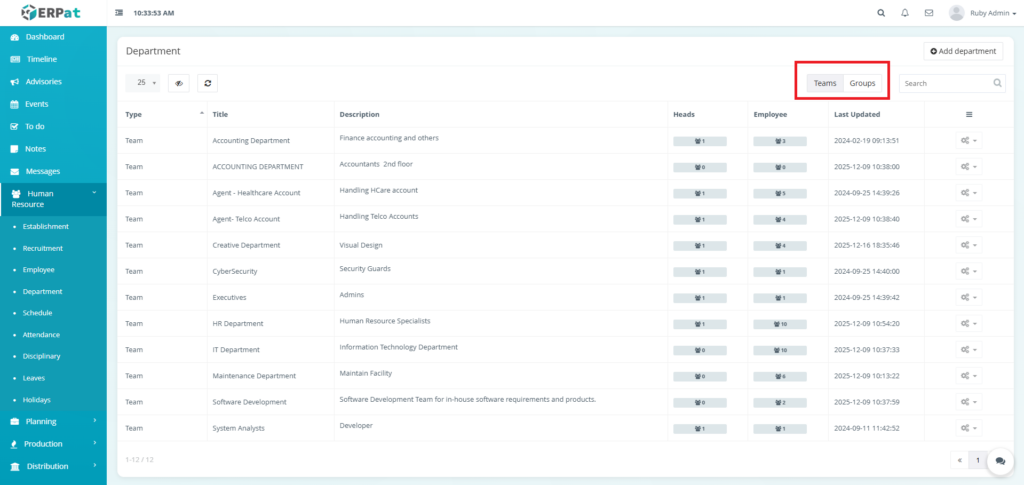
Team
- Functional or operational units
- Typically represent departments with daily responsibilities
- Can have assigned department heads and employees
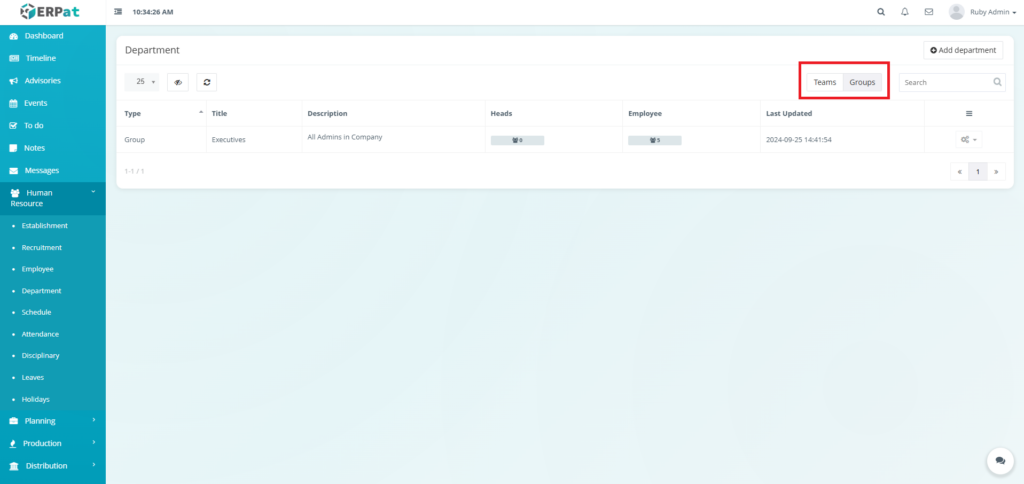
Group
- Logical or administrative groupings
- Often used for executive or system-wide classifications
- May not require a department head
Department Listing Page #
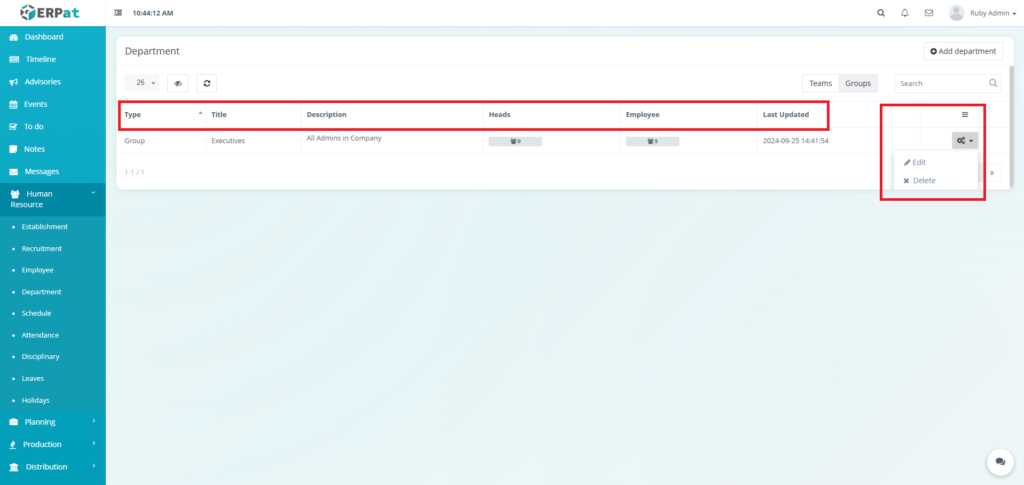
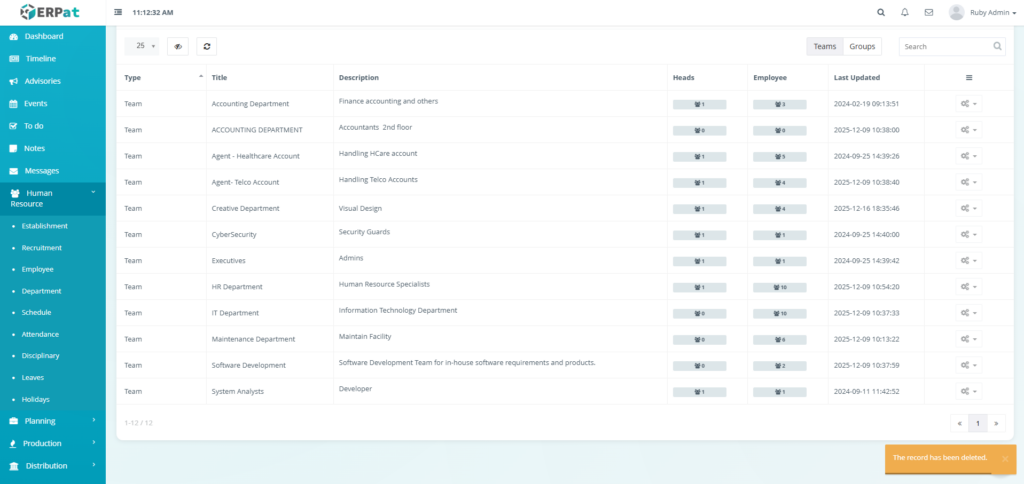
The Department listing page provides an overview of all departments with the following columns:
- Type – Indicates whether the entry is a Team or Group
- Title – Department or group name
- Description – Brief summary of department scope
- Heads – Number of assigned department heads
- Employee – Number of employees assigned
- Last Updated – Timestamp of the most recent update
- Actions – Edit or Delete controls

Page Controls and Tools #
Top Action Buttons
- Add Department – Create a new department or group

View Toggles
- Teams – Displays all departments classified as teams
- Groups – Displays all departments classified as groups
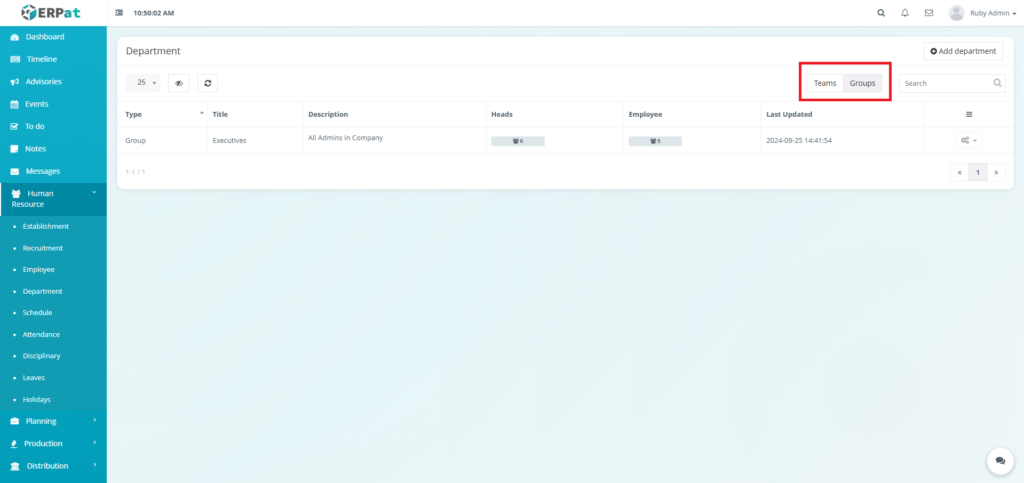
Utilities
- Search bar
- Pagination controls
- Refresh and table view controls
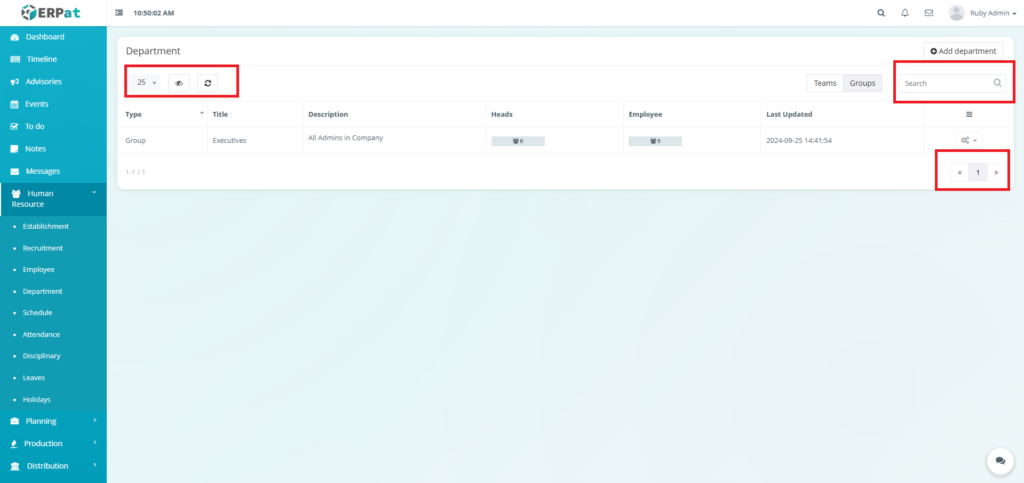
Department Listing Page Add Department #
STEPS #
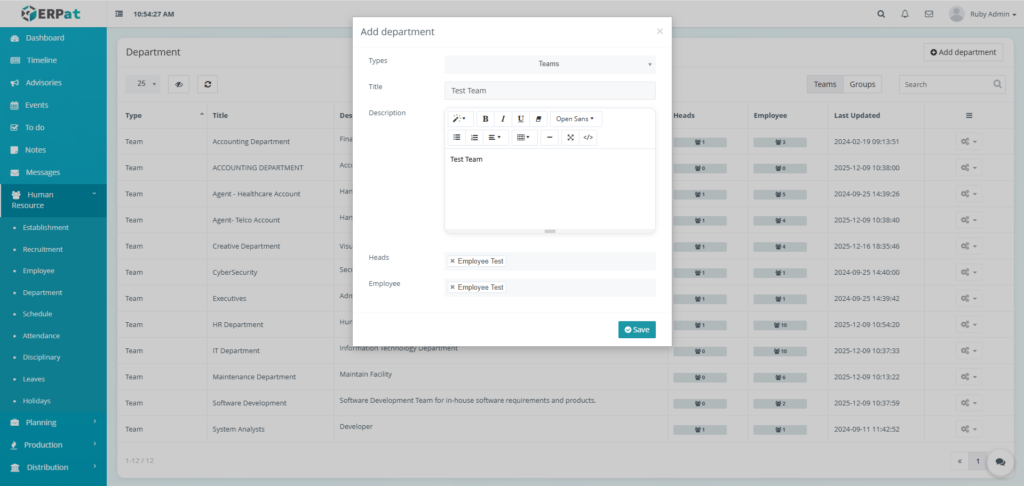
- Click the Add department button.
- Fill in the necessary fields.
- Select the Type:
- Team or Group
- Enter the following details:
- Title
- Description (optional)
- Assign department head(s) if applicable.
- Assign the employees.
- Click the Save button to add the Department.
Result #

Department Listing Page View Heads #
- Click the Icon under the Heads.
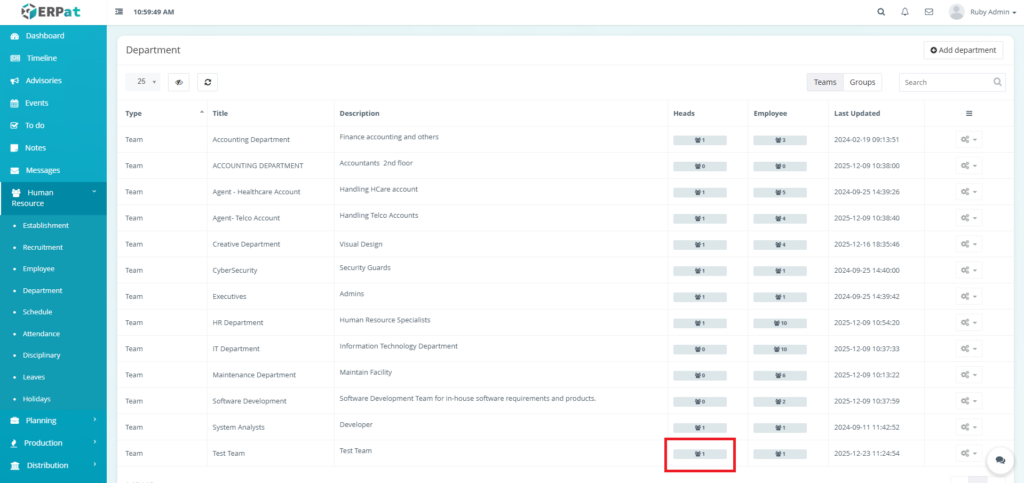
Result #
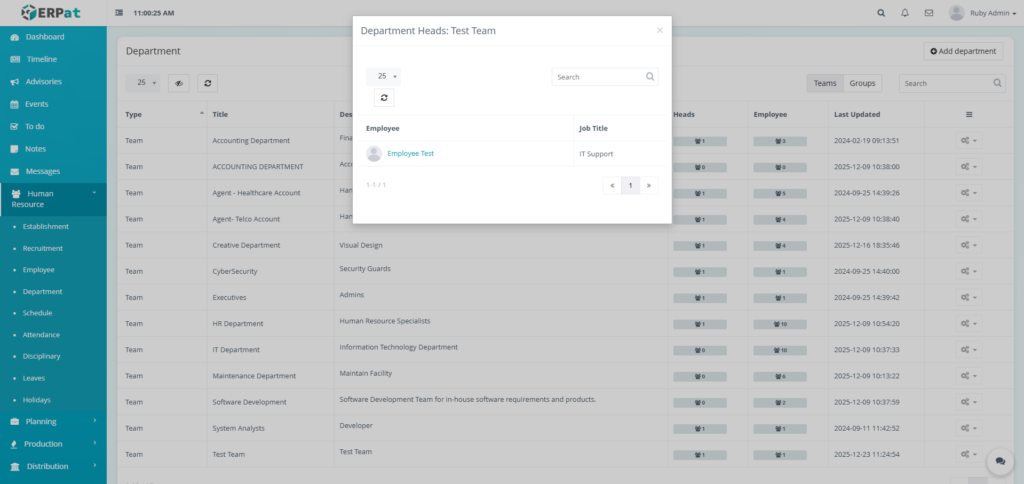
Department Listing Page View Employee #
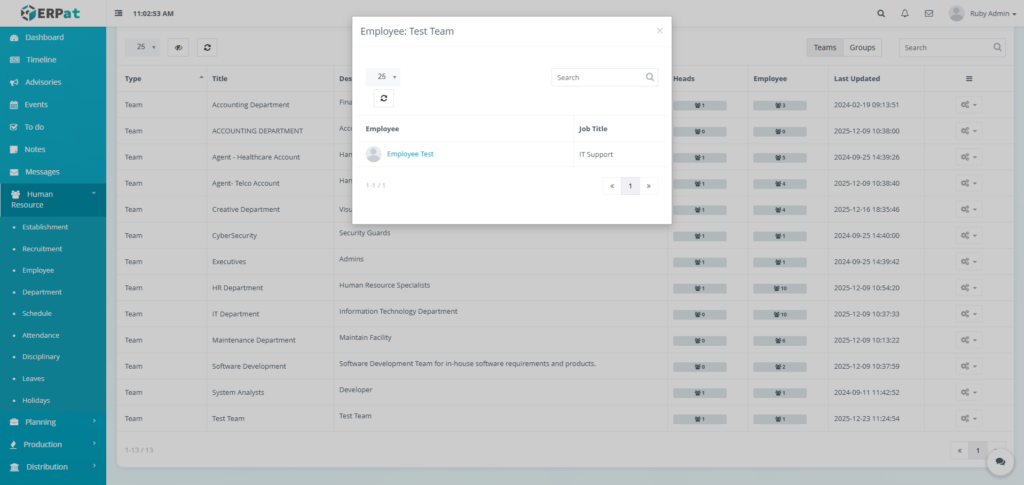
- Click the Icon under the Employee.
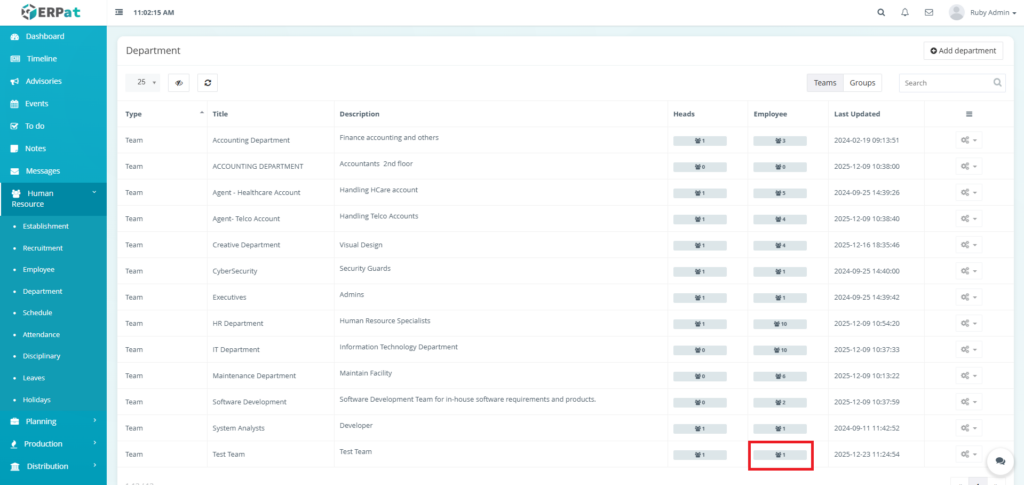
Result #
Department Listing Page Edit Department #
STEPS #
- Click the actions button in the table.
- Click the Edit option in the dropdown of actions button.
- Fill the changes.
- Click the Save button to apply the changes.
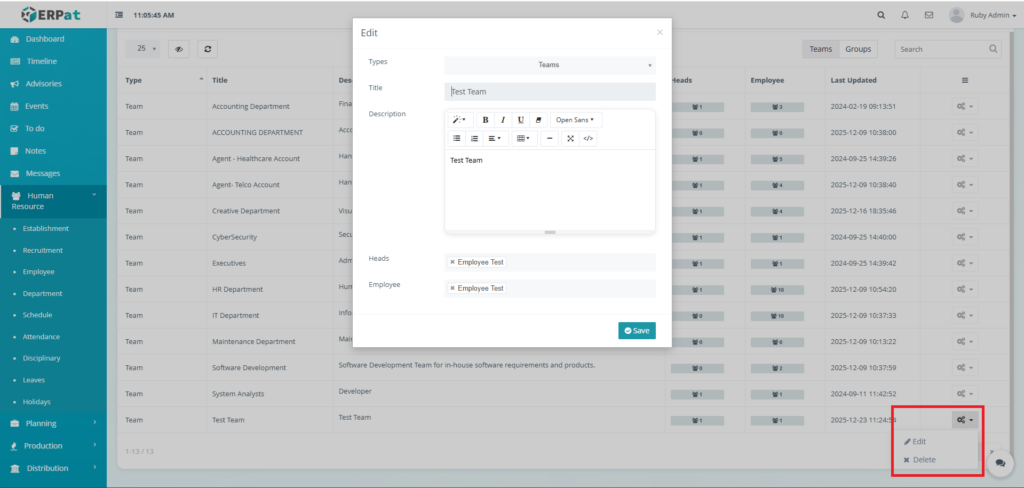
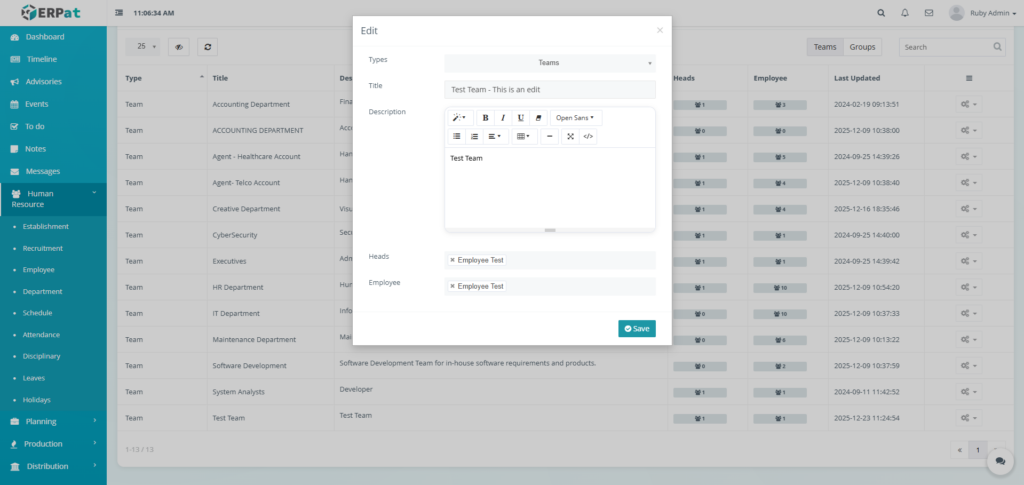
Result #
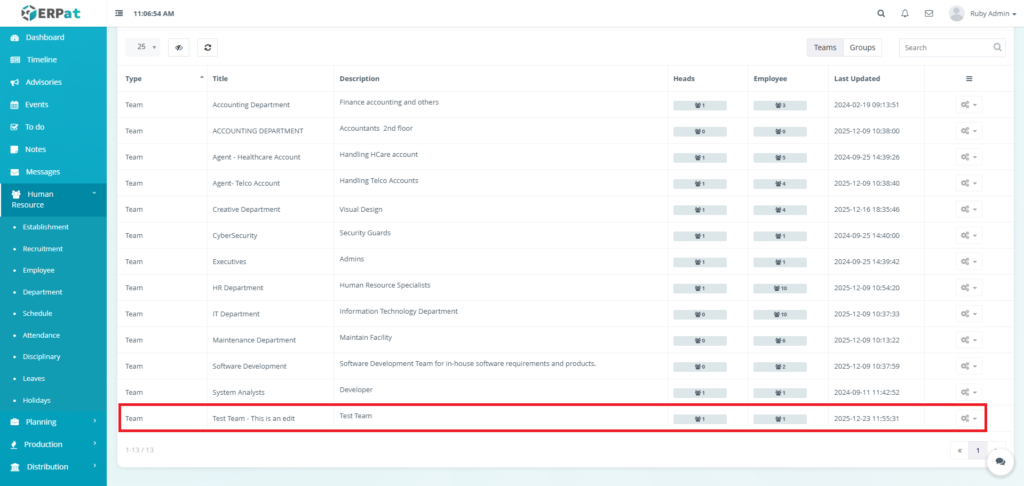
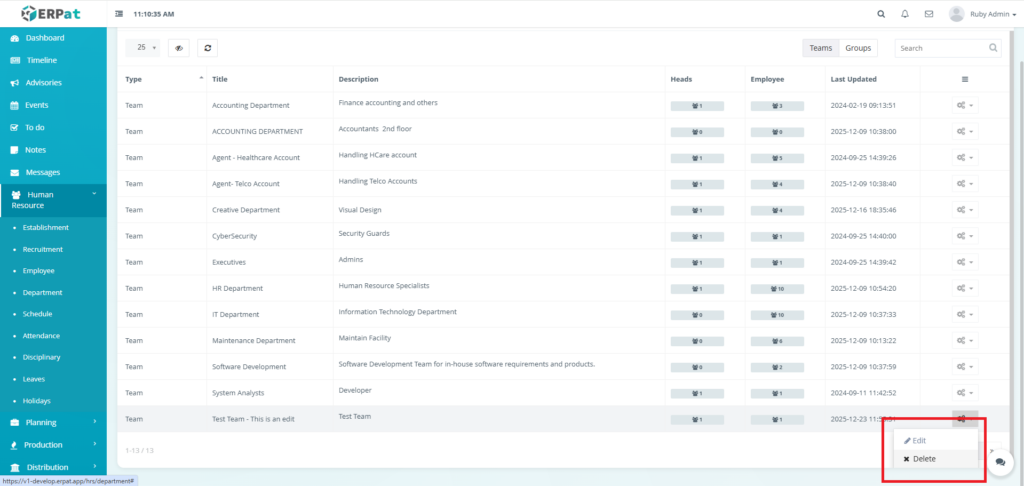
Department Listing Page Delete Department #
STEPS #
- Click the actions button in the table.
- Click the Delete option in the dropdown of actions button.
- Click the Delete button to delete the department
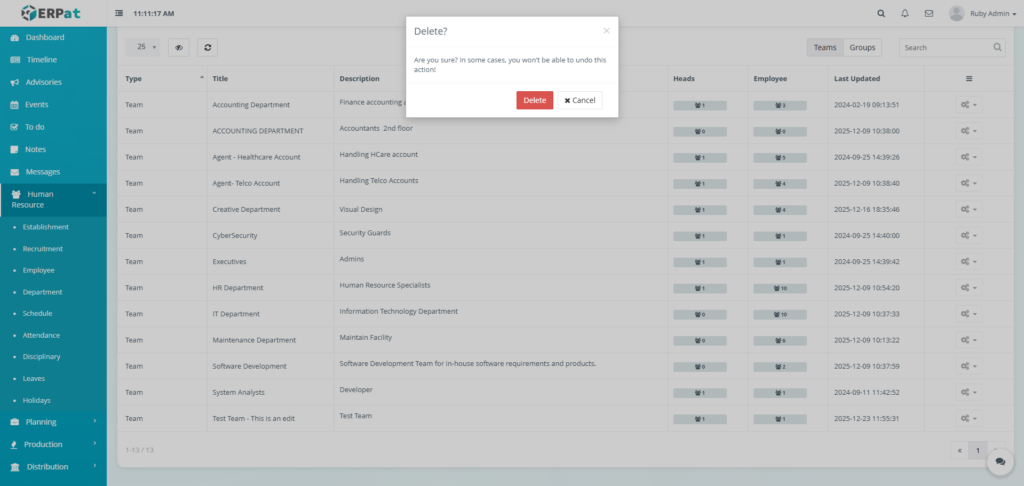
Result #
Permissions and Access Control #
- Only HR Admin or authorized roles can add, edit, or delete departments.
- View-only access may be granted to supervisory users.
- Group-level departments may have restricted edit permissions.
Best Practices #
- Use clear and standardized department names
- Separate operational Teams from administrative Groups
- Assign department heads consistently
- Avoid deleting departments with historical records
- Review department structure periodically
Audit & Logs #
All employee-related actions (create, update, status change) are logged for audit and compliance purposes within the ERPat System.
Last Updated: [December 23, 2025] Module Owner: Human Resource IS – ERPat System


