Overview #
This module serves as the central repository for all organizational expenditures, enabling finance teams to record expenses, track payment status, categorize spending, and generate detailed expense reports. It supports both one-time and recurring expenses with full integration into the general ledger.
Key Features #
- Expense Recording – Capture detailed expense transactions with dates, accounts, categories, and descriptions
- Multi-View Reporting – Monthly, yearly, custom, and recurring expense views with chart visualizations
- Categorization System – Organize expenses by custom categories and accounting accounts
- Tax Handling – Track tax components separately from base amounts
- Payment Tracking – Monitor payment status and outstanding balances
- Attachment Management – Attach receipts and supporting documents
- Total Calculations – Automatic calculation of totals, payments, and balances
- Export Capabilities – Excel export for external reporting and reconciliation
Accessing the Expenses Module #
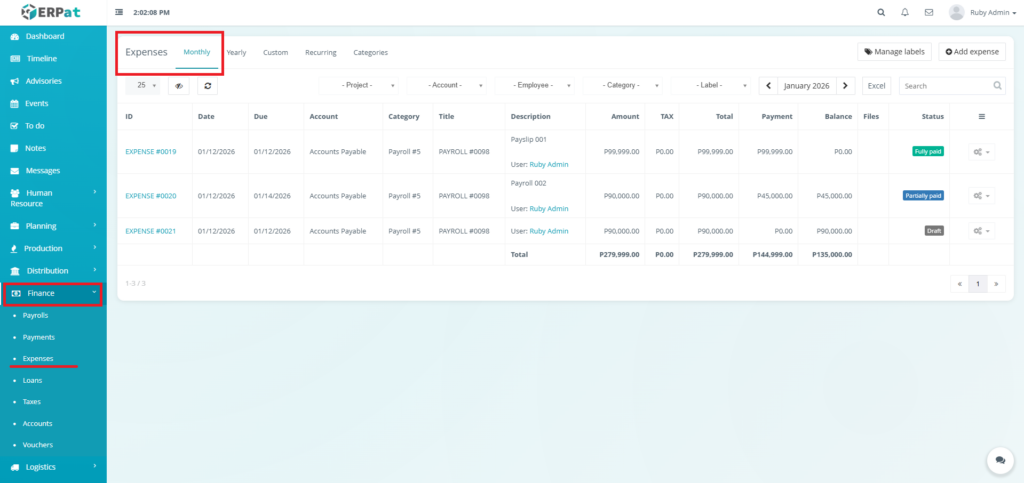
- Log in to the ERPat System
- Navigate to Finance from the main sidebar
- Select Expenses from the finance menu
Expenses Listing Page #
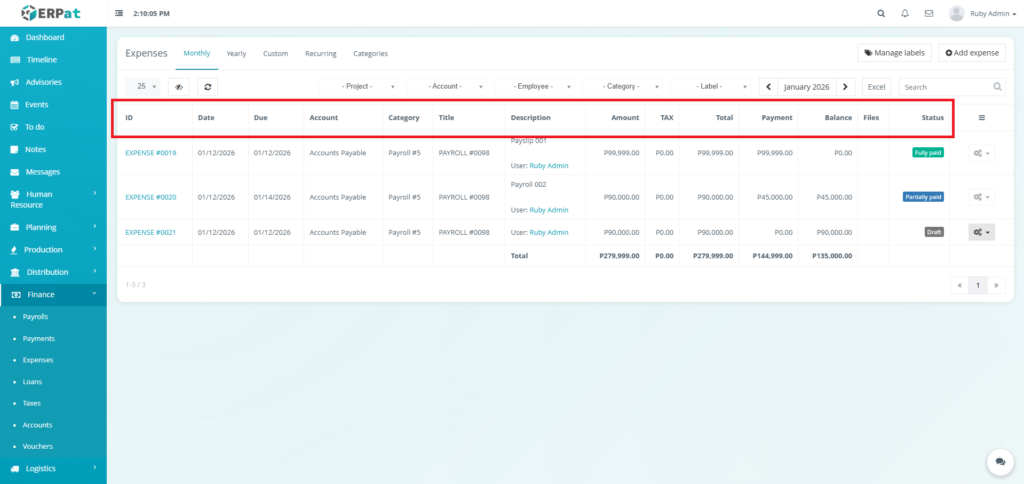
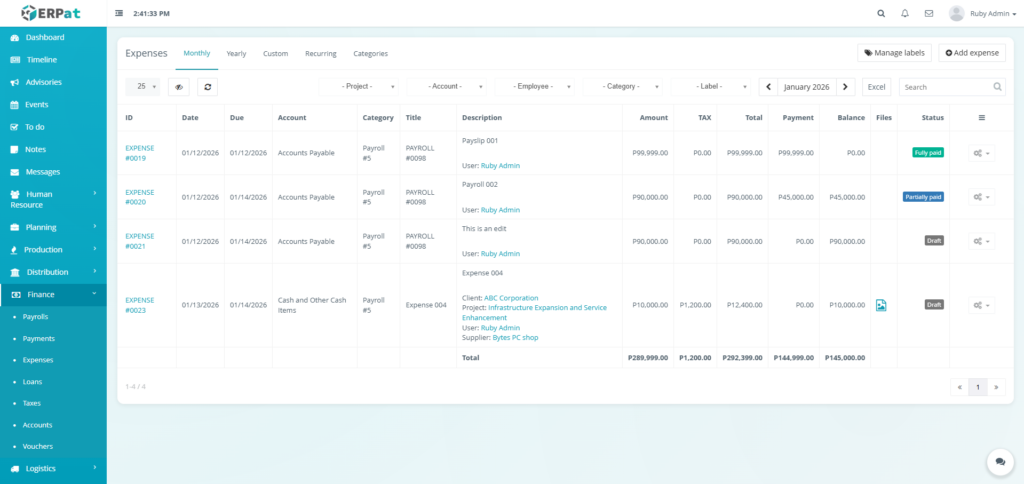
The expenses interface displays all expense records in a comprehensive table format:
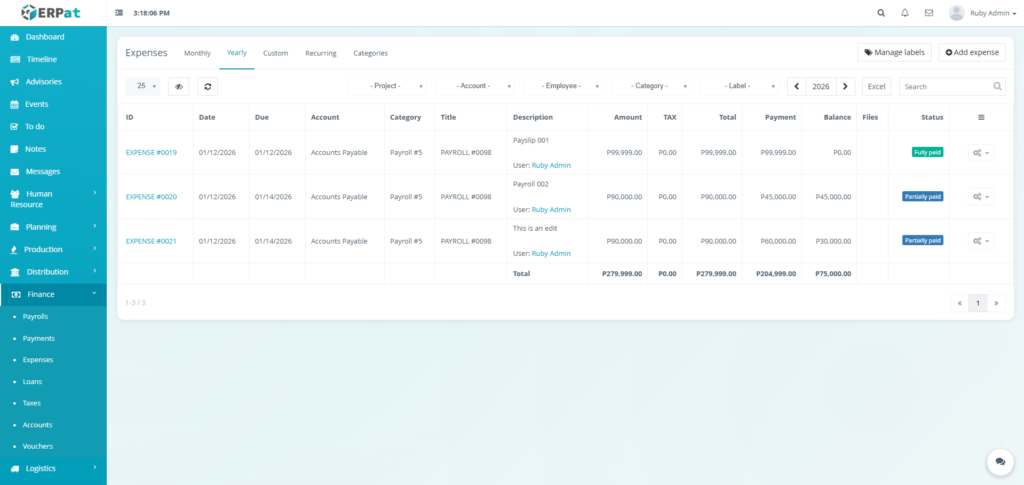
- ID – Unique expense identifier
- Date – Date when the expense was incurred
- Due – Date when the expense should be paid.
- Account – General ledger account
- Category – Expense category
- Title – Brief description of the expense
- Description – Detailed explanation
- Amount – Base amount before tax
- TAX- Tax amount associated with the expense
- Total – Total amount
- Payment – Amount already paid toward this expense
- Balance – Amount not paid
- Files – Attachment for receipts or documents
- Status – Current status (e.g., Paid, Draft, Partially Paid)
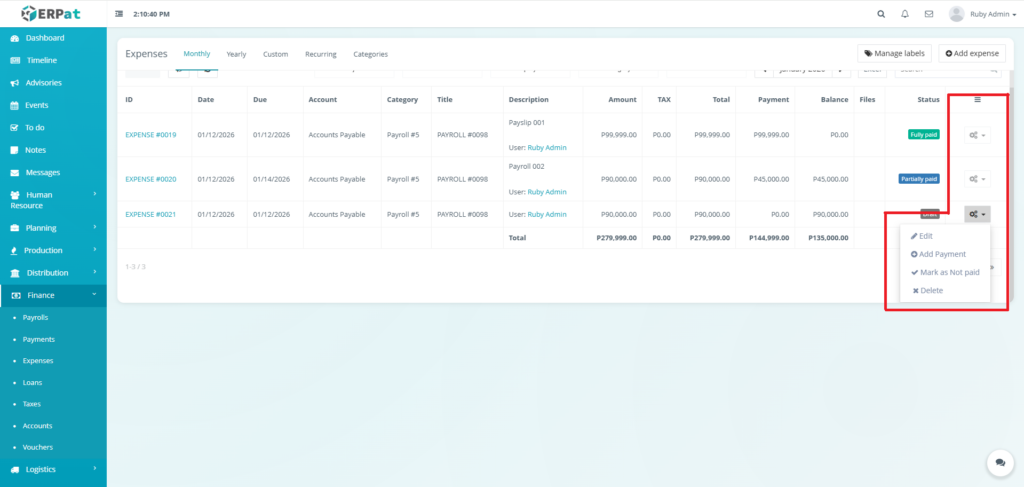
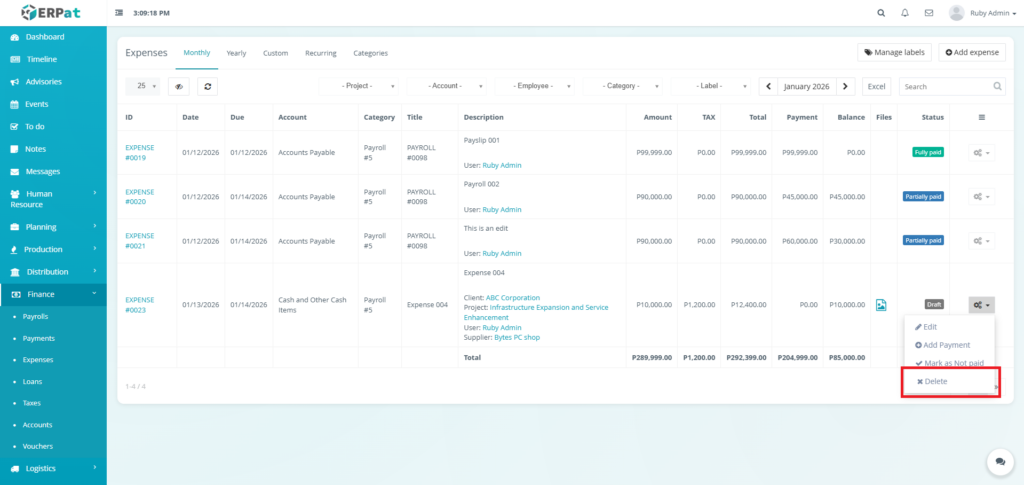
- Actions – Edit, Add Payment, Mark as Not Paid, or Delete controls.
Page Controls and Tools #
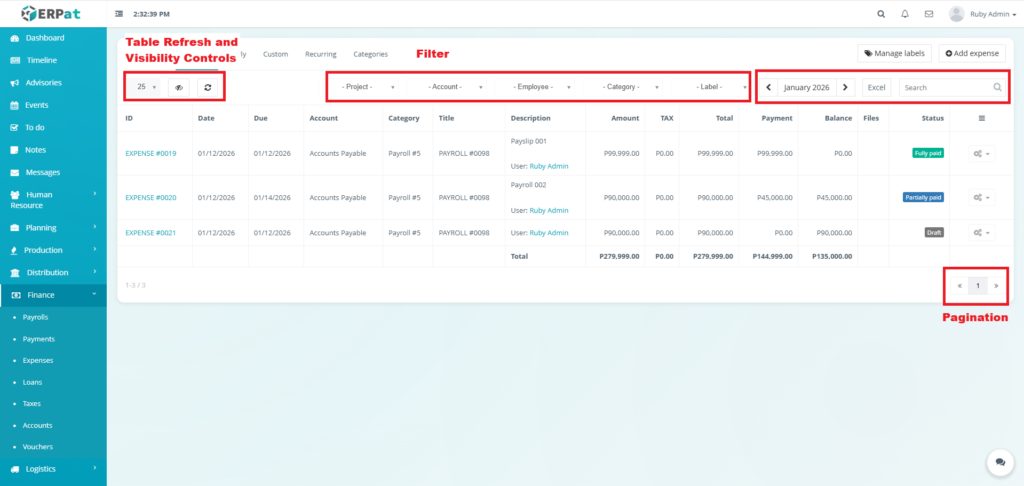
- FIlter
- Project
- Account
- Employee
- Category
- Label
- Month and Year Selector
- Excel Export
- Search Bar
- Table Refresh and Visibility Controls
- Pagination
Steps for Adding an Expense #
STEPS #
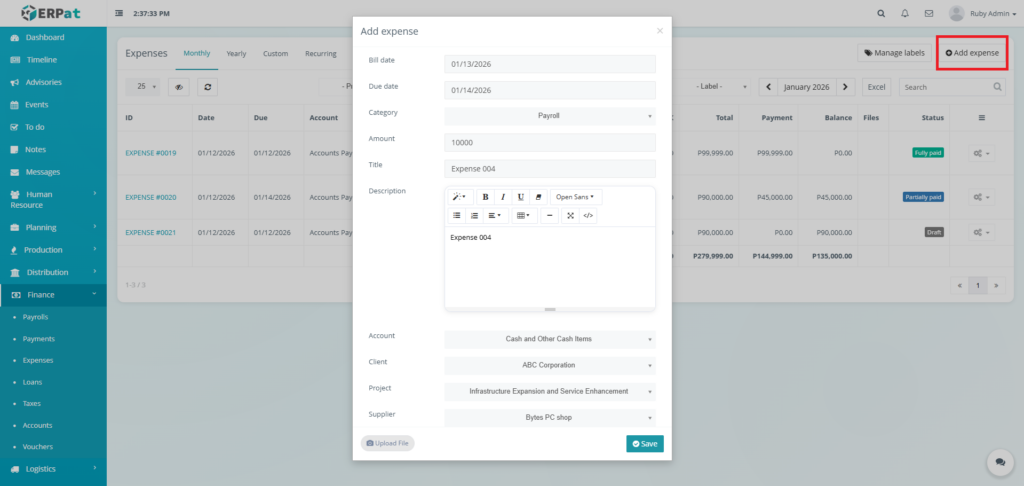
- Click the “Add Expense” button.
- Fill in the necessary details into the fields.
- Click the Save button to add the expense.
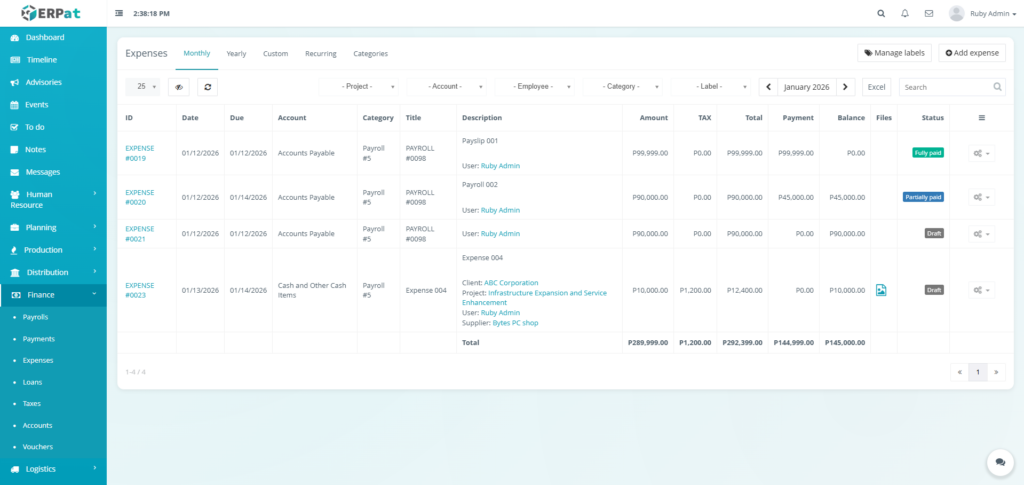
Result #
Steps for Editing an Expense #
STEPS #
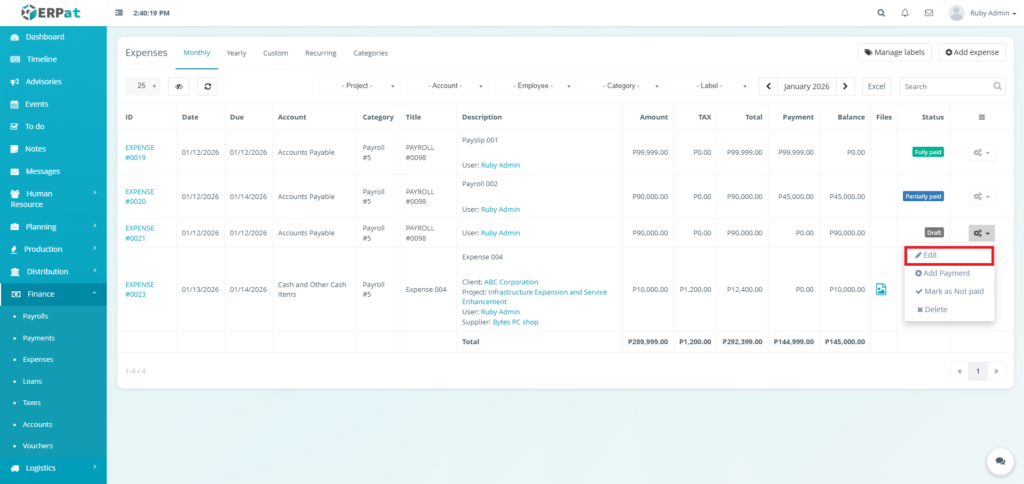
- Click the actions icon in the table.
- Click the Edit option in the dropdown
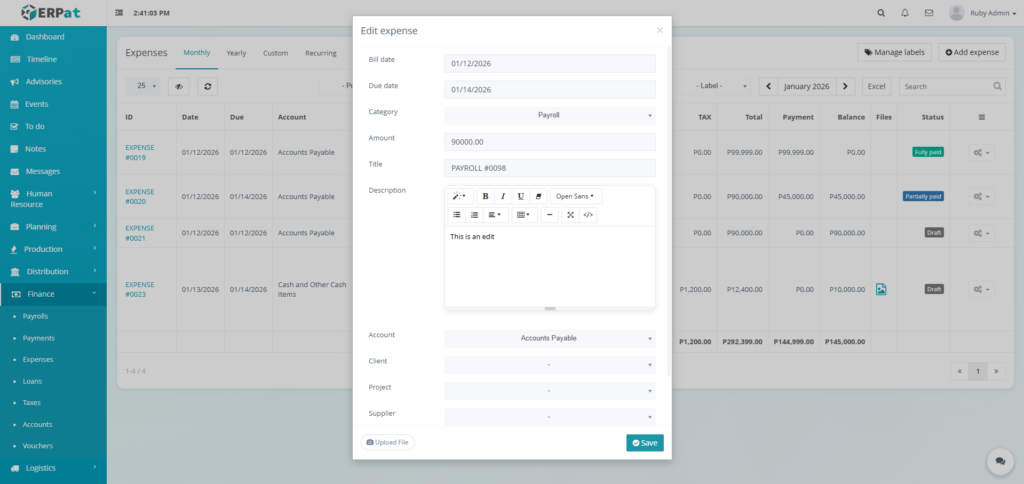
- Fill in the changed into the fields.
- Click the Save button to apply the changes.
Result #
Steps for Adding a Payment to the Expense #
STEPS #
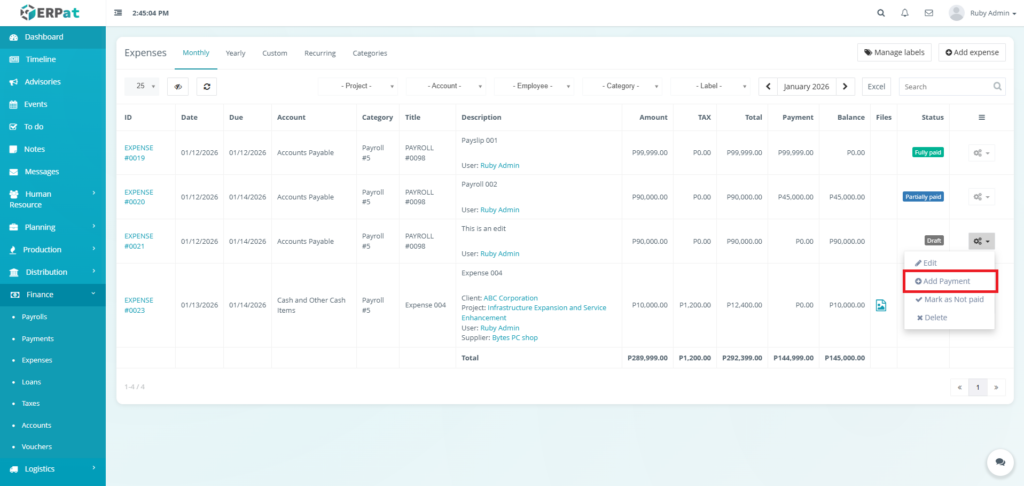
- Click the actions icon in the table.
- Click the “Add Payment” option in the dropdown
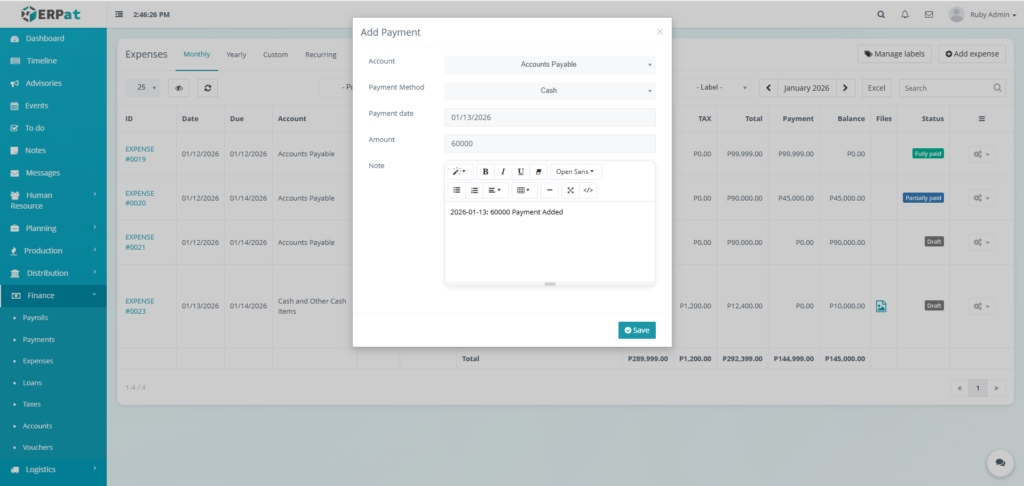
- Fill in the necessary details into the fields.
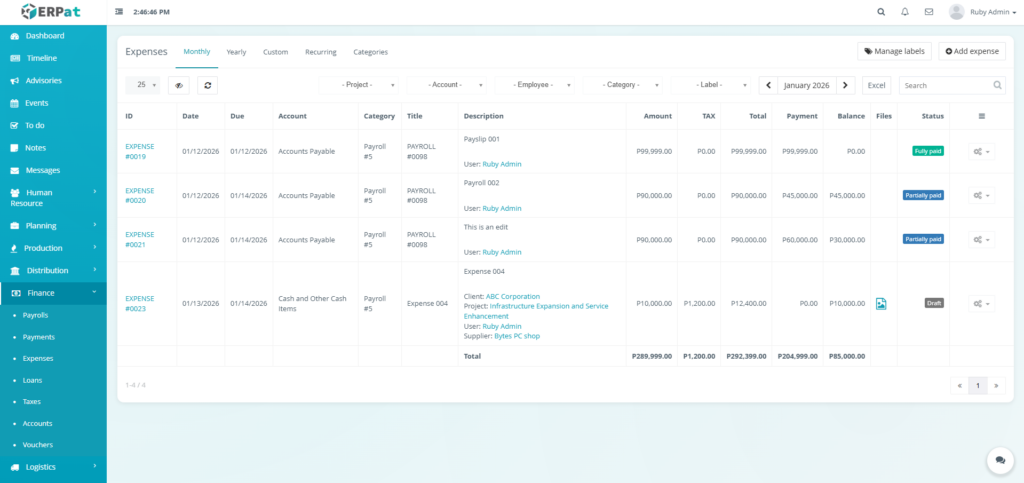
- Click the Save button to apply the changes.
Result #
Steps for Deleting an Expense #
STEPS #
- Click the actions icon in the table.
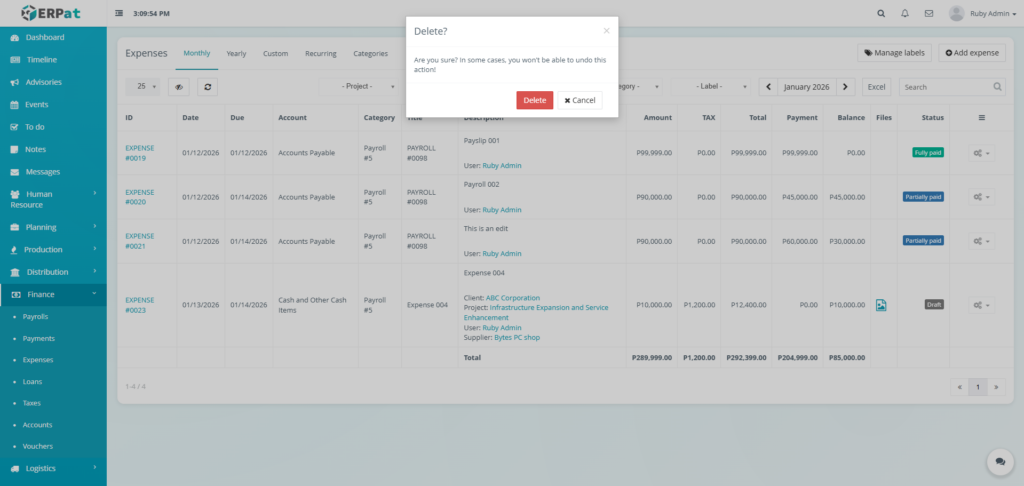
- Click the Delete option in the dropdown
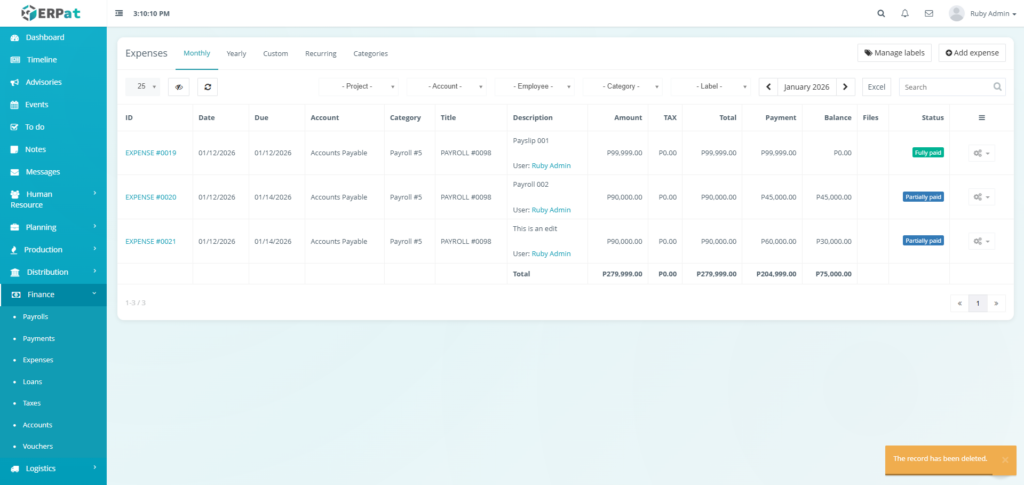
- Click the Delete button to remove the expense.
Result #
Expense List Tabs #
Monthly
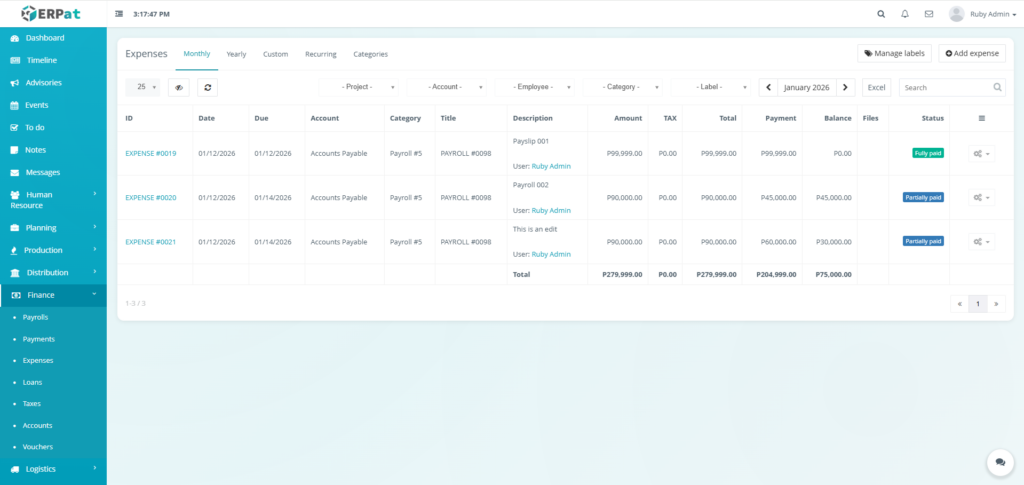
The Monthly tab displays all expenses within a selected month.
Yearly
The Yearly tab displays all expenses within a selected year.
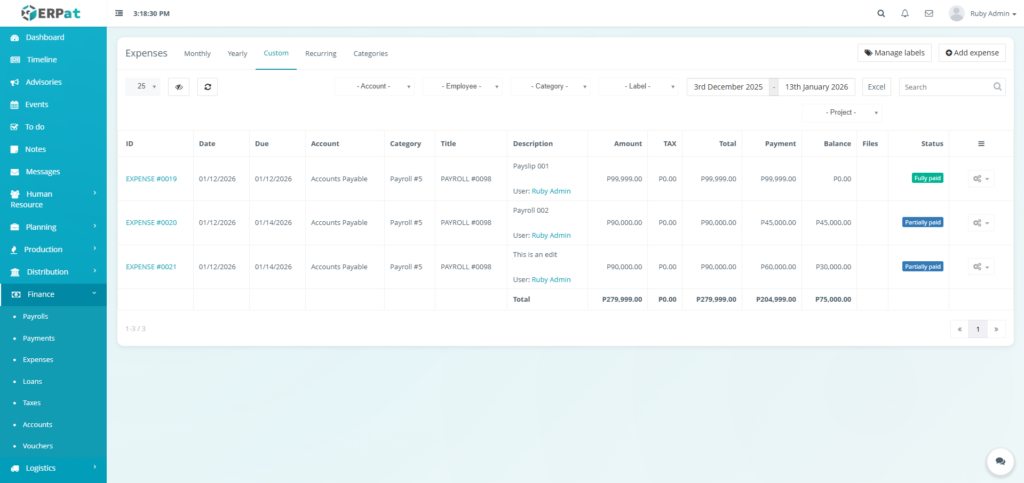
Custom
The Custom tab displays all expenses within a range of month and year.
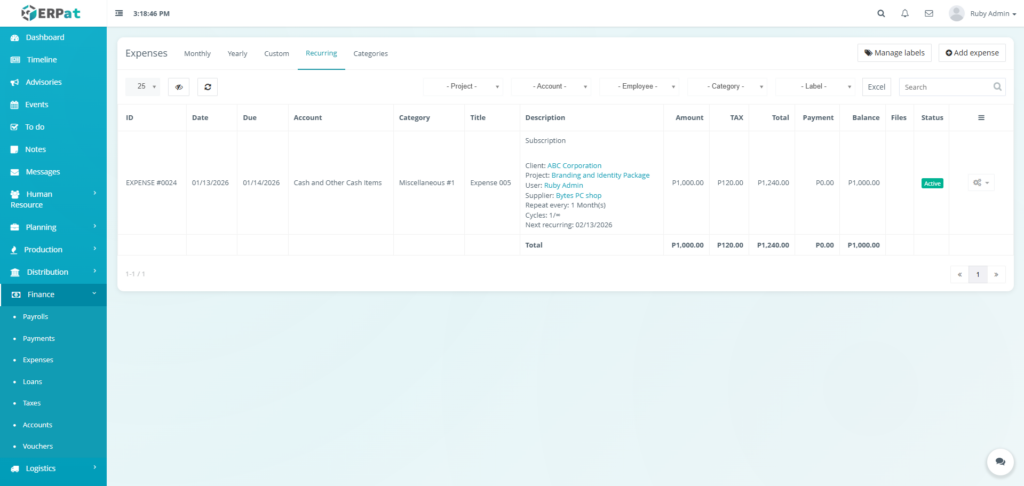
Recurring
The Recurring tab displays all expenses within a range of month and year..
Expenses Categories Listing Page #
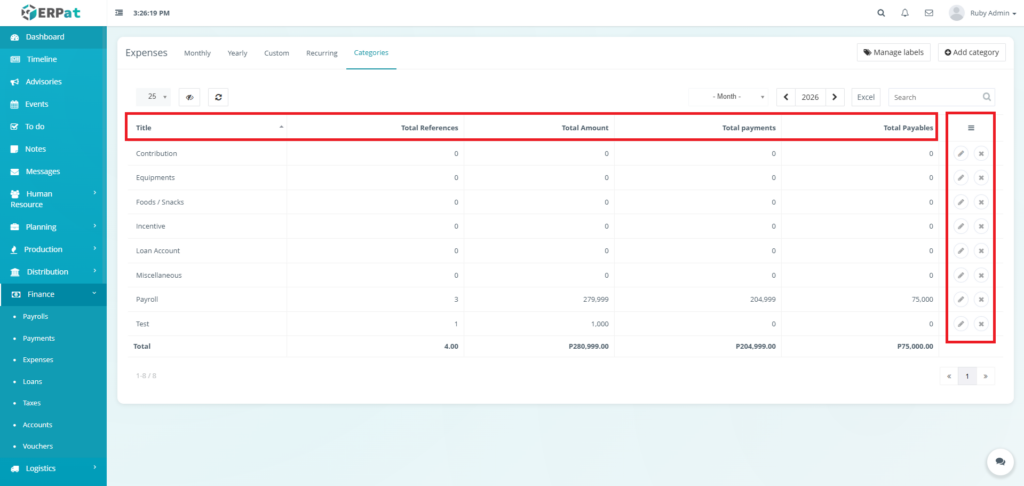
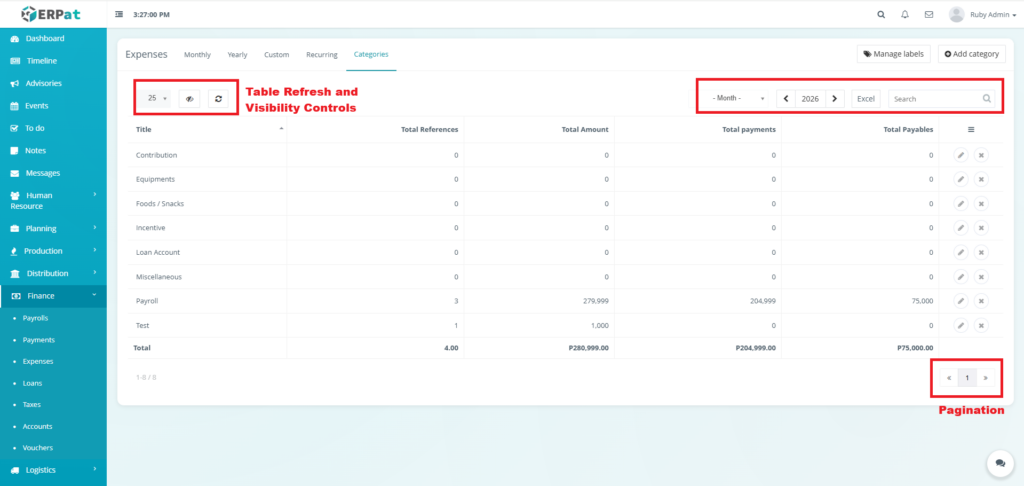
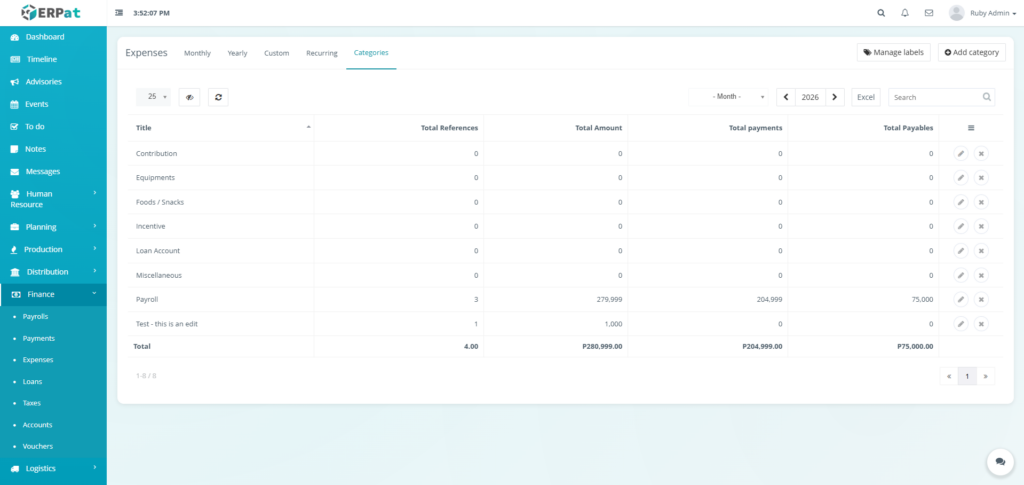
The dashboard displays a summary table with the following data points:
- Title: The name of the expense group (e.g., Foods / Snacks, Incentives).
- Total References: The number of unique expense entries linked to this category.
- Total Amount: The gross value of all expenses recorded under this title.
- Total Payments: The actual cash amount already disbursed for this category.
- Total Payables: The remaining balance or debt yet to be paid.
- Actions: Edit or Delete controls
Page Controls and Tools #
- Month and Year Selector
- Excel Export
- Search Bar
- Table Refresh and Visibility Controls
- Pagination
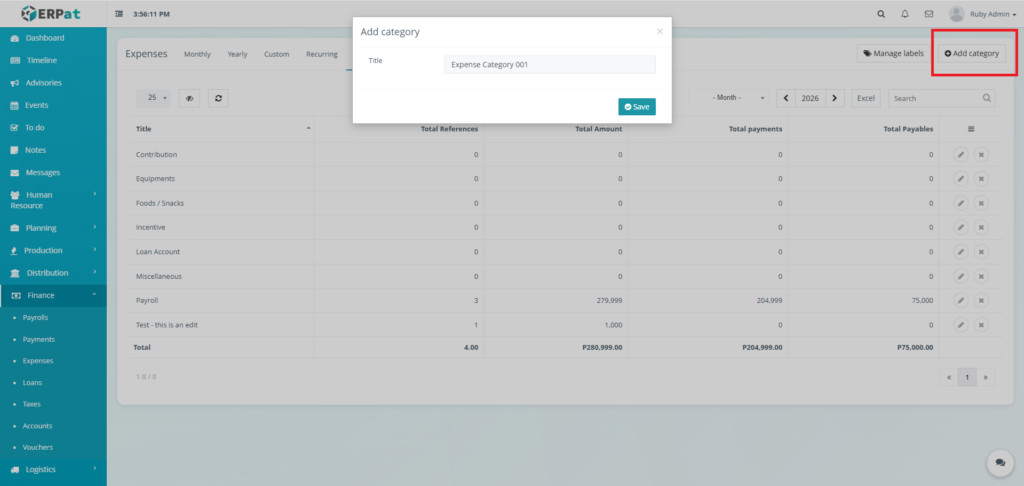
Steps for Adding an Expense Category #
STEPS #
- Click the “Add category” icon in the actions in the table.
- Fill in the category.
- Select color for the category.
- Click the Save button to add the category.
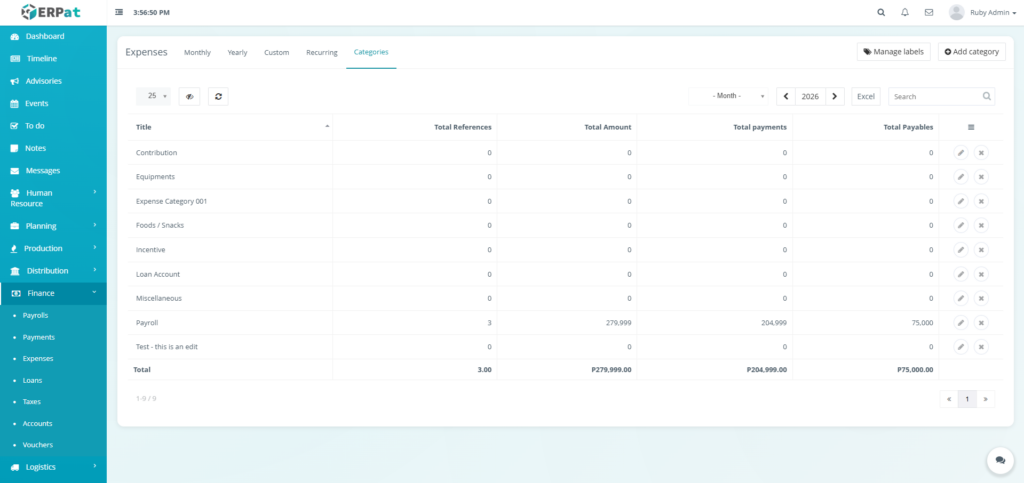
Result #
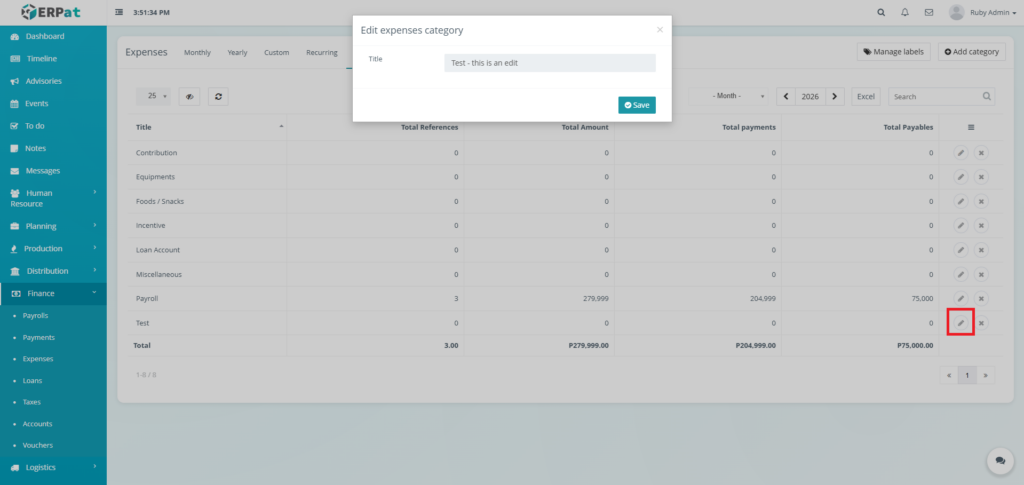
Steps for Editing an Expense Category #
STEPS #
- Click the edit icon in the actions in the table.
- Fill in the category.
- Select color for the category.
- Click the Save button to apply the changes.
Result #
Steps for Deleting an Expense Category #
STEPS #
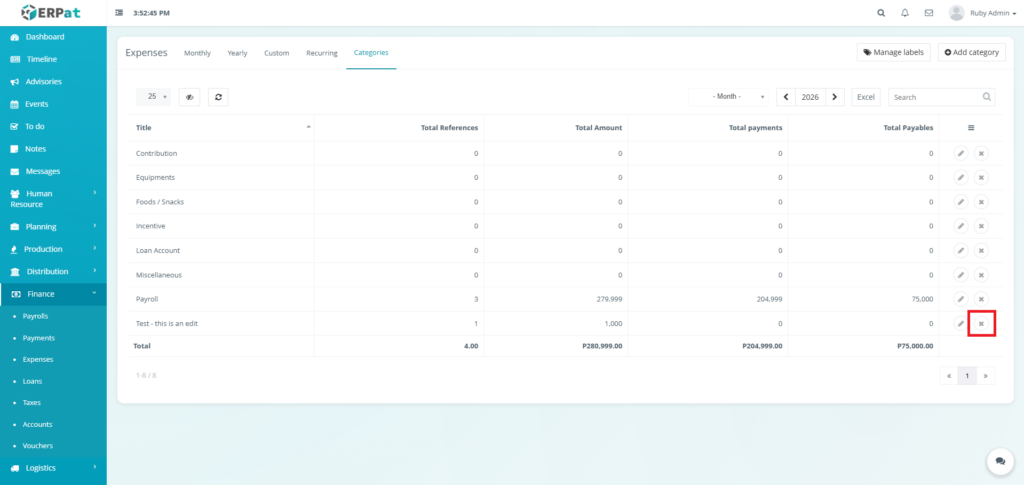
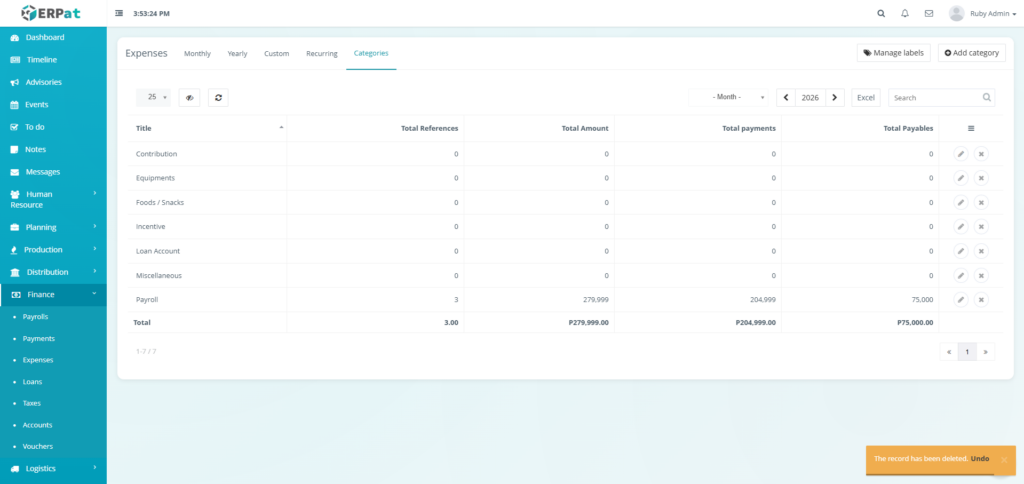
- Click the delete icon in the actions in the table.
Result #
Permissions and Access Control #
- Access to payment records is limited to authorized Finance users.
- All payment data is read-only to prevent unauthorized modification of financial records.
Best Practices #
- Immediate Recording – Record expenses within 48 hours of occurrence for accurate financial reporting
- Complete Documentation – Always attach receipts and provide detailed descriptions
- Proper Categorization – Use consistent categories for accurate budget tracking
- Regular Reconciliation – Weekly reconciliation of expense records with bank statements
- Tax Compliance – Ensure proper tax recording for VAT or GST reporting
- Approval Workflow – Use configured approval chains for expenses above certain thresholds
- Backup Documentation – Maintain organized digital copies of all receipts and supporting documents
Audit & Logs #
All expense-related activities are comprehensively logged. Audit logs are maintained for statutory requirements and can be exported for external audit purposes.
Last Updated: [January 13, 2026] Module Owner: Finance IS – ERPat System


