Overview #
The Invoice Module manages the billing, tracking, and collection of payments for services rendered or products sold within the ERPat system. It provides administrative and finance teams with a centralized hub to monitor outstanding balances, payment histories, and recurring billing cycles. This module ensures financial transparency by categorizing invoices based on their timeline and payment status.
Key Features #
- Centralized listing and management of invoices and billing statements.
- Tracking of invoice value, payments received, and outstanding balances.
- Status indicators.
- Filtering by client, status, date range, and currency.
- Actions for viewing, editing, adding payments, deleting, and exporting.
- Summary totals for invoice values and payments.
- Integration with Sales, Finance, and Client modules.
- Support for monthly, yearly, custom, and recurring invoice views.
- Secure role-based access.
Accessing the Invoices Module #
- Log in to the ERPat System.
- Navigate to Sales from the main sidebar.
- Select Invoices.
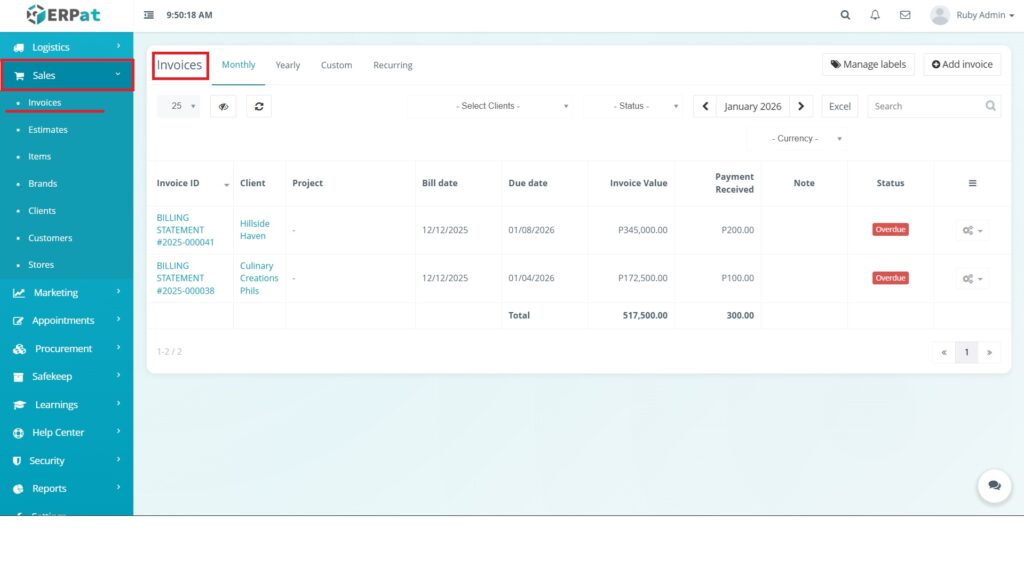
You will be directed to the Invoices listing page displaying current records (default view: Monthly).
Invoice Navigation Tabs #
The Invoice Module contains the following tabs:
- Monthly: Displays invoices issued within a specific month.
- Yearly: Provides a high-level view of all invoices for a selected year.
- Custom: Allows users to filter invoices based on a specific date range.
- Recurring: Manages automated billing cycles for long-term contracts.
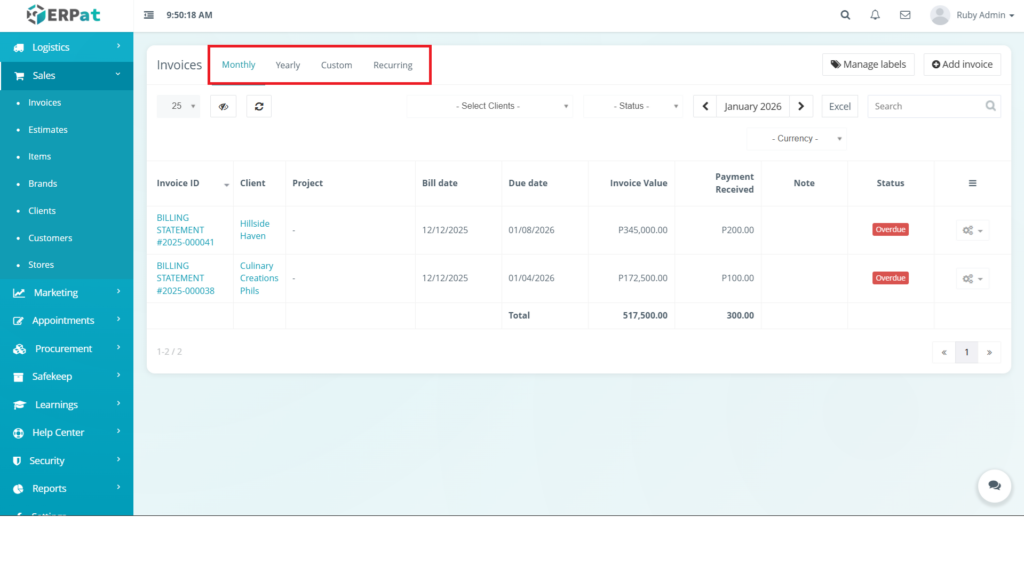
Each tab provides a specific view and financial summary for billing management.
Monthly Invoice Listing Page #
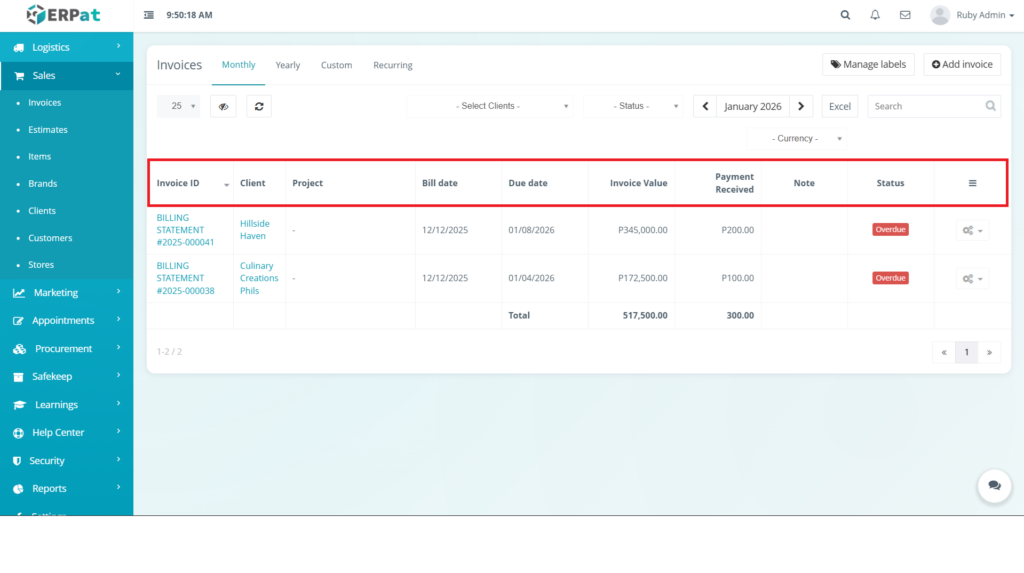
The Monthly Invoice Listing Page displays billing records for the currently selected month.
- Invoice ID – Unique identifier
- Client – The entity or person being billed.
- Project – Associated project
- Bill date – Date the invoice was issued.
- Due date – Payment due date.
- Invoice Value – Total amount billed
- Payment Received – Amount paid so far
- Note – Additional remarks or references.
- Status – Current status badge
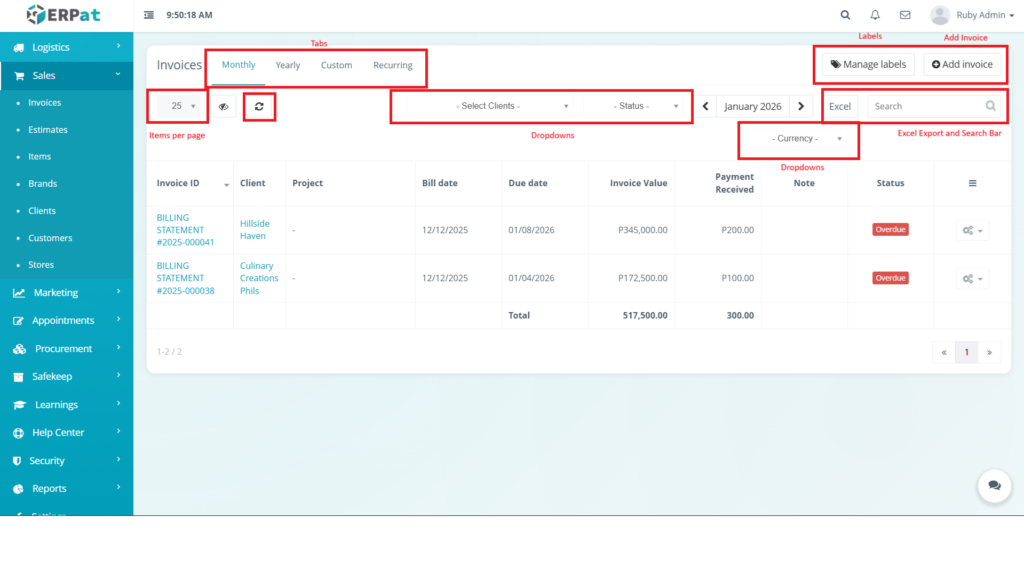
Page Controls and Tools
- Client and Status filters
- Month/Year selector (e.g., January 2026)
- Search bar
- Excel export button
- Add invoice button
Steps for Adding a New Invoice #
STEPS #
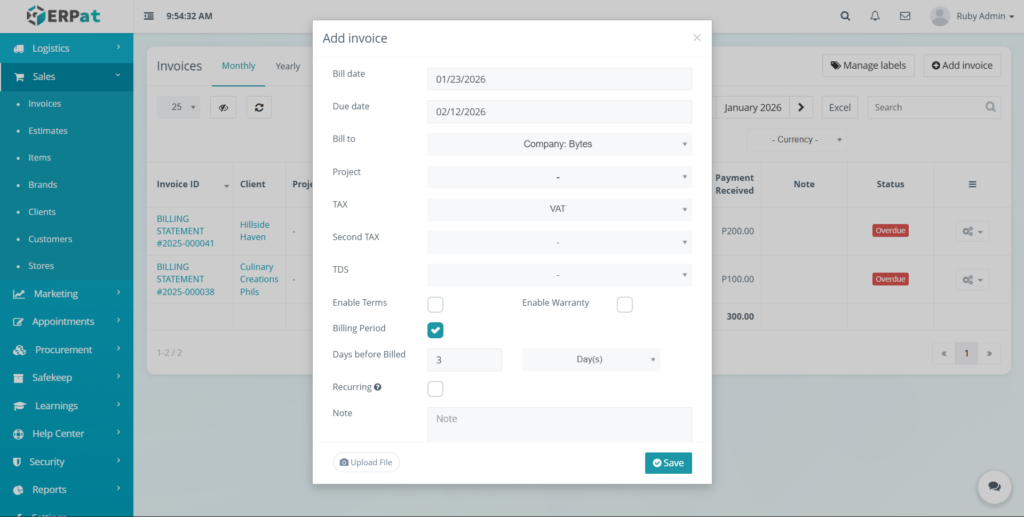
- Click the Add invoice button in the top right corner.
- Select the Client and Project.
- Set the Bill Date and Due Date.
- Enter the line items and their corresponding values.
- Click Save to generate the billing statement.
RESULT #
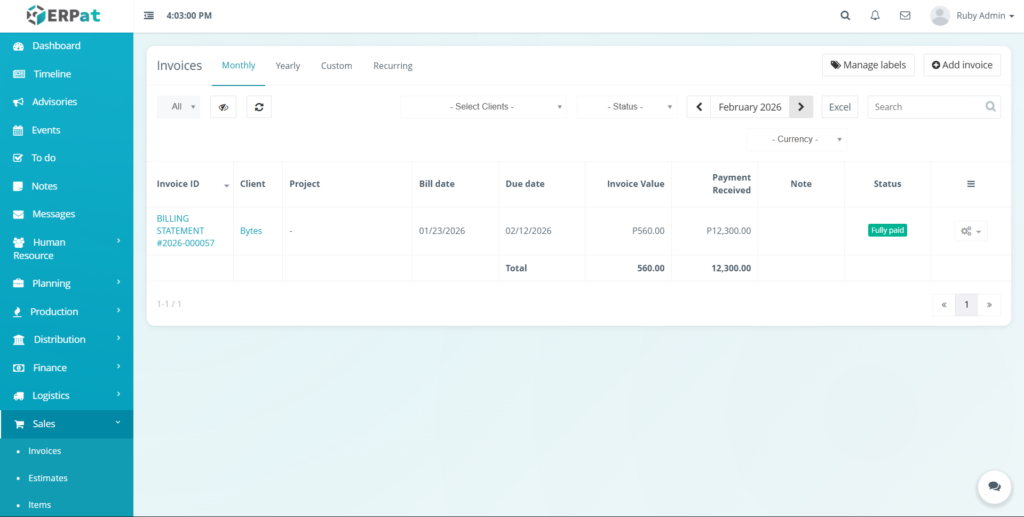
The new invoice will appear in the listing, become available for tracking payments, and update totals accordingly.
Steps for Edit an Existing Invoice #
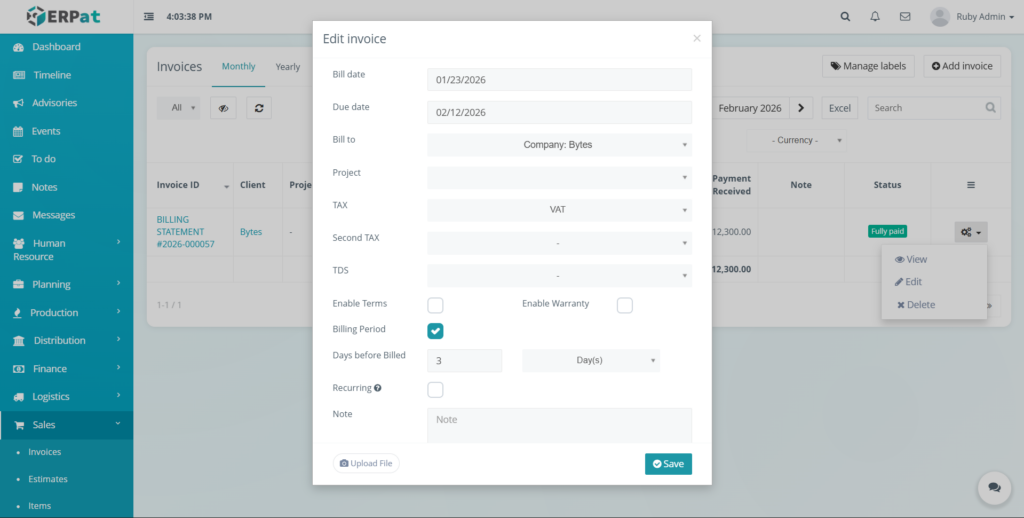
- Navigate to the invoice you wish to modify.
- Click the Actions and select Edit.
- Update the required fields.
- Click Save to apply the changes.
RESULT #
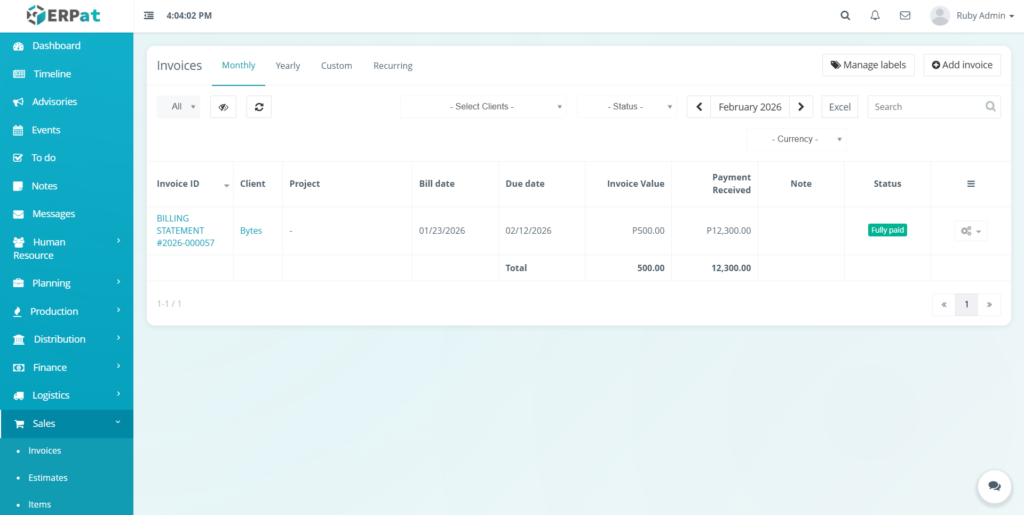
The updated invoice will appear in the listing.
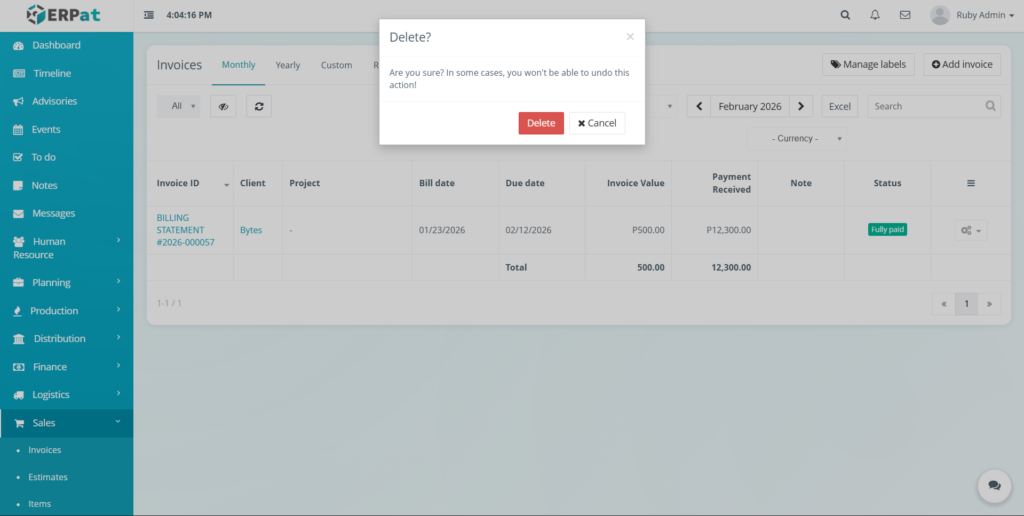
Steps for Delete the Invoice #
- Navigate to the invoice you wish to delete.
- Click the Actions and select Delete
- Click Delete.
RESULT #
The Invoice will be deleted and remove to the listing.
Steps for View the Invoice Detailed Page #
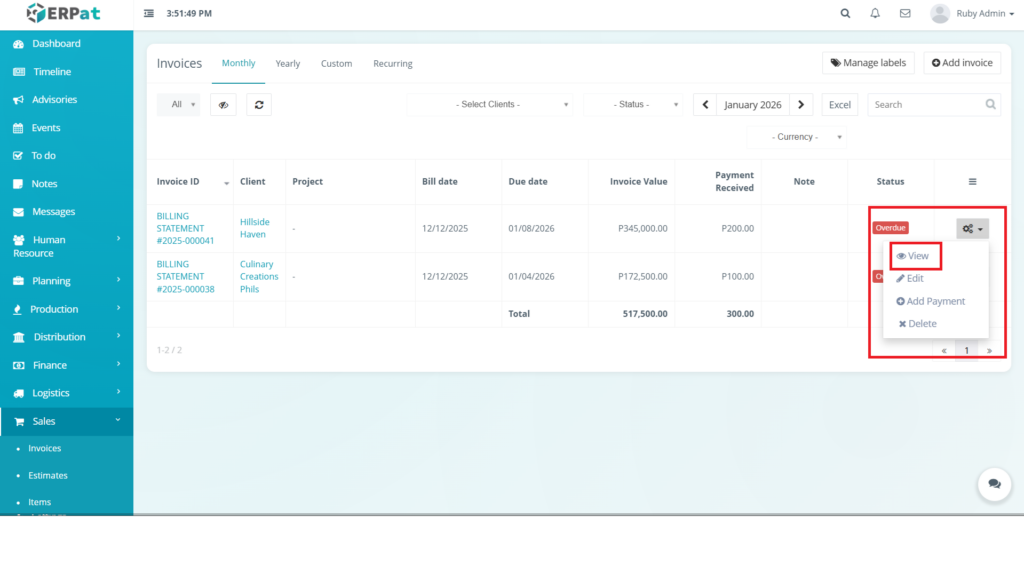
- Navigate to Monthly tab and find the specific invoice in the listing table.
- Click the Actions located at the right of the invoice row.
- Click the View option from the dropdown menu.
Result #
A detailed billing summary will open, showing the full breakdown of the Invoice value, Payment Received history, and any associated Notes.
Invoice View Detailed Page #
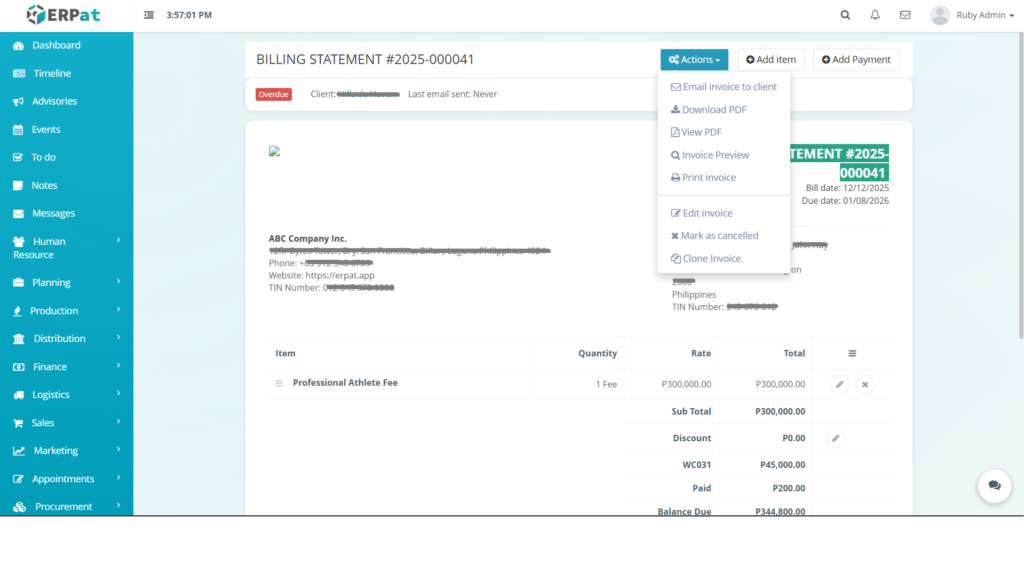
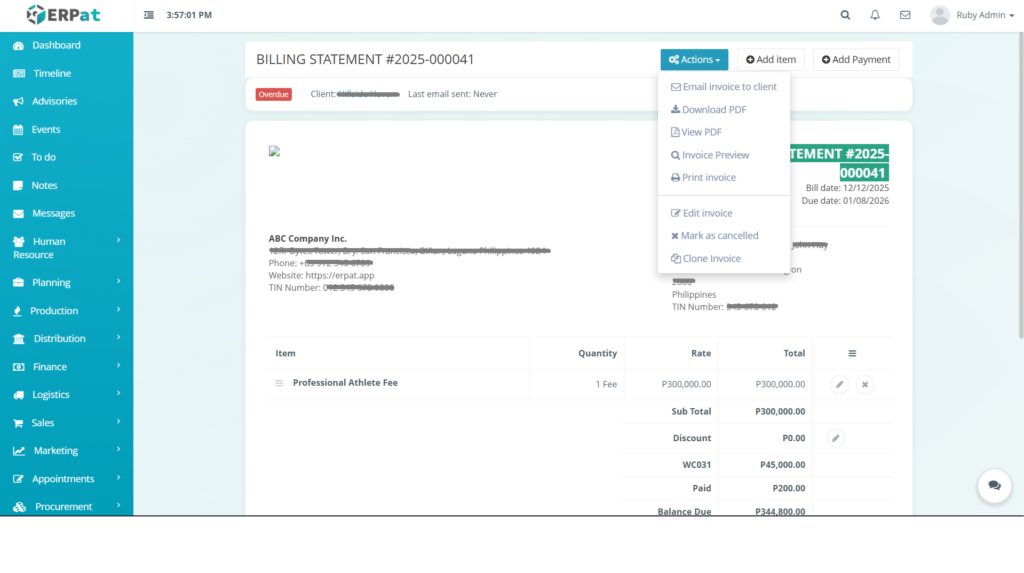
The Invoice View page provides a comprehensive breakdown of a specific billing statement, allowing users to review line items, payment history, and perform advanced administrative actions.
Accessing Additional Invoice Actions #
- Click the Actions dropdown button at the top of the page.
- Select from the following options:
- Email invoice to client: Sends the statement directly to the client’s email.
- Download PDF: Saves a digital copy of the invoice to your device.
- View PDF / Invoice Preview: Opens a preview of how the invoice appears to the client.
- Print invoice: Sends the document to a connected printer.
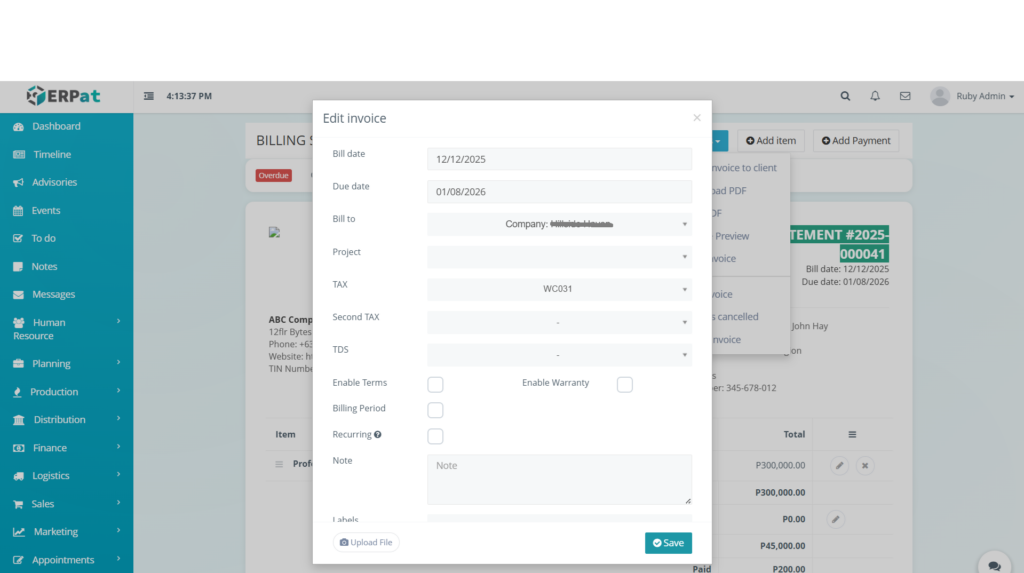
- Edit invoice: Opens the editor to modify line items or details.
- Mark as cancelled: Voids the invoice without deleting the record.
- Clone Invoice: Creates a duplicate of the current invoice for quick entry.
Adding a Line Item #
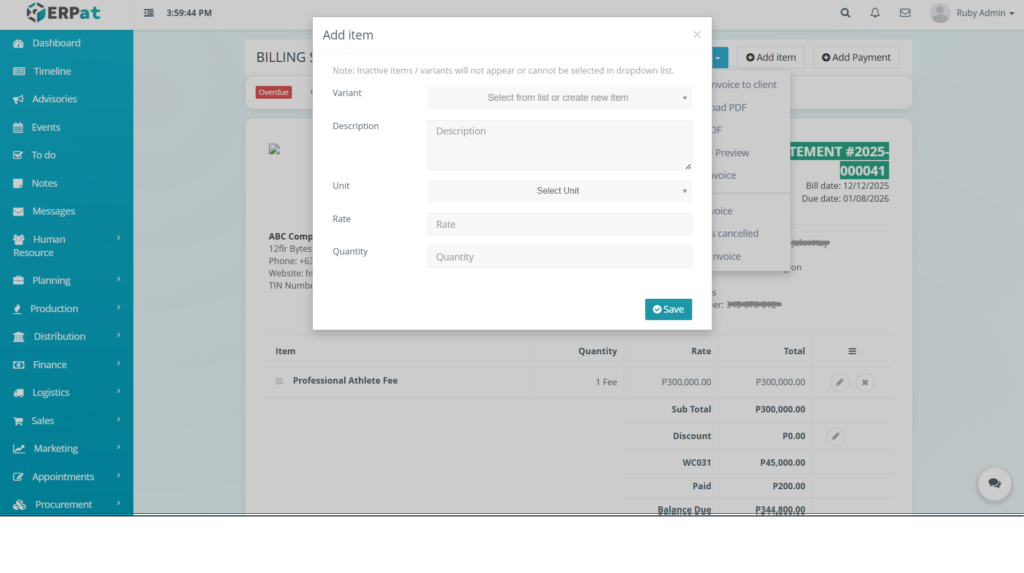
- Click the Add item button.
- Enter the variant, description, unit, rate, and quantity.
- Click Save.
Result #
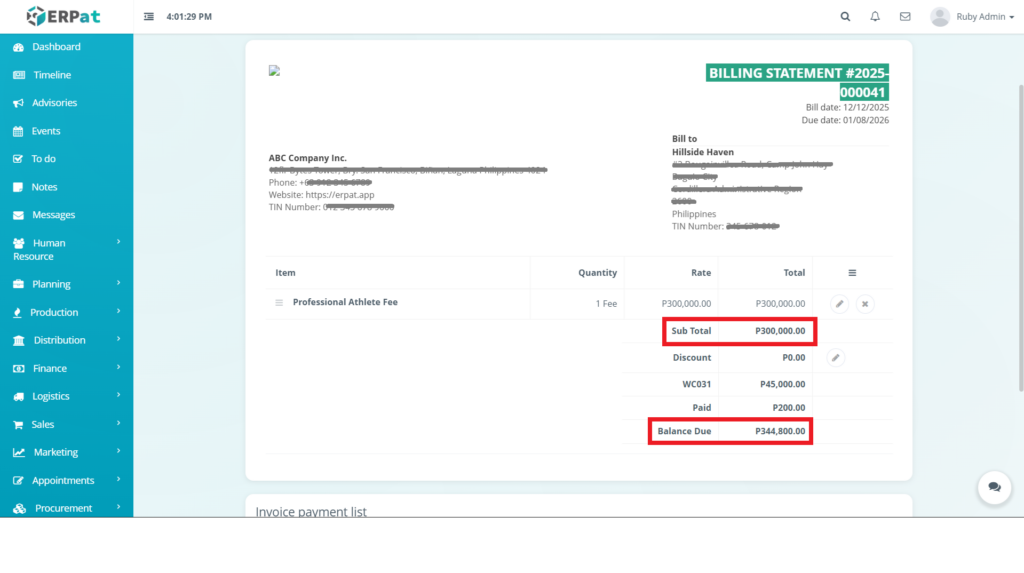
The system will automatically recalculate the Sub Total and Balance Due.
Recording a Payment (Directly from View) #
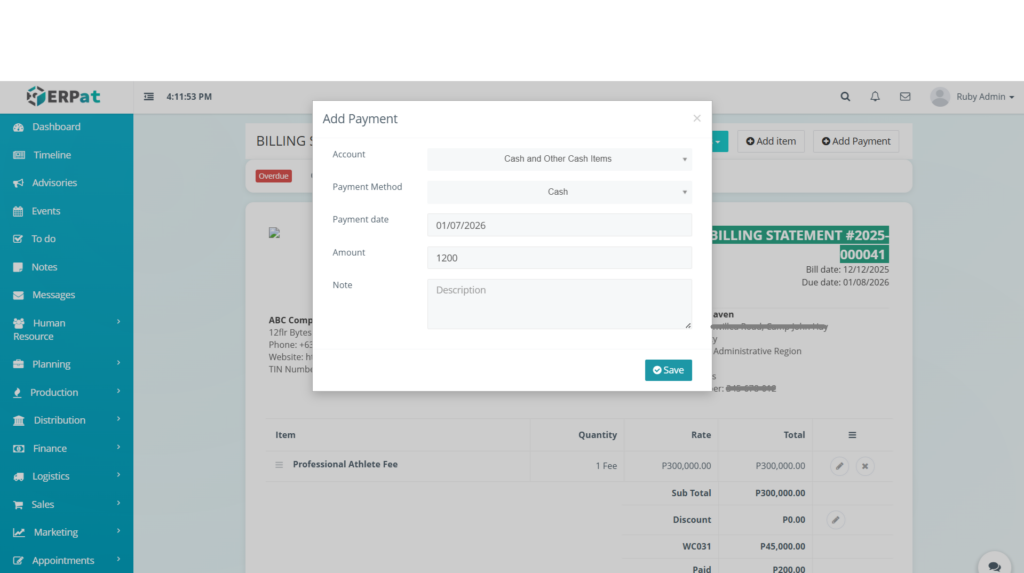
- Click the Add Payment button.
- Fill in the payment details in the prompt.
- The Paid and Balance Due sections will update instantly.
Modifying Existing Items #
- Locate the item in the list.
- Click the Edit (pencil icon) to change details or the Remove to delete the line item.
Yearly Invoice Listing Page #
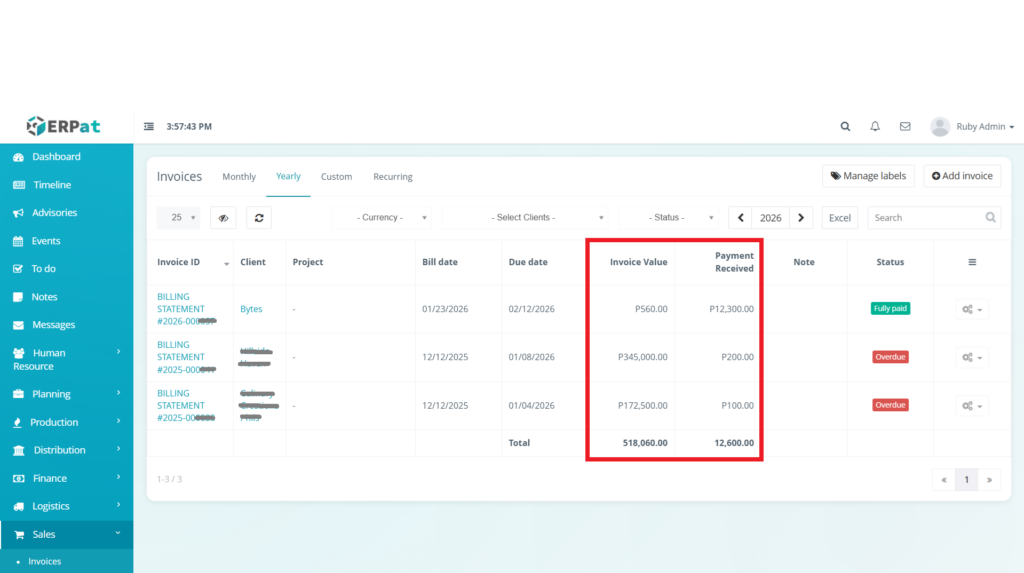
The Yearly Invoice Listing Page offers a broader perspective of the organization’s billing performance over a 12-month period.
Summary Calculations:
- Total Invoice Value – Aggregated sum of all billed amounts for the year.
- Total Payment Received – Aggregated sum of all payments collected.
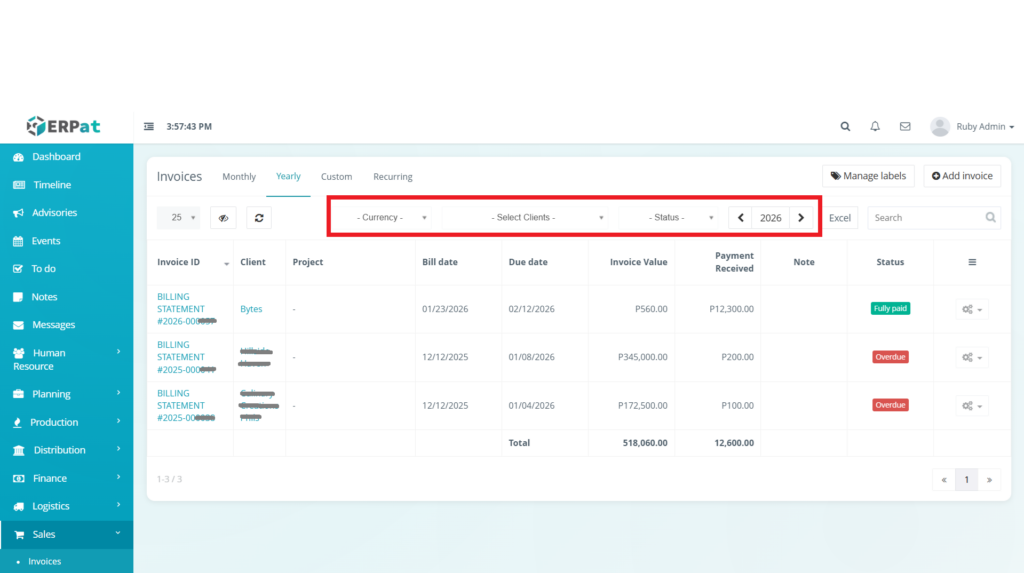
Tools #
- Year selector (e.g., 2026)
- Currency Filter
- Client and Status dropdowns
Custom Invoice Listing Page #
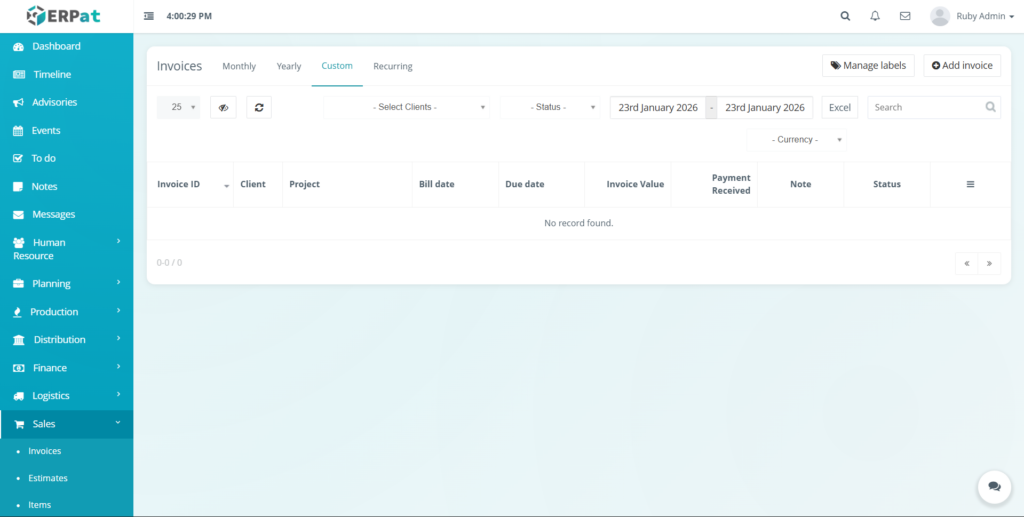
The Custom Invoice Listing Page enables users to generate specific reports by selecting a precise start and end date.
STEPS #
- Navigate to the Custom tab.
- Select the Start Date and End Date from the calendar pickers.
- The system will automatically populate the table with records falling within that range.
- If no records exist for the period, the system displays “No record found.”
Recurring Invoice Listing Page #
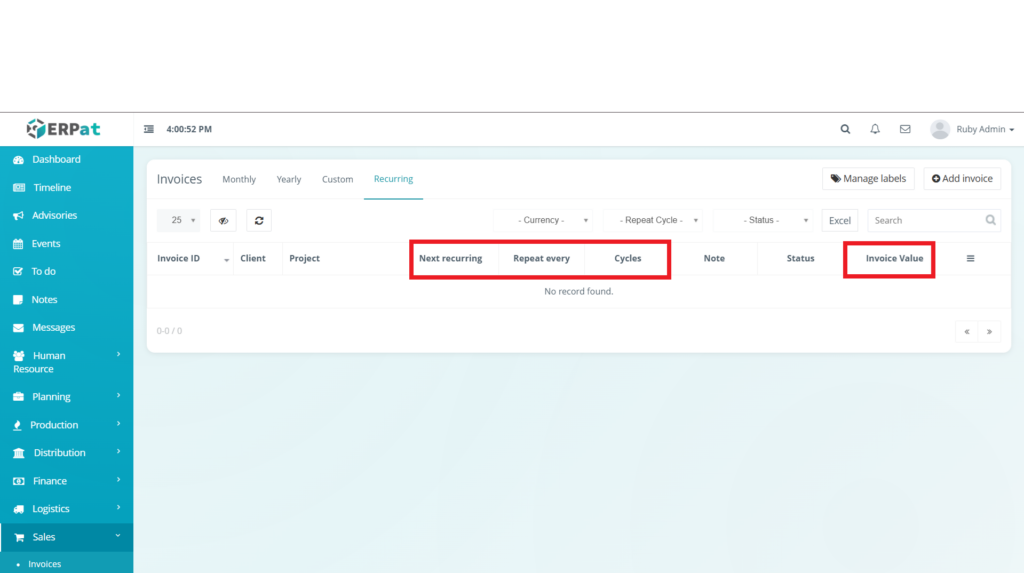
The Recurring Invoice Listing Page manages automated billing for subscription-based services or retained clients.
Displayed Information #
- Next recurring – The scheduled date for the next invoice generation.
- Repeat every – Frequency (e.g., Monthly, Quarterly).
- Cycles – Number of billing repetitions remaining.
- Invoice Value – The fixed amount to be billed each cycle.
Search and Filtering #
- Use the Search bar to find invoices by ID, client name, or note.
- Filter using Select Clients, Status, Currency, and date range controls.
- Switch between Monthly, Yearly, Custom, or Recurring tabs for different perspective.
Permissions and Access Control #
- Only authorized Sales, Finance, or Admin roles can add, edit, add payments, or delete invoices.
- View-only access may be granted to other roles for monitoring receivables.
Best Practices #
- Issue invoices promptly with clear due dates to reduce overdue accounts.
- Record payments immediately to keep status and totals accurate.
- Use consistent client naming and add meaningful notes for easy reference.
- Export to Excel regularly for financial reviews or BIR compliance.
- Monitor overdue invoices weekly to follow up with clients.
Audit & Logs #
All create, update, payment addition, and delete actions for invoices are logged for audit and compliance purposes within the ERPat System.
Last Updated: [January 23, 2026]
Module Owner: Sales / Finance IS – ERPat System


