Overview #
The Messages Module provides a secure, internal communication platform within the ERPat System, allowing users to send and receive private correspondence. It serves as a centralized hub for peer-to-peer messaging, ensuring that work-related discussions and file sharing remain within the organization’s secure environment.
This module integrates with the system’s user directory to facilitate easy contact with colleagues while maintaining a historical log of all sent and received communications.
Key Features #
- Internal Direct Messaging: Secure correspondence without the need for external email.
- Unified Inbox & Sent Tracking: Dedicated views for incoming and outgoing messages.
- File Attachments: Support for sharing documents and images directly within messages.
- Split-Pane Interface: View message lists and full content simultaneously for efficient reading.
- Search & Filter: Quickly locate past discussions using keywords or sender names.
Accessing the Messages Module #
- Log in to the ERPat System.
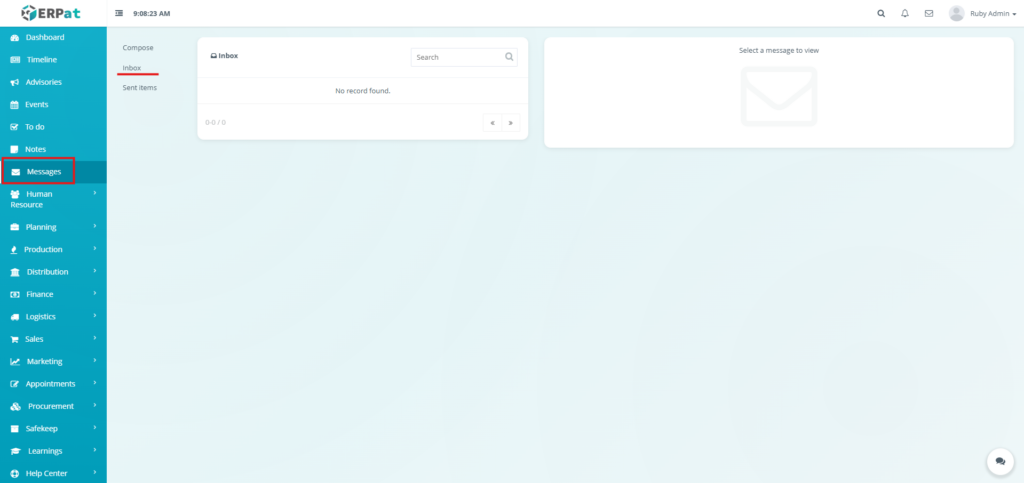
- Click on Messages from the main sidebar navigation.
- You will be directed to the Messages – Inbox page by default.
Messages Module Tabs #
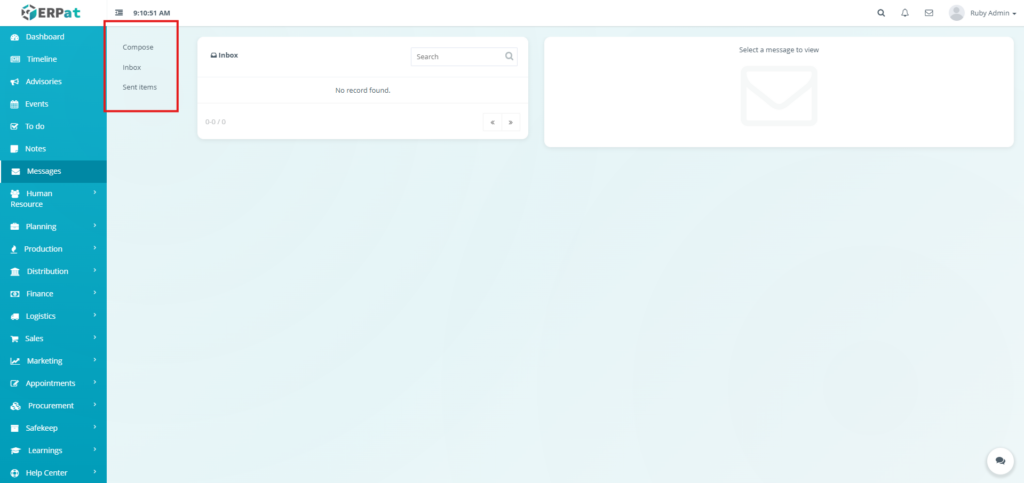
The module is organized into three primary sections via the internal sidebar:
- Compose – Open the interface to draft a new message.
- Inbox – Displays all messages received from other users.
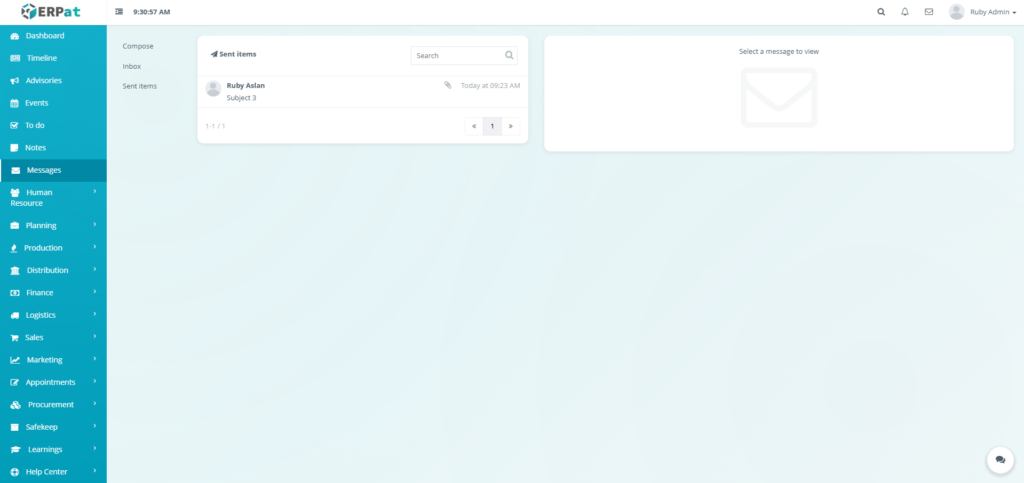
- Sent items – Displays a historical record of all messages sent by the user.
Messages (Inbox/Sent) #
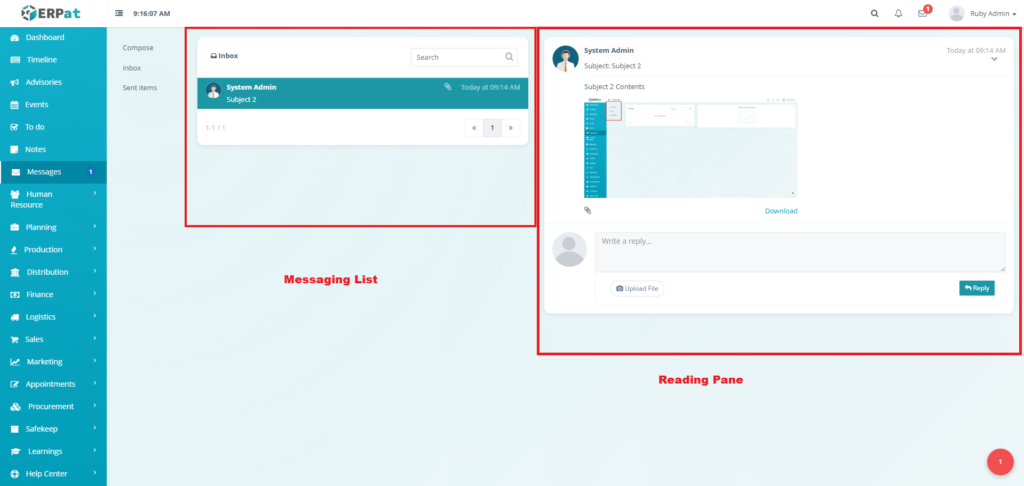
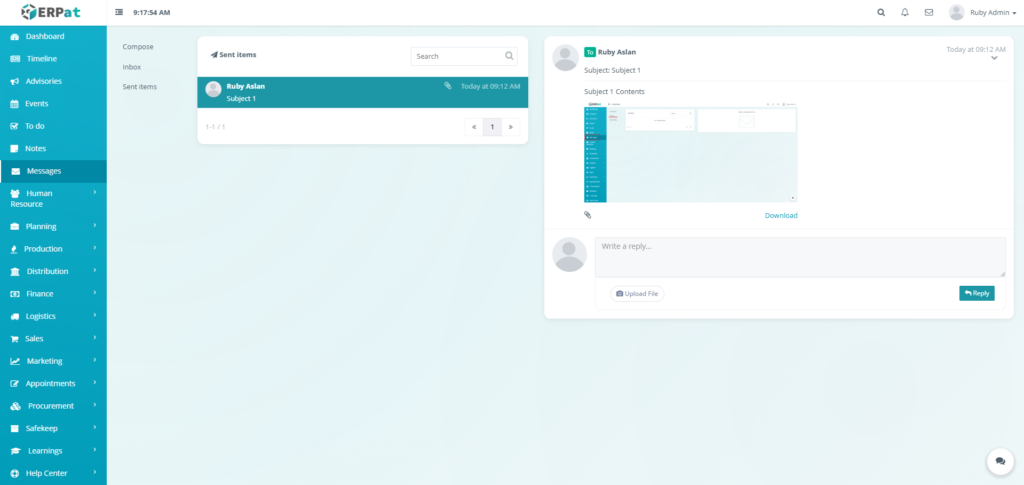
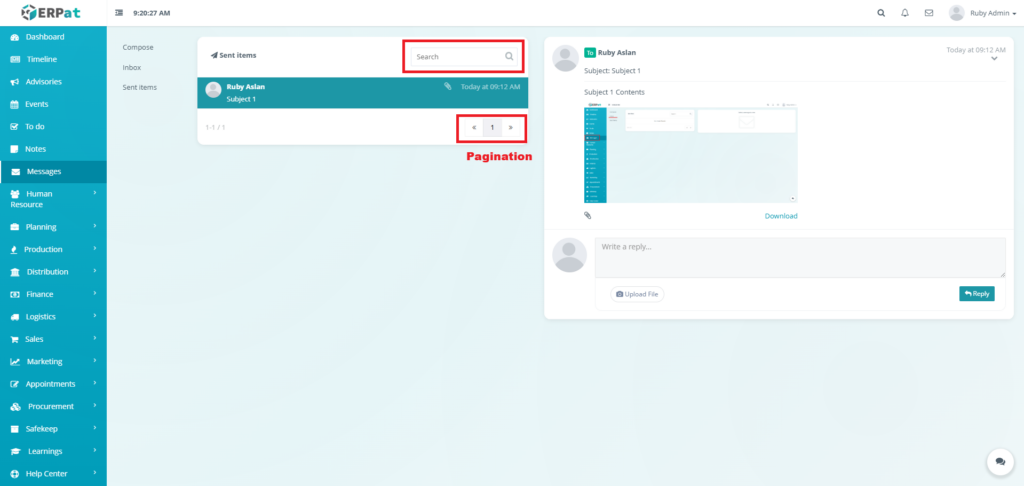
The Inbox and Sent Items utilizes a split-pane layout to streamline communication management:
- Message List: Displays entries with the sender/recipient’s name, a brief snippet of the message, and the date/time.
- Reading Pane: Displays the full text and any attachments of the message selected in the list.
Page Controls and Tools #
- Search bar – Filter the message list by name or content keywords.
- Pagination – Navigate through multiple pages of correspondence.
Steps for Sending a New Message #
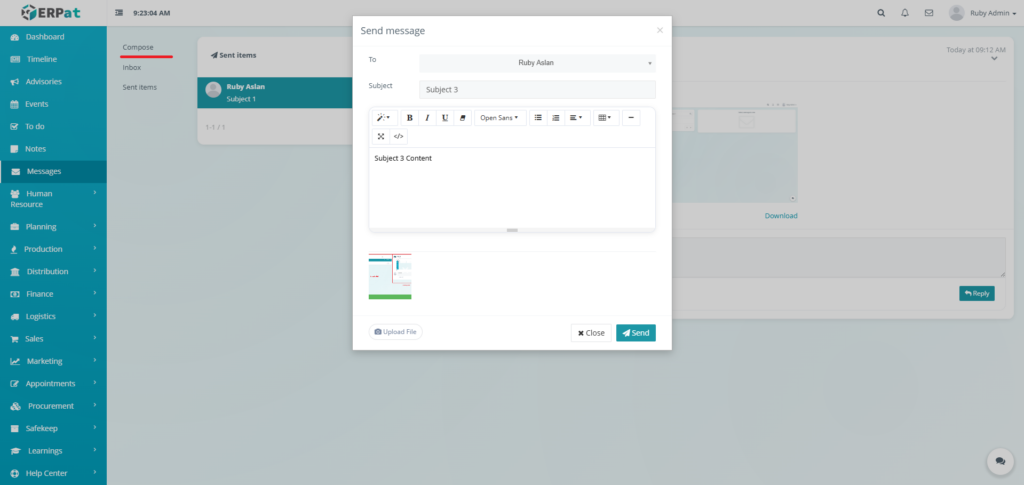
- Click the Compose tab on the left-hand menu.
- In the Send message modal, fill in the required fields:
- To: Select a recipient from the dropdown list of system users.
- Subject: Enter a clear subject line for the message.
- Message: Enter the message pertaining the subject.
- Upload File: (Optional) Attach relevant documents or images.
- Review the message for accuracy.
- Click the Send button.
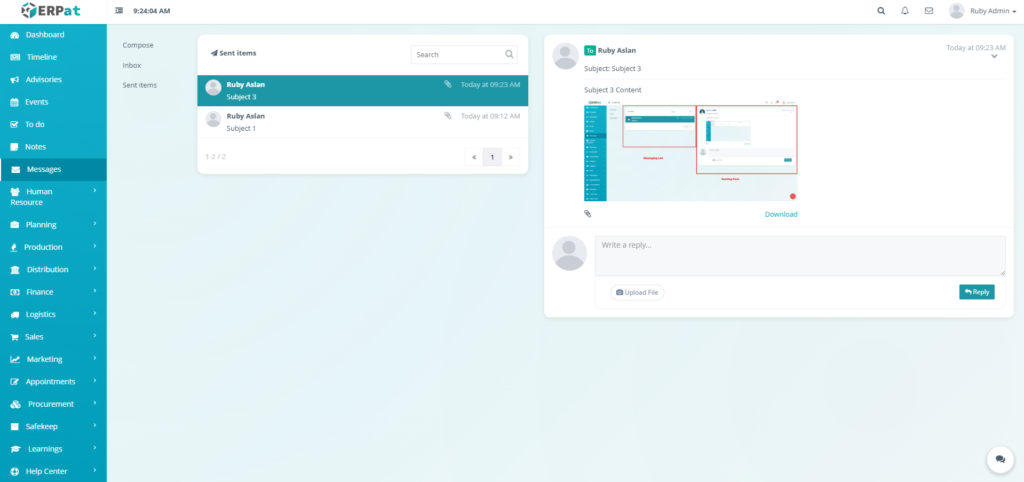
- The message is delivered to the recipient’s inbox and a copy is saved in your Sent items.
Result #
Steps for Deleting a Message #
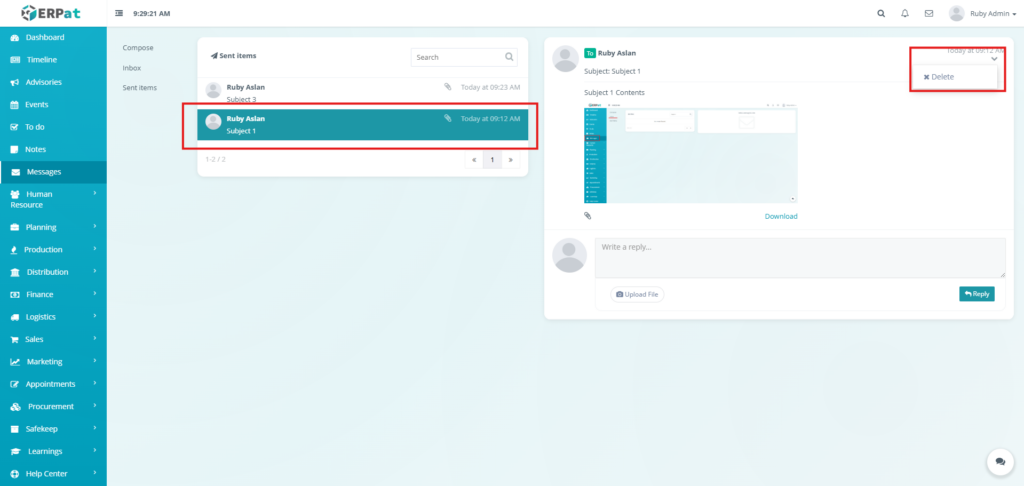
- Click the message that will be deleted.
- Locate and click the arrow down icon.
- Click the Delete option from the dropdown.
- The message will now be deleted.
Result #
Permissions and Access Control #
- Privacy: Messages are private and only visible to the sender and the designated recipient.
- Universal Access: All system users typically have access to their own Messages module to facilitate internal collaboration.
Best Practices #
- Informative Subjects: Use descriptive subject lines to help colleagues prioritize their inbox.
- File Management: Use the attachment feature for work-related documents instead of external hosting services.
- Check Sent Items: Regularly review Sent items to confirm delivery of important correspondence.
Audit & Logs #
All internal messaging transactions are timestamped and attributed to the user for security and professional compliance within the ERPat System.
Last Updated: [January 12, 2026] Module Owner: Home IS – ERPat System


