Overview #
The Raffle Draw Module is used to create, manage, and monitor raffle events within the system. It allows administrators or marketing personnel to organize promotional draws, register participants, define the number of winners, and track results in a centralized interface. Each raffle record contains essential event information such as title, description, participant count, draw schedule, winner details, and status, ensuring transparency and organized campaign execution.
Key Features #
- Centralized raffle event management
- Participant and winner tracking
- Configurable number of winners per draw
- Event scheduling and draw date control
- Ranking and remarks monitoring
- Excel export functionality
- Search and filtering tools
- Secure role-based access
Accessing the Raffle Draw Module #
- Log in to the ERPat System.
- Navigate to Marketing from the main sidebar.
- Select Raffle Draw.
- You will be directed to the Raffle Draw listing page displaying all existing raffle records.
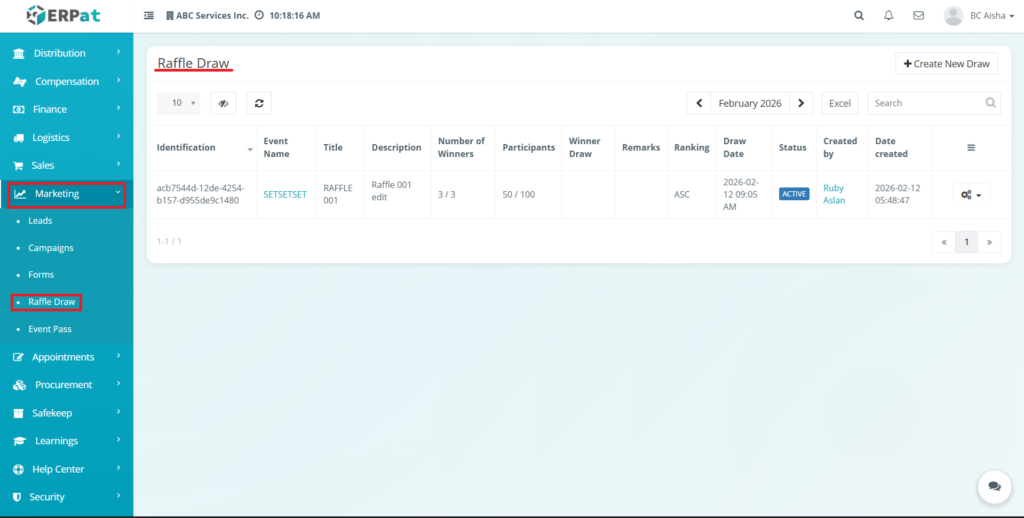
Raffle Draw Listing Page #
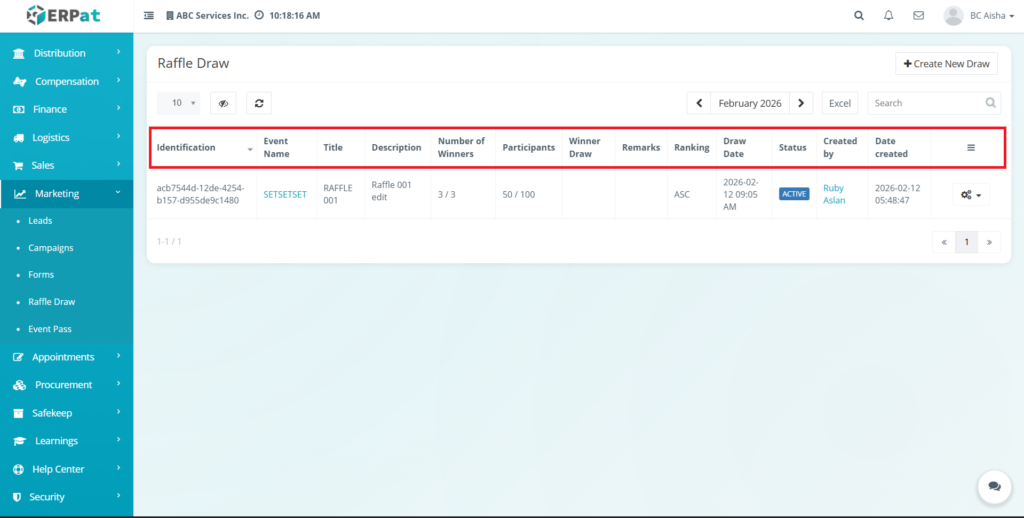
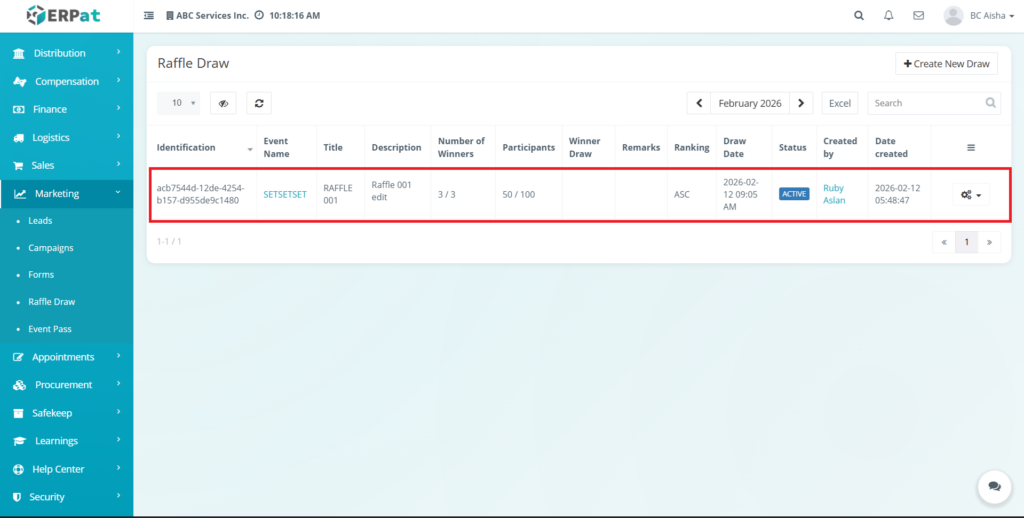
The listing page provides an overview of all raffle draws with the following information:
- Identification – Unique system-generated raffle ID
- Event Name – Associated campaign or event title
- Title – Name of the raffle draw
- Description – Brief explanation or notes about the draw
- Number of Winners – Configured winner slots (e.g., 3 / 3)
- Participants – Current vs. maximum participant count
- Winner Draw – Selected winner information (if completed)
- Remarks – Additional notes or annotations
- Ranking – Sorting order or priority indicator
- Draw Date – Scheduled date and time of the raffle
- Status – Current state (e.g., Active, Completed, Cancelled)
- Created By – User who generated the raffle
- Date Created – Timestamp of creation
- Actions – Edit, settings, or delete controls
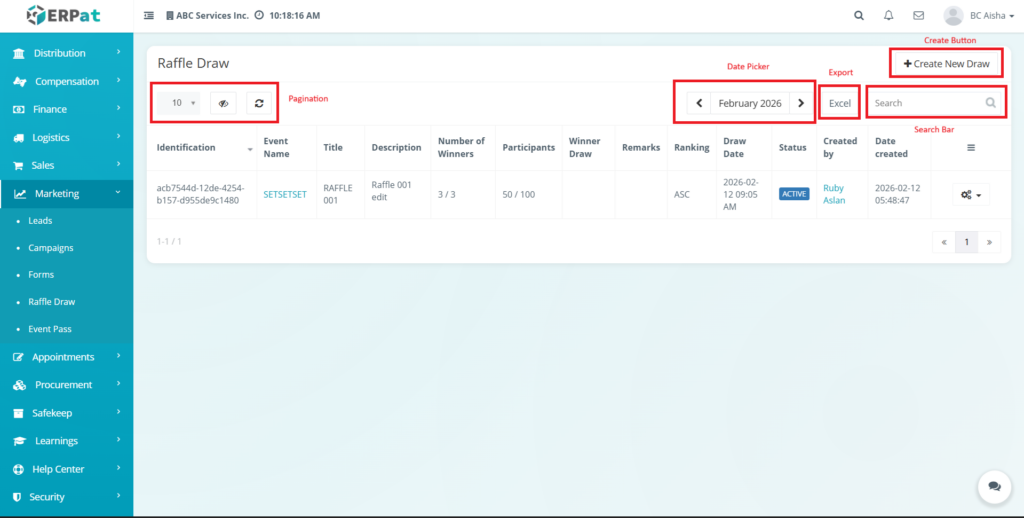
Additional Controls: #
- Create New Draw button
- Search bar for quick lookup
- Excel export button
- Month or date navigation controls
- Pagination for large datasets
- Refresh and visibility controls
Action Menu Options #
Each raffle record contains an Action Menu that provides quick management tools:
Export QR Code #
Steps for Export the QR Code #
STEPS #
- Locate the raffle record from the listing
- Click Action Button
- Click the Export PDF
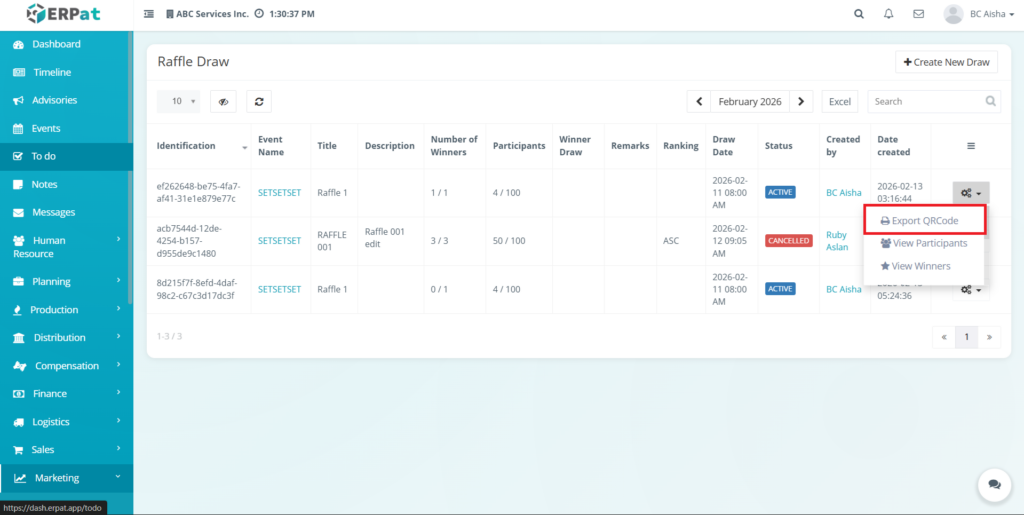
Result #
The raffle record will exported to PDF.
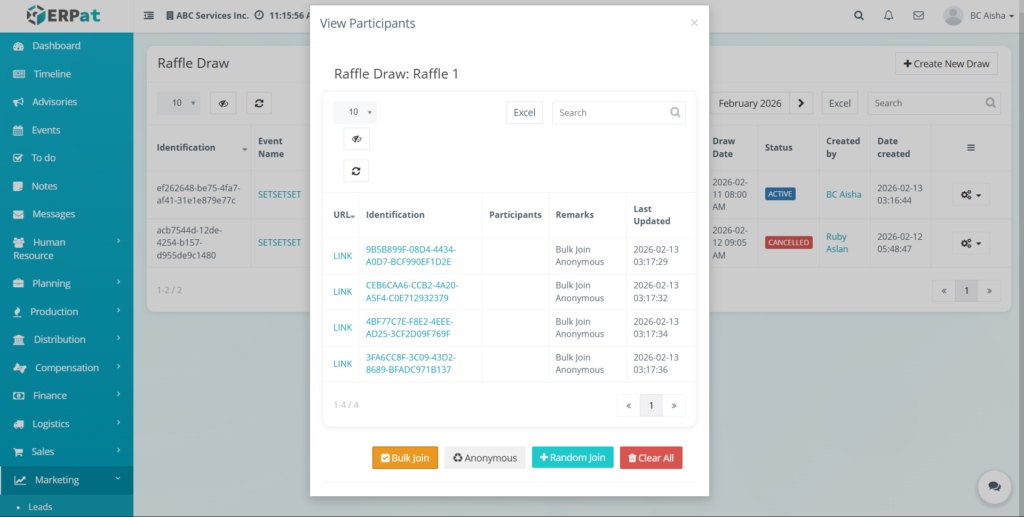
View Participants #
Steps for Adding Participants #
STEPS #
- Open the View Participants modal for the selected raffle.
- Choose one of the entry action buttons at the bottom of the modal:
- Bulk Join: To add multiple entries simultaneously.
- Anonymous: To add entries without specific user data linked.
- Random Join: To generate randomized participant entries.
- The new entries will appear in the table with a corresponding “Last Updated” timestamp.
Result #
The participant list updates immediately based on the selected action, and the participant counter in the raffle listing will automatically reflect the new total.
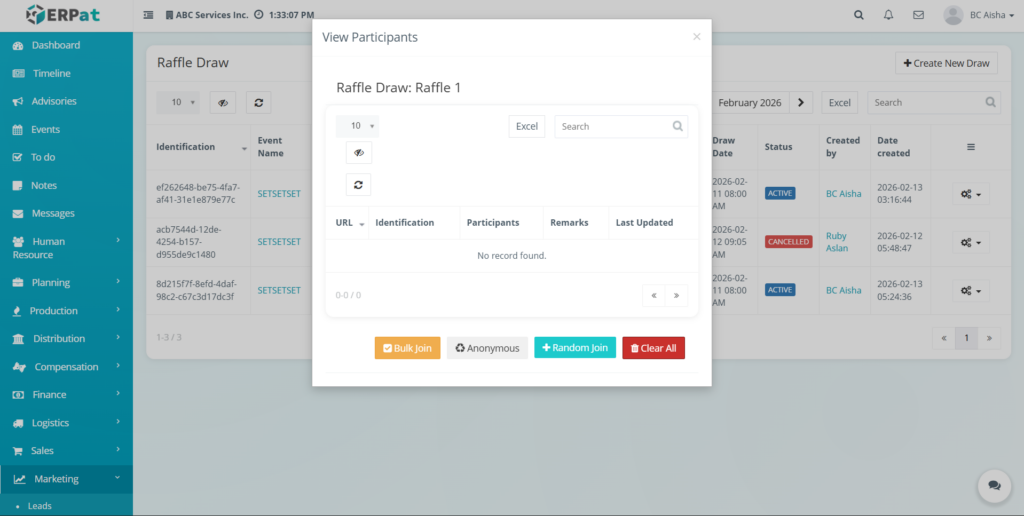
Steps for Clearing Participants #
STEPS #
- Locate the red Clear All button at the bottom-right of the modal.
- Click the button to remove all participants currently listed in the table.
- Confirm the action if prompted.
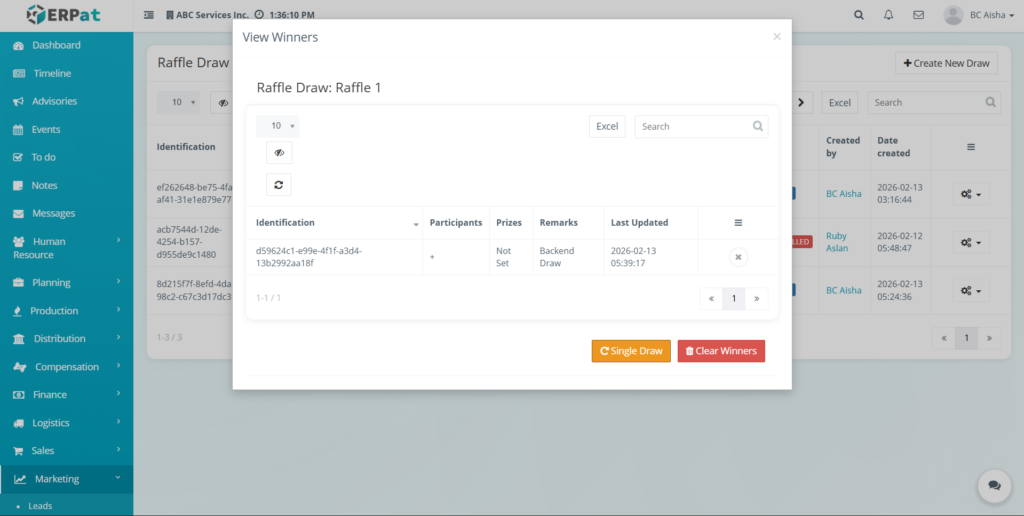
View Winners #
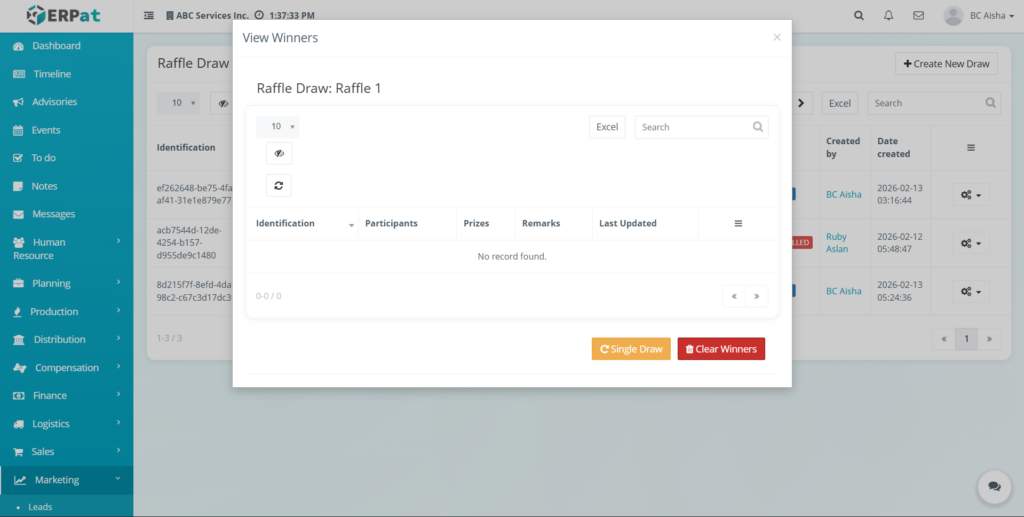
Steps for Conducting a Single Draw #
STEPS #
- Open the View Winners modal for your desired raffle.
- Click the Single Draw button.
- The system will process a selection and add a new row to the winners’ table automatically.
- Click the Refresh icon if the table does not update immediately.
Result #
The random pick of the System will reflected to the table
Steps to Clear Winner Records #
STEPS #
- Open the View Winners modal.
- Click the Clear Winners (red) button.
- Confirm the action when prompted.
Result #
The data will be clear out in the table
Prizes #
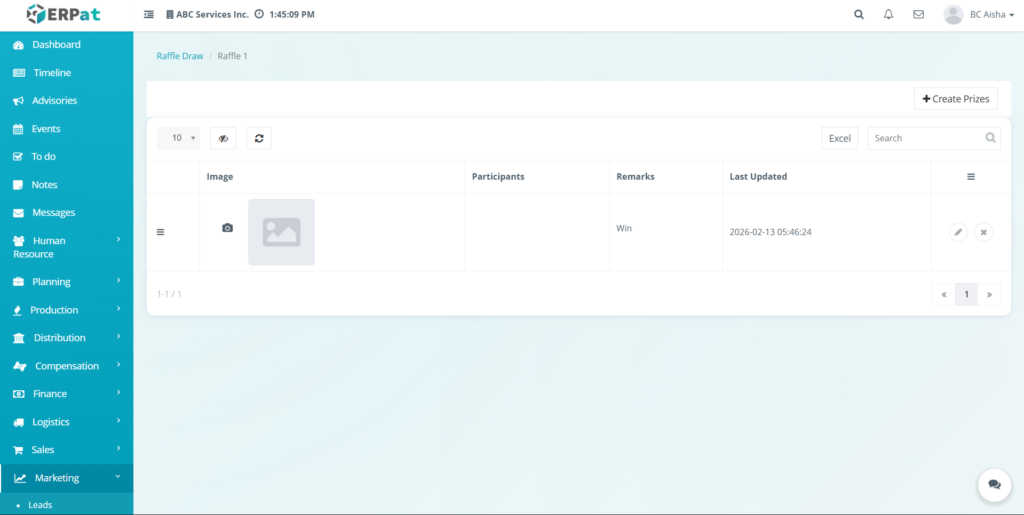
Steps for Adding a Prize #
STEPS #
- Click the + Create Prizes button located at the top-right of the page.
- Fill in the requirements, which may include:
- Participants: Link or identify the relevant participants for the prize.
- Remarks: Enter any descriptive notes or specific details about the prize.
- Click Save to finalize the record.
Result #
The newly added prize will be reflected on the prizes listing page, displaying its image, linked participants, remarks, and the Last Updated timestamp.
Steps for Editing a Prize #
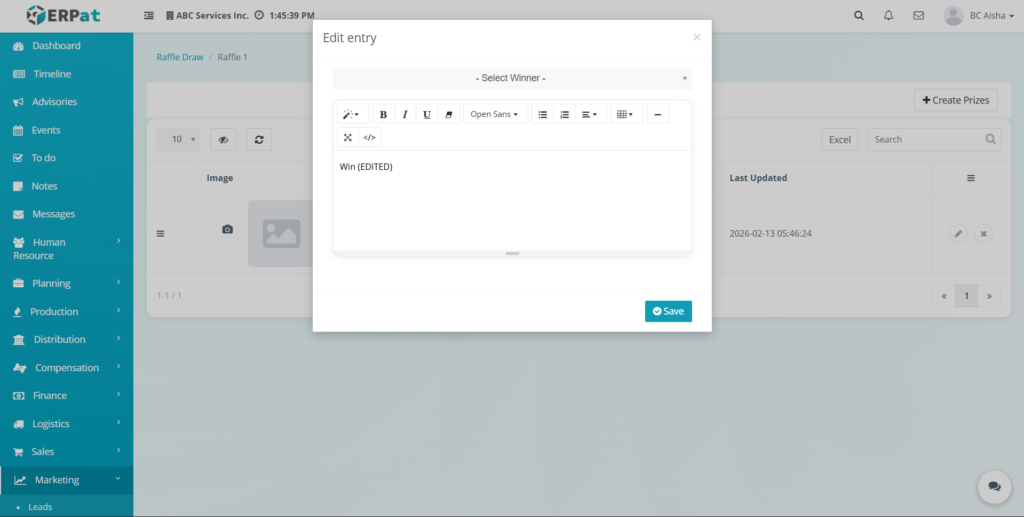
STEPS #
- Locate the prize entry from the listing.
- Click the Edit icon under the Actions column.
- Update the necessary fields or replace the prize image.
- Click Save to apply the changes.
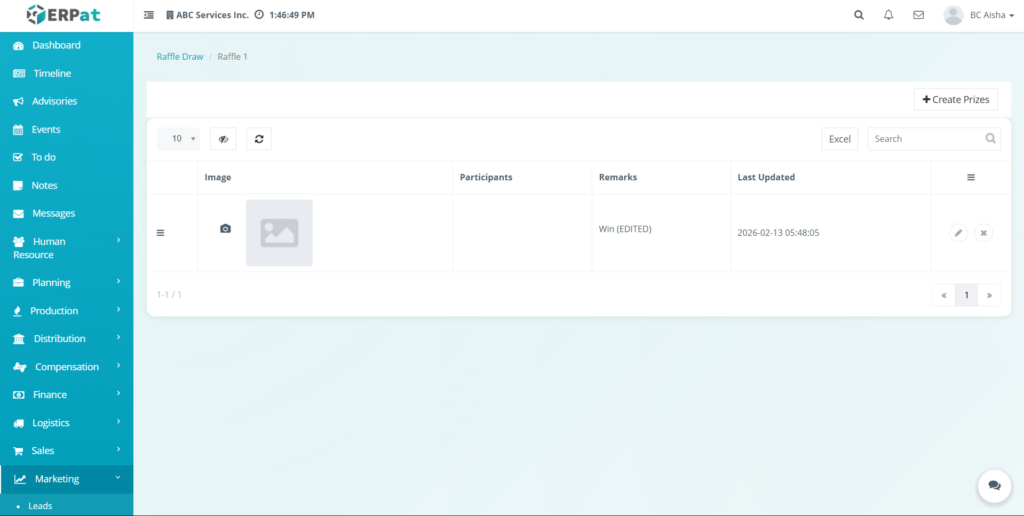
Result #
The prize will be reflected on the page.
Steps to Delete a Prize #
STEPS #
- Locate the prize record to be removed.
- Click the Delete icon under the Actions column.
- Confirm the deletion when prompted.
Result #
The prize will be deleted and removed to the page.
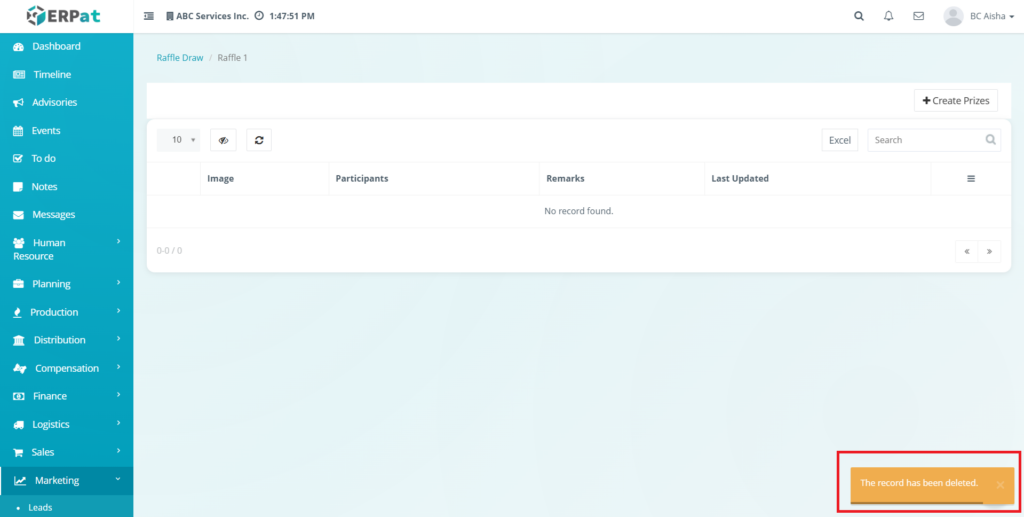
Steps for Cloning a Raffle Draw #
The Clone function is used to duplicate the settings and prize structures of an existing raffle to save time on recurring events.
STEPS #
- Locate the existing raffle you wish to replicate in the Raffle Draw listing.
- Click the Settings (gear icon) at the end of the row.
- Select Clone from the dropdown menu.
- The system will generate a duplicate record of the raffle.
- Open the newly cloned raffle and update the Event Name and Draw Date to reflect the new campaign schedule.
- Click Save to finalize the duplicated event.
Result #
The file created a duplicate file and reflected to the page.
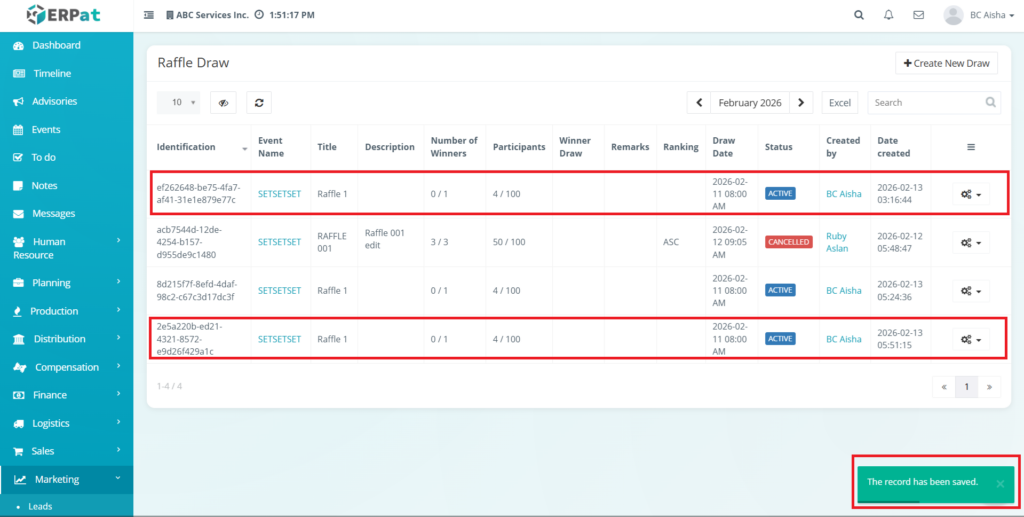
Updating the Raffle Status #
STEPS #
- After selecting Update Status, an Update Status modal will appear.
- Read the system warning: “Please be careful updating t he status of each raffle draw, this might affect the public participants’ reactions”.
- Select the desired new status from the provided options (e.g., changing from ACTIVE to CANCELLED).
- Confirm the change to apply the new status to the raffle.
Result #
The update status will apply and reflected to the page.
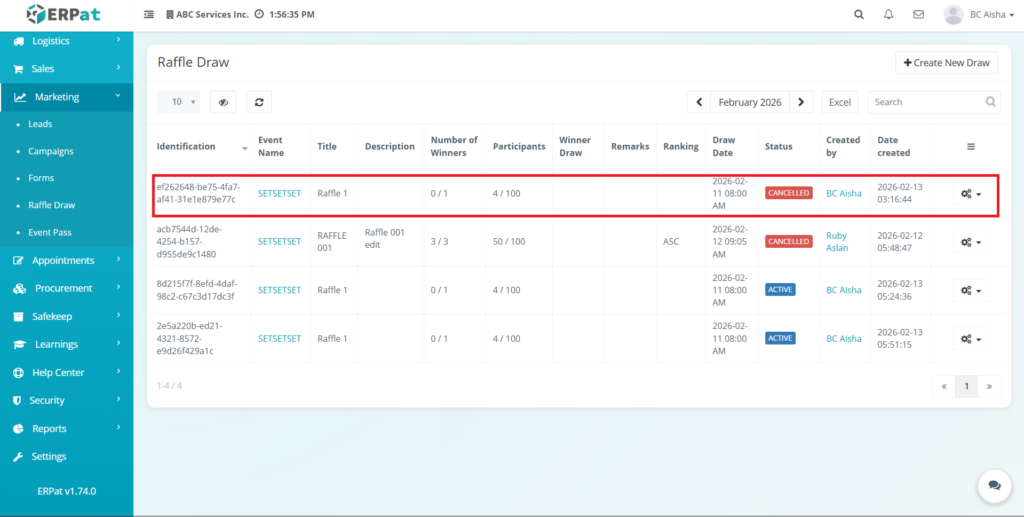
Steps for Creating a New Raffle Draw #
STEPS #
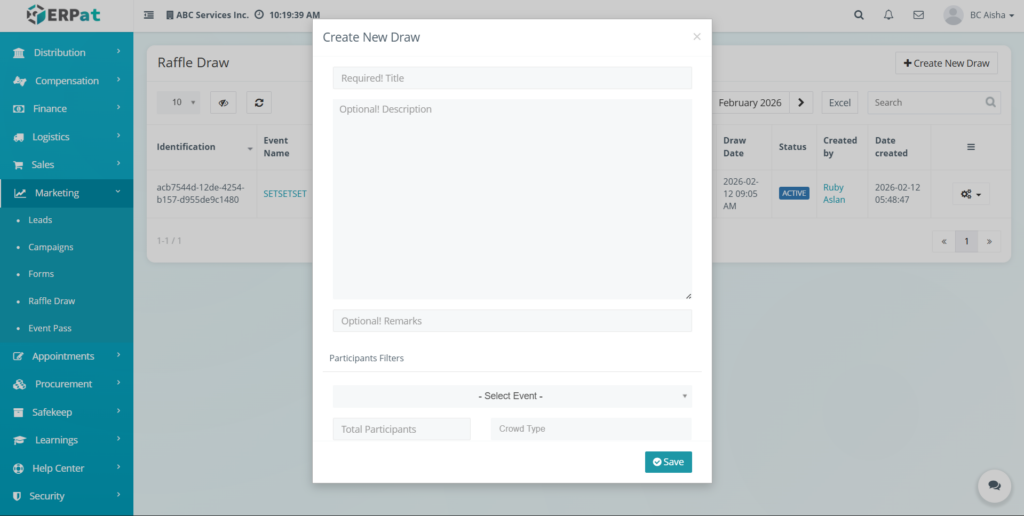
- Click the Create New Draw button located at the top-right of the page. Fill in the required fields:
- Event Name
- Title
- Description
- Number of Winners
- Participant Limit (if applicable)
- Draw Date and Time
- Remarks (optional)
- Review the entered information for accuracy.
- Click Save or Create to finalize the raffle draw.
Result #
The newly created raffle draw will appear in the listing and become available for participant registration and winner selection.
Steps for Editing a Raffle Draw #
STEPS #
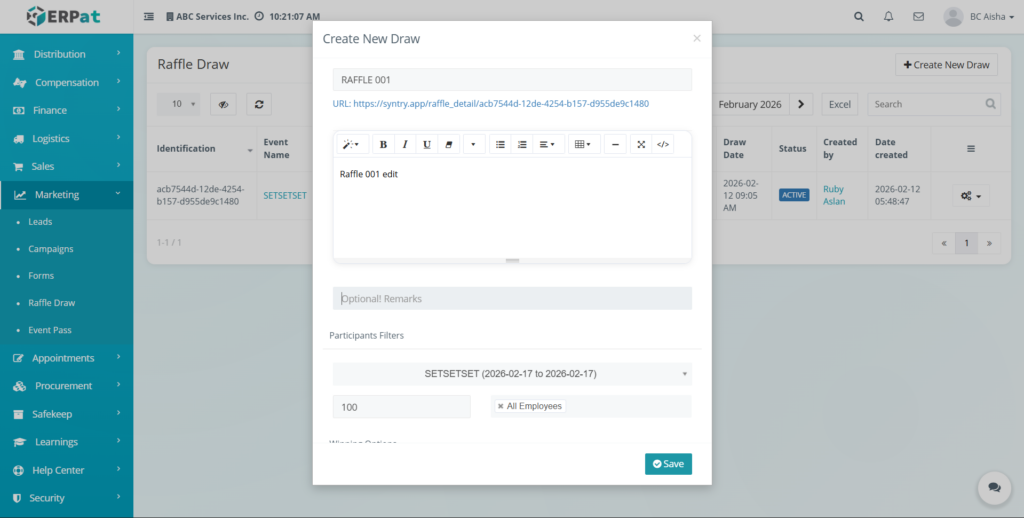
- Locate the raffle record from the listing.
- Click the Edit (✎) or settings icon under the Actions column.
- Update the necessary fields.
- Click Save to apply changes.
Notes: #
Changes reflect immediately across marketing and event reports.
Search and Filtering #
- Use the Search field to find raffle draws by title, event name, or creator.
- Utilize month or date navigation to filter records by draw schedule.
- Pagination controls help navigate through multiple raffle records efficiently.
Permissions and Access Control #
- Only authorized Marketing or Admin roles can create, edit, or delete raffle draws.
- View-only access may be granted to supervisory or reporting roles.
Best Practices #
- Use clear and consistent raffle titles for easy identification.
- Set realistic participant limits based on campaign scope.
- Verify draw dates and number of winners before activation.
- Avoid deleting completed raffles needed for audit or promotional records.
- Document remarks for transparency and reporting clarity.
Audit & Logs #
All create, update, and delete actions for raffle draws are logged for audit and compliance purposes within the ERPat System.
Last Updated: [February 13, 2026] Module Owner: Marketing IS – ERPat System


