Overview #
The Taxes section in the Finance module is a critical administrative tool for managing statutory tax compliance within the ERPat system. It centralizes the configuration of Alphanumeric Tax Codes (ATC) and Withholding Tax on Compensation tables, ensuring that all payroll and expense calculations adhere to current national tax regulations.
By providing a structured interface for tax rates and brackets, the module automates complex withholding calculations for both professional services and employee compensation.
Key Features #
- Alphanumeric Tax Code (ATC) Registry: Comprehensive list of standardized tax codes for various professional and business services.
- Dynamic Withholding Tables: Configurable tax brackets for employee compensation based on pay frequency (Daily, Weekly, Semi-Monthly, Monthly).
- Integrated Tax Calculator: Built-in tool to verify tax amounts before finalizing entries.
- Audit Tracking: Automatic recording of who created or last updated a tax configuration and when.
- Status Management: Ability to toggle specific tax codes as “Active” or “Inactive”.
Accessing the Taxes Module #
- Log in to the ERPat System.
- Navigate to Finance in the primary sidebar.
- Select Taxes from the sub-menu.
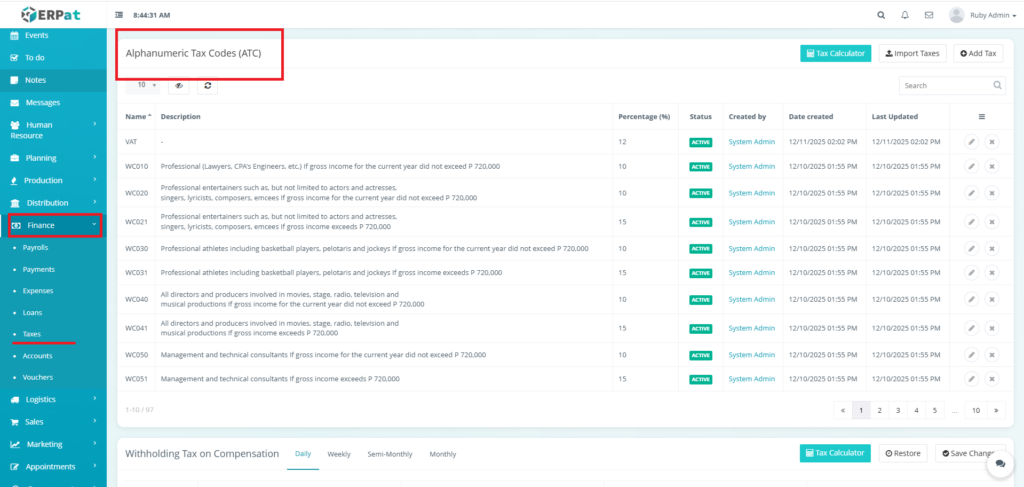
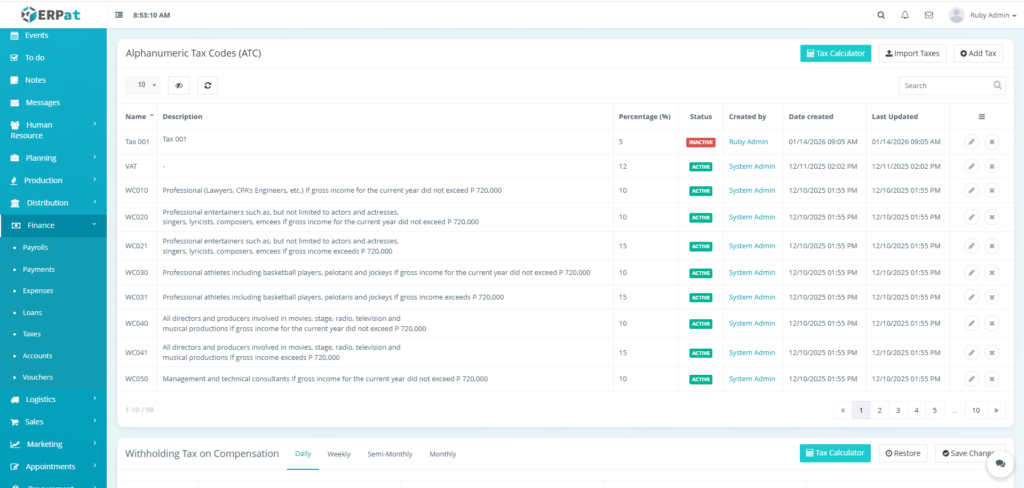
Alphanumeric Tax Codes (ATC) List View #
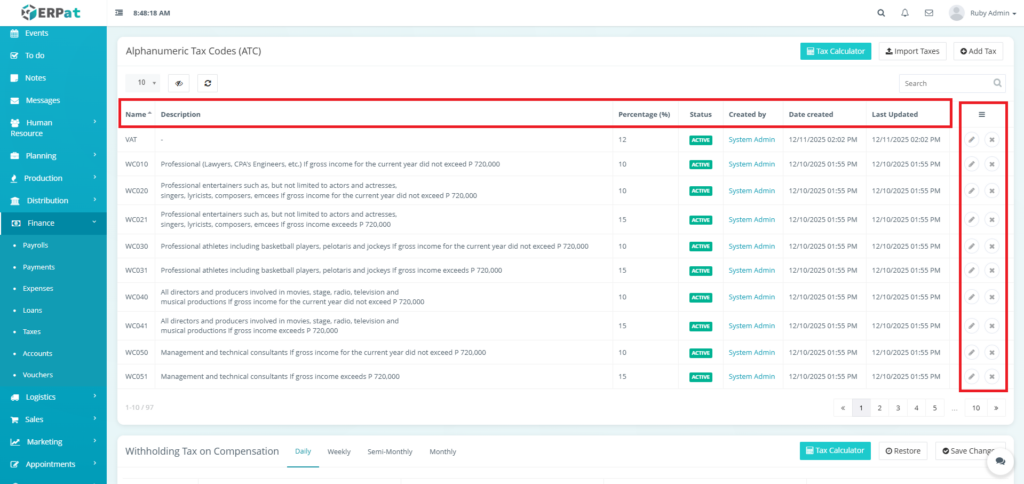
- Name – The standard code identifier
- Description – Detailed explanation of the tax application
- Percentage (%) – The applicable tax rate
- Status – Visual indicator if the code is currently ACTIVE.
- Created by – User that created the ATC.
- Date Created – Creation date of ATC.
- Last Updated – Date when the ATC was last modified.
- Actions – Edit or Delete Controls
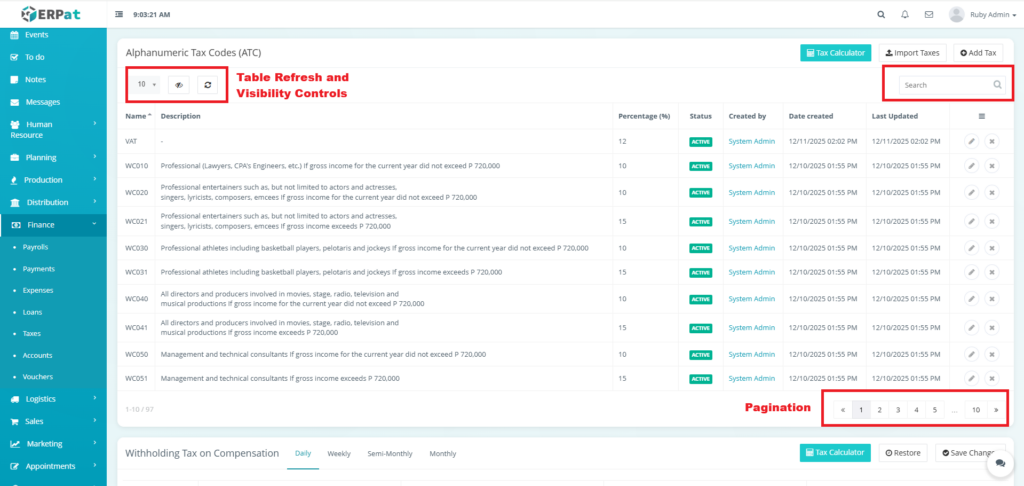
Page Controls and Tools #
- Search Bar
- Table Refresh Visibility Controls
- Pagination
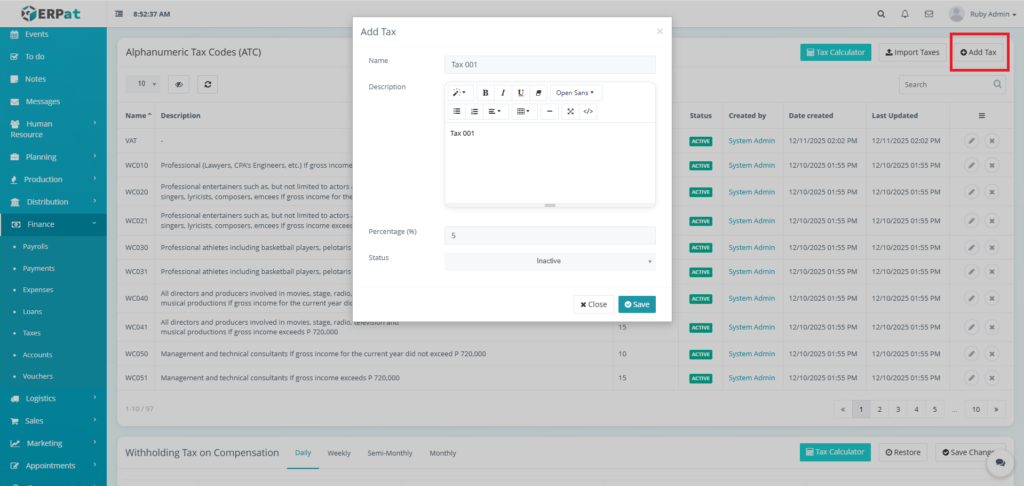
Steps for Adding an Alphanumeric Tax Code (ATC) #
STEPS #
- Click the “Add Tax” button.
- Fill in the necessary details.
- Click the Save button to add the ATC.
Result #
Steps for Adding Multiple ATC #
STEPS #
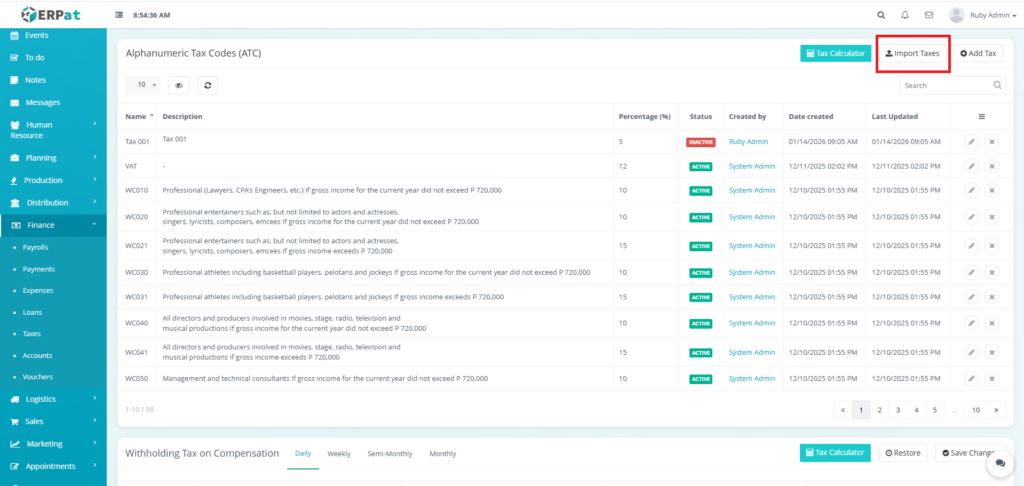
- Click the “Import Taxes” button
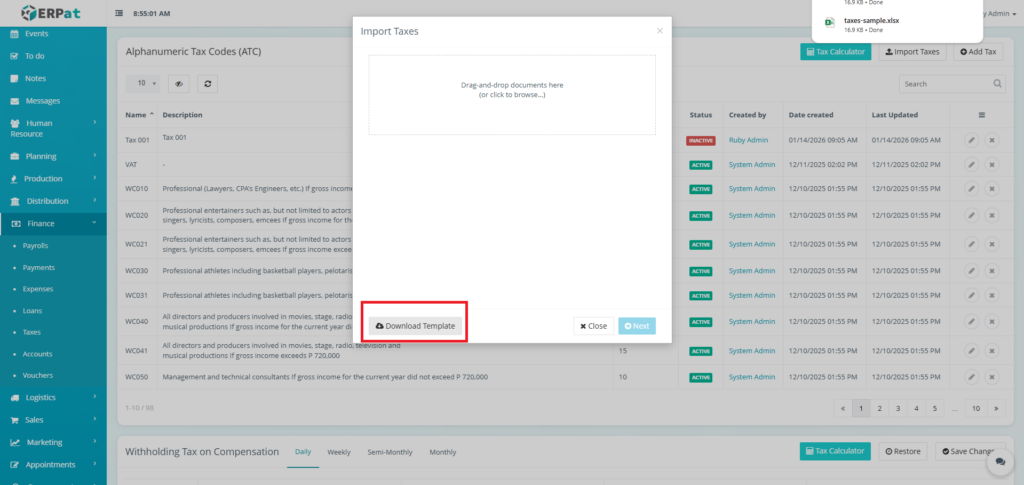
- Fill in the necessary details in the template.
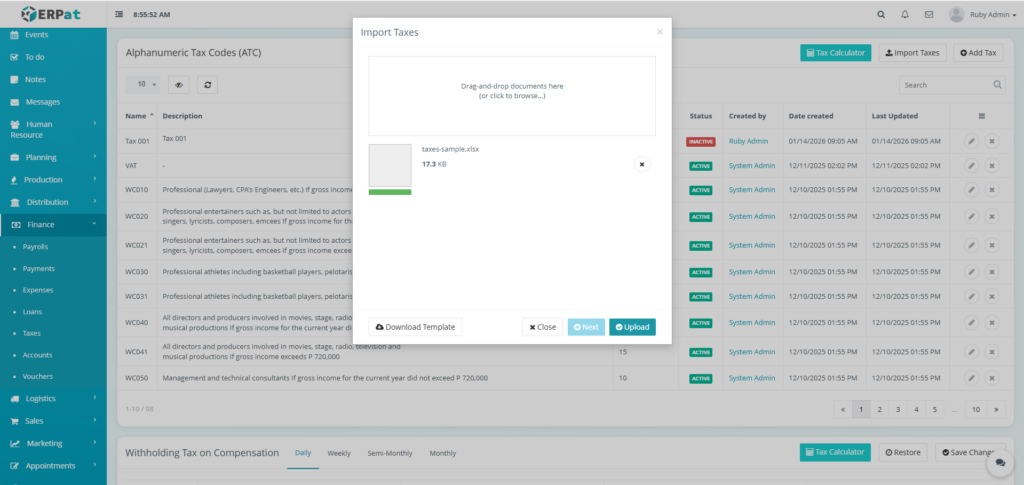
- Upload the template filled with data.
- Click the Next button then Upload button to insert multiple ATC.
Steps for Editing an ATC #
STEPS #
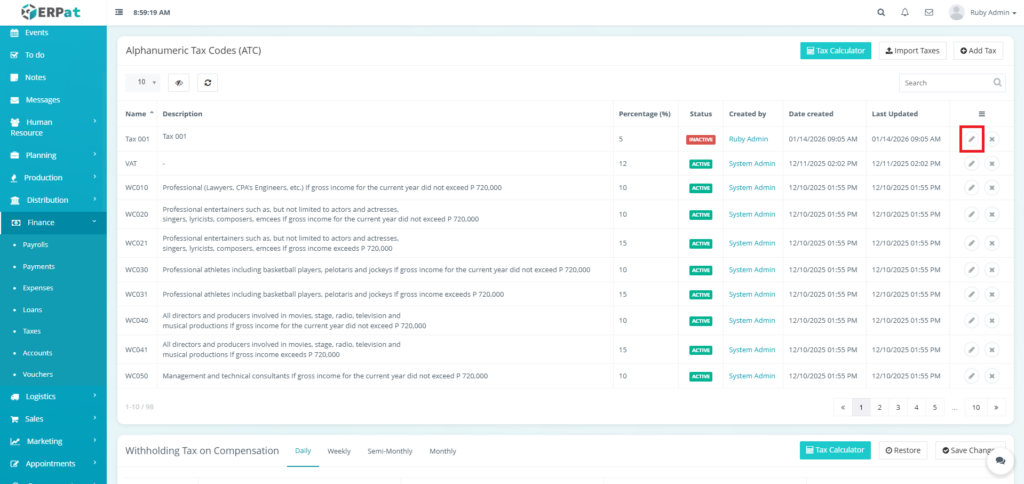
- Click the Edit icon in the actions of the table
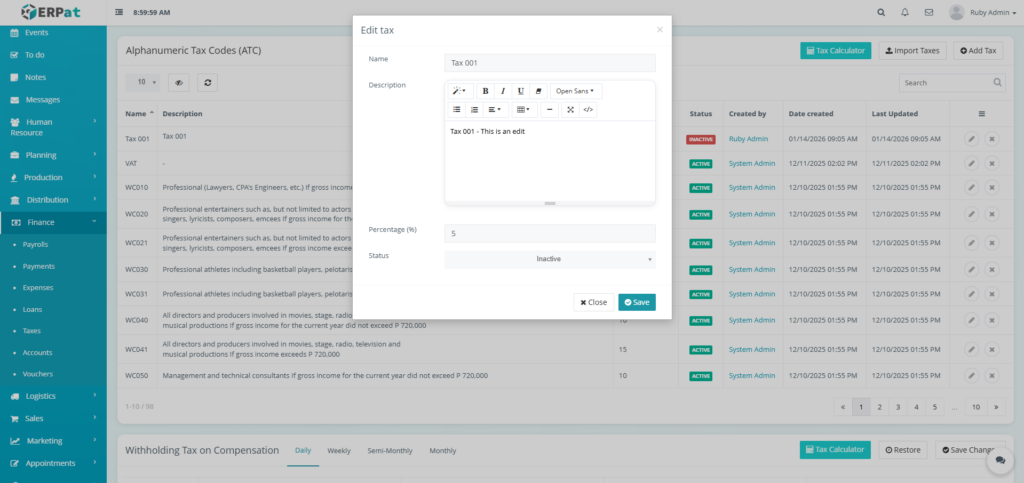
- Fill in the changes.
- Click the Save button to apply the changes.
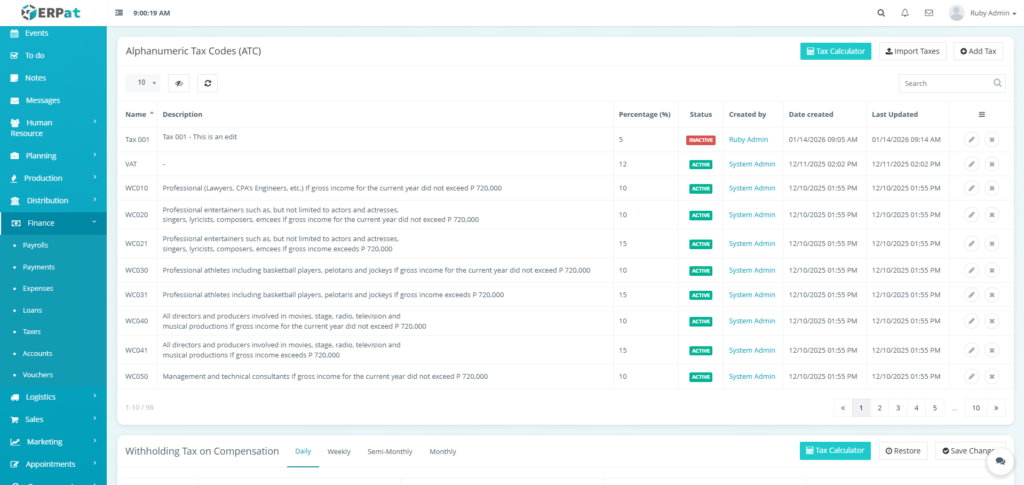
Result #
Steps for Deleting an ATC #
STEPS #
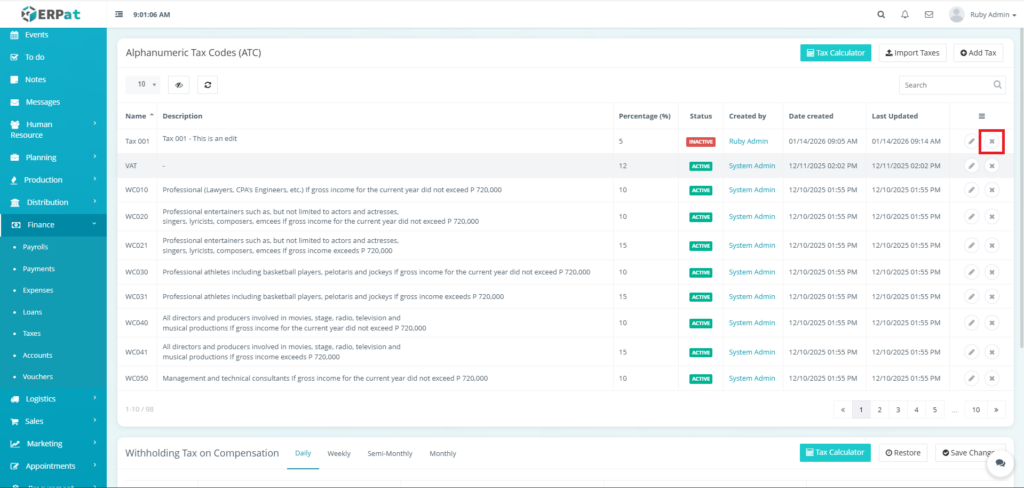
- Click the Delete icon in the actions of the table
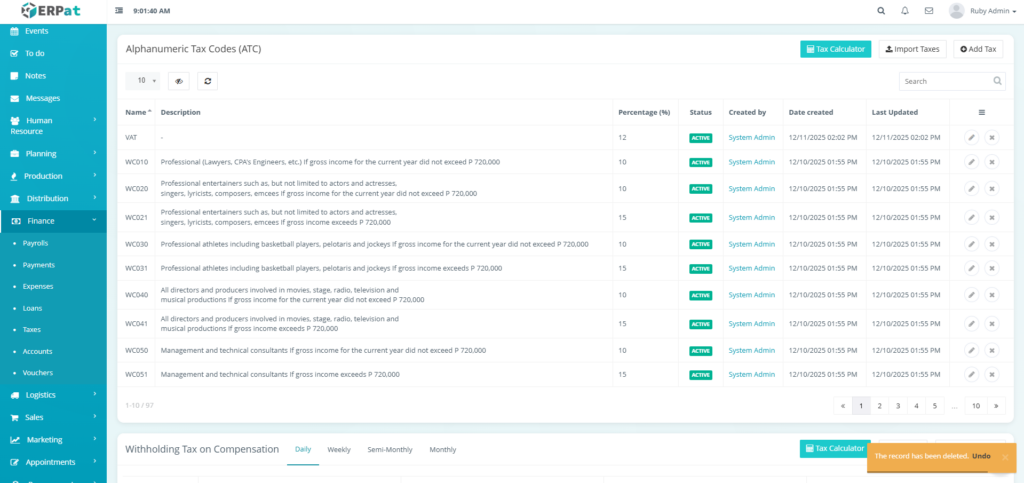
Result #
Steps for Checking Tax Using Tax Calculator #
STEPS #
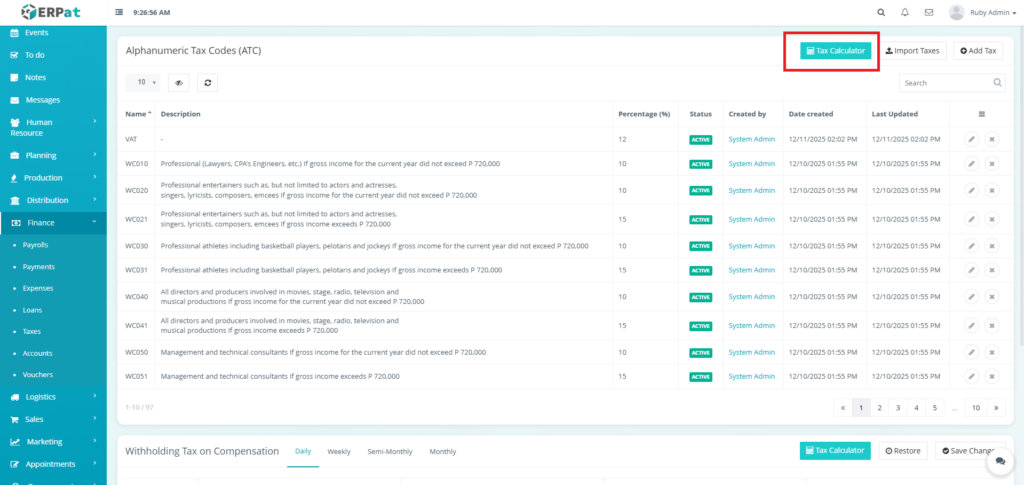
- Click the “Tax Calculator” button in the ATC Table.
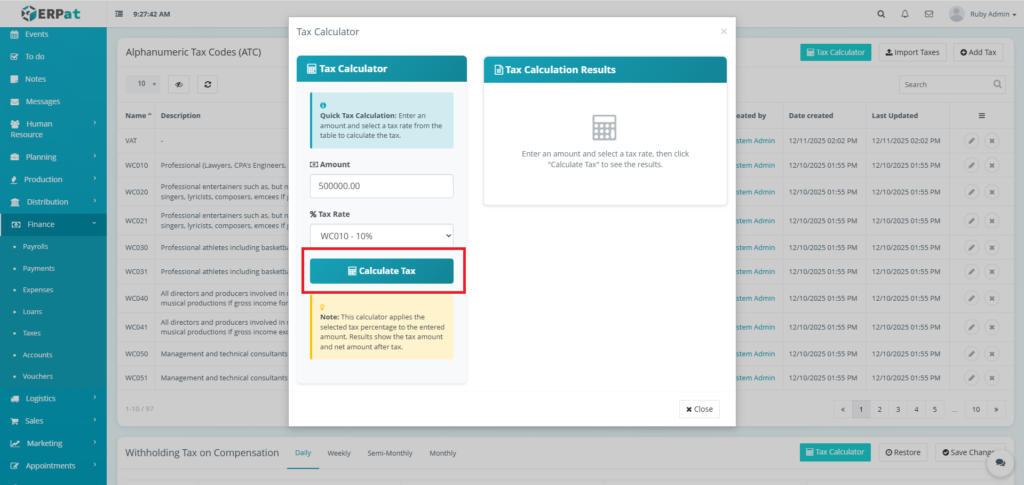
- Input the salary amount.
- Select the appropriate tax rate.
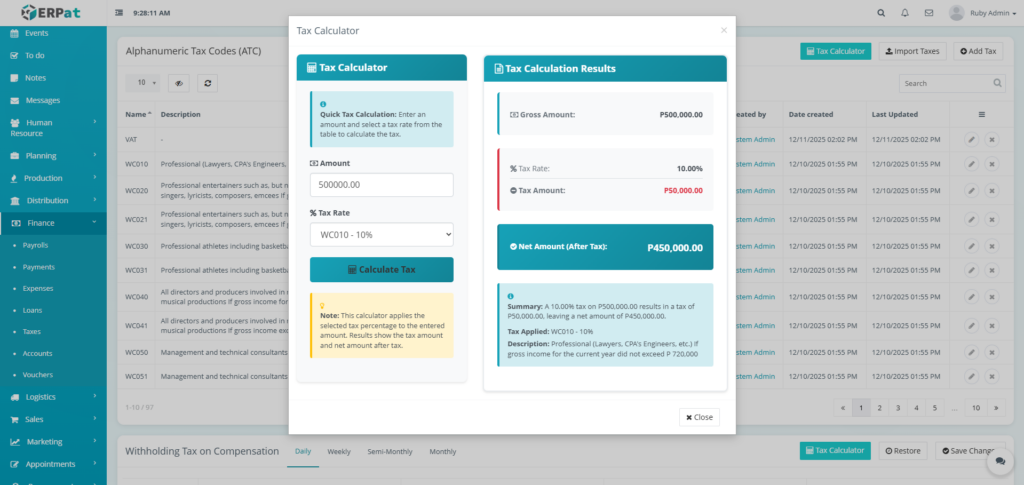
- Click the “Calculate Tax” button.
Result #
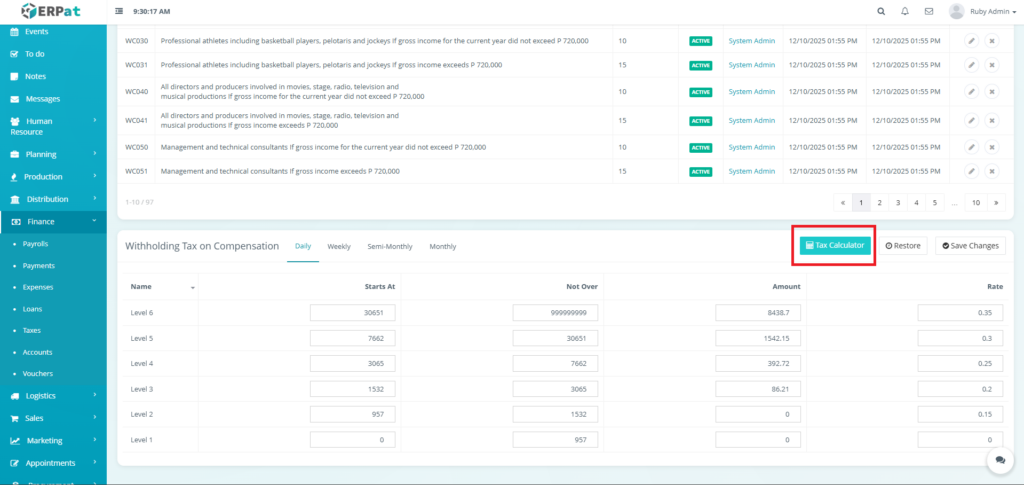
Withholding Tax on Compensation List View #
- Name – Tax levels.
- Starts At – The minimum income for the bracket.
- Not Over – The maximum income for the bracket.
- Amount – Fixed base tax amount for that level.
- Rate – The percentage applied to the amount exceeding the “Starts At” threshold
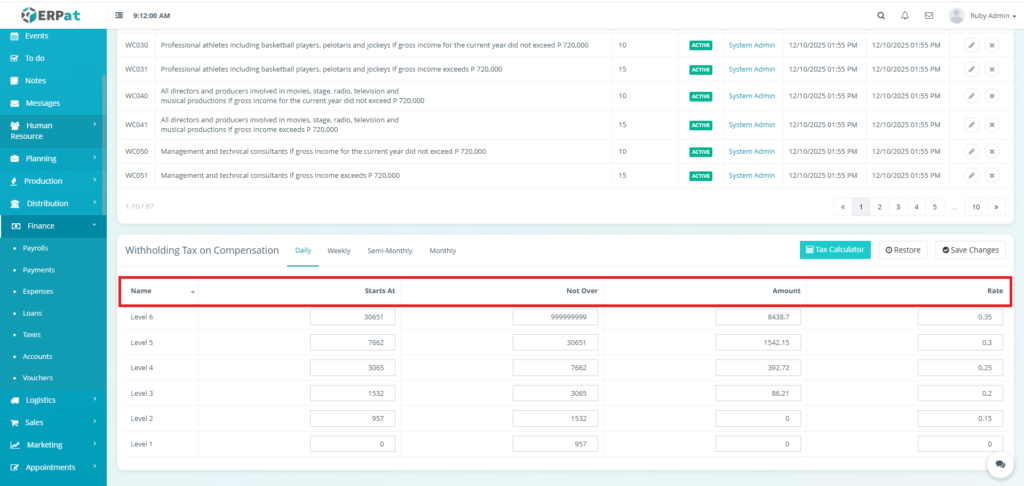
Withholding Tax on Compensation Tabs #
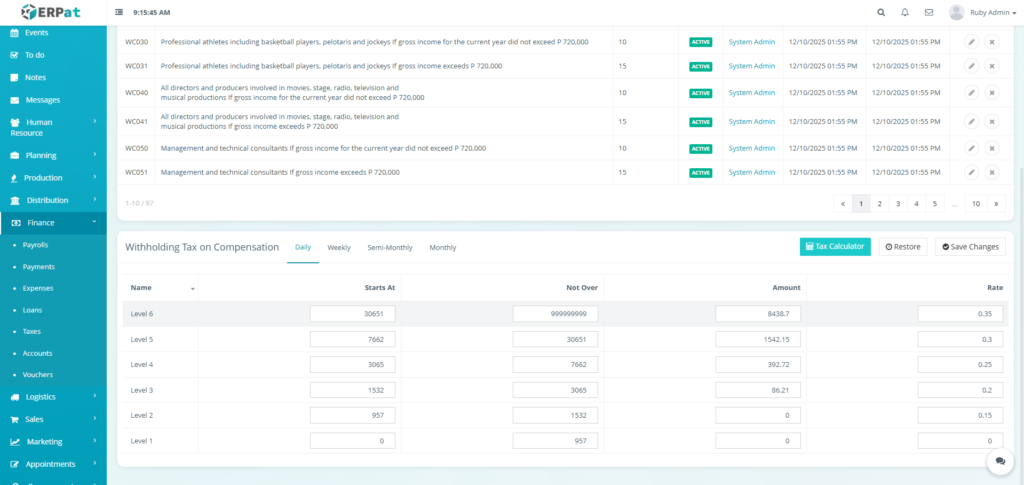
Daily #
Specifically configured for workers paid on a day-to-day basis; brackets are scaled to reflect daily earnings.
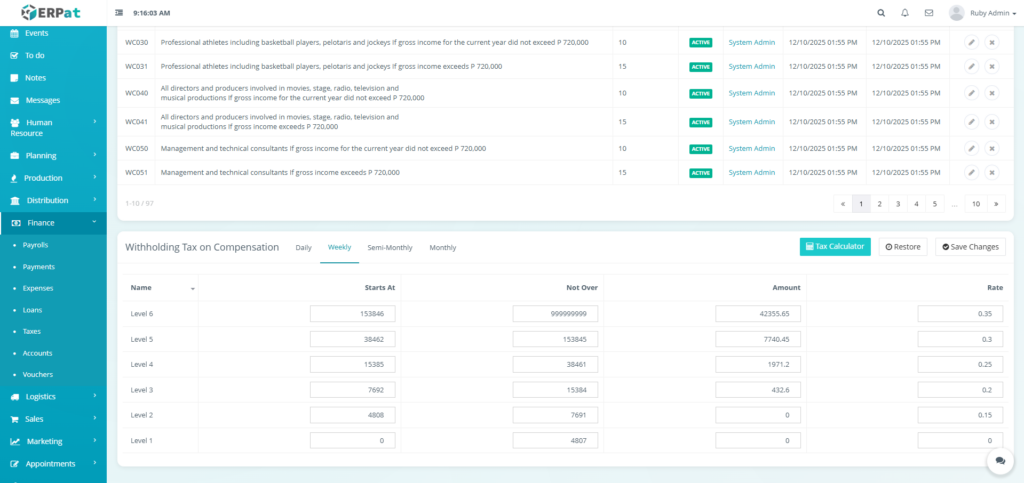
Weekly #
Designed for employees on a 52-week pay cycle; thresholds are adjusted for a standard 7-day earning period.
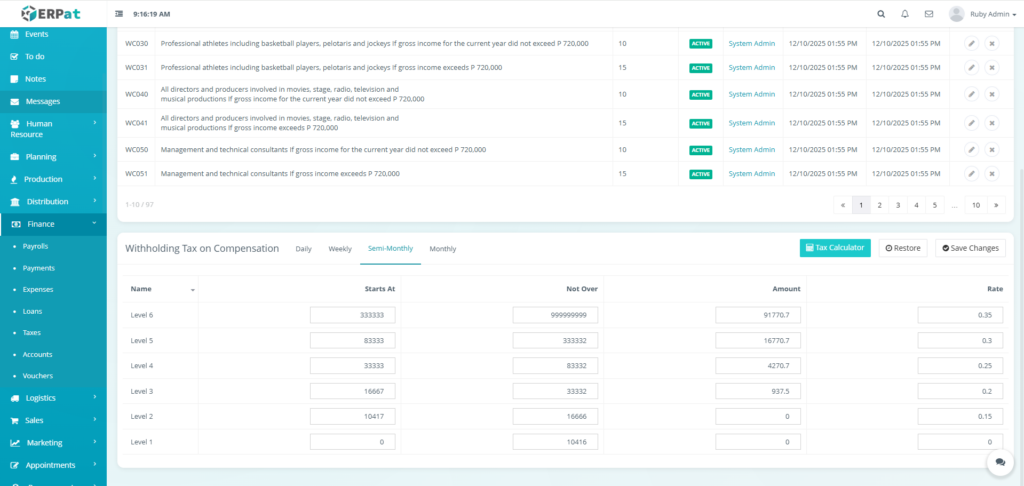
Semi-Monthly #
The standard setting for most organizations paying twice a month; brackets are based on a 15-day taxable income period.
Monthly #
Used for staff paid once per calendar month; features the highest income thresholds to accommodate a full month’s salary.
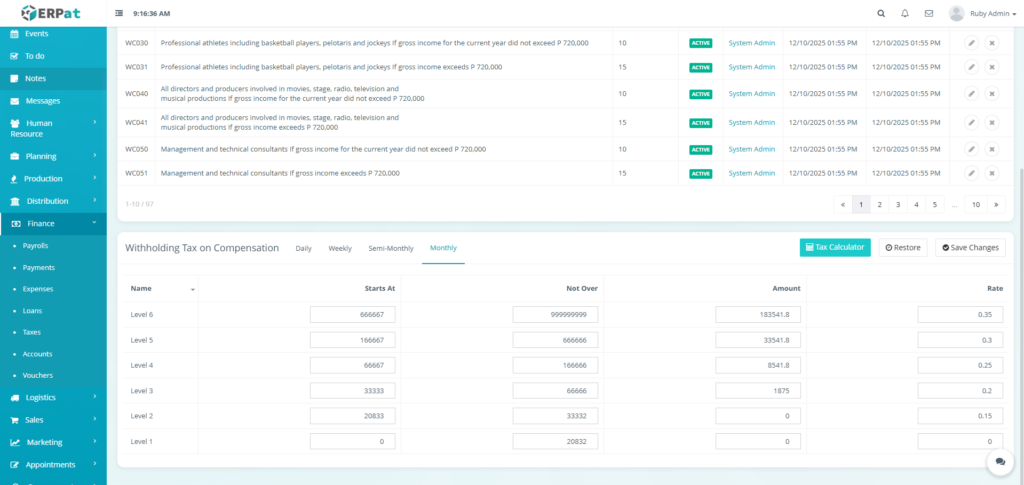
Steps for Editing the Withholding Tax on Compensation #
STEPS #
- Fill in the changes in the table.
- Click the “Save Changes” button to apply the changes
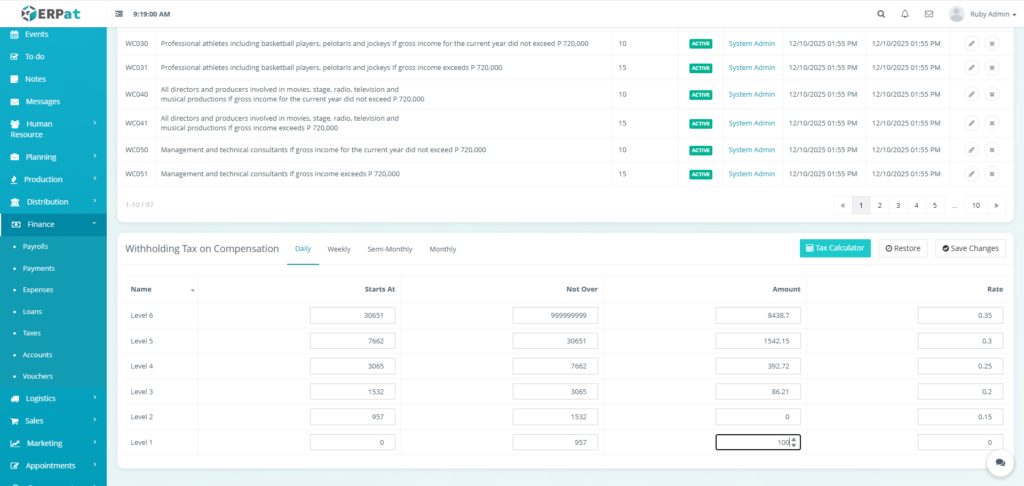
Result #
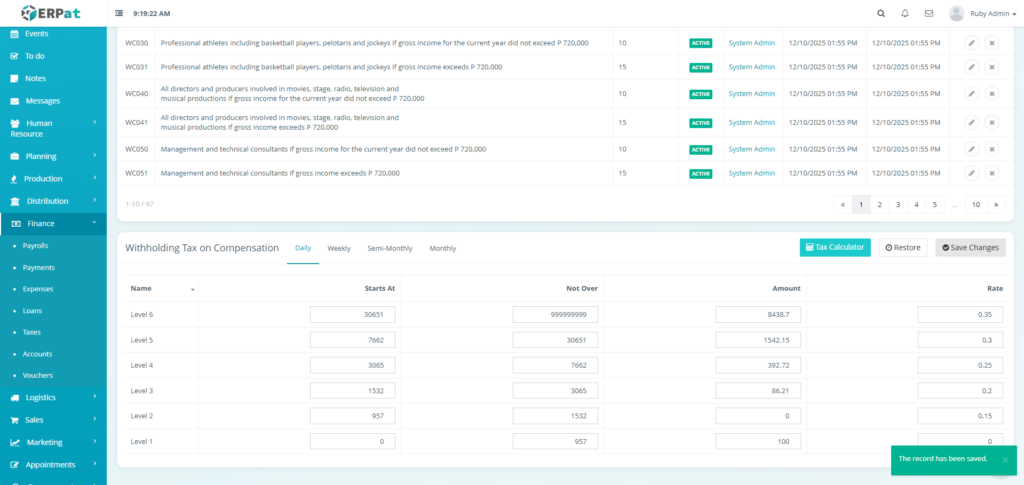
Note: Restore button can be clicked to bring the Withholding Tax on Compensation to default.
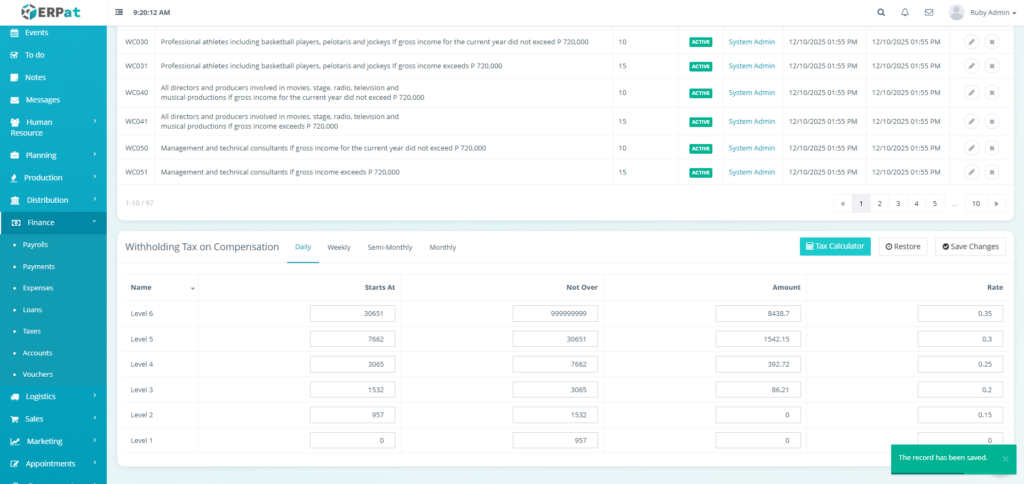
Steps for Checking Withholding Tax Using Tax Calculator #
STEPS #
- Click the “Tax Calculator” button in the Withholding Tax on Compensation Table.
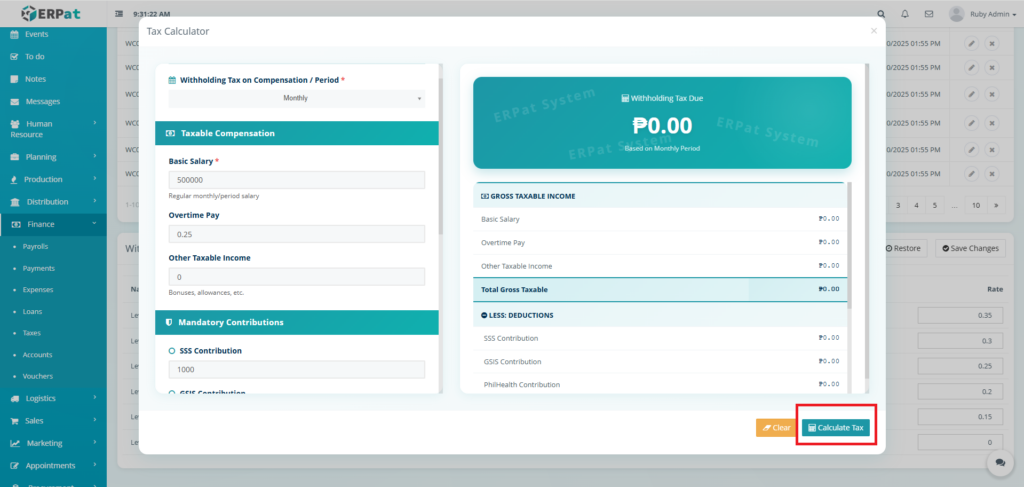
- Fill in the necessary details.
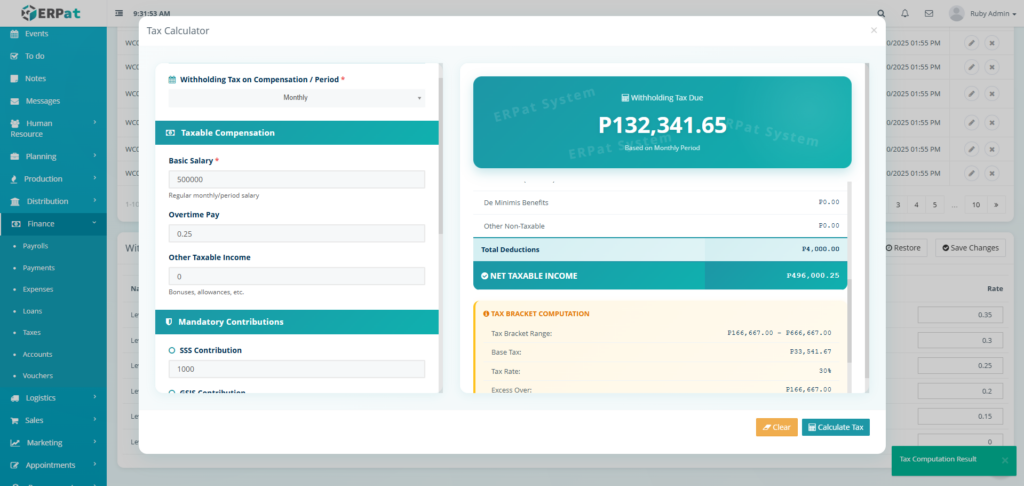
- Click the “Calculate Tax” button.
Result #
Permissions and Access Control #
- Finance/System Admins: Full authority to modify tax codes and withholding tables.
- Accountants: View-only access or permission to use the Tax Calculator for verification.
Best Practices #
- Annual Updates – Review and update tax brackets at the start of each fiscal year
- Documentation – Keep records of all tax table changes for audit purposes
- Testing – Test new tax rates with sample salaries before implementation
- Employee Communication – Inform employees of tax changes affecting their net pay
- Code Consistency – Use standardized naming conventions for tax codes
- Regular Review – Quarterly review of active tax codes for relevance
- Threshold Monitoring – Monitor income thresholds that trigger different tax rates
- Compliance Updates – Stay updated on regulatory changes affecting tax codes
- Backup Before Changes – Export current tax settings before making major changes
- Staged Implementation – Implement tax changes at the start of a new payroll period
- Training – Train relevant staff on tax configuration changes
- Audit Trail Maintenance – Never delete tax configuration history
Audit & Logs #
The system maintains comprehensive audit trails for tax configurations
Last Updated: [January 14, 2026] Module Owner: Finance IS – ERPat System


