Overview #
The Timesheets Module is used to record, monitor, and review the working hours of users across projects and tasks. It provides visibility into time spent, productivity tracking, and project effort analysis for both employees and administrators. Each timesheet entry captures start and end times, associated tasks, clients and total duration, ensuring accurate reporting and accountability across departments.
Key Features #
- Centralized time tracking for all users
- Project and client-based time logging
- Task-level time visibility
- Date range filtering
- Summary and chart analytics views
- Export to Excel functionality
- Role-based access and editing permissions
- Real-time total hour calculation
Accessing the Timesheets Module #
- Log in to the ERPat System.
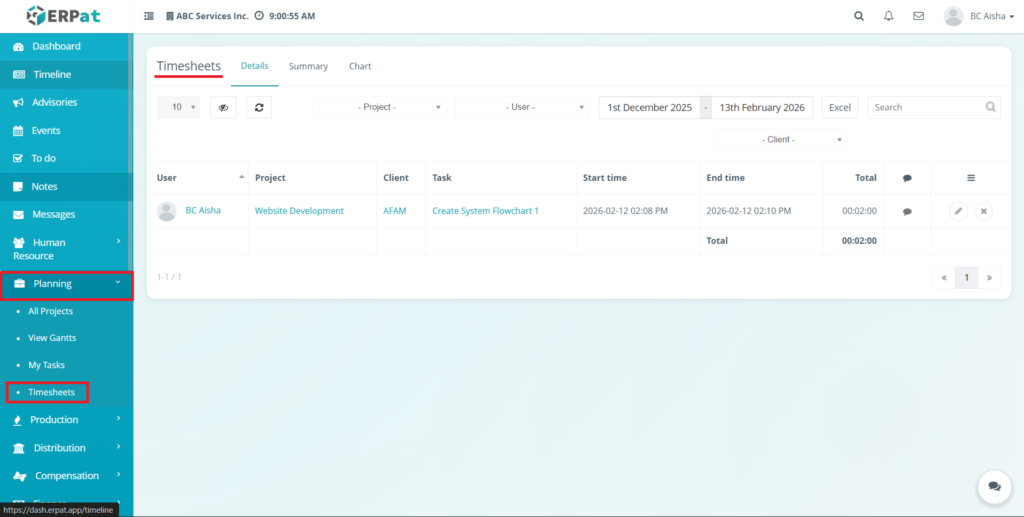
- From the main sidebar, navigate to Planning.
- Select Timesheets.
- You will be directed to the Timesheets Page, which opens by default in the Details tab.
Timesheet Details Page #
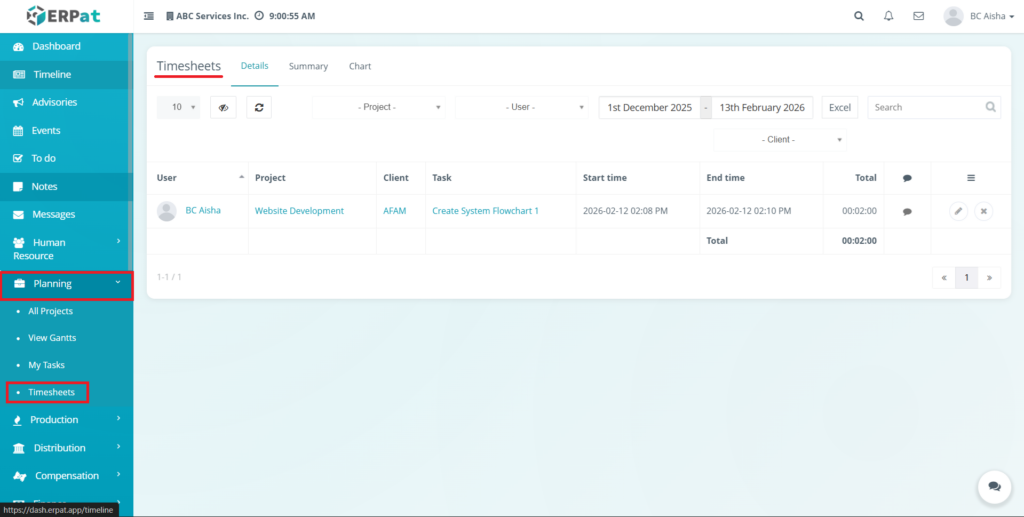
The Details Page show a structured list of recorded time entries with the following columns:
- User – Name and avatar of the person who logged time
- Project – Associated project name
- Client – Linked client or organization
- Task – Specific activity or task title
- Start Time – When the work session began
- End Time – When the work session ended
- Total – Calculated duration of the session
- Comment Icon – View or add remarks
- Actions – Edit and Delete Controls
At the bottom of the table, a Total Duration Row displays the sum of all visible time entries.
Filtering and Controls #
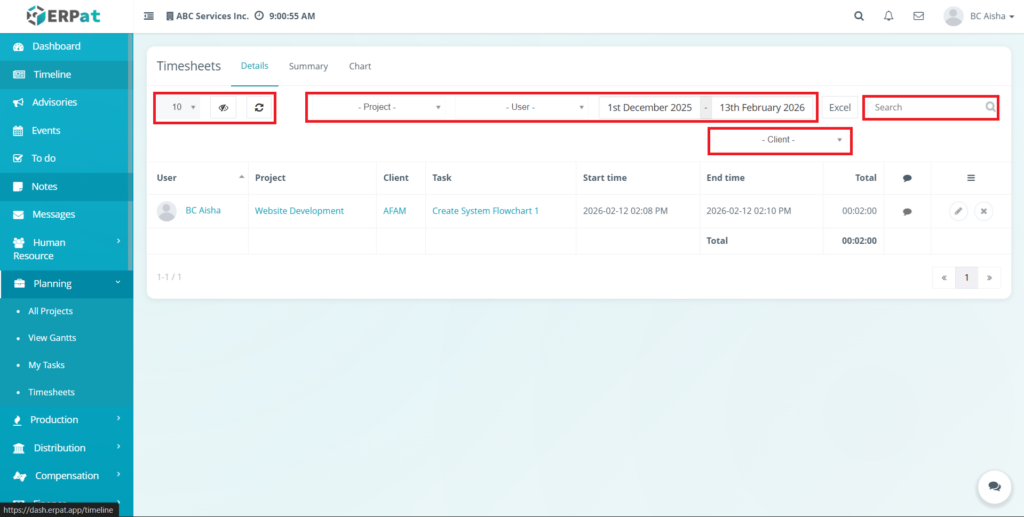
The Timesheets module includes multiple tools for efficient data navigation:
- Project Filter – Show entries from a selected project
- User Filter – Display records of a specific employee
- Client Filter – Narrow results by client
- Date Range Picker – Define a custom period
- Search Bar – Keyword lookup for tasks or users
- Excel Export – Download filtered data
- Refresh Button – Reload updated records
- Visibility Toggle – Show or hide certain columns
- Pagination – Navigate multiple pages of entries
Steps for Editing a Timesheet Entry #
STEPS #
- Locate the entry from the Details list.
- Click the Edit icon under the Actions column.
- Modify necessary fields.
- Click Save.
Result #
The data will be modified and displays to the table.
Notes #
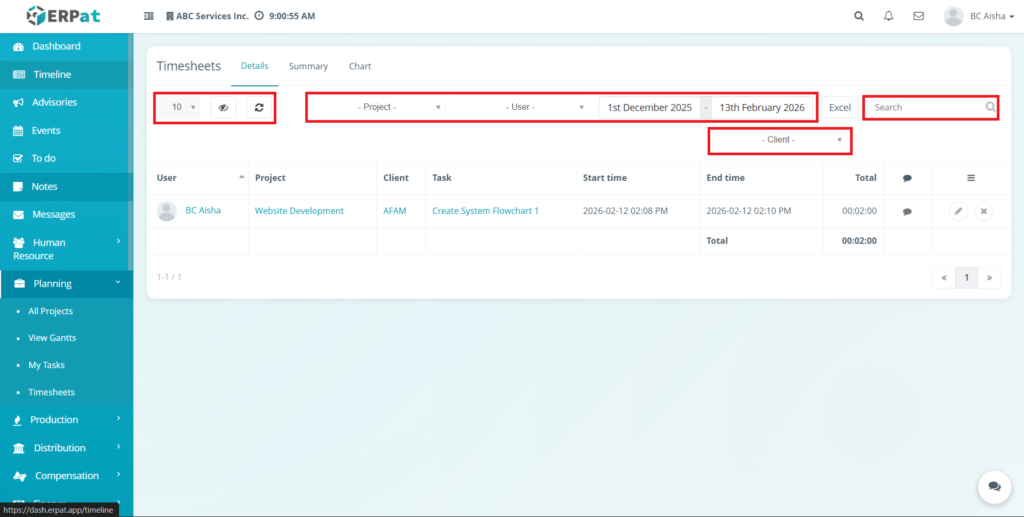
- Updated durations automatically recalculate totals
- Edits are logged for audit purposes.
Steps to Delete a Timesheet Entry #
STEPS #
- Locate the time record to remove.
- Click the Delete icon.
- Confirm deletion when prompted.
Result #
The data record will be deleted and remove to the table.
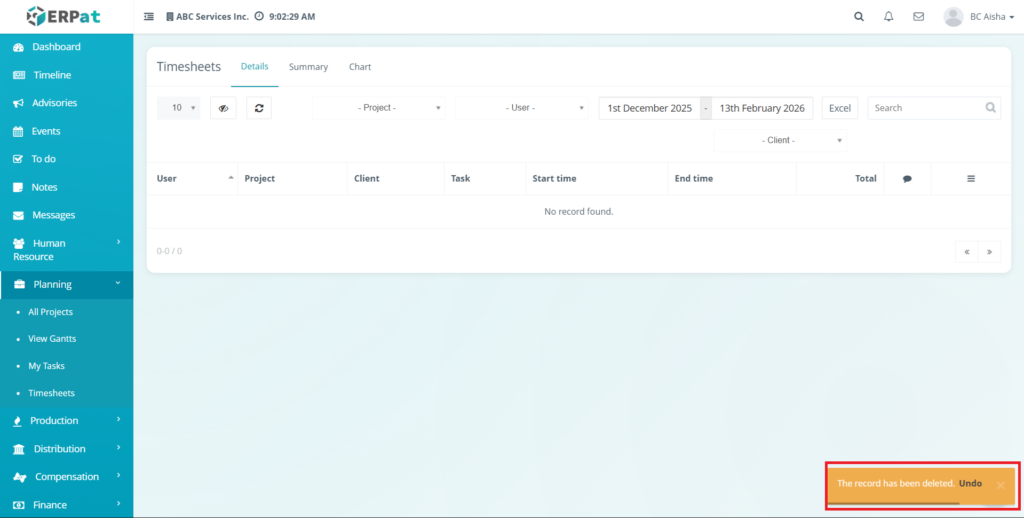
Warning #
Deleting entries removes them from reports and analytics permanently unless recovery is enabled.
Permissions and Access Control #
- Admin / Manager – Full create, edit, delete, and export rights
- Employee / User – Edit and delete personal entries only
- Viewer / Auditor – Read-only access
Access levels are defined in system role settings.
Best Practices #
- Review timesheet entries regularly to ensure all logged hours are correct and complete.
- Use consistent task names and project selections to maintain reporting accuracy.
- Verify start and end times before saving to avoid incorrect total calculations.
- Utilize filters and date ranges when auditing weekly or monthly work hours.
- Avoid deleting time records that are already used for payroll, billing, or performance reports.
Audit & Logs #
All timesheet actions—including modification, and deletion—are automatically recorded in the ERPat System Audit Logs to maintain transparency, compliance, and historical tracking of user work hours.
Last Updated: [February 13, 2026] Module Owner: Planning IS – ERPat System


