Overview #
The All Projects Module is used to create, manage, and monitor company projects within the ERPat System. It provides a centralized platform for tracking project details such as client information, timelines, progress, status, and labels. This module helps teams stay organized by offering visibility into active, pending, and completed projects while supporting planning and operational workflows. Each project record contains essential project information, ensuring consistent data usage across Planning and related modules.
Key Features #
- Centralized project management
- Client-based project tracking
- Start date and deadline monitoring
- Visual progress tracking
- Status management (e.g., Open, Completed, Hold, Cancelled)
- Label tagging (e.g., Important, Urgent)
- Export to Excel functionality
- Secure role-based access
Accessing the All Projects Module #
- Log in to the ERPat System.
- Navigate to Planning from the main sidebar.
- Select All Projects.
You will be directed to the Projects listing page, displaying all existing project records.
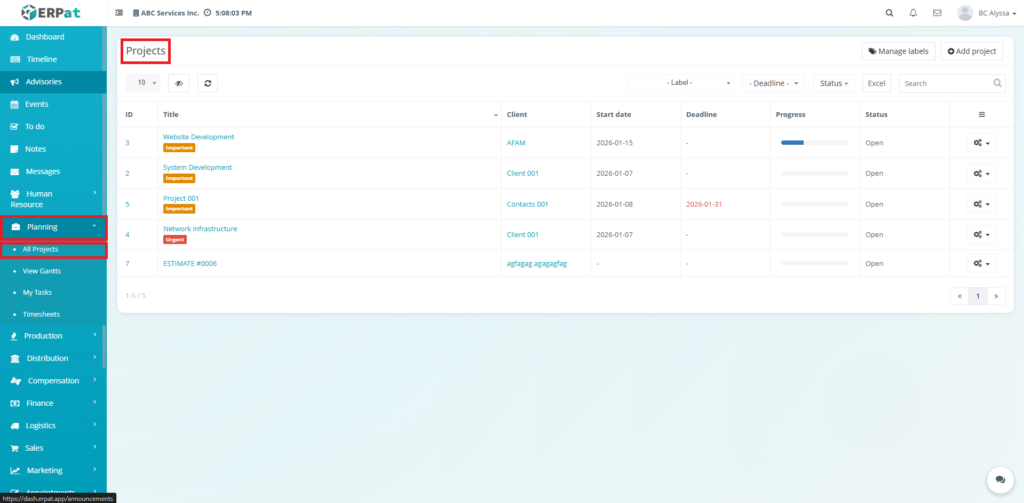
All Projects Page #
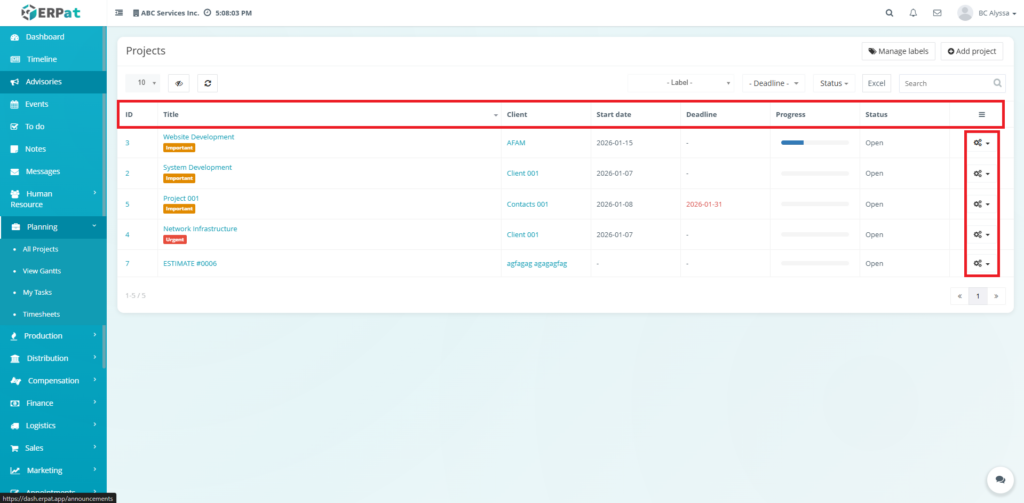
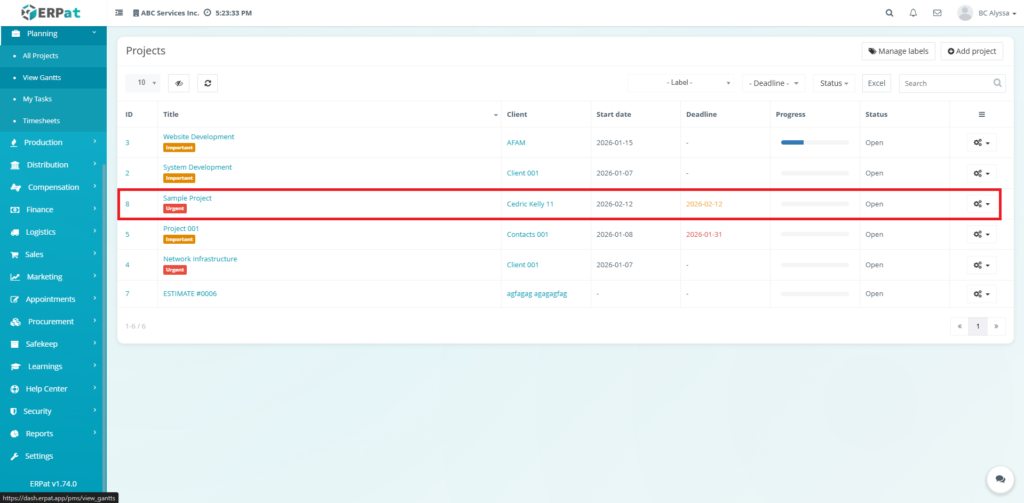
The listing page provides an overview of all projects with the following information:
- ID – Unique project reference number
- Title – Name of the project
- Label – Project tag (e.g., Important, Urgent)
- Client – Associated client name
- Start Date – Project commencement date
- Deadline – Project due date
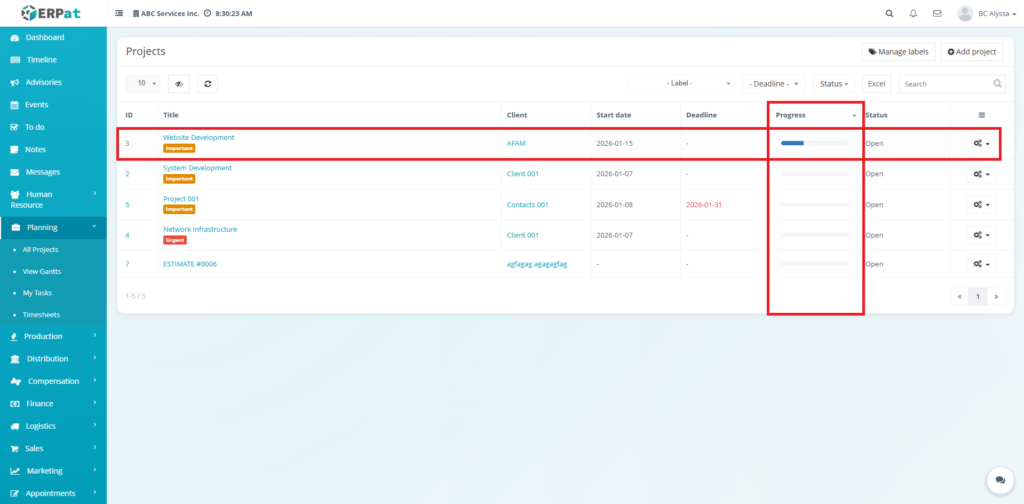
- Progress – Visual progress bar indicator
- Status – Current project state (e.g., Open, Completed, Hold, Cancelled)
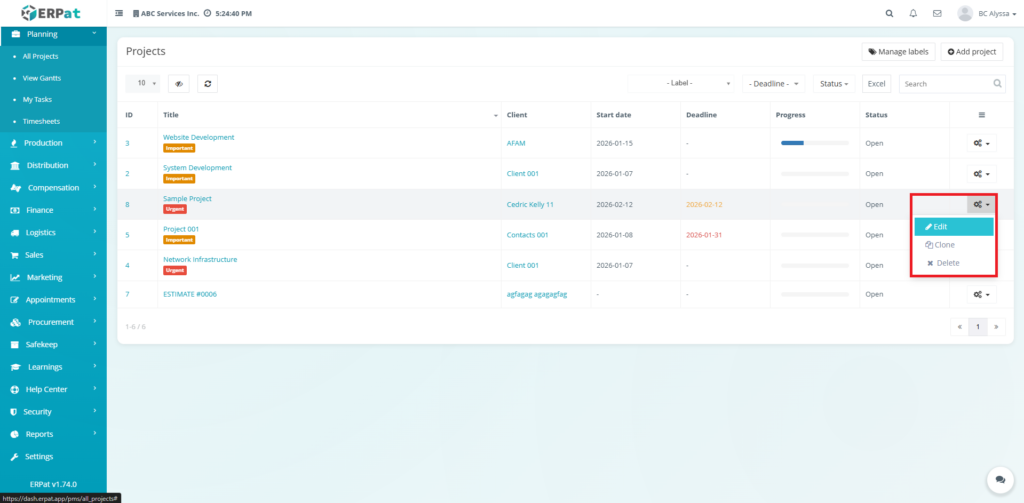
- Actions – Options menu for Edit, Clone, and Delete
Additional Controls #
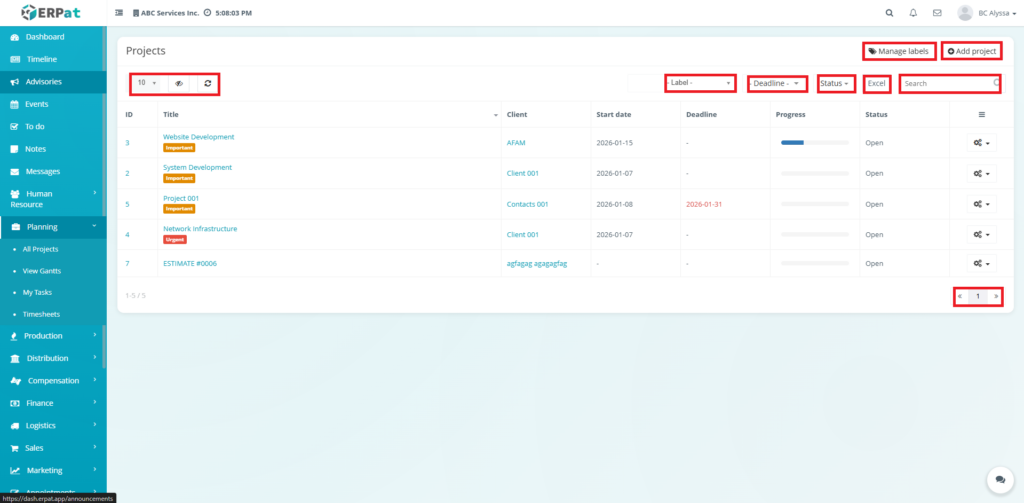
- Manage Labels – Configure and maintain project labels
- Add Project – Create a new project
- Filter by Label
- Filter by Deadline
- Filter by Status
- Excel Export – Download project list
- Search Bar – Quick project lookup
- Pagination Controls – Navigate through records
- Refresh and Visibility Controls
Steps for Adding a New Project #
Steps
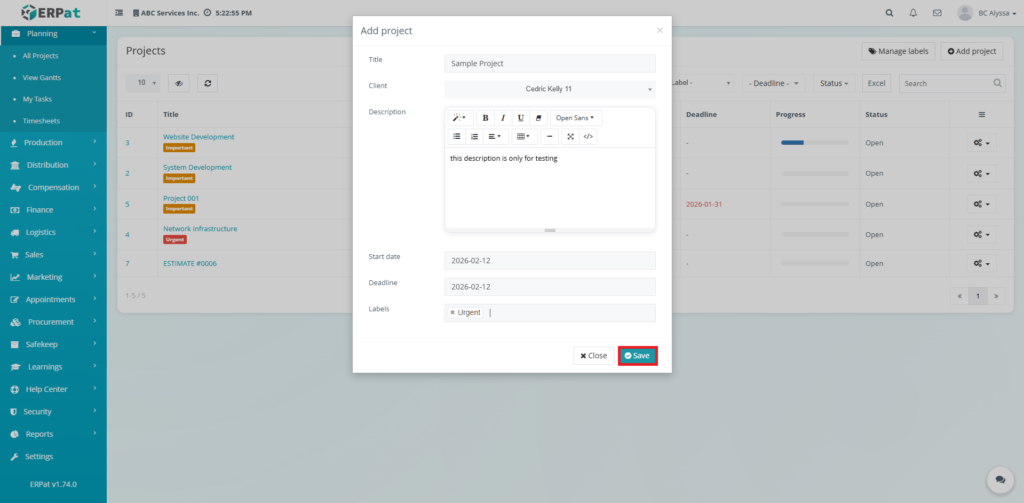
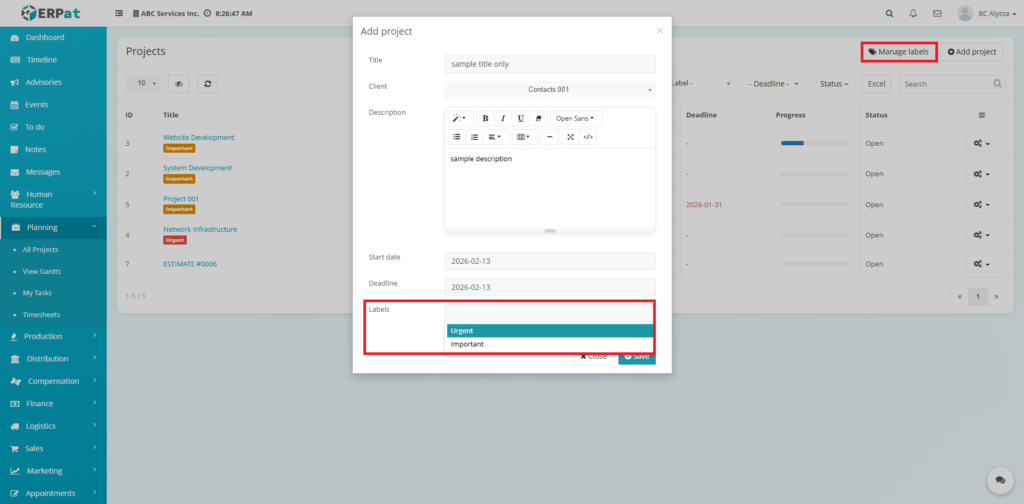
- Click the Add Project button located at the top-right of the page.
- Fill in the required fields:
- Title
- Client
- Start Date
- Deadline (if applicable)
- Description
- Label
- Review the information for accuracy.
- Click Save to create the project.
Result #
The newly added project will appear in the listing and become available for tracking and updates.
Steps for Editing a Project #
Steps
- Locate the project from the listing.
- Click the Settings icon under the Actions column.
- Select Edit.
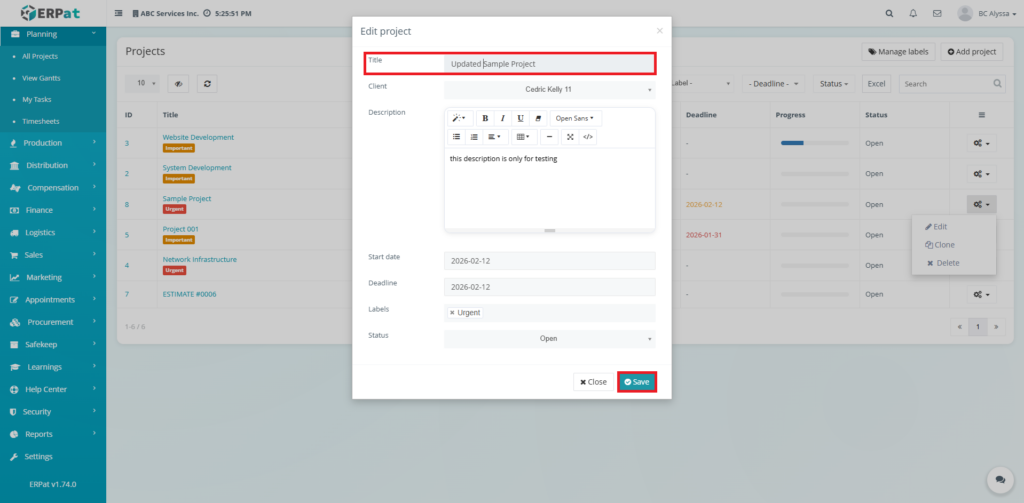
- Update the necessary fields.
- Click Save to apply changes.
Notes:
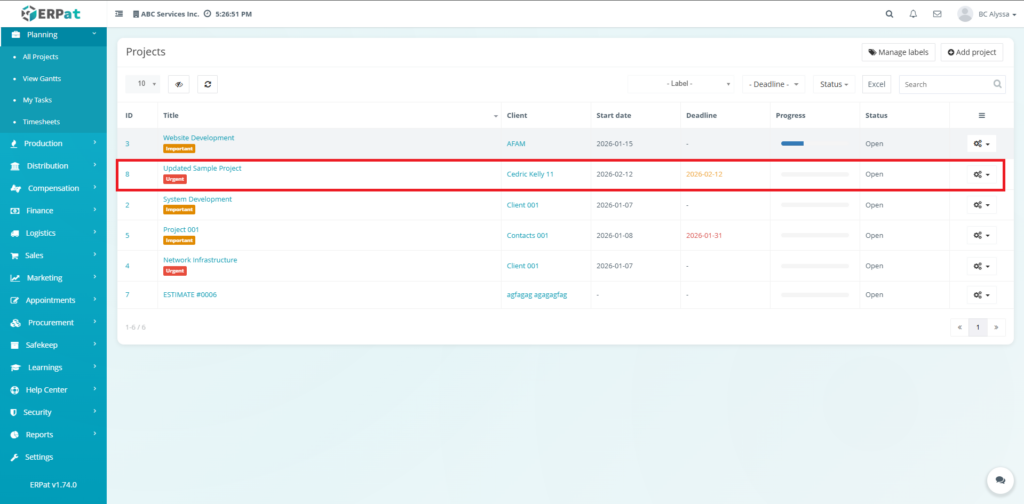
- Updates will immediately reflect in the project listing.
- Progress and status changes affect reporting and dashboards.
Steps for Deleting a Project #
Steps
- Locate the project to be removed.
- Click the Settings icon under the Actions column.
- Select Delete.
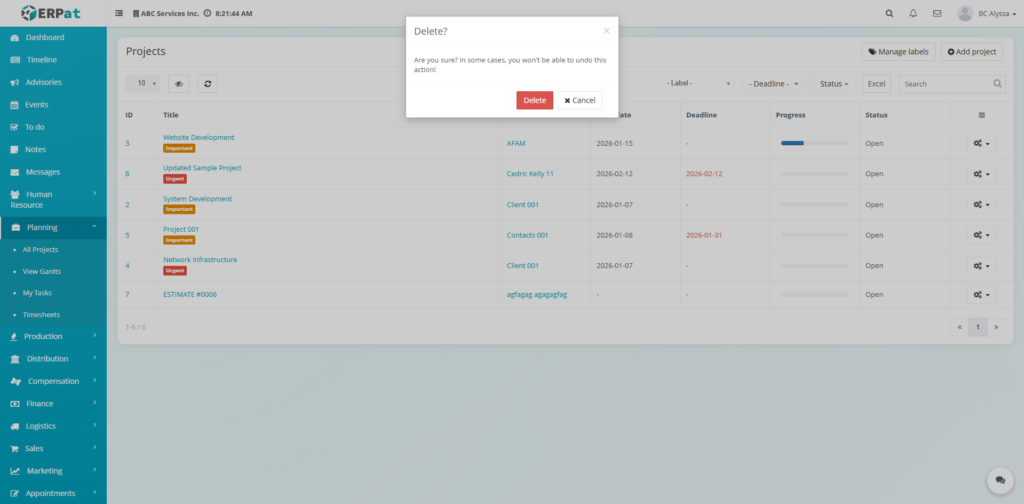
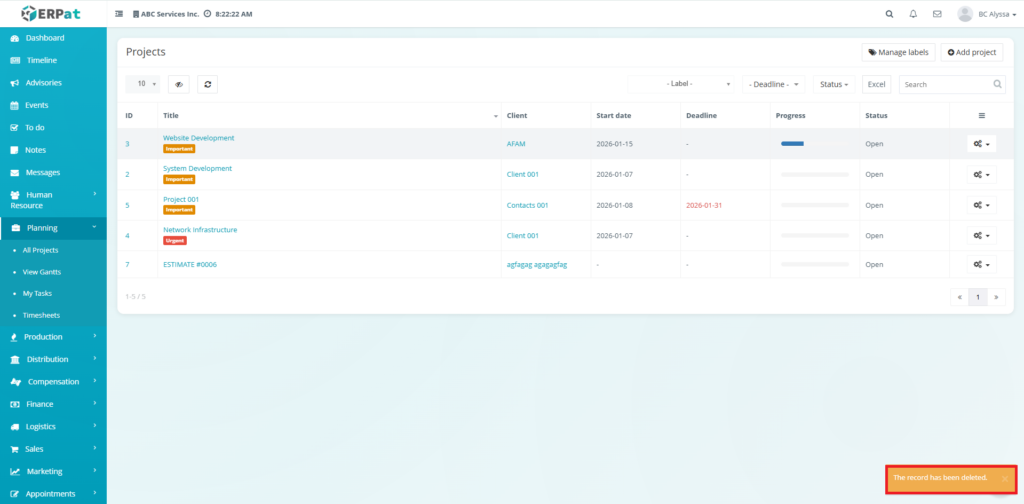
- Confirm the deletion when prompted.
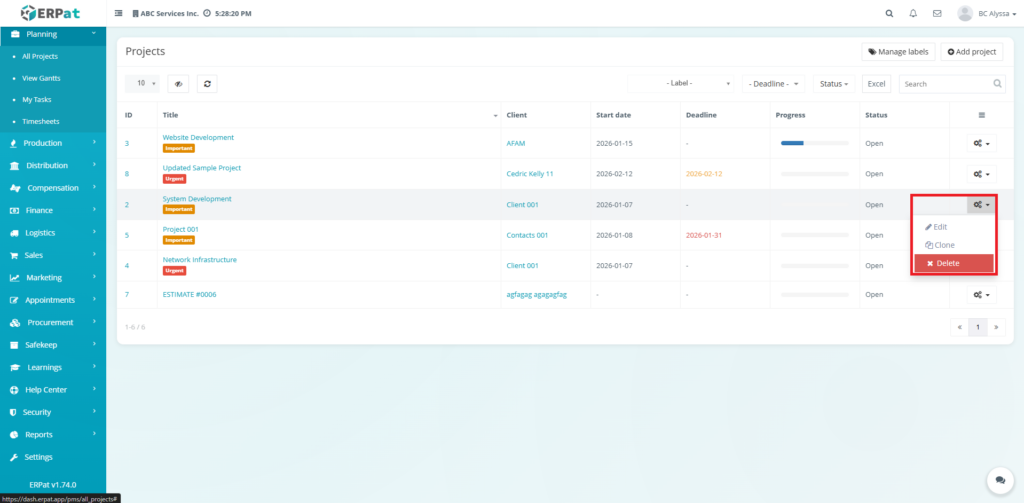
Notes: Deleting a project may remove associated tracking data. Ensure the project is no longer active before deletion.
Labels Management #
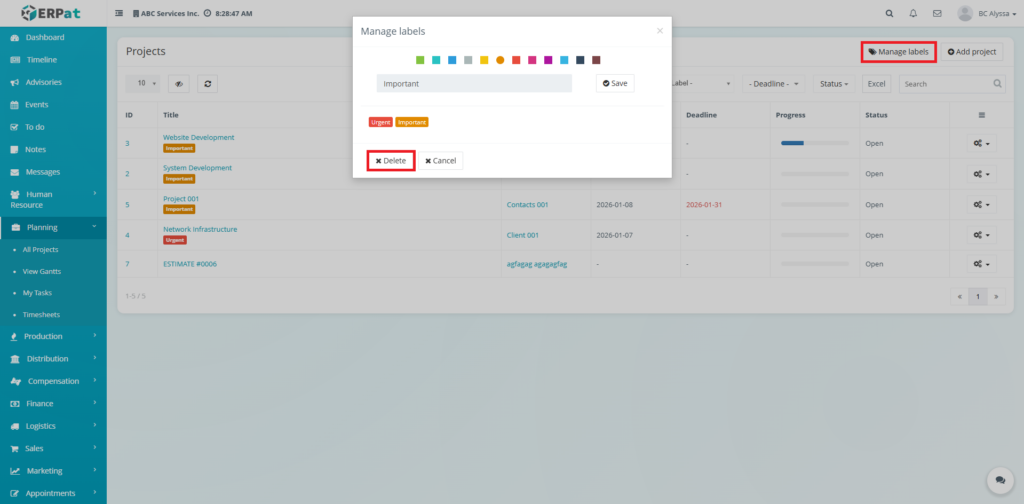
Labels help categorize projects by priority or type (e.g., Important, Urgent).
- Click Manage Labels to add, edit, or delete labels.
- Labels improve filtering, reporting, and visibility.
Progress Indicator #
- Displays the percentage completion of a project using a visual progress bar.
- Used for monitoring milestones and overall project performance.
Search and Filtering #
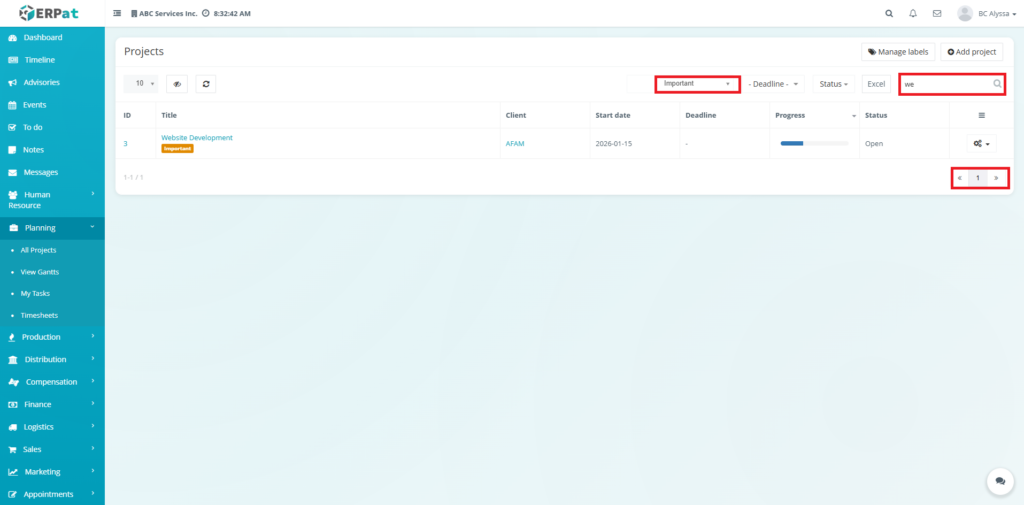
- Use the Search field to find projects by title or client.
- Apply filters by:
- Label
- Deadline
- Status
- Pagination controls allow efficient navigation through multiple records.
Permissions and Access Control #
- Only authorized Planning or Admin roles can add, edit, or delete projects.
- View-only access may be granted to supervisory or operational roles.
Best Practices #
- Use standardized naming conventions for project titles.
- Assign accurate start dates and deadlines for proper tracking.
- Update progress regularly to maintain reporting accuracy.
- Use labels consistently for better organization and filtering.
- Avoid deleting projects that are still active or referenced in reports.
Audit & Logs #
All create, update, and delete actions within the Projects Module are logged for audit and compliance purposes within the ERPat System.
Last Updated: [February 13, 2026] Module Owner: Planning IS – ERPat System


