Overview #
The Offsite Access Module is used to manage and monitor users who are allowed to access the ERPat system outside the organization’s network. It enables administrators to assign time-bound access permissions, ensuring secure and controlled remote usage of the system.
This module helps organizations maintain security compliance by regulating offsite access, tracking user activity, and ensuring that access is only granted within a defined period. Users can easily search, filter, export, and manage offsite access records from the listing page.
Key Features #
- Centralized offsite access management
- Time-bound user access control (Start Date and End Date)
- Multi-user assignment capability
- Department-based filtering
- Search and quick lookup functionality
- Export offsite access records to Excel
- Record viewing, editing, and deletion
- Audit tracking (Created by, Date Created, Last Updated)
- Secure role-based access control
Accessing the Offsite Access Module #
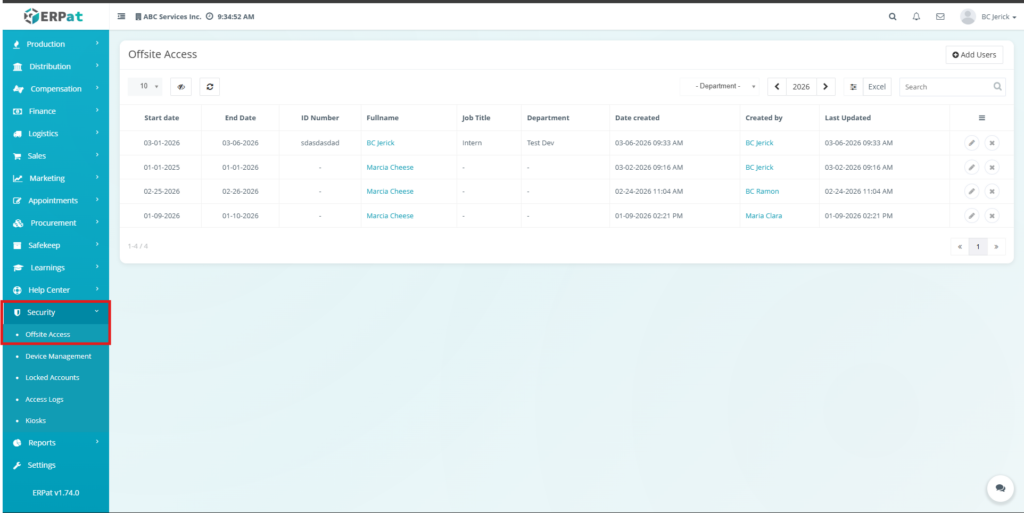
- Navigate to the left sidebar menu.
- Click Security.
- Select Offsite Access from the dropdown menu.
- You will be directed to the Offsite Access page, displaying all user access records.
Offsite Access Listing Page #
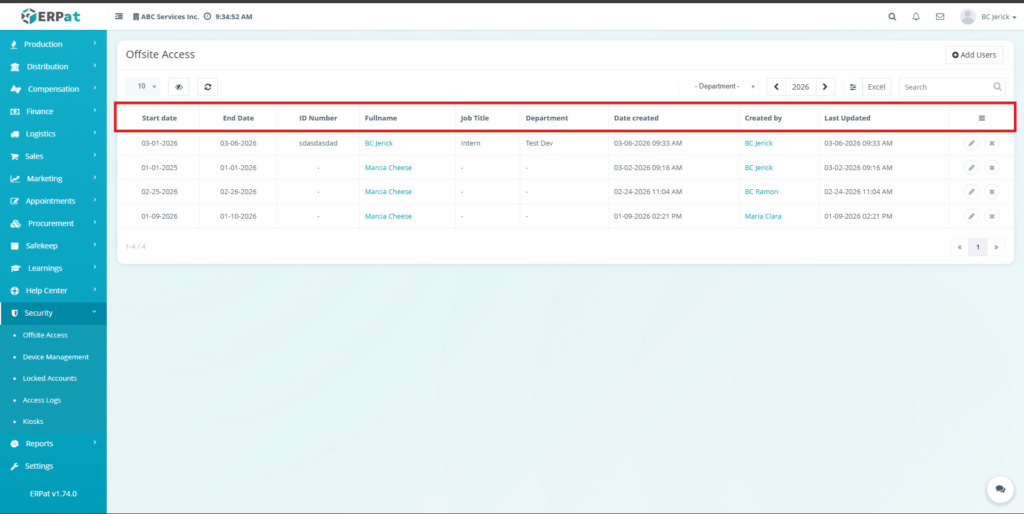
The listing page provides an overview of all offsite access records with the following information:
- Start Date – Beginning date of offsite access
- End Date – Expiration date of access
- ID Number – User’s system ID
- Fullname – Name of the user
- Job Title – User’s position
- Department – Assigned department
- Date Created – System-generated creation timestamp
- Created By – User who created the record
- Last Updated – Latest update timestamp
- Actions – Edit or Delete controls for the record
Additional Controls #
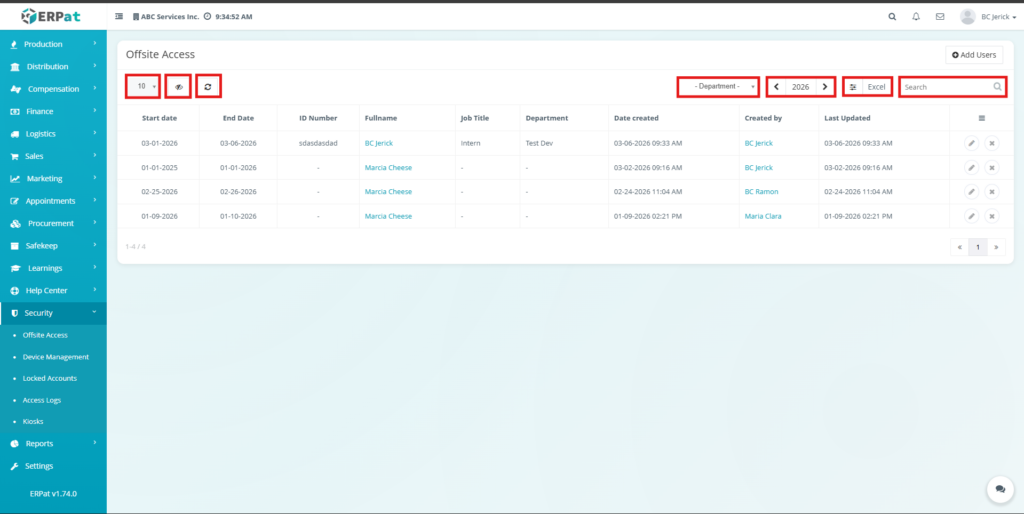
- Department Filter – Filter records by department
- Year Navigation – Browse records by year
- Excel Export – Export records into Excel format
- Search Bar – Quickly locate users using keywords
- Refresh Button – Reload the list of records
- Pagination Controls – Navigate between multiple pages
Steps for Adding Offsite Access #
STEPS #
- Navigate to Offsite Access module.
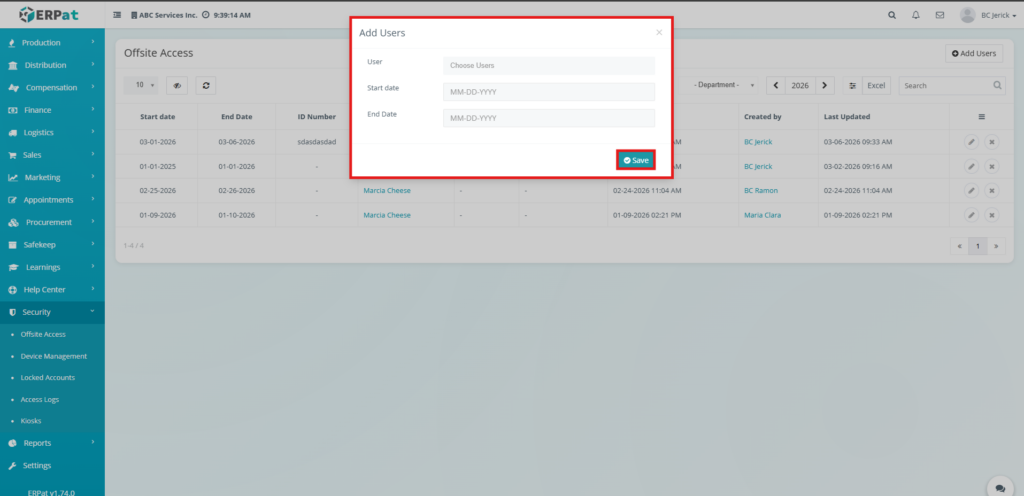
- Click the Add Users button located in the upper right corner.
- The Add Users modal will appear.
- Select user(s) from the User dropdown field.
- Enter the Start Date.
- Enter the End Date.
- Click Save to assign offsite access.
Steps for Editing a Offsite Access #
STEPS #
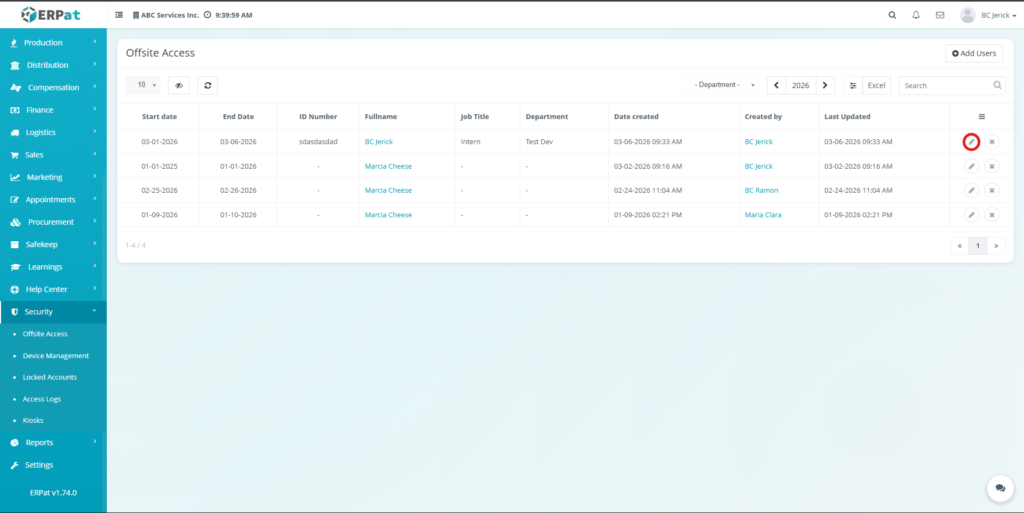
- Click the edit icon under the Actions column.
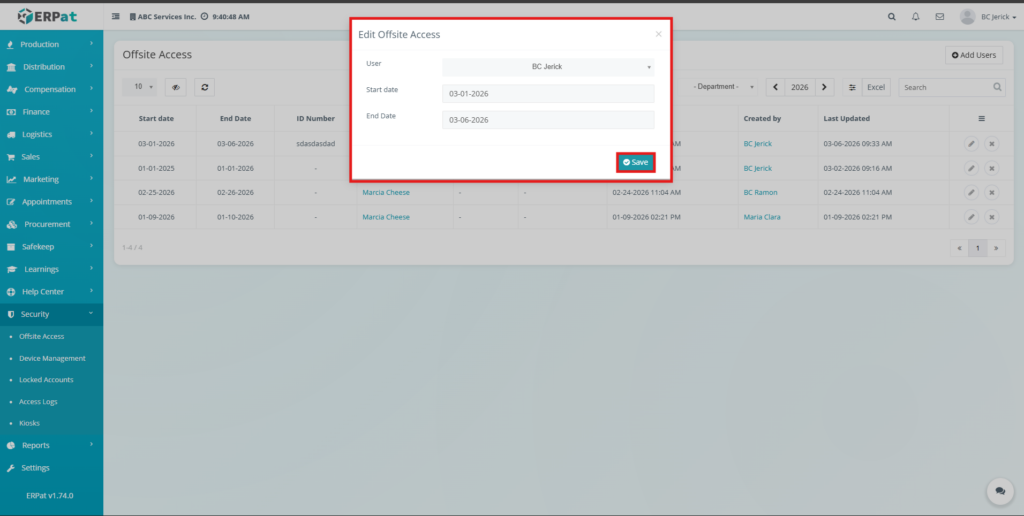
- The modal will be shown .
- Update the required information.
- Click Save to apply the changes.
Steps to Delete Offsite Access #
STEPS #
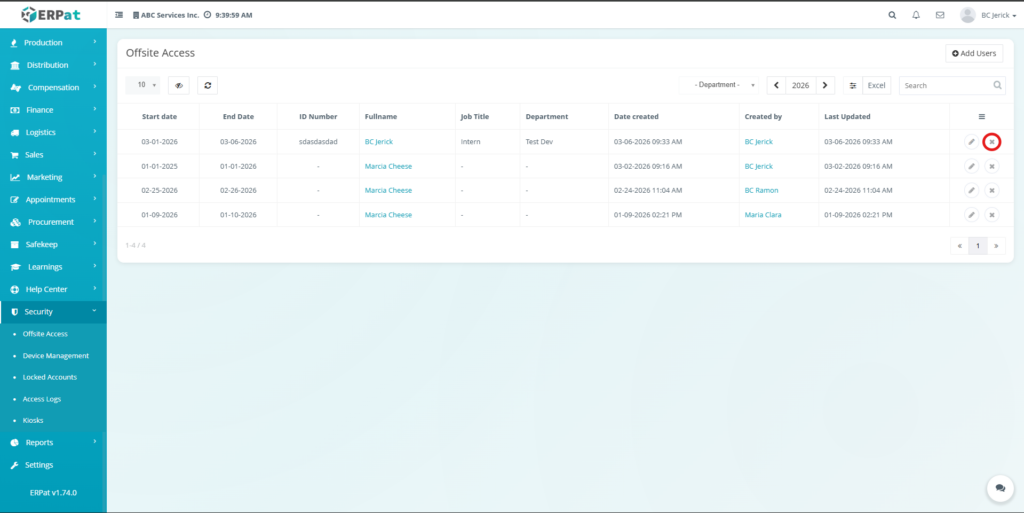
- Click the Delete icon under the Actions column.
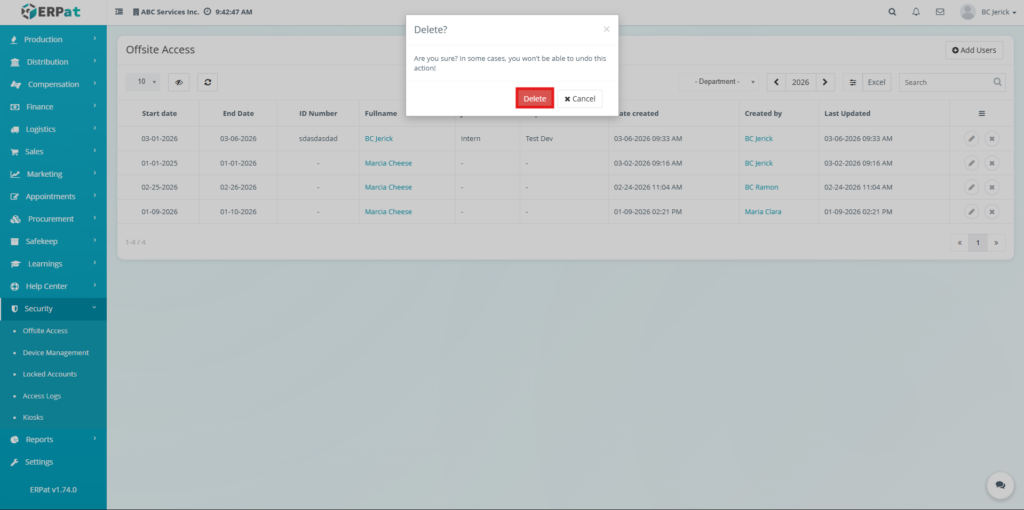
- Confirm the deletion when prompted.
- The selected Offsite Access will be removed from the system.
Search and Filtering #
Users can quickly locate offsite access records using built-in tools:
- Use the Search field to find users by name or ID number.
- Use the Department filter to display users from a specific department.
- Use the Year selector to view records within a selected year.
Permissions and Access Control #
- Authorized users can create and manage offsite access records.
- Users may edit or delete records depending on role permissions.
- Administrative roles typically have full access to security management features.
Best Practices #
- Always assign accurate start and end dates to prevent unauthorized access.
- Regularly review offsite access records to maintain system security.
- Avoid granting indefinite access unless necessary.
- Use filters and search tools to quickly audit user access.
- Export records when generating security reports.
Audit & Logs #
All create, update, and delete actions related to offsite access are logged within the ERPat system to ensure traceability and accountability.
Last Updated: [March 18, 2026] Module Owner: Security – Offsite Access Module ERPat System


