Overview #
The Door Access Module is used to manage, monitor, and control physical access points within the organization. It enables administrators to track access activities, configure devices, and organize device categories to ensure secure and efficient access control.
This module provides a centralized system for recording access logs, managing door access devices, and categorizing devices for better organization and filtering. It ensures visibility, accountability, and security across all access-related operations.
Key Features #
- Centralized door access management
- Real-time access logs monitoring
- Device configuration and management
- Device category organization
- Employee access tracking
- Secure device credential (secret) management
- Search and filtering tools
- Pagination and table controls
- Audit logging for all activities
- Secure role-based access
Accessing the Door Access Module #
STEPS #
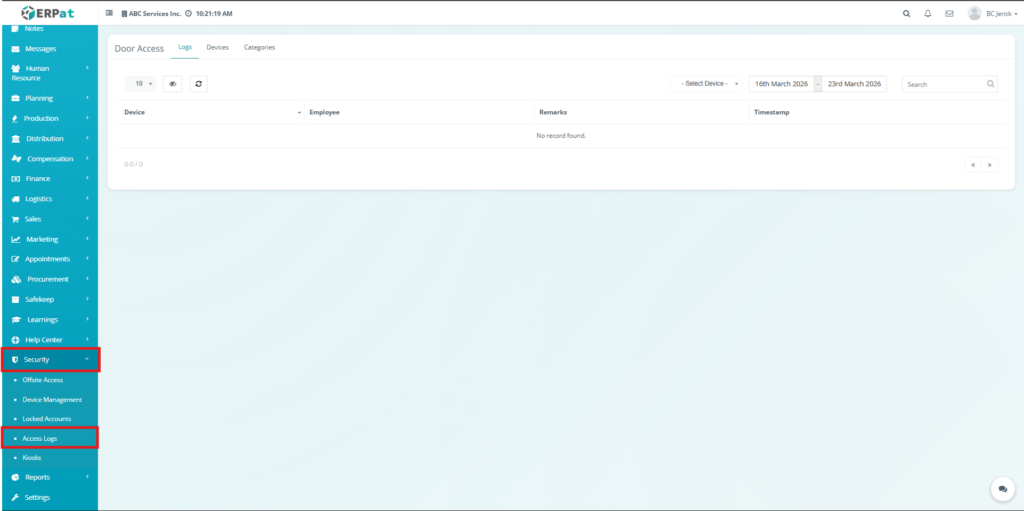
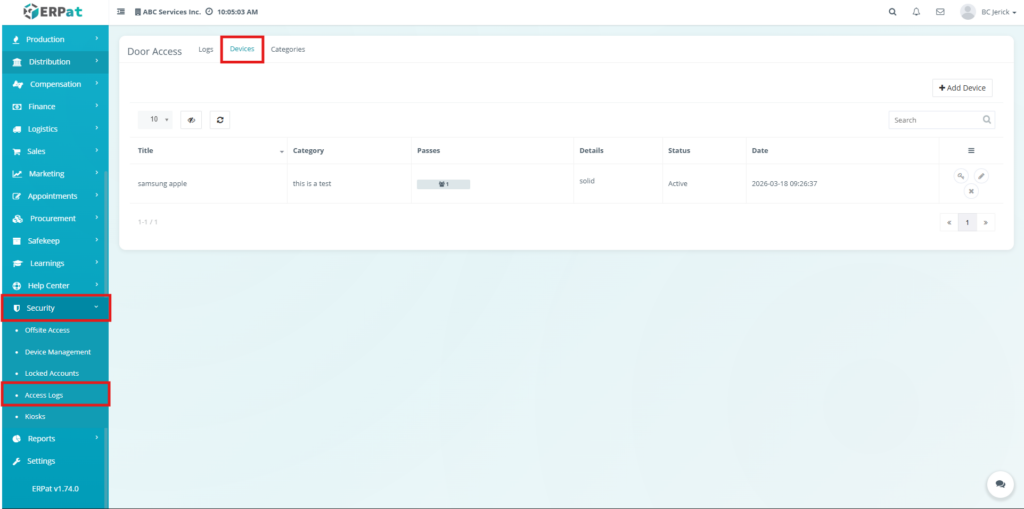
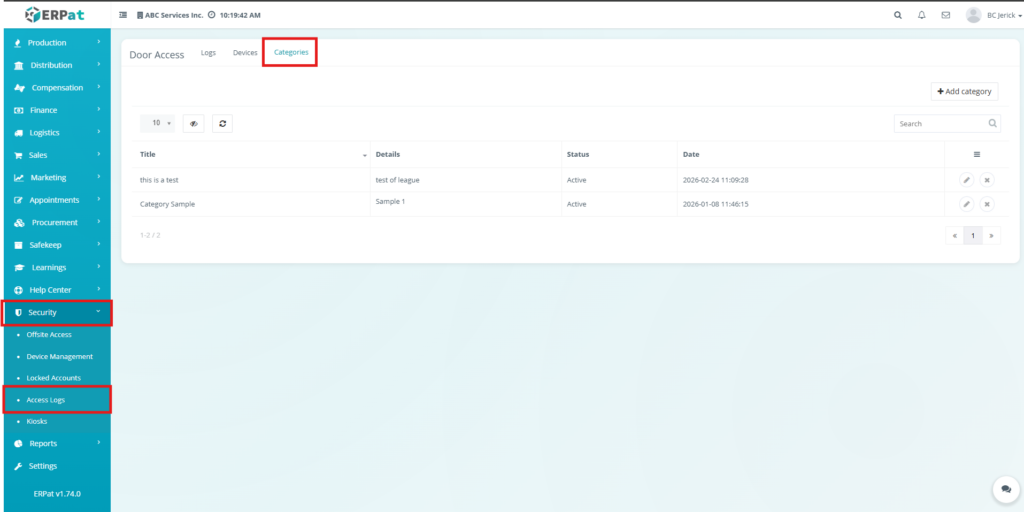
- Log in to the ERPat System.
- Navigate to Security from the main sidebar.
- Select Access Logs.
You will be directed to the Door Access module with Logs, Devices, and Categories tabs.
Logs Tab #
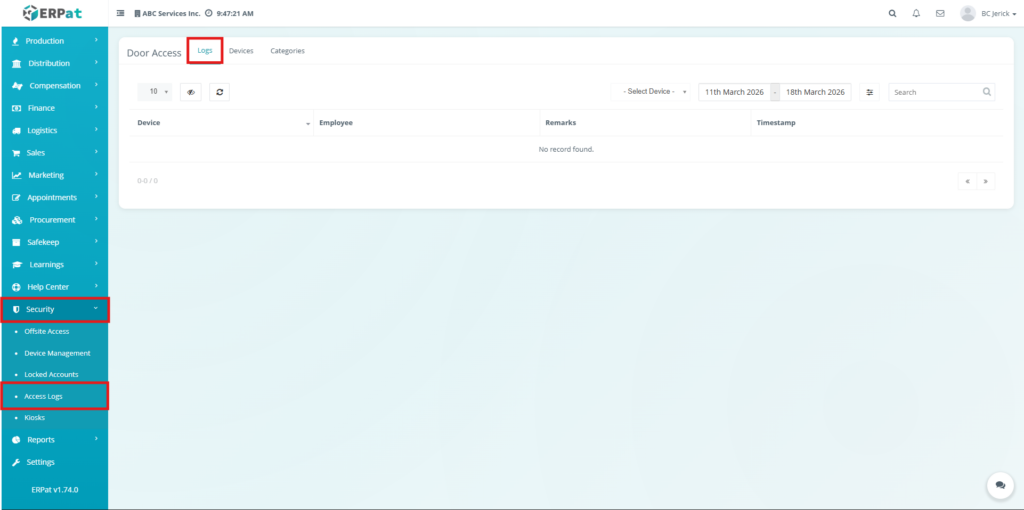
The Logs Tab records all door access events generated by registered devices.
Logs Listing Page #
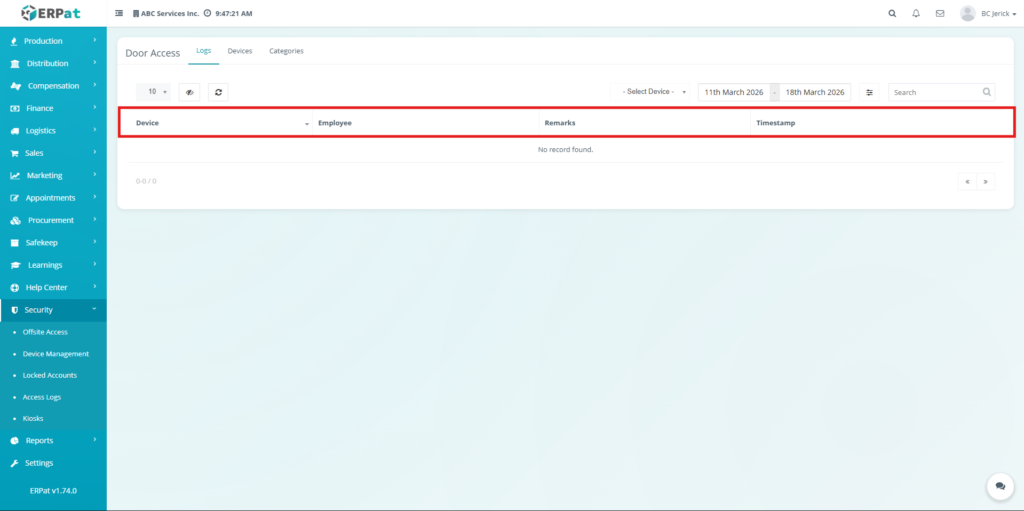
Each log entry contains:
- Device – Name of the device used
- Employee – Employee associated with the access
- Remarks – Additional information related to the event
- Timestamp – Date and time the access occurred
Additional Controls #
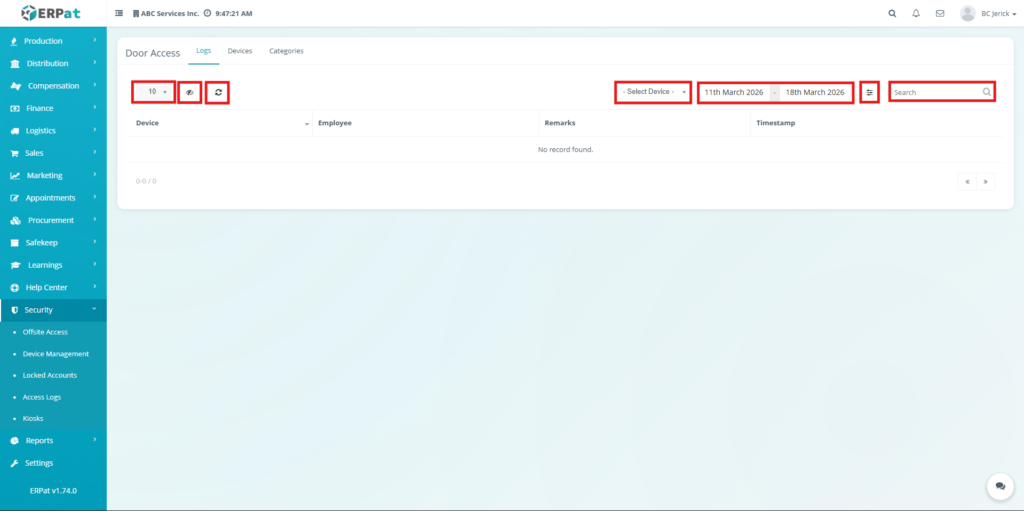
- Device Filter – Filters logs by selected device
- Date Range Filter – Filters logs within a specified date range
- Search Field – Searches logs using keywords
- Pagination – Navigates through multiple records
- Refresh – Reloads the latest log data
- Column Visibility – Shows or hides table columns
Behavior #
- Logs are automatically created when a device records an access event.
- Logs are read-only and cannot be modified or deleted.
- If no records match the applied filters, the system displays “No record found.”
Devices Tab #
The Devices Tab manages all access devices used for logging door access events.
Devices Listing Page #
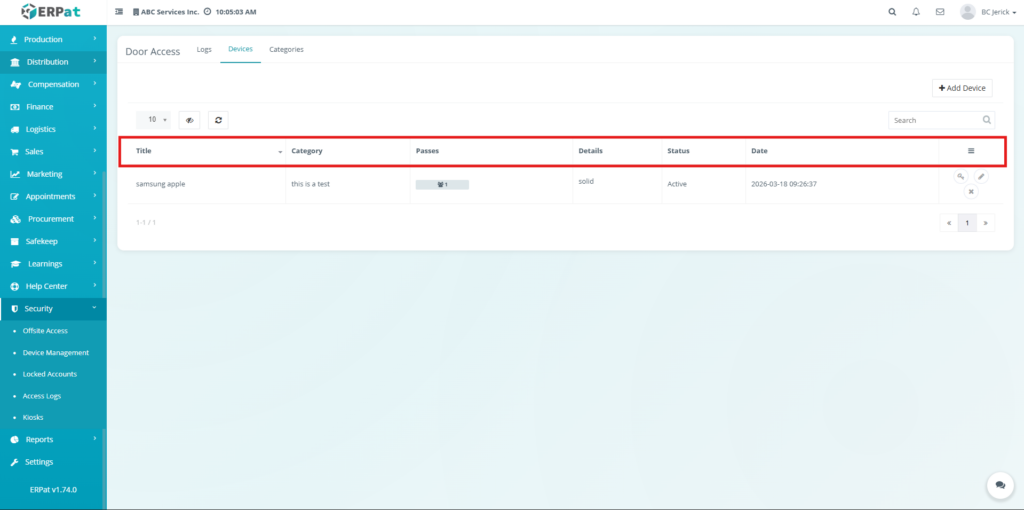
Each device record contains:
- Title – Device name
- Category – Assigned category
- Passes – Number of access passes linked to the device
- Details – Additional device information
- Status – Current state (e.g., Active)
- Date – Creation or last update timestamp
- Actions – Available operations (View Secret, Edit, Delete)
Additional Controls #
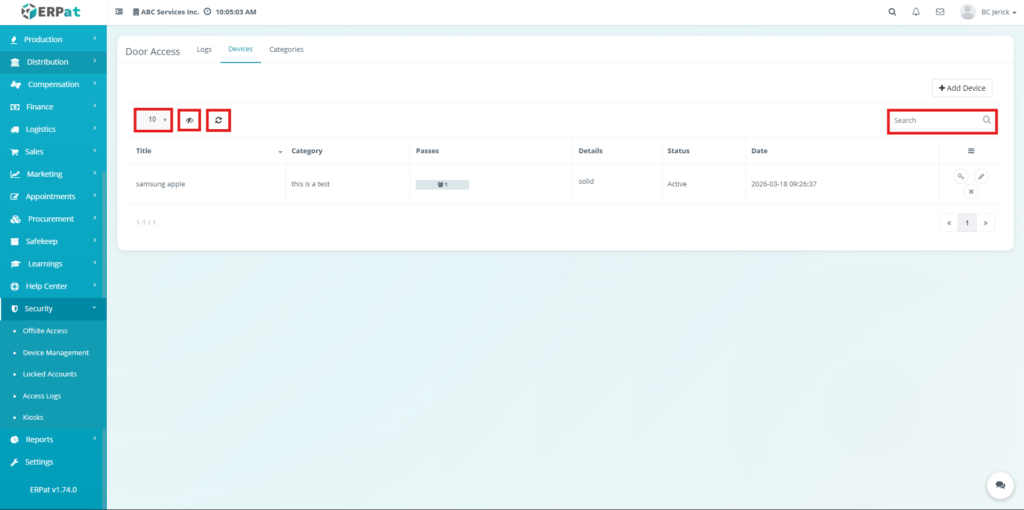
- Search Field – Searches devices by name or category
- Pagination – Navigates through multiple records
- Refresh – Reloads device data
- Column Visibility – Shows or hides table columns
Steps for Adding a Device #
STEPS #
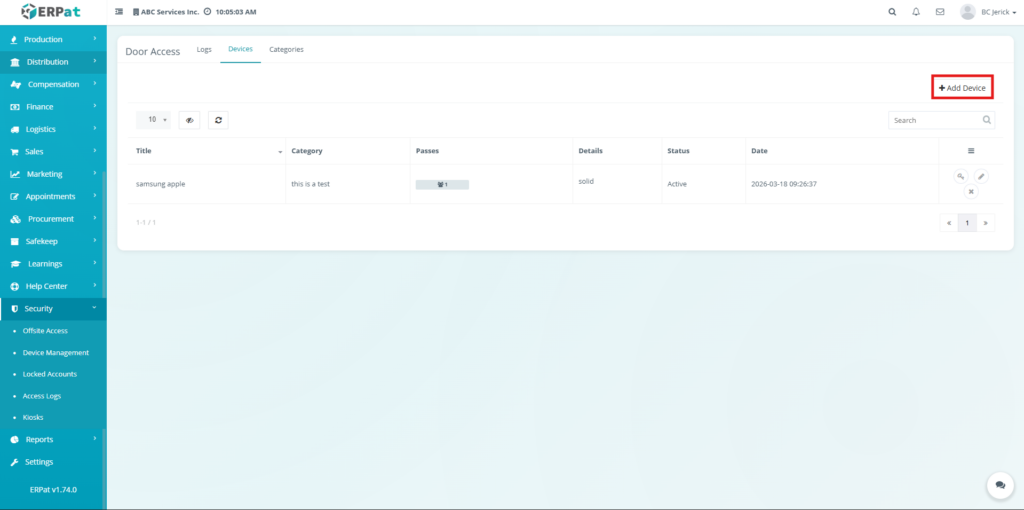
- Click Add Device.
- Enter Device Name.
- Select Category.
- Assign Employee (optional).
- Enter Remarks / Details (optional).
- Click Save.
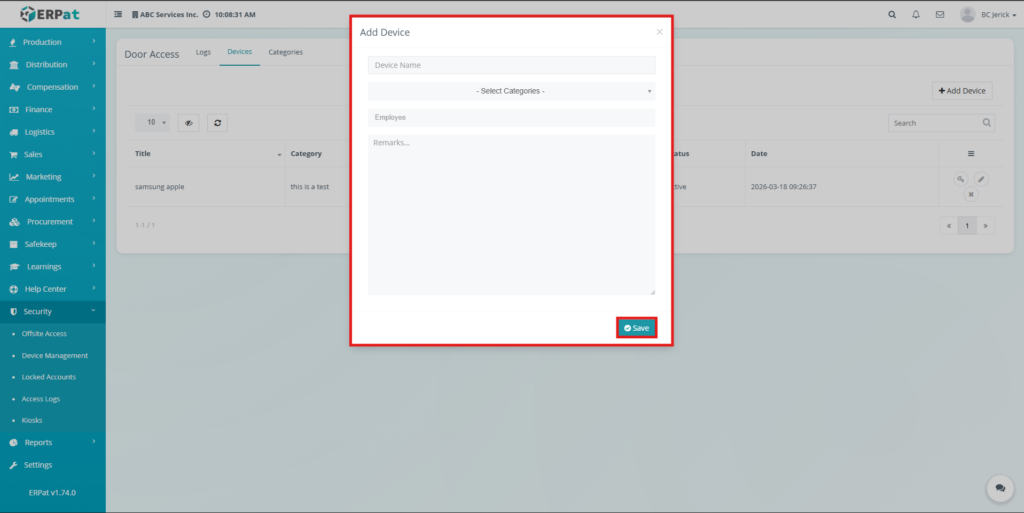
Result #
- The device is added to the listing and becomes available for access logging.
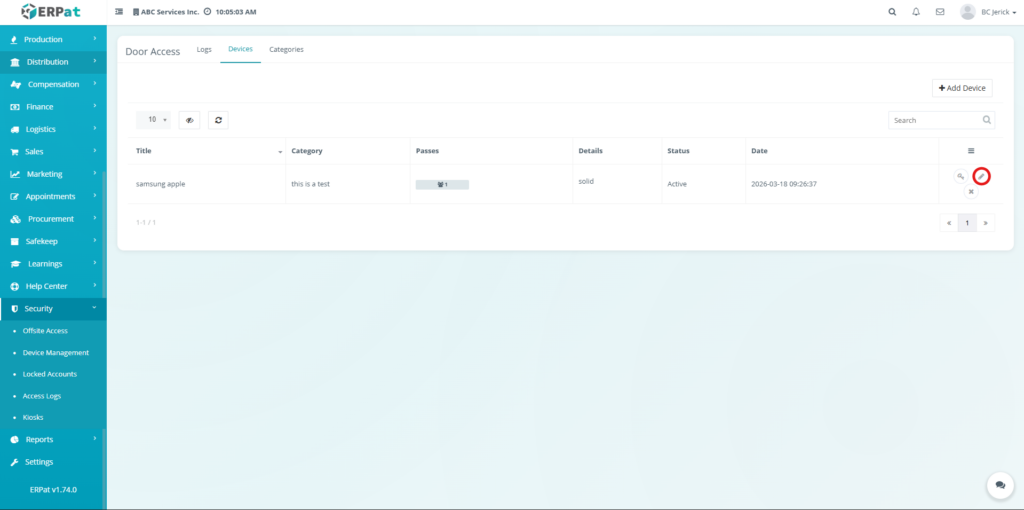
Steps for Editing a Device #
STEPS #
- Select a device from the list.
- Click Edit (✎).
- Update the required fields.
- Click Save.
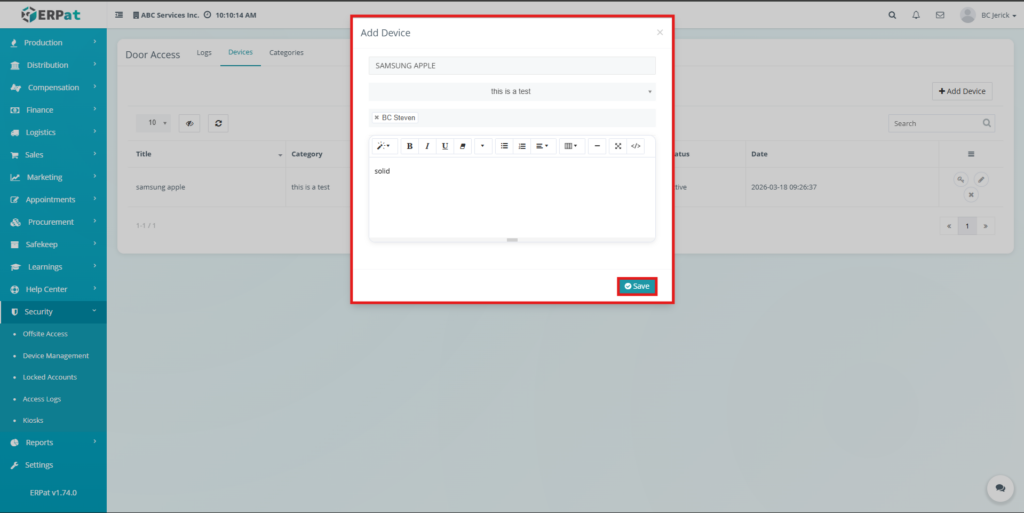
Steps for Deleting a Device #
STEPS #
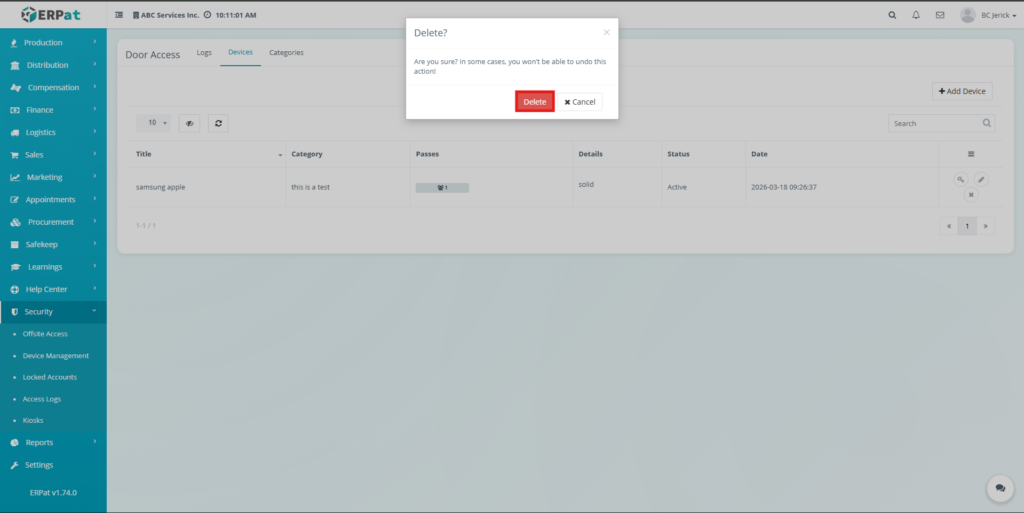
- Select a device from the list.
- Click Delete (✖).
- Confirm the action.
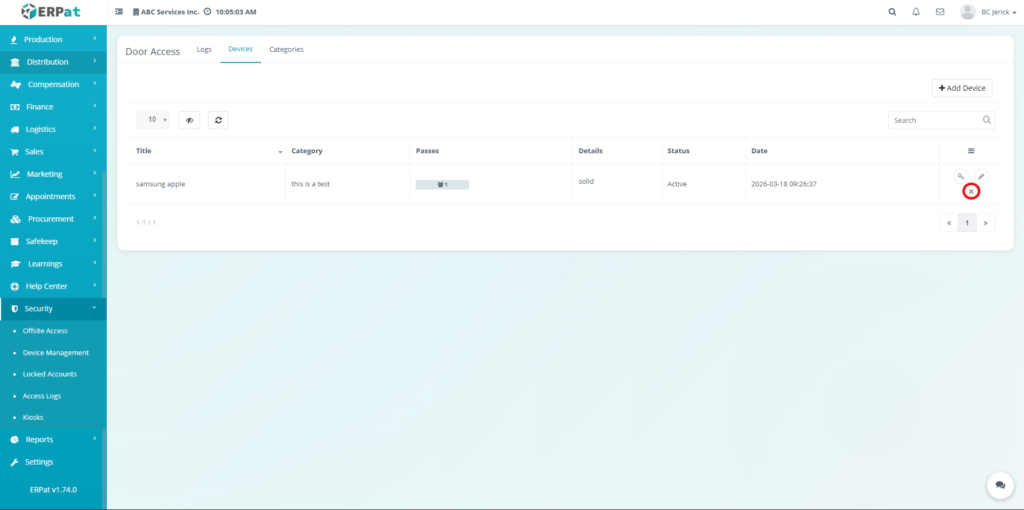
Result #
- The device is permanently removed from the system.
Device Secret Management (Key Icon) #
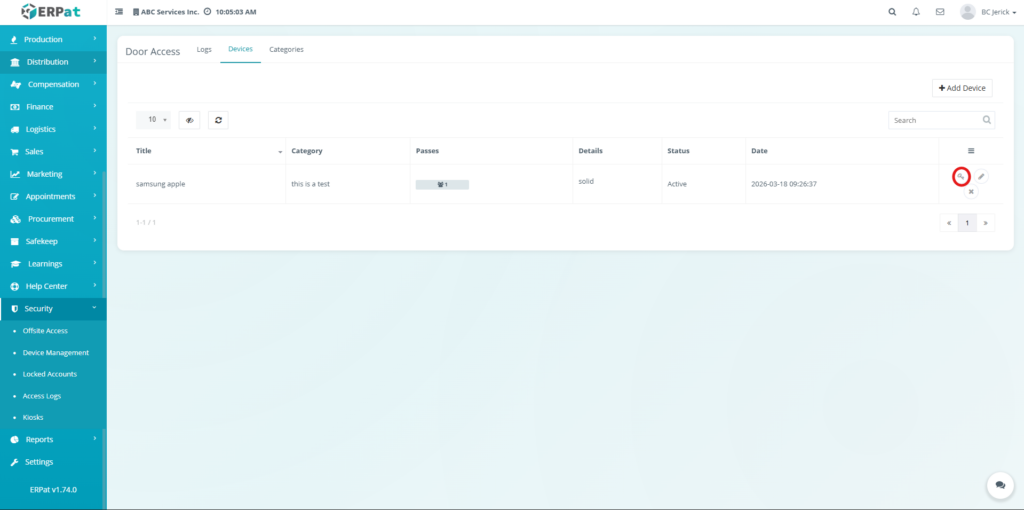
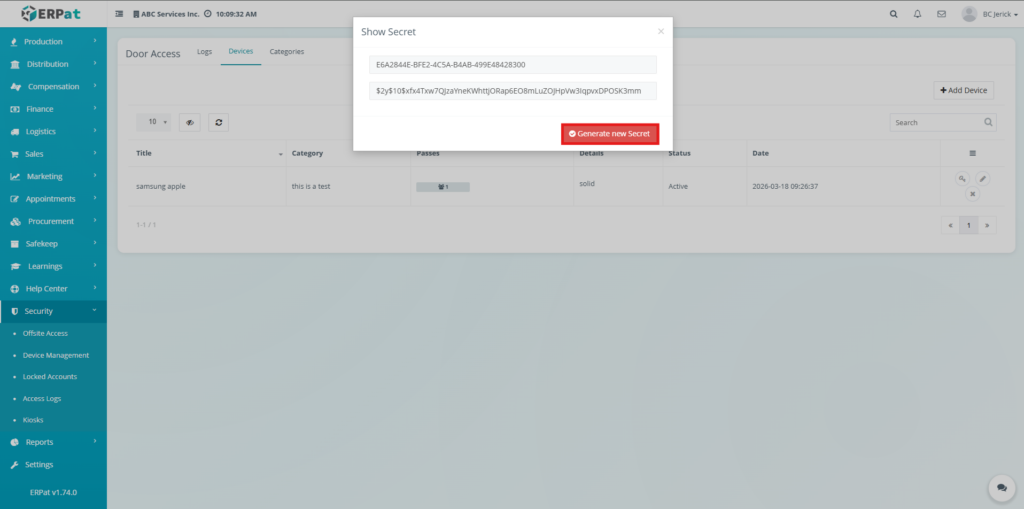
- The View Secret action displays the device identifier and secret key.
- The Generate New Secret action creates a new credential pair.
Behavior: #
Generating a new secret invalidates the previous credentials immediately.
Passes Indicator #
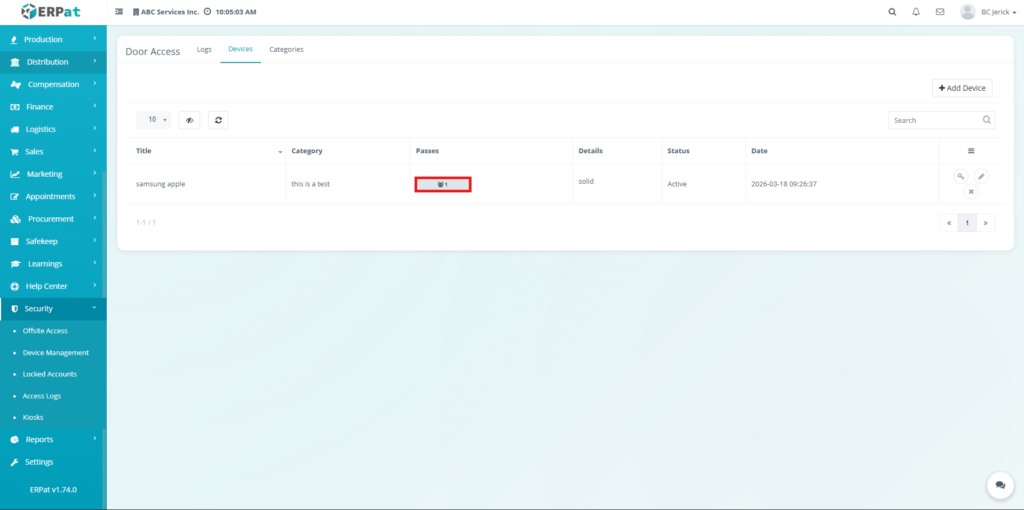
Displays the number of access passes associated with the device.
Used to monitor device usage.
Categories Tab #
The Categories Tab manages device groupings used to classify devices.
Categories Listing Page #
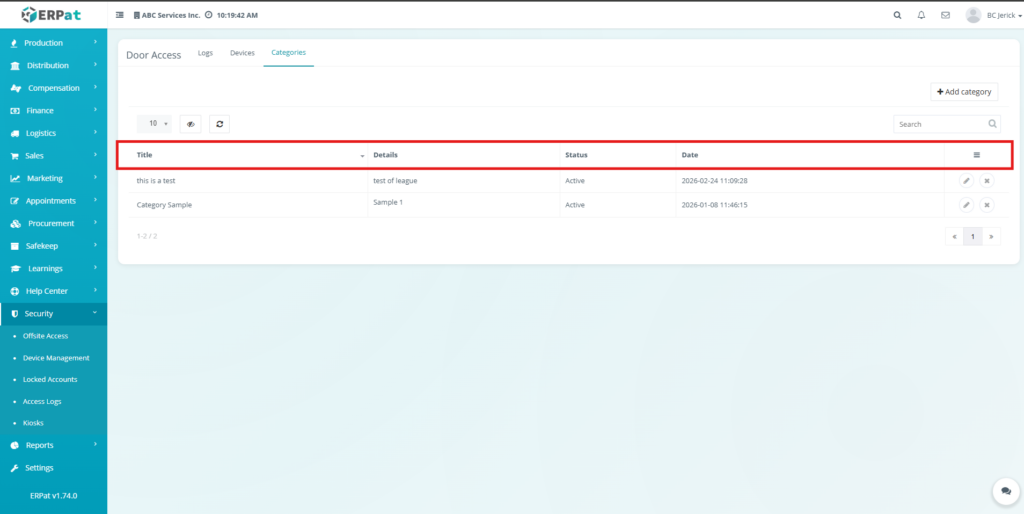
Each category record contains:
- Title – Category name
- Details – Category description
- Status – Current state (e.g., Active)
- Date – Creation or last update timestamp
- Actions – Available operations (Edit, Delete)
Additional Controls #
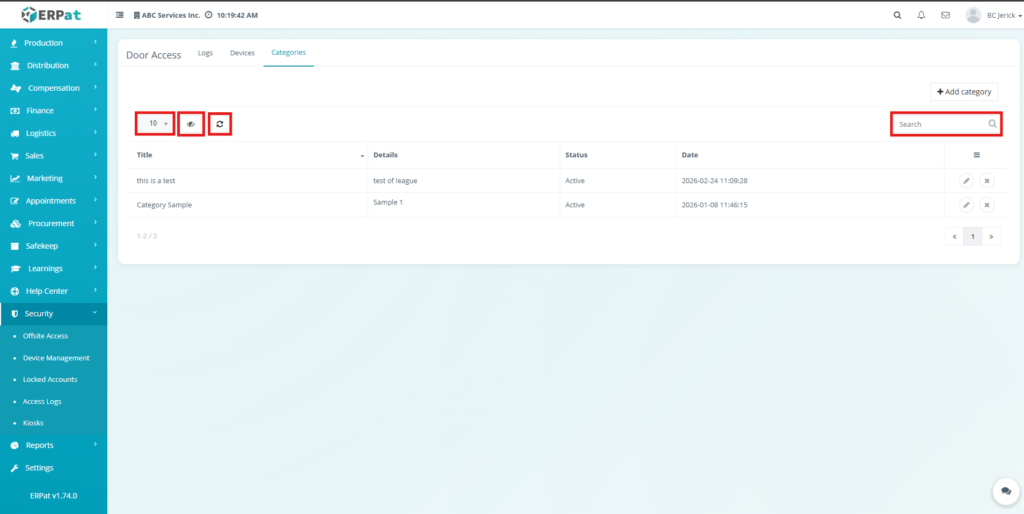
- Search Field – Searches categories by title or details
- Pagination – Navigates through multiple records
- Refresh – Reloads category data
- Column Visibility – Shows or hides table columns
Steps for Adding a Category #
STEPS #
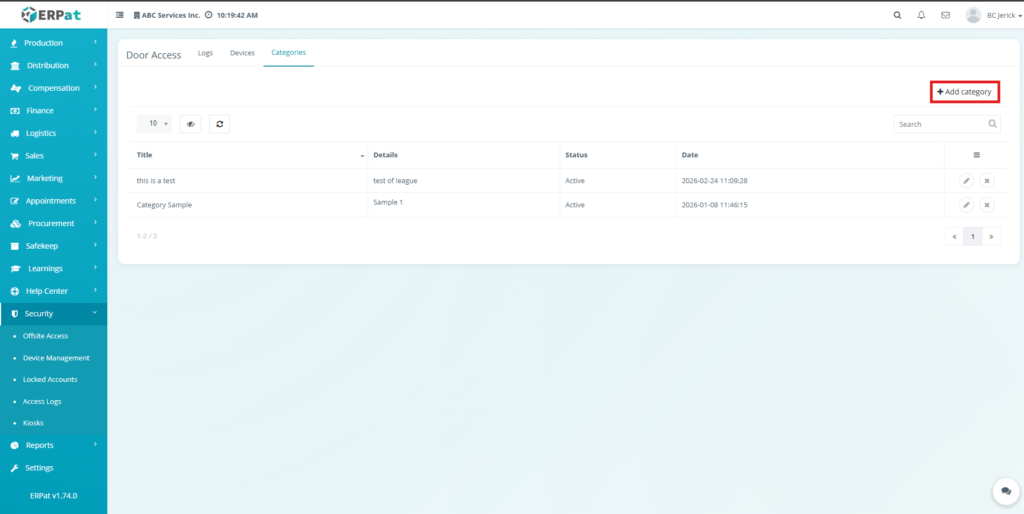
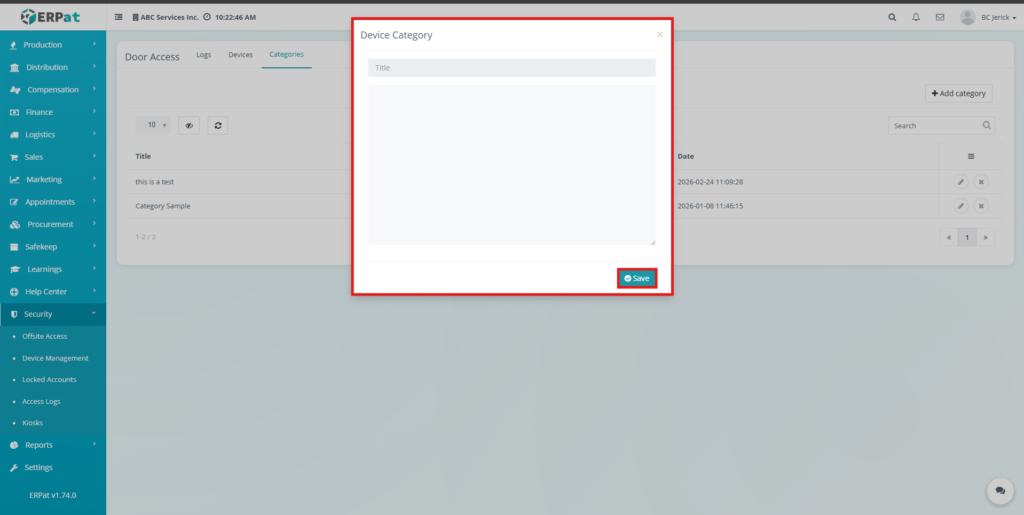
- Click Add Category.
- Enter Title.
- Enter Details (optional).
- Click Save.
Result #
- The category is added and becomes available for device assignment.
Steps for Editing a Category #
STEPS #
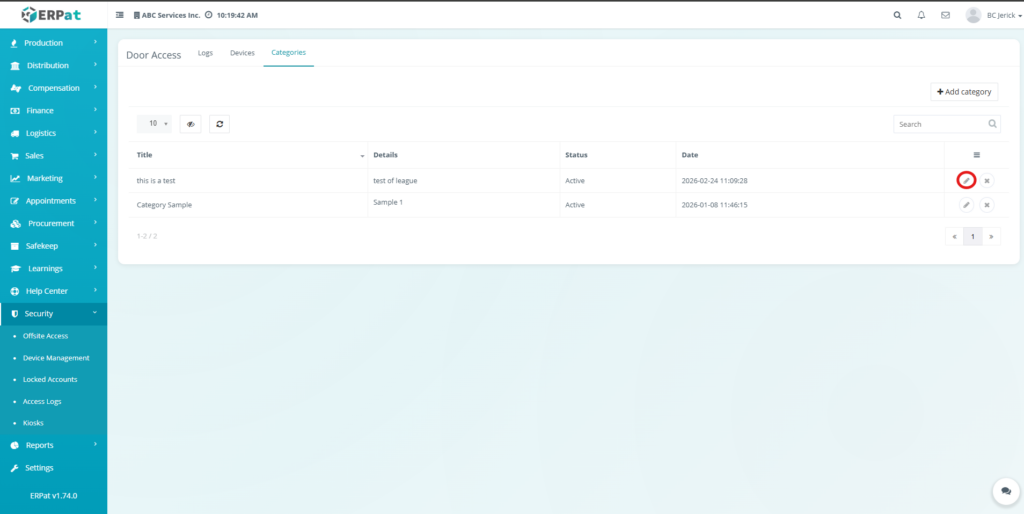
- Select a category from the list.
- Click Edit (✎).
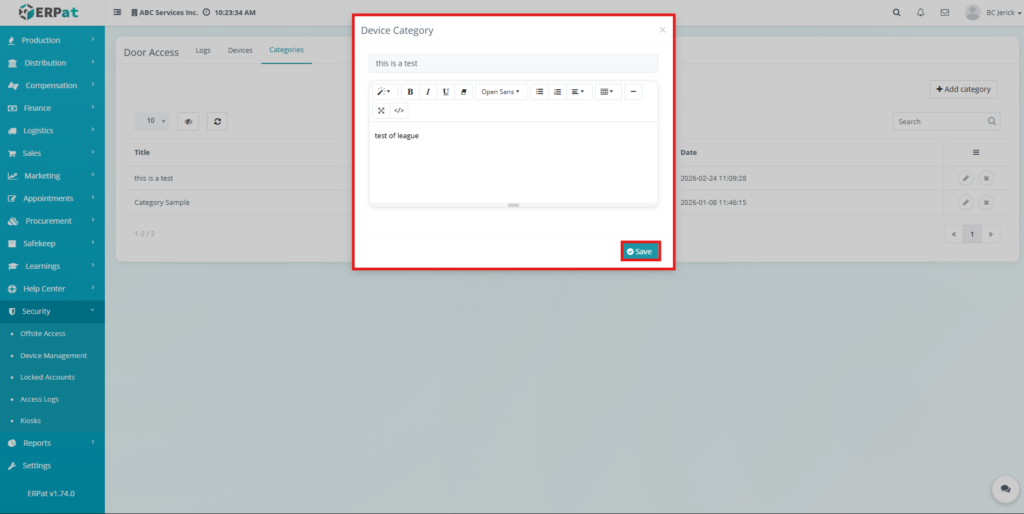
- Update the required fields.
- Click Save.
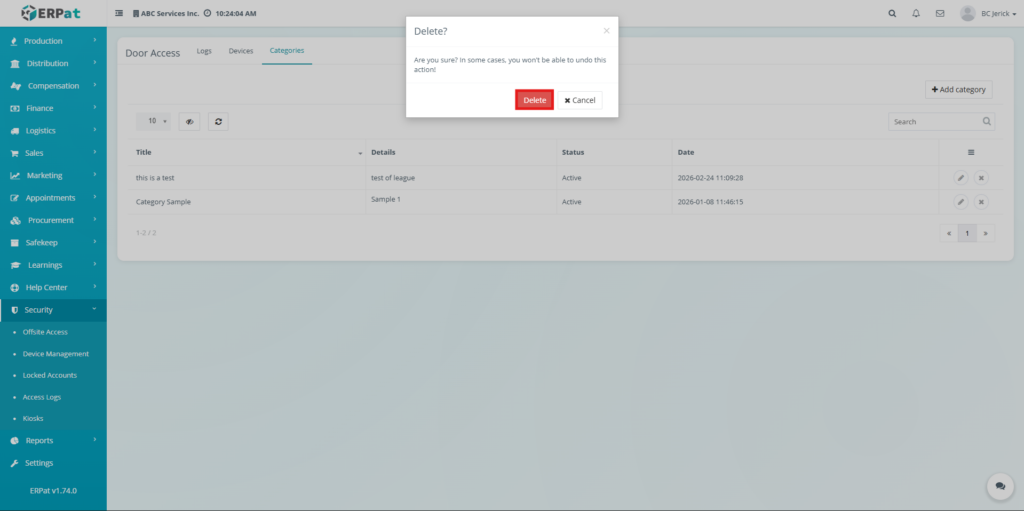
Steps for Deleting a Category #
STEPS #
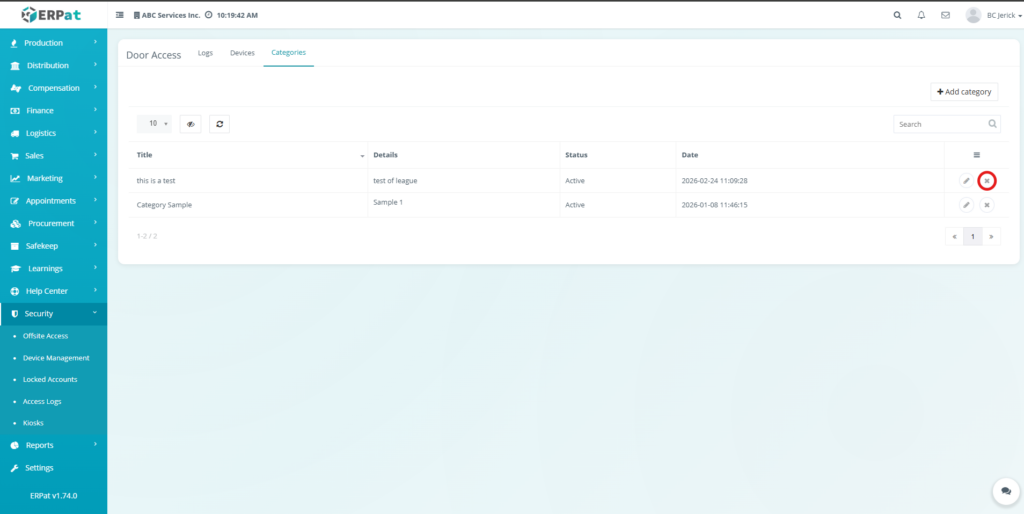
- Select a category from the list.
- Click Delete (✖).
- Confirm the action.
Result #
- The category is permanently removed from the system.
Search and Filtering #
- Search fields perform keyword-based matching.
- Filters apply immediately to the dataset.
- Pagination limits the number of records displayed per page.
Permissions and Access Control #
- Only authorized users can create, edit, or delete devices and categories.
- Access to device credentials (secrets) is restricted to authorized roles.
- Logs are view-only for all users.
Best Practices #
- Use consistent naming for devices and categories.
- Assign correct categories to ensure proper organization.
- Review logs regularly for monitoring purposes.
- Avoid deleting active devices or categories linked to operations.
Audit & Logs #
All create, update, delete, and credential actions are recorded in the system audit logs.
Logs ensure traceability and accountability of all operations.
Last Updated: [March 23, 2026] Module Owner: Security Module – ERPat System


