Overview #
The Sales Summary page is used to monitor and analyze product sales within a selected date range in the ERPat system. It provides a summarized view of sales performance by displaying total sales per product and category.
This page helps users track revenue trends, review product performance, and generate reports for business analysis and decision-making.
Key Features #
- Centralized sales summary reporting
- Product and category-based sales aggregation
- Date range filtering for targeted analysis
- Real-time data display based on filters
- Search functionality for quick lookup
- Excel export for reporting purposes
- Pagination and table controls for large datasets
- Secure role-based access
Accessing the Sales Summary Page #
- Log in to the ERPat System.
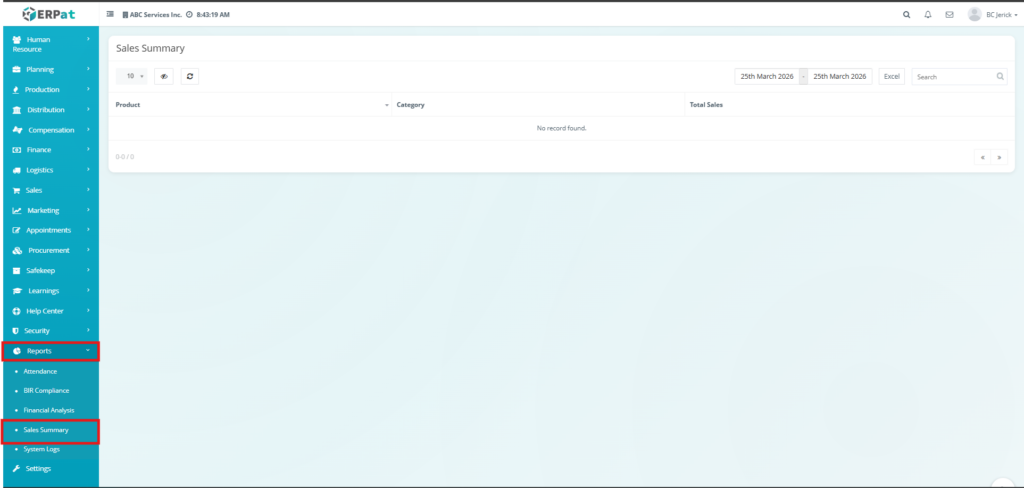
- Navigate to Sales from the main sidebar.
- Select Sales Summary.
- You will be directed to the Sales Summary page displaying summarized sales records.
Sales Summary Table #
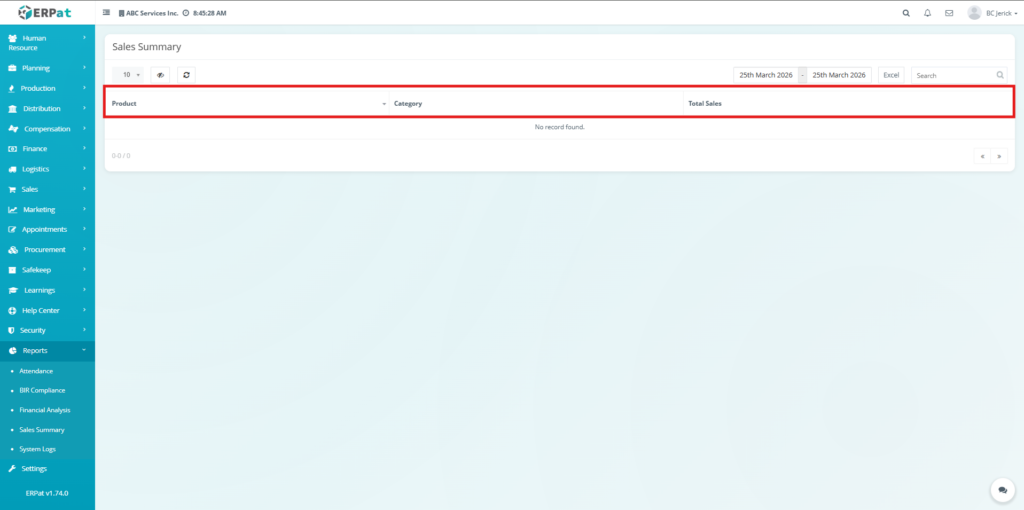
The highlighted section represents the table header of the Sales Summary listing page. It defines the structure and meaning of the data displayed below it.
Table Columns #
Product
- Displays the name of the product included in the sales transactions.
- Each row represents a unique product with recorded sales within the selected date range.
Category
- Indicates the classification or grouping of the product.
- This helps organize products into logical groups for easier analysis and reporting.
Total Sales
- Shows the total accumulated sales amount for the product.
- This value is computed by summing all related sales transactions within the selected date range.
Steps for Viewing Sales Summary #
STEPS #
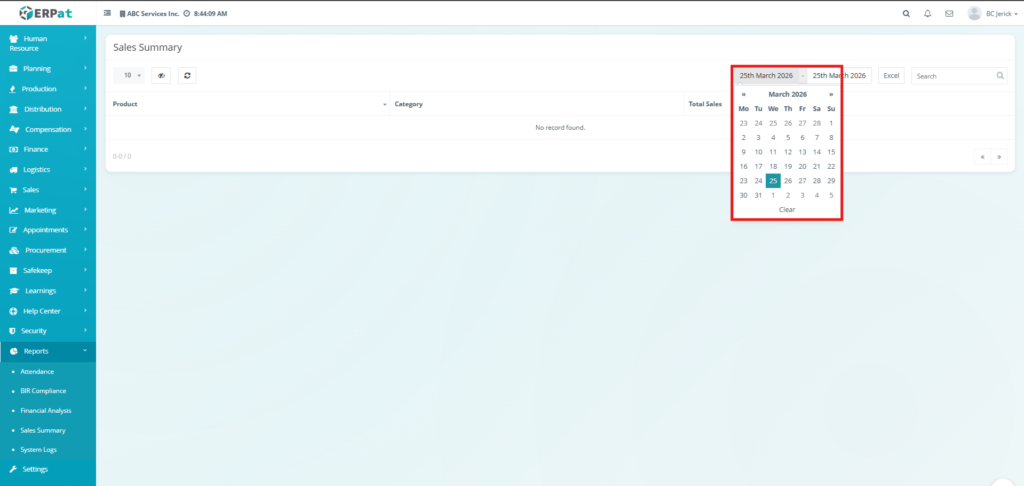
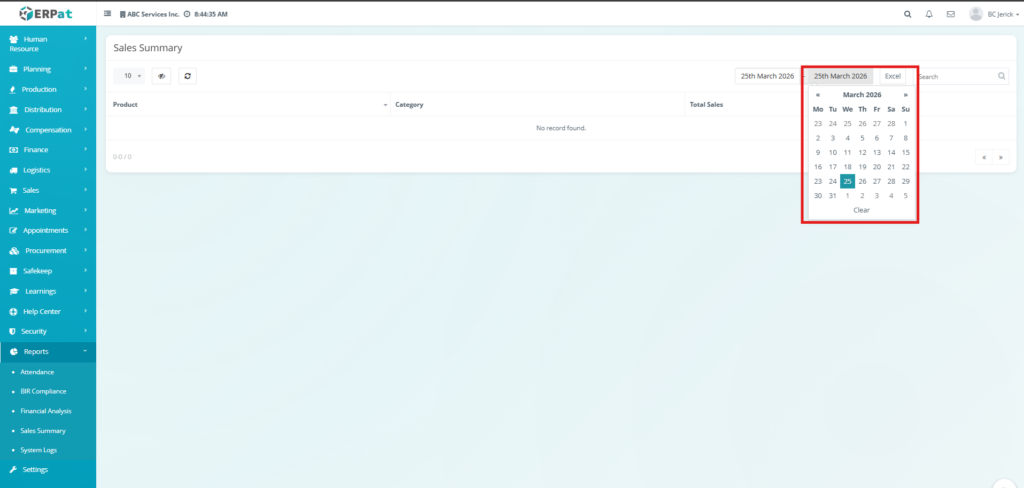
- Select the desired start date and end date using the date range filter.
- Wait for the system to load or refresh the data.
- Review the displayed sales summary in the table.
Result #
- The system displays total sales grouped by product and category based on the selected date range.
Additional Controls #
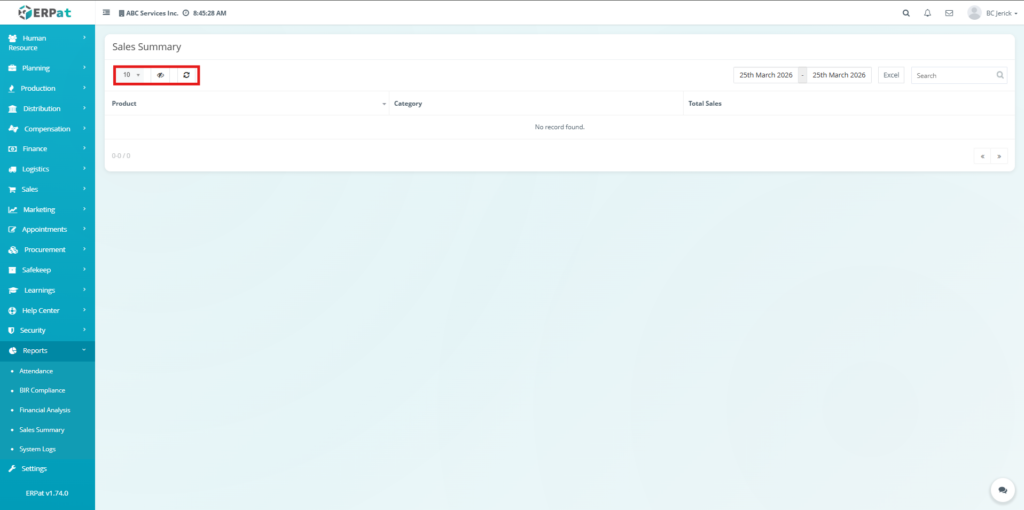
Rows Per Page Selector
- Allows users to control how many records are displayed in the table at once.
- Users can select a different value to increase or decrease the number of visible rows.
Visibility Control
- Allows users to manage table display settings.
- Used to toggle visibility or adjust how table data is presented.
Refresh Button
- Reloads the Sales Summary data.
- Used to fetch the latest available records from the system without reloading the entire page.
Steps for Exporting Sales Summary #
STEPS #
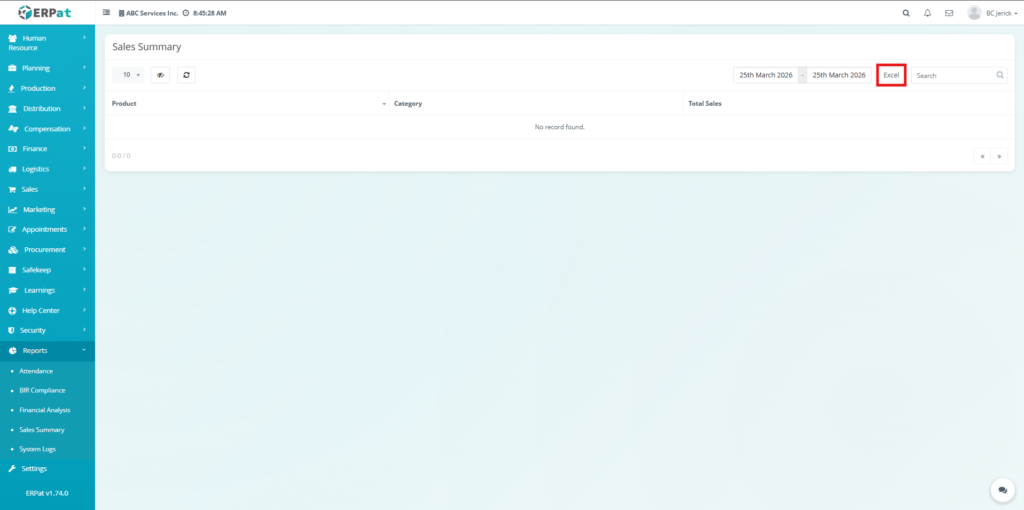
- Apply the desired date range and filters.
- Click the Excel button located at the top-right of the page.
Result #
- The system downloads an Excel file containing the current Sales Summary data.
Steps for Searching Records #
STEPS #
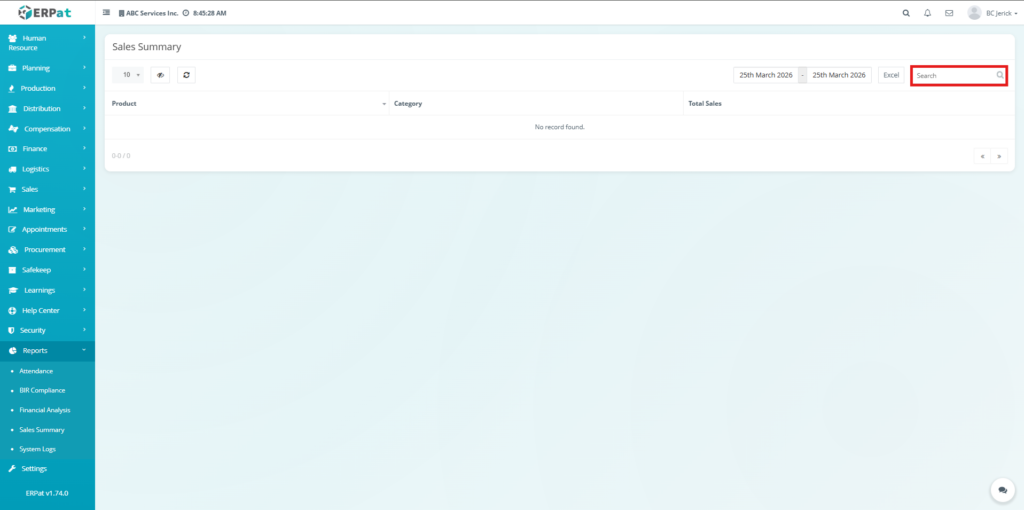
- Enter a keyword in the Search bar.
- Review the filtered results displayed in the table.
Result #
- The system displays matching products or categories based on the search input.
Search and Filtering #
- Use the Search field to find products or categories quickly.
- Pagination controls help navigate through multiple records efficiently.
- Rows per page selector allows adjustment of visible records.
Permissions and Access Control #
- Only authorized users can view and export sales summary data.
- Access may vary depending on assigned roles and permissions.
Best Practices #
- Always select the correct date range before analyzing data.
- Use search and filters to quickly locate specific records.
- Export reports regularly for backup and reporting purposes.
Audit & Logs #
All viewing and export actions may be tracked within the ERPat system for monitoring and auditing purposes.
Last Updated: [March 25, 2026] Module Owner: Report Module – ERPat System


