Overview #
The Attendance Dashboard within the Reports module is a powerful analytical tool designed to provide HR managers and department heads with a high-level visual summary of workforce presence. It transforms raw time-log data into actionable insights, allowing for the quick identification of attendance patterns, labor costs related to overtime, and potential productivity gaps.
Key Features #
- Real-Time Attendance Summary: Features high-visibility cards that display critical metrics:
- Total Employees: Number of staff within the selected scope.
- Present & Absent Counts: Instant breakdown of daily participation with percentage indicators.
- On Leave: Track employees currently away on approved time off.
- Operational Time Tracking: Displays cumulative hours for the selected period, including Total Worked, Regular OT, Restday OT, and PTO Hours.
- Punctuality Analytics: Highlights workforce discipline by tracking Late arrivals and Undertime departures.
- Visual Trend Analysis:
- Attendance Trend Chart: A line graph that tracks daily fluctuations in attendance over time, helping to spot seasonal or recurring absenteeism.
- Attendance Distribution: A categorical breakdown (Present, Absent, On Leave, Late) for a more nuanced understanding of workforce status.
- Dynamic Data Filtering: Users can slice the data by Start/End Date, specific Department, or individual User to generate highly targeted reports.
Accessing the Attendance Report #
To access the Attendance Dashboard and start analyzing your workforce data, follow these steps:
- Log in to the ERPat System.
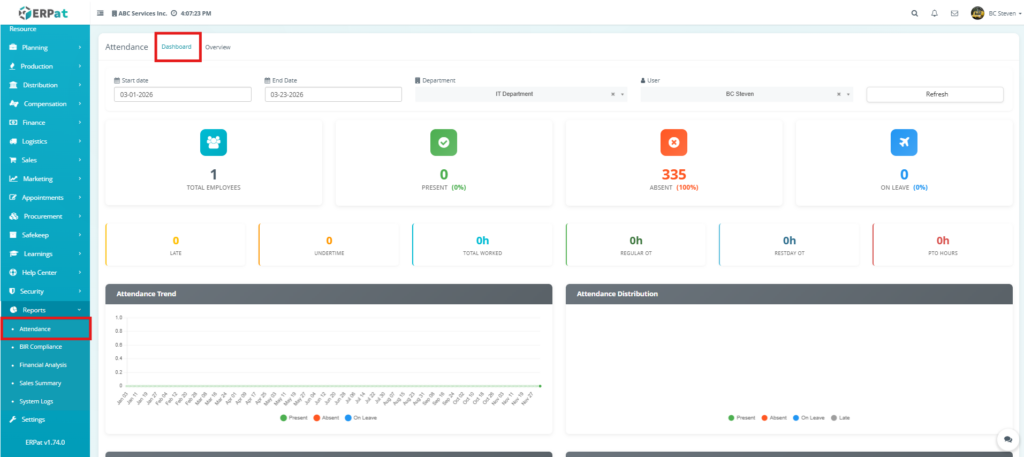
- On the left-hand Sidebar Menu, scroll down to the Reports section.
- Click on the Reports dropdown to expand the available reporting tools.
- Select Attendance from the list.
- By default, you will be directed to the Dashboard tab.
- Adjust the filters at the top and click Refresh to populate the dashboard with the desired data.
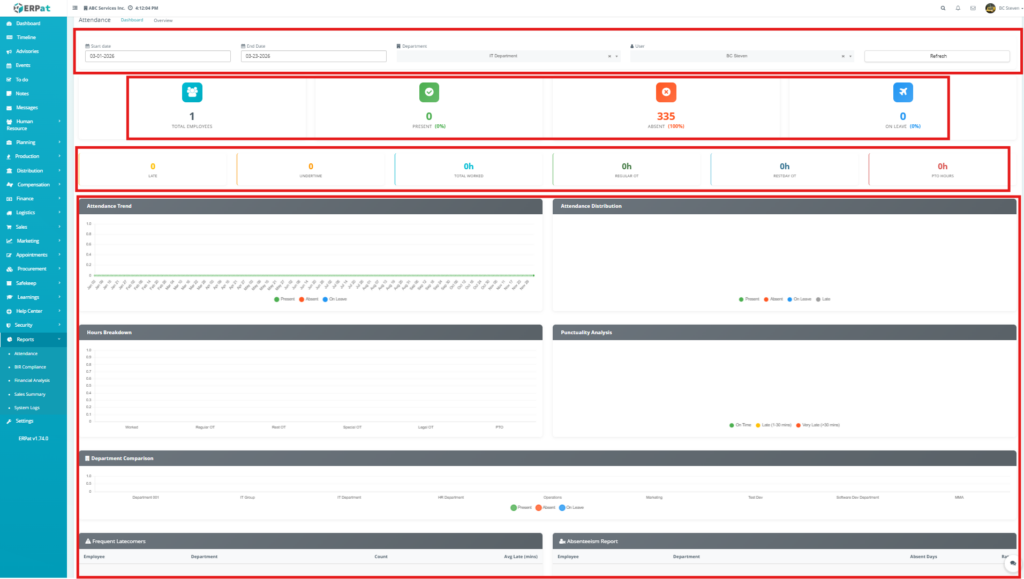
Attendance Dashboard: Analytics & Reporting Layout #
1. Dynamic Filtering Bar (Top Row) #
This section allows users to customize the data scope for the entire dashboard:
- Start/End Date – Define the specific reporting period.
- Department – Filter results by a specific organizational unit.
- User – Target the analytics toward a single employee for individualized performance reviews.
- Refresh Button – Executes the search to update all visual elements with the latest filtered data.
2. Primary Attendance Summary (Second Row) #
- Total Employees – The unique count of staff included in the report.
- Present – Shows the count and percentage of successful clock-ins.
- Absent – Highlights missing attendance records.
- On Leave – Tracks personnel currently utilizing approved time off.
3. Operational Time & Punctuality (Third Row) #
- Late & Undertime – Counts instances where employees arrived after their shift start or left before their shift end.
- Total Worked – The cumulative regular hours logged.
- Overtime Breakdown – Segregates extra hours into Regular OT, Restday OT, and PTO Hours, providing a clear view of additional labor costs.
4. Advanced Analytical Charts (Lower Section) #
- Attendance Trend & Distribution – Charts daily presence over time and provides a categorical slice of status.
- Hours Breakdown & Punctuality Analysis – Compares worked hours against various OT types and categorizes lateness.
- Department Comparison – A benchmarking tool used to compare attendance health across different teams.
- Frequent Latecomers & Absenteeism Report – Tables that list top-ranking employees in these categories to help management address chronic attendance issues.
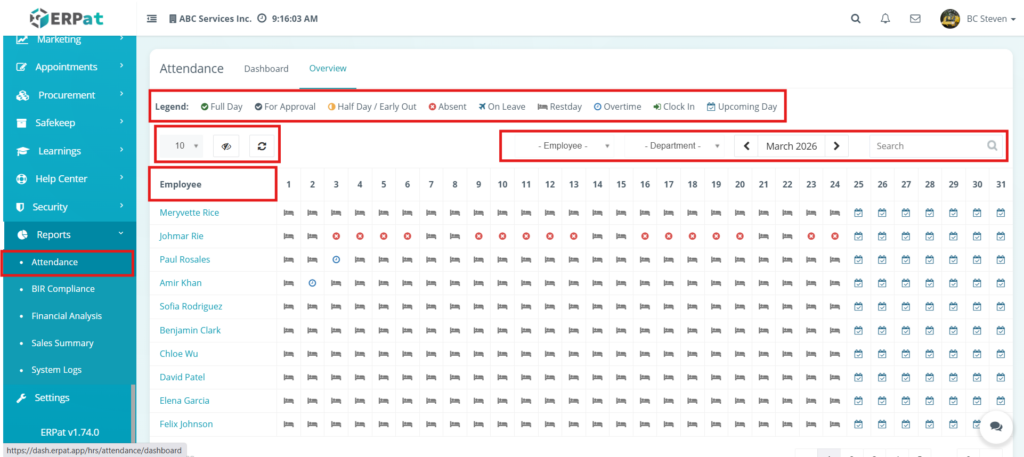
Attendance Reports: Overview Page (Detailed Grid) #
Attendance Legend (Top Section) #
- Full Day (Green Check): The employee successfully completed their shift.
- For Approval (Clock/Arrow): A pending attendance entry requiring manager validation.
- Half Day / Early Out (Orange Half-Circle): A partial shift was logged.
- Absent (Red X): No time-log recorded for a scheduled workday.
- On Leave (Airplane Icon): Employee is on an approved leave of absence.
- Restday (Bed Icon): Scheduled day off.
- Overtime (Blue Clock): Additional hours worked beyond the regular schedule.
- Clock In (Green Arrow): Employee is currently active and clocked in for the shift.
- Upcoming Day (Calendar Icon): Represents future dates.
Data Management & View Filters (Middle Row) #
- Row Display: Sets the number of employees visible per page.
- Visibility Toggle (Eye Icon): Allows users to hide or show specific columns to declutter the view.
- Refresh (Circular Arrow): Manually updates the grid with the latest time-log data.
- Employee/Department Dropdowns: Used to filter the list to a specific individual or team for targeted audits.
- Date Navigator (March 2026): Allows users to jump between different months and years to review historical attendance records.
- Search Bar (Quick Lookup): A real-time text field to instantly locate an employee by name.
Employee Identifier (Left Column) #
- Employee: This column lists the full names of staff members. Each name acts as a hyperlink that redirects the administrator to the specific employee’s detailed monthly timecard and daily logs for deeper investigation.
Additional Controls: #
- Search bar for quick lookup: Located at the top-right to filter the grid instantly.
- Pagination for large datasets: Found at the bottom (not pictured in the highlight) to navigate through the entire company roster.
- Refresh and visibility controls: Centralized at the top-left for easy layout adjustments.
Permissions and Access Control #
To maintain the integrity of timekeeping data and ensure payroll accuracy, access to the Attendance module is strictly regulated:
- Authorized Roles: Only HR Administrators, Payroll Officers, or System Admins have the permissions required to manually adjust time-logs, approve overtime, or modify leave entries.
- View-Only Access: Department Heads and Supervisors are typically granted view-only access to their specific teams. This allows them to monitor daily presence and punctuality without the ability to alter core time-records.
Best Practices #
- Standardized Shift Labels: Use consistent naming for shifts and rest days to ensure the Overview Grid remains easy to read and audit.
- Prompt Overtime Approvals: Review and act on “For Approval” (Clock/Arrow icon) entries daily to prevent delays in the payroll cycle.
- Clear Absence Documentation: Use the Remarks or Leave feature to document the reason for a “Red X” (Absent) status to provide context for future performance reviews.
- Monitor Trend Spikes: Regularly check the Attendance Trend chart on the Dashboard to identify seasonal absenteeism or burnout within specific departments.
- Avoid Deleting Historical Logs: Even if an employee has resigned, keep their attendance records intact for at least the duration required by local labor audit and reporting standards.
Audit & Logs #
- Standardized Shift Labels: Use consistent naming for shifts and rest days to ensure the Overview Grid remains easy to read and audit.
- Prompt Overtime Approvals: Review and act on “For Approval” (Clock/Arrow icon) entries daily to prevent delays in the payroll cycle.
- Clear Absence Documentation: Use the Remarks or Leave feature to document the reason for a “Red X” (Absent) status to provide context for future performance reviews.
- Monitor Trend Spikes: Regularly check the Attendance Trend chart on the Dashboard to identify seasonal absenteeism or burnout within specific departments.
- Avoid Deleting Historical Logs: Even if an employee has resigned, keep their attendance records intact for at least the duration required by local labor audit and reporting standards.
- Full Traceability: Every manual adjustment to a clock-in/out time, status change, or overtime approval is captured in the system’s internal logs.
- Administrative Accountability: Each log entry identifies the User who performed the modification and the exact Timestamp, ensuring a transparent “paper trail” for compliance and dispute resolution within the ERPat System.
Last Updated: [March 24, 2026]
Module Owner: Reports IS – ERPat System


