Overview #
The BIR Compliance module is a specialized financial reporting tool within the ERPat system designed to automate the consolidation of taxable and non-taxable transaction data. It serves as a centralized hub for managing regulatory documentation required by the Bureau of Internal Revenue, ensuring that all financial records are categorized accurately for audit and submission purposes. By providing a structured repository for tax reports, the module minimizes manual computation errors and maintains high standards of financial transparency.
Key Features #
- Automated Data Consolidation: Instantly aggregates transaction data from the Finance and Sales modules into standardized tax reports.
- Period-Based Archiving: Efficiently organizes generated reports by fiscal year for easy retrieval and historical comparison.
- Department-Specific Reporting: Allows for isolated views of tax obligations based on specific business departments.
- Granular Transaction Visibility: Provides detailed breakdowns of withholding tax (WHT) amounts, tax rates, and payee information.
- Role-Based Access Control: Restricts sensitive tax data to authorized Finance and Compliance personnel.
- Integrated Audit Trail: Automatically logs report creation details, including user attribution and timestamps.
Accessing the BIR Compliance Module #
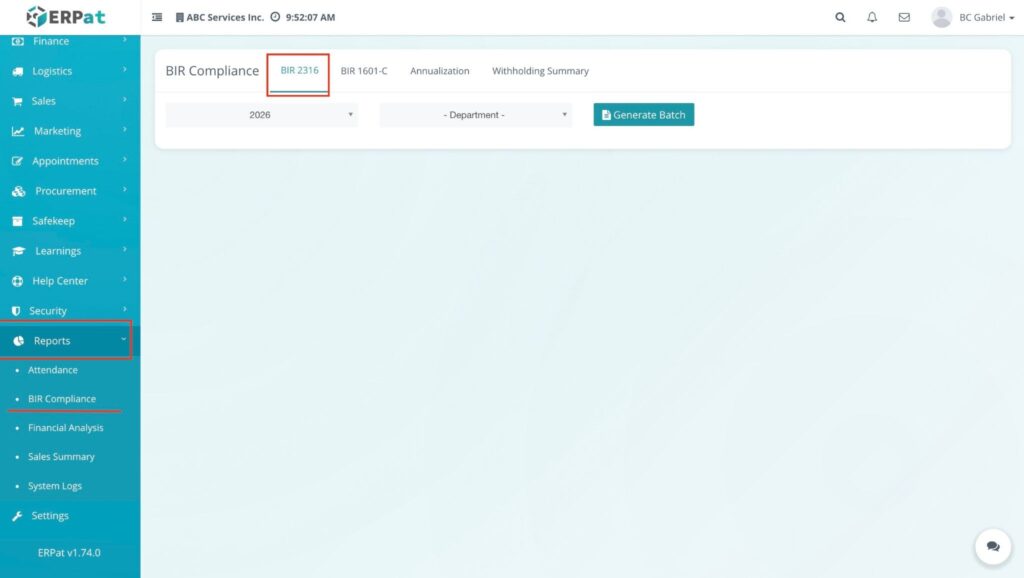
- Log in to the ERPat System.
- Navigate to Reports from the main sidebar.
- Select BIR Compliance.
- Result: You will be directed to the BIR 2316 listing page displaying previously generated records.
Advanced Filter Choices #
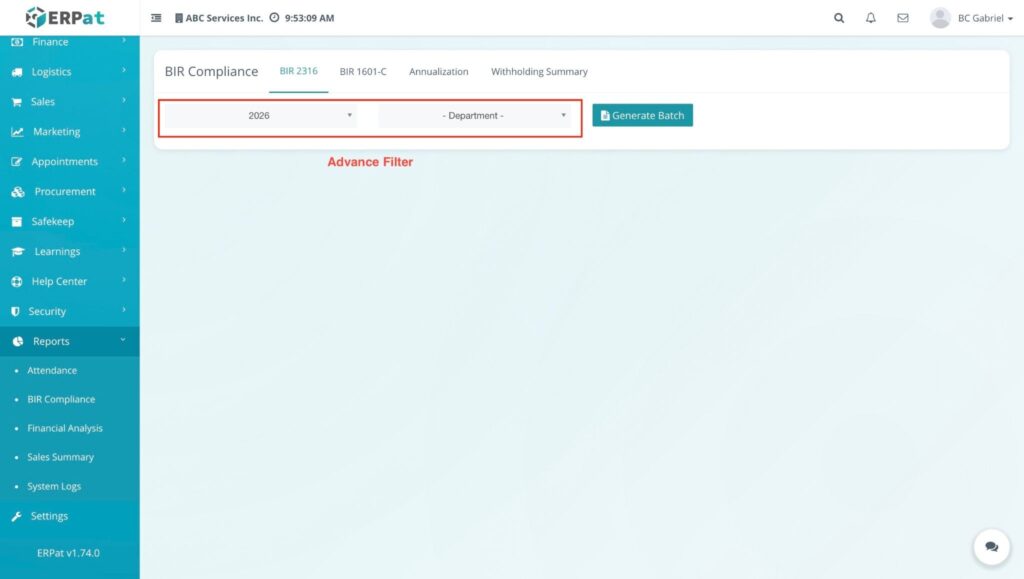
The BIR 2316 listing can be filtered using the following two criteria to locate specific records:
- Department – Select the specific business unit or department from the dropdown menu.
- Year – Select the relevant fiscal year.
Generating a Report #
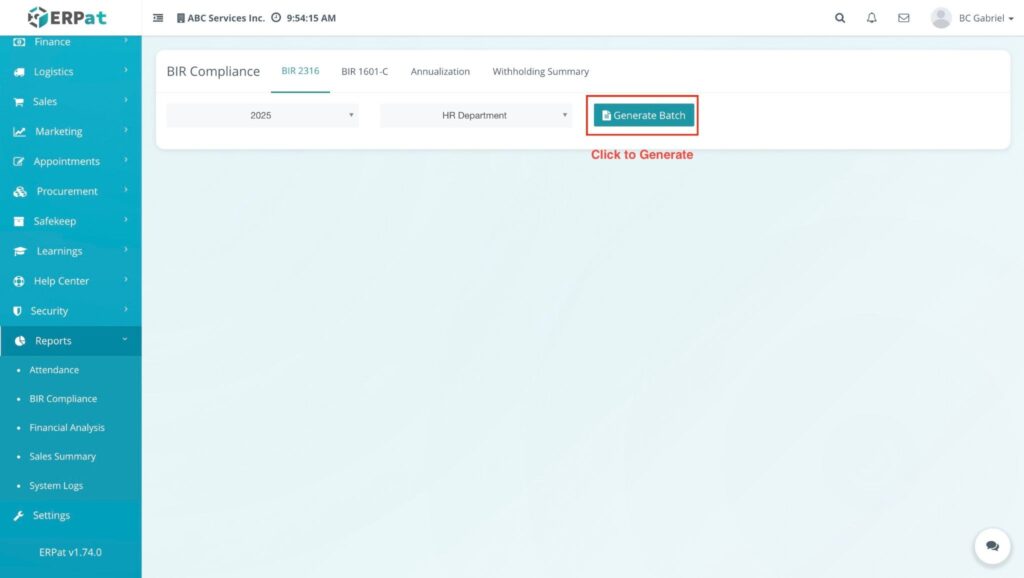
- Click the + Generate Batch button located at the top right of the listing page.
- In the Generate Report modal, provide the following details:
- Year: Choose the target fiscal year from the dropdown.
- Department: Select the applicable department.
Result:
Employee Summary Fields #
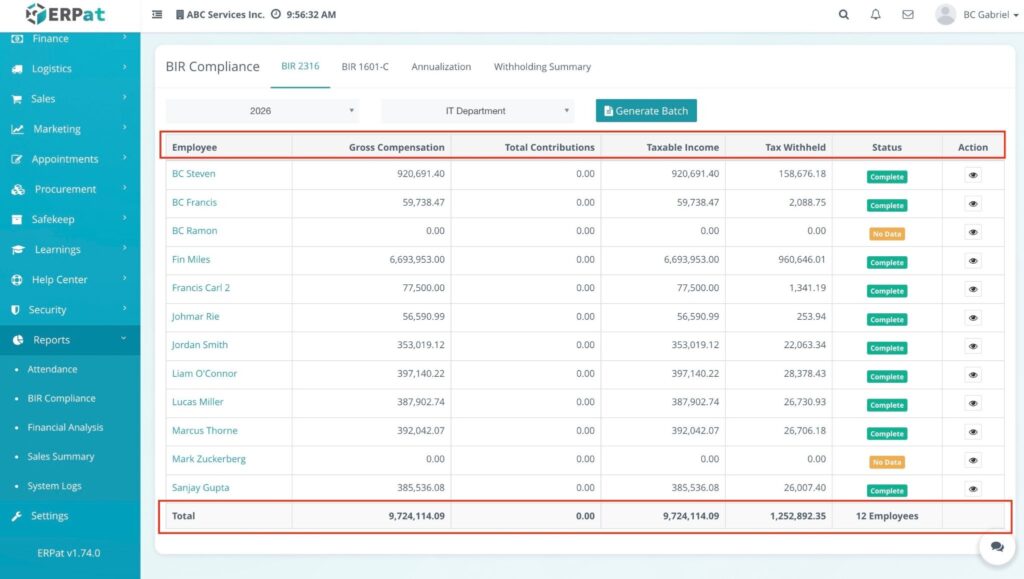
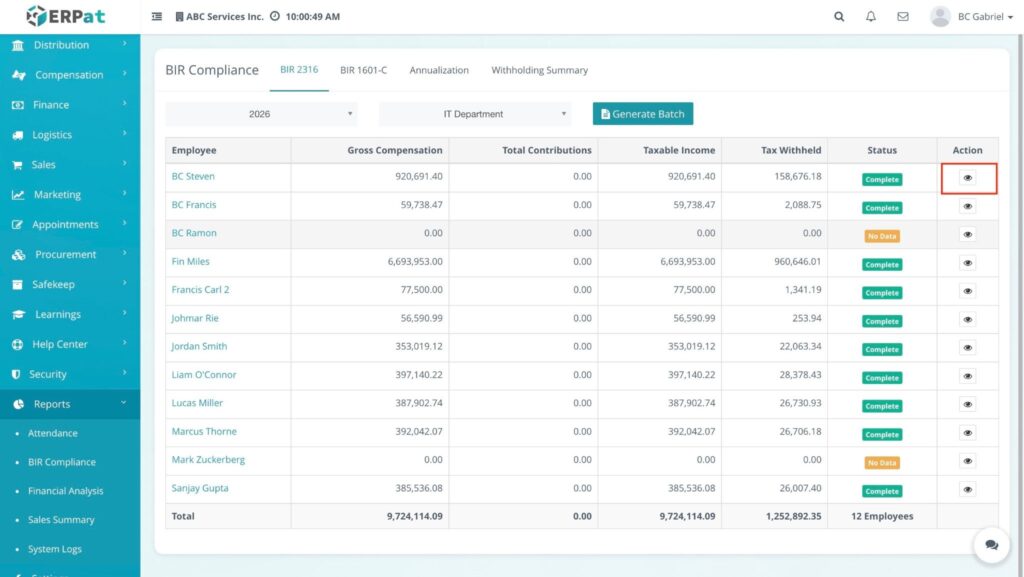
The following fields appear for each individual record within the generated batch:
- Employee: The full name of the personnel. This identifies whose compensation data is being reported.
- Gross Compensation: The total salary or wages earned by the employee before any deductions, inclusive of basic pay, overtime, and other taxable allowances.
- Total Contributions: The sum of all non-taxable deductions, such as SSS, PhilHealth, and Pag-IBIG contributions. This amount is subtracted from the gross compensation to determine the taxable base.
- Taxable Income: The remaining amount subject to income tax after all allowable deductions and contributions have been removed.
- Tax Withheld: The actual amount of income tax that the system has calculated and deducted from the employee’s pay to be remitted to the BIR.
- Status: The current filing or employment status associated with that specific record (e.g., Active or Processed).
Summary Totals #
Directly below the individual employee list, the system provides a Total Row. These fields represent the aggregate sum of all records displayed in the table for that specific batch:
- Total Gross Compensation: The cumulative earnings of the entire department for the year.
- Total Contributions: The combined sum of all government-mandated contributions for all listed employees.
- Total Taxable Income: The total departmental income that is subject to taxation.
- Total Tax Withheld: The grand total of taxes collected from the department, serving as the final figure for the company’s tax remittance report.
Steps to View Specific Employee Details #
- Filter the View: Select the target Year and Department from the Advance Filter dropdowns.
- Generate or Locate Batch: Click Generate Batch to refresh the data or scroll through the existing list of employees in the table.
- Initiate View: Locate the specific employee (e.g., “BC Steven”) and click the Eye (👁️) icon under the Action column.
Result: #
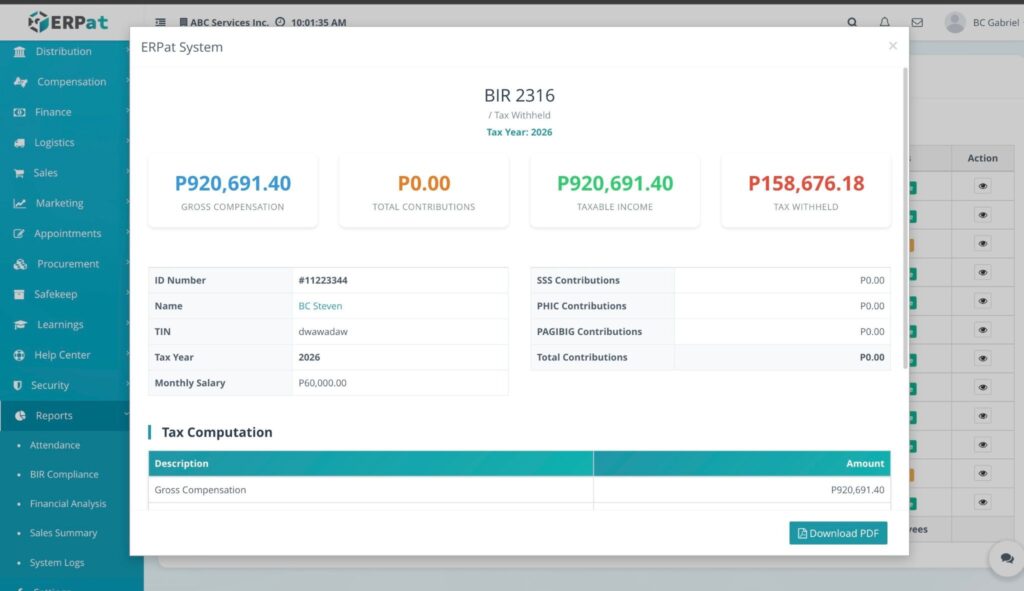
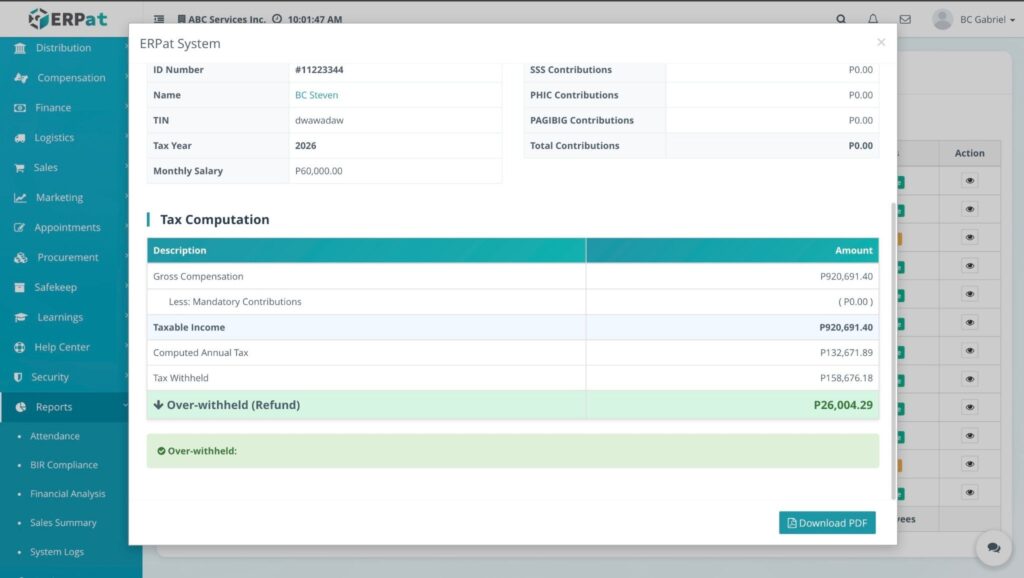
A BIR 2316 / Tax Withheld modal opens for that individual.
Accessing the BIR 1601-C Module #
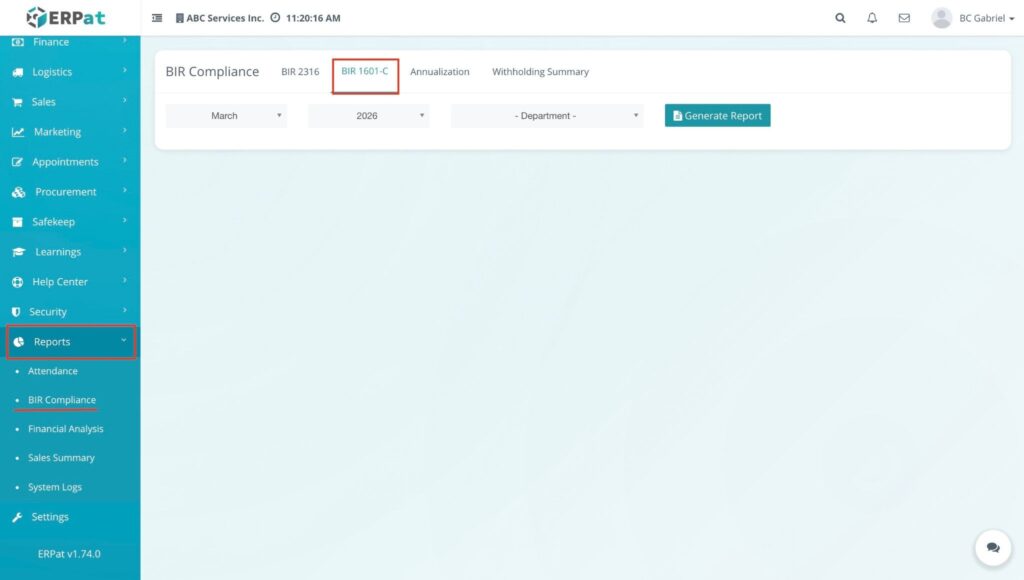
- Log in to the ERPat System.
- Navigate to Reports from the main sidebar.
- Select BIR Compliance.
- Click the BIR 1601-C tab located at the top of the interface.
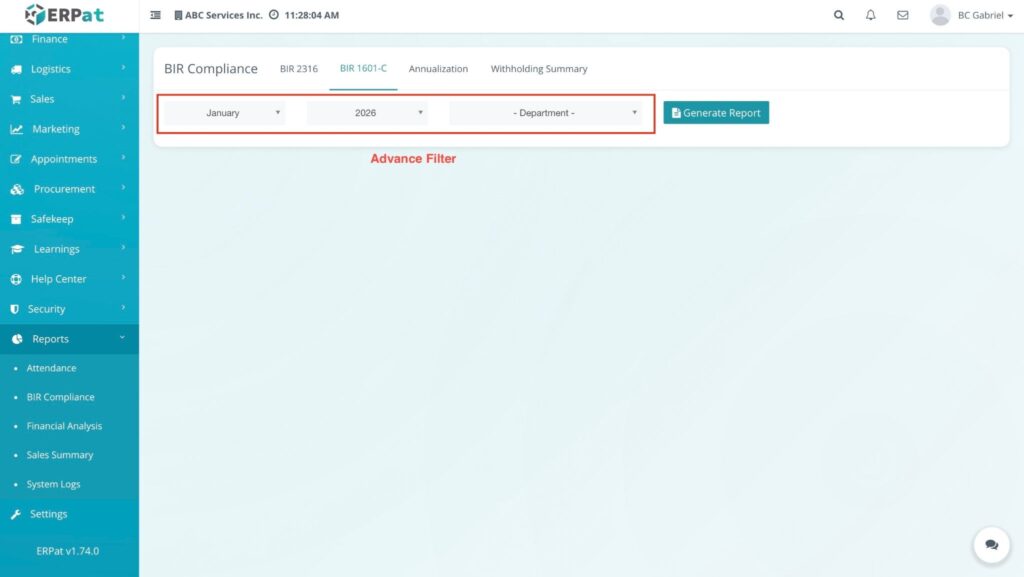
Advanced Filter Options #
Use these dropdowns to specify the data you wish to retrieve:
- Month: Choose the specific month for the remittance.
- Year: Select the fiscal year.
- Department: Filter by a specific organizational unit.
Generating the Report #
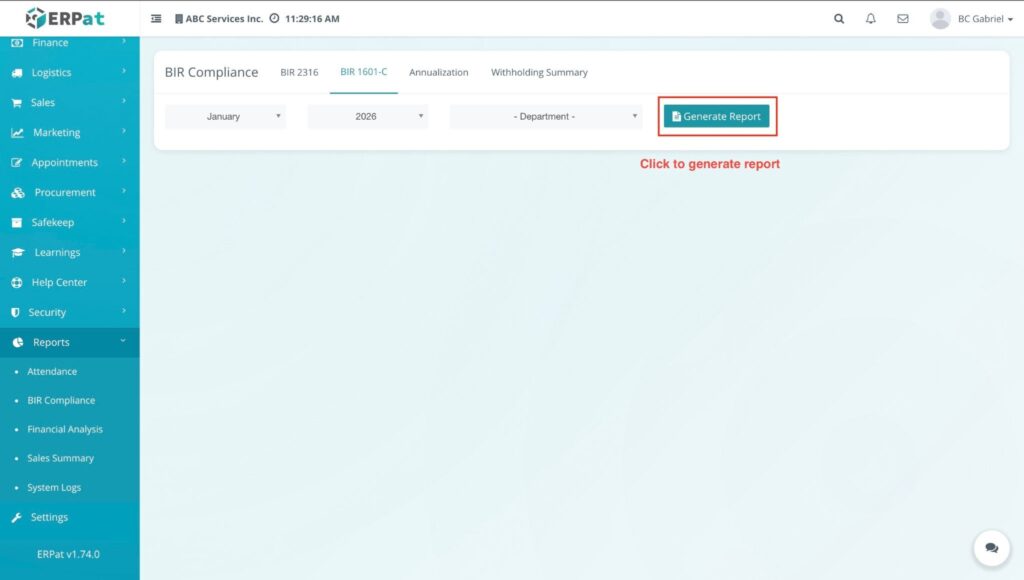
- Set your desired parameters in the Advance Filter.
- Click the Generate Report button.
Result: #
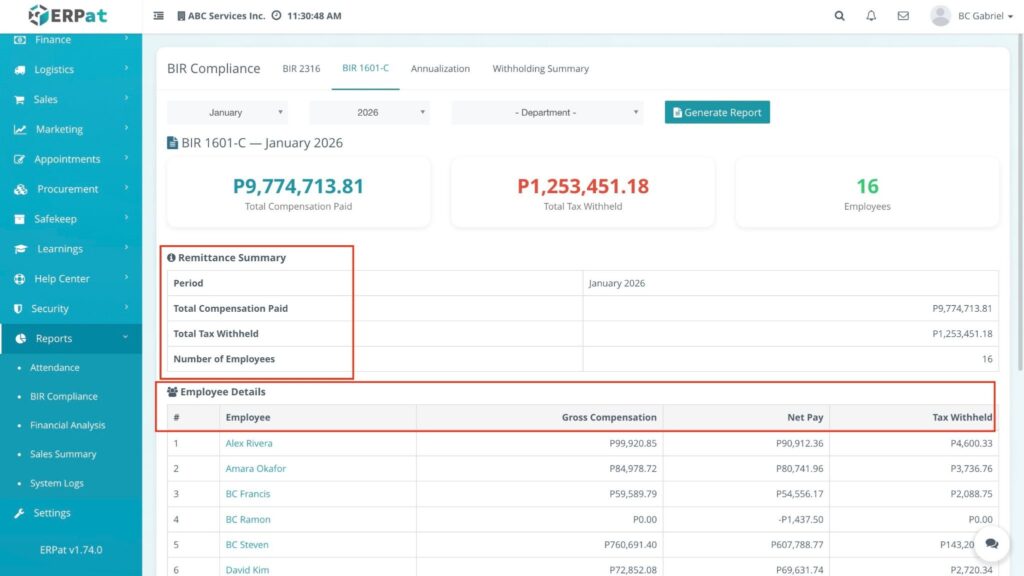
The system processes all payroll records matching your filters and displays the consolidated results immediately below.
Understanding the Results #
Key Metrics Dashboard #
At the top of the results section, three primary cards provide an instant visual summary:
- Total Compensation Paid (Blue): The total gross salary processed for the selected period.
- Total Tax Withheld (Red): The cumulative amount of income tax deducted from employees, representing the total to be remitted to the BIR.
- Employees (Green): The total head count of individuals included in this specific remittance batch.
Remittance Summary Table #
This section acts as your high-level audit trail, displaying:
- Period: The month and year of the report.
- Total Compensation Paid: Confirms the aggregate earnings.
- Total Tax Withheld: Confirms the aggregate tax value.
- Number of Employees: Confirms the total volume of records.
Employee Details Table #
This granular list provides a line-item breakdown for every individual in the report:
- Employee: The name of the staff member.
- Gross Compensation: The individual’s total earnings for that month.
- Net Pay: The final take-home amount after all deductions and taxes.
- Tax Withheld: The specific portion of income tax withheld from that employee’s pay.
Accessing Annualization #
- Log in to the ERPat System.
- Navigate to Reports from the main sidebar.
- Select BIR Compliance.
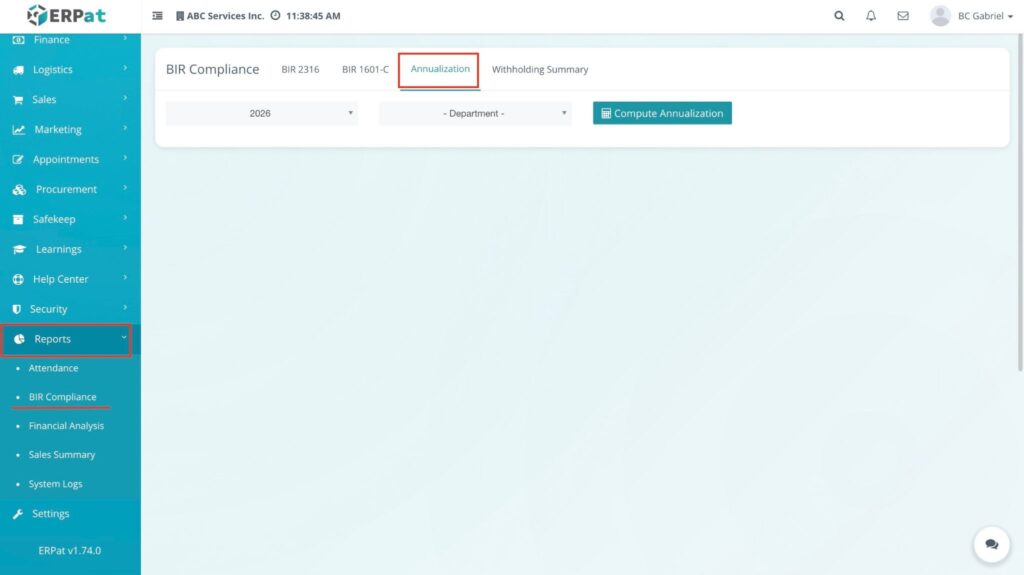
- Click the Annualization tab at the top of the page.
Advanced Filter Options #
To view existing annualization records:
- Year: Select the fiscal year you wish to review.
- Department: Filter by a specific department or business unit.
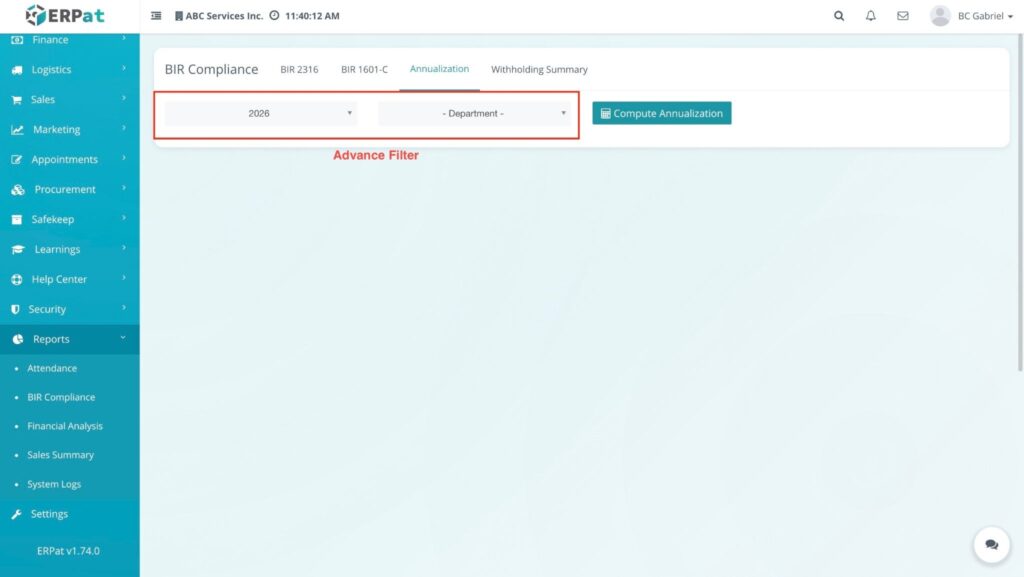
Steps to Compute Annualization #
- Click the + Compute Annualization button at the top right.
- In the modal, select the Year and the Department.
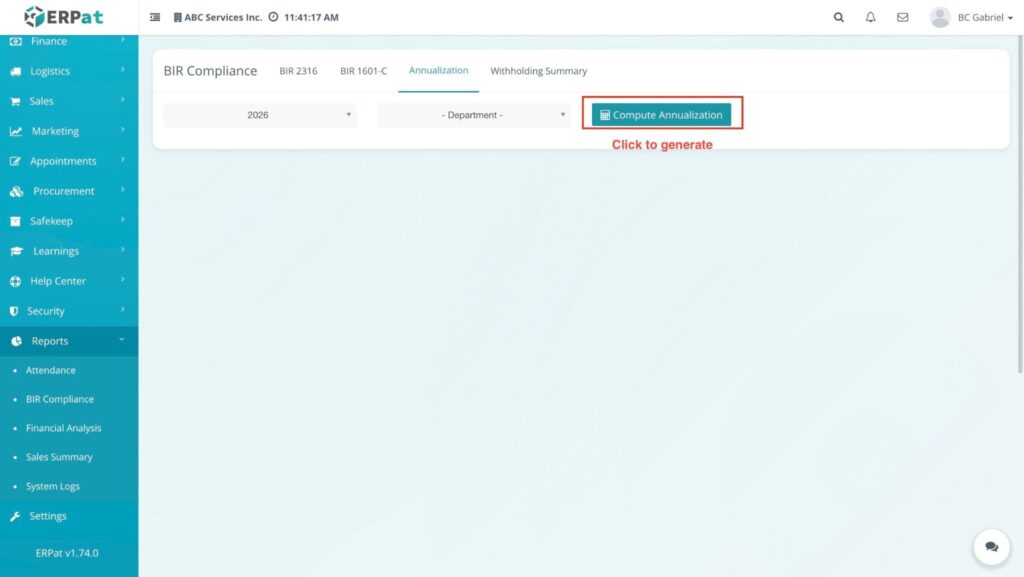
Result: #
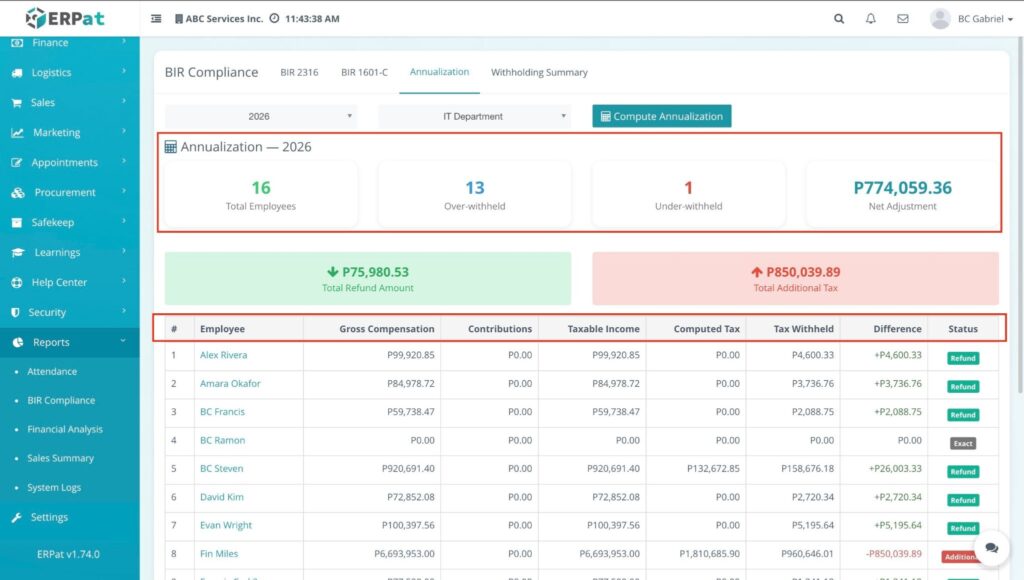
The system aggregates all payroll data for the selected year and calculates the final tax liabilities for all employees in that department.
Understanding the Results #
Key Metrics Dashboard #
The following cards appear at the top to provide an immediate summary of the adjustment:
- Total Refund Amount (Green Box): The total sum that the company needs to return to employees who were over-withheld.
- Total Additional Tax (Red Box): The total sum that needs to be collected from employees who were under-withheld.
Annualization Summary Table #
This section displays the high-level totals for the batch:
- Annualization – [Year]: Confirms the fiscal year being reported.
- Total Employees: The number of staff members included in the calculation.
- Over-withheld: The count or total value of taxes paid in excess.
- Under-withheld: The count or total value of tax deficits.
- Net Adjustment: The final balanced figure between over and under-withholding.
Detailed Employee Fields #
The main table provides the following data per employee:
- #: Row count/index.
- Employee: Full name of the staff member.
- Gross Compensation: Total earnings for the entire year.
- Contributions: Total non-taxable government deductions (SSS, PhilHealth, etc.).
- Taxable Income: Net income subject to the annual tax table.
- Computed Tax: The actual tax the employee is required to pay for the full year.
- Tax Withheld: The total tax already deducted from the employee’s monthly payroll.
- Difference: The gap between Computed Tax and Tax Withheld. (A negative number usually indicates a refund).
- Status: The current state of the annualization record.
Accessing Withholding Summary #
- Log in to the ERPat System.
- Navigate to Reports from the main sidebar.
- Select BIR Compliance.
- Click the Withholding Summary tab at the top of the interface.
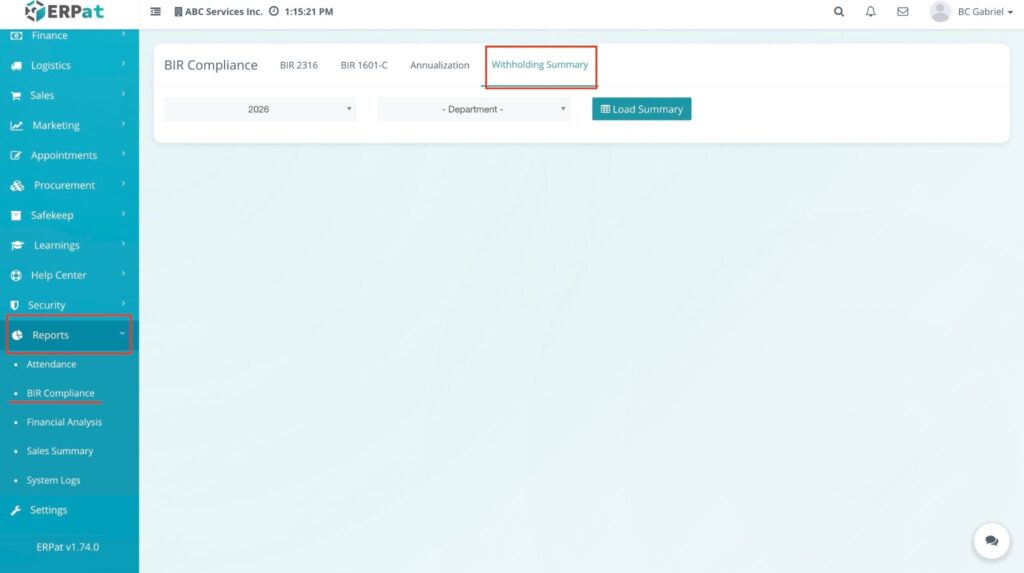
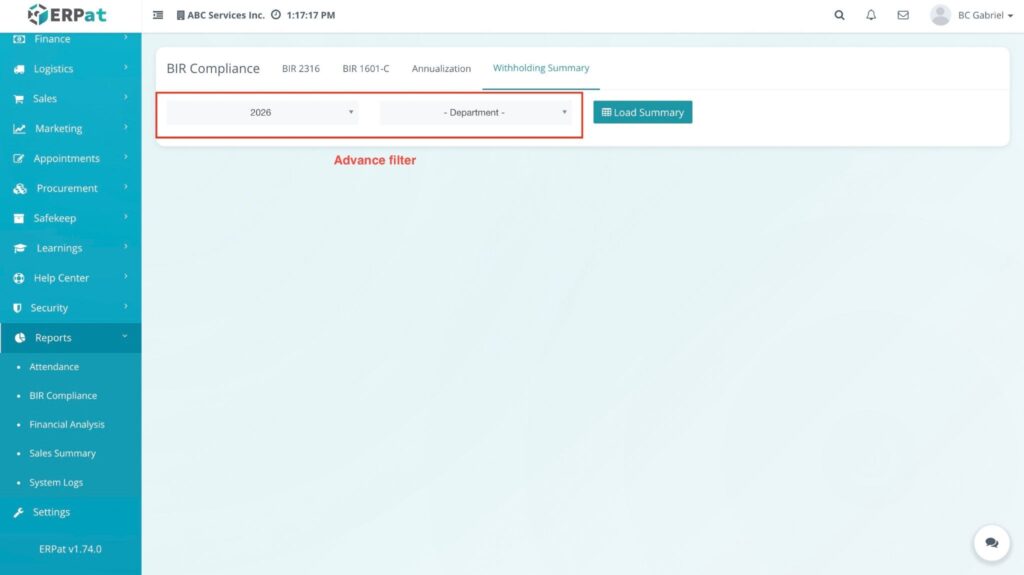
Advanced Filter Options #
To retrieve specific tax data, use the following filters:
- Year: Select the target fiscal year.
- Department: Select the specific department to be analyzed.
Steps to Load Summary #
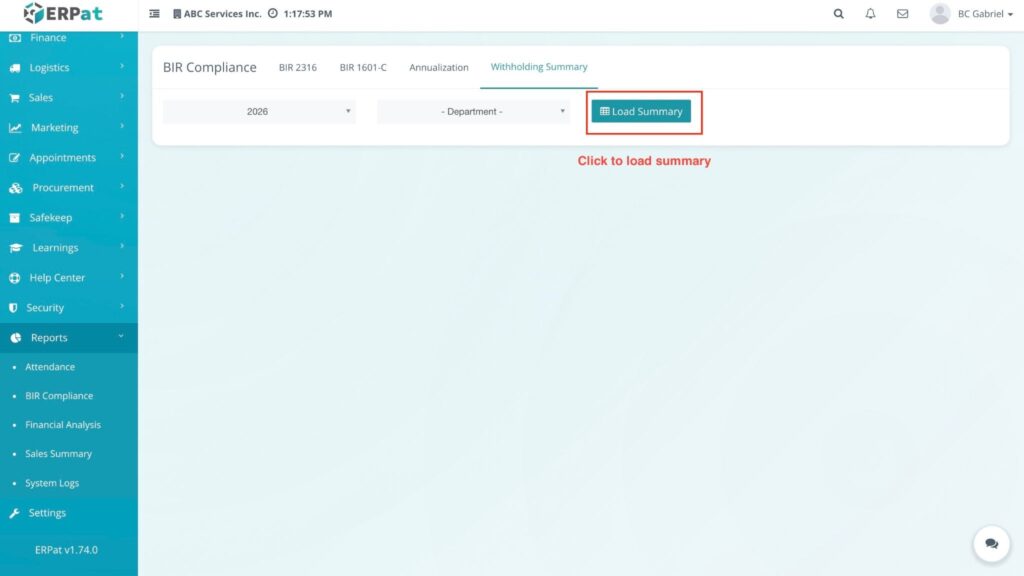
- Set your chosen Year and Department in the Advanced Filter.
- Click the Load Summary button.
Result: #
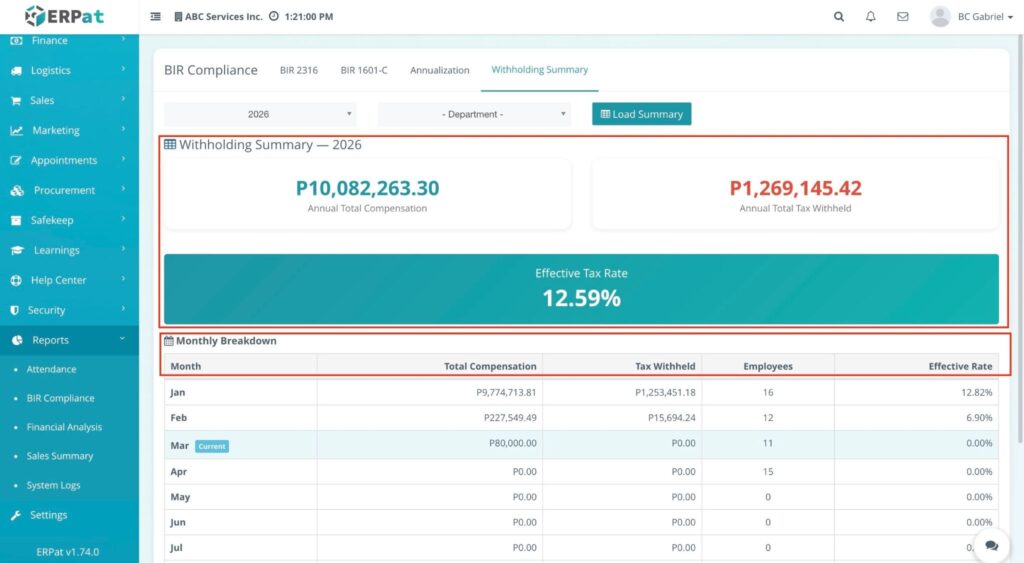
The system instantly compiles all monthly records for the selected parameters and displays the annual breakdown below.
Understanding the Results #
Annual Totals (Header) #
The top section displays the consolidated figures for the year:
- Withholding Summary – [Selected Year]: Confirms the period being viewed.
- Annual Total Compensation: The sum of all gross salaries paid for the entire year.
- Annual Total Tax Withheld: The grand total of all income taxes collected for the year.
- Effective Tax Rate (%): The average percentage of tax withheld relative to the total compensation.
Monthly Breakdown Table #
This table provides a month-by-month analysis of the department’s tax activity:
- Month: The specific month of the year.
- Total Compensation: The gross pay processed for that specific month.
- Tax Withheld: The amount of tax collected for that specific month.
- Employees: The total number of staff members included in that month’s payroll.
- Effective Rate: The specific tax percentage for that month, allowing you to see fluctuations in tax collection over time.
Permissions and Access Control #
- Access Restriction: Access to the BIR Compliance module is strictly limited to authorized Finance, Tax Compliance, and Accounting personnel.
- Role-Based Actions: Functional permissions (e.g., generating batches or computing annualization) are managed through role-based access control to prevent unauthorized alterations to tax liabilities.
Best Practices #
- Visual Verification: Always check the Red (Total Tax Withheld) card against your bank payment records before filing.
- Data Accuracy: Cross-reference the Blue (Total Compensation) card with your Monthly Payroll Register to ensure no employees were missed.
- Naming Conventions: Use clear names (e.g., “2026_Q1_Admin”) when saving batches for easier retrieval.
Audit & Logs #
Traceability: Every action—batch generation, annualization, and report views—is captured in the system’s Audit Logs with timestamps and user attribution.Compliance All records are maintained in accordance with BIR-mandated reporting standards to ensure transparency in the company’s tax movements.
Last Updated: [March 24, 2026] Module Owner: Reports – ERPat System


