Overview #
The Employee Profile Module is used to view, manage, and update the complete profile information of an employee within the system. It serves as a centralized employee record where personal details, employment information, contact details, account settings, payroll-related templates, files, attendance-related data, and other linked employee records can be accessed in one place. This module helps keep employee information organized, accurate, and easy to maintain.
The module contains several tabs that allow users to manage different parts of the employee record. These include profile timeline, general information, disciplinary records, certifications, courses, skillsets, social links, uploaded files, projects, attendance, timelogs, leave, payslips, contributions, de minimis benefits, earning templates, deduction templates, loans, commissions, expenses, asset entries, tickets, left menu customization, account settings, and personal preferences. Each section has a specific purpose and helps users manage both profile data and connected employee-related transactions more efficiently.
Employee Profile #
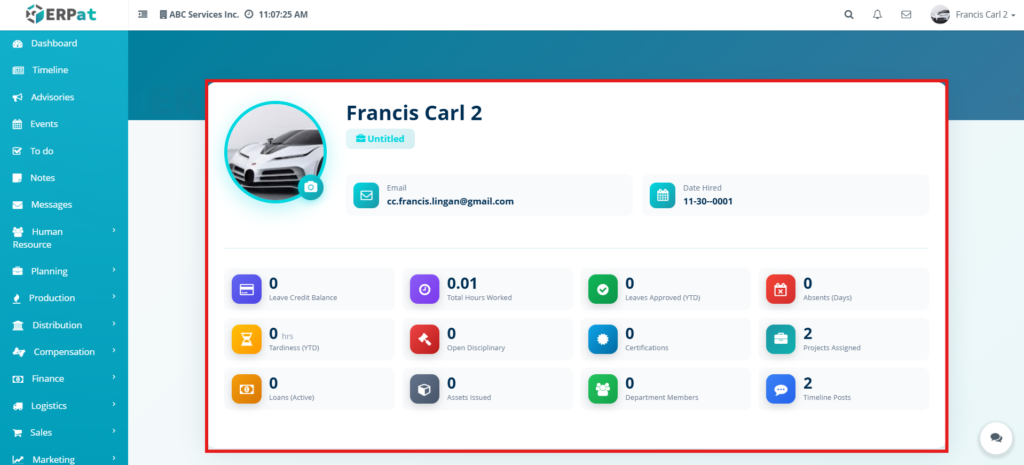
This section shows the main employee profile summary. It displays the employee picture, employee name, email, date hired, and profile summary cards. These summary cards provide a quick overview of important employee-related records such as leave balance, hours worked, approved leaves, absences, tardiness, disciplinary records, certifications, projects assigned, loans, assets issued, department members, and timeline posts. This section allows users to quickly review important employee details without opening each tab separately.
My Profile – Timeline #
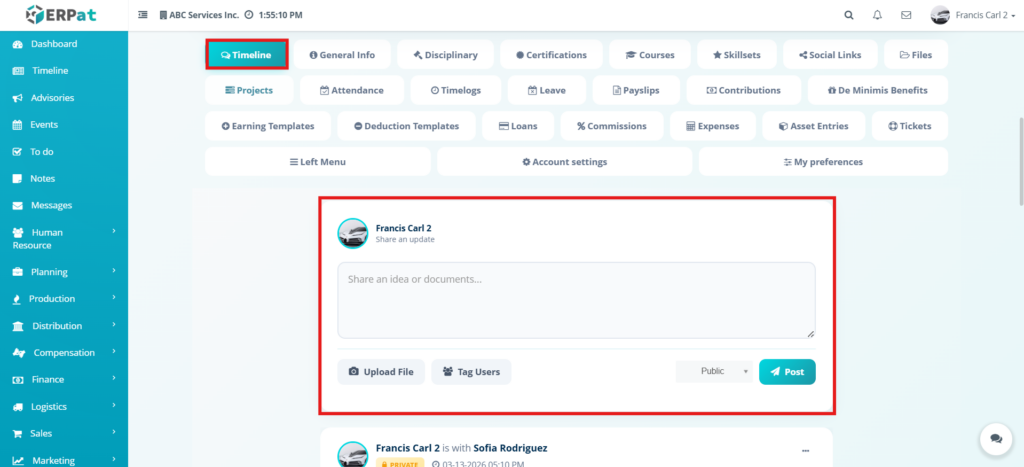
This section displays the employee’s timeline. It is used to post updates, share ideas, upload files, and tag other users. It works like an internal activity feed for the employee profile where updates and interactions related to the employee can be recorded and viewed.
My Profile – General Info #
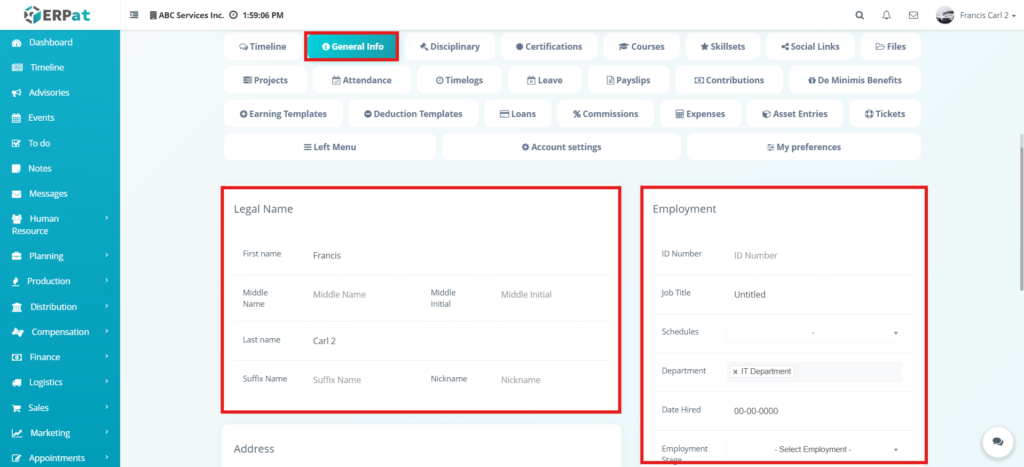
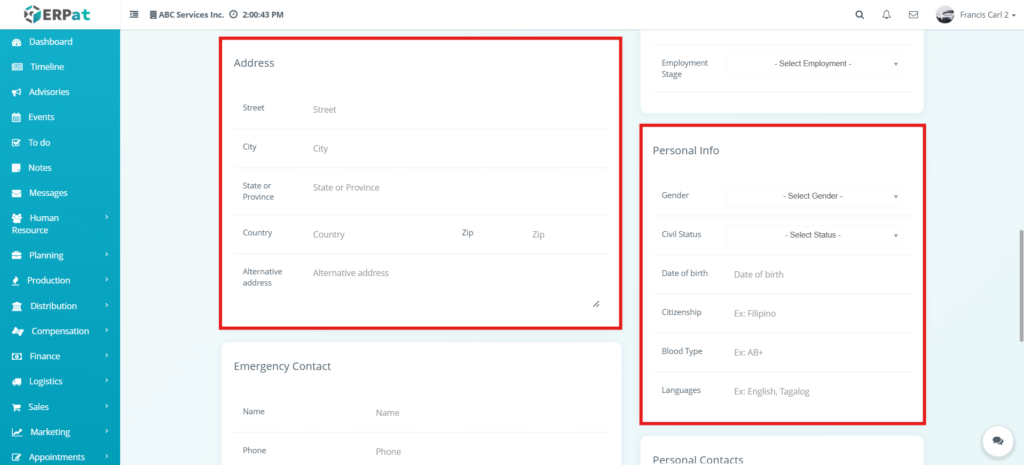
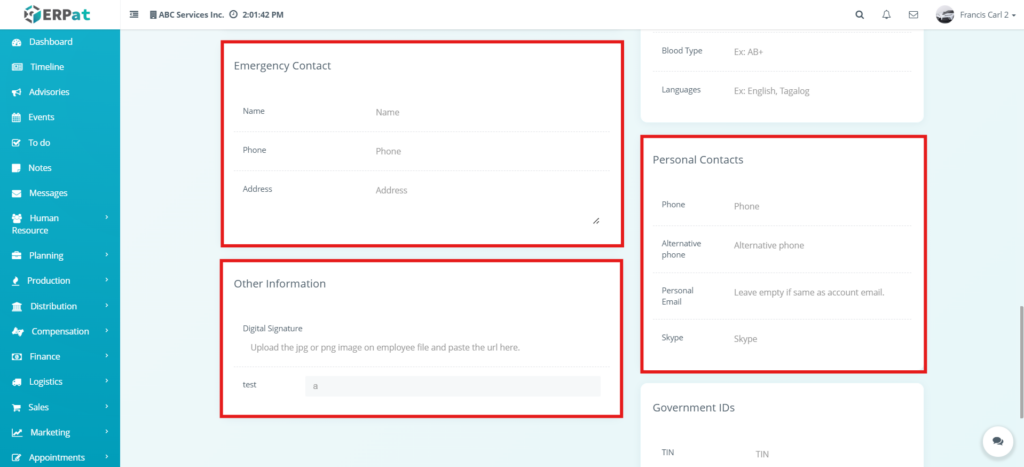
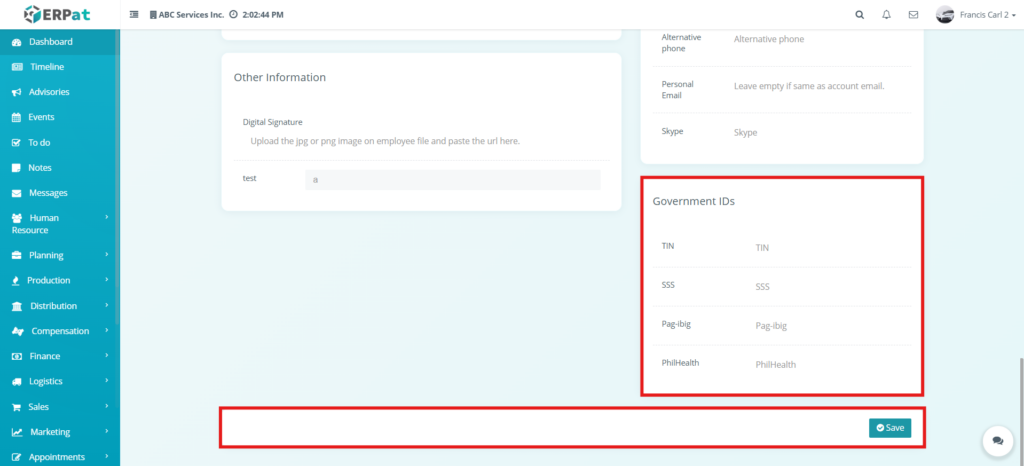
This section is used to manage the main personal and employment information of the employee. It includes the employee’s legal name, employment details, address, employment stage, personal information, emergency contact, personal contacts, other information, government IDs, and save action. This section is important because it contains the employee’s core profile details that are commonly used across the system.
My Profile – Disciplinary #
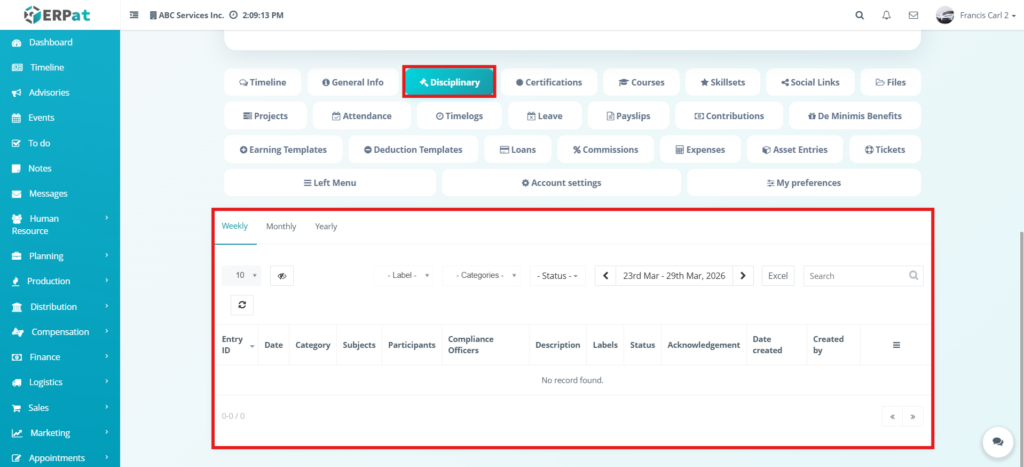
This section shows the employee’s disciplinary records. It allows users to review disciplinary-related entries using time-based views such as weekly, monthly, and yearly. The table includes records related to disciplinary actions and helps users monitor employee compliance and disciplinary history.
My Profile – Certifications #
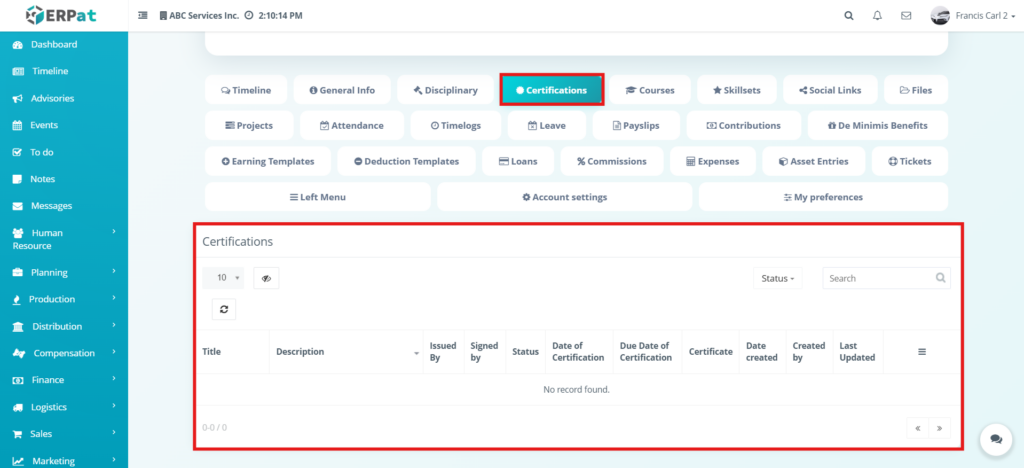
This section displays the employee’s certification records. It is used to track certifications associated with the employee, including their title, description, issuer, status, and certification dates. This helps maintain a record of employee qualifications and certifications that may be relevant to their position or responsibilities.
My Profile – Courses #
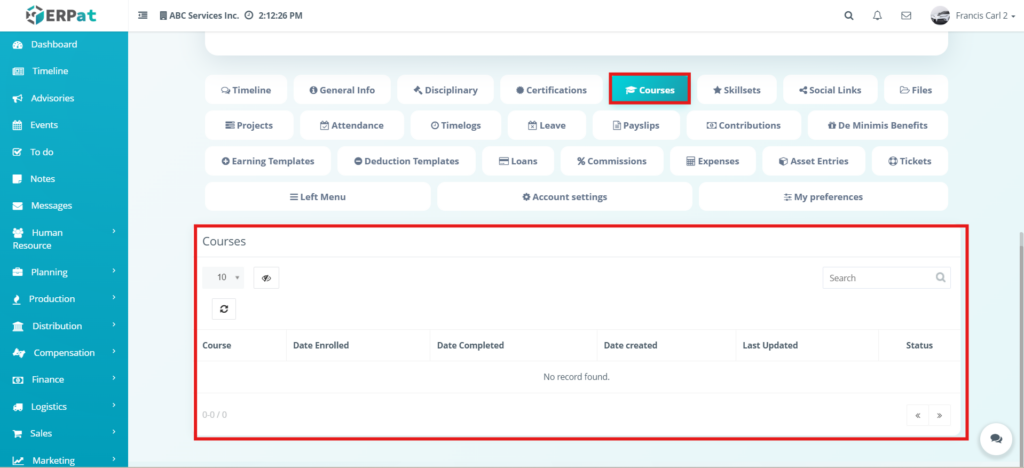
This section displays the courses associated with the employee. It helps track enrolled or completed courses and provides information such as date enrolled, date completed, date created, last updated, and status. This is useful for monitoring employee development and training progress.
My Profile – Skillsets #
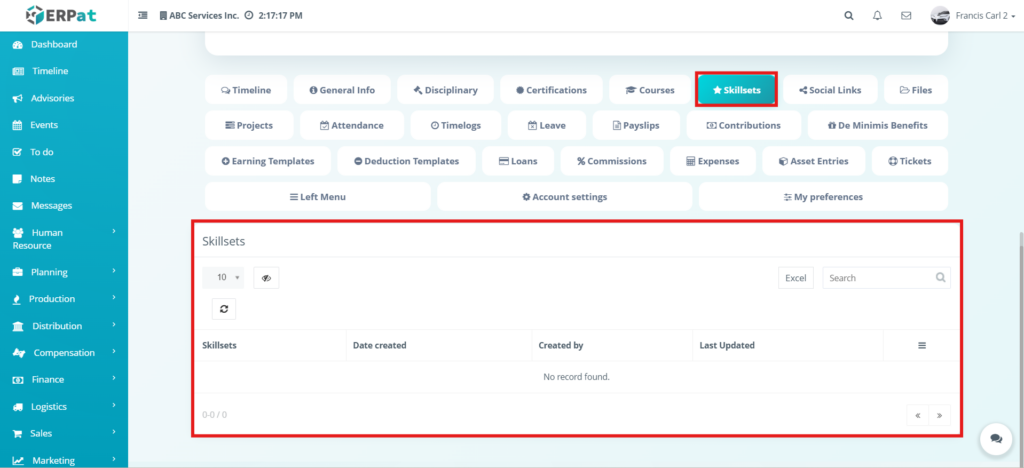
This section is used to display the skillsets linked to the employee. It helps organize employee skills and records when they were created or last updated. This supports employee profiling and helps the organization identify the strengths and capabilities of each employee.
My Profile – Social Links #
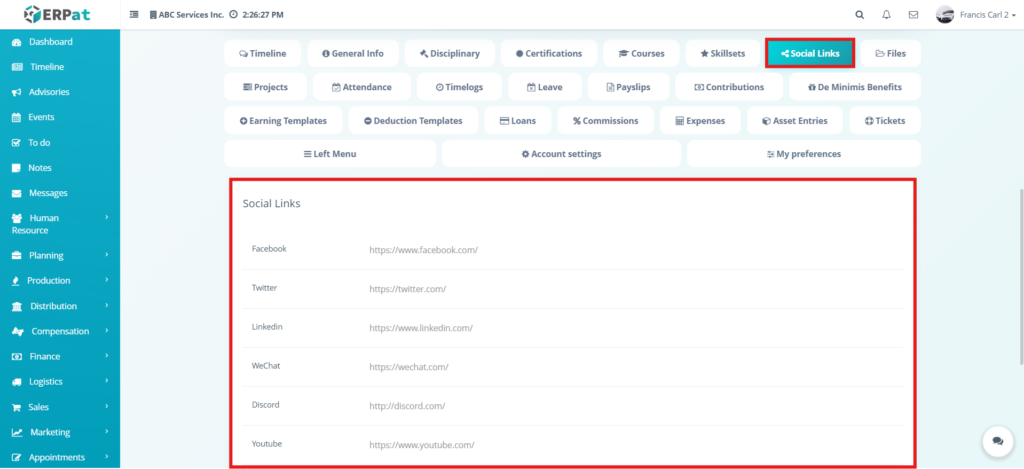
This section is used to store the employee’s social media and online profile links. It includes fields for platforms such as Facebook, Twitter, LinkedIn, WeChat, Discord, YouTube, Pinterest, Instagram, GitHub, Tumblr, and TikTok. This helps organize the employee’s external profile links in one place when needed for company reference or communication.
My Profile – Files #
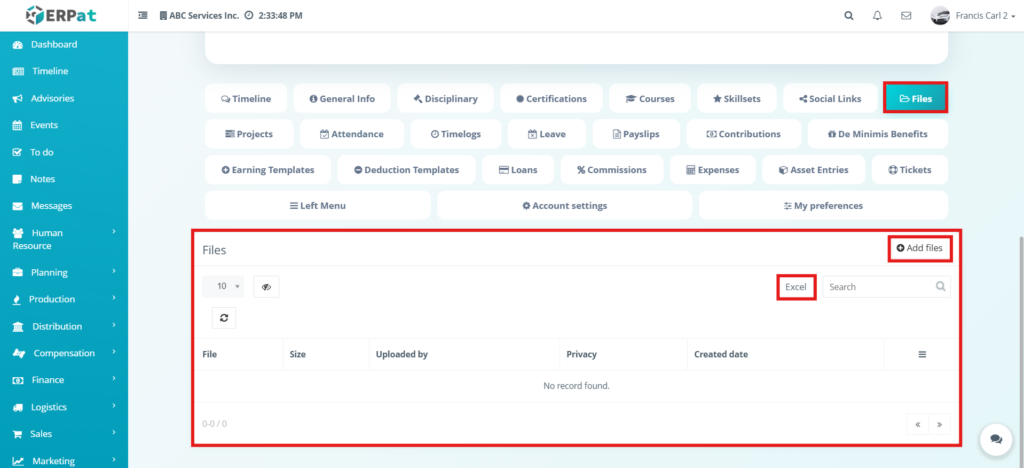
This section displays files uploaded under the employee profile. It shows file-related details such as file name, size, uploaded by, privacy, and created date. This helps users manage profile-related documents and reference files associated with the employee. The “Excel” button is used to export the data currently displayed in the table into a spreadsheet file that can be opened in Microsoft Excel or similar programs. When clicked, it gathers the visible records such as file name, size, uploader, privacy settings, and created date and converts them into a downloadable file format which is .xlsx.
My Profile – Add Files #
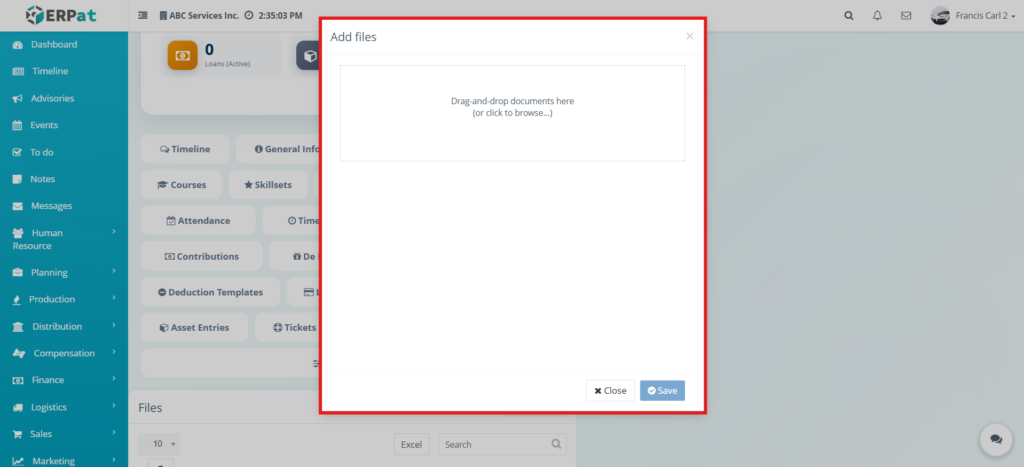
This section is used to upload a file to the employee profile. The user can drag and drop a document or browse a file from the device, then save it to attach it to the employee record. This is useful for storing employee-related documents in the profile.
My Profile – Projects #
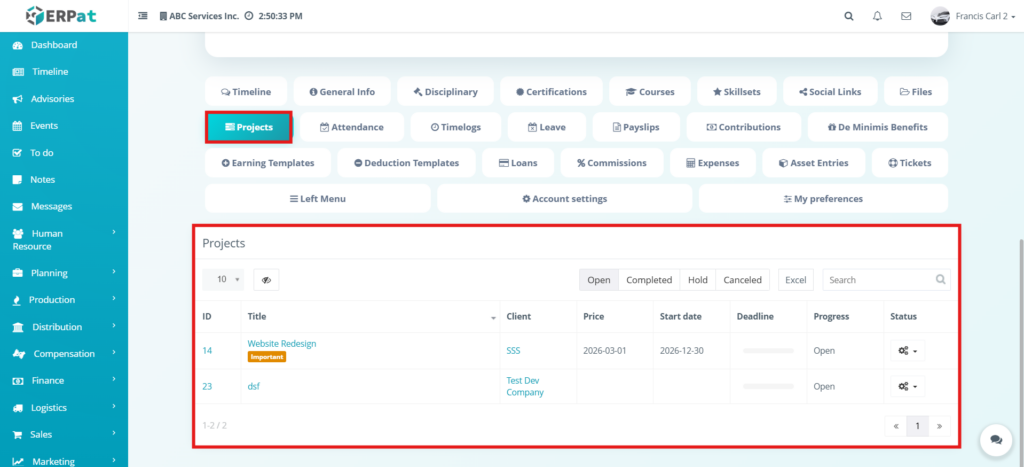
This section displays the projects associated with the employee. It shows records such as project ID, title, client, price, start date, deadline, progress, and status. This allows users to view the employee’s assigned projects and monitor their involvement in project-related work.
My Profile – Files – Action Button #
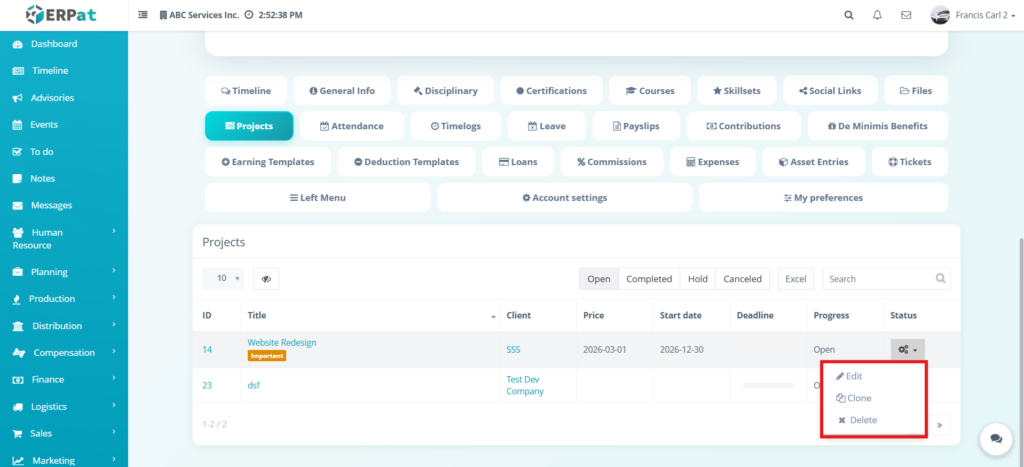
This section shows the available actions for each file record in the employee profile. When the user clicks the action button, a dropdown menu appears with options to manage the selected file. These actions allow the user to quickly edit, clone, or delete file records without opening a separate page.
My Profile – Files – Edit #
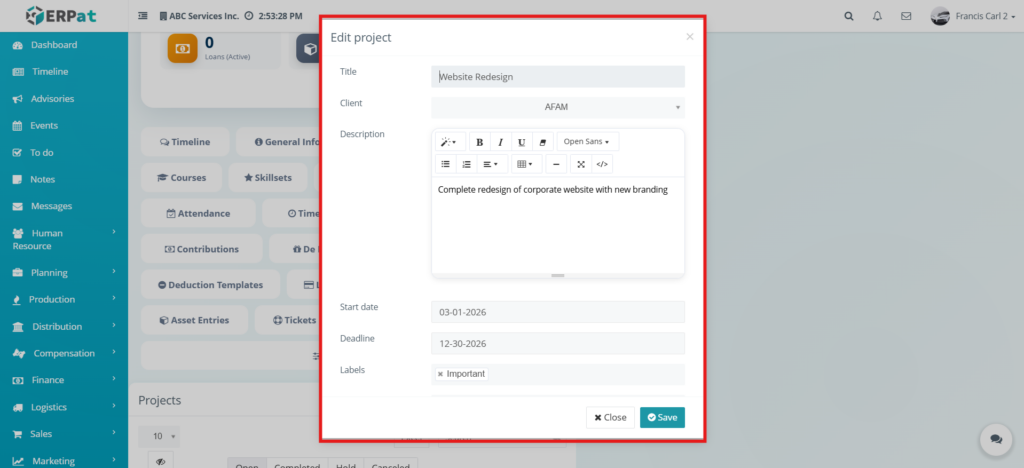
This form is used to update the details of an existing file record. The user can edit file-related information such as title, description, or other associated details depending on the system configuration. After making changes, the user clicks the save button to apply updates.
My Profile – Files – Clone #
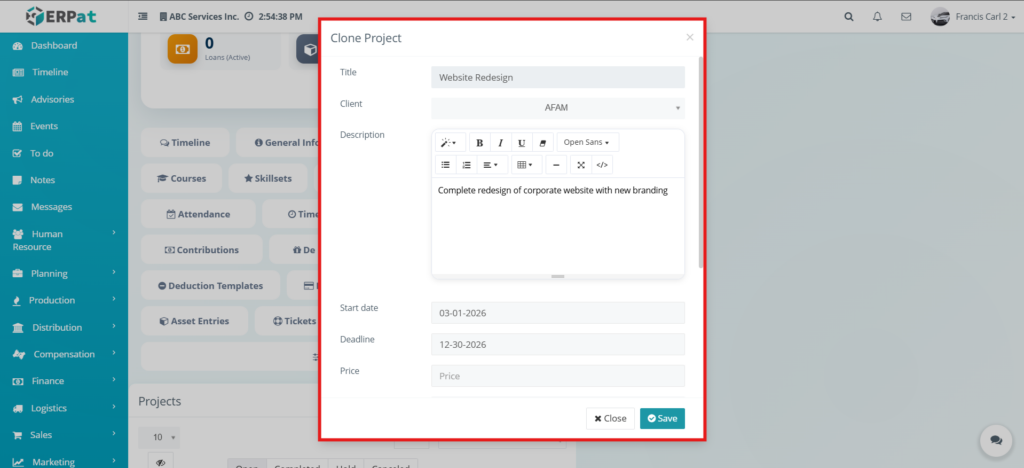
This action allows the user to duplicate an existing file record. When the clone option is selected, the system creates a copy of the file entry with the same details. This is useful when adding similar files without needing to re-enter all information manually.
My Profile – Files – Delete #
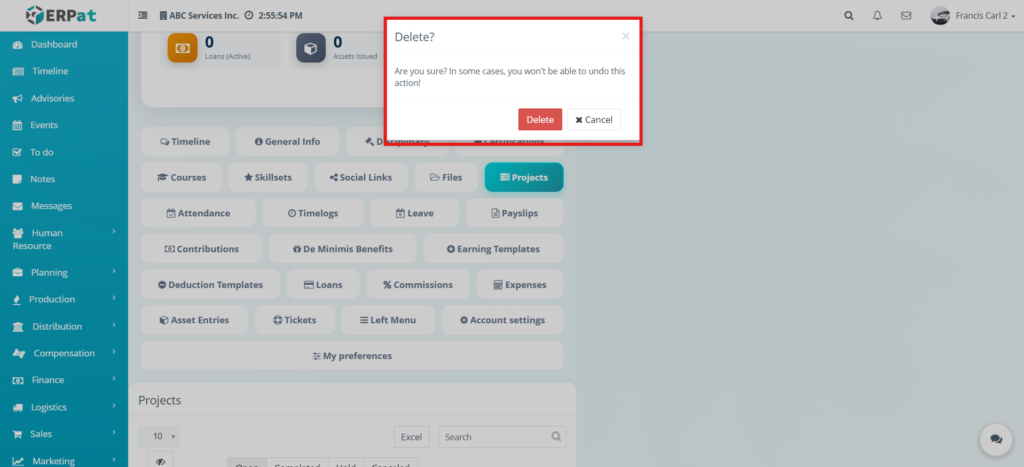
This action allows the user to delete a file record from the employee profile. A confirmation message is displayed before the deletion is completed to ensure that the user intentionally wants to remove the file. This helps prevent accidental deletion of important documents.
My Profile – Attendance #
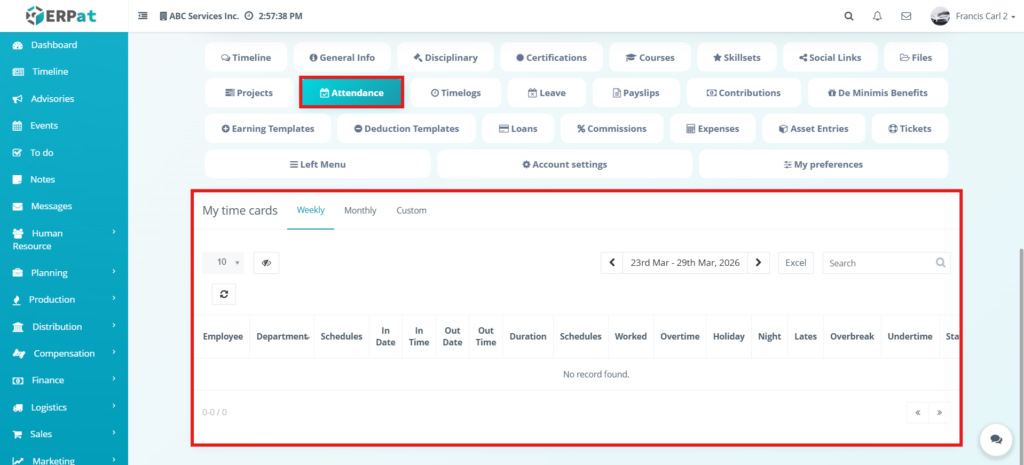
This section displays the employee’s attendance records through time cards. It allows users to review attendance using weekly, monthly, or custom views. The table includes attendance-related details such as schedules, in and out times, duration, overtime, holiday, night differential, lates, overbreak, and undertime. This helps users monitor employee attendance performance.
My Profile – Timelogs #
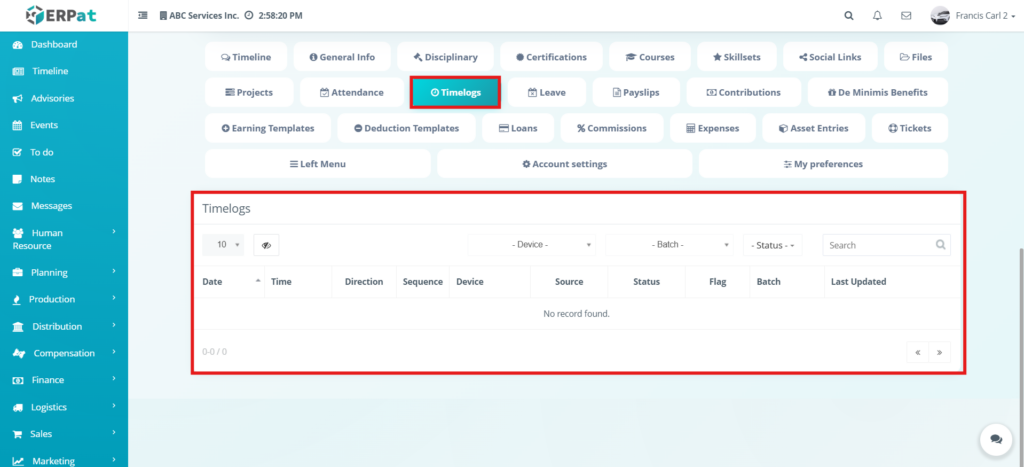
This section shows the employee’s timelog records. It displays details such as date, time, direction, sequence, device, source, status, flag, batch, and last updated. This is used to monitor the actual logged time entries captured for the employee.
My Profile – Leave #
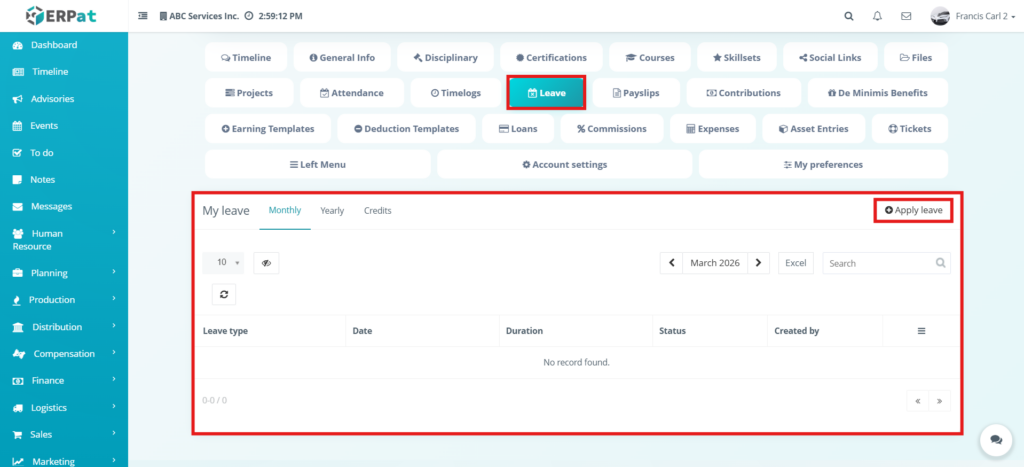
This section displays the employee’s leave records. It provides tabs such as monthly, yearly, and credits to help users review leave entries and leave-related information. This section is used to monitor leave applications and leave balances connected to the employee.
My Profile – Leave – Apply Leave #
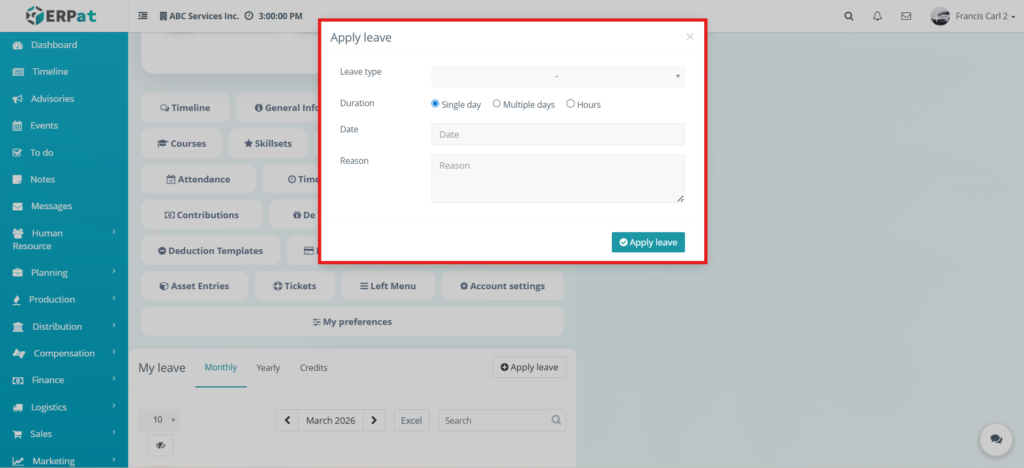
This form is used to submit a leave application for the employee. The user selects the leave type, duration, date, and reason, then clicks the apply leave button to save the record. This makes it easier to create leave entries directly from the employee profile.
My Profile – Payslips #
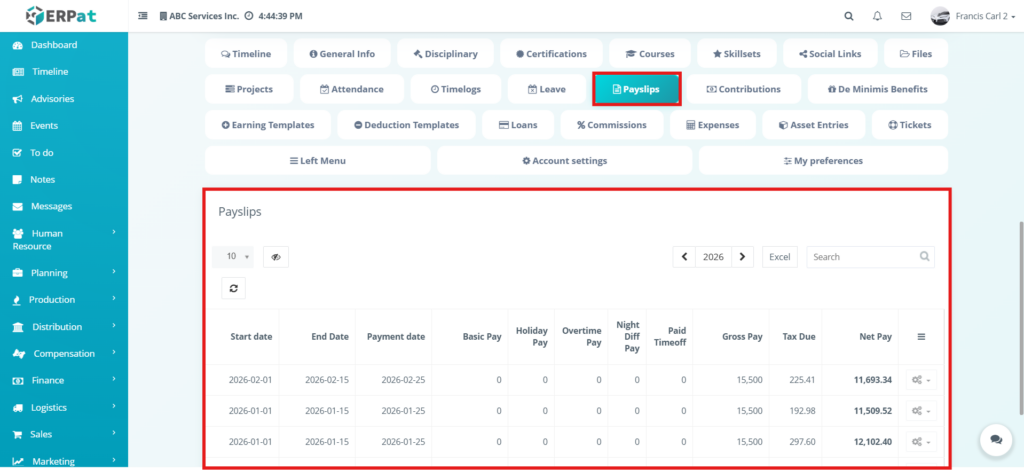
This section displays the employee’s payslip records. It includes information such as start date, end date, payment date, basic pay, holiday pay, overtime pay, night differential pay, paid time off, gross pay, tax due, and net pay. It also provides actions such as sending the payslip by email, quick viewing, and downloading the payslip as PDF. This section helps users review payroll results connected to the employee.
Edit Profile – Payslips – Send Email #
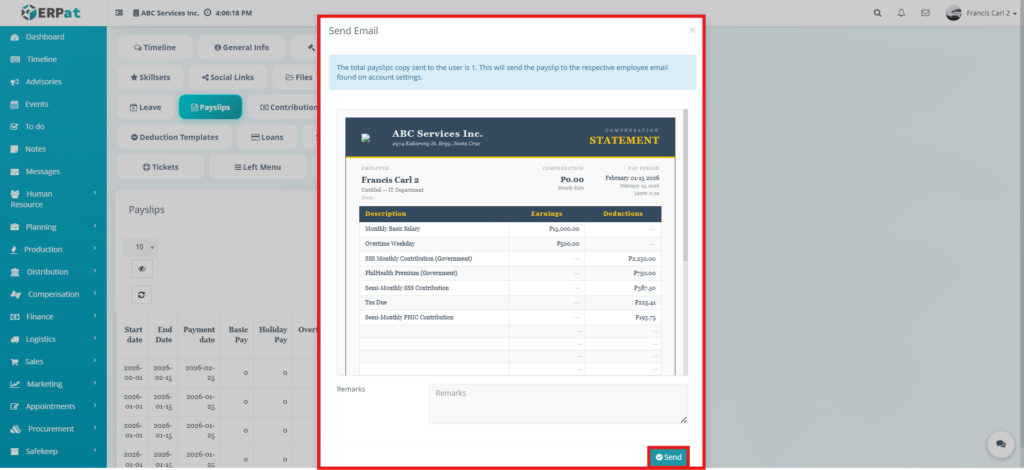
This section allows the user to send a copy of the employee’s payslip directly to their registered email address. When the user clicks the send email option, a modal appears showing a preview of the payslip that will be sent. The system uses the employee email configured in the account settings to deliver the payslip. This feature ensures that employees can receive their compensation details electronically.
Edit Profile – Payslips – Quick View #
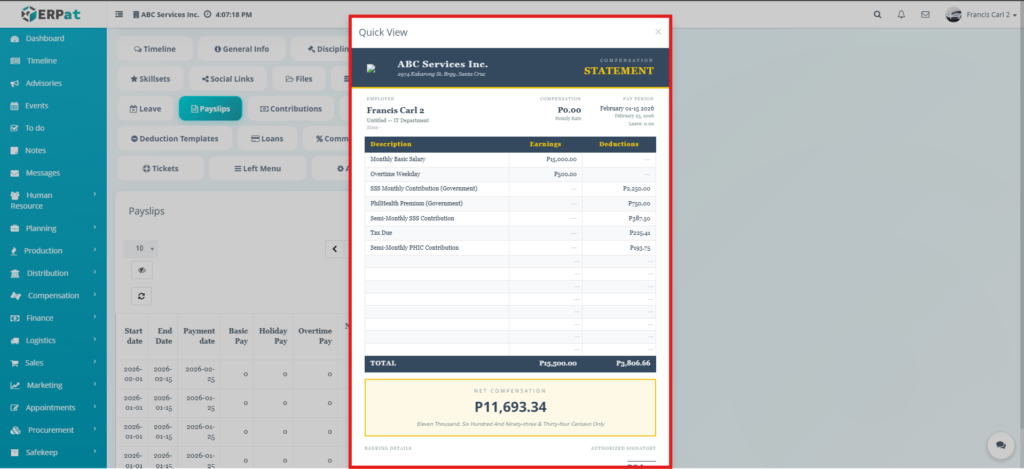
This section allows the user to quickly view the full details of a payslip without downloading it. When the quick view option is selected, a modal appears displaying the complete payslip including earnings, deductions, totals, and net compensation. This helps users quickly review payroll details in a readable format.
My Profile – Contributions #
[image]
This section is used to display the employee’s contribution records under the profile. It helps users review government contribution-related details associated with the employee. Since the contribution tab is visible in the navigation of the uploaded file, it forms part of the employee profile structure and links employee data to payroll-related contribution records.
My Profile – De Minimis Benefits #
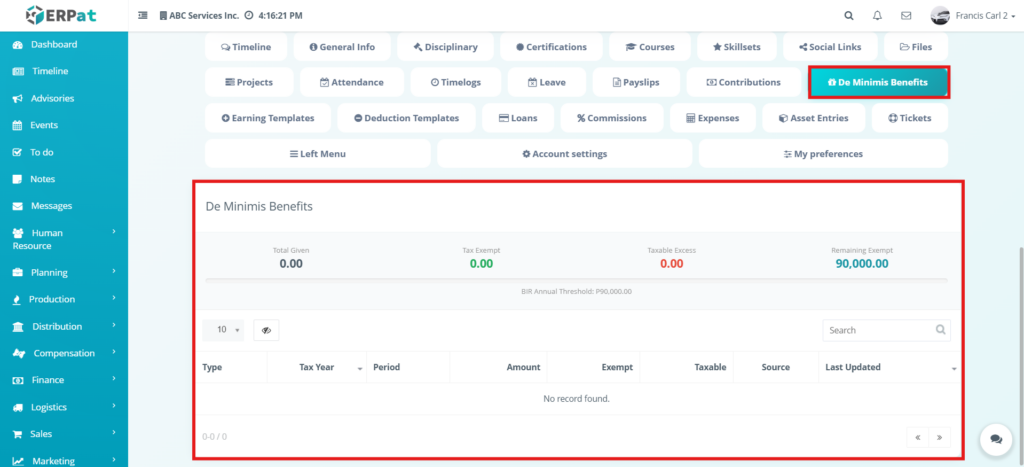
This section displays the employee’s de minimis benefits summary and records. It shows values such as total given, tax exempt, taxable excess, and remaining exempt amount, together with a table of de minimis entries. This helps users track employee non-taxable benefits and monitor their tax-related limits.
My Profile – Earning Templates #
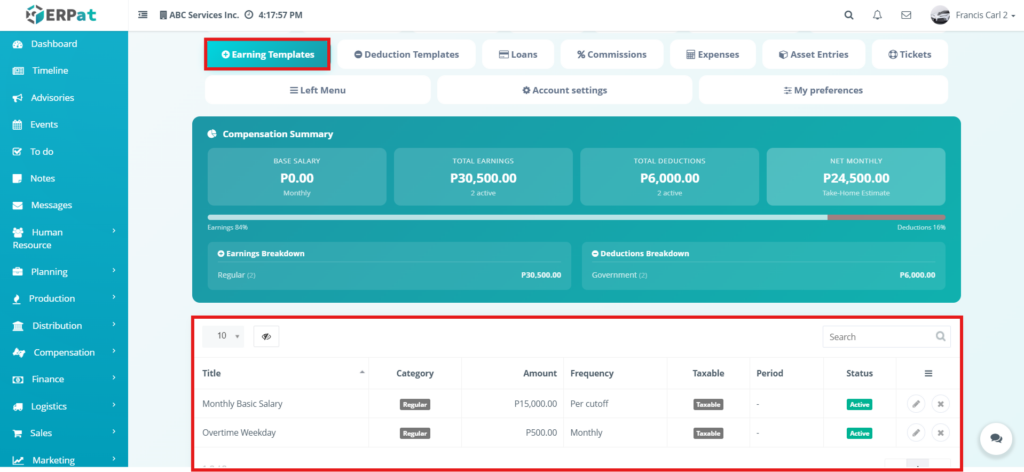
This section displays the earning templates assigned to the employee. It includes a compensation summary and a breakdown of earnings and deductions, together with the table of earning template records. This is used to manage recurring earning components that may be applied to the employee’s compensation.
My Profile – Earning Templates – Edit #
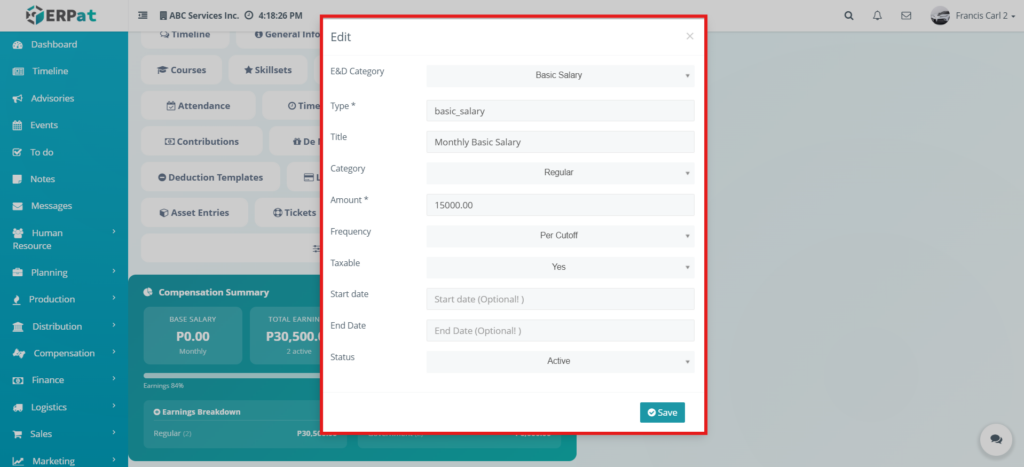
This form is used to edit an existing earning template assigned to the employee. It allows the user to update fields such as E&D category, type, title, category, amount, frequency, taxable setting, start date, end date, and status. This ensures that the employee’s earning template information remains accurate and updated.
My Profile – Earning Templates – Delete #
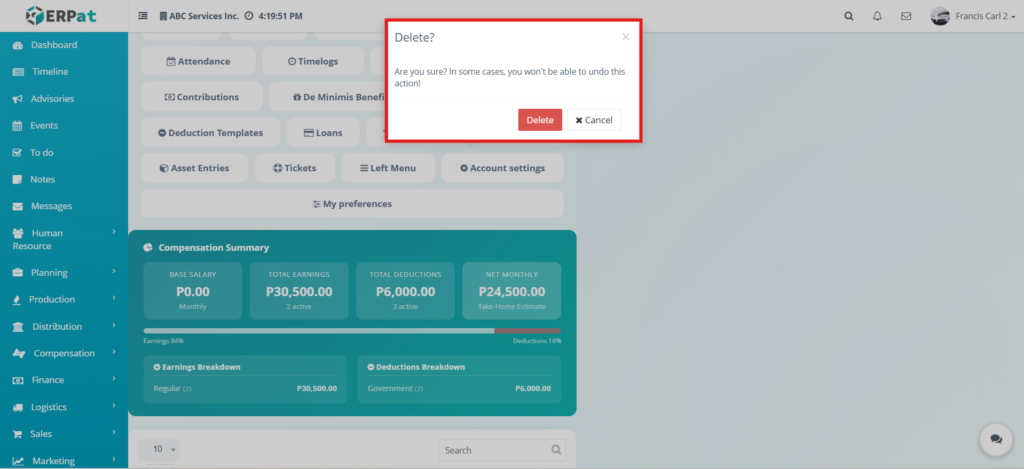
This section shows the delete confirmation for an earning template. It is used when the user wants to remove an existing earning template from the employee profile. The confirmation message helps prevent accidental deletion of important compensation records.
My Profile – Deductions Templates #
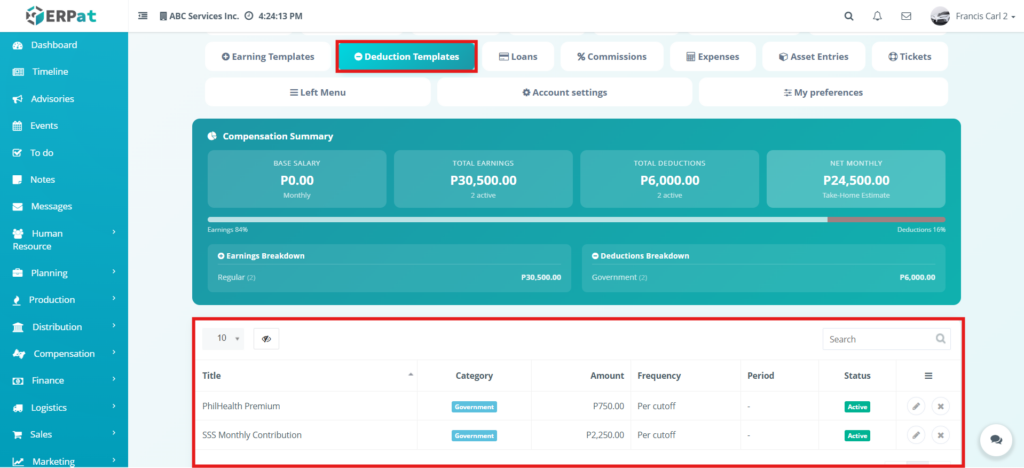
This section displays the deduction templates assigned to the employee. It shows the compensation summary and the list of deduction template entries with details such as title, category, amount, frequency, period, and status. This section is used to manage recurring deductions applied to the employee.
My Profile – Deductions Templates – Edit #
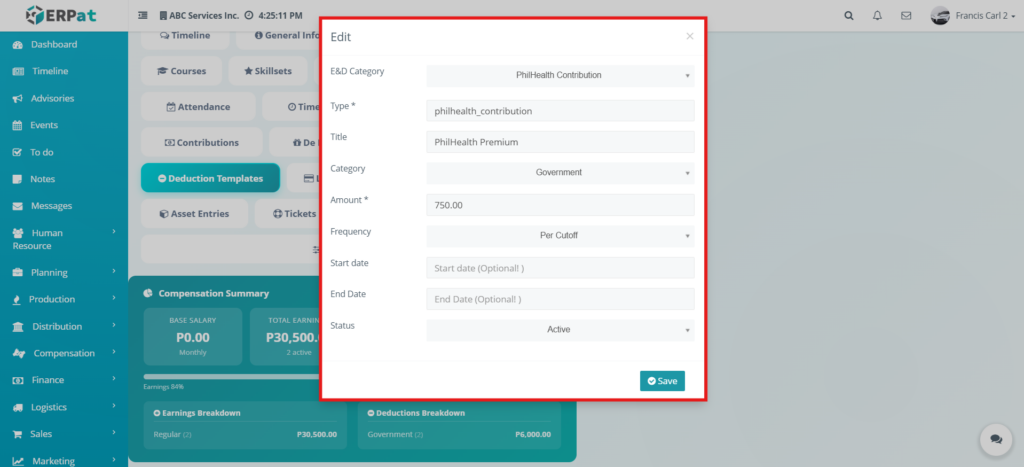
This form is used to update an existing deduction template assigned to the employee. It allows the user to edit fields such as E&D category, type, title, category, amount, frequency, start date, end date, and status. This helps maintain correct deduction settings for the employee profile.
My Profile – Deductions Templates – Delete #
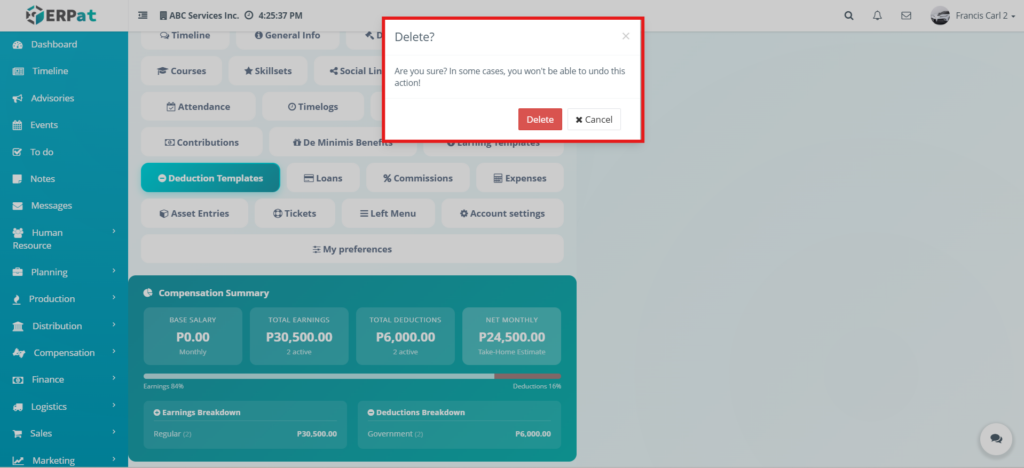
This section shows the confirmation prompt used to delete a deduction template. It confirms whether the user wants to remove the deduction template from the employee profile and helps prevent unintended deletion.
My Profile – Loans #
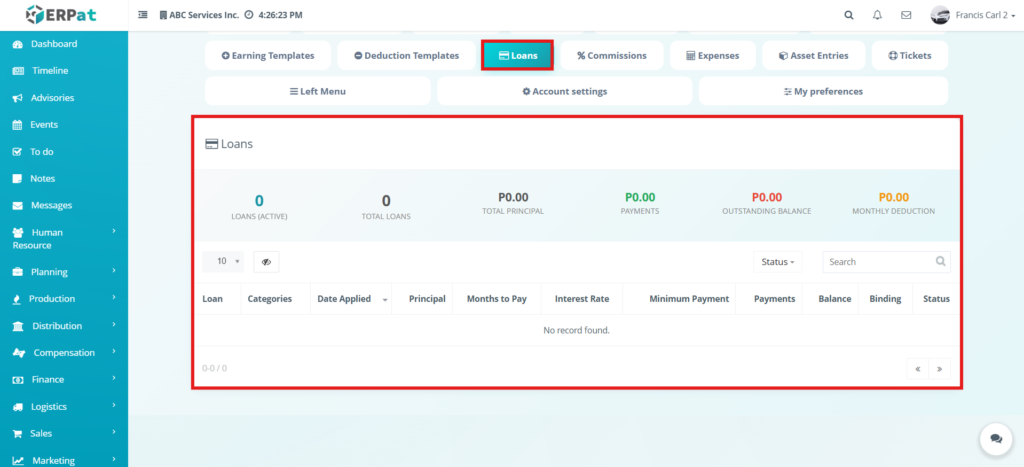
This section displays the employee’s loan records and loan summary. It shows information such as loans active, total loans, total principal, payments, outstanding balance, and monthly deduction, along with the loan table. This helps users monitor employee loan obligations connected to payroll deductions.
My Profile – Commissions #
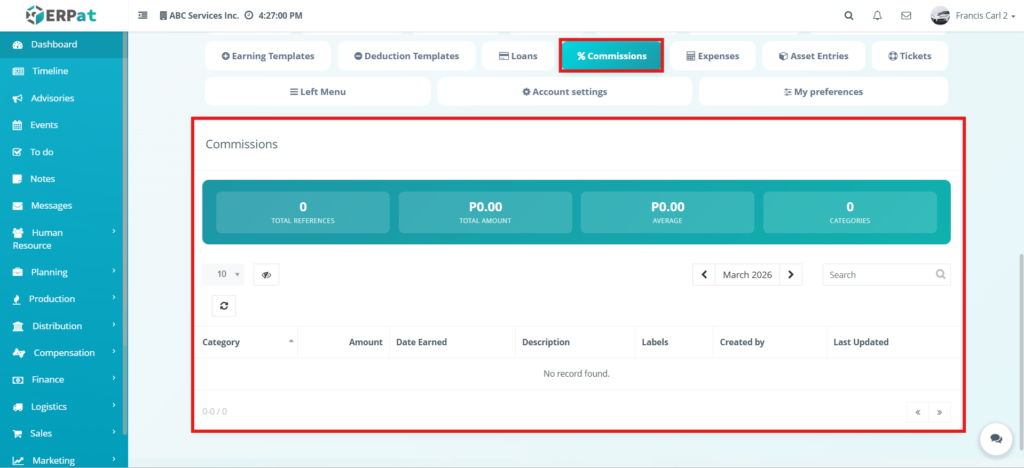
This section displays the employee’s commission records and commission summary. It shows values such as total references, total amount, average, and categories, along with a table of commission entries. This helps users review commission-based earnings associated with the employee.
My Profile – Expenses #
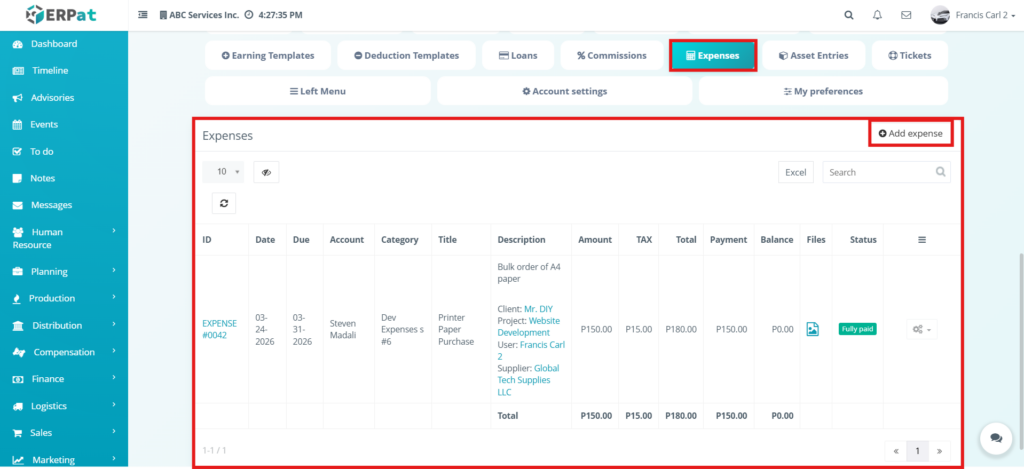
This section displays expense records associated with the employee. It includes details such as expense ID, date, due date, account, category, title, description, amount, tax, total, payment, balance, files, and status. This section is used to review and manage employee-related expenses within the profile.
My Profile – Expenses – Action Button #
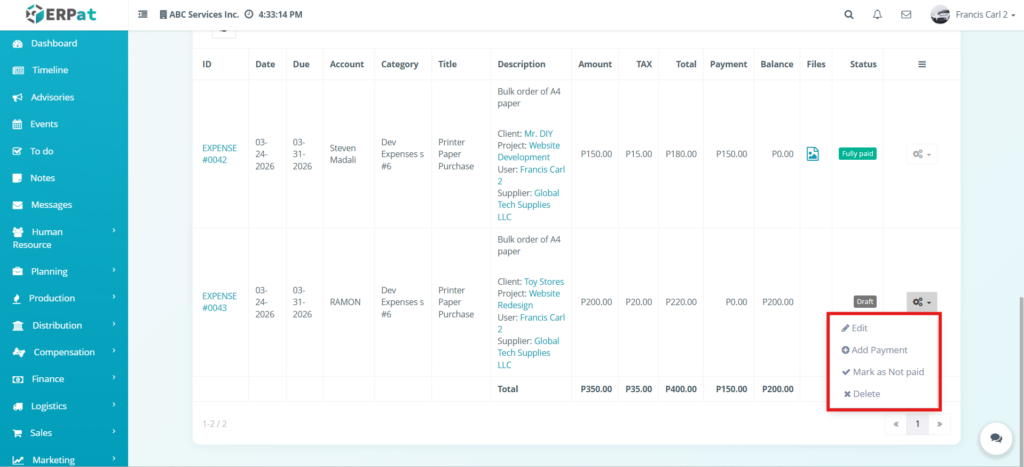
This section shows the available actions for an expense record. Based on the uploaded file, the action menu includes options such as Edit, Add Payment, Mark as Not paid, and Delete. The file also notes that if the user clicks Mark as Not paid, the expense status will become Not paid. This action menu helps users manage the current expense record quickly.
My Profile – Expenses – Add Expenses #
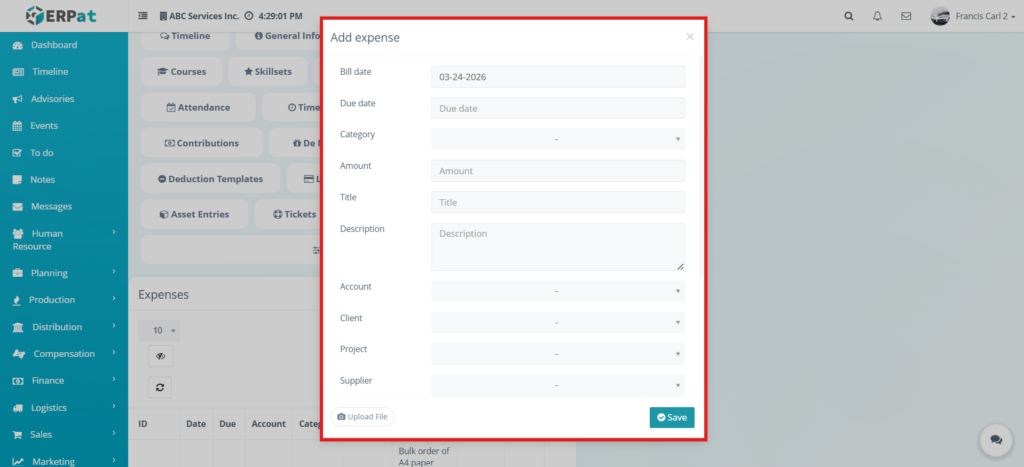
This form is used to create a new expense record for the employee. The user enters the bill date, due date, category, amount, title, description, account, client, project, supplier, and may upload a file before saving. This allows expense transactions related to the employee to be recorded directly from the profile.
My Profile – Expenses – Edit Expenses #
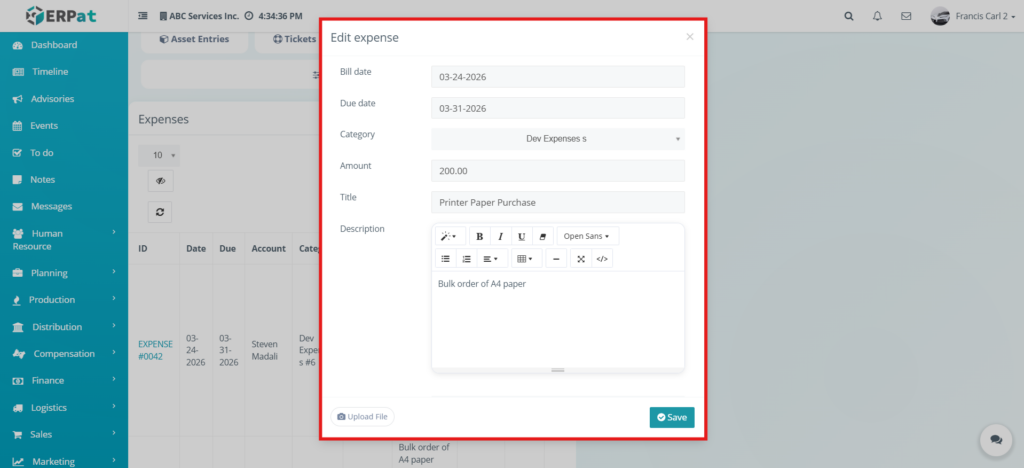
This form is used to update an existing expense record. It allows the user to modify the bill date, due date, category, amount, title, description, and uploaded file, then save the updated record. This ensures that expense information remains accurate after changes are needed.
My Profile – Expenses – Add Payment #
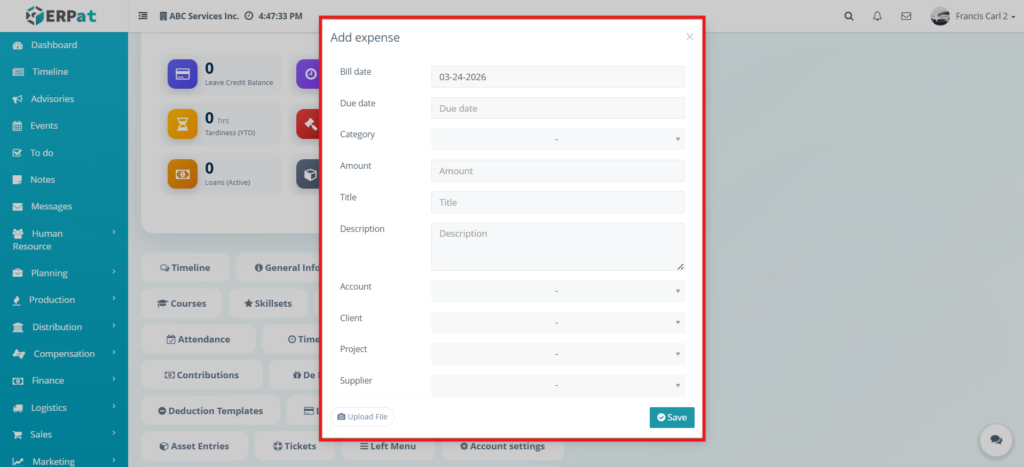
This form is used to add a payment to an expense record. It includes fields such as account, payment method, payment date, amount, and note. Based on the uploaded file, if the user adds payment, the expense status will become fully paid. This section is important for recording expense payments and updating expense status correctly.
My Profile – Expenses – Delete Expenses #
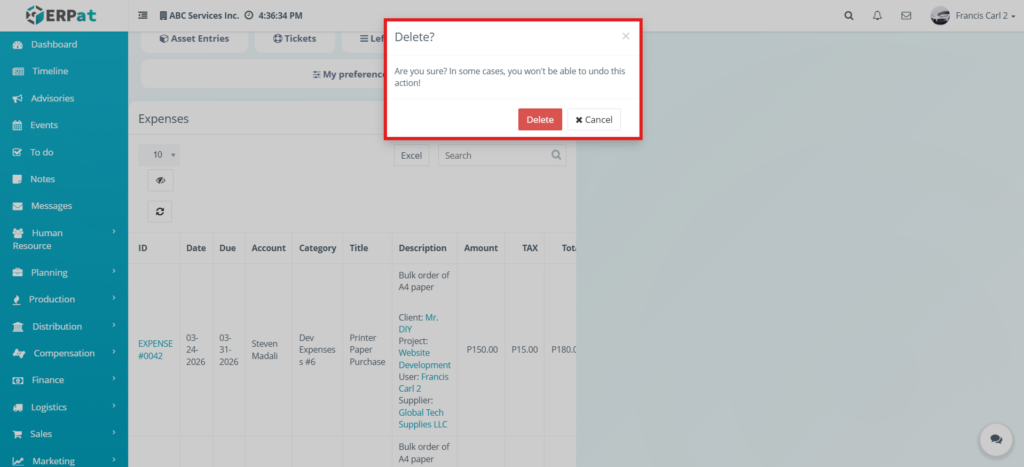
This section shows the delete confirmation prompt for an expense record. It is used when the user wants to remove an existing expense entry. The confirmation message ensures that the user intentionally wants to delete the record before the action is completed.
My Profile – Asset Entries #
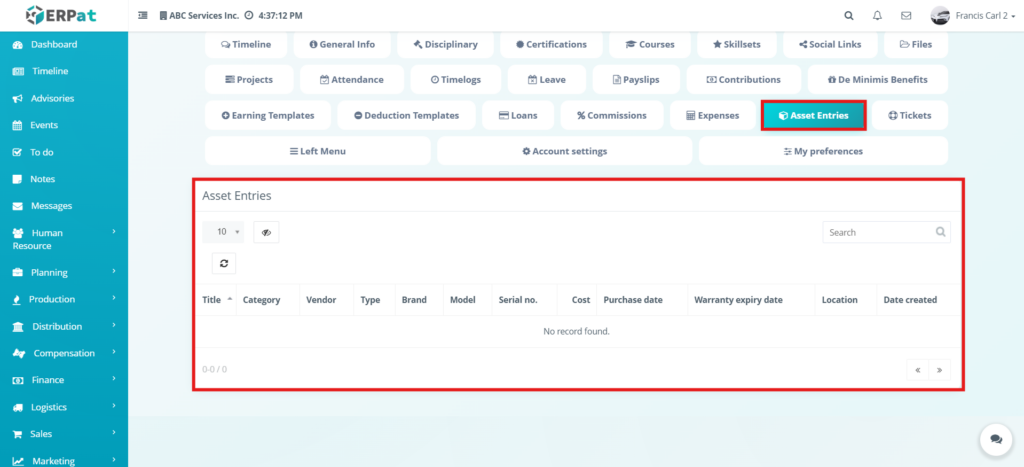
This section displays asset records associated with the employee. It includes columns such as title, category, vendor, type, brand, model, serial number, cost, purchase date, warranty expiry date, location, and date created. This helps track assets issued to or related to the employee.
My Profile – Tickets #
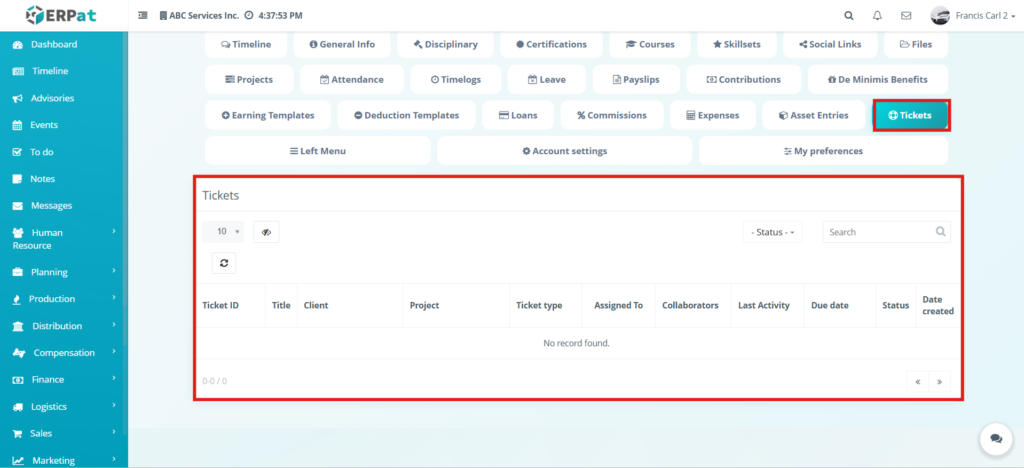
This section displays ticket records associated with the employee. It includes details such as ticket ID, title, client, project, ticket type, assigned to, collaborators, last activity, due date, status, and date created. This helps monitor employee-related tickets and support or task records connected to the employee profile.
My Profile – Left Menu #
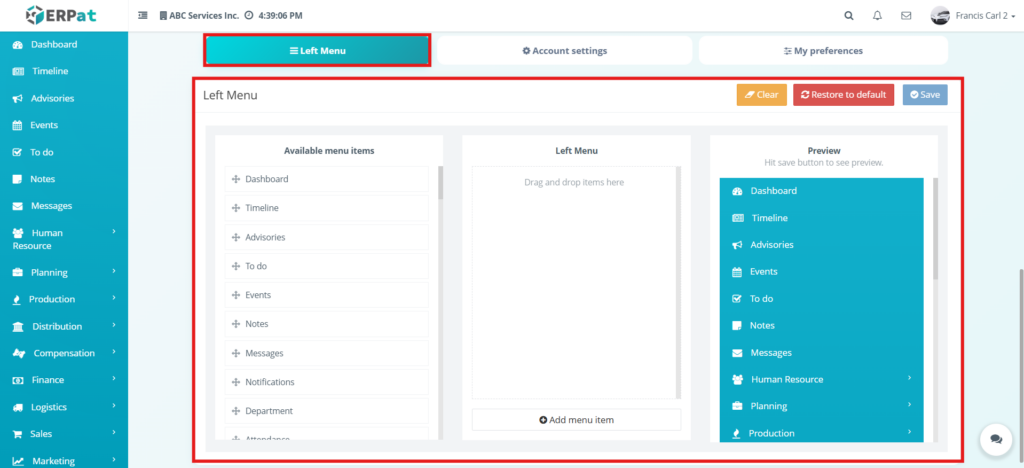
This section allows users to customize the left-side menu of the employee profile. It shows the available menu items, the current left menu, and a preview area. Users can drag and drop menu items to arrange them, then save the changes. It also includes options to clear or restore the menu to default. This helps personalize or organize menu navigation.
My Profile – Add Menu Item #
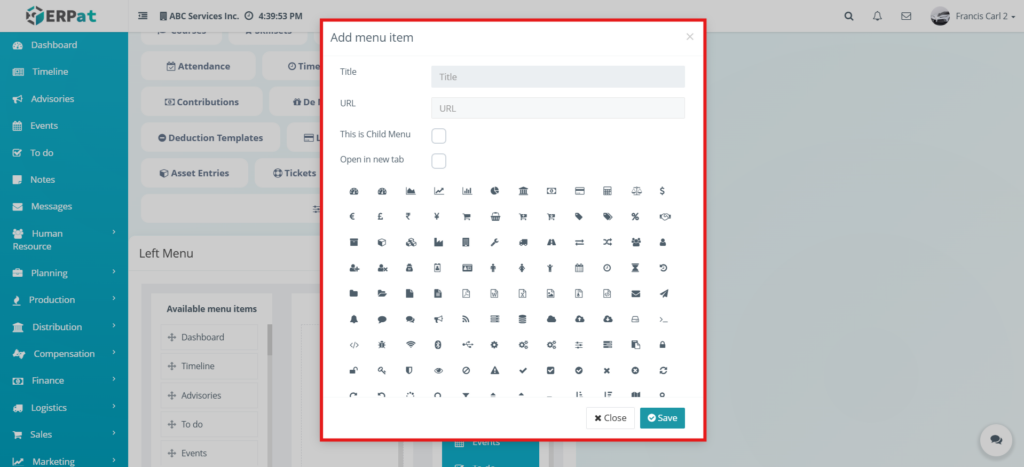
This form is used to add a custom menu item to the left menu. The user can enter the title, URL, set whether it is a child menu, choose whether it opens in a new tab, select an icon, and save the new menu item. This makes the left menu more flexible and configurable.
My Profile – Account Settings #
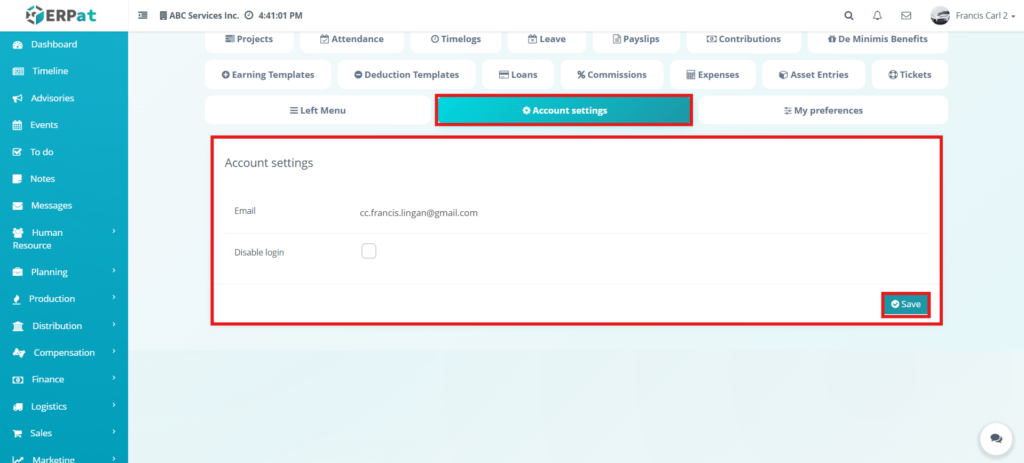
This section is used to manage the account settings of the employee profile. Based on the uploaded file, it includes the employee email and a disable login option. This allows authorized users to control whether the employee account can log in to the system.
My Profile – My Preferences #
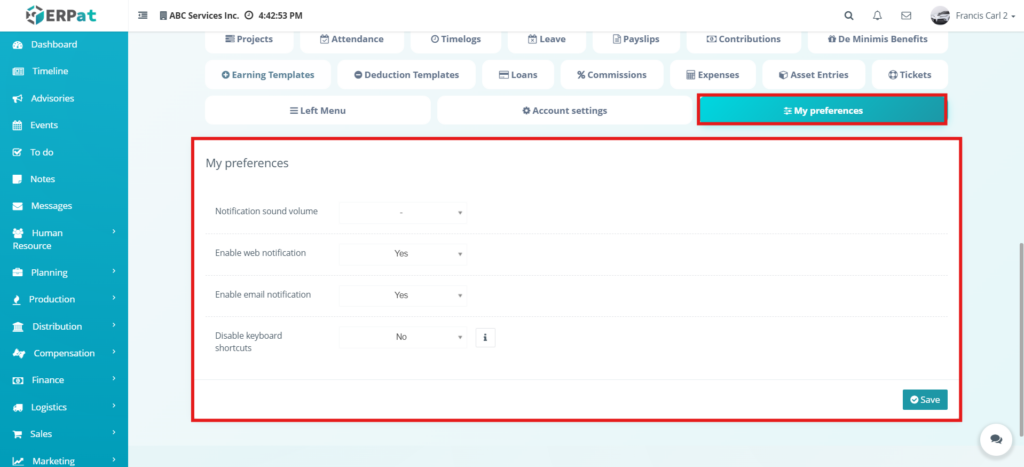
This section is used to manage user-specific preferences under the employee profile. It includes settings such as notification sound volume, enable web notification, enable email notification, and disable keyboard shortcuts. This allows the user to customize how notifications and interface preferences behave in the system.
Permissions and Access Control #
This module should only be accessible to authorized users because it contains sensitive employee information and connected employee records. Access should be controlled based on the role and responsibility of the user in the system.
- Only authorized users can access and manage the Employee Profile module
- Access permissions are based on user roles and responsibilities
- HR Administrators can view and update employee profile details
- Payroll or authorized users can access compensation-related sections
- Employees may only view their own profile depending on system configuration
- Unauthorized users are restricted from editing employee records and account settings
Best Practices #
- Review employee details carefully before saving any changes
- Keep government IDs, contact details, and employment information updated
- Upload only accurate and relevant files to the employee profile
- Verify leave, expense, and template entries before saving
- Limit editing access to authorized users only
- Regularly review employee records for accuracy and completeness
Audit & Logs #
All actions performed in the Employee Profile module are logged with user details, timestamps, and affected records to ensure traceability and accountability
Last Updated: [March 24, 2025] Module Owner: Home IS – ERPat System


