Overview #
The Skillsets Module in the ERPat system is designed to manage and standardize employee skills across the organization. It serves as a centralized repository where administrators can define skill records, organize them into structured job functions, and assign them to employees within the workforce.
This module plays a critical role in workforce planning, employee development, and competency tracking. By maintaining a structured list of skills, organizations can easily identify employee strengths, skill gaps, and role alignment. It also supports better decision-making for recruitment, training programs, promotions, and project assignments.
Skillsets are not stored as isolated data. Instead, they are interconnected with job functions and employee records, allowing the system to present a clear and organized view of workforce capabilities. This ensures consistency in how skills are defined, categorized, and utilized across different departments.
The module is divided into three main tabs:
- Entries
- Job Function
- Workforce
Key Features #
• Centralized skill management across the organization
• Standardized skill entry creation and categorization
• Job function-based skill grouping for role alignment
• Workforce skill assignment and tracking
• Skill visibility per employee profile
• Support for competency evaluation and skill gap analysis
• Structured data organization for reporting and planning
• Search and filtering tools for quick skill lookup
• Integration with workforce and HR-related modules
• Secure role-based access control
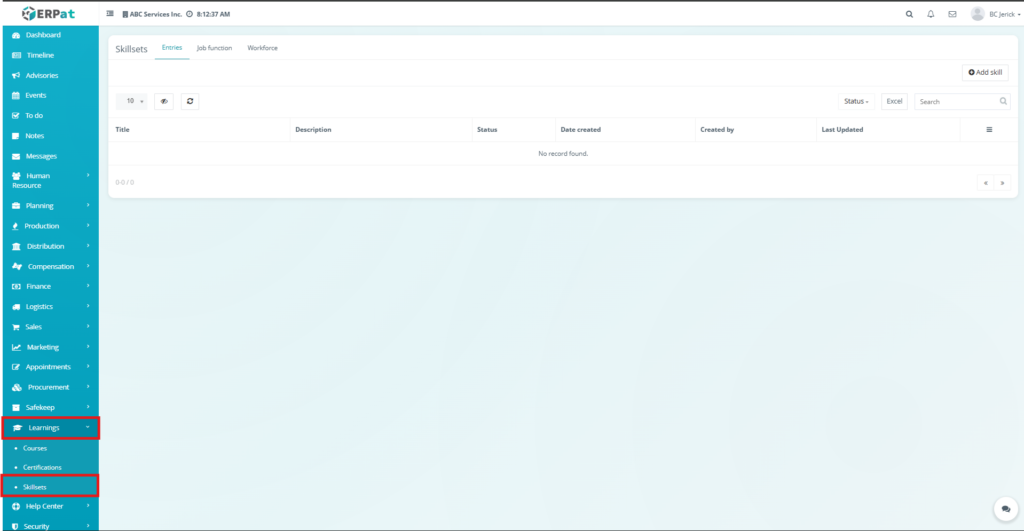
Skillsets – Entries Tab #
The Entries tab is used to create and manage individual skill records. These skills serve as the foundation for job functions and workforce assignments.
Each entry represents a specific skill or capability that can later be linked to job roles or employees.
Attributes #
- Skill creation and management
- Skill description documentation
- Status management (Active/Draft)
- Color tagging for visual identification
- Search and filtering tools
- Excel export capability
- Sorting and pagination controls
- Secure role-based access
Accessing the Entries Tab
#
- Navigate to the left sidebar menu.
- Click Learnings.
- Select Skillsets.
- Click the Entries tab.
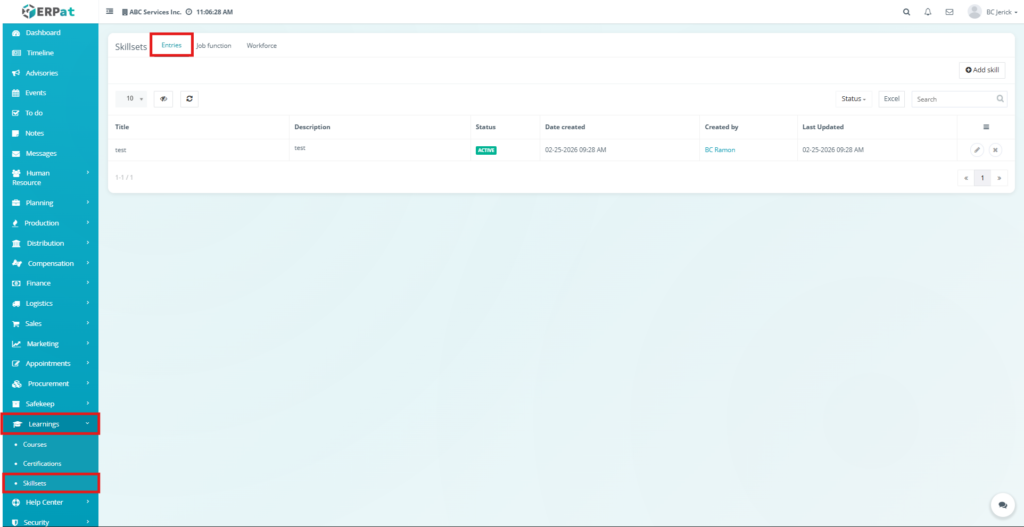
Entries Listing Page #
The listing page displays all skill entries with the following information:
- Title – Name of the skill
- Description – Details about the skill
- Status – Active or Draft state
- Date Created – System-generated creation date
- Created By – User who created the skill entry
- Last Updated – Most recent modification date
- Actions – Edit or Delete controls
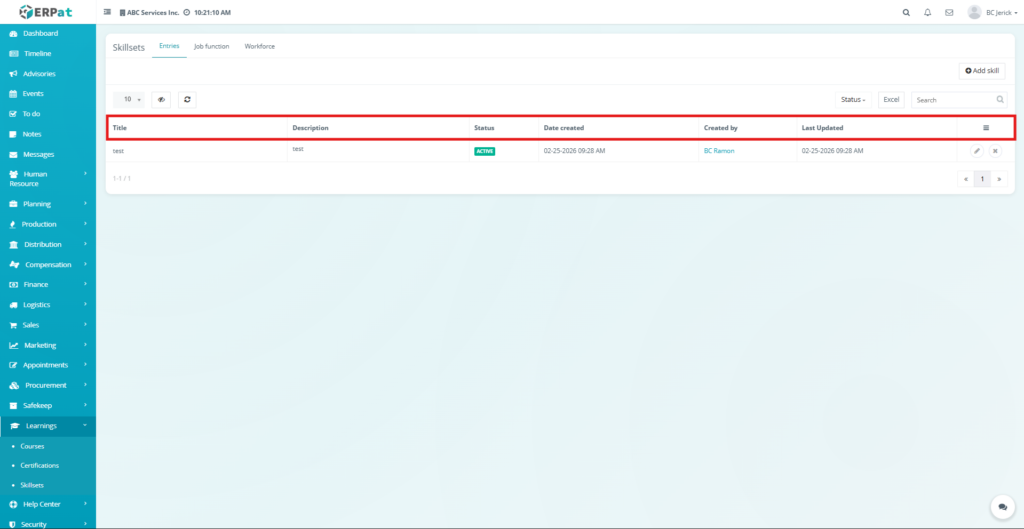
Additional Controls #
- Add Skill Button – Create a new skill entry
- Status Filter – Filter entries by status
- Excel Export – Download skill entries as a spreadsheet
- Search Bar – Find specific skill entries
- Reload Button – Refresh the records
- Sorting Options – Organize records by columns
- Pagination Controls – Navigate between pages
Steps for Adding a New Skill Entry #
STEPS #
- Navigate to Skillsets → Entries.
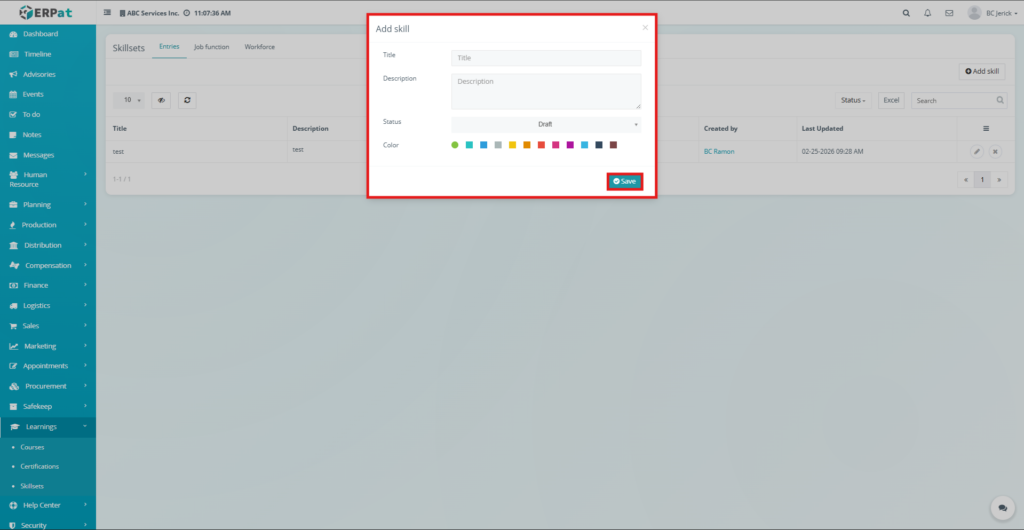
- Click Add Skill in the top-right corner.
- The Add Skill modal will appear.
- Fill in the following fields:
- Title – Name of the skill
- Description – Details about the skill
- Status – Draft or Active
- Color – Select a color for visual tagging
- Title – Name of the skill
- Click Save.
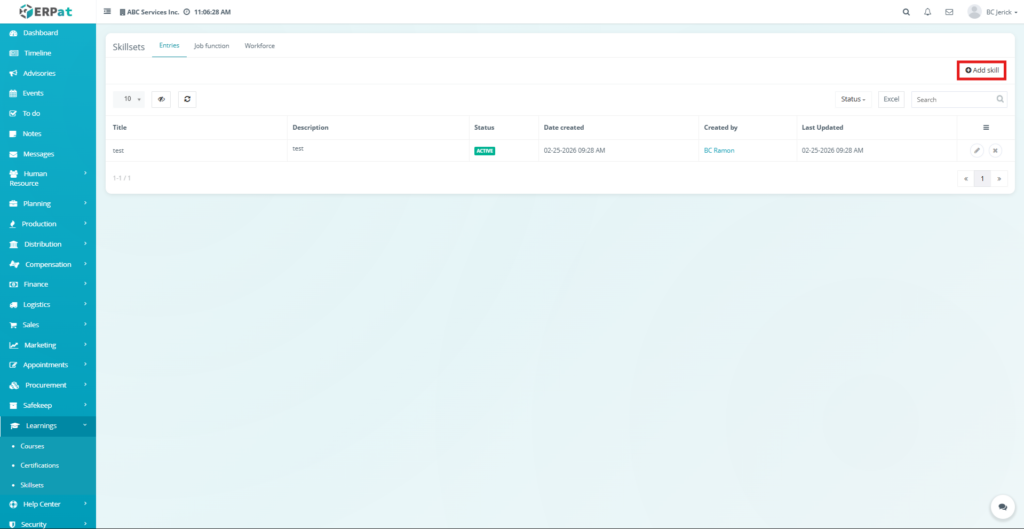
Result #
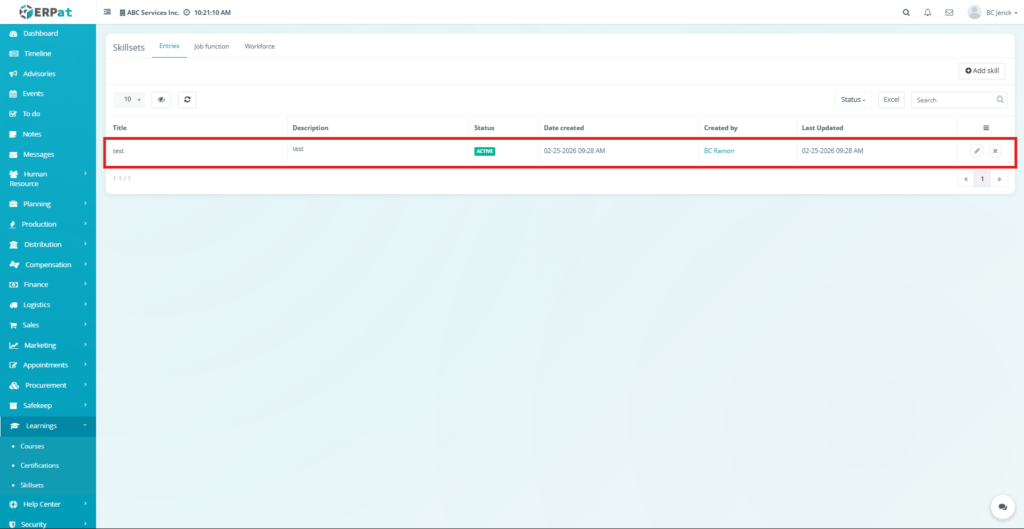
The new skill entry will appear in the Entries listing page and can be used when creating job functions.
Steps for Editing a Skill Entry #
STEPS #
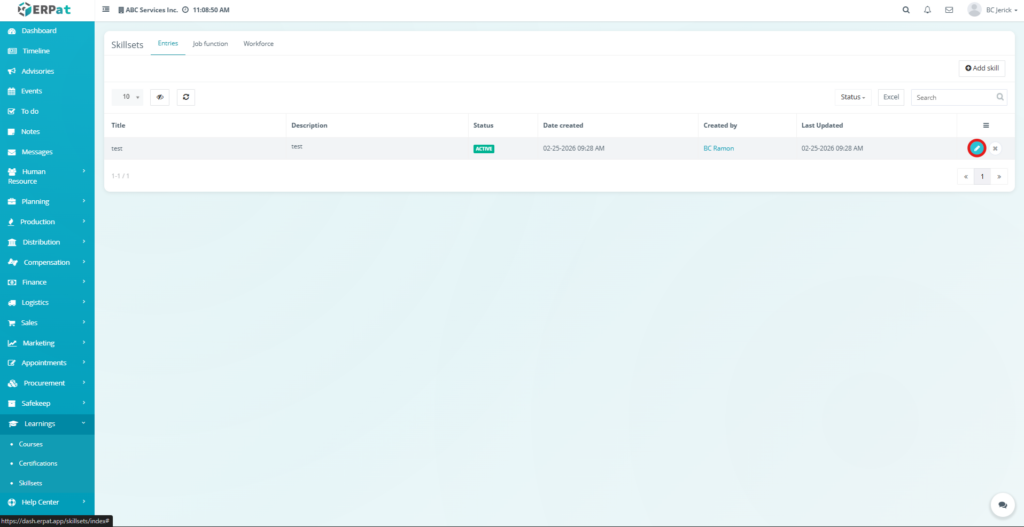
- Locate the skill entry in the listing table.
- Click the Edit (✏️) icon under the Actions column.
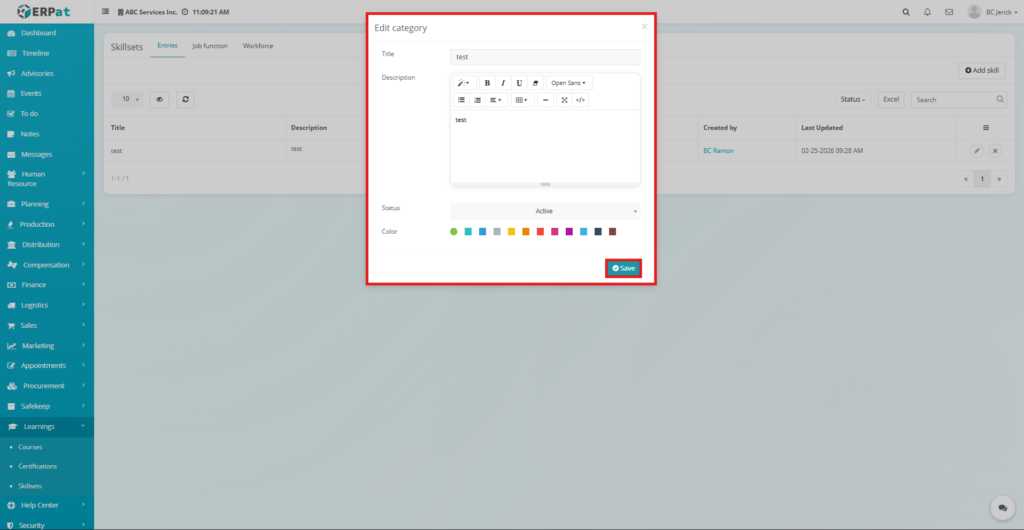
- Update the required information.
- Click Save.
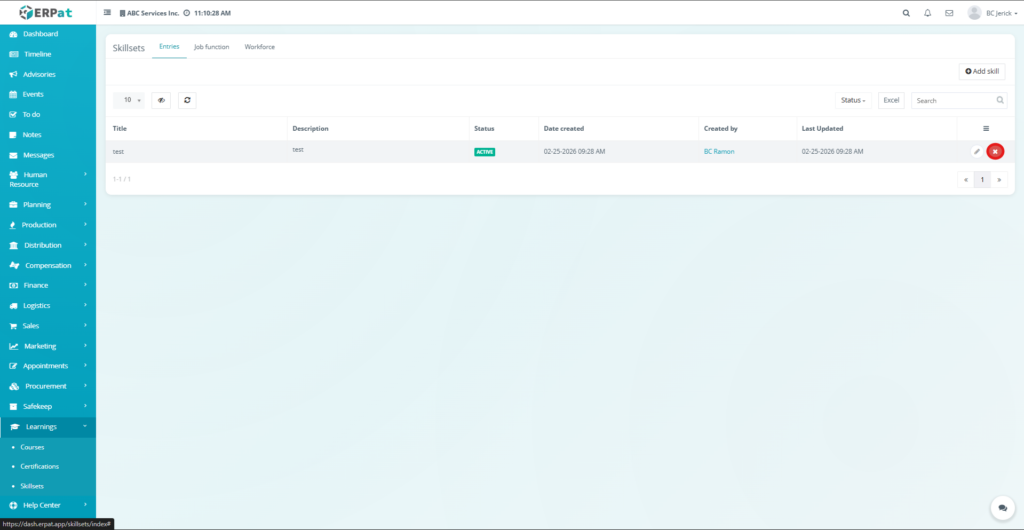
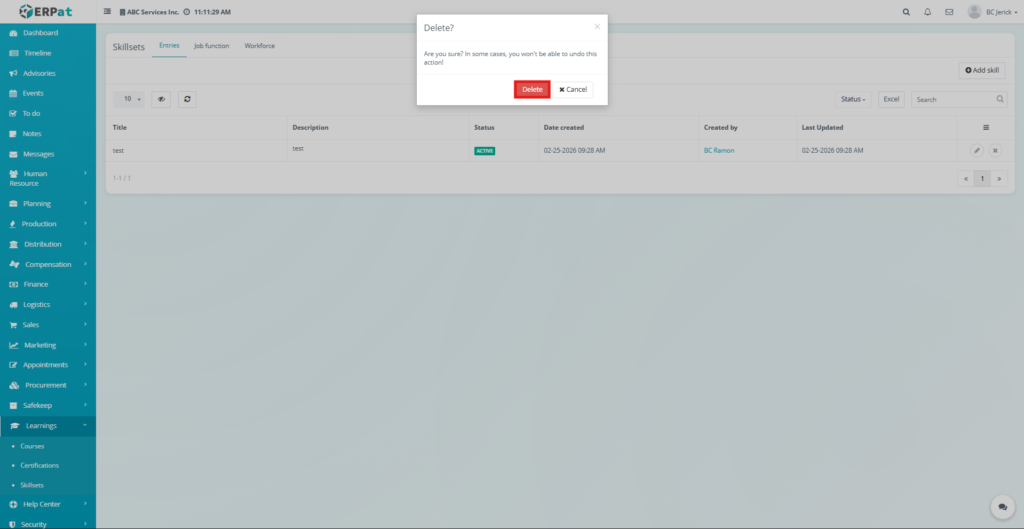
Steps to Delete a Skill Entry #
STEPS #
- Locate the skill entry to remove.
- Click the Delete (✖) icon under the Actions column.
- Confirm the deletion when prompted.
- The selected skill entry will be permanently removed from the system.
Skillsets – Job Function Tab #
The Job Function tab is used to group multiple skill entries into a defined job role or function. This allows organizations to define the skill requirements for specific positions.
For example, a Software Developer job function may include skills such as programming, debugging, and database management.
Attributes #
- Job function creation and management
- Linking multiple skill entries to a job role
- Color-coded classification
- Status management (Active/Draft)
- Filtering and search functionality
- Excel export capability
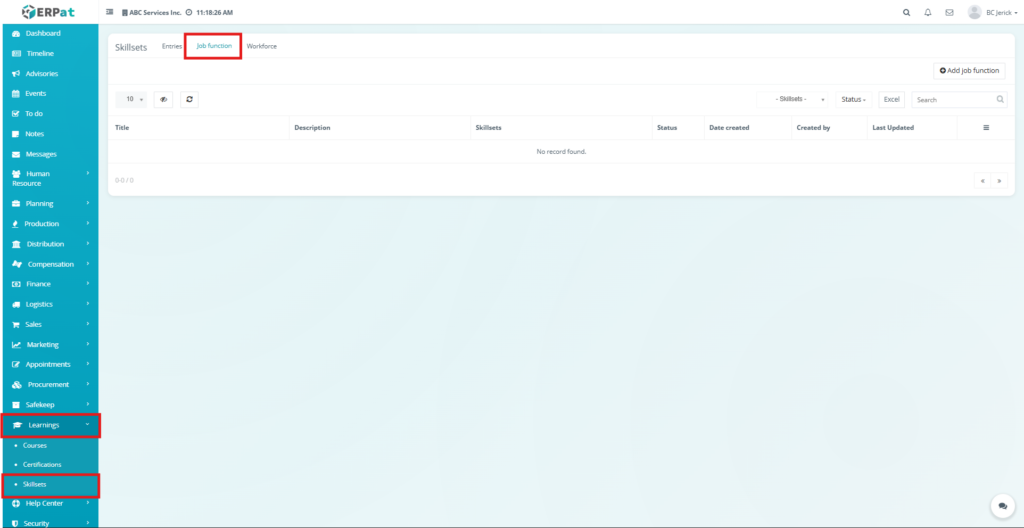
Accessing the Job Function Tab #
- Navigate to Learnings → Skillsets.
- Click the Job Function tab.
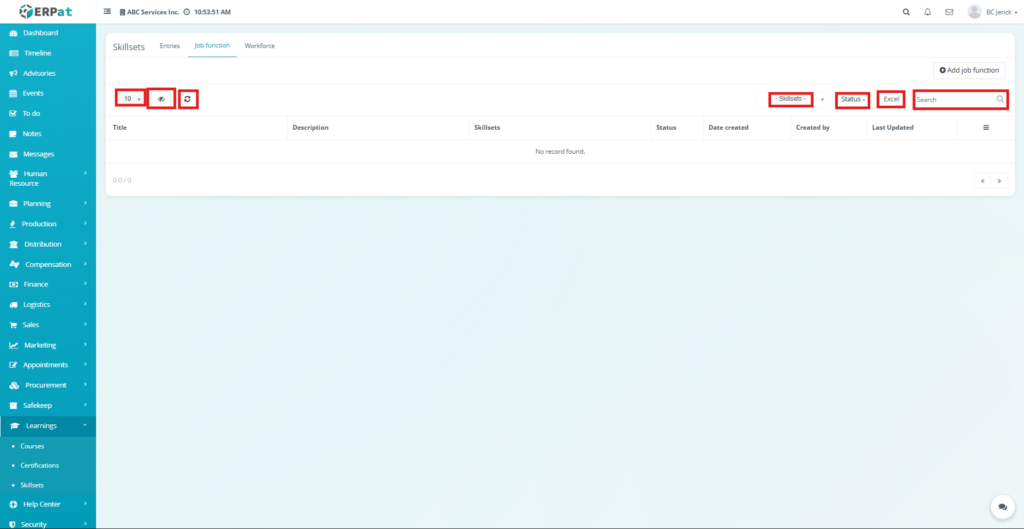
Job Function Listing Page #
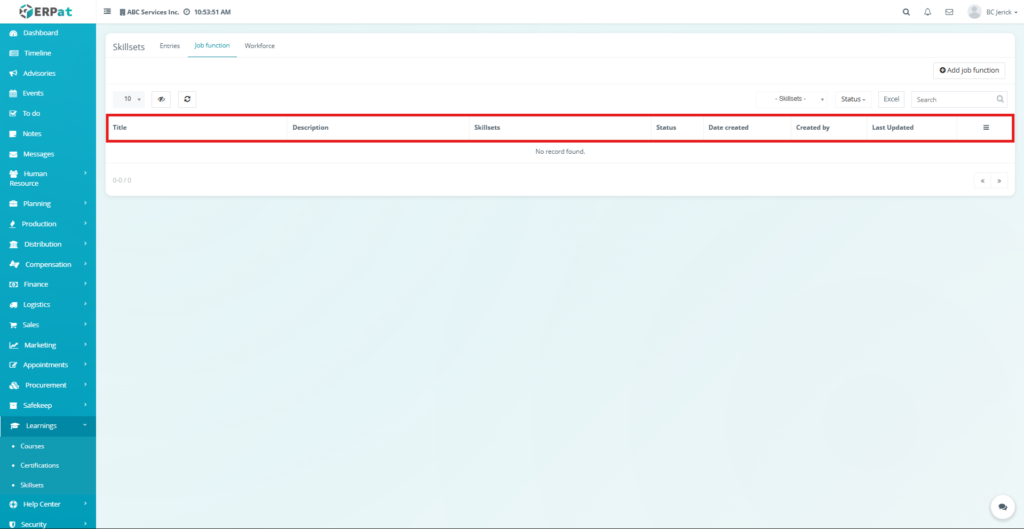
The listing page displays job function records with the following information:
- Title – Name of the job function
- Description – Job function details
- Skillsets – Associated skill entries
- Status – Current status (Active/Draft)
- Date Created – System-generated date
- Created By – User who created the record
- Last Updated – Most recent modification date
- Actions – Edit or Delete options
Additional Controls #
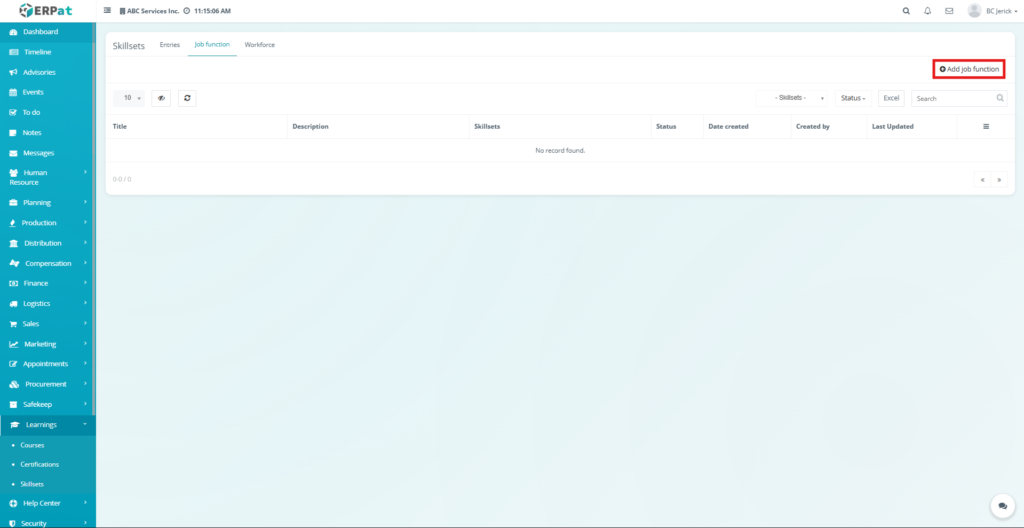
- Add Job Function Button – Create a new job role
- Skillsets Filter – Filter job functions by associated skills
- Status Filter – Filter by status
- Excel Export – Download job function data
- Search Bar – Find job functions quickly
- Pagination Controls – Navigate through multiple pages
Steps for Adding a Job Function #
STEPS #
- Navigate to Skillsets → Job Function.
- Click Add Job Function.
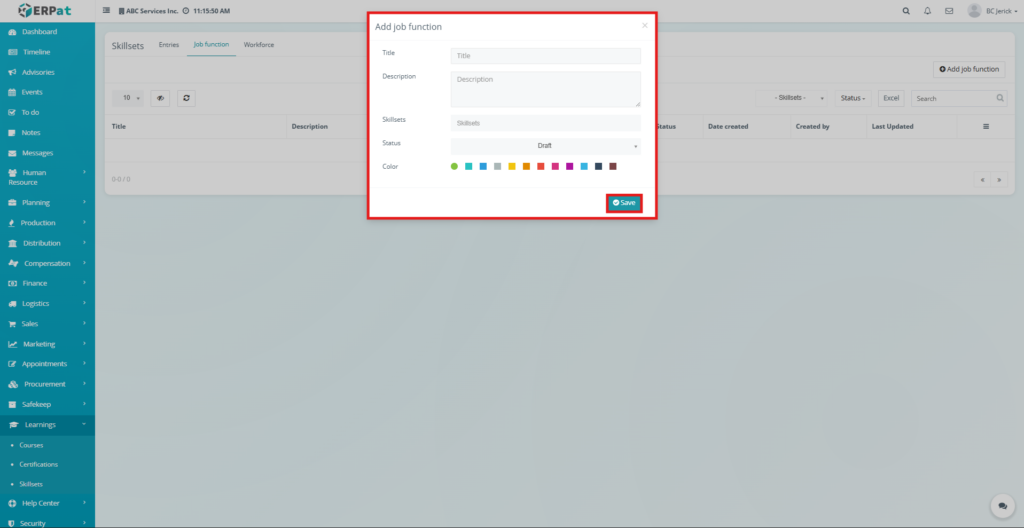
- The Add Job Function modal will appear.
- Fill in the required information:
- Title – Job function name
- Description – Job function description
- Skillsets – Select the relevant skills
- Status – Draft or Active
- Color – Choose a visual identifier
- Title – Job function name
- Click Save.
Result #
The job function will appear in the listing page and can be used for workforce skill assignment.
Skillsets – Workforce Tab #
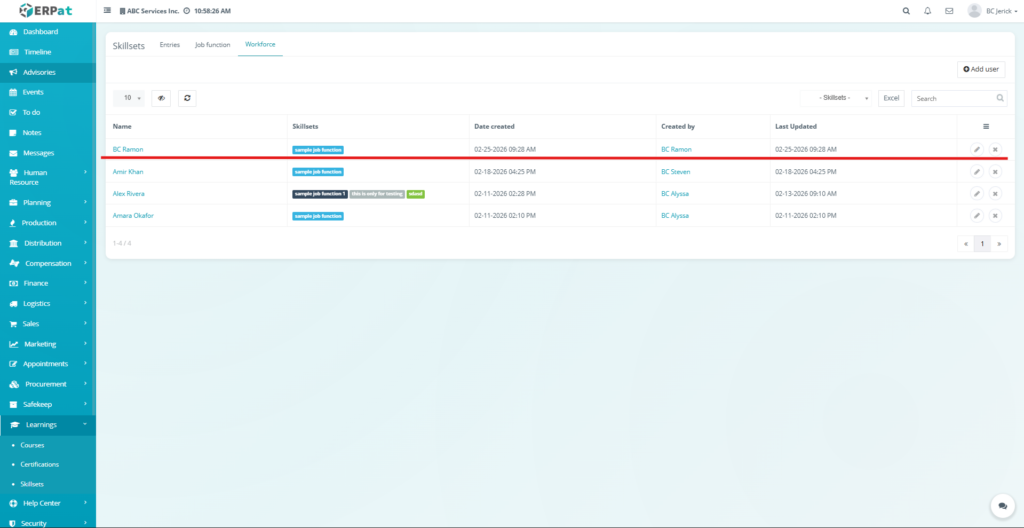
The Workforce tab is used to assign skillsets or job functions to specific employees. This helps track which employees possess particular skills and enables managers to evaluate workforce capabilities.
It provides a clear overview of employee skill profiles within the organization.
Attributes #
- Employee skill assignment
- Skillset-to-employee mapping
- Workforce capability visibility
- Excel export functionality
- Filtering by skillsets
- Search and sorting tools
Accessing the Workforce Tab #
- Navigate to Learnings → Skillsets.
- Click the Workforce tab.
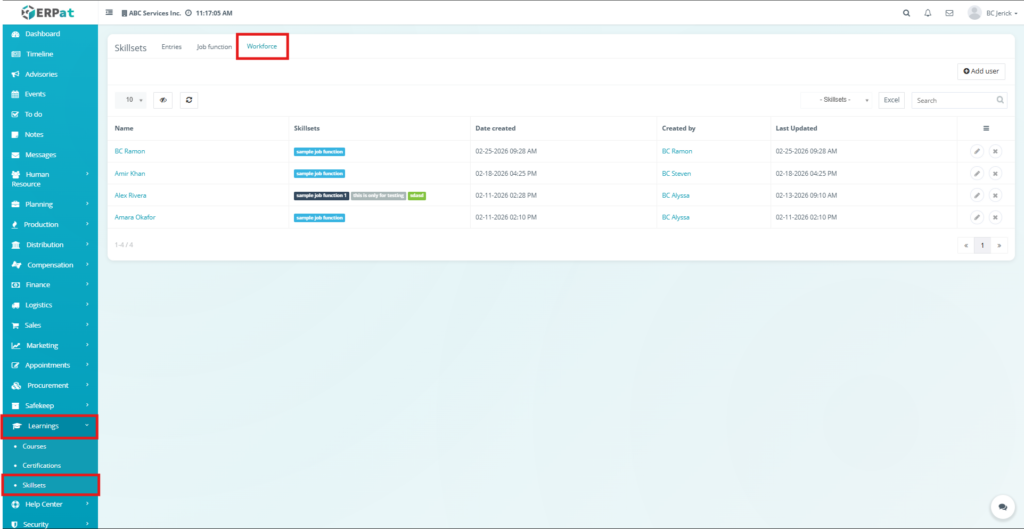
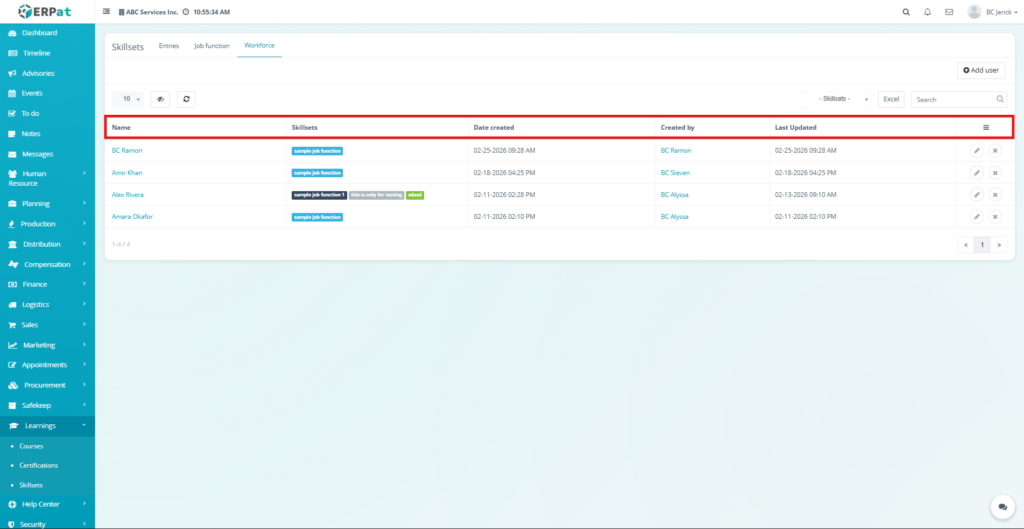
Workforce Listing Page #
The listing page shows employees and their assigned skillsets:
- Name – Employee name
- Skillsets – Assigned job functions or skills
- Date Created – Record creation date
- Created By – User who assigned the skills
- Last Updated – Most recent modification date
- Actions – Edit or Delete controls
Additional Controls #
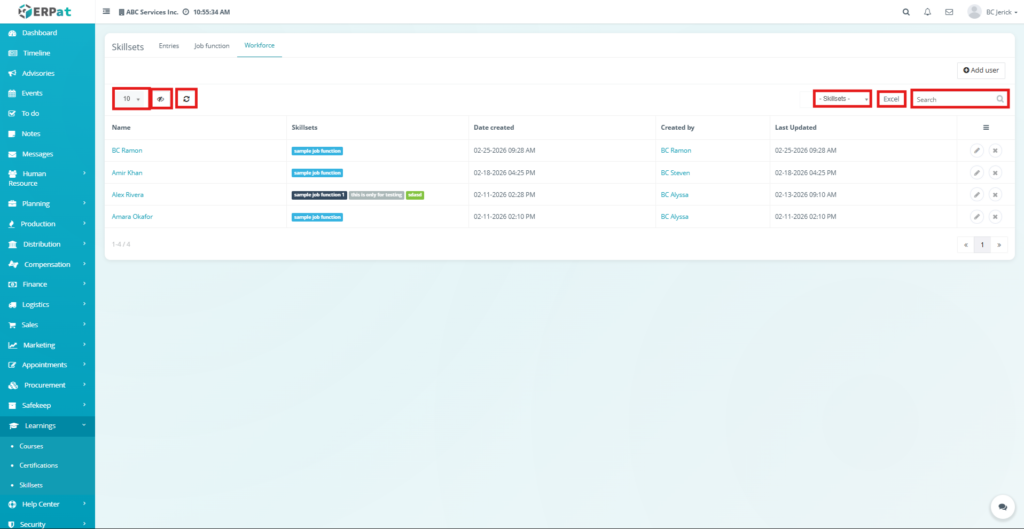
- Add User Button – Assign skills to an employee
- Skillsets Filter – Filter employees by assigned skills
- Excel Export – Download workforce skill data
- Search Bar – Find employees quickly
- Pagination Controls – Navigate multiple pages
Steps for Assigning Skillsets to an Employee #
STEPS #
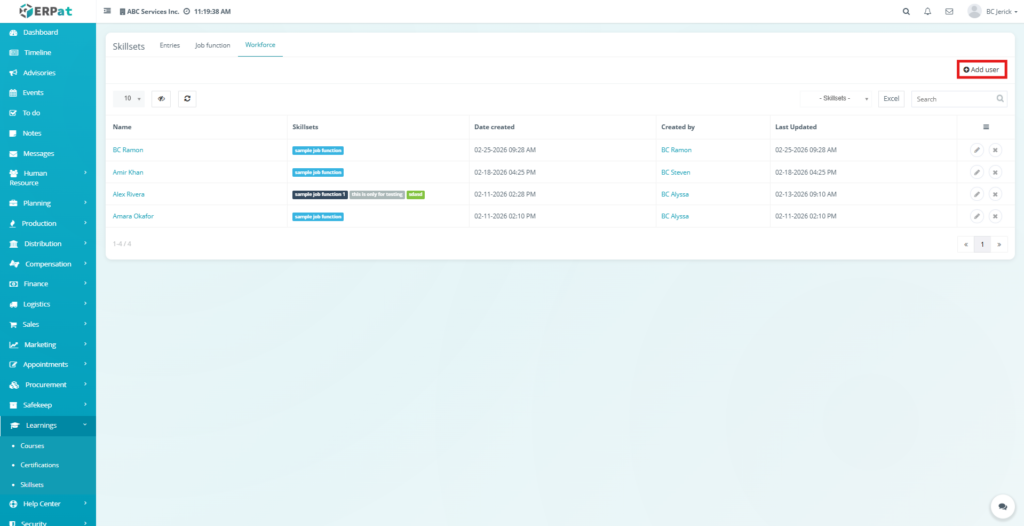
- Navigate to Skillsets → Workforce.
- Click Add User.
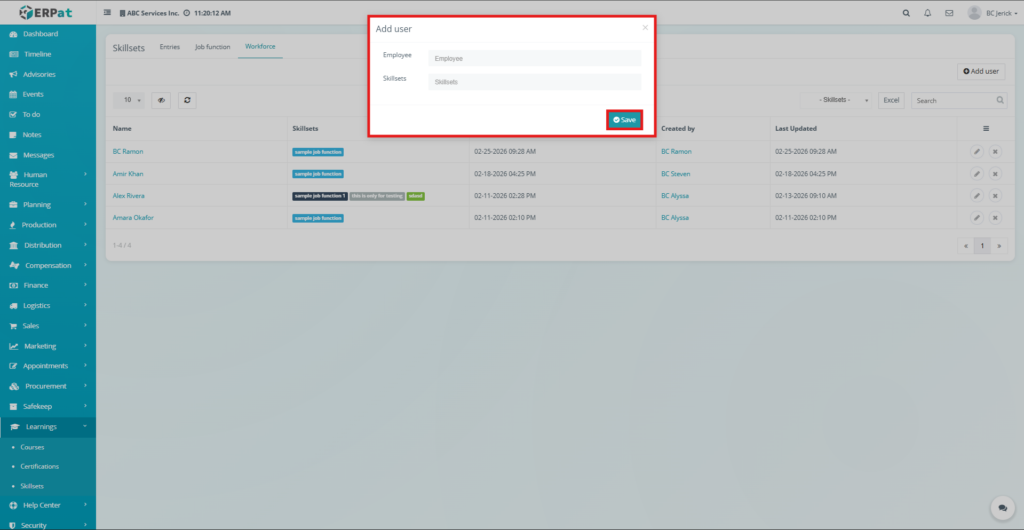
- The Add User modal will appear.
- Fill in the required fields:
- Employee – Select the employee
- Skillsets – Select the job functions or skills to assign
- Employee – Select the employee
- Click Save.
Result #
The employee will appear in the workforce listing with the assigned skillsets.
Search and Filtering #
Users can refine skillset records using built-in tools:
- The search field allows quick lookup by title or employee name.
- Status filters narrow down active or draft records.
- Skillset filters help find job functions or workforce records by skills.
- Sorting controls organize records by columns.
- Pagination controls allow navigation through large datasets.
Permissions and Access Control #
- Authorized users can create and manage skill entries.
- Job functions can be edited only by permitted roles.
- Workforce assignments may require HR or administrative access.
- Administrative users typically have full visibility and management permissions.
Best Practices #
- Create clear and standardized skill names.
- Maintain consistent descriptions for skill clarity.
- Group skills logically when creating job functions.
- Keep workforce assignments updated to reflect employee development.
- Avoid deleting skills that are already assigned to job functions.
Audit & Logs #
All create, update, and delete actions for Skillsets records are logged in the ERPat system to maintain transparency, traceability, and accountability.
Last Updated: March 30, 2026 Module Owner: Skillsets Module – ERPat System


