Overview #
The Certifications Module is used to record, manage, and monitor employee certifications within the ERPat system. It allows administrators or authorized users to document certification details, assign them to employees, attach certificate files, and track important dates such as the certification issue date and expiration (due date).
This module helps organizations maintain compliance, monitor employee qualifications, and ensure certifications remain valid and up to date. Records can be searched, filtered, and managed directly from the certifications listing page.
Key Features #
- Centralized certification record management
- Certification assignment to specific employees
- Certificate issuing authority tracking
- Digital certificate file upload and storage
- Certification issue date recording
- Expiration or due date tracking
- Status monitoring of certifications
- Search and filtering tools for quick lookup
- Record editing and updating
- Secure role-based access for certification management
Accessing the Certifications Module
#
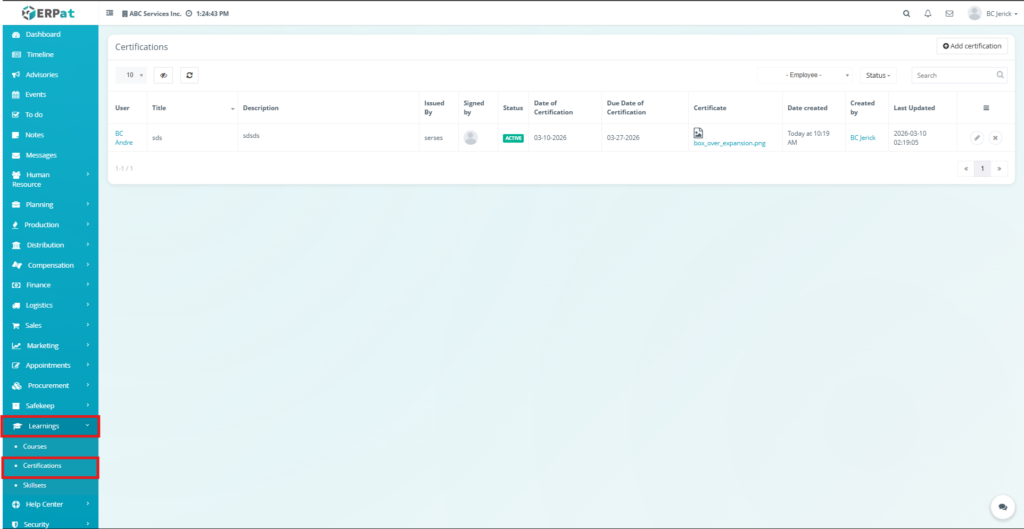
- Navigate to the left sidebar menu.
- Click Certifications.
- You will be directed to the Certifications page, displaying all recorded certifications.
Certifications Listing Page #
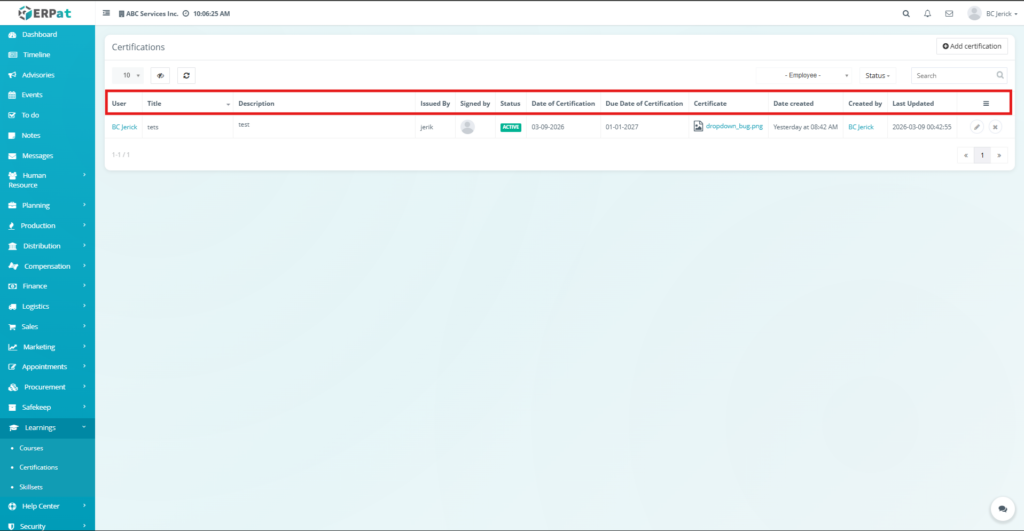
The listing page provides an overview of all certification records with the following information:
- User – Employee associated with the certification
- Title – Name of the certification
- Description – Additional details about the certification
- Issued By – Organization or authority that issued the certification
- Signed By – Person responsible for signing the certification
- Status – Current certification status
- Date of Certification – Date when the certification was issued
- Due Date of Certification – Expiration or renewal date
- Certificate – Uploaded certificate file
- Date Created – System-generated creation timestamp
- Created By – User who added the certification
- Last Updated – Most recent modification date
- Actions – Edit or Delete controls for the record
Additional Controls #
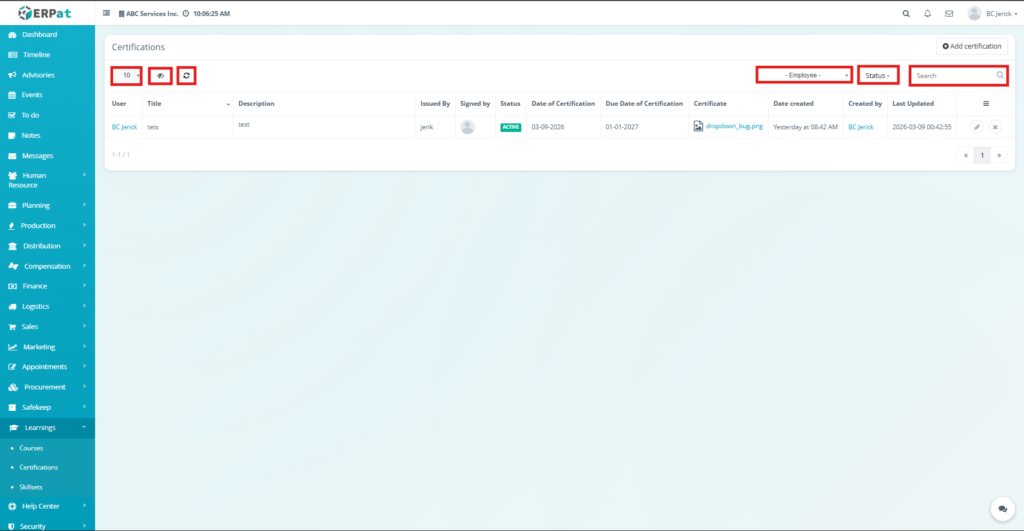
- Add Certification Button – Create a new certification record
- Employee Filter – View certifications assigned to specific employees
- Status Filter – Filter certifications by status
- Search Bar – Quickly locate certifications by title or details
- Refresh Button – Reload the list of records
- Column Sorting – Sort records based on specific columns
- Pagination Controls – Navigate between multiple pages of records
Viewing an Uploaded Certificate #
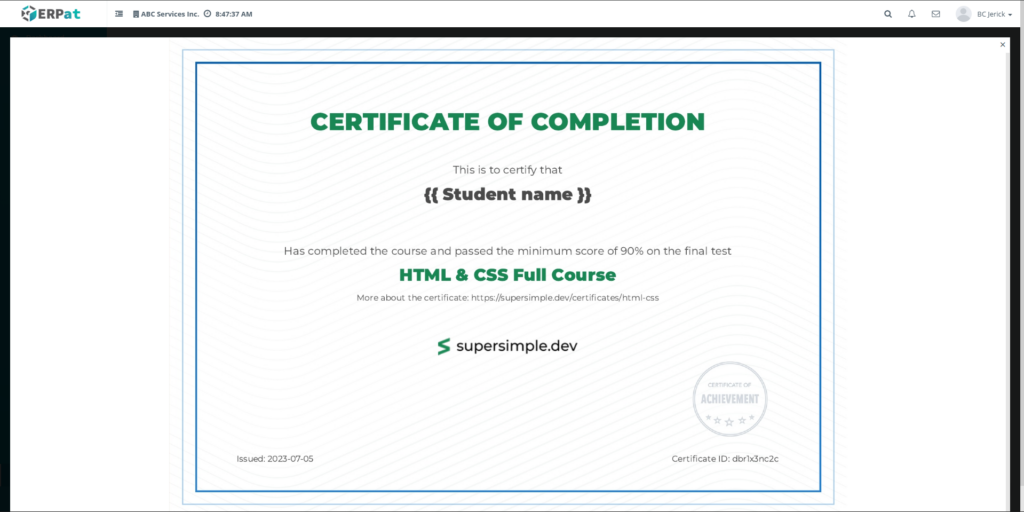
The Certifications Module allows users to open and preview uploaded certificate files directly from the Certifications listing page. This feature enables quick verification of certification documents without downloading them manually.
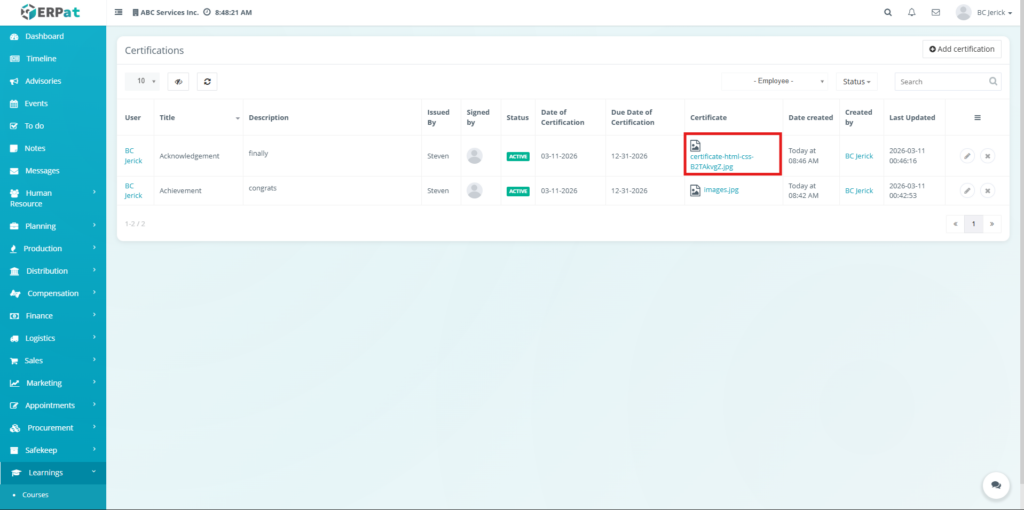
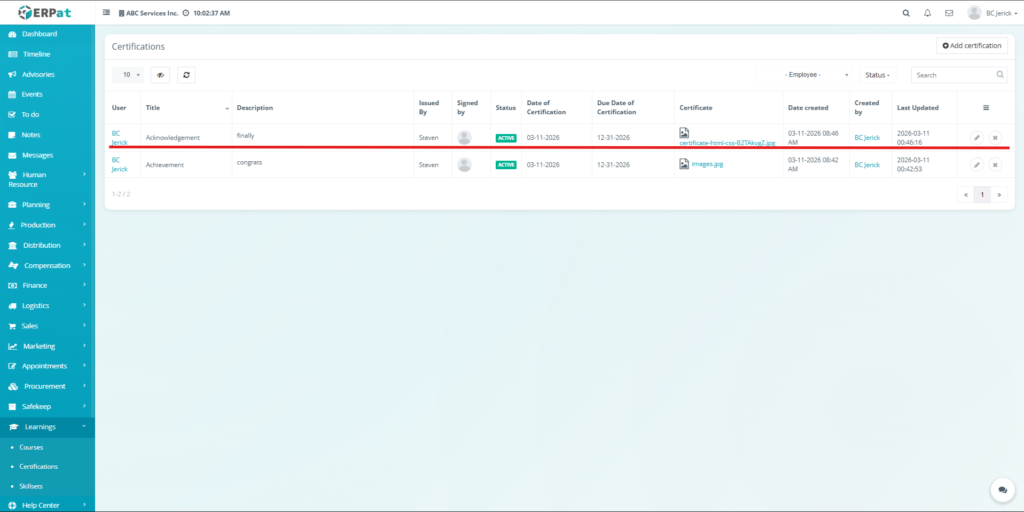
When a certificate file is attached to a record, the file name will appear as a clickable link in the Certificate column.
Steps to View a Certificate #
STEPS #
- Navigate to the Certifications module.
- Locate the certification record in the listing table.
- In the Certificate column, click the uploaded file name.
- The system will open a certificate preview window displaying the uploaded certificate.
- Review the certificate details shown in the preview.
Result #
The selected certificate will be displayed in a preview window, allowing users to visually confirm the certification details such as:
- Employee name
- Certification title
- Issuing authority
- Issue date
- Certification ID
- Course or qualification completed
Notes #
- The preview displays the certificate exactly as uploaded to the system.
- This feature helps administrators and managers quickly verify certification authenticity.
- If the certificate file is replaced during editing, the preview will automatically reflect the updated version.
- Supported file formats depend on the uploaded document type (e.g., image or PDF).
Steps for Adding a New Certification #
STEPS #
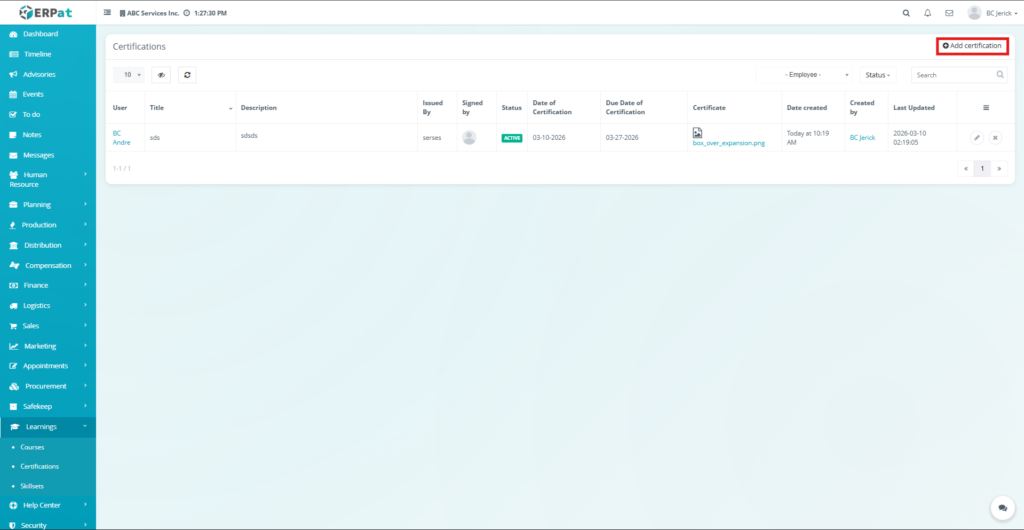
- Navigate to the Certifications module.
- Click the Add Certification button located in the upper right corner.
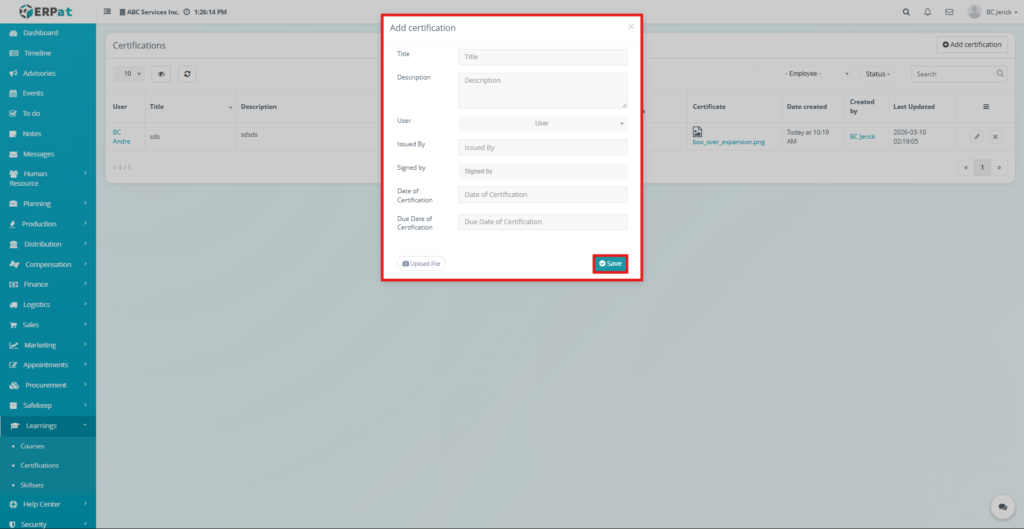
- A certification form modal will appear.
- Fill in the required details:
- Title – Name of the certification
- Description – Additional details or notes
- User – Select the employee receiving the certification
- Issued By – Organization that issued the certification
- Signed By – Authorized signatory
- Date of Certification – Issue date
- Due Date of Certification – Expiration or renewal date
- Title – Name of the certification
- Click Upload File to attach the certification document if available.
- Click Save.
Result #
The newly added certification will appear in the Certifications listing page, where it can be reviewed, edited, or tracked.
Steps for Editing a Certification #
STEPS #
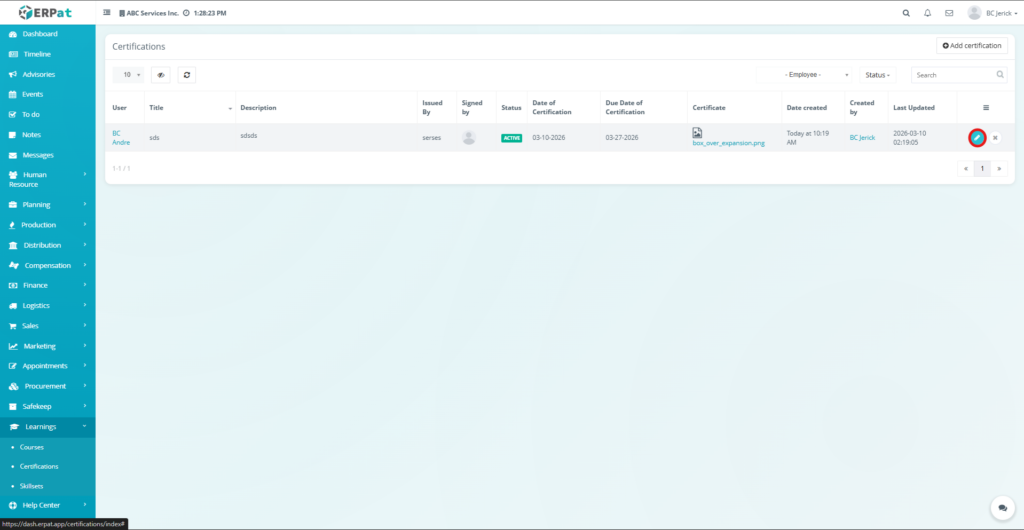
- Locate the certification record from the listing page.
- Click the Edit (✏️) icon under the Actions column.
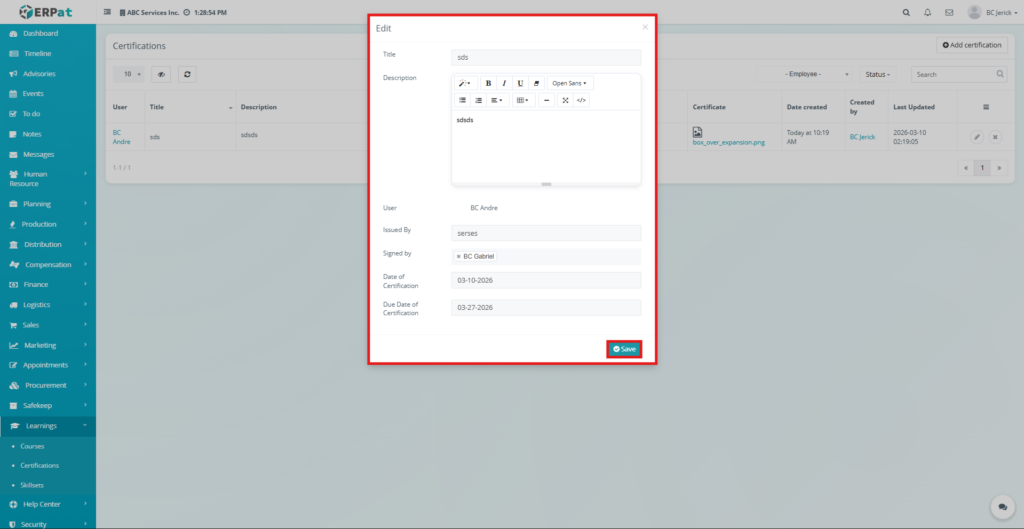
- The certification form will open.
- Update the required information.
- Click Save to apply the changes.
Notes #
- Certification details can be modified anytime by authorized users.
- Uploaded files can be updated if a newer certificate version is available.
- Updating the Due Date helps track renewal requirements.
Steps to Delete a Certification #
STEPS #
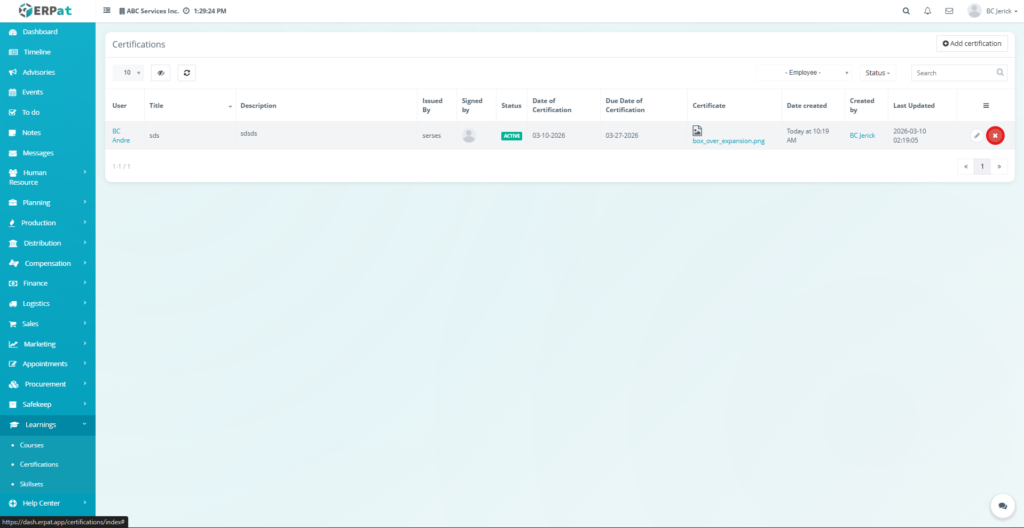
- Locate the certification record in the listing table.
- Click the Delete (✖) icon under the Actions column.
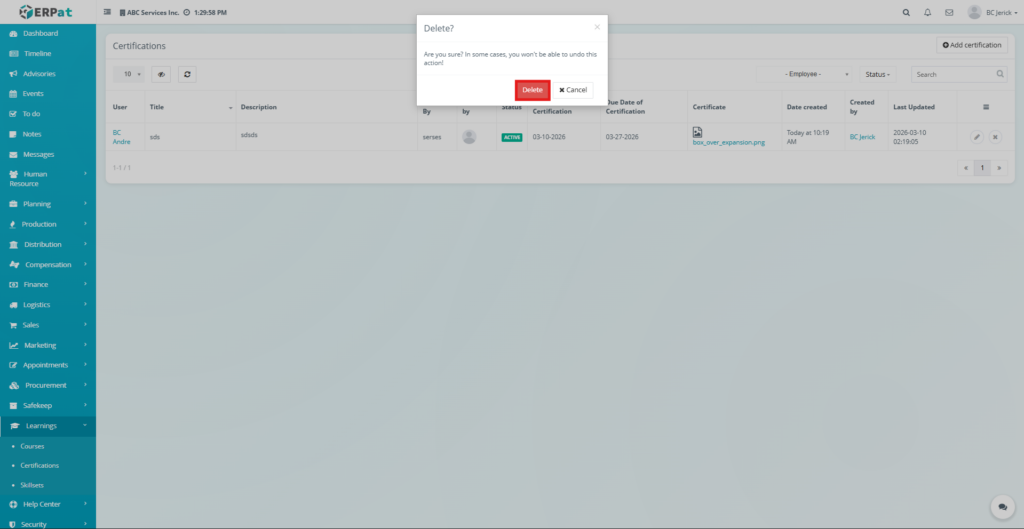
- Confirm the deletion when prompted.
- The selected certification will be permanently removed from the system.
Search and Filtering #
Users can quickly locate certifications using built-in filtering and search tools:
- Use the Search field to find certifications by title or description.
- Use the Employee dropdown filter to display certifications for a specific user.
- Use the Status filter to view certifications based on their current status.
- Sorting options allow records to be organized by date, user, or title.
- Pagination controls allow efficient navigation through large datasets.
Permissions and Access Control #
- Authorized users can create and manage certification records.
- Users may edit or delete certifications depending on role permissions.
- Administrative roles typically have full visibility and management capabilities.
Best Practices #
- Always enter clear certification titles for easier searching.
- Assign certifications to the correct employee to maintain accurate records.
- Upload the certificate document whenever available for verification.
- Track due dates carefully to prevent certification expiration.
- Avoid deleting certifications that may be needed for audit or compliance history.
Audit & Logs #
All create, update, and delete actions related to certification records are logged within the ERPat system to ensure traceability and accountability.
Last Updated: March 13, 2026 Module Owner: Certifications Module – ERPat System


