Overview #
The Payrolls Module is used to manage, process, monitor, and review payroll activities within the ERPat System. It serves as a centralized workspace for payroll creation, employee payslip computation, adjustments, statutory reporting, forecasting, and payroll control management.
This module supports payroll administrators, accountants, and finance personnel by organizing payroll operations into structured sections such as Timeline, Entries, Alphalist, Adjustments, Reports, Forecast, and Log Controls. It helps ensure payroll accuracy, transparency, compliance, and traceability across the payroll cycle.
Key Features #
- Chronological tracking of payroll activities
- Creation and management of payroll entries
- Employee-level payslip computation and review
- Bulk import of payroll, earnings, and deductions data
- Batch payroll processing actions
- Payroll configuration through rate, bypass, and tax options
- Adjustment management for earnings and deductions
- Generation of statutory and tax-related reports
- Payroll cost forecasting and year-over-year comparison
- Calendar-based log control management
- Integrated audit logs for compliance and traceability
Accessing the Payroll Timeline Module #
- Log in to the ERPat System.
- Navigate to Compensation from the main sidebar.
- Select Payrolls.
- Click on the Timeline tab.
You will be directed to the Payroll Timeline page displaying all recorded payroll activities.
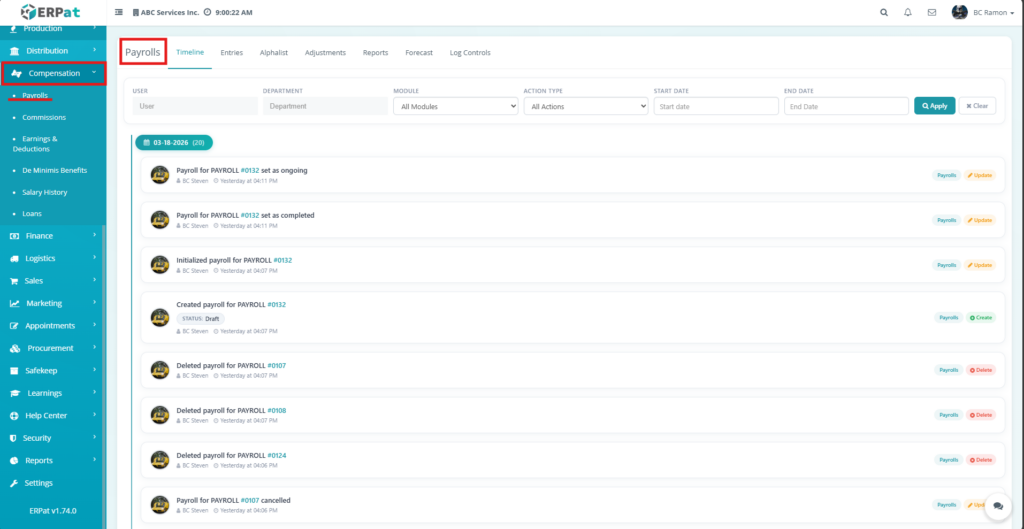
Payroll Timeline Page #
The timeline page provides a detailed activity log with the following information:
- Date Grouping – Activities are grouped by date
- Activity Description – Action performed (e.g., Created, Initialized, Completed, Deleted)
- Payroll Reference – Payroll ID (e.g., #0132)
- User – Person who performed the action
- Timestamp – Exact date and time of activity
- Module Tag – Indicates the module (Payrolls)
- Action Badge – Type of action (Create, Update, Delete)
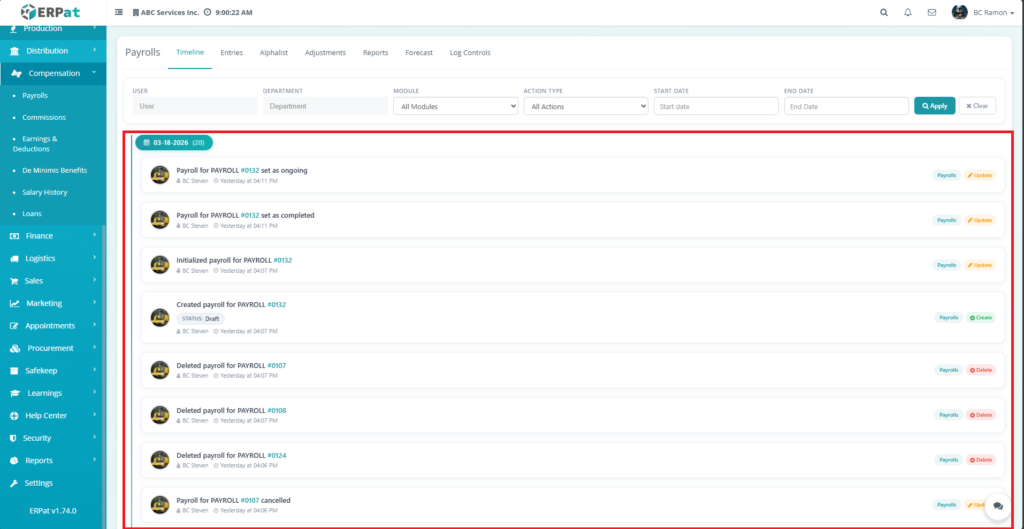
Filters and Controls #
The top section includes filtering options for refined searching:
- User – Filter activities by specific user
- Department – Filter by department
- Module – Select module scope (default: All Modules)
- Action Type – Filter by action (Create, Update, Delete, etc.)
- Start Date / End Date – Define date range
- Apply Button – Execute filter
- Clear Button – Reset filters
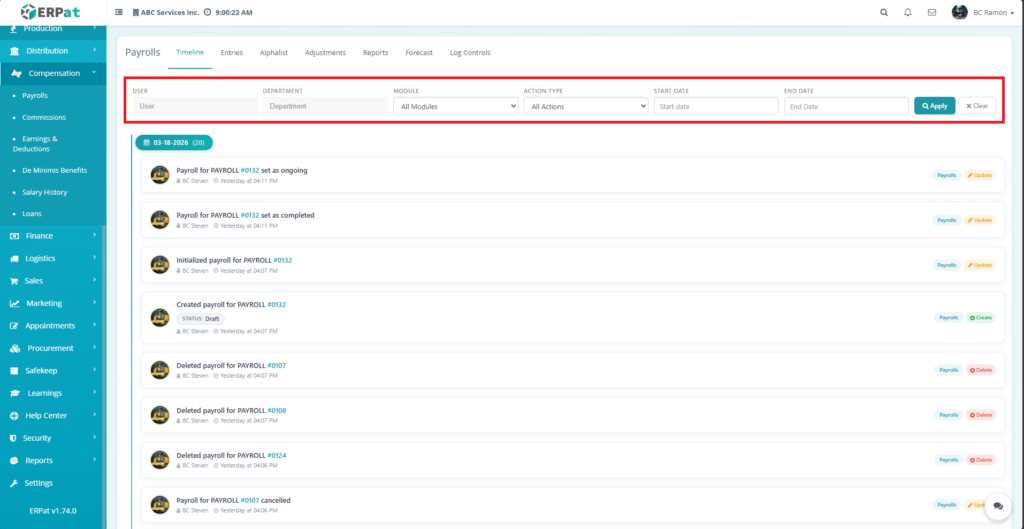
Understanding Timeline Entries #
Each entry in the timeline represents a system-recorded action:
- Created Payroll – Initial creation of a payroll record (Status: Draft)
- Initialized Payroll – Payroll setup has begun
- Set as Ongoing – Payroll is actively being processed
- Set as Completed – Payroll processing is finalized
- Deleted Payroll – Payroll record removed from the system
- Cancelled Payroll – Payroll process was stopped
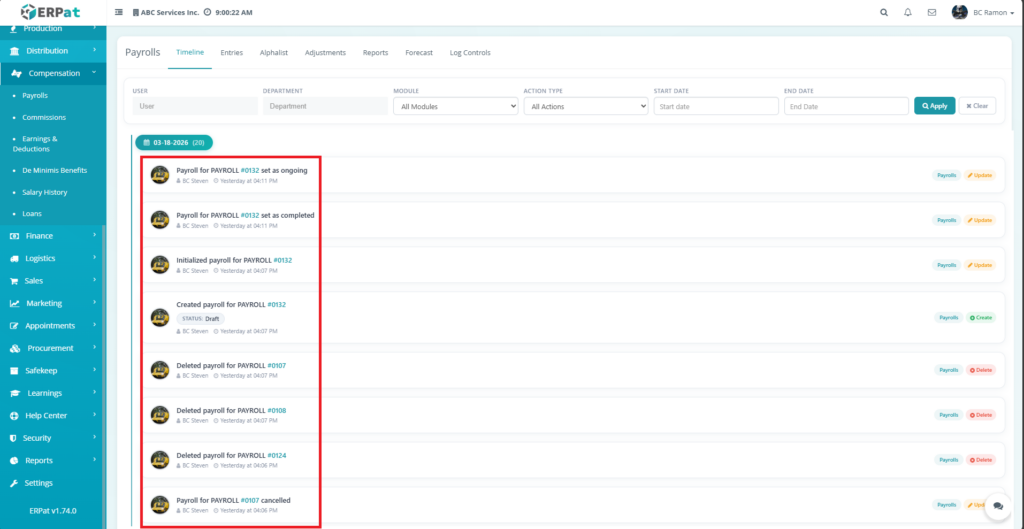
Steps for Reviewing Payroll Activity #
STEPS #
- Navigate to the Payroll Timeline page.
- Use filters to narrow down results (optional).
- Scroll through the timeline to review activities.
- Click on a payroll reference (if enabled) to view more details.
Result #
You will have full visibility of all payroll-related actions, including status changes and responsible users.
Payrolls: Entries Listing Page #
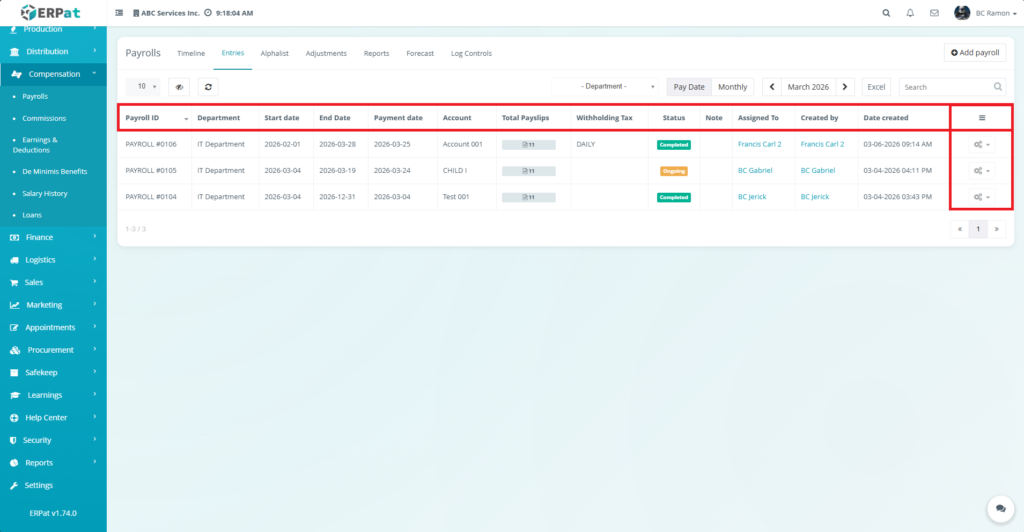
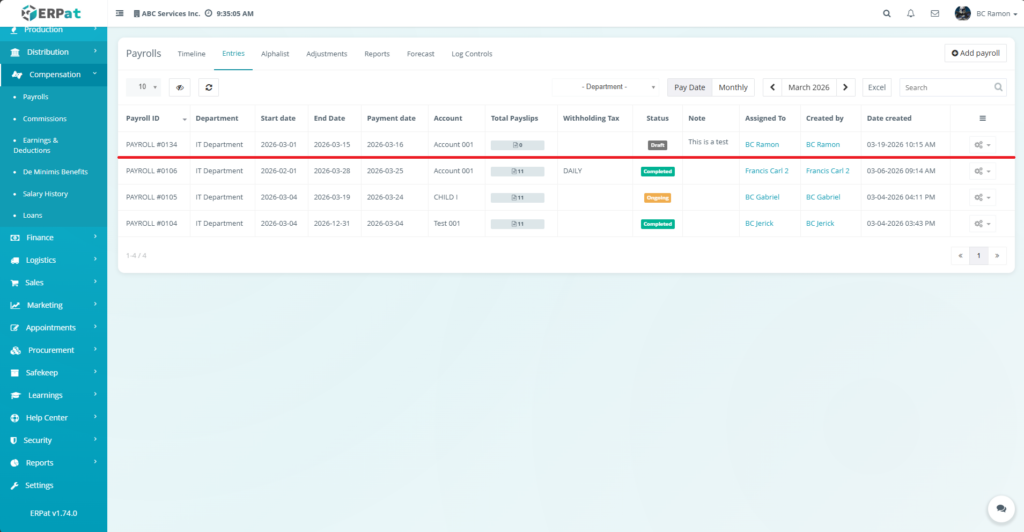
The listing page provides an overview of all payroll records with the following information:
- Payroll ID – Unique identifier for each payroll (e.g., #0106)
- Department – Assigned department
- Start Date / End Date – Payroll coverage period
- Payment Date – Scheduled payout date
- Account – Assigned payroll account
- Total Payslips – Number of generated payslips
- Withholding Tax – Tax configuration applied
- Status – Current payroll state (Completed, Ongoing, etc.)
- Note – Additional remarks (if any)
- Assigned To – Responsible personnel
- Created By – User who created the payroll
- Date Created – Timestamp of creation
- Actions – Settings or management options per record
Additional controls: #
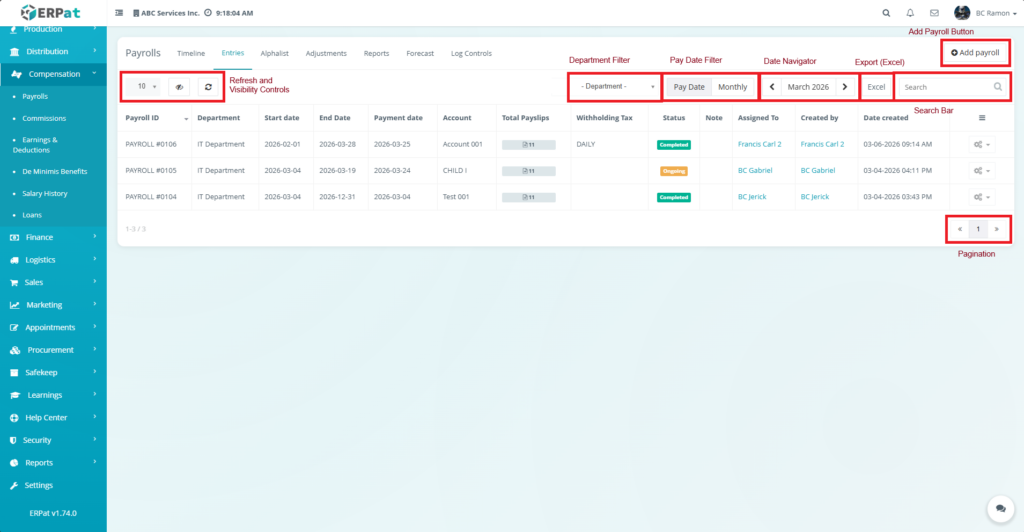
The top section includes several controls for managing entries:
- Add Payroll Button – Create a new payroll record
- Department Filter – Filter payrolls by department
- Pay Date Filter – Switch between pay schedules (e.g., Monthly)
- Date Navigator – Browse payrolls by month and year
- Export (Excel) – Download payroll data
- Search Bar – Quickly locate payroll records
- Refresh Button – Reload updated data
- Pagination – Navigate through multiple records
Steps for Adding a New Payroll Entry #
STEPS #
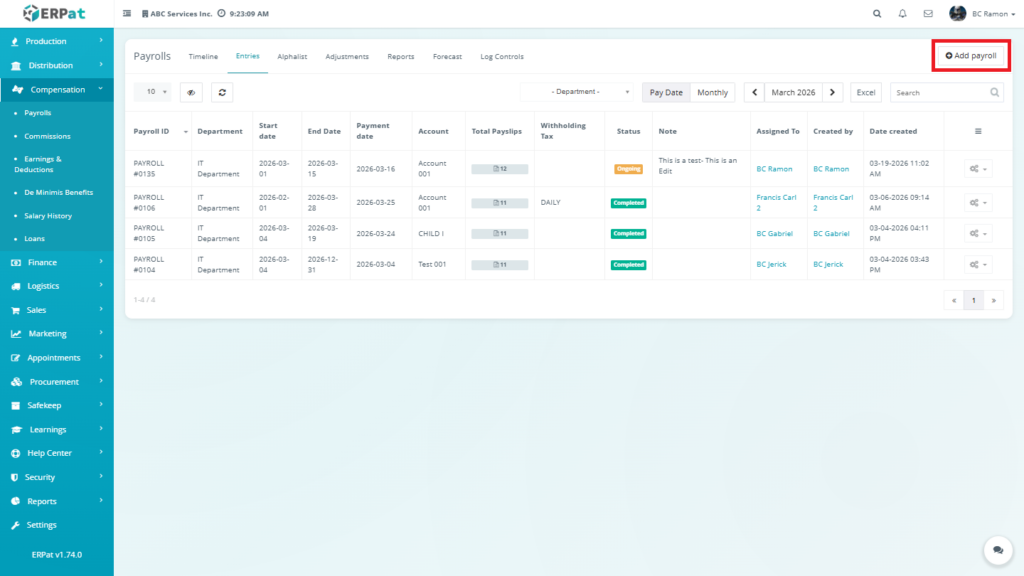
1. Click the Add Payroll button located at the top-right.
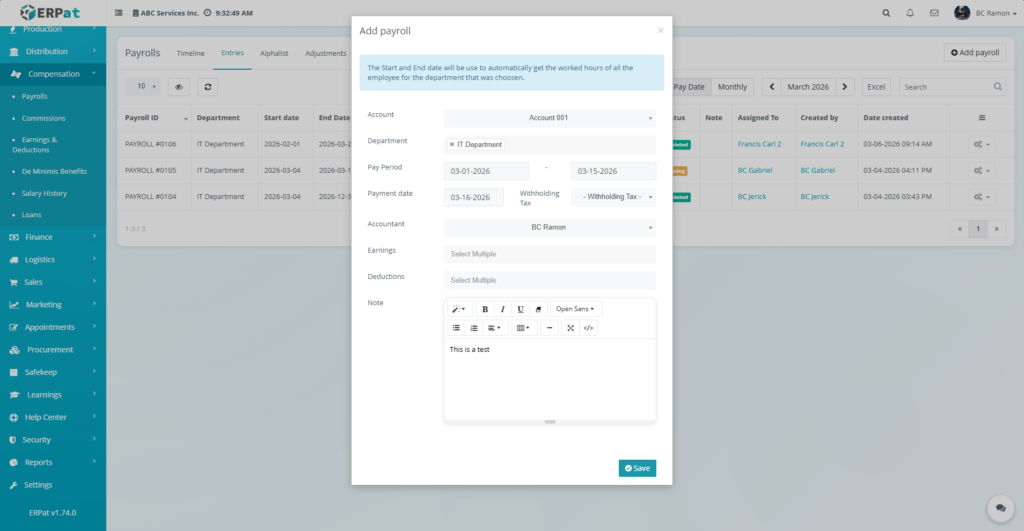
2. Fill in the required payroll details:
- Account
- Department
- Pay Period
- Payment Date
- Withholding tax (Daily, Weekly, Semi-Monthly and Monthy)
- Accountant
- Earnings (13th month pay, commission, deminimis and etc.)
- Deductions (SSS Contribution, Pag-ibig Contribution, GSIS Contribution, Loans and etc.)
- Note (Optional)
3. Review the entered information.
4. Click Save/Create to finalize.
Result #
The newly created payroll entry will appear in the listing with a default status (e.g., Draft or Ongoing).
Payroll Action Controls #
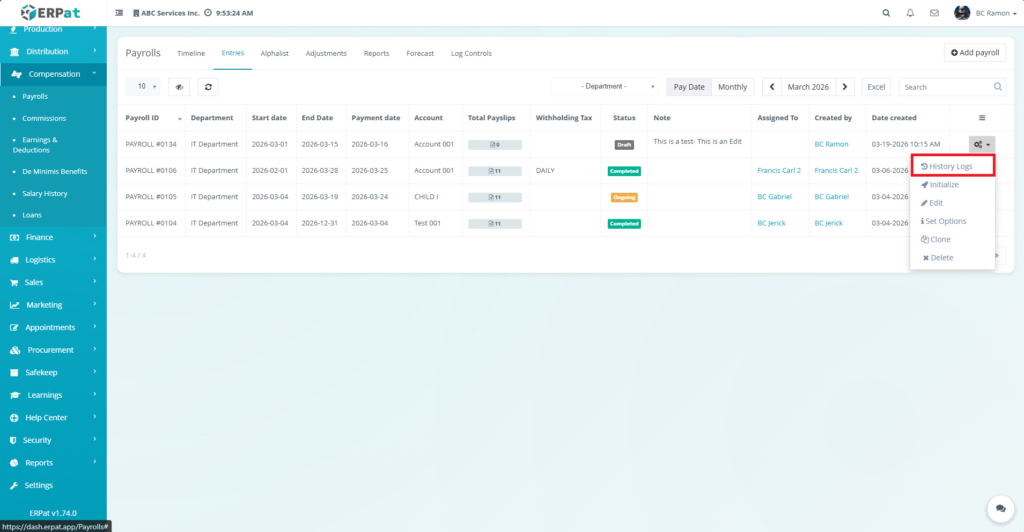
Each payroll entry includes an Actions (⚙) dropdown with the following functions:
Status updates are reflected in the Status column.
- History Logs
- Initialize
- View Payroll
- Run Wizard
- Edit
- Set Options
- Clone
- Delete
History Logs #
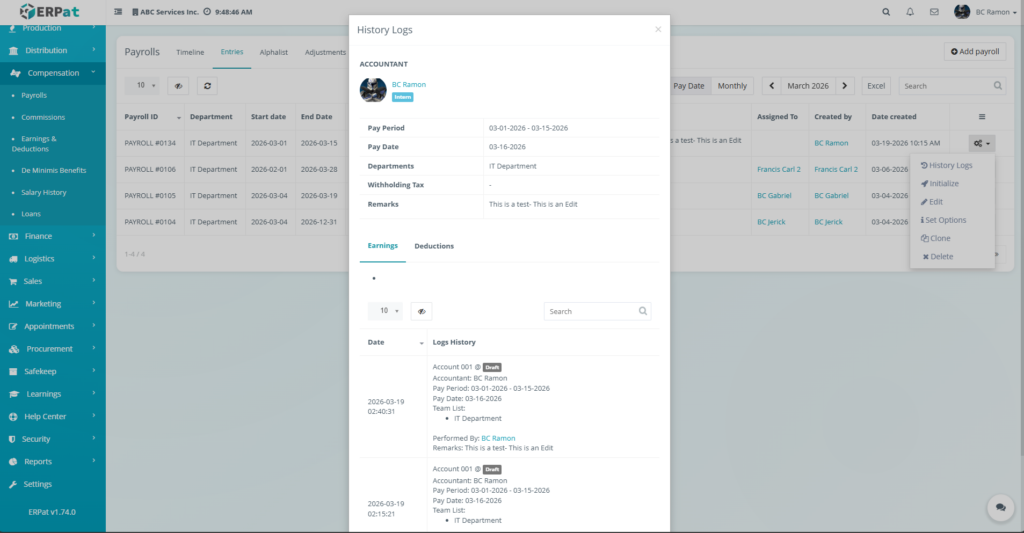
The History Logs feature displays a detailed audit trail of all activities performed on a payroll entry. It includes the accountant responsible, payroll period, payment date, department, withholding tax, and remarks. The logs also record timestamps, performed actions, and the user who executed each change.
Steps to Initialize Payroll #
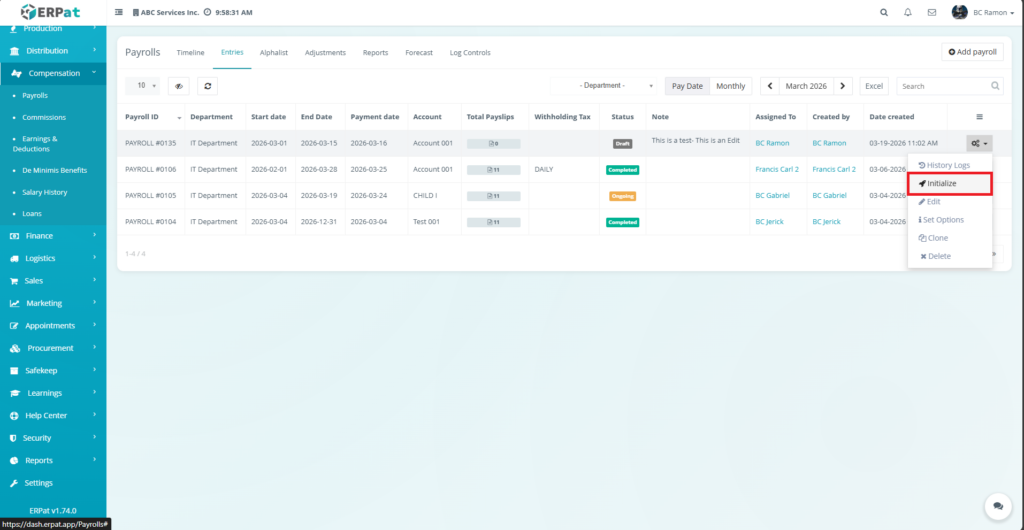
The Initialize function is used to prepare and activate a payroll entry for processing.
STEPS #
- Locate the payroll entry in the listing page.
- Click the Action (⚙) button.
- Select Initialize.
- The system will begin processing employee data, including attendance records, earnings, and deductions based on the configured payroll settings.
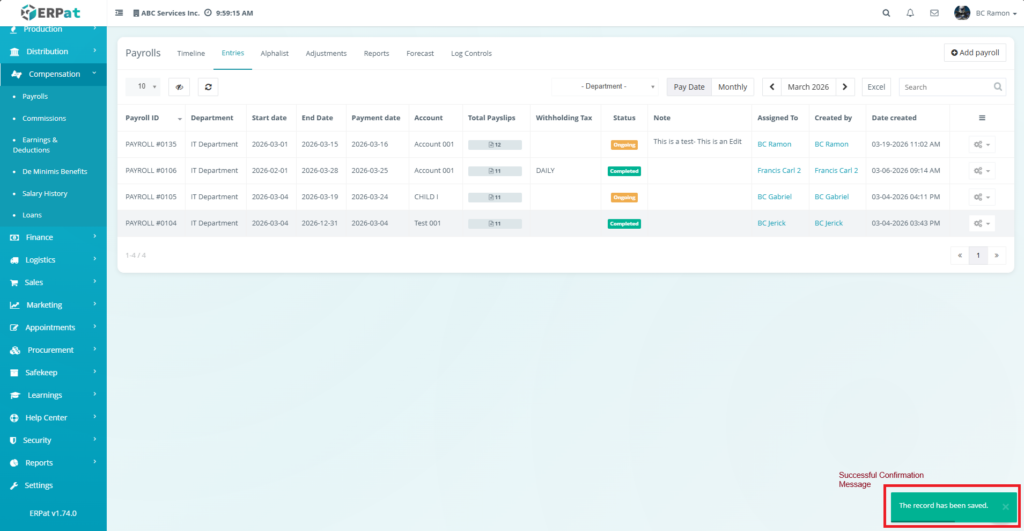
Notes #
- Initialization triggers payroll computation and data preparation.
- Ensure all payroll details (dates, department, earnings, deductions) are correctly configured before initializing.
- Once initialized, changes may affect computed payroll data.
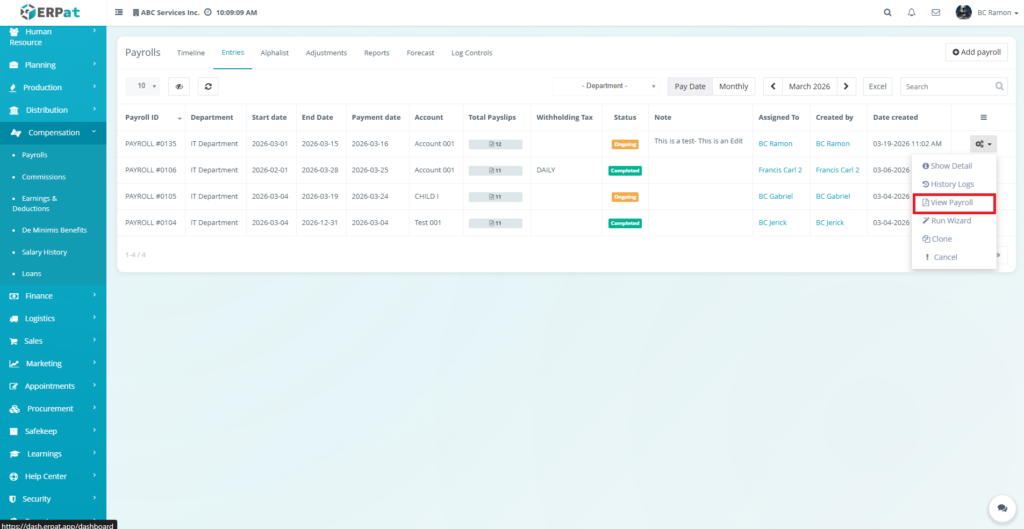
View Payroll #
The View Payroll function opens the detailed payroll processing interface. Displays employee-level payroll data including computed salaries, deductions, and earnings.
Allows review and validation of payroll before finalization.
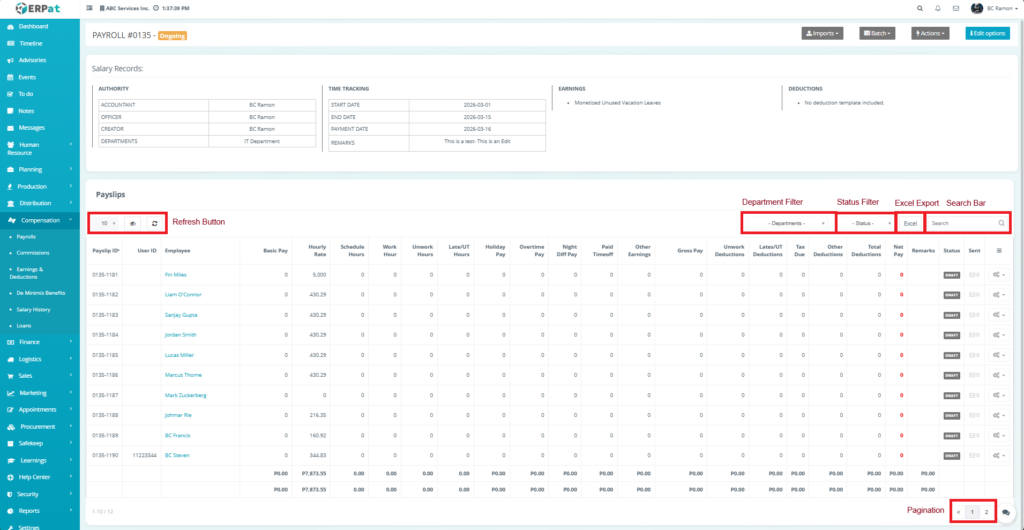
View Payroll (Payslip Processing Listing Page)– Ongoing #
The View Payroll function opens the detailed payroll processing interface where employee-level salary computations are displayed and managed.
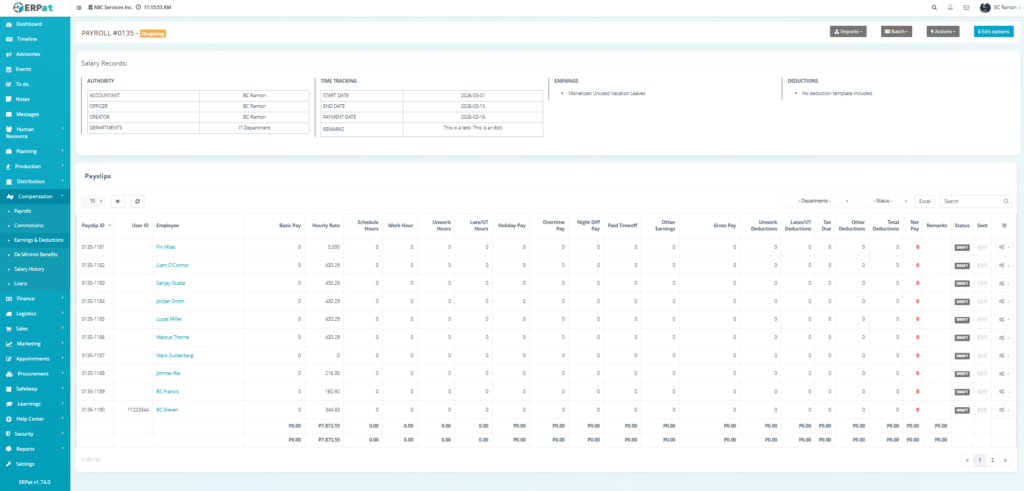
Top-Level Controls– Ongoing #
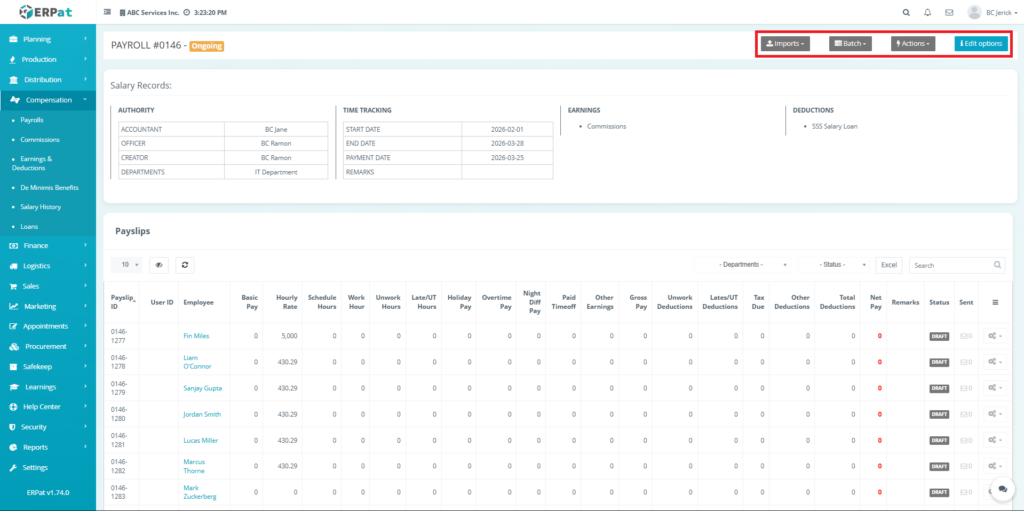
The payroll processing page includes the following controls:
Imports – Upload payroll-related data
Batch – Perform bulk actions
Actions – Additional payroll operations
Edit Options – Modify payroll configuration
Import Options– Ongoing Payroll #
The Import feature in the Payroll Entries page enables bulk uploading of payroll-related data using structured templates. Each import option serves a specific purpose and feeds directly into the payroll computation process.
All import types follow a consistent workflow:
Download Template → Fill Data → Upload File → Validate → Integrate → Recompute Payroll
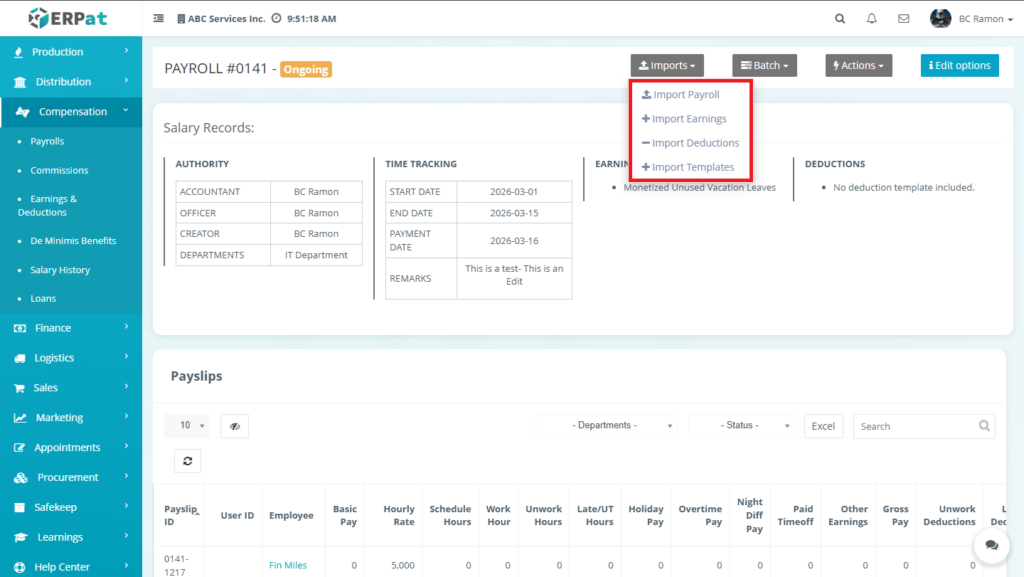
Import Payroll Process Flow #
STEPS #
- Download Template
Click Download Import Payroll
Template includes:
- User ID / Employee
- Basic Pay
- Hourly Rate
- Work Hours
- Schedule Hours
- Fill Template
User inputs payroll data per employee
- Upload File
Drag-and-drop or browse file
- Validation
System checks:
- Employee existence
- Required fields
- Data format
- Integration
System updates:
- Basic Pay
- Hourly Rate
- Work Hours
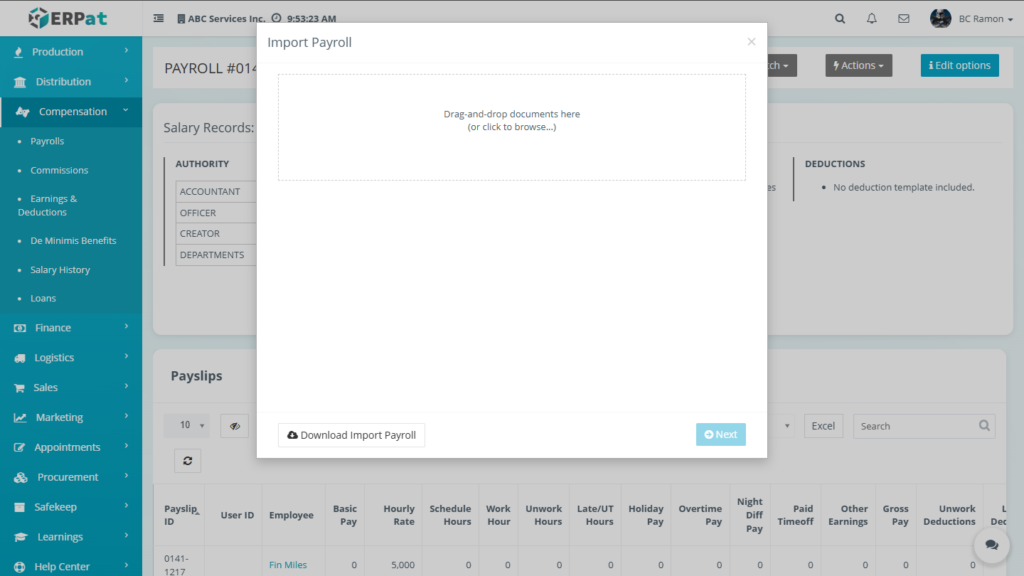
Import Earnings Process Flow #
STEPS #
- Download Sample File
Template includes:
- Employee reference
- Earning type
- Amount
- Fill Template
User inputs earnings data
- Upload File
Upload completed template
- Validation
System checks:
- Valid employee mapping
- Correct numeric values
- Integration
System adds values to:
- Other Earnings
- Holiday Pay
- Overtime Pay
- Night Differential
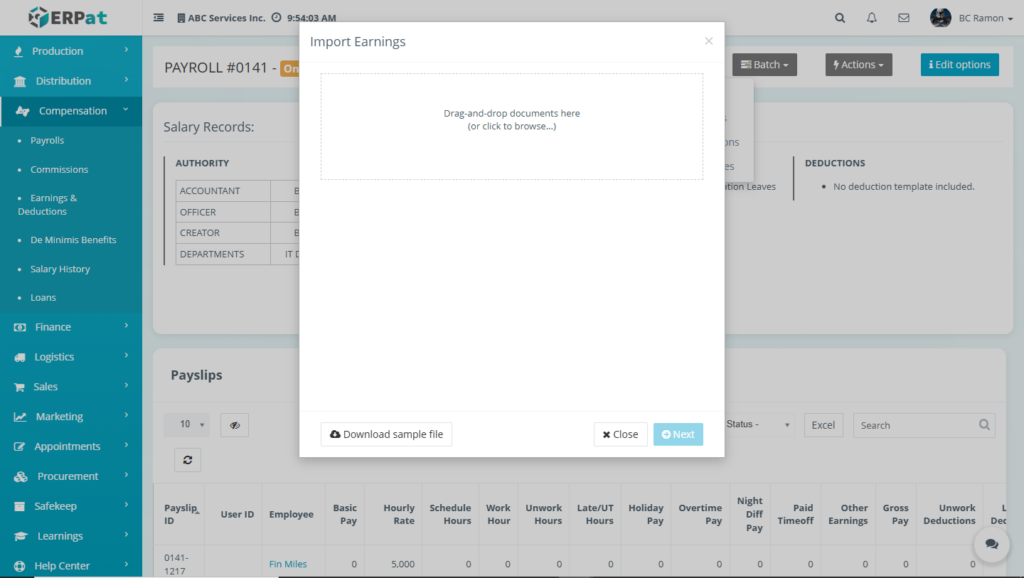
Import Deductions Process Flow #
STEPS #
- Download Sample File
Template includes:
- Employee reference
- Deduction type
- Amount
Step 2. Fill Template
User inputs deduction data
Step 3. Upload File
Upload completed template
Step 4. Validation
System checks:
- Employee match
- Valid amounts
- Required fields
Step 5. Integration
System updates:
- Other Deductions
- Tax Due
- Late/UT Deductions
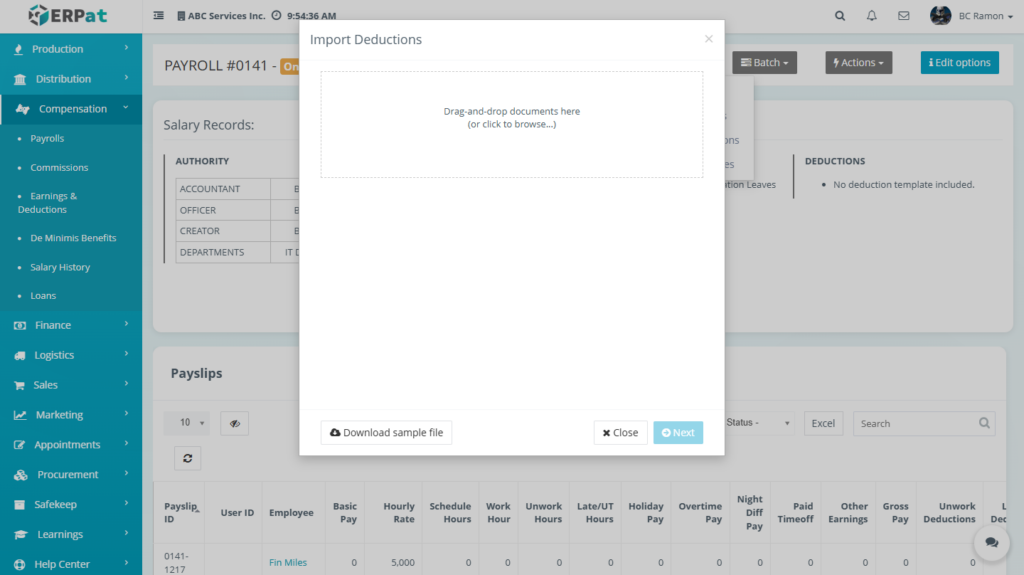
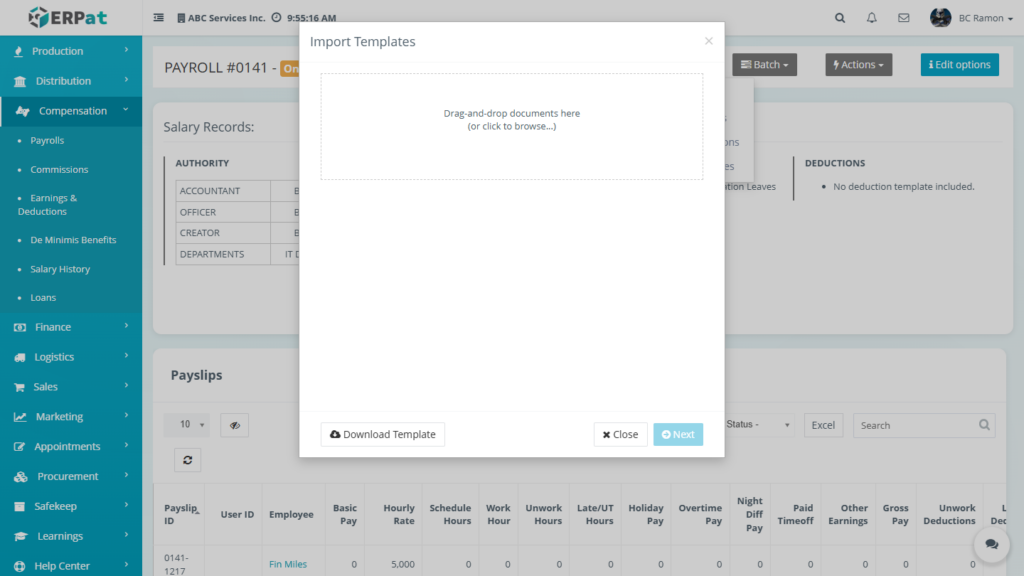
Import Templates Process Flow #
STEPS #
- Download Template
Provides structured format for:
- Payroll
- Earnings
- Deductions
Step 2. Fill Template
User prepares data in correct format
Step 3. Upload Template
Upload prepared file
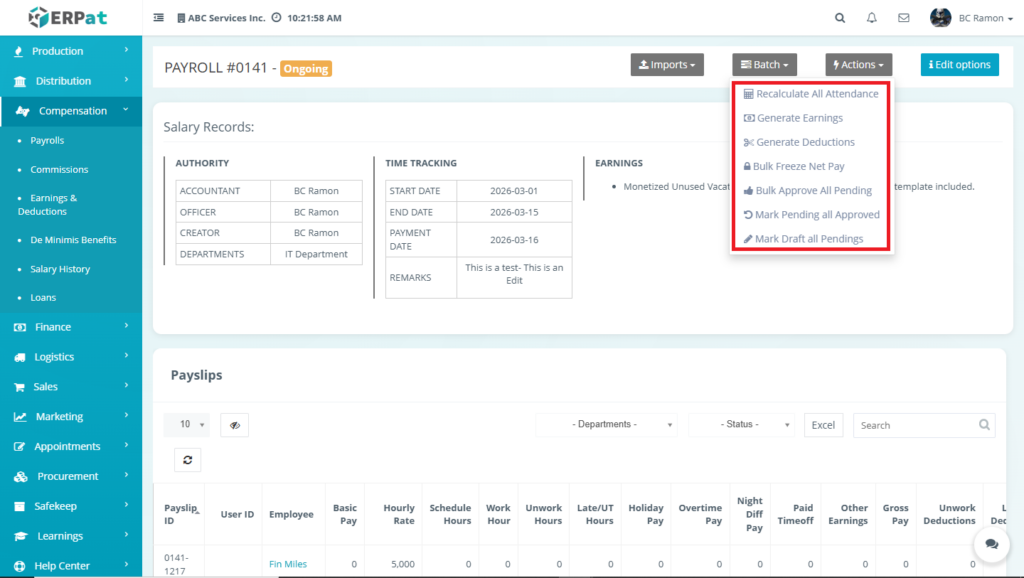
Batch Options– Ongoing Payroll #
The Batch Actions feature in the Payroll Entries page allows users to perform bulk operations on payroll data. Instead of processing employees individually, batch actions enable system-wide updates such as recalculations, generation of earnings/deductions, and status changes.
These actions streamline payroll processing, ensure consistency, and reduce manual workload.
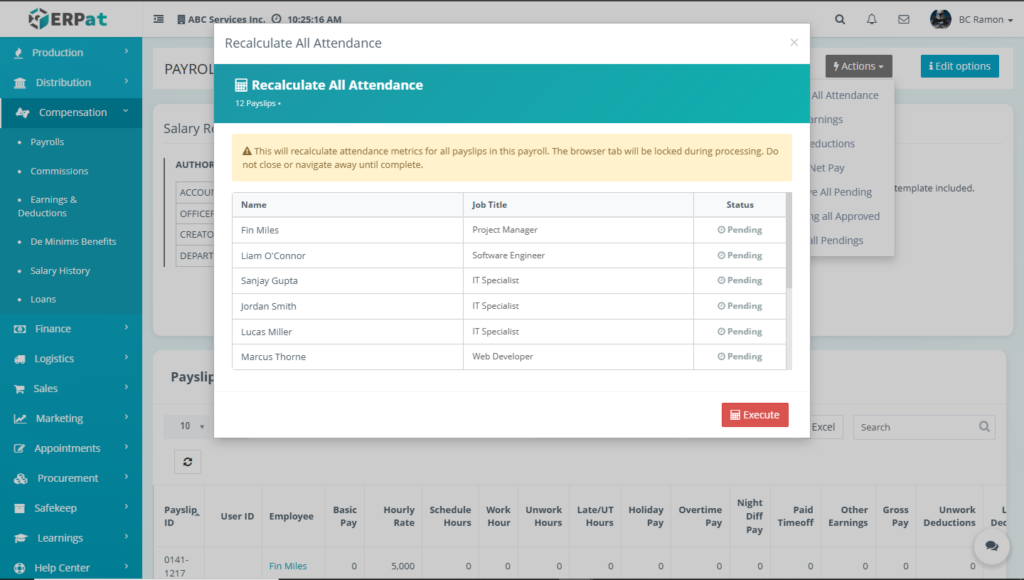
Recalculate All Attendance Function #
Recomputes employee attendance data within the payroll period.
- Retrieves time tracking records (start date to end date)
- Recalculates:
- Work Hours
- Late/Undertime
- Unworked Hours
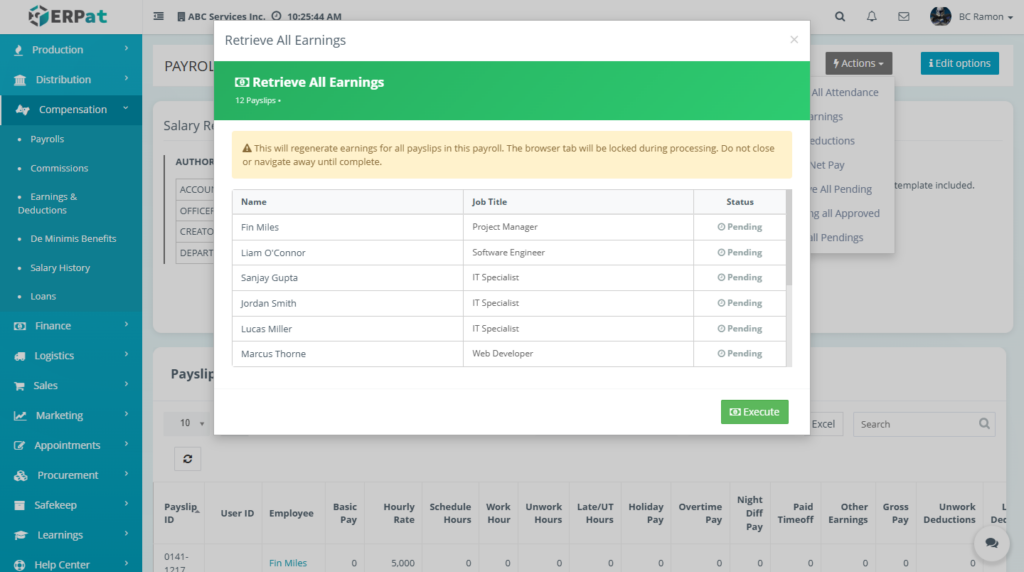
Generate Earnings Function #
Automatically generates earnings based on employee data and payroll rules.
- Reads:
- Salary structure
- Attendance data
- Assigned earnings templates
- Computes:
- Overtime Pay
- Holiday Pay
- Night Differential
- Paid Time Off
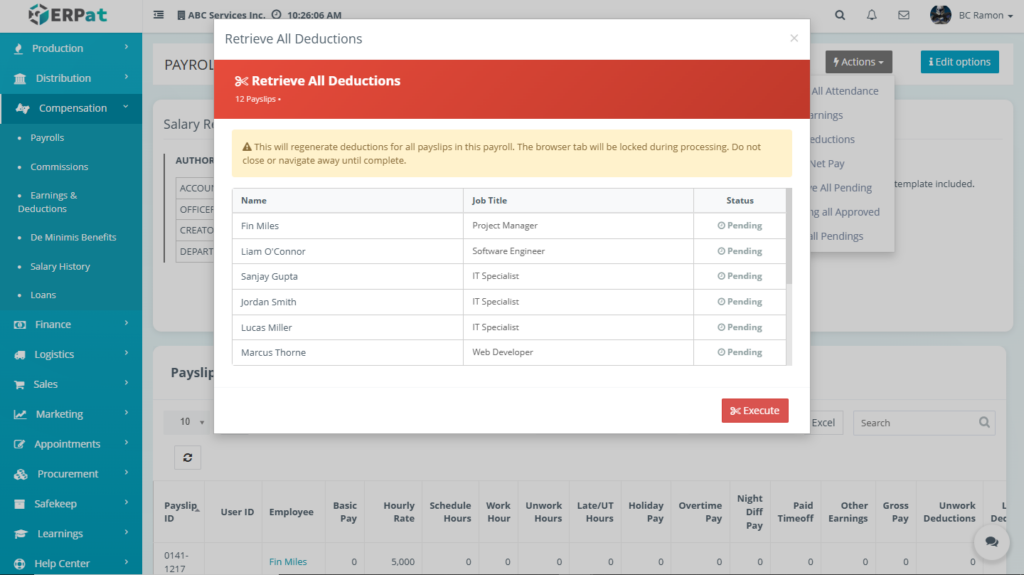
Generate Deductions Function #
Automatically calculates deductions based on payroll configuration.
- Reads:
- Late/UT data
- Tax rules
- Deduction templates
- Computes:
- Tax Due
- Late/UT Deductions
- Other Deductions
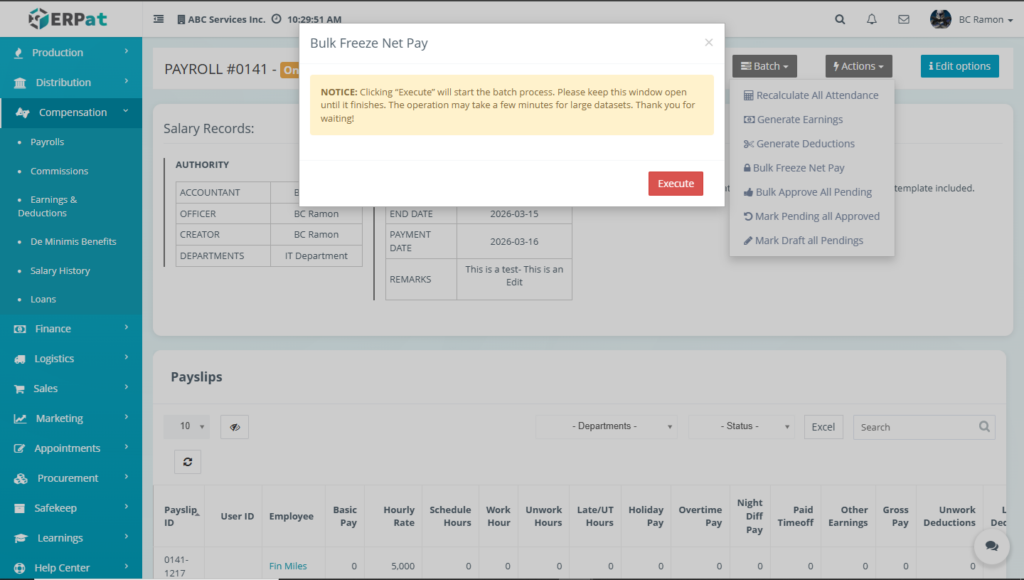
Bulk Freeze Net Pay Function #
Locks the computed Net Pay to prevent further changes.
- Stores current Net Pay value
- Disables recalculation for selected records
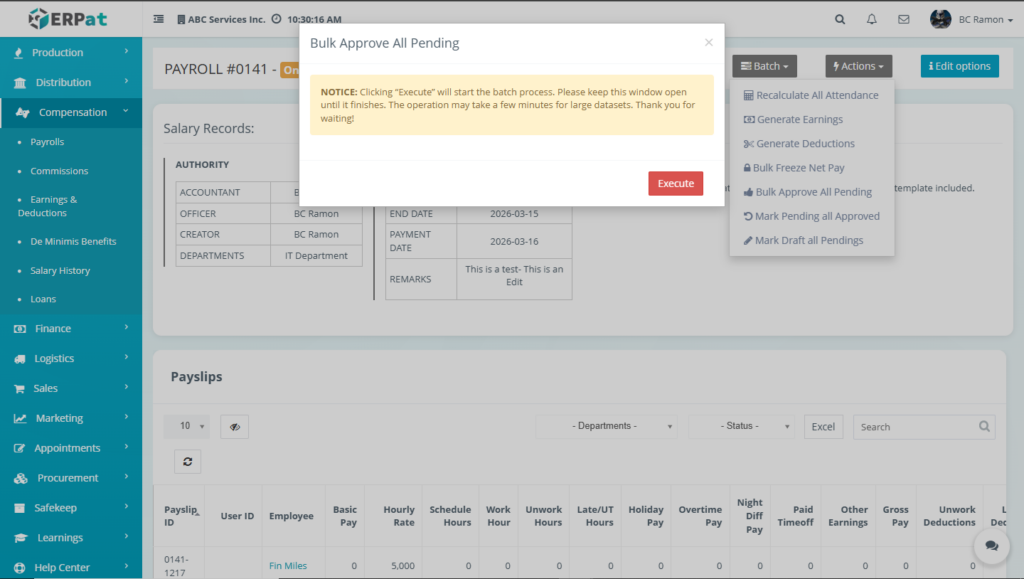
Bulk Approve All Pending Function #
Approves all payslips currently in Pending status.
- Identifies all Pending records
- Updates status to Approved
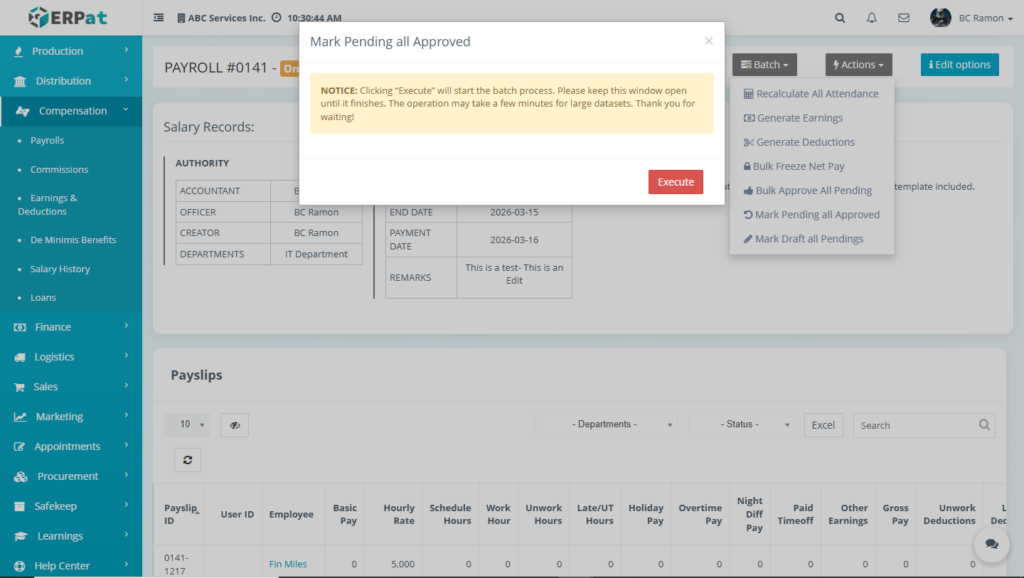
Mark Pending as Approved Function #
Transitions selected Pending records to Approved.
- Filters Pending records
- Updates status to Approved
Mark Draft as Pending Function #
Moves Draft payroll records into Pending status for review.
- Identifies Draft records
- Updates status to Pending
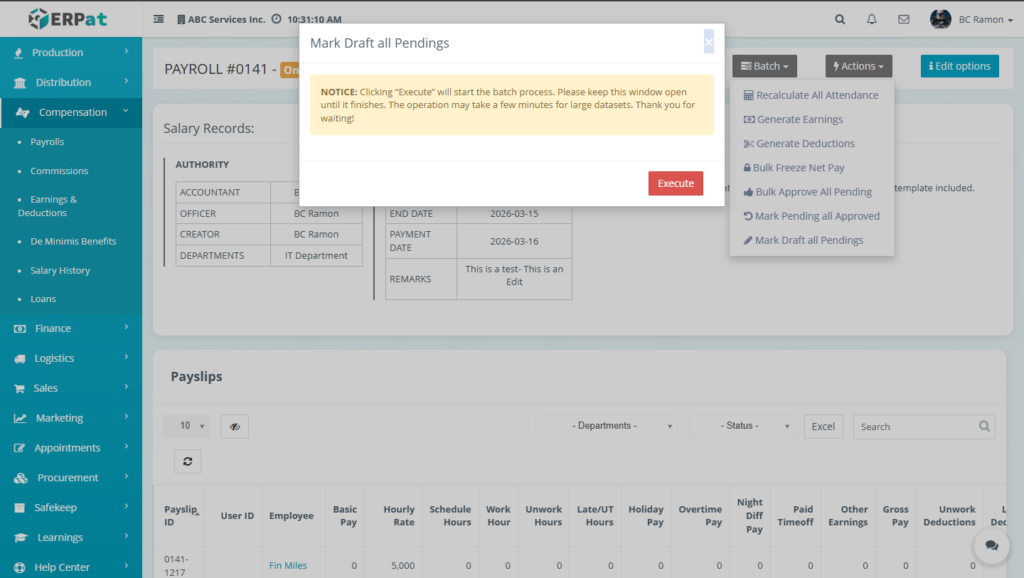
Actions Menu– Ongoing Payroll #
The Actions Menu in the Payroll Entries page provides control tools for managing payroll execution, updating employee assignments, and finalizing payroll processing. These actions are used after payroll data (attendance, earnings, deductions) has been prepared.
It ensures that payroll workflows are completed efficiently, accurately, and in a controlled manner.
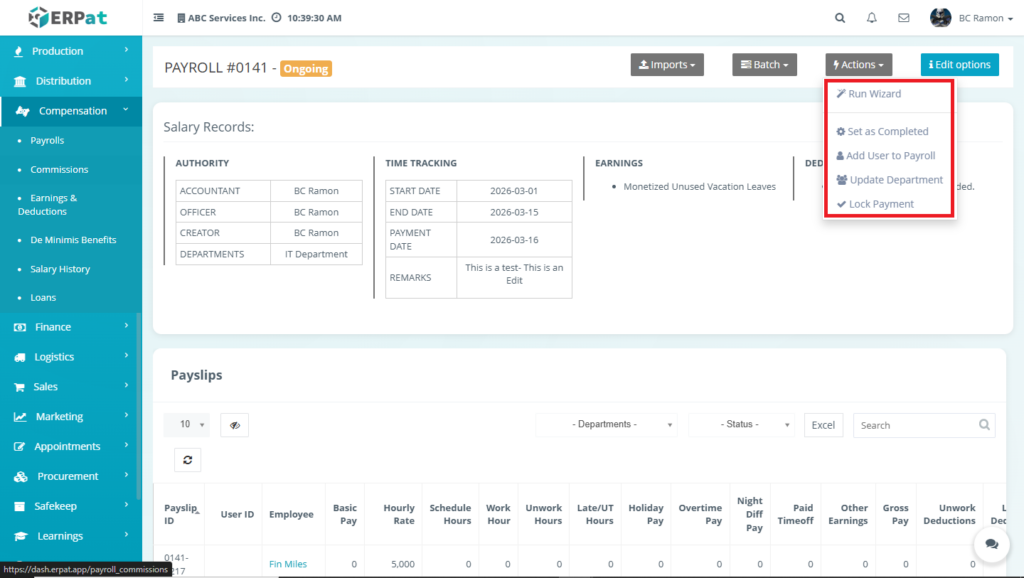
Run Wizard #
Executes a guided payroll processing workflow to ensure all required computations are completed.
How the Data is Processed:
- Retrieves payroll configuration:
- Payroll period (Start Date, End Date)
- Employee list
- Pulls data from:
- Attendance/Time Tracking
- Employee Salary Setup
- Adjustments and Templates
- Executes sequential steps:
- Attendance validation
- Earnings generation
- Deduction computation
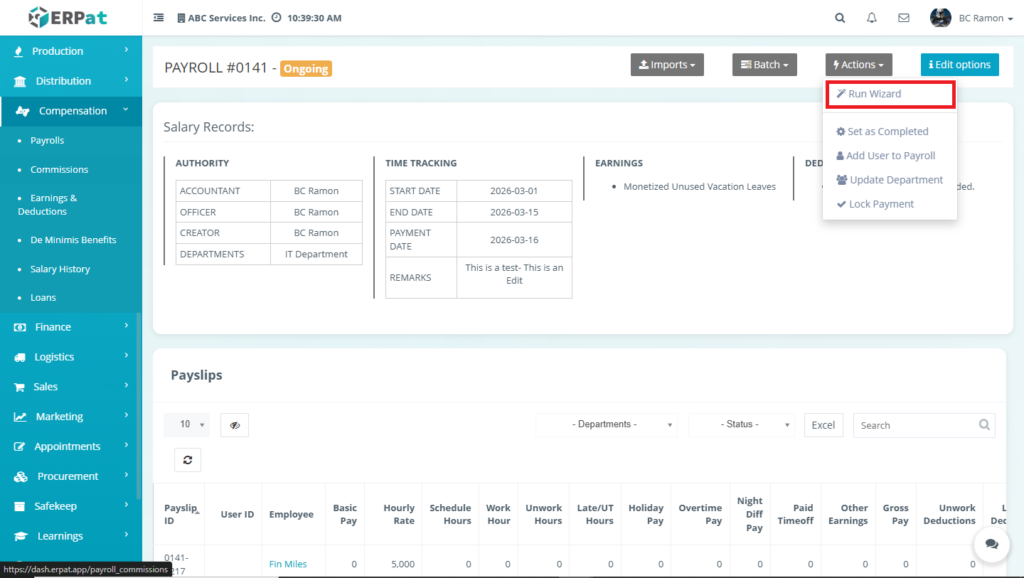
Set as Completed #
Finalizes the payroll after all computations are verified.
How the Data is Processed:
- Checks all employee records:
- No Draft or Pending entries
- No missing required data
- Validates:
- Net Pay values
- Earnings and deductions completeness
- Updates payroll status → Completed
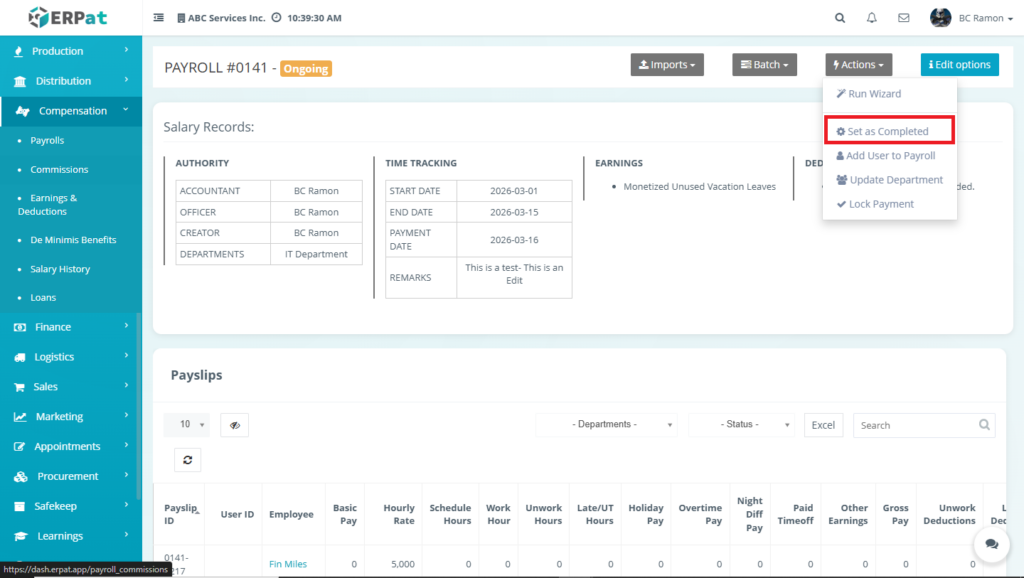
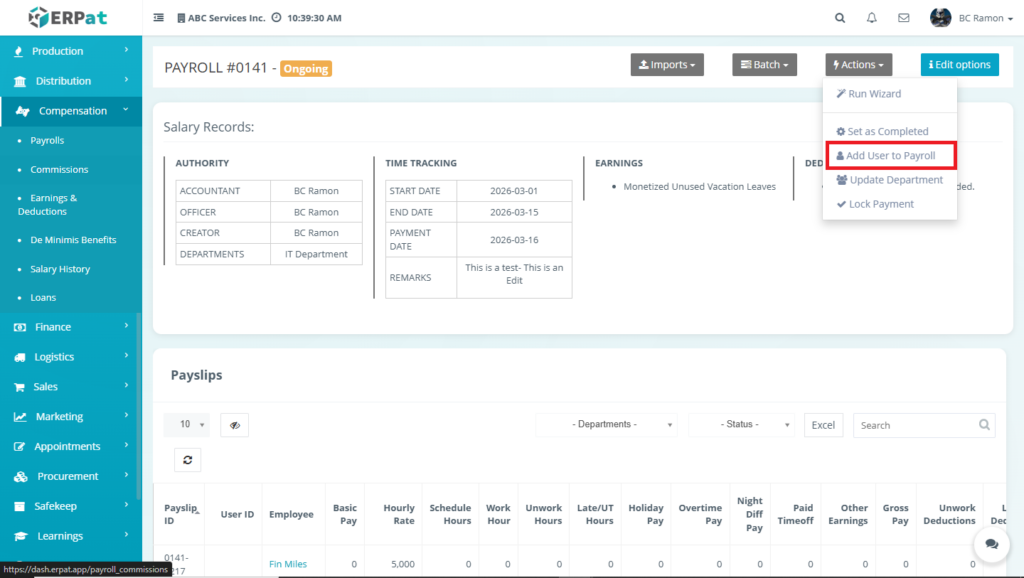
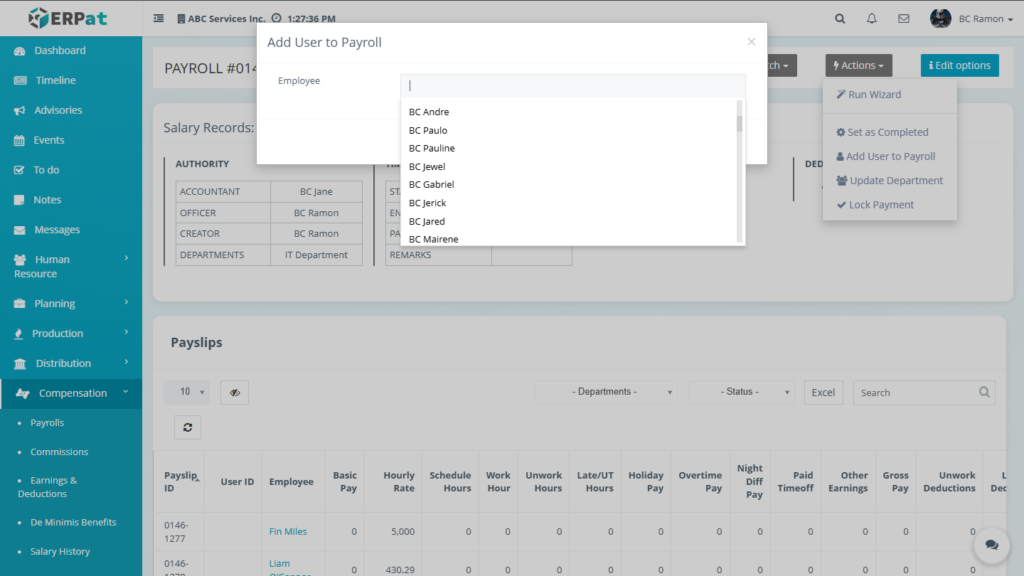
Add User to Payroll #
Adds new employees to the current payroll batch.
How the Data is Gathered:
- Retrieves employee records from:
- Employee Profile Module
- Generates:
- Payslip entry per employee
- Initializes default values:
- Basic Pay
- Work Hours
- Earnings/Deductions (empty or template-based)
Update Department #
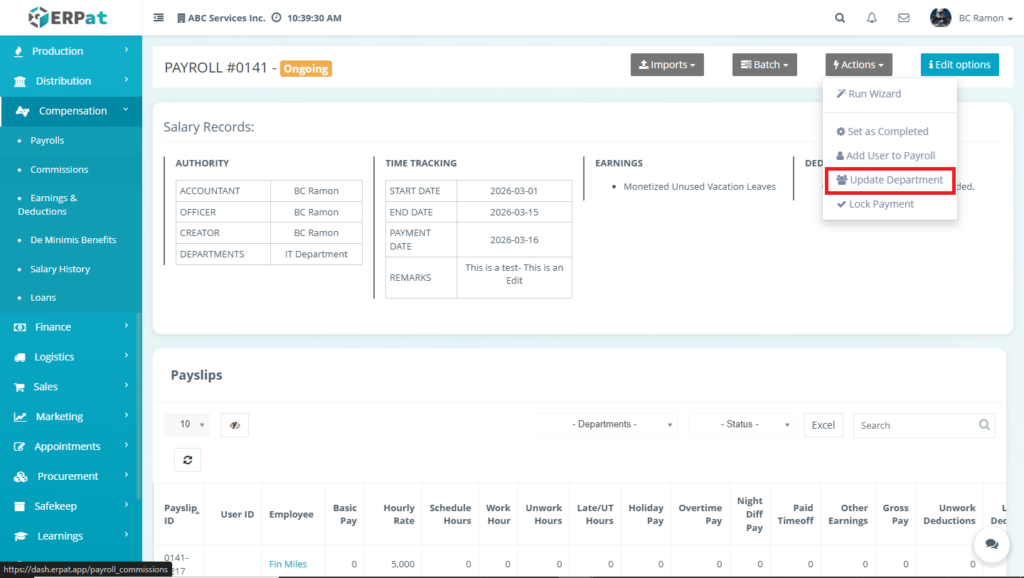
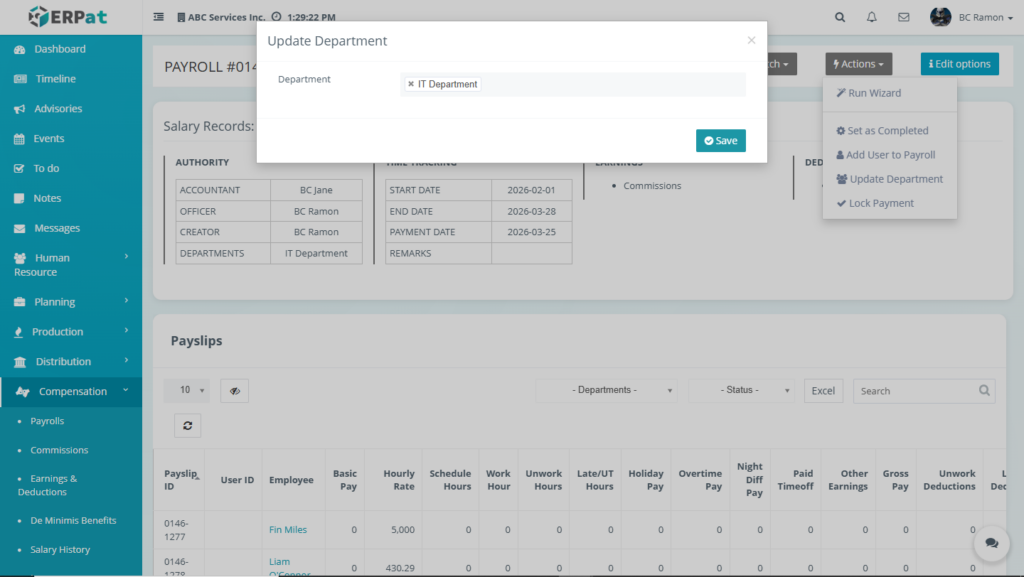
Synchronizes department information of employees in the payroll.
How the Data is Gathered:
- Pulls department data from:
- Employee Profile → Department Assignment
- Updates:
- Department field in payroll entries
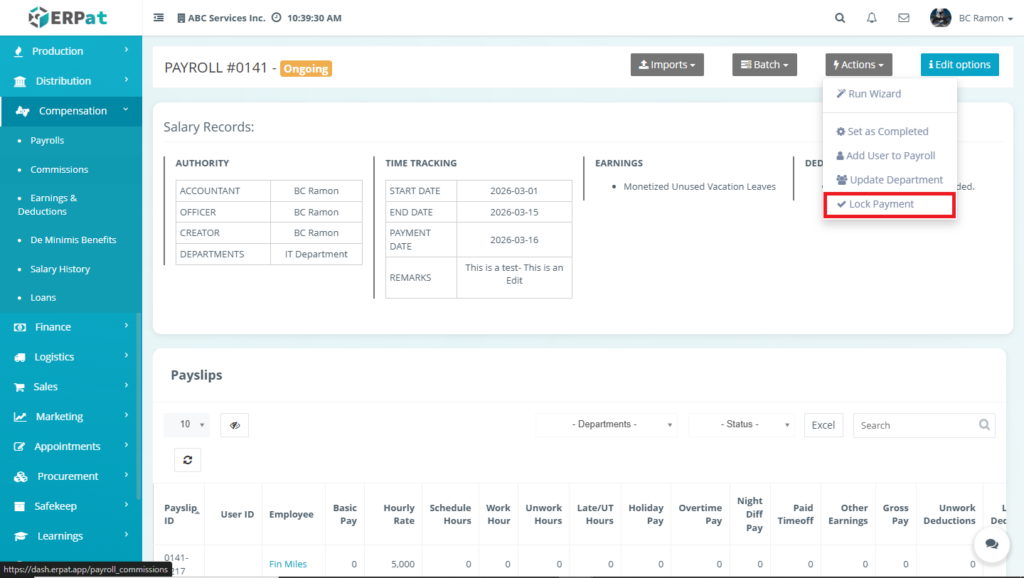
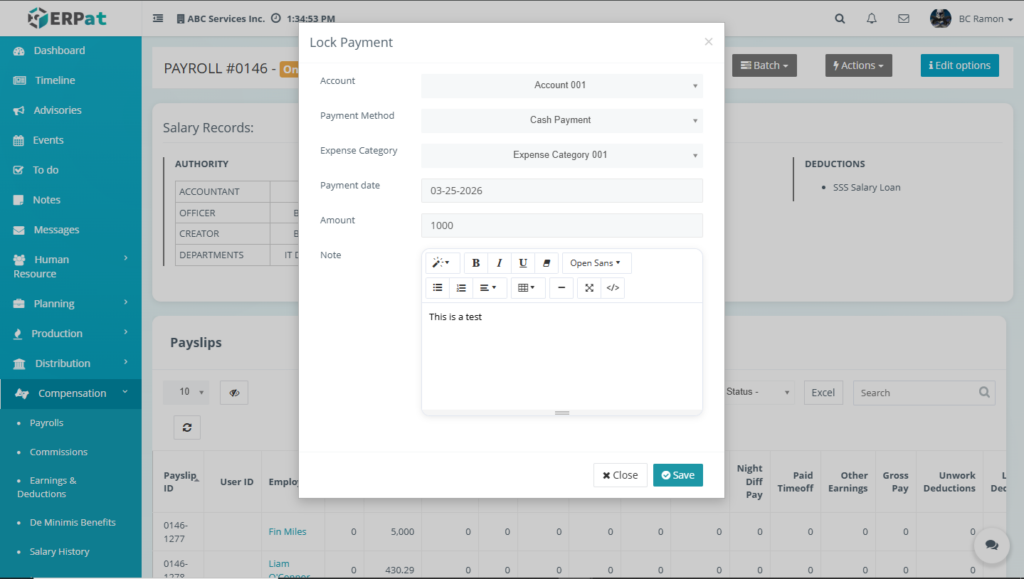
Lock Payment #
Prevents further modifications to payroll records.
How the Data is Processed:
- Locks:
- Net Pay
- Earnings and deductions
- Disables:
- Editing
- Recalculation
- Sets payroll to a protected state
Edit Options (Payroll Options)– Ongoing Payroll #
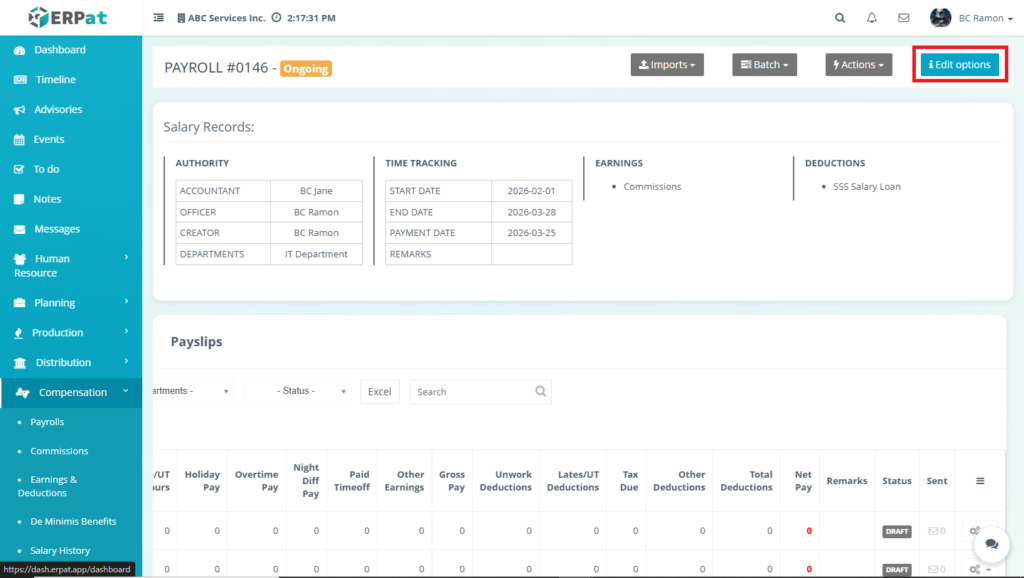
The Edit Options feature in the Payroll Entries page allows users to configure payroll computation rules, tax settings, and processing behaviors before finalizing payroll. It provides control over how earnings, deductions, attendance, and taxes are calculated.
These settings directly affect how payroll values are computed across all employees within the selected payroll.
Rate Options #
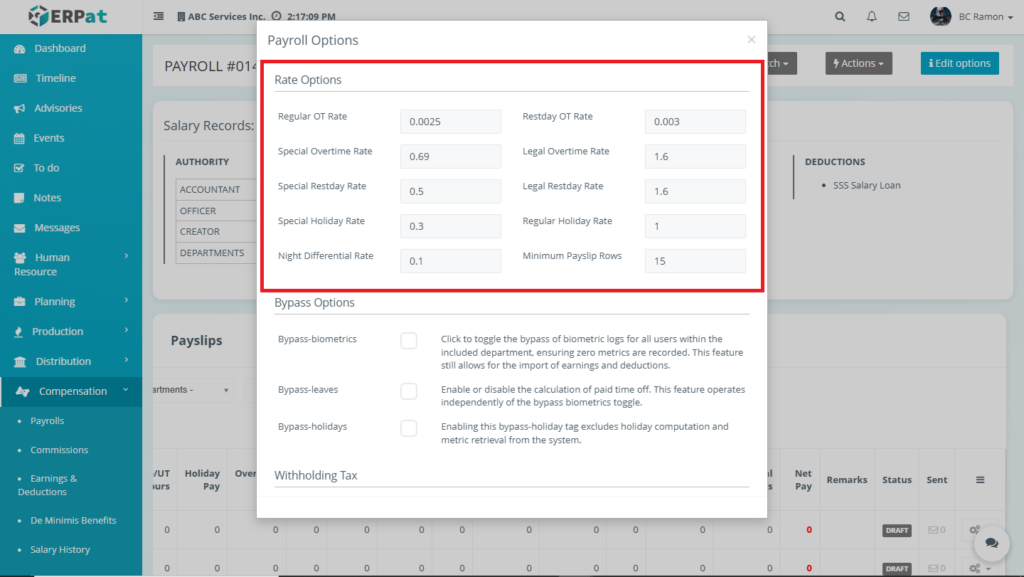
Defines the computation rates used for overtime, holidays, rest days, and other pay adjustments.
Fields and Data Source #
Regular OT Rate
- Source: Payroll Configuration
- Used for standard overtime computation
Restday OT Rate
- Source: Payroll Configuration
- Applies when overtime occurs on rest days
Special Overtime Rate
- Source: Payroll Rules
- Applies to special working conditions
Legal Overtime Rate
- Source: Labor Law Configuration
- Used for mandated overtime computations
Special Restday Rate
- Source: Payroll Rules
Legal Restday Rate
- Source: Labor Law Configuration
Special Holiday Rate
- Source: Payroll Rules
Regular Holiday Rate
- Source: Payroll Rules
Night Differential Rate
- Source: Payroll Configuration
- Used for night shift computation
Minimum Payslip Rows
- Source: System Setting
- Controls minimum number of visible rows in payslip
How It Is Computed #
- System retrieves attendance data:
- Work hours
- Overtime hours
- Applies rate formulas:
Overtime Pay = Hourly Rate × OT Hours × OT Rate
Holiday Pay = Daily Rate × Holiday Rate
Night Differential = Hourly Rate × Night Hours × ND Rate
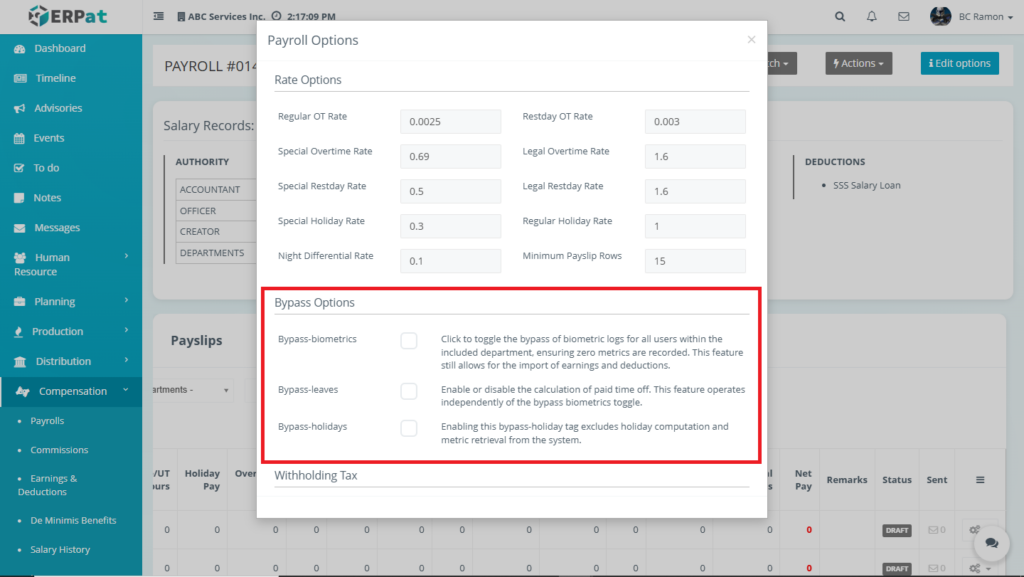
Bypass Options #
Allows users to disable specific payroll computations.
Bypass Biometrics #
- Skips attendance data from biometric logs
- Sets:
- Work hours = 0
- Late/UT = 0
Bypass Leaves #
- Disables paid leave computation
- Leaves are not included in earnings
Bypass Holidays #
- Excludes holiday pay calculations
- Holiday rates are ignored
How It Affects Computation #
When enabled:
Attendance-based calculations → Ignored
Leave earnings → Not included
Holiday pay → Skipped
System uses manual or imported values instead.
Withholding Tax #
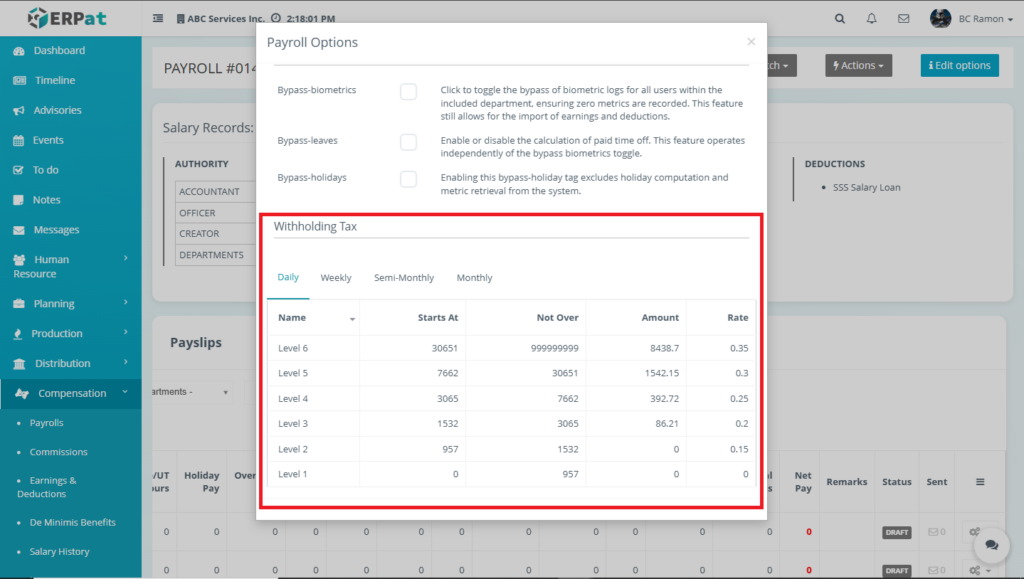
Defines tax computation rules based on payroll frequency.
Tax Categories #
- Daily
- Weekly
- Semi-Monthly
- Monthly
Fields Explanation #
- Name – Tax bracket level
- Starts At – Minimum income threshold
- Not Over – Maximum income threshold
- Amount – Fixed tax amount
- Rate – Percentage applied to excess income
How Tax is Computed #
The system performs:
- Identify employee taxable income
- Match income within a tax bracket
- Apply formula:
Tax Due = Base Amount + (Excess Income × Rate)
Example #
If income falls under Level 4:
Tax = 392.72 + (Income – 3065) × 0.25
Payroll Summary Section #
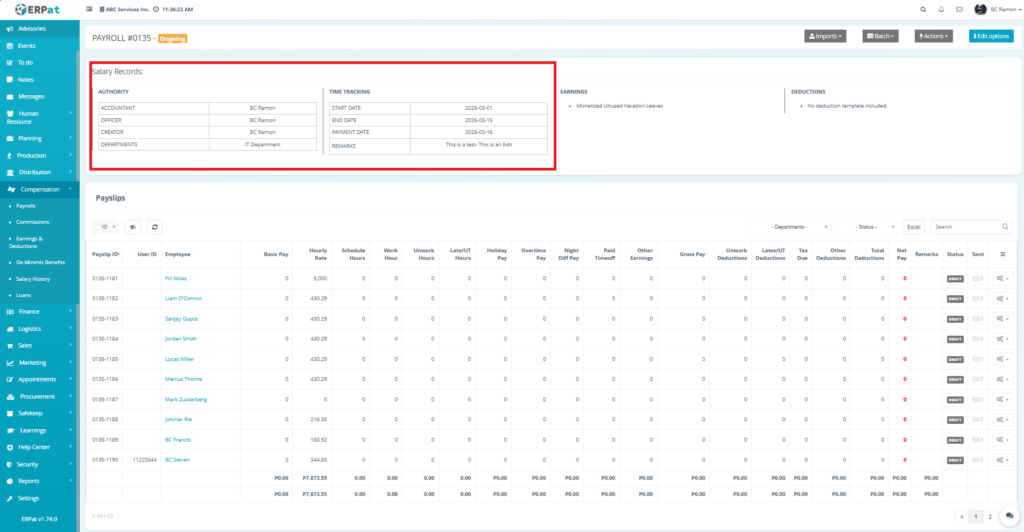
At the top of the page, the system displays payroll summary details including:
Accountant – Assigned payroll accountant
Officer – Supervising personnel
Creator – User who created the payroll
Department – Associated department
Start Date and End Date – Payroll coverage period
Payment Date – Salary release date
Remarks – Additional notes
It also shows configured earnings and deductions applied to the payroll.
Payslip Table #
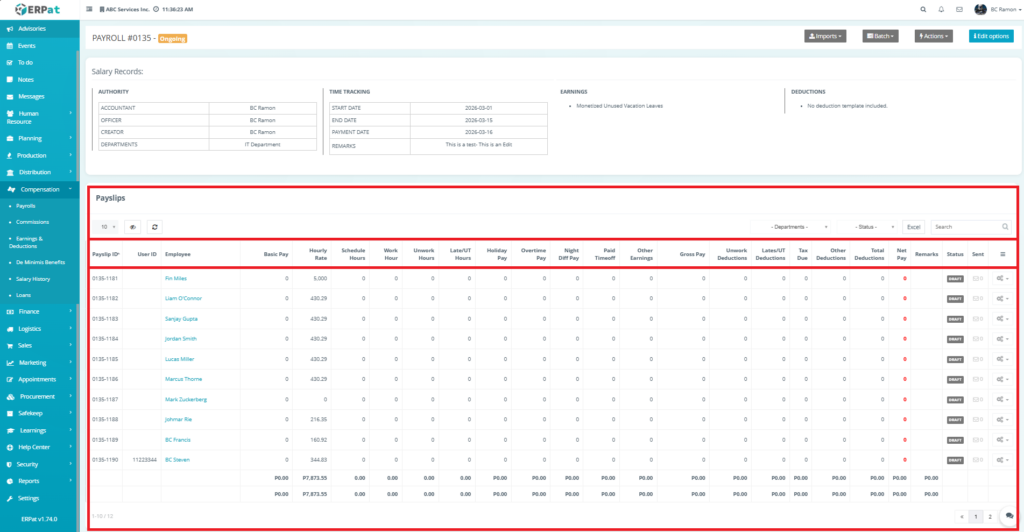
The payslip table provides a detailed breakdown of employee salary computations with the following columns:
- Payslip ID – Unique identifier per employee
- User ID – Employee system ID
- Employee – Employee name
- Basic Pay – Base salary amount
- Fixed salary defined in the employee profile Formula:
- Basic Pay = Monthly Salary (or prorated based on days worked)
- Hourly Rate – Computed hourly rate
- Derived from basic salary and working schedule Formula:
- Hourly Rate = Basic Pay ÷ Total Working Hours in Period
- Schedule Hours – Expected working hours
- Total expected working hours within the payroll period
- Source: Employee schedule / shift setup
- Work Hours – Actual worked hours
- Unwork Hours – Missing hours
- Hours not worked (absences, undertime not paid)
- Source: Attendance / Time tracking
- Late/UT Hours – Late or undertime
- Late = minutes late converted to hours
- UT (Undertime) = early out hours
- Source: Time logs
- Holiday Pay – Holiday compensation
- Additional pay for holidays worked Formula (example):
- Regular Holiday: Daily Rate × % (e.g., 200%)
- Special Holiday: Daily Rate × % (e.g., 130%)
- Source: Holiday calendar + attendance
- Overtime Pay – Additional overtime earnings
- Extra hours beyond schedule Formula:
- OT Pay = OT Hours × Hourly Rate × OT Multiplier
- Source: Approved overtime records
- Night Diff Pay – Night differential pay
- Work done during night hours (e.g., 10PM–6AM)
- Formula:
Night Diff = Night Hours × Hourly Rate × ND % - Source: Time tracking
- Paid Time Off – Leave-based compensation
- Paid leaves (Vacation, Sick Leave, etc.) Formula:
- PTO Pay = Leave Hours × Hourly Rate Source: Leave module
- Other Earnings – Additional earnings
- Bonuses, allowances, incentives
- Source: Manual input or Earnings & Deductions module
- Gross Pay – Total earnings before deductions
- Total earnings before deductions
Formula:
Gross Pay =
Basic Pay
+ Holiday Pay
+ Overtime Pay
+ Night Diff Pay
+ PTO
+ Other Earnings
- Total earnings before deductions
- Unwork Deductions – Deductions from absences
- Deduction for unpaid absences
- Formula:
Unwork Deduction = Unwork Hours × Hourly Rate
- Late/UT Deductions – Deductions from tardiness
- Deduction for late and undertime Formula:
- Late/UT Deduction = (Late + UT Hours) × Hourly Rate
- Tax Due – Computed withholding tax
- Withholding tax based on salary bracket
- Source: Tax table configuration Formula:
- Tax = Computed based on taxable income
- Other Deductions – Additional deductions
- Loans, government contributions, penalties
- Source: Loans module
- Total Deductions – Sum of all deductions
- Formula:
Total Deductions =
Unwork Deductions
+ Late/UT Deductions
+ Tax Due
+ Other Deductions
- Formula:
- Net Pay – Final salary amount
- Final take-home pay
Formula:
Net Pay = Gross Pay – Total Deductions
- Final take-home pay
- Remarks – Payroll notes per employee
- Manual notes or system-generated comments
- Example: adjustments, corrections
- Status – Payslip status (e.g., Draft)
- Indicates payslip state:
- Draft
- Pending
- Processed
- Released
- Sent – Email/send status
- Indicator if payslip has been emailed to employee
- Numbers of Email
Additional controls: #
- Department filter – allows users to display only the payslips associated with a specific department. This is useful when reviewing payroll data for a particular team or organizational unit.
- Status filter – enables users to sort payslips based on their current status such as Draft, Pending, or Approved. This helps in tracking payroll progress and identifying records that require action.
- Search bar – provides a quick way to locate specific payslip records by entering keywords such as employee name, user ID, or payslip ID. It improves efficiency when working with large datasets.
- Excel export – function allows users to download the current table data into an Excel file. This is useful for reporting, auditing, or offline analysis.
- Pagination controls – allow users to navigate through multiple pages of records when the dataset is large. It ensures smooth browsing without overloading the interface.
- Refresh button – updates the table to display the most recent data. This ensures that any changes or newly processed payroll records are reflected in real time.
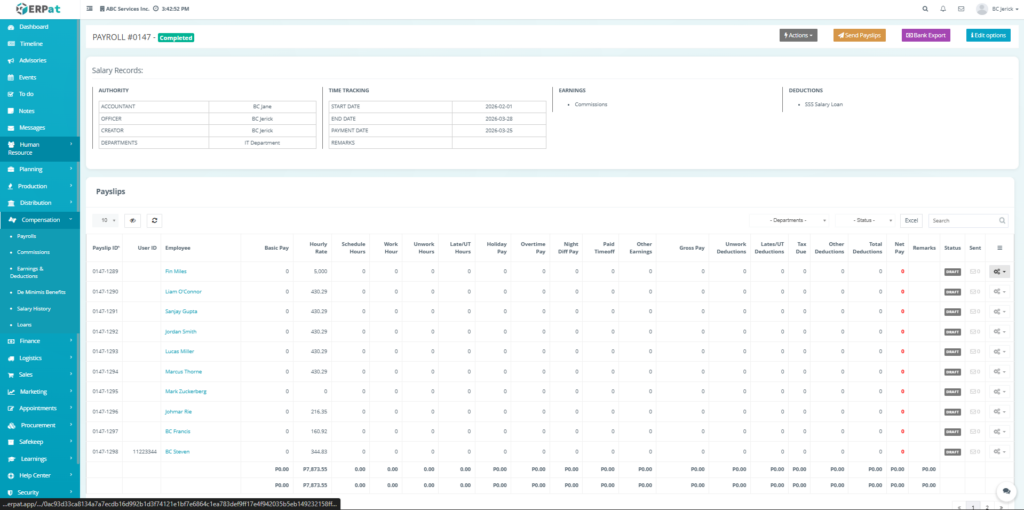
View Payroll (Payslip Processing Listing Page)– Completed Payroll #
Completed Payroll provide final-stage actions used after payroll processing is finished. These allow users to distribute payslips, export payroll data for banking, and manage post-processing administrative tasks.
Unlike ongoing payrolls, computation and editing actions are restricted, and only output and finalization tools are available.
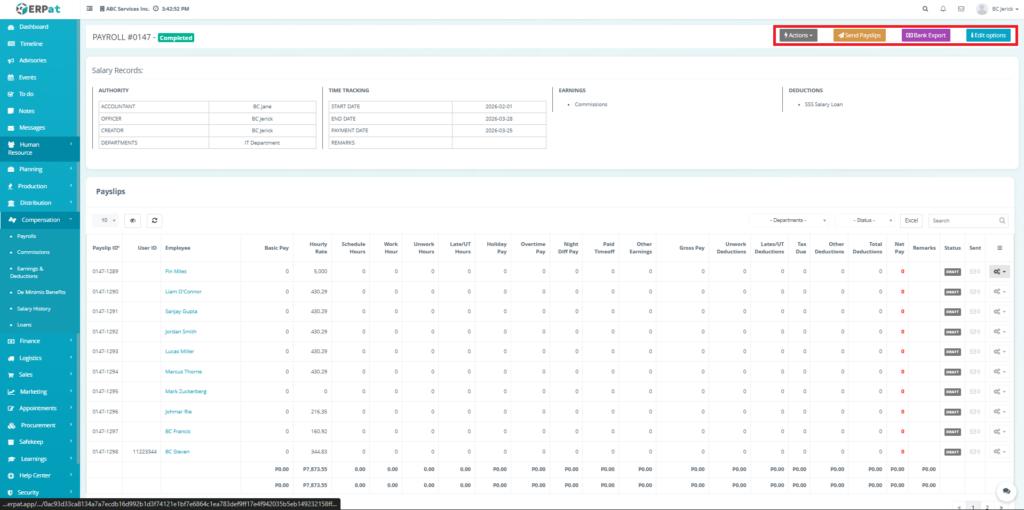
Top-Level Controls– Completed #
The payroll processing page includes the following controls:
Actions– Provides administrative tools for managing completed payroll without altering finalized computations.
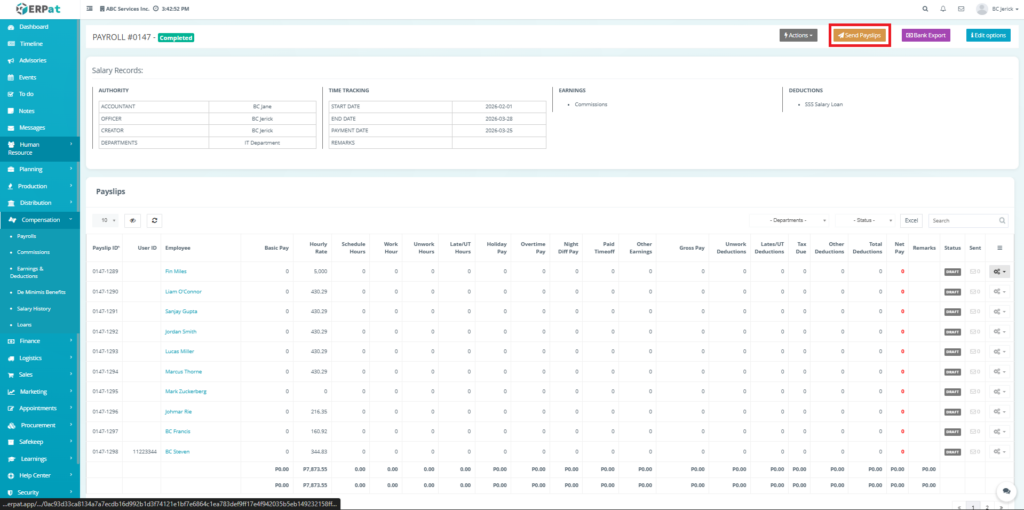
Send Payslips– Distributes finalized payslips to employees.
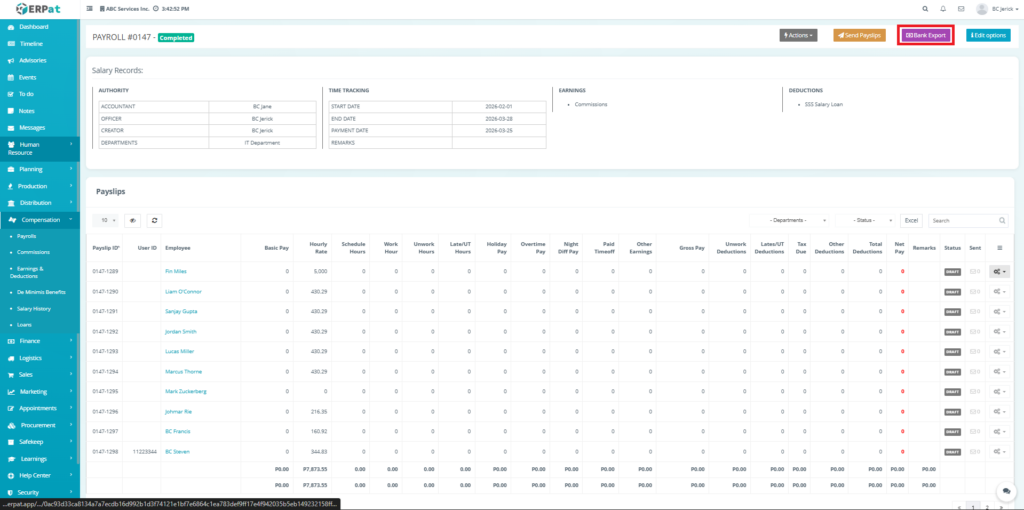
Bank Export– Generates a bank-compatible file for payroll disbursement.
Edit Options –Allows viewing and limited editing of payroll configuration settings used during computation.
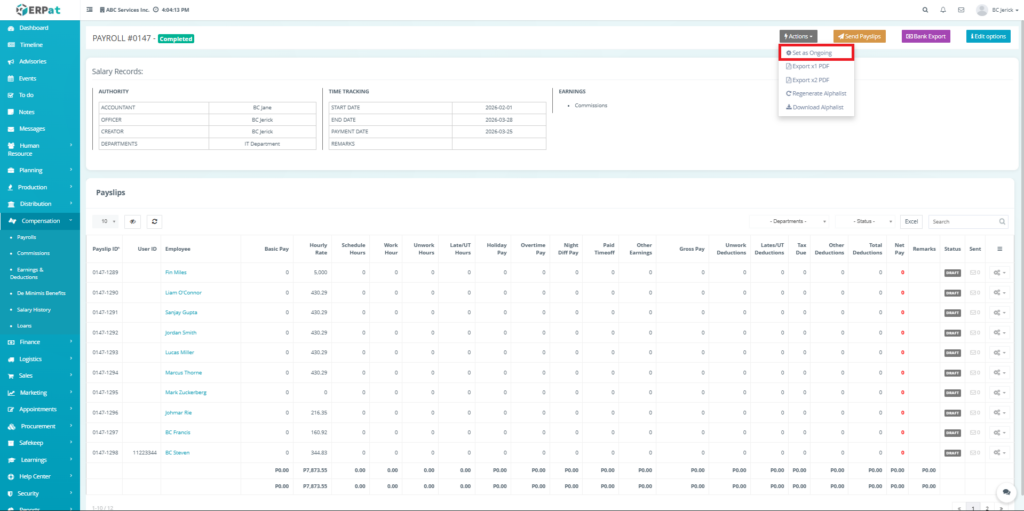
Set as Ongoing #
Reverts the payroll status from Completed back to Ongoing.
How the Data is Processed:
- Updates payroll status flag in the system
- Re-enables editing and recalculation features
- Keeps existing payroll data intact
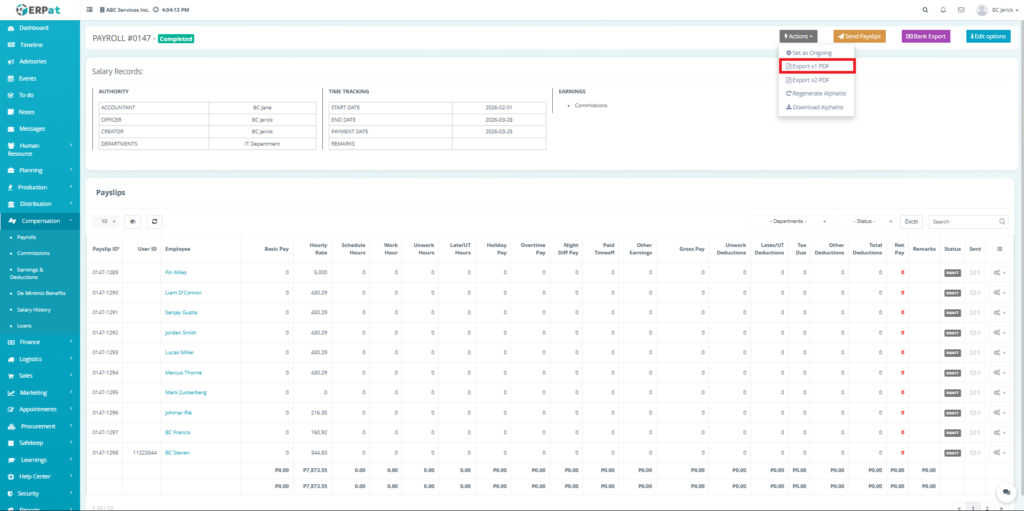
Export x1 PDF #
Generates a single-copy PDF report of the payroll.
How the Data is Gathered:
- Employee payroll records
- Earnings and deductions
- Net pay computations
- How It Works:
- Compiles payroll data into structured format
- Converts data into a PDF document
- Applies standard report layout
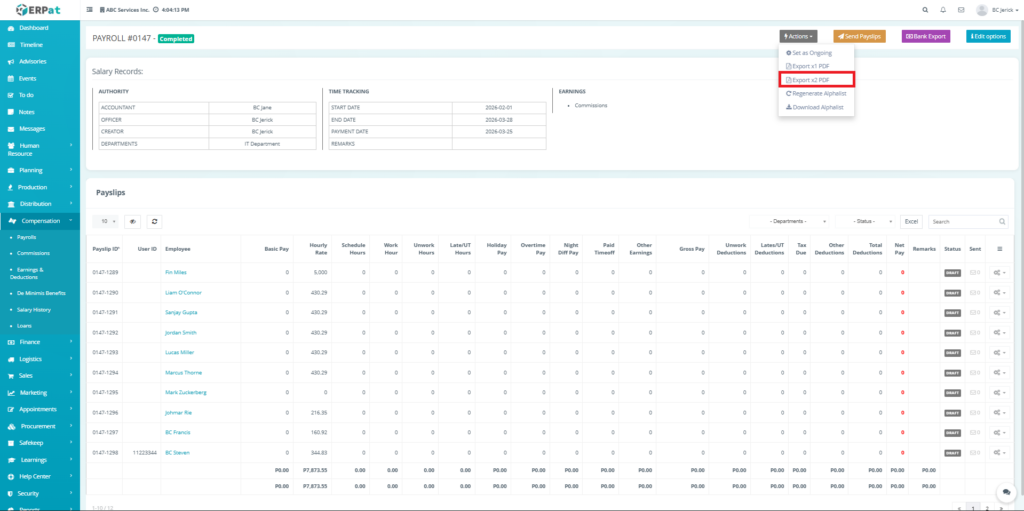
Export x2 PDF #
Generates a duplicate or two-copy PDF report of the payroll.
How the Data is Gathered:
Same as Export x1 PDF:
- Payroll records
- Computation results
- How It Works:
- Duplicates payroll report layout per employee
- Produces two copies in one file
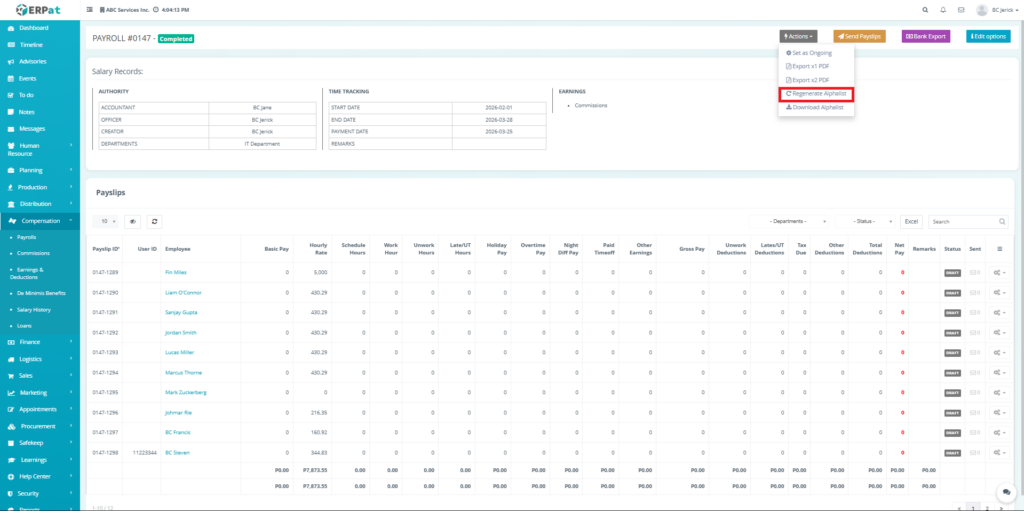
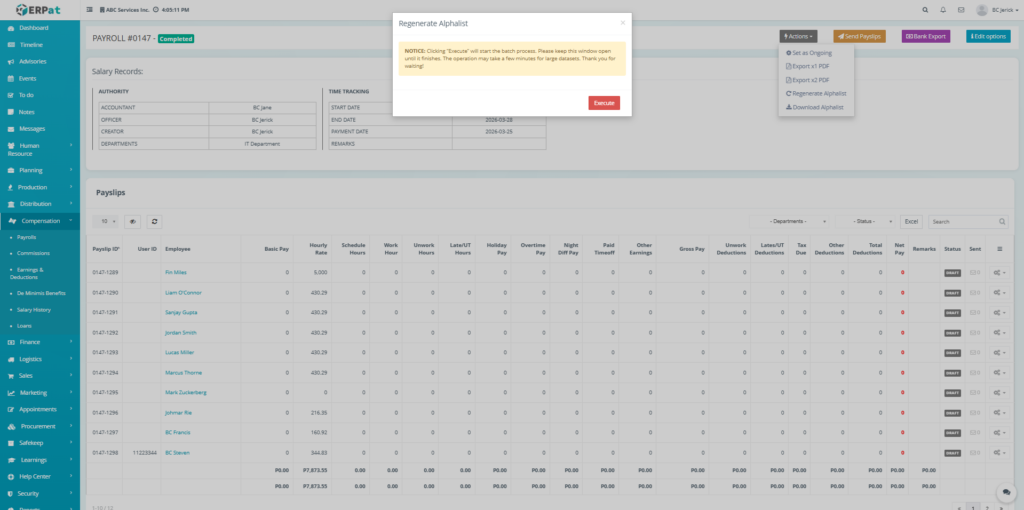
Regenerate Alphalist #
Rebuilds the payroll alphalist report based on the latest stored data.
How the Data is Gathered:
- Employee payroll entries
- Earnings and deductions
- Tax-related values
- How It Works
- Recalculates aggregated payroll data
- Updates alphalist structure
- Refreshes stored summary
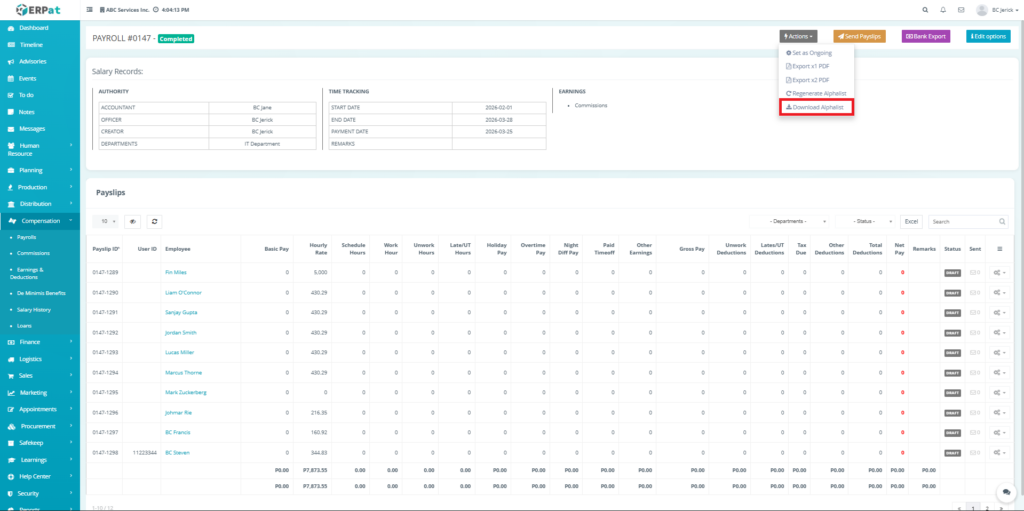
Download Alphalist #
Exports the alphalist report into a downloadable file.
How the Data is Gathered:
- Uses previously generated alphalist data
- How It Works
- Formats alphalist into:
- Excel or structured file
- Prepares file for download
Send Payslips- Completed Payroll #
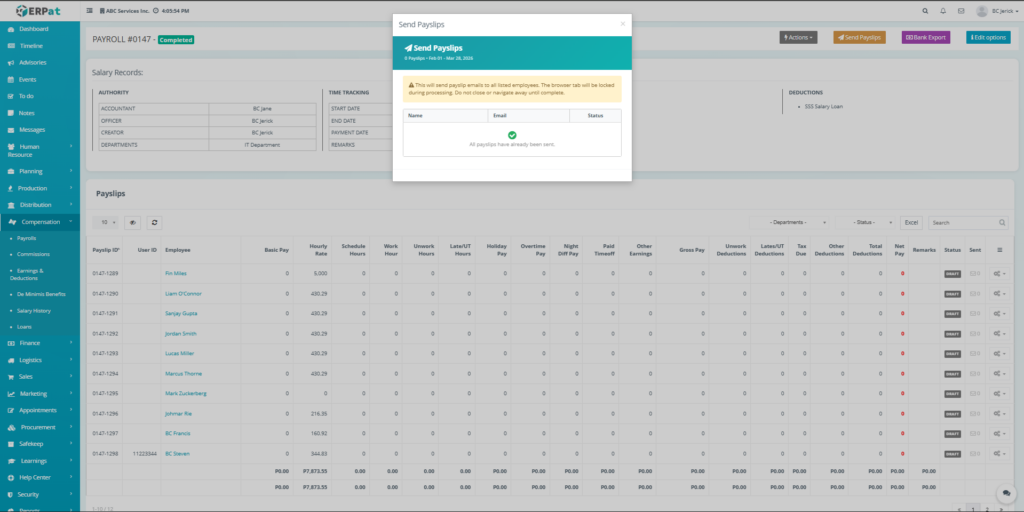
The Send Payslips feature allows users to distribute finalized payroll results directly to employees. This function generates individual payslips based on computed payroll data and sends them through the system or via email.
This feature is only available when the payroll status is Completed, ensuring that all payroll values are finalized before distribution.
How the Data is Gathered #
The system collects the following data:
Employee Profile
- Name
- Email address
Payroll Computation
- Earnings
- Deductions
- Net Pay
Payroll Details
- Payroll ID
- Payroll period
- Payment date
How the System Processes Payslips #
1. Validation #
System checks:
- Payroll status = Completed
- Employee has valid contact details
- Payroll data is fully computed
2. Payslip Generation #
For each employee:
- Retrieves payroll record
- Compiles:
- Basic Pay
- Earnings
- Deductions
- Net Pay
- Formats into payslip structure
3. Delivery Process #
System sends payslips via:
- Email (if configured)
- System notification
Each employee receives an individual payslip.
4. Status Tracking #
The modal updates:
- Sent
- Pending
- Failed (if any issue occurs)
If already sent:
- System displays confirmation
- Prevents duplicate sending
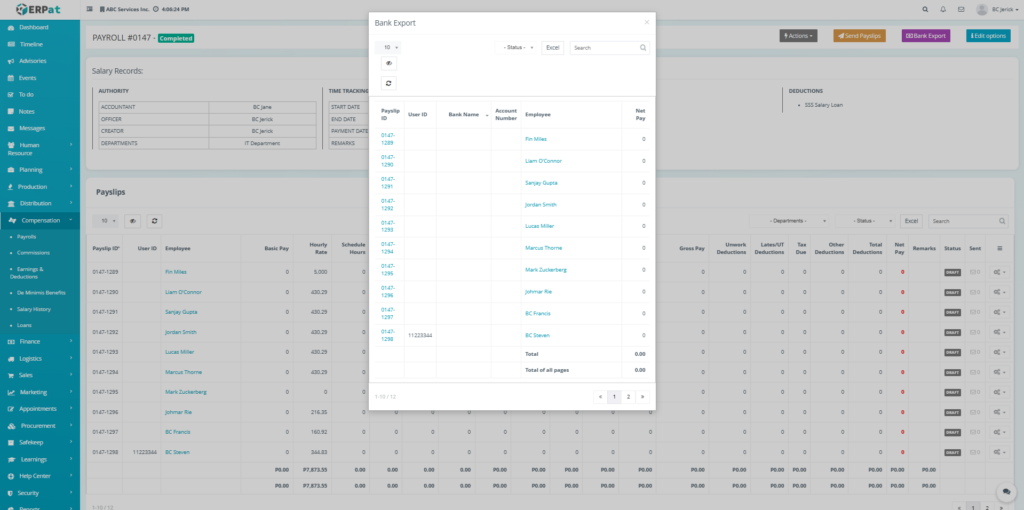
Bank Export – Completed Payroll #
The Bank Export feature allows users to generate a structured file containing employee payroll data for salary disbursement through banking systems. This feature ensures that all finalized payroll amounts can be transferred efficiently and accurately to employees’ bank accounts.
It is only available when the payroll status is Completed, ensuring that all payroll computations are finalized before export.
How the Data is Gathered #
The system retrieves the following data:
Employee Profile
- Full name
- User ID
- Bank details (Bank Name, Account Number)
Payroll Computation
- Net Pay
- Payroll ID reference
Payroll Records
- Payslip ID
- Payment period
How the System Processes Bank Export #
1. Validation #
System checks:
- Payroll status = Completed
- Employee has valid bank details
- Net pay values are computed
2. Data Compilation #
For each employee:
- Retrieves payroll record
- Extracts:
- Employee name
- Bank name
- Account number
- Net pay
- Organizes data into structured format
3. Formatting #
System prepares export file:
- Formats into Excel or structured file
- Aligns with banking requirements
- Ensures consistent column structure
4. Output Generation #
System generates:
- Downloadable file
- Summary totals (Total, Total of all pages)
5. Export Execution #
User can:
- Use Excel export button+
- Download file directly
History Logs – Completed #
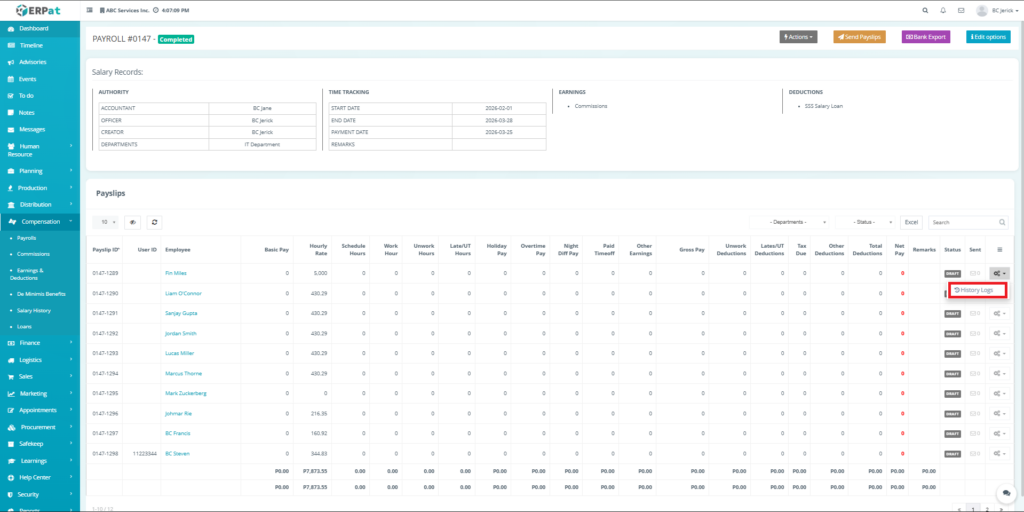
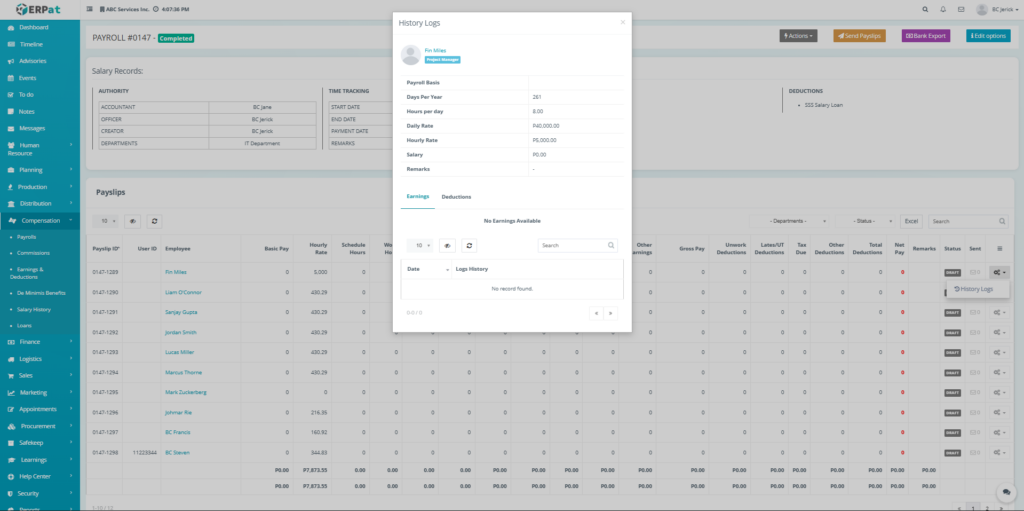
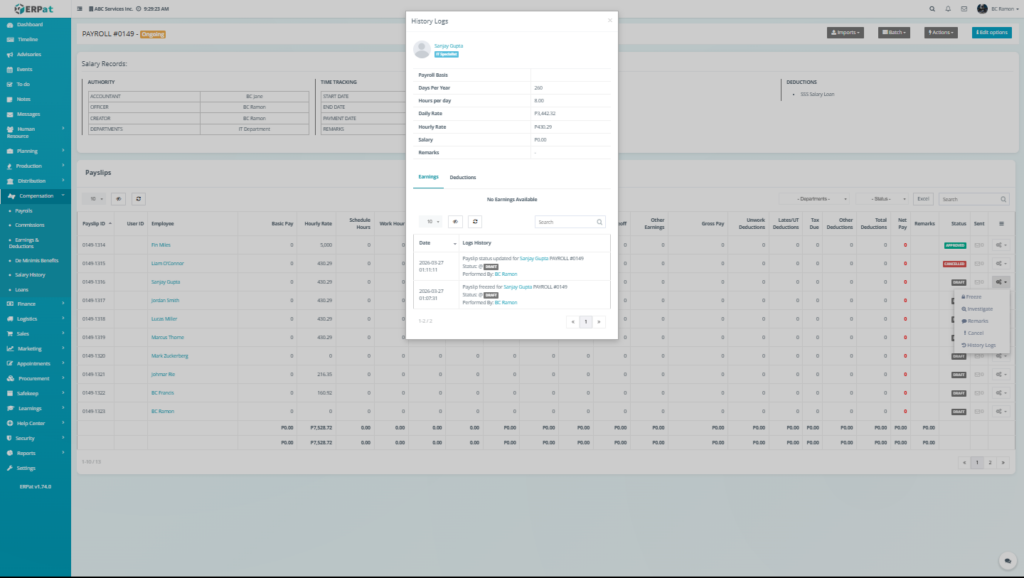
The History Logs feature provides a detailed audit trail of all activities, computations, and changes made to an individual employee’s payslip within a payroll cycle. It ensures transparency, traceability, and accountability by recording how payroll values were generated and modified.
This feature allows users to review the payroll basis, earnings, deductions, and system-generated logs tied to a specific employee.
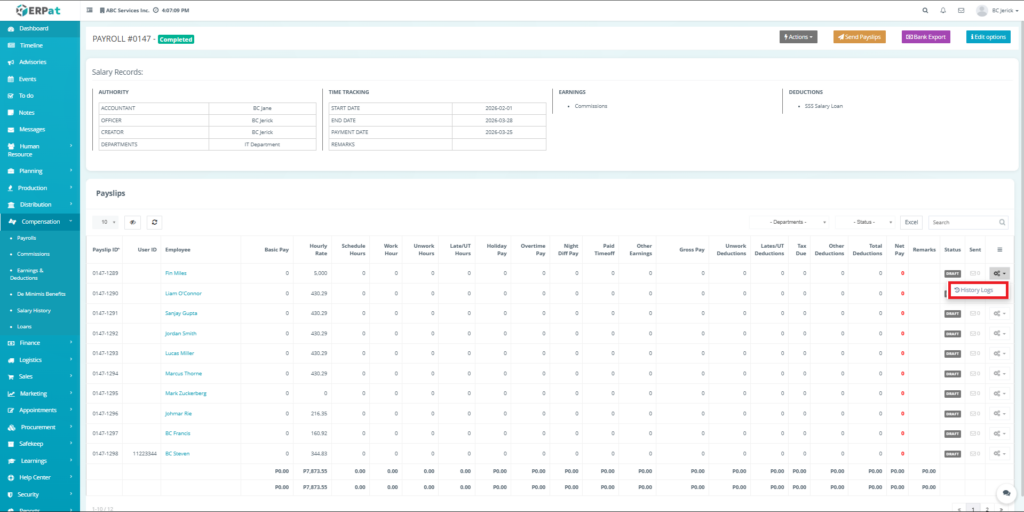
History Logs Interface #
The History Logs modal contains multiple sections:
Employee Information #
Displays:
- Employee Name
- Employee Role / Position
Payroll Basis #
This section shows the core computation setup used for the employee:
- Days Per Year – Standard working days used for computation
- Hours Per Day – Standard working hours
- Daily Rate – Computed or assigned daily salary
- Hourly Rate – Derived or assigned hourly wage
- Salary – Base salary value
- Remarks – Additional notes
Earnings Tab #
Displays:
- List of earnings applied to the employee
- Earnings computation records
- Additional earnings breakdown
If no data is available:
- Displays “No Earnings Available”
Deductions Tab #
Displays:
- List of deductions applied
- Deduction history and records
If no data is available:
- Displays “No Deductions Available”
Logs History Table #
Columns include:
- Date – Timestamp of action
- Logs History – Description of activity
Possible entries:
- System-generated computations
- Manual adjustments
- Import updates
- Recalculations
How the System Generates History Logs #
Trigger Events #
Logs are created when:
- Payroll is generated
- Earnings/Deductions are applied
- Imports are processed
- Manual edits are made
- Recalculations occur
Data Capture #
System records:
- Timestamp
- User/System action
- Affected values
- Type of operation
Computation Tracking #
System logs:
- Rate calculations
- Salary breakdown
- Adjustments applied
- Earnings/Deductions inclusion
Storage #
All logs are stored per:
- Payroll ID
- Employee Payslip ID
Display #
Logs are retrieved and displayed in:
- Chronological order
- Filterable/searchable format
Payslip Actions – Mark as Draft state #
The Payslip Actions Menu (Mark as draft state) provides limited but controlled options for managing payroll entries that have already been approved. Once a payslip reaches the Approved status, it is considered validated and ready for final payroll processing.
At this stage, the system restricts major modifications while still allowing monitoring, documentation, and controlled adjustments when necessary.
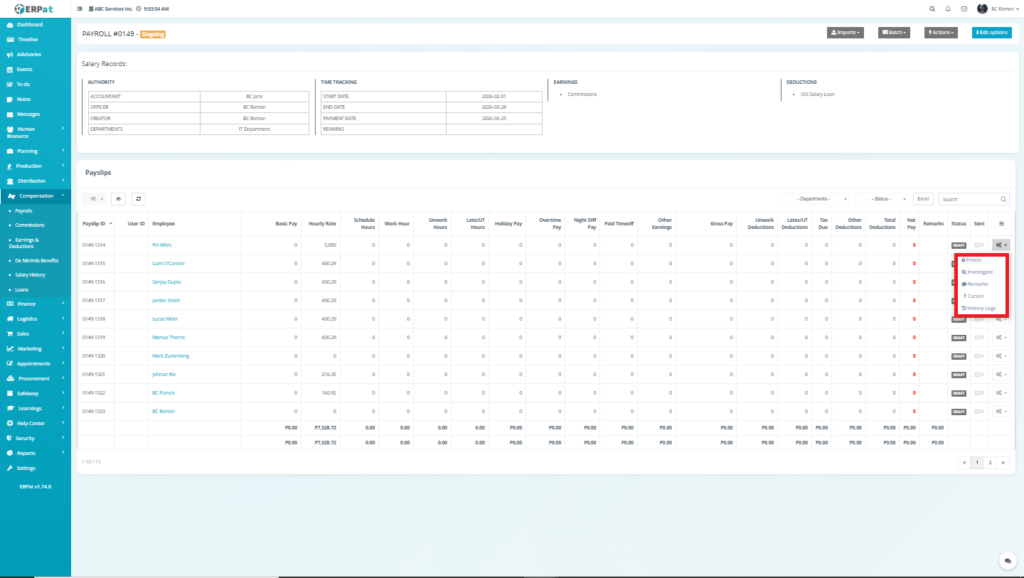
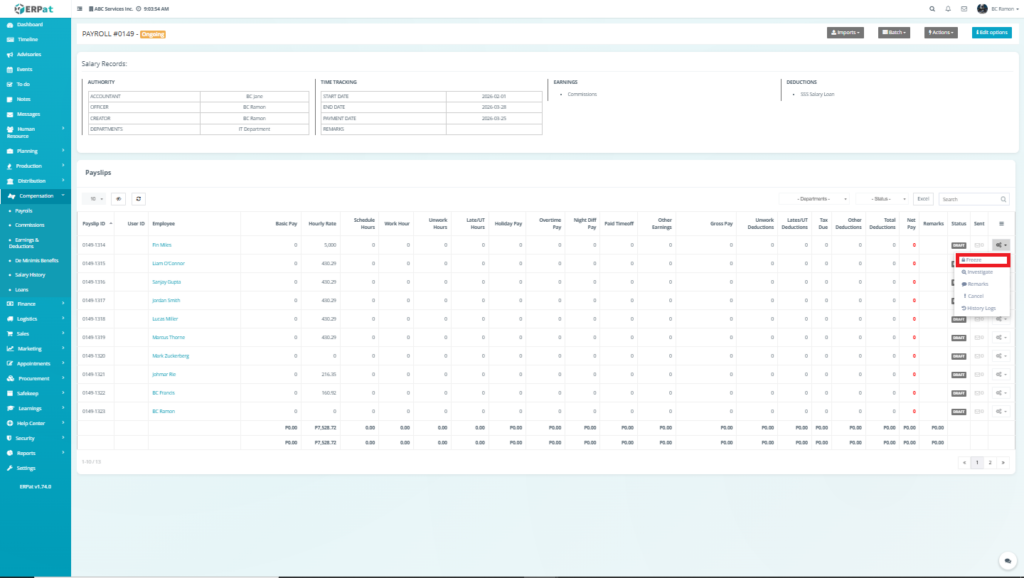
Freeze #
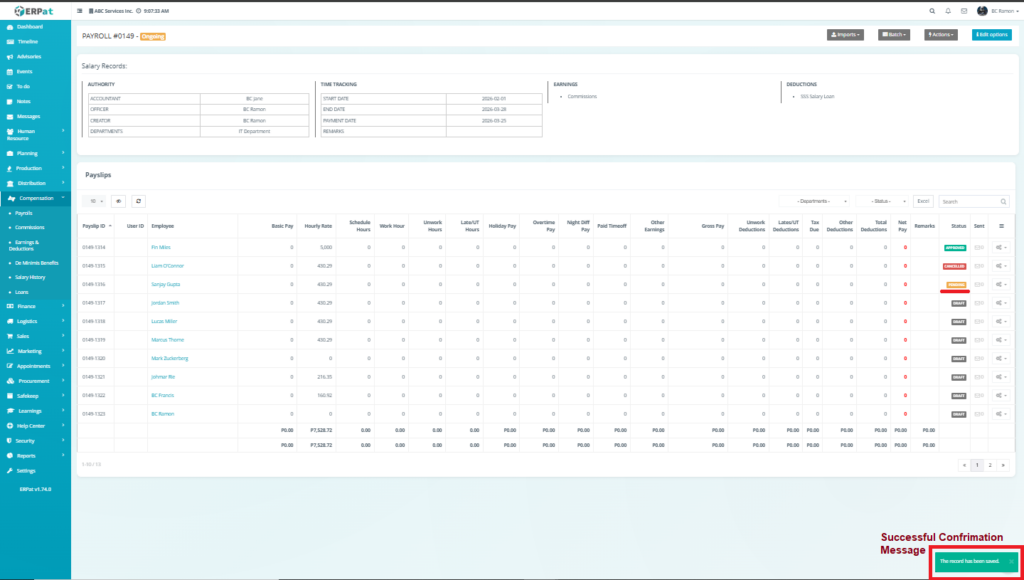
Locks the payslip to prevent further modifications
- Ensures payroll data integrity
- Prevents accidental edits
- Prepares the payslip for final processing
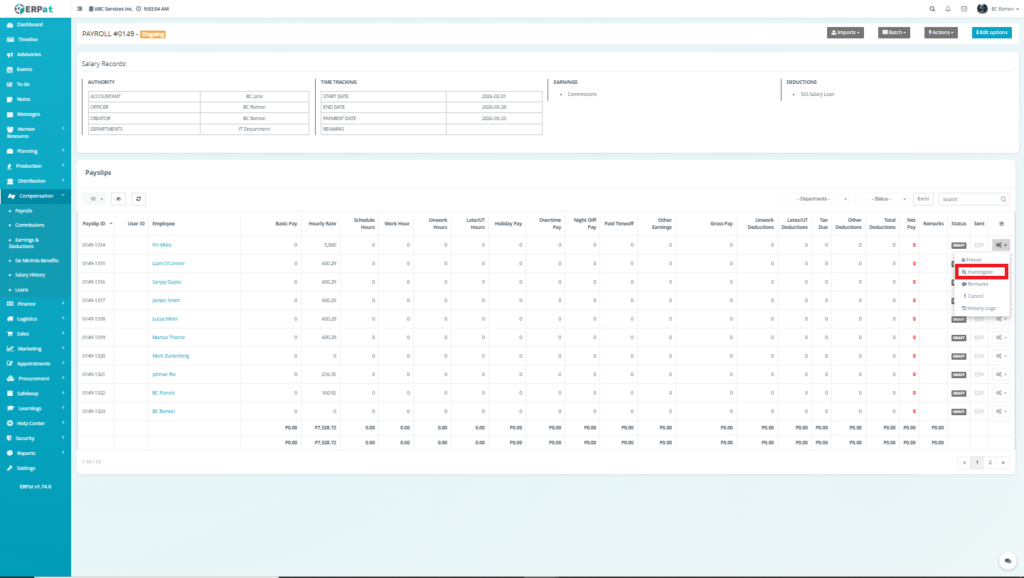
Investigate #
Flags the approved payslip for review
- Allows further verification
- Used when issues are discovered after approval
- Temporarily halts finalization
Investigate Payslip Feature #
The Investigate Payslip Feature allows users to review, analyze, and validate the detailed computation of an individual employee’s payroll. This feature is used when discrepancies, missing data, or unusual payroll values are detected.
It provides a complete breakdown of work hours, earnings, deductions, and computed salary values, enabling users to verify accuracy before approval or finalization.
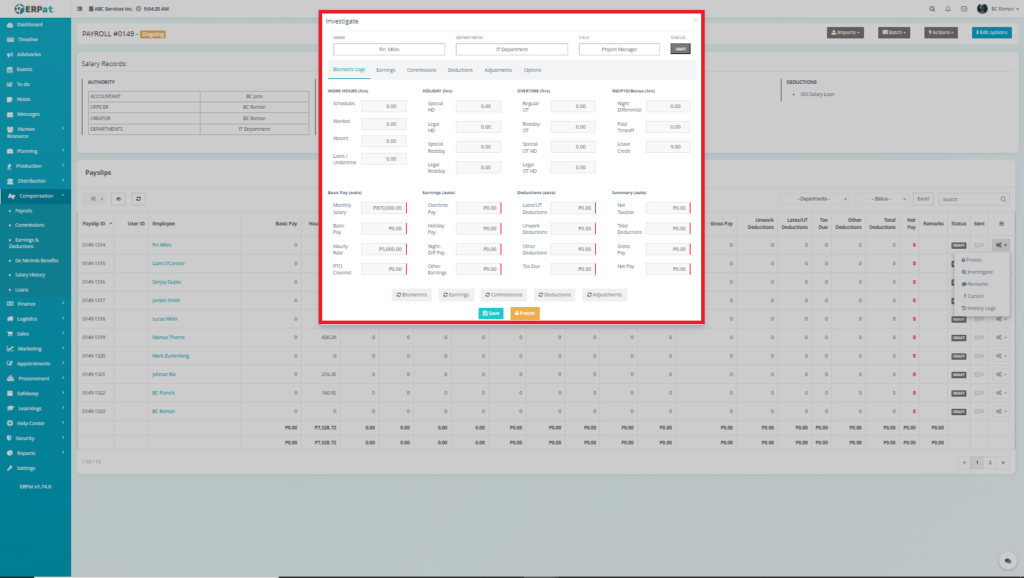
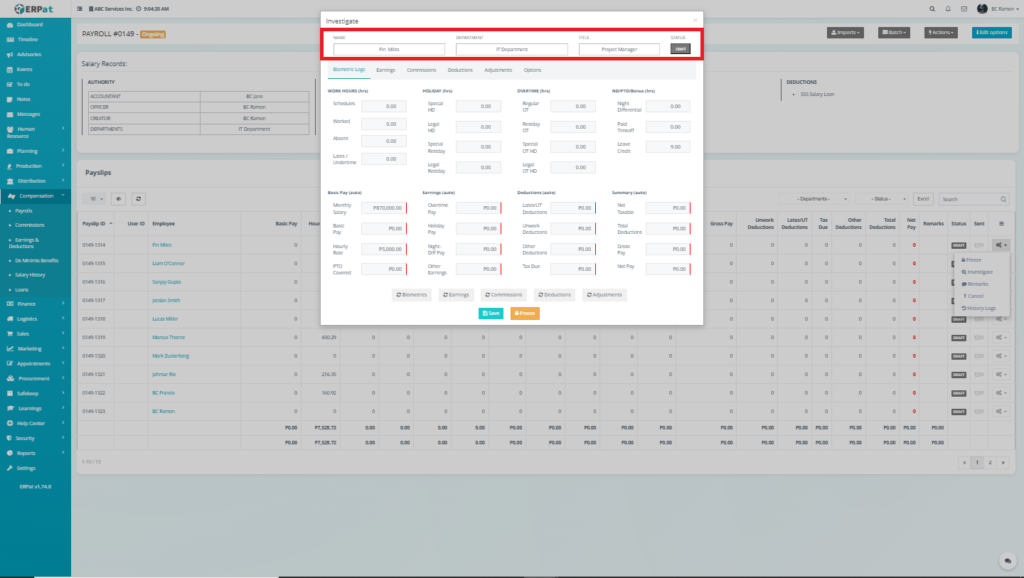
Employee Information #
When the user clicks Investigate, the system retrieves
- Employee Name
- Department
- Job Title
- Current Status (e.g., Draft)
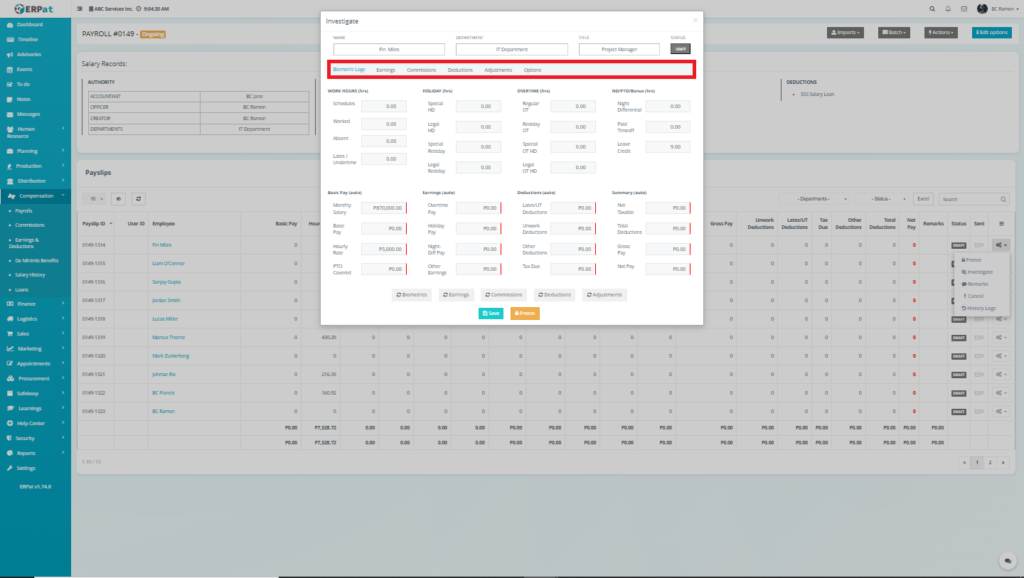
Navigation Tabs #
Within the Investigate modal, the following tabs are available:
- Biometric Logs
- Earnings
- Commissions
- Deductions
- Adjustments
- Options
Each tab serves a specific purpose in payroll validation.
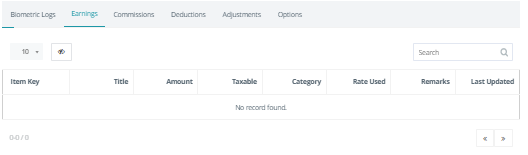
Earnings Tab #
Displays all earnings applied to the employee.
Source: Earnings records + payroll templates
- Includes allowances, bonuses, overtime-derived earnings
- Can include imported or manual entries
Purpose:
Adds additional compensation beyond base pay
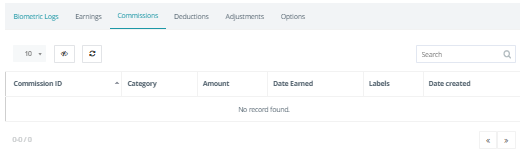
Commissions #
Displays commission-based earnings
Source: Sales or commission module
- Retrieves commission entries linked to employee
- Includes earned date and category
Purpose:
Handles performance-based income
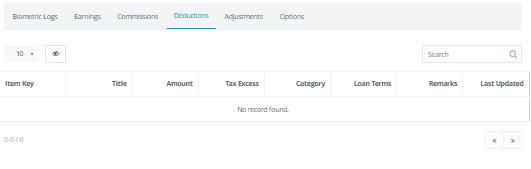
Deductions #
Displays all deductions applied to the payslip.
Source: Deduction records + system-generated penalties
- Includes loans, taxes, late deductions
- Can include automatic and manual deductions
Purpose:
Subtracts obligations from gross pay
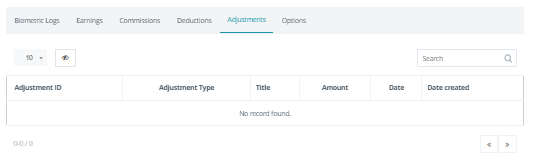
Adjustments #
Displays all deductions applied to the payslip.
Source: Manual payroll adjustments
- Includes additional earnings or deductions
- Often used for corrections or special cases
Purpose:
Allows flexibility outside standard payroll computation
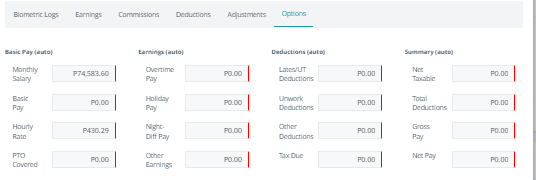
Options #
Displays system-calculated payroll summaries and rates.
Source: Payroll configuration + system computation engine
- Displays calculated values (Basic Pay, Earnings, Deductions, Summary)
- Uses all data from previous tabs
Purpose:
Acts as the final computation and summary tab
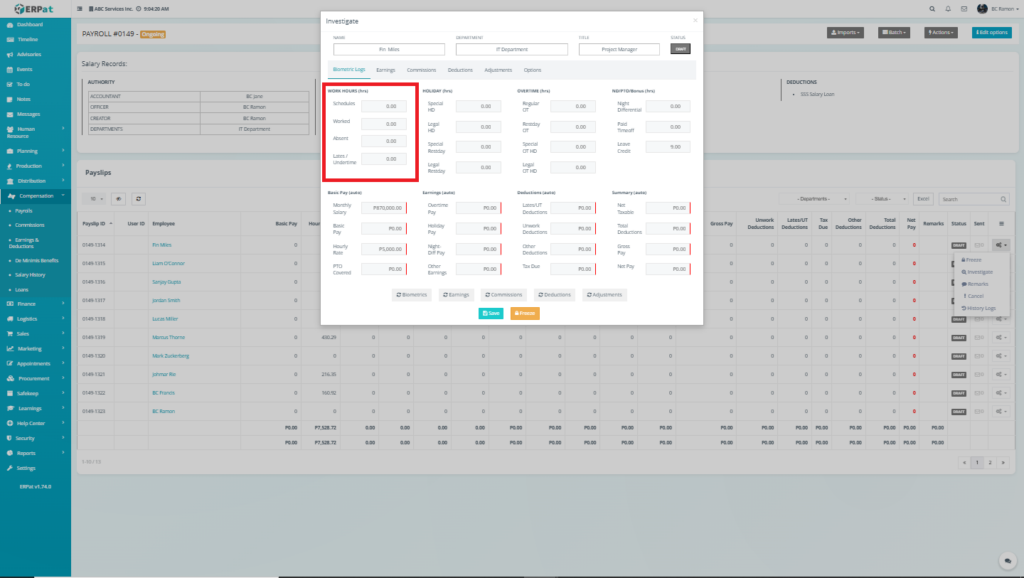
Work Hours (hrs) #
Source: Biometric logs + schedule configuration
Computed as:
- Schedule = Assigned working hours
- Worked = Logged attendance
- Absent = Missing attendance
- Late/Undertime = Time deficiency
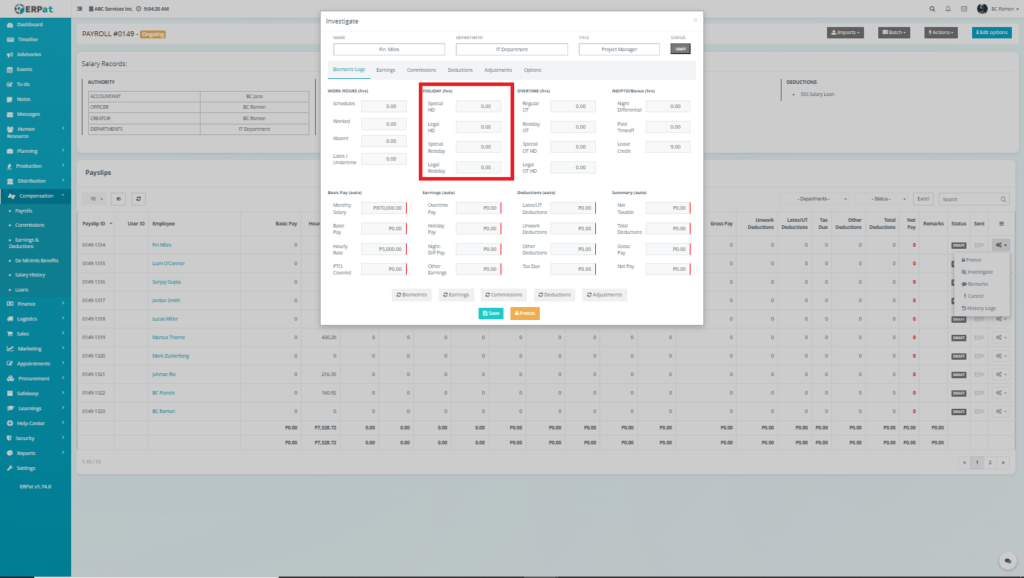
Holiday (hrs) #
Source: Holiday calendar + attendance
Computed as:
System checks if work date falls under:
Special Holiday
Legal Holiday
Rest Day
Then applies holiday classification.
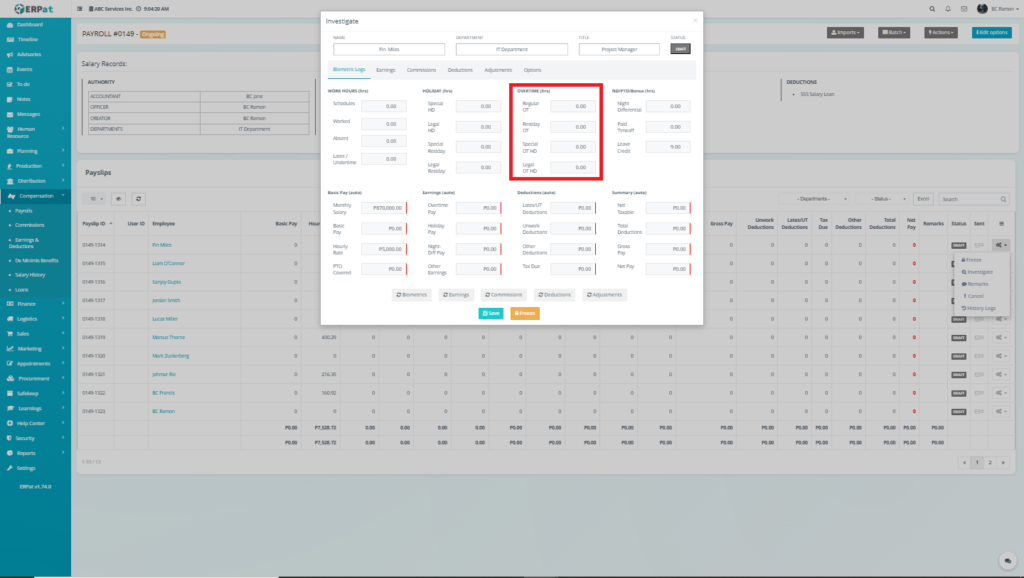
Overtime (hrs) #
Source: Approved overtime entries
Computed as:
Regular OT = Excess hours beyond schedule
Restday OT = Work on rest day
Special/Legal OT = Based on holiday type
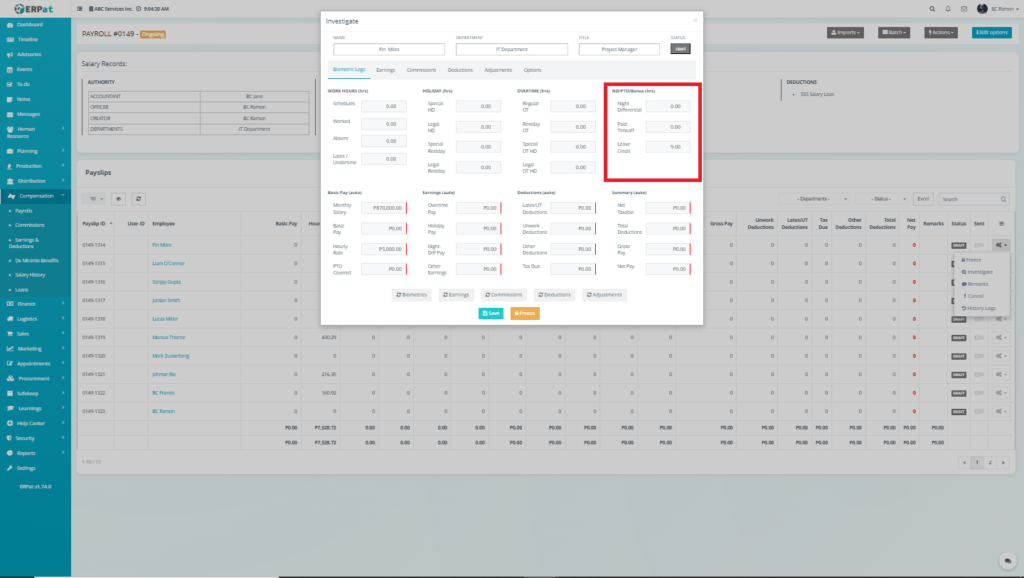
Night Differential / PTO #
Source: Time logs + leave module
Computed as:
Night Differential = Hours worked during night shift
Paid Time Off = Approved leave
Leave Credits = Remaining leave balance
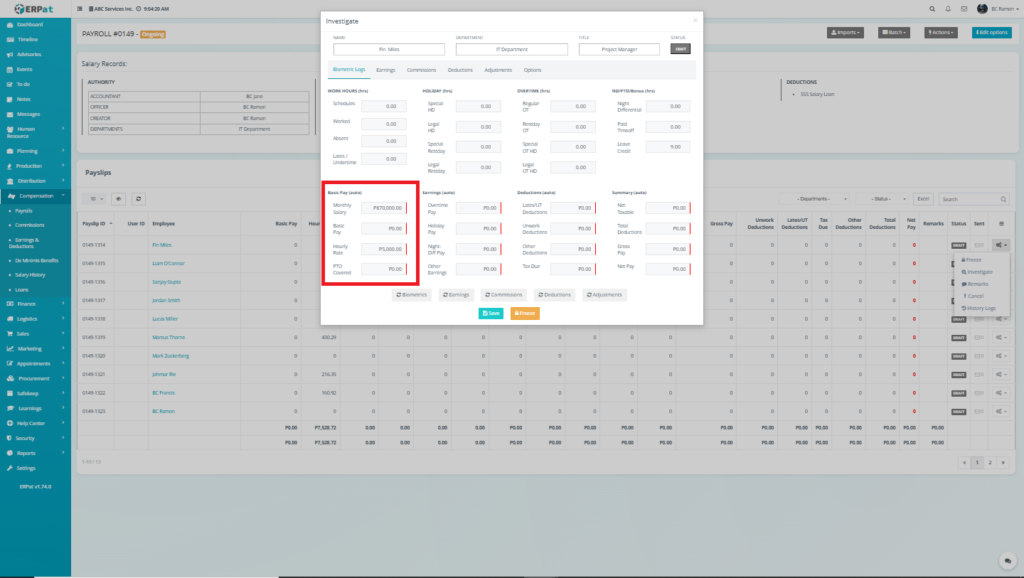
Basic Pay (auto) #
How it is computed #
Monthly Salary = Employee base salary (from profile)
Daily Rate =
Monthly Salary ÷ Number of working days
Hourly Rate =
Daily Rate ÷ Hours per day
Basic Pay =
Worked Hours × Hourly Rate
PTO Converted =
Leave hours × Hourly Rate
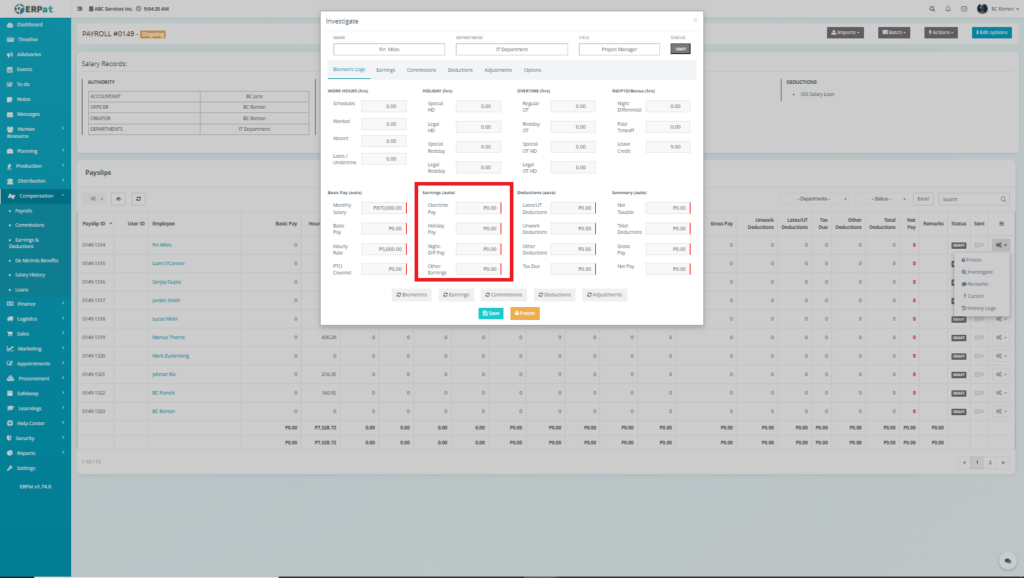
Earnings (auto) #
How it is computed #
Overtime Pay =
Overtime Hours × OT Rate × Hourly Rate
Holiday Pay =
Holiday Hours × Holiday Rate × Hourly Rate
Night Differential Pay =
ND Hours × ND Rate × Hourly Rate
Other Earnings =
Imported or manually added earnings
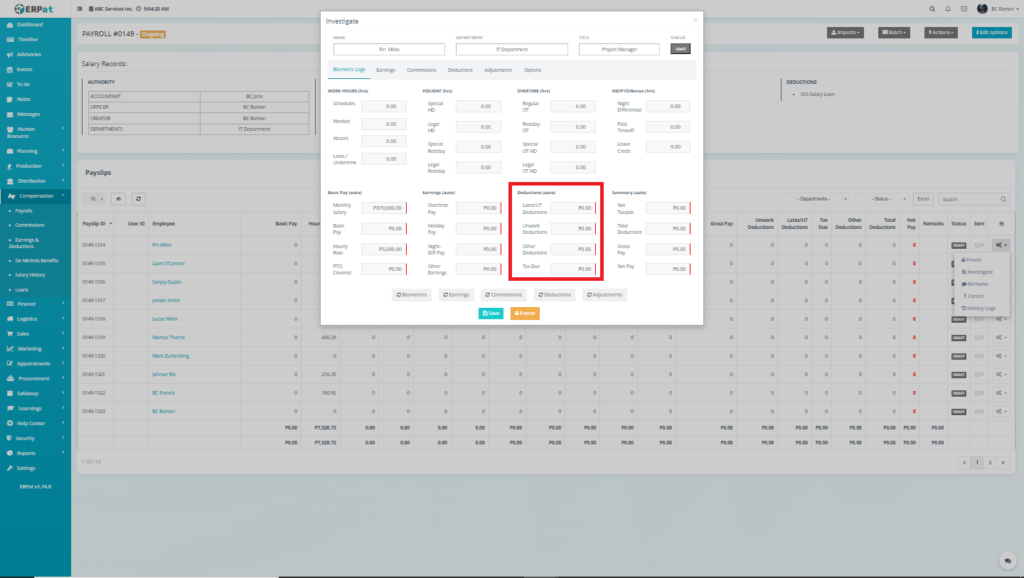
Deductions (auto) #
How it is computed #
Late/UT Deductions =
Late/Undertime Hours × Hourly Rate
Unwork Deductions =
Absent Hours × Hourly Rate
Other Deductions =
Loans + manual deductions
Tax Due =
Computed using withholding tax table
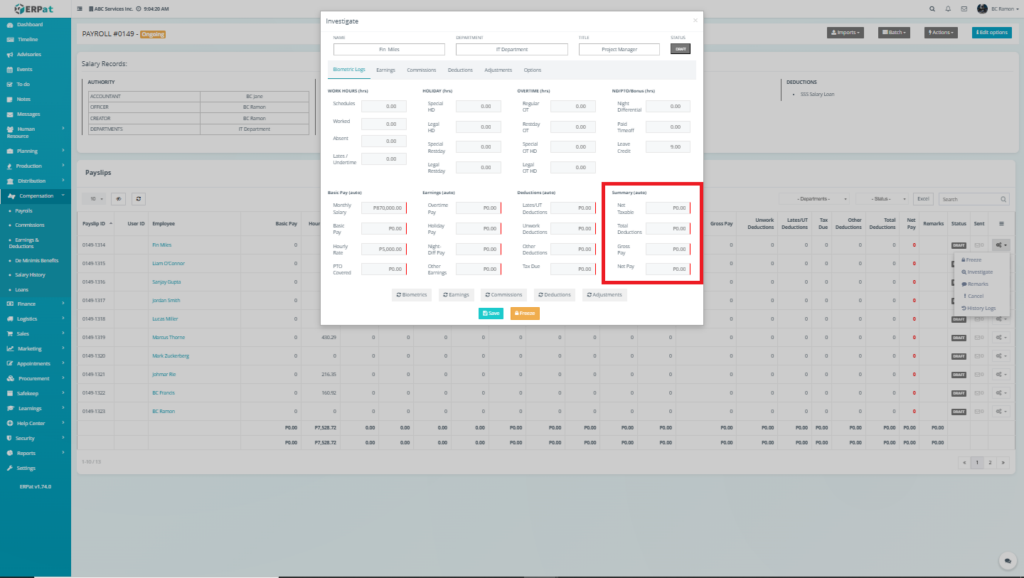
Summary (auto) #
How it is computed #
Gross Pay =
Basic Pay + Earnings
Net Taxable =
Gross Pay − Non-taxable items
Total Deductions =
All deductions combined
Net Pay =
Gross Pay − Total Deductions
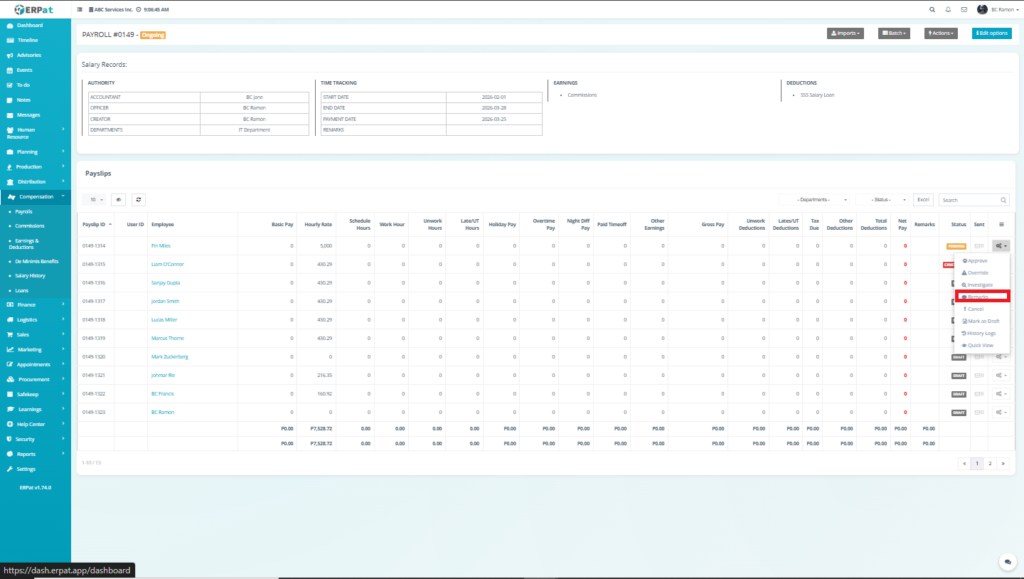
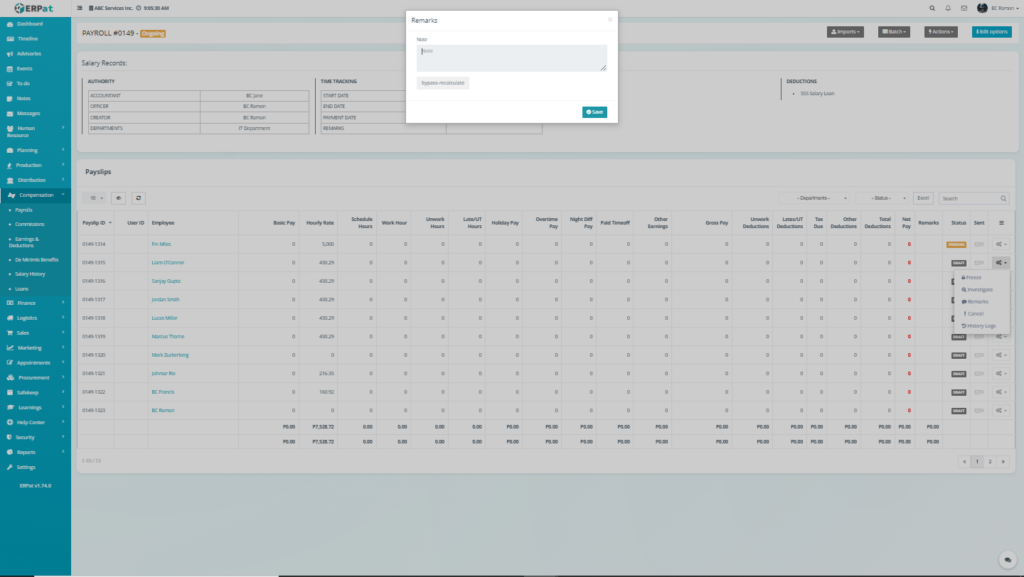
Remarks #
Adds comments or notes to the payslip
- Used for documentation
- Supports audit and review processes
- Visible to authorized users
Cancel #
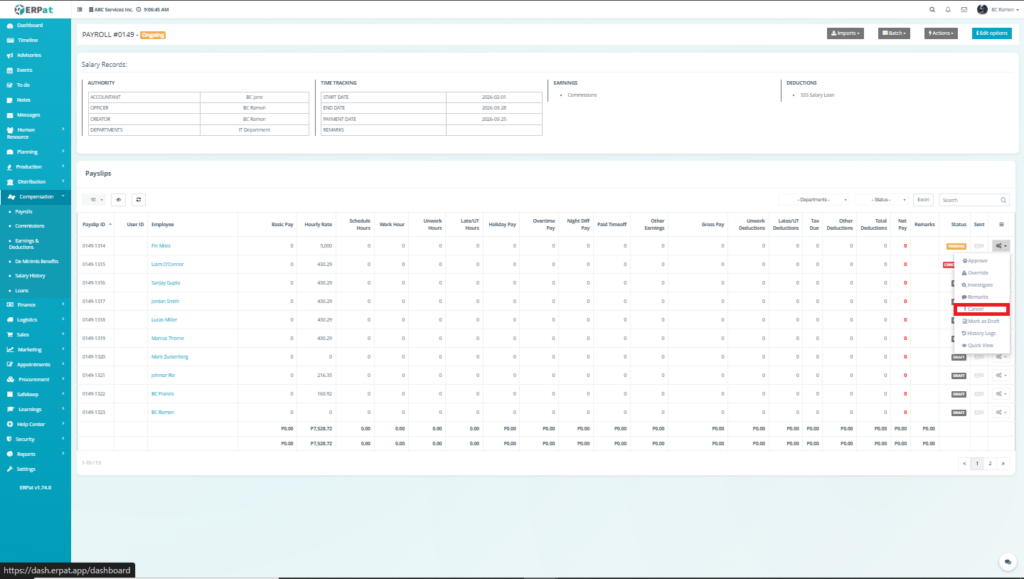
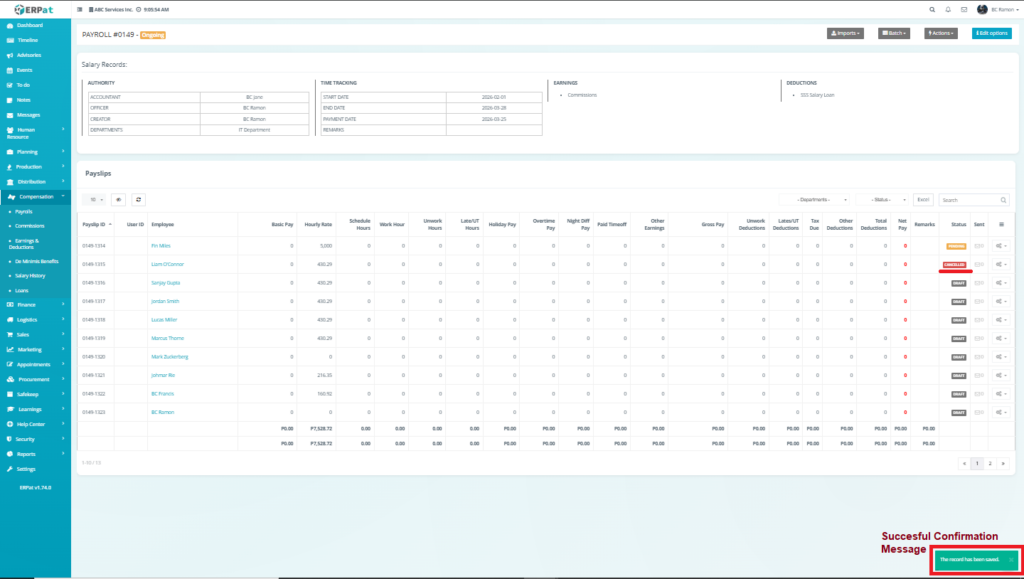
Cancels the approved payslip
- Removes the payslip from payroll processing
- Used in cases of incorrect approval or invalid entries
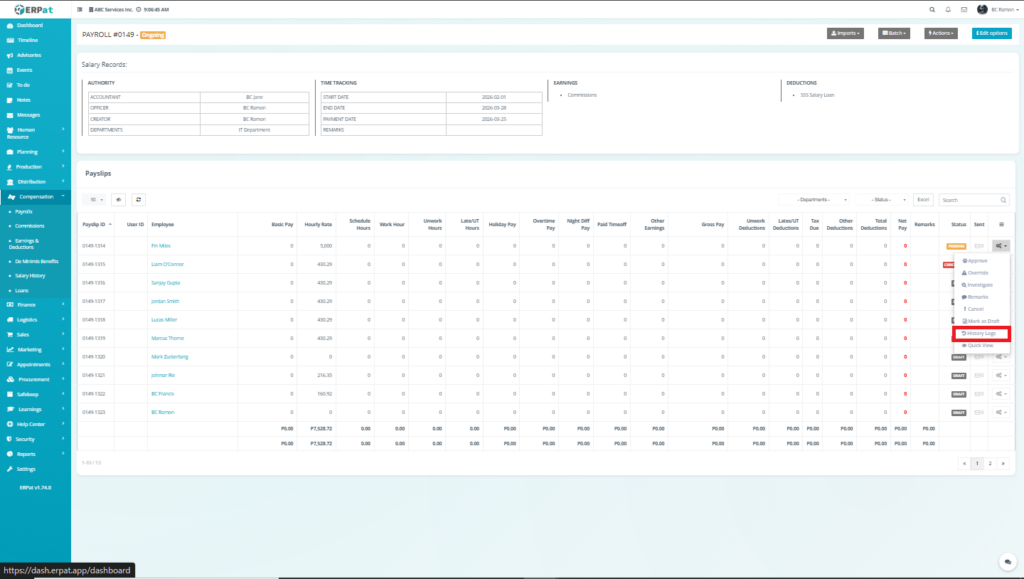
History Logs #
Displays the audit trail of the payslip
- Shows all actions performed
- Includes approvals, edits, and system computations
- Used for tracking and compliance
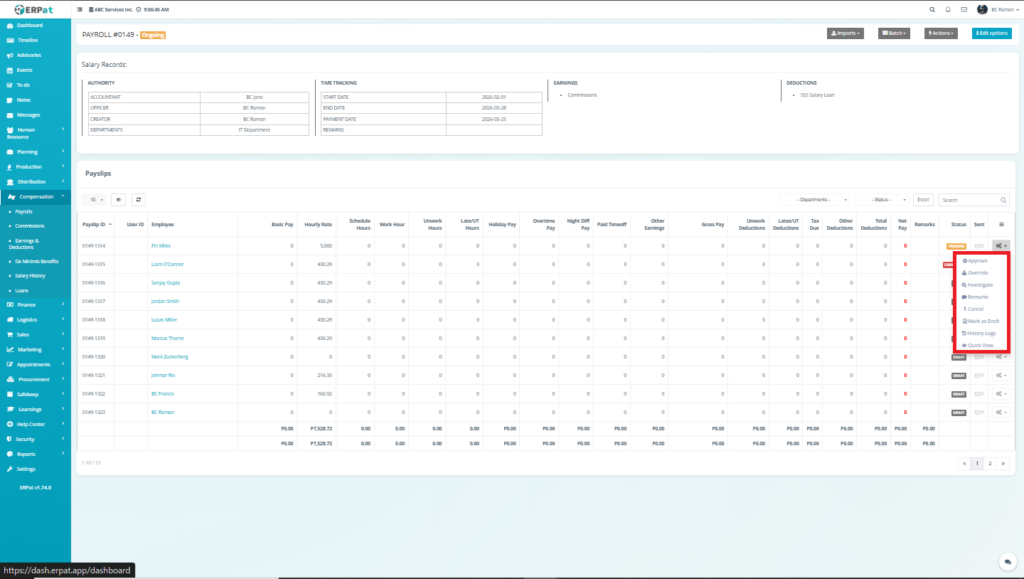
Payslip Actions- Pending state #
The Payslip Actions Menu (Pending state) allows users to manage and control individual employee payroll entries within a payroll cycle. It provides tools for reviewing, modifying, approving, and auditing specific payslip records.
Each action is designed to support payroll validation, correction, and workflow progression before final payroll completion.
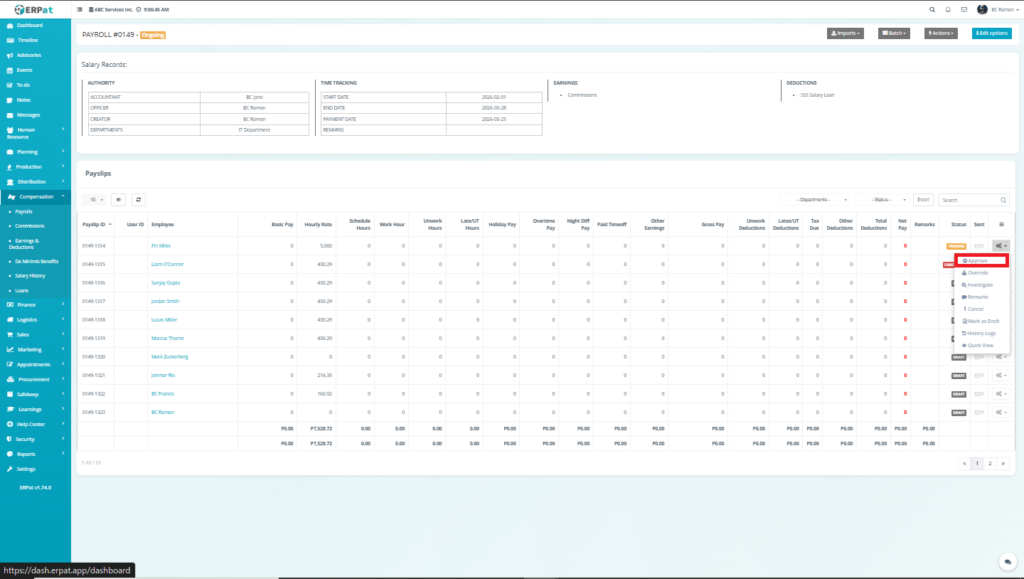
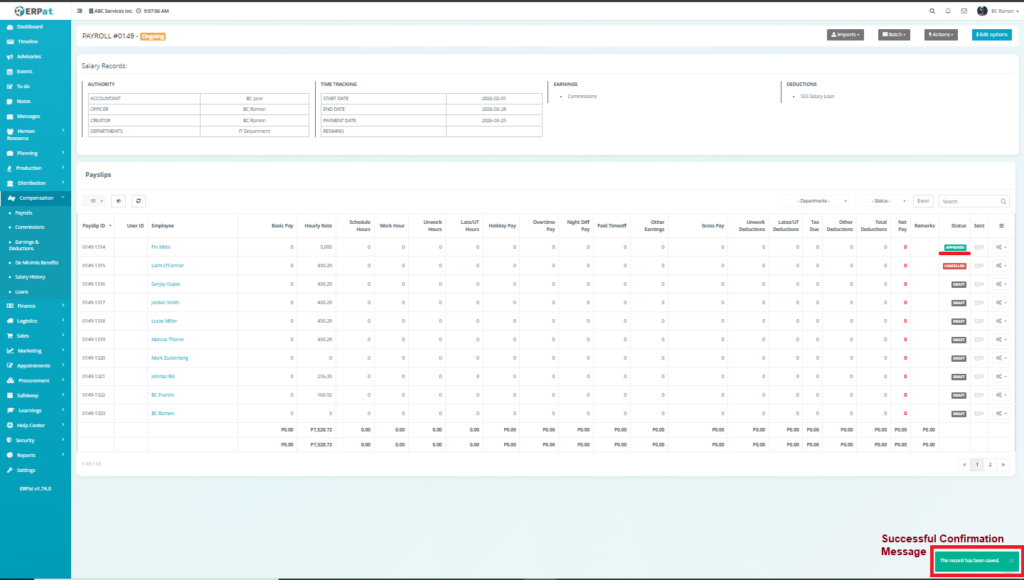
Approve #
Marks the selected payslip as Approved
- Confirms that payroll data is correct
- Moves the payslip toward finalization
- Prevents further unauthorized changes
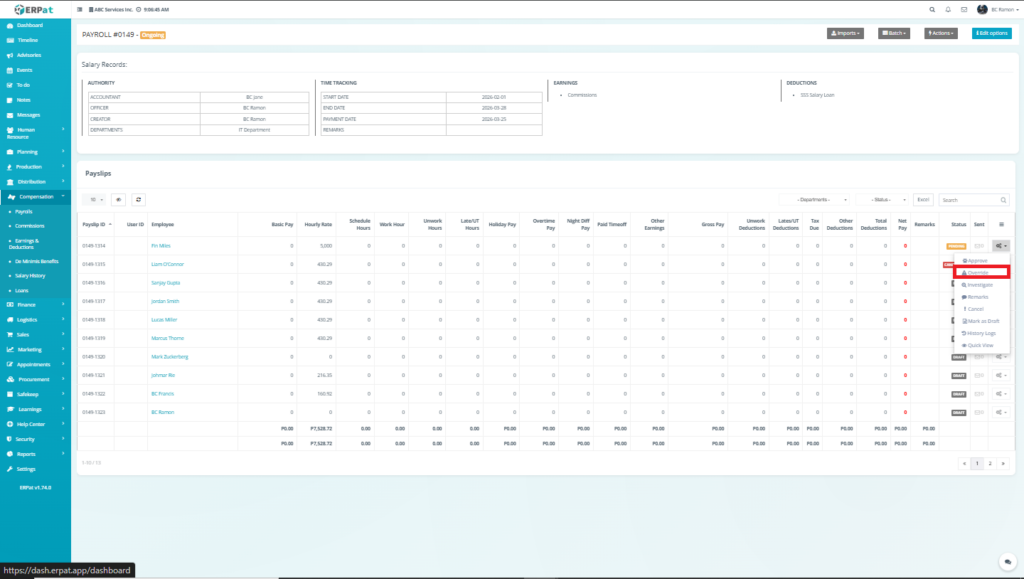
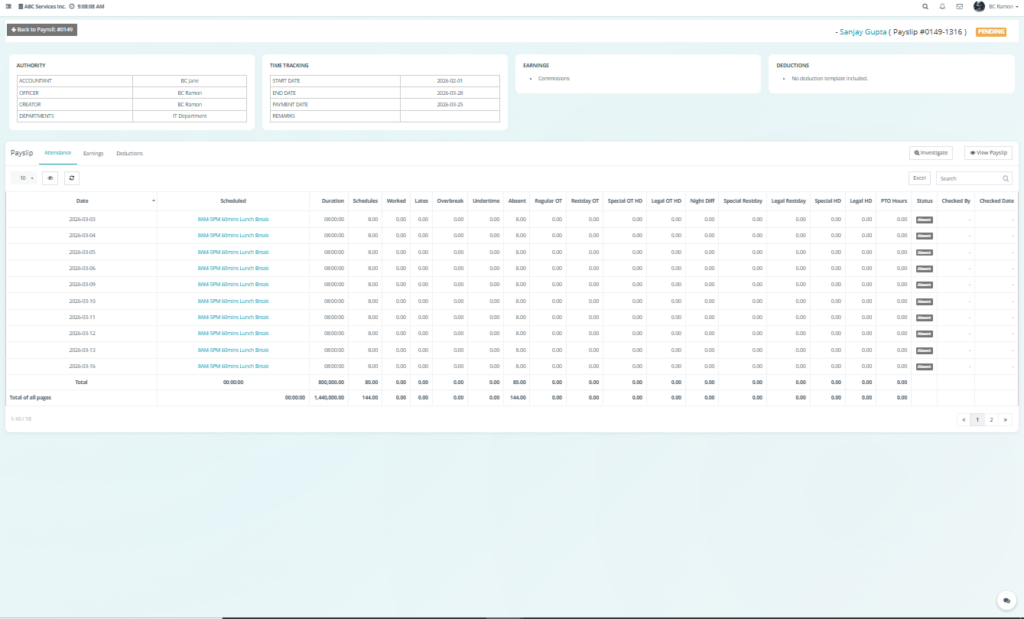
Override #
Allows manual modification of computed payroll values
- Used when system-generated values need adjustment
- Enables correction of discrepancies
- Overrides system calculations
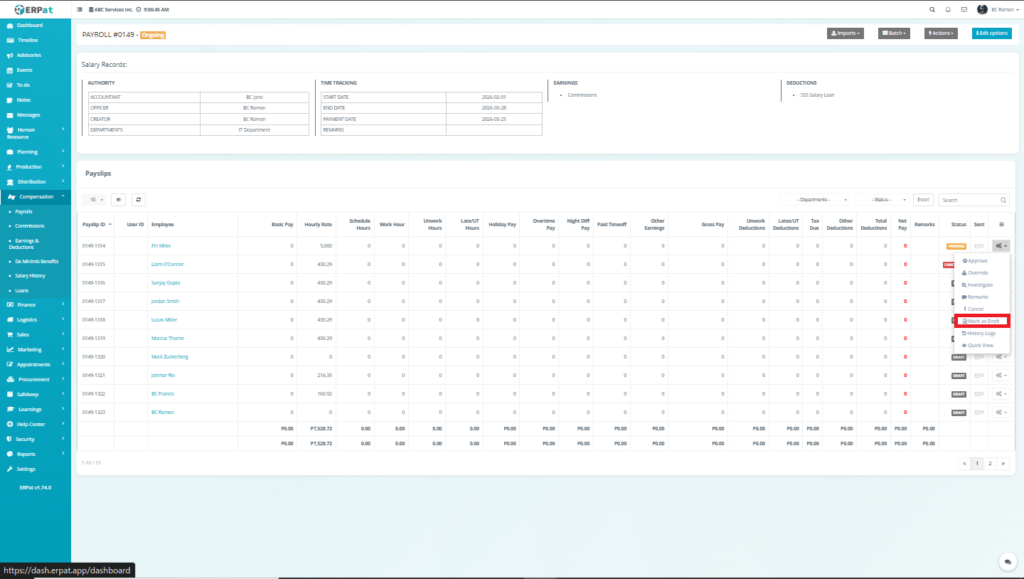
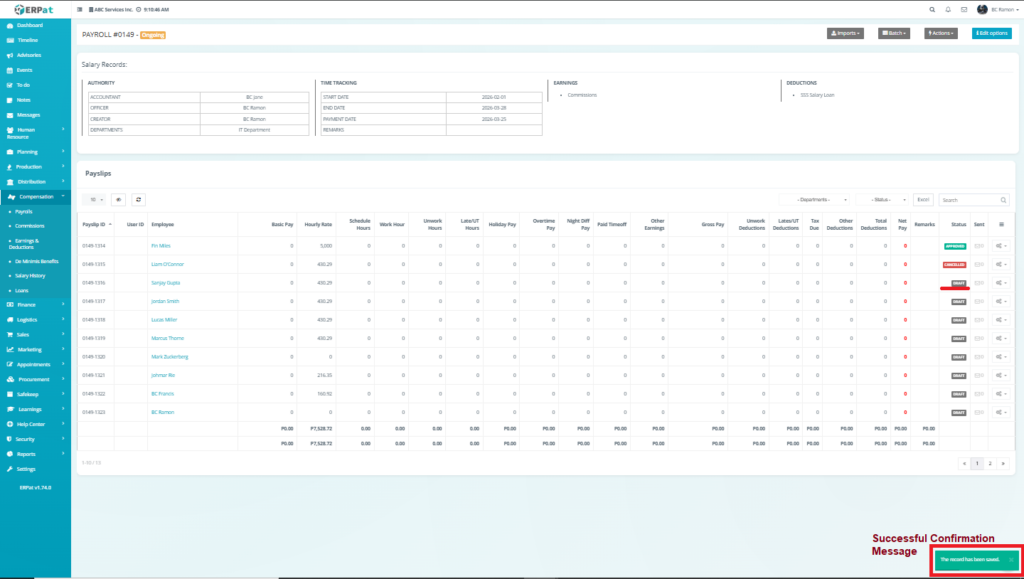
Mark as Draft #
Reverts the payslip status to Draft
- Allows further editing
- Used when adjustments are still needed
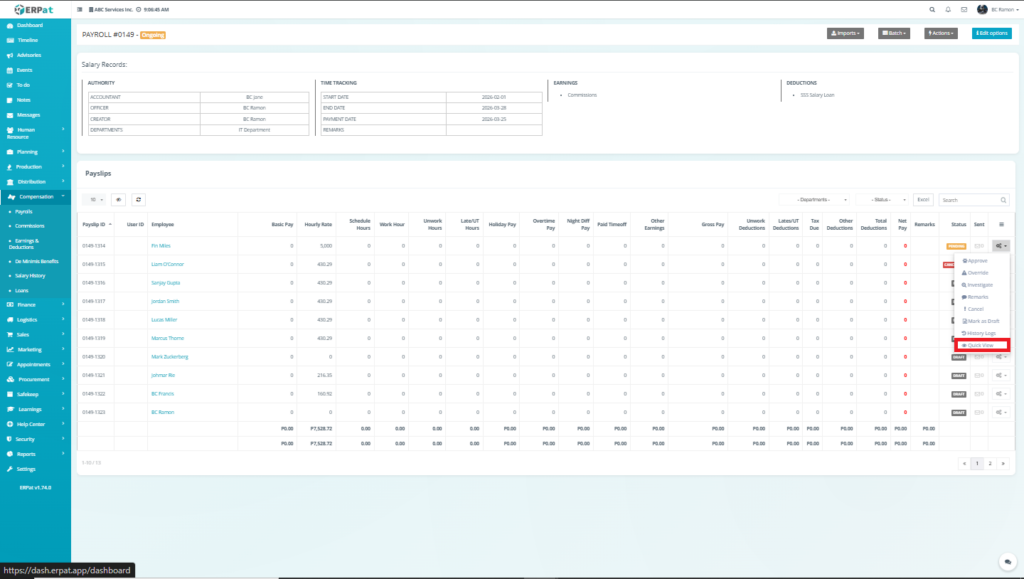
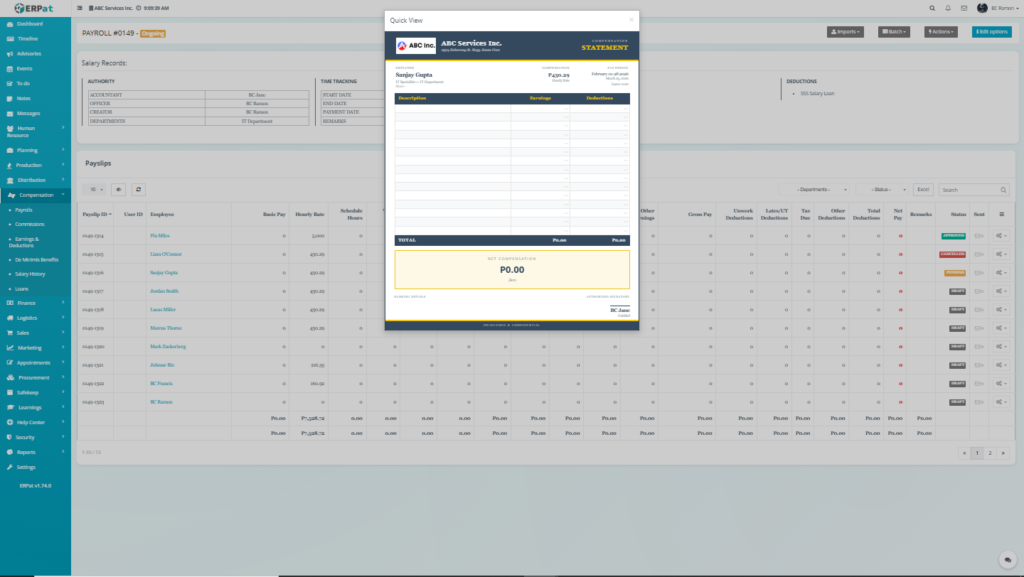
Quick View #
Provides a summary view of the payslip
- Displays key payroll details
- Allows quick verification without full navigation
Payslip Delete (Cancelled Flow) #
Steps #
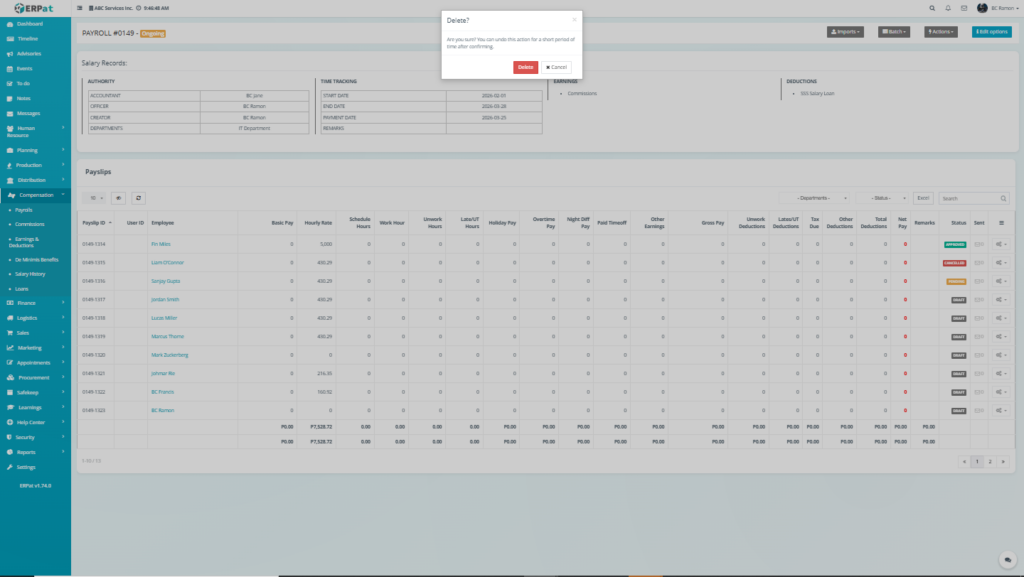
1. Initiating Delete
From the Payslip table:
- Click the ⚙️ (Actions/Gear icon) on a row
- Select Delete
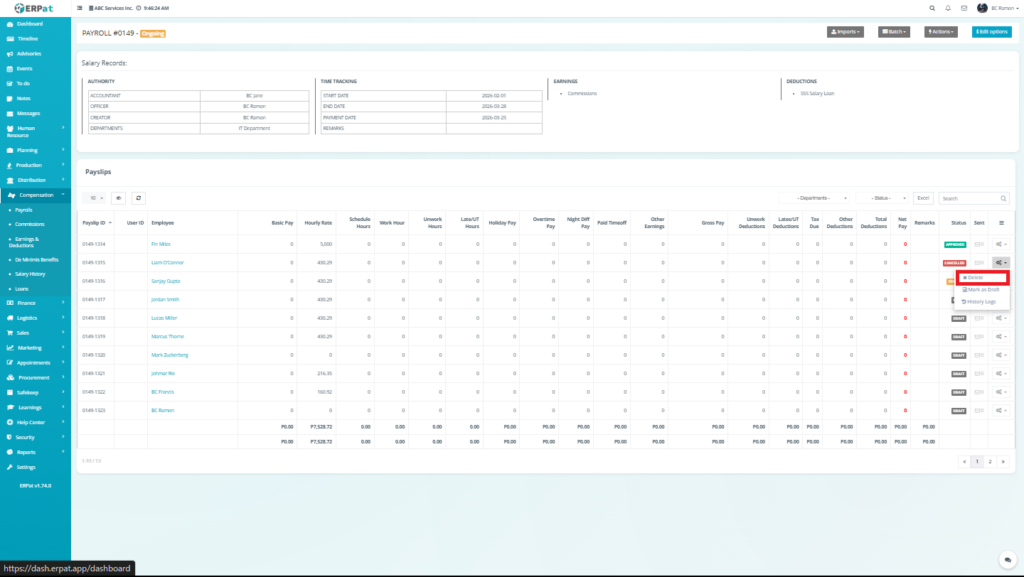
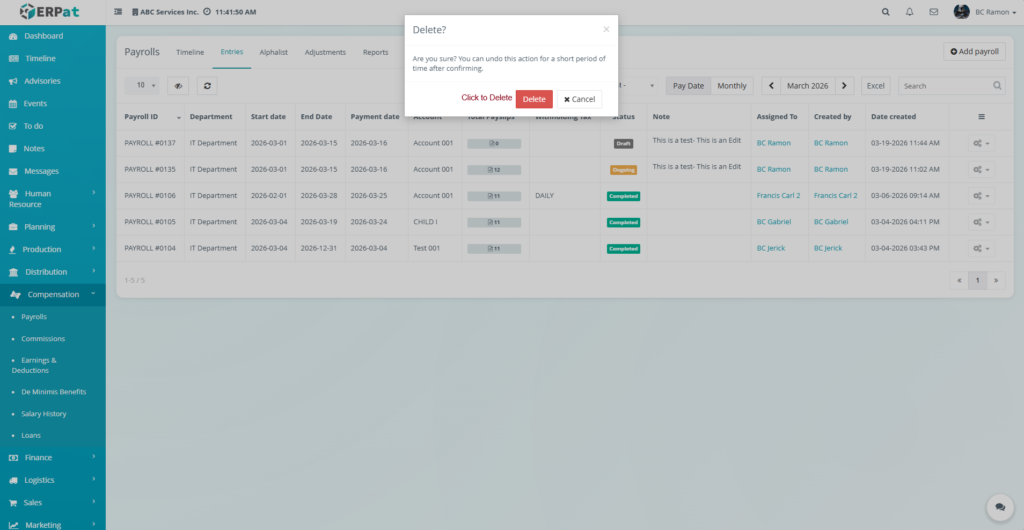
2. Confirmation Prompt
When Delete is clicked, a confirmation modal appears:
- Title: Delete?
- Message:
“Are you sure? You can undo this action for a short period of time after confirming.” - Buttons:
- Delete (Red) → confirms action
- Cancel → aborts
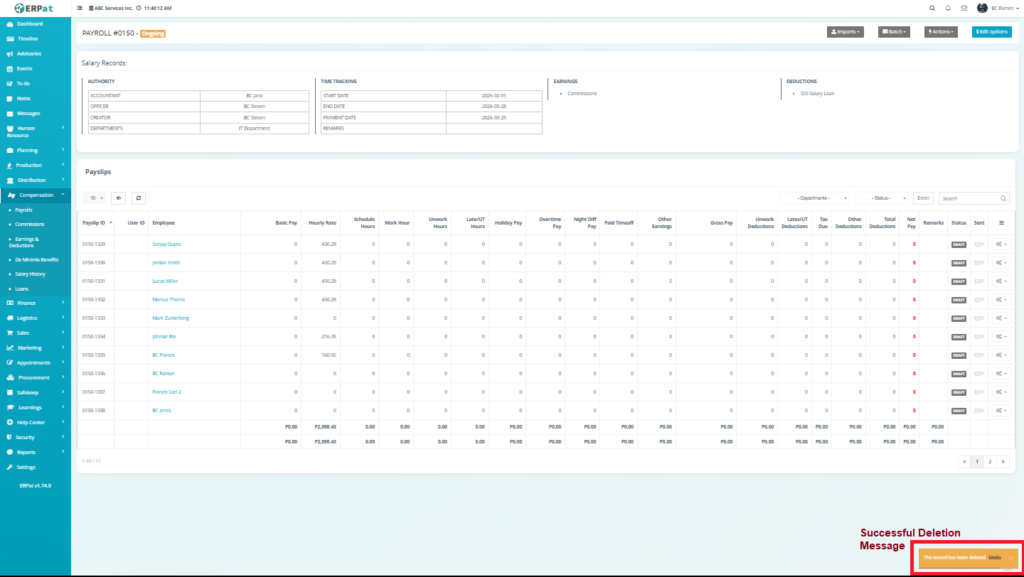
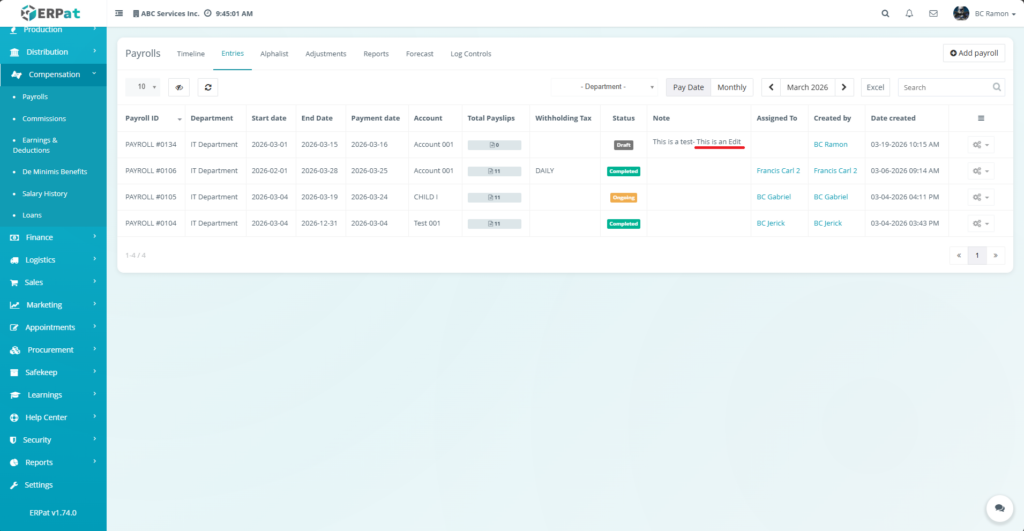
Steps for Editing a Payroll Entry #
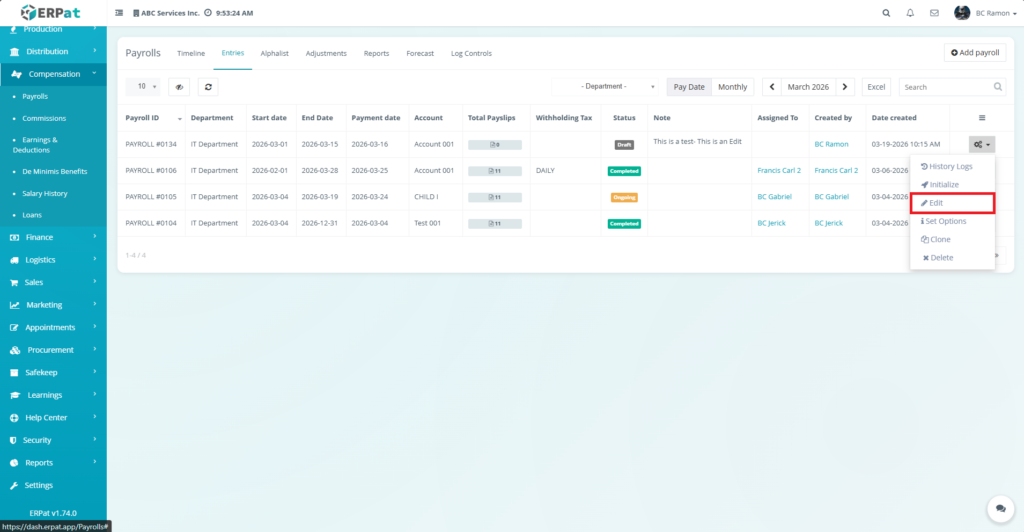
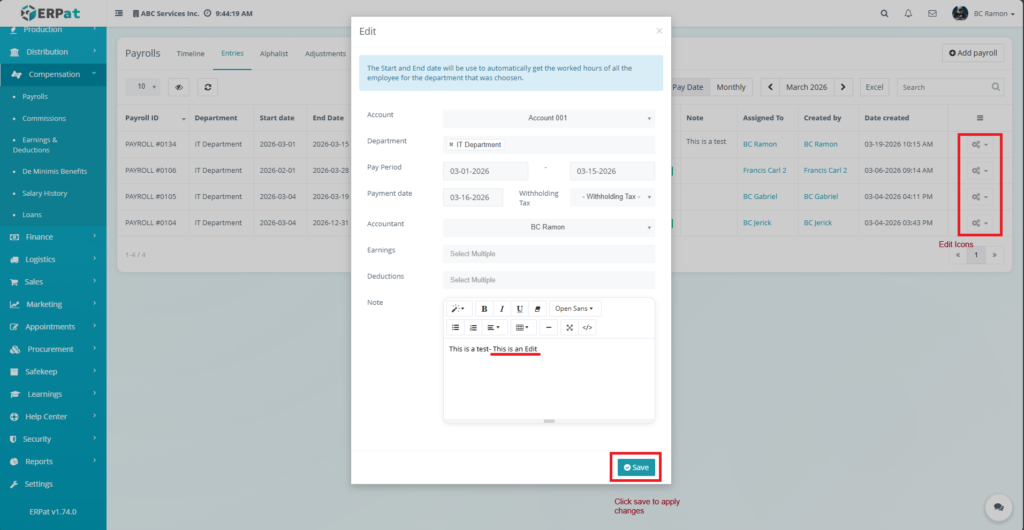
STEPS #
- Locate the payroll from the listing.
- Click the Action (⚙) button under the Actions column.
- Select Edit.
- Update the necessary fields.
- Click Save to apply changes.
Notes #
- Updates affect payroll computation and associated payslips.
- Changes in date range may trigger recalculation of worked hours.
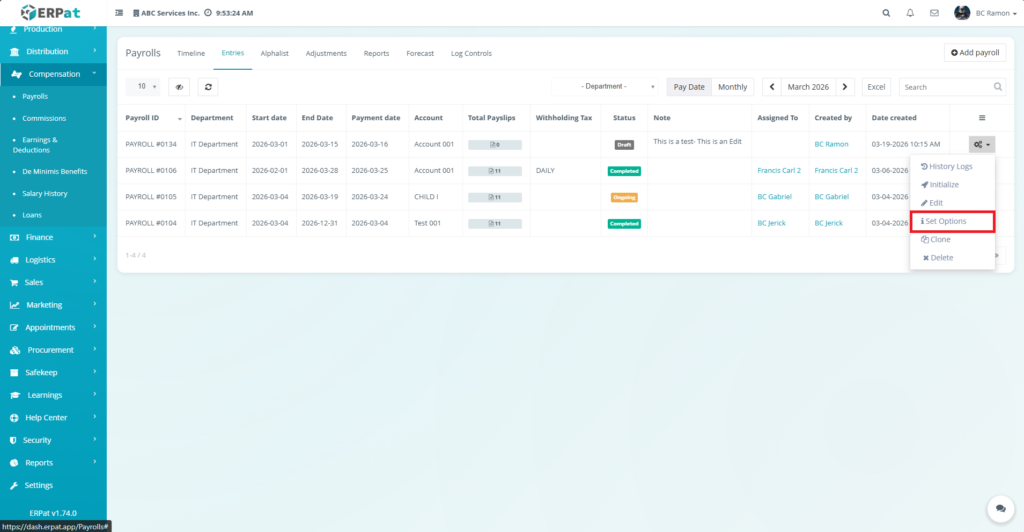
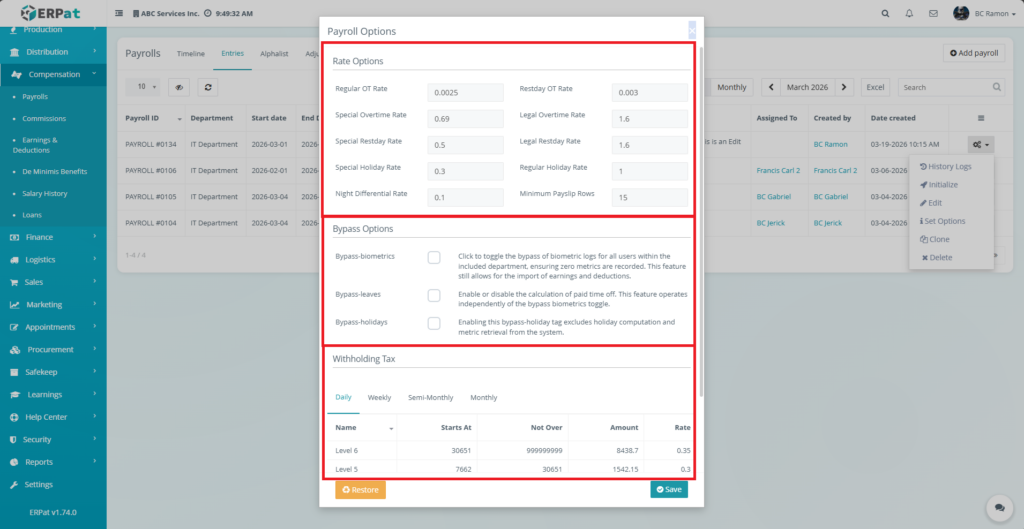
Set Options (Payroll Configuration) #
The Set Options feature allows administrators to configure payroll computation settings.
- Rate Options- Defines overtime, holiday, and night differential rates.
- Bypass Options-Allows exclusion of biometrics, leaves, and holidays.
- Withholding Tax Configuration-Supports multiple tax tables such as daily, weekly, semi-monthly, and monthly.
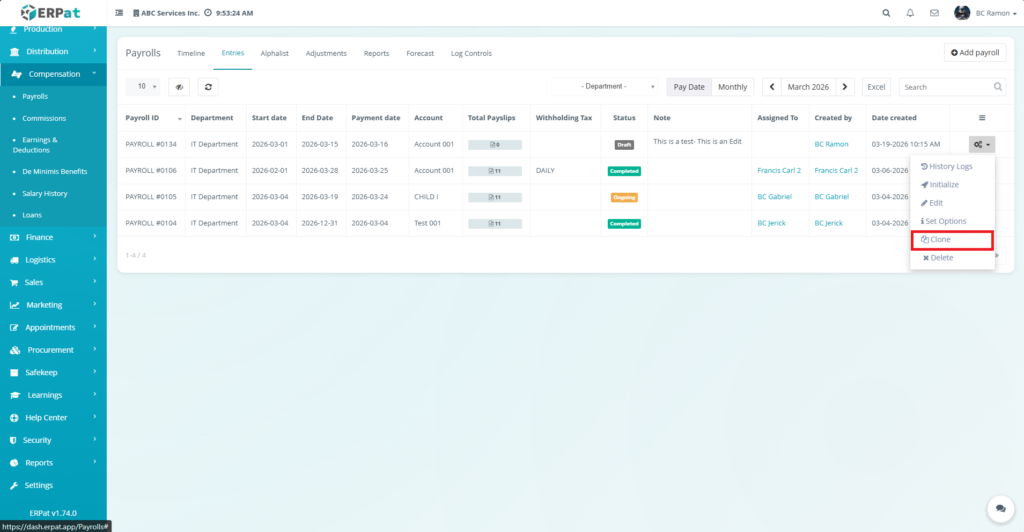
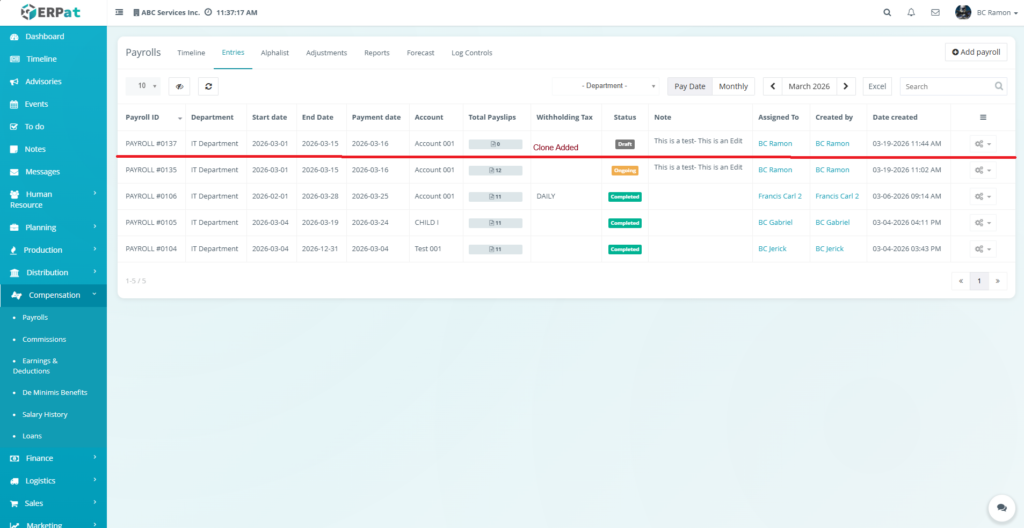
Steps to Clone Payroll Entry #
STEPS #
- Click Action (⚙) → Clone.
- Modify fields as needed.
- Click Save.
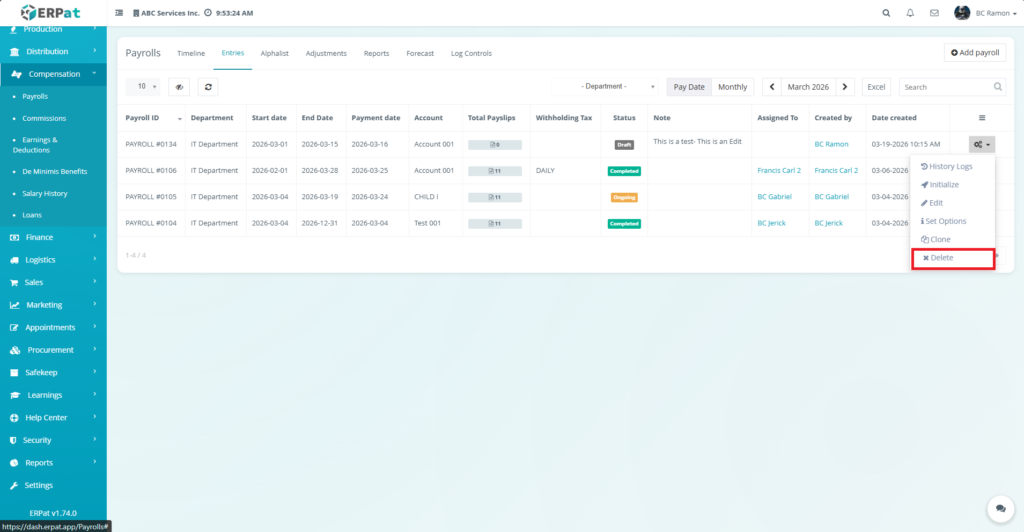
Steps to Delete a Payroll Entry #
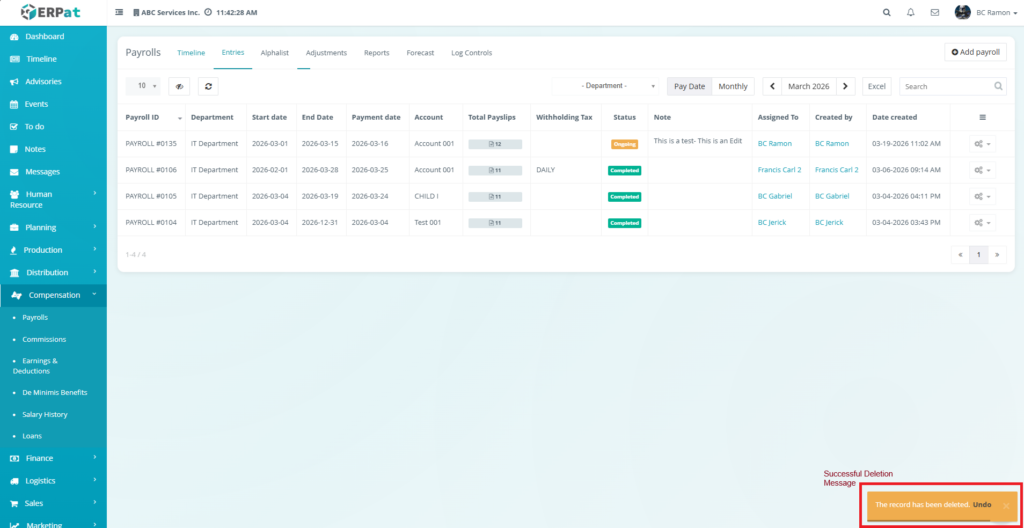
STEPS #
- Click Action (⚙) → Delete.
- Confirm deletion.
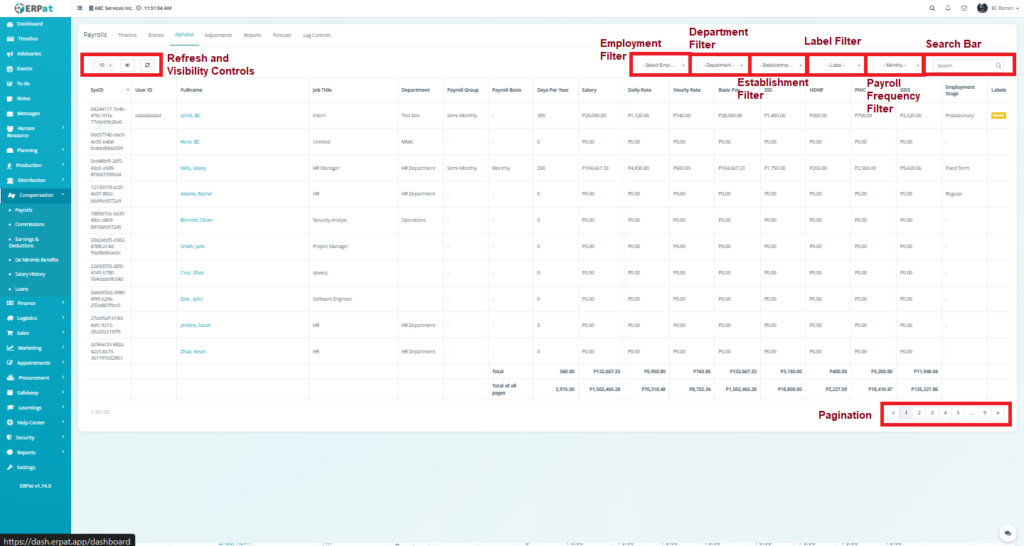
Payrolls: Alphalist Listing Page #
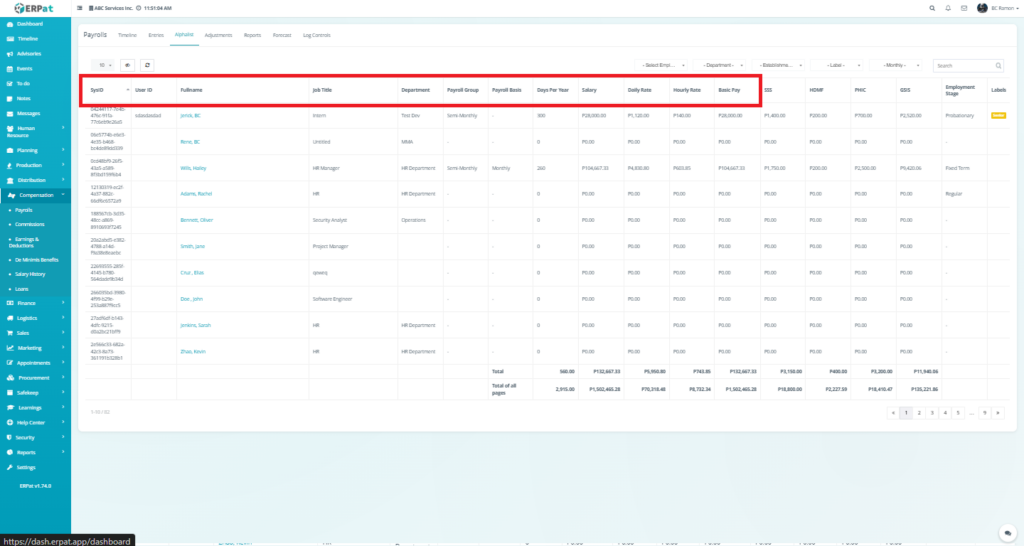
The listing page provides a structured overview of employees with the following information:
- SysID – Unique system-generated identifier
- Source: System-generated unique identifier
- Generated automatically upon employee record creation
- User ID – Employee ID reference
- Source: Employee Profile
- Field: employee_id
- Full Name – Employee name
- Source: Employee Profile Formula:
- Full Name = First Name + Last Name
- Job Title – Position within the organization
- Source: Employee Profile → Position/Job Assignment
- Department – Assigned department
- Source: Employee Profile → Department Assignment
- Payroll Group – Payroll classification (e.g., Semi-Monthly)
- Source: Payroll Configuration
- Example: Semi-Monthly, Weekly
- Assigned per employee or contract
- Payroll Basis – Basis of computation (e.g., Monthly)
- Source: Compensation Setup
- Example: Monthly, Daily, Hourly
- Determines how salary is computed
- Days Per Year – Workdays used for salary computation
- Source: Payroll Settings / Company Policy
- Example values: 260, 300, 312
- Used for rate calculations
- Salary – Base salary amount
- Source: Employee Compensation
- Profile Field: basic_salary
- Daily Rate – Computed daily wage
- Formula:
Daily Rate = Salary ÷ Days Per Year
- Formula:
- Hourly Rate – Computed hourly wage
- Formula:
Hourly Rate = Daily Rate ÷ Working Hours per Day
(e.g., 8 hours)
- Formula:
- Basic Pay – Total base pay for the period
- Depends on payroll period and basis Monthly:
- Basic Pay = Salary
- Prorated: Basic Pay = Daily Rate × Days Worked
- Hourly-based: Basic Pay = Hourly Rate × Hours Worked
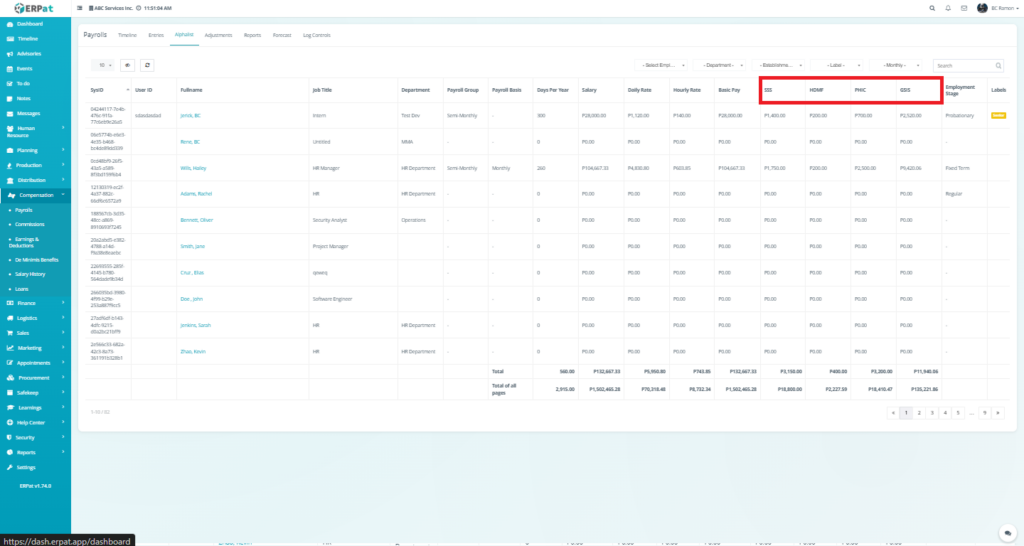
Government Contributions #
- SSS – Social Security System contribution
- Source: SSS Contribution Table
- Based on Monthly Salary Credit (MSC)
- Formula:
SSS = Lookup(Salary Range → Contribution Amount)
- HDMF – Home Development Mutual Fund (Pag-IBIG)
- Formula (typical):
- HDMF = Salary × Contribution Rate (capped) Usually fixed or capped (e.g., ₱100–₱200 employee share)
- PHIC – PhilHealth contribution
- Formula:
PHIC = Salary × Contribution Rate ÷ 2 - Shared between employer and employee
- With min/max caps
- Formula:
- GSIS – Government Service Insurance System (if applicable)
- For government employees only
- Formula:
GSIS = Salary × Contribution Rate
These are automatically computed based on salary brackets and system configuration.
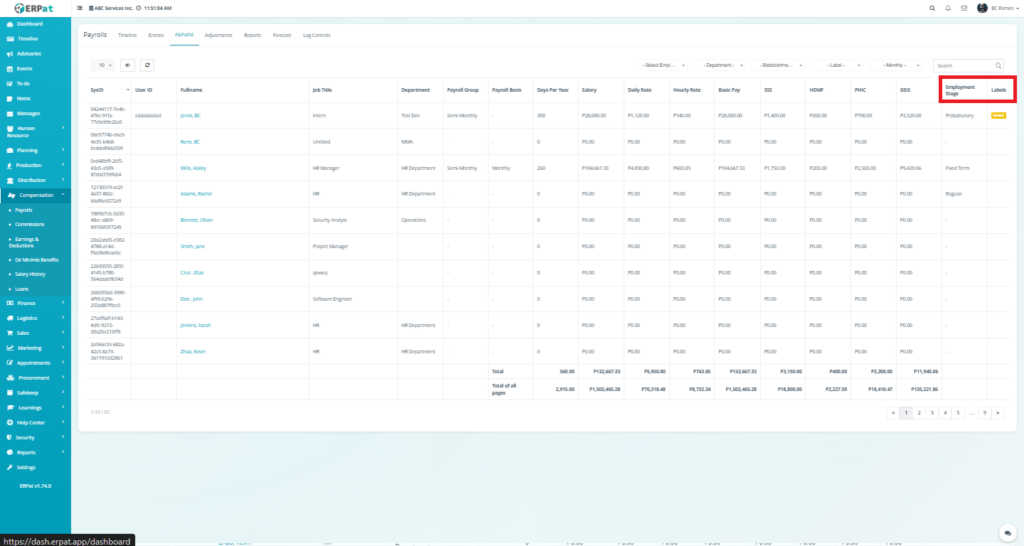
Additional Fields #
- Employment Stage – Status (e.g., Probationary, Regular, Fixed Term)
- Source: Employee Profile Values: Probationary, Regular, Contractual, etc.
- Labels – Tags for categorization (e.g., Rank, Managerial Group)
- Source: Employee Tags
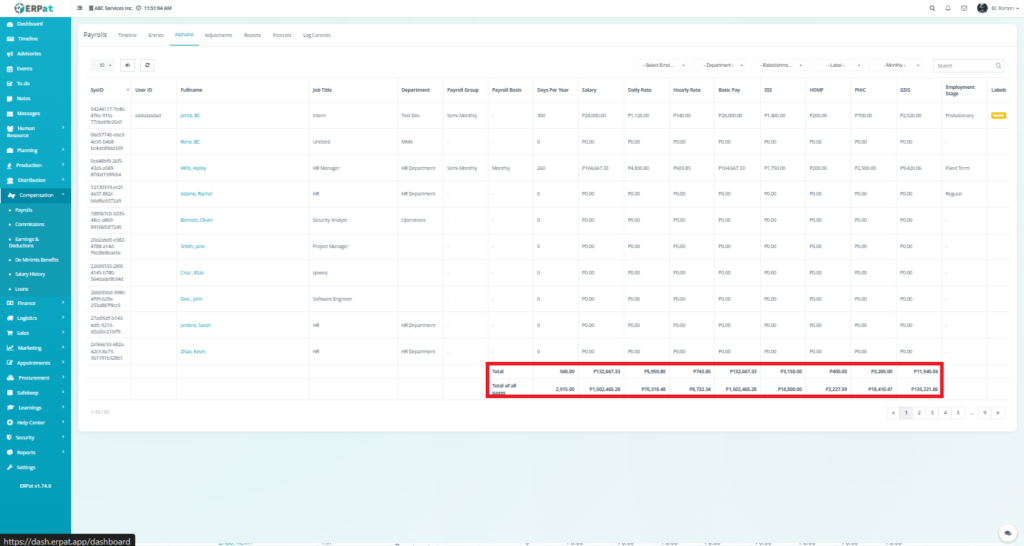
Summary Computation (Bottom Totals)
#
At the bottom of the table:
- Total (Current Page) – Aggregated values for visible records
- Total of All Pages – Overall totals across all records
This helps in validating payroll totals and contributions at a glance.
Additional Controls: #
- Refresh and visibility controls
- Employee Filter
- Department Filter
- Establishment Filter
- Label Filter
- Payroll Frequency Filter
- Search Bar
- Pagination for large datasets
Payrolls: Adjustment Listing Page #
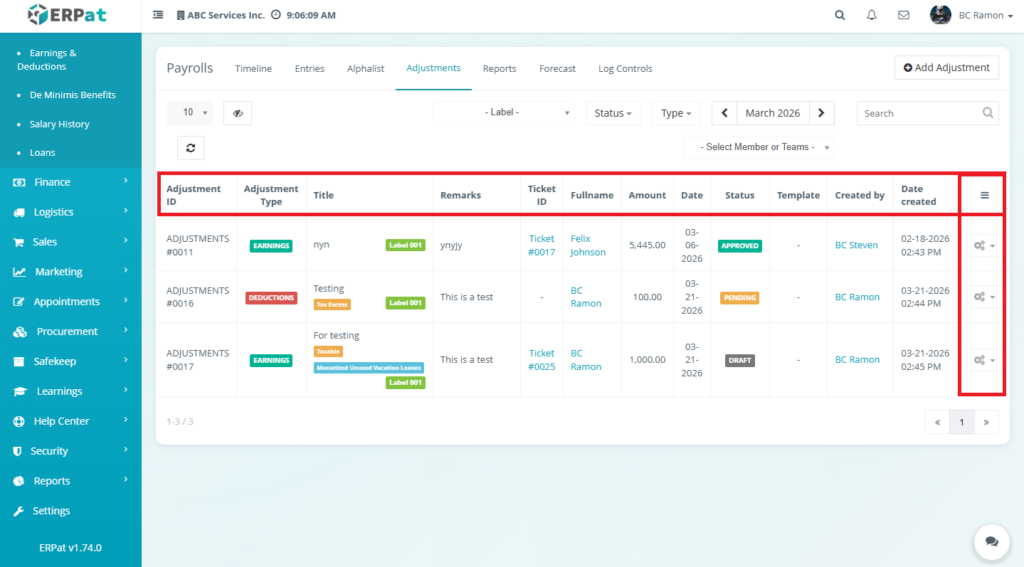
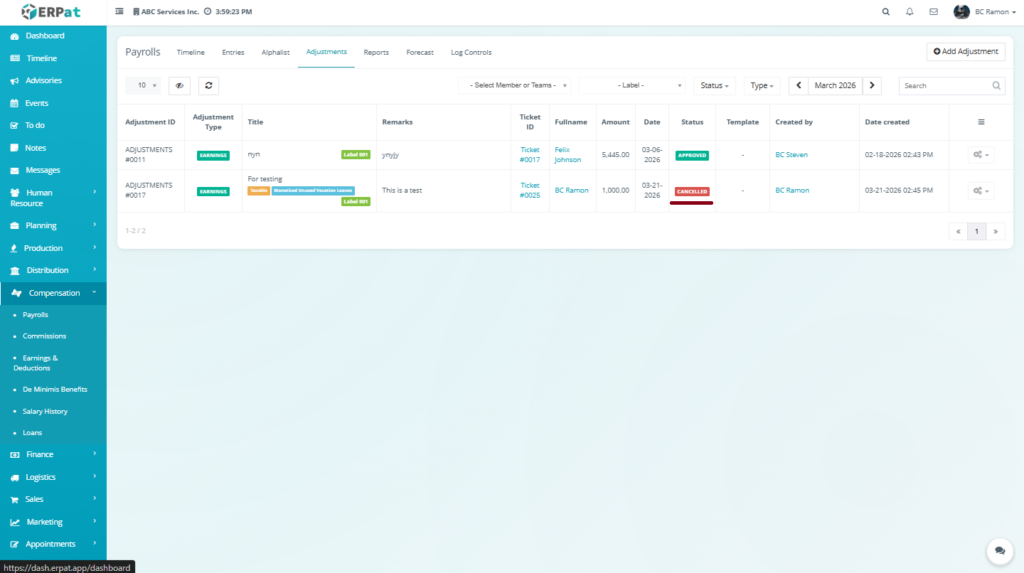
The listing page provides an overview of all adjustments with the following information:
- Adjustment ID – Unique identifier (e.g., ADJUSTMENTS #0011)
- Source: Adjustment Record System
- Generated automatically upon adjustment creation
- Format: Sequential (e.g., ADJUSTMENTS #0011)
- Adjustment Type – Earnings or Deductions
- Source: User Input (Adjustment Form)
- Values: Earnings, Deductions
- Title – Name or category of adjustment
- Source: User Input
- Example: Bonus, Tax Excess
- Remarks – Description or notes
- Source: User Input
- Ticket ID – Linked support or request ticket
- Source: Ticketing Module
- Optional: Displayed if linked
- Fullname – Employee assigned to the adjustment
- Source: Employee Profile
- Formula: First Name + Last Name
- Amount – Value of the adjustment
- Source: User Input
- Used in payroll computation
- Date – Date applied
- Source: User Input
- Must fall within payroll period
- Status – Draft, Pending, or Approved
- Source: System Workflow
- Values: Draft, Pending, Approved
- Template – Adjustment template (if applicable)
- Source: Template Configuration
- Optional: Used for standardized entries
- Created By – User who created the entry
- Source: User Management Module
- Captured from logged-in user
- Date Created – Timestamp of creation
- Source: System Generated
- Automatically recorded upon saving
- Actions – Settings/options for managing the adjustment
- Source: System Interface
- Functions:
- View – Opens detailed adjustment information
- Cancel – Cancels or invalidates the adjustment record
- History Logs – Displays audit trail of actions performed on the adjustment
- Availability depends on user permissions
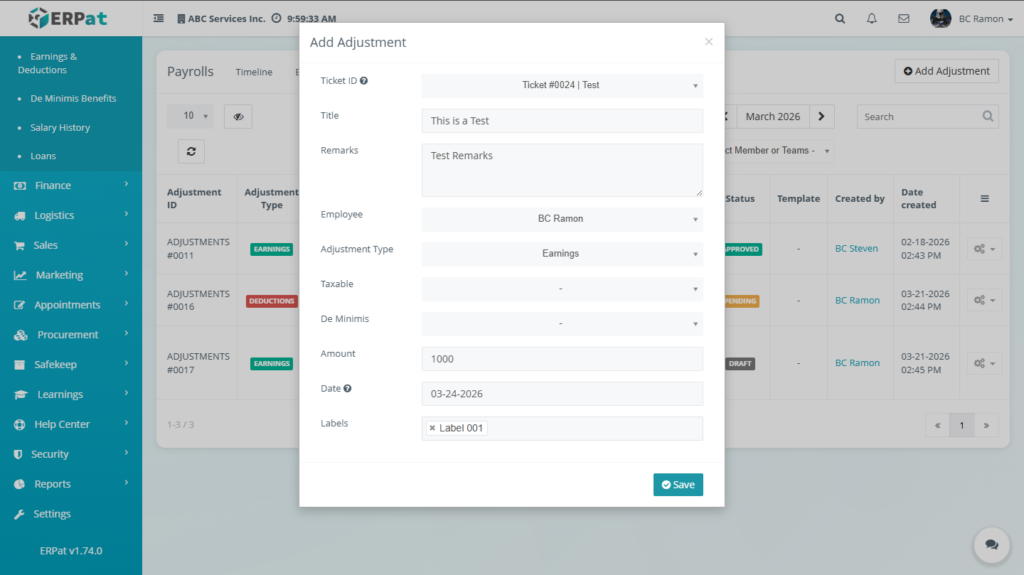
Steps for Adding an Adjustment #
STEPS #
- Click the Add Adjustment button.
2. Fill in the required fields:
Ticket ID (optional)
Title
Remarks
Employee
Adjustment Type
Taxable (if applicable)
De Minimis (if applicable)
Amount
Date
Labels
3. Review the information for accuracy.
4. Click Save to create the adjustment.
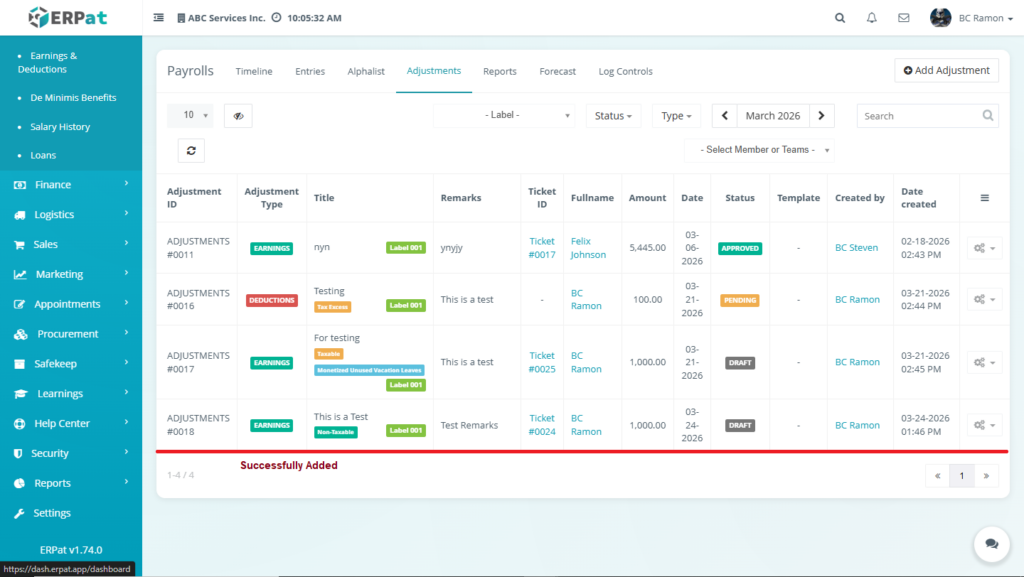
Result #
The newly added adjustment will appear in the Adjustments Listing Page and will be automatically applied to the employee’s payroll computation.
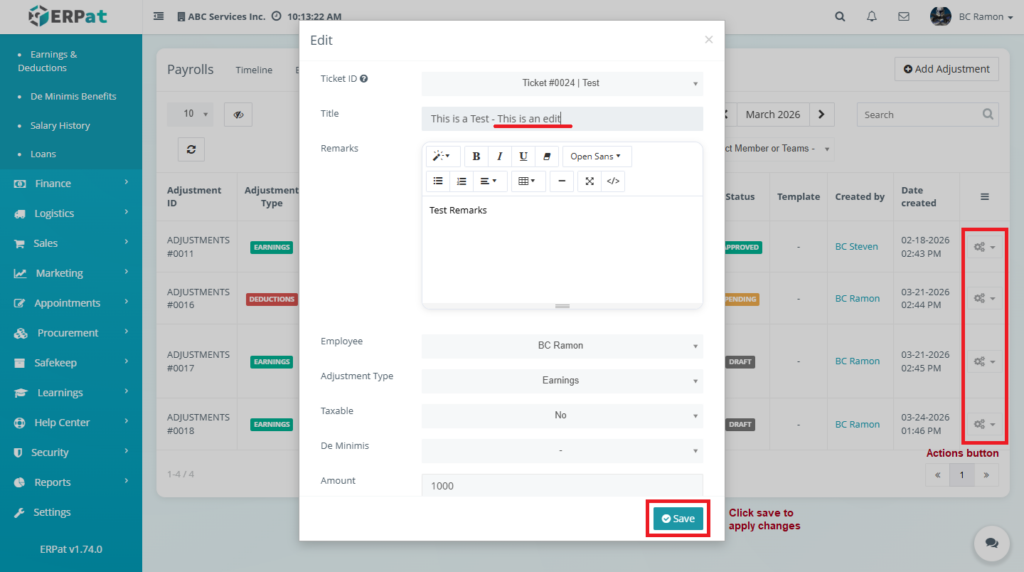
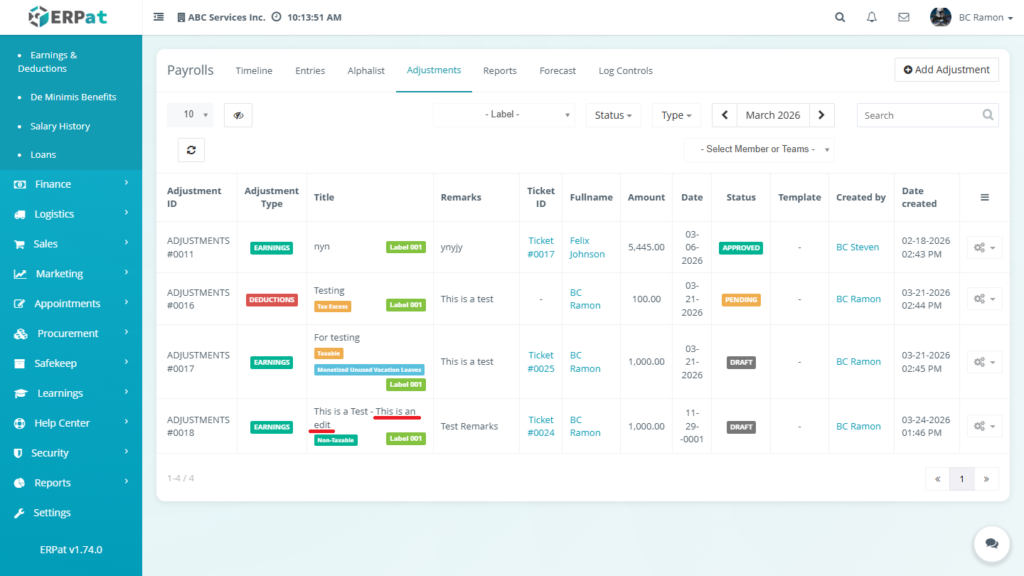
Steps for Editing an Adjustment – Draft #
STEPS #
- Locate the adjustment from the Adjustments listing page.
- Click the Actions (⚙) button.
- Select Edit.
- Update the necessary fields.
- Click Save to apply changes.
Notes: #
- Changes will immediately reflect in payroll computation.
- Ensure all values are correct before saving to avoid discrepancies.
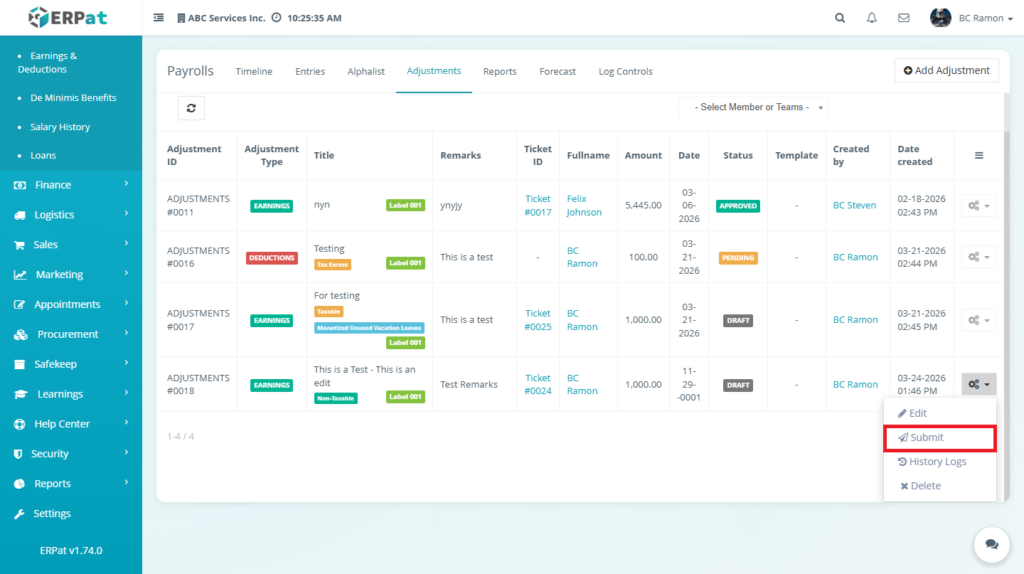
Steps for Submitting an Adjustment #
STEPS #
- Locate the adjustment from the listing.
- Click the Actions (⚙) button.
- Select Submit.
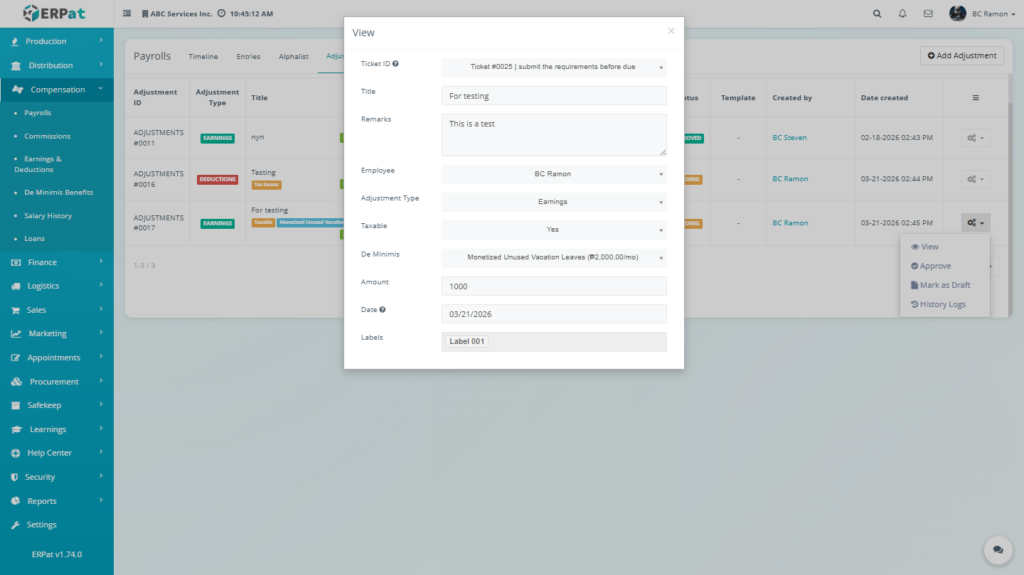
View Adjustment #
The View option allows users to open and review detailed information about a selected adjustment. Displays complete adjustment details including employee, amount, type, remarks, and linked ticket used for validation and verification before approval
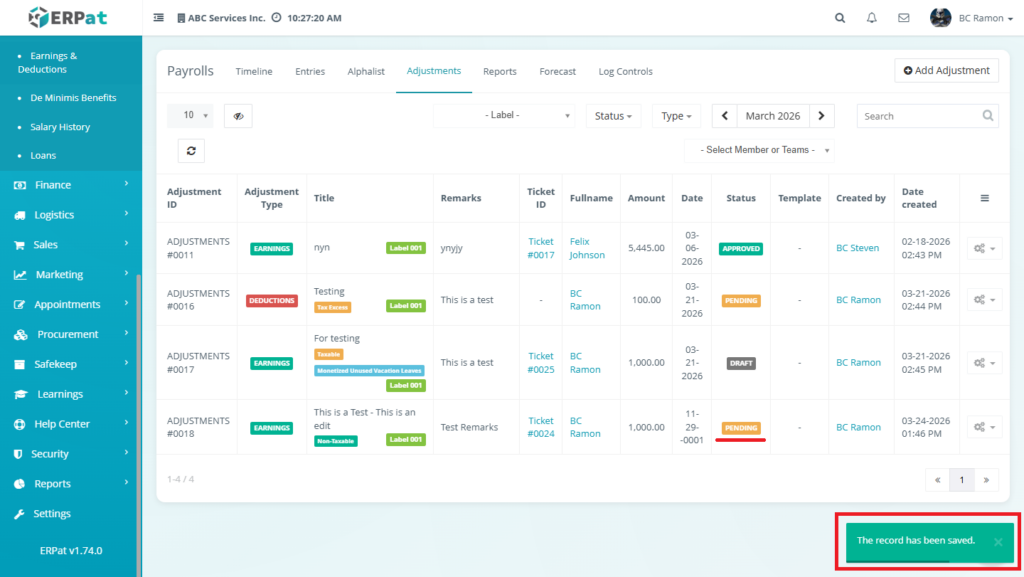
Result #
The adjustment status will change from Draft to Pending, indicating it is ready for approval or processing.
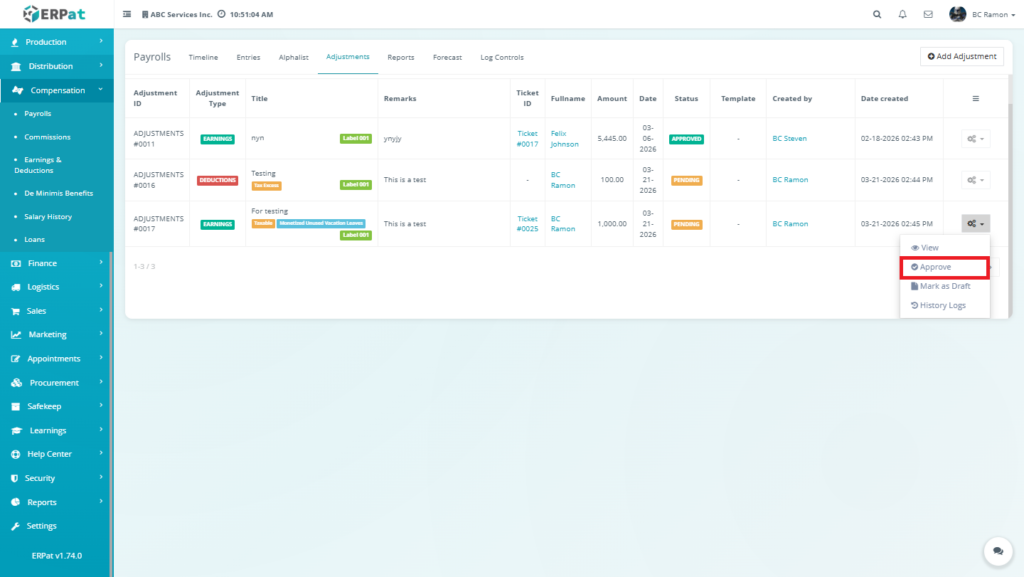
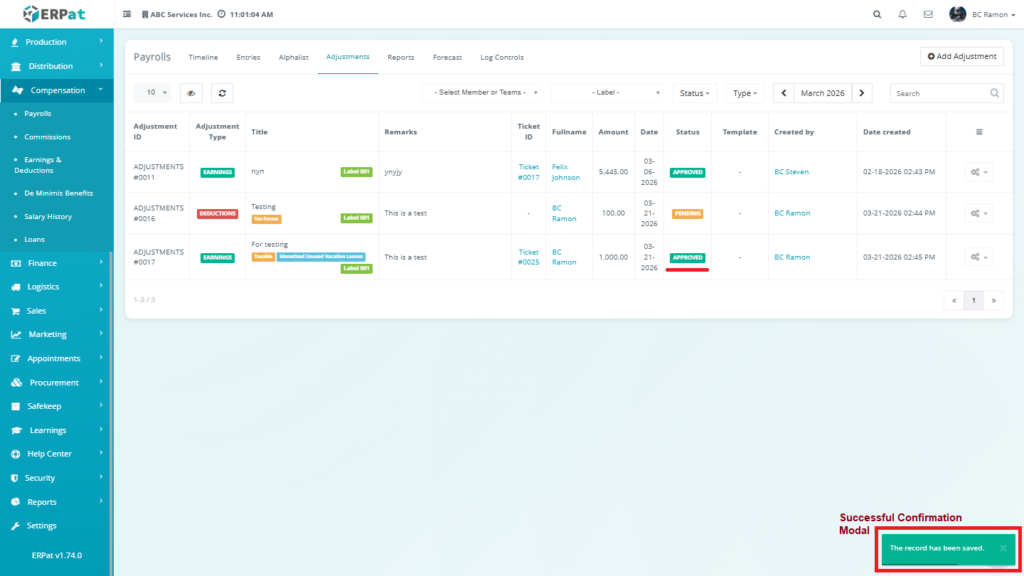
Approve Adjustment #
The Approve option confirms and applies the adjustment to payroll.
STEPS #
- Locate the adjustment entry
- Click Actions (⚙)
- Select Approve
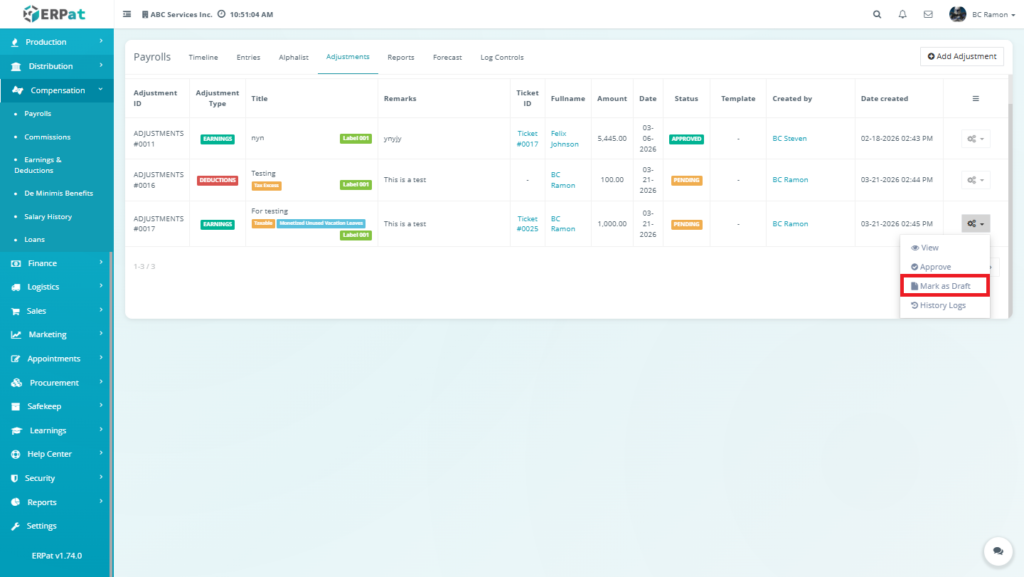
Mark as Draft #
The Mark as Draft option reverts an adjustment back to draft status. Allows re-editing or correction of adjustments Used when an adjustment needs modification before approval
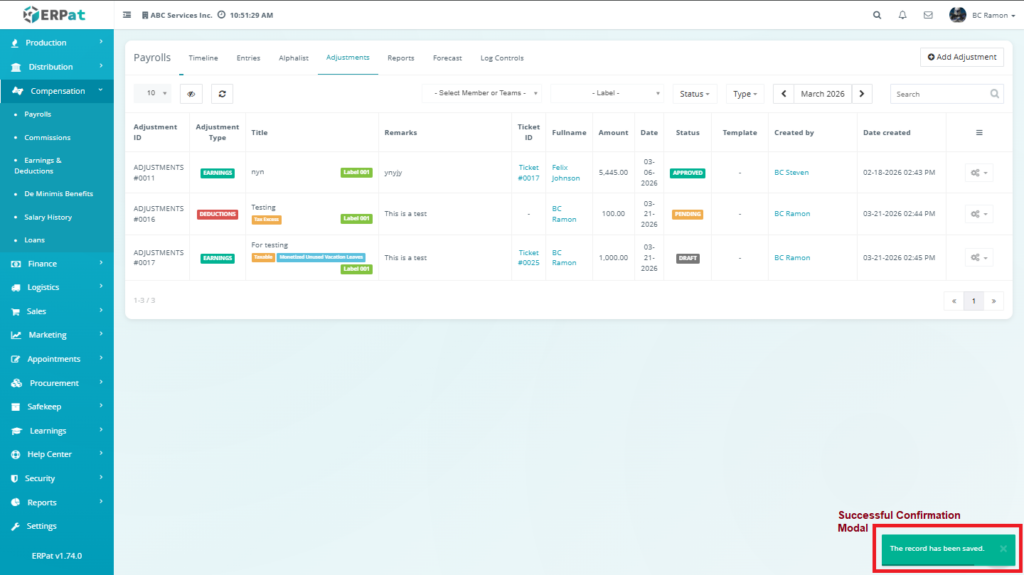
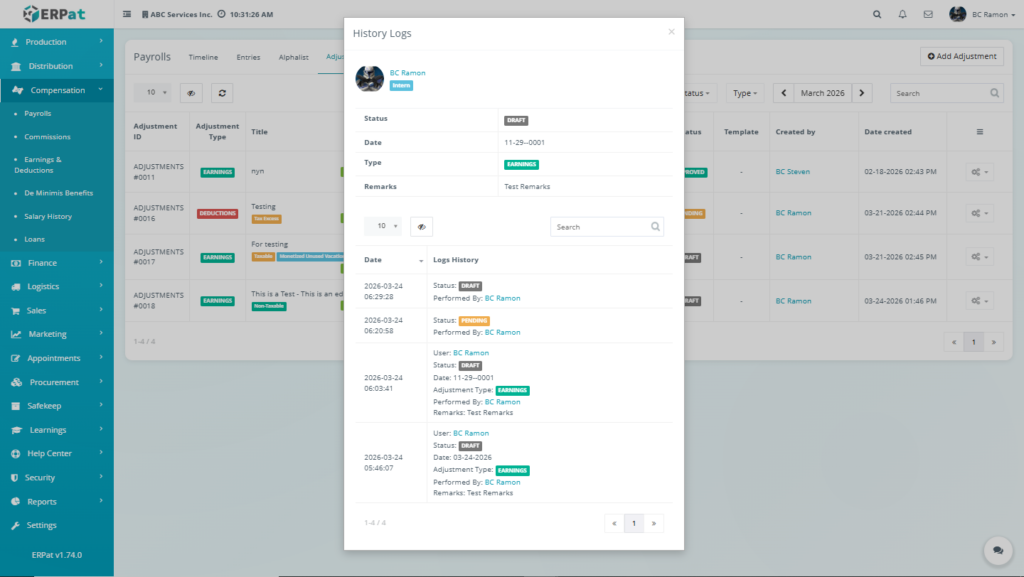
History Logs #
Displays a detailed audit trail of all actions performed on a specific adjustment record, including creation, edits, submissions, and deletions.
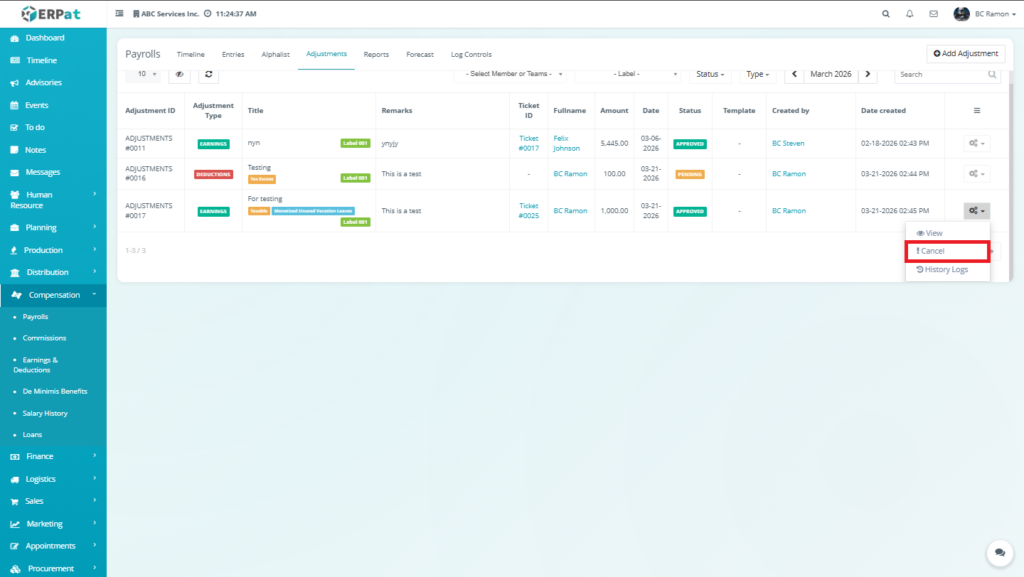
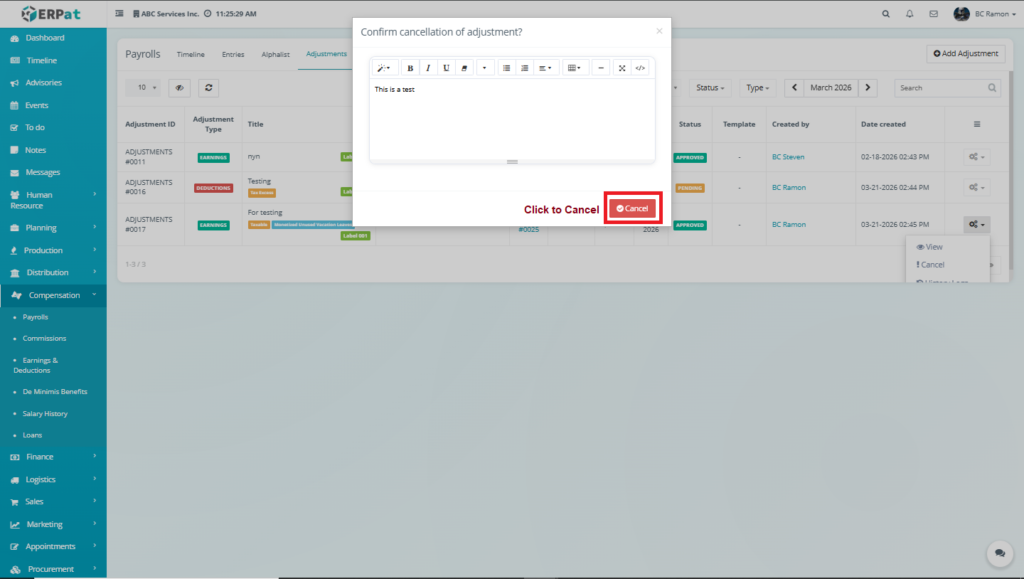
Steps to Cancel an Adjustment #
STEPS #
- Locate the adjustment entry from the listing page
- Click the Actions (⚙) button
- Select Cancel
- The confirmation modal will appear
- Enter the reason for cancellation in the text editor
- Click Cancel to confirm
Result #
- The adjustment is marked as Cancelled or invalidated
- The adjustment will no longer be included in payroll computation
- The cancellation reason is recorded for reference
Steps to Delete an Adjustment #
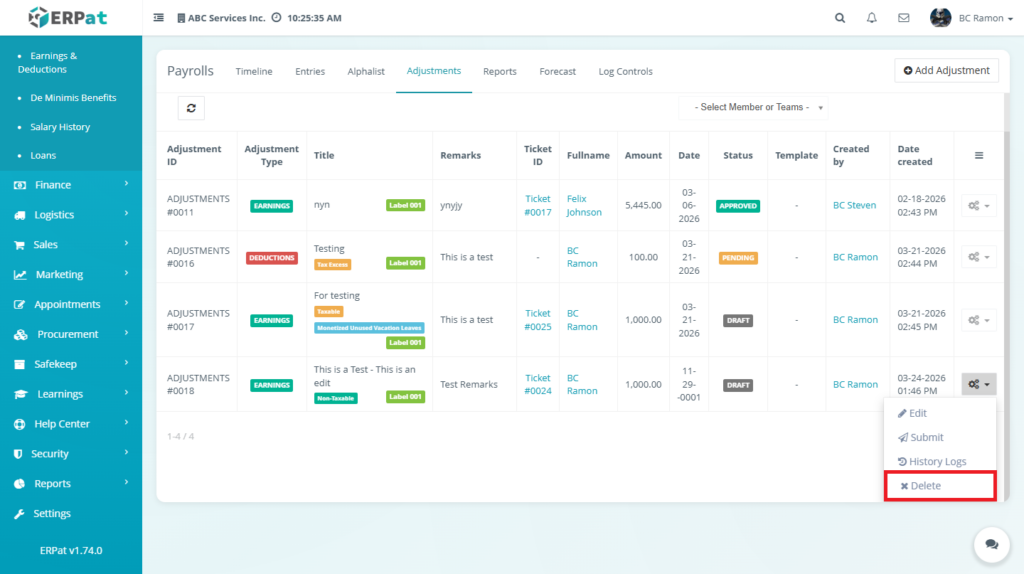
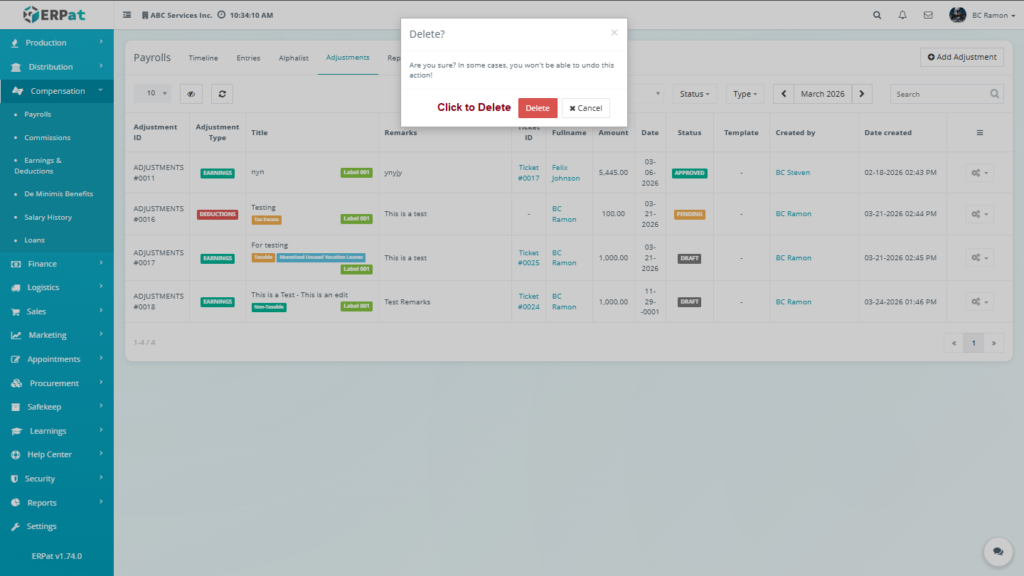
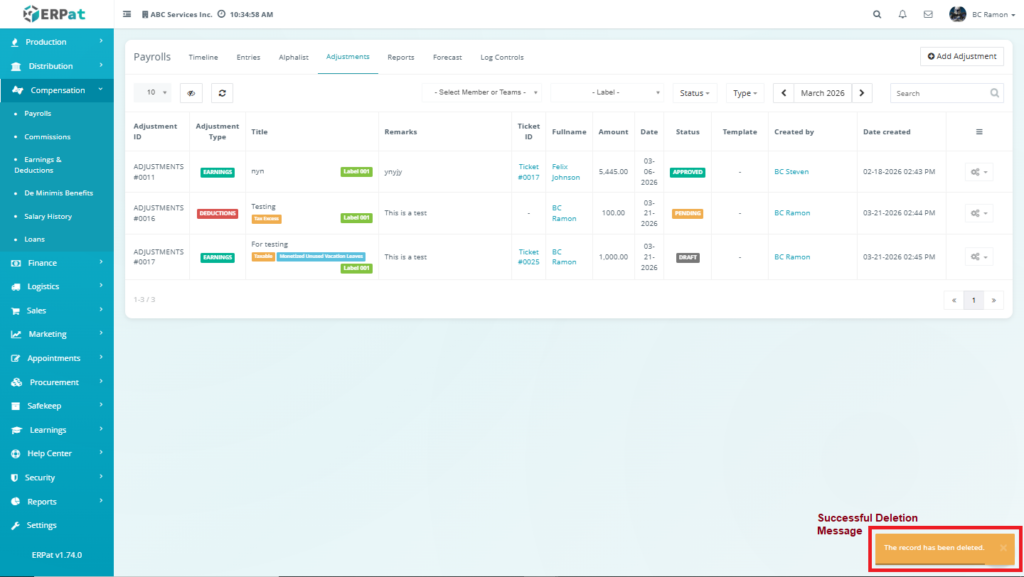
STEPS #
- Locate the adjustment to be removed.
- Click the Actions (⚙) button.
- Select Delete.
- Confirm the deletion when prompted.
Payrolls: Reports Listing Page #
The Reports Module is used to generate, manage, and review payroll-related reports within the system. It provides a centralized interface for statutory reports, tax summaries, and payroll analytics, enabling organizations to ensure compliance with government regulations and maintain accurate financial documentation.
The module consolidates payroll data into structured reports such as government contributions, tax remittances, and annual compensation summaries, supporting both operational monitoring and regulatory submission requirements.
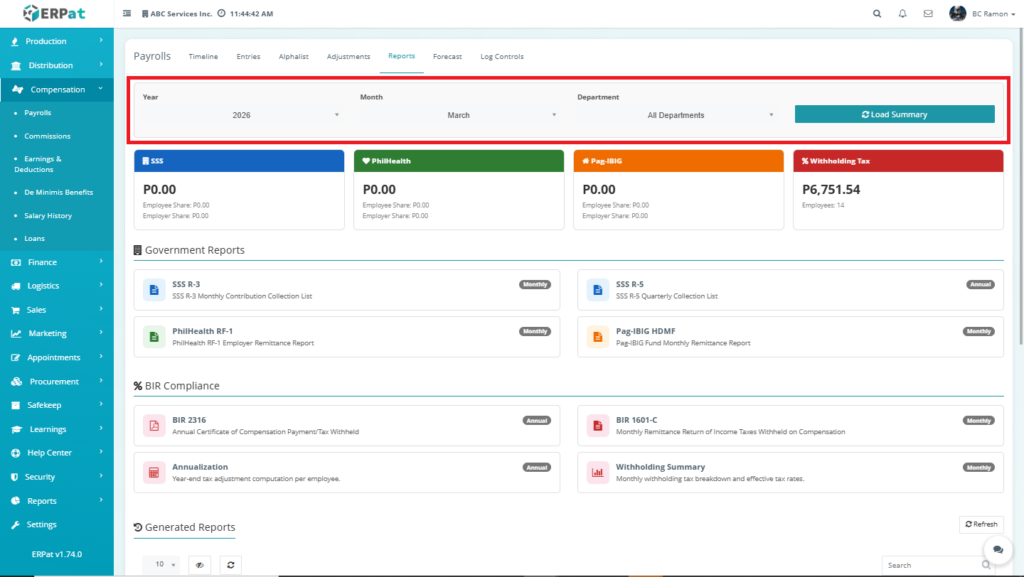
Filter and Control Panel #
This section allows users to define report scope:
- Year Dropdown – Select reporting year
- Month Dropdown – Select reporting month
- Department Dropdown – Filter by department
- Load Summary Button – Executes computation
How Data is Generated #
When Load Summary is clicked:
- The system retrieves payroll data for the selected filters
- Contributions and taxes are computed
- Results are displayed in summary panels
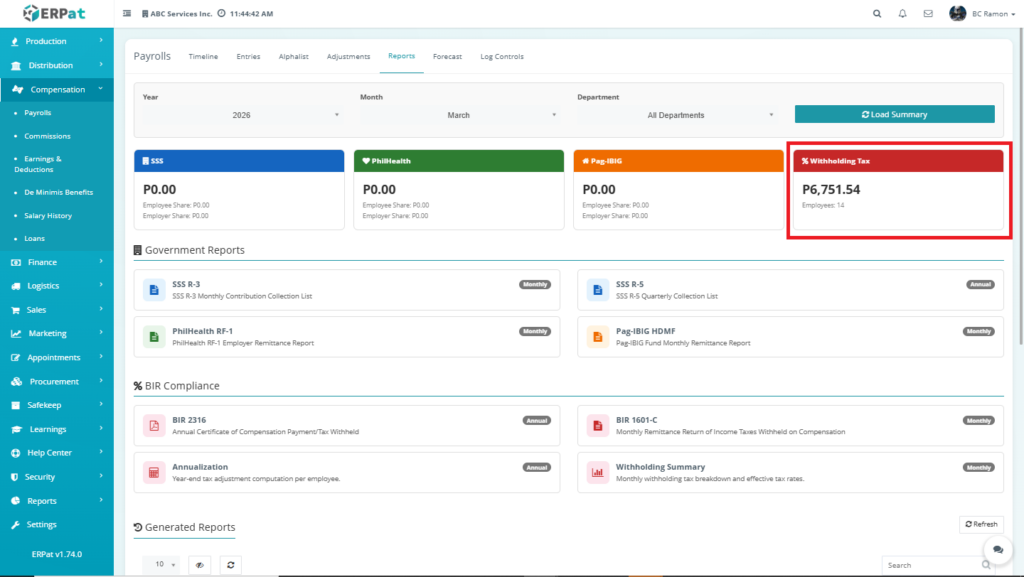
Summary Panels (Computation Overview) #
Displays computed totals for contributions and taxes:
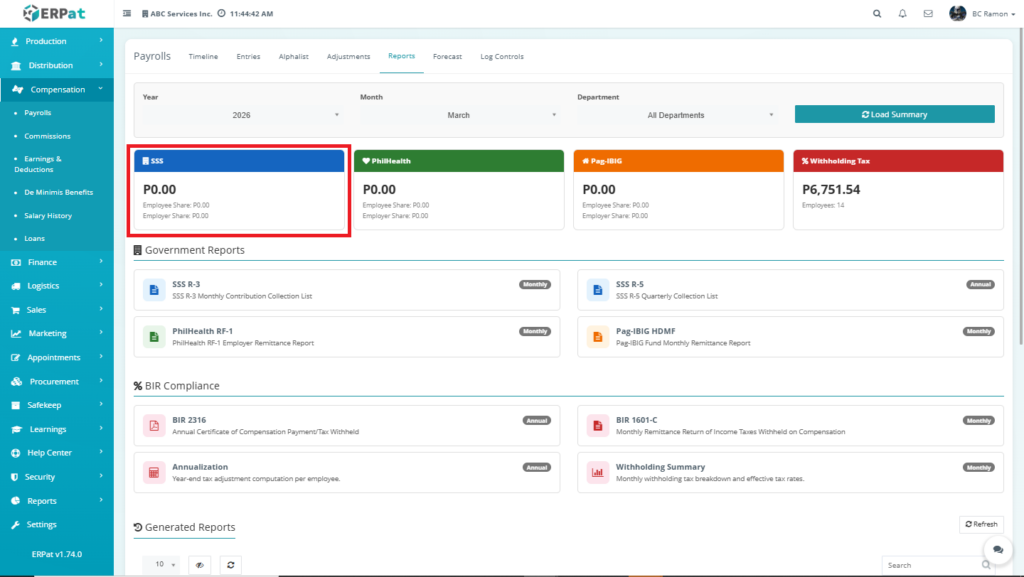
SSS Panel #
- Shows total SSS contributions
- Includes employee and employer share
- Total SSS = SUM(Employee SSS Contribution + Employer Share)
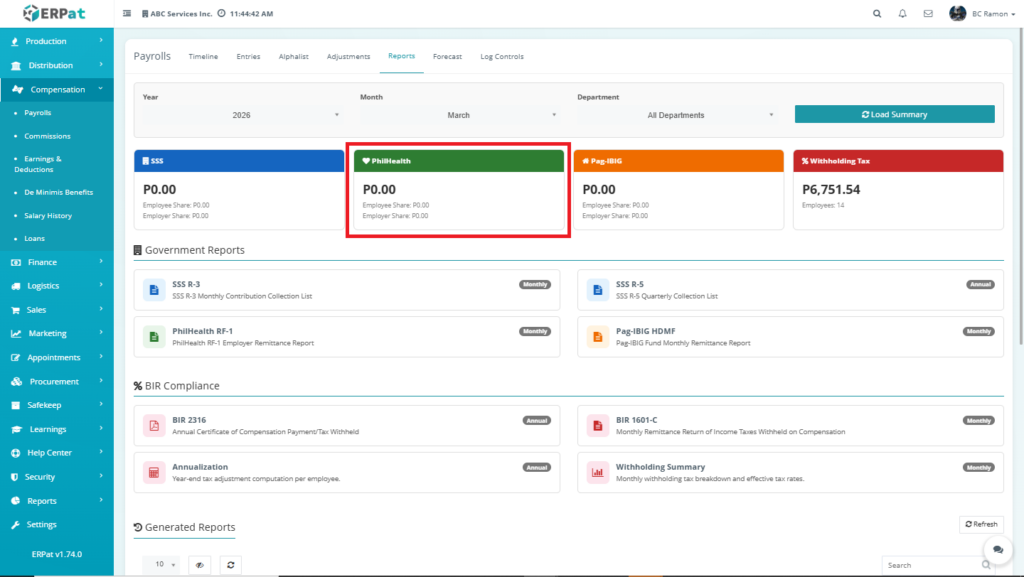
PhilHealth Panel #
- Displays PhilHealth contributions
- Based on salary bracket computations
- Total PhilHealth = SUM(Employee Share + Employer Share)
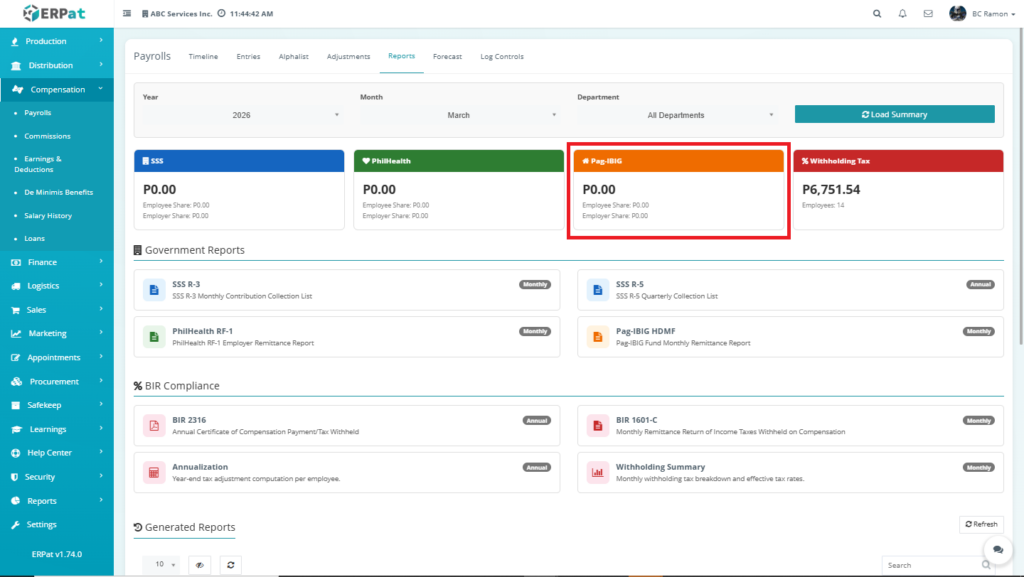
Pag-IBIG Panel #
- Shows total Pag-IBIG contributions
- Includes both employee and employer share
- Total Pag-IBIG = SUM(Employee Share + Employer Share)
Withholding Tax Panel #
- Displays total tax deductions
- Shows number of employees affected
- Total Tax = SUM(Tax Due per employee)
- Employees Count = COUNT(Employee with Tax Deduction)
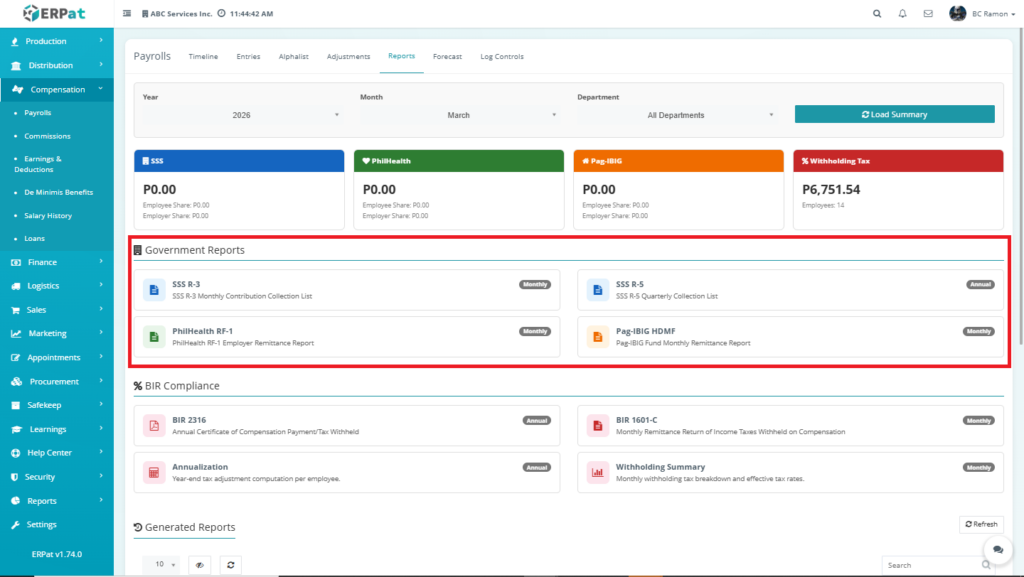
Government Reports Section #
This section contains statutory reports required for compliance:
Available Reports #
- SSS R-3 – Monthly Contribution Collection List
- SSS R-5 – Quarterly Contribution Summary
- PhilHealth RF-1 – Employer Remittance Report
- Pag-IBIG HDMF – Monthly Contribution Report
How It Works #
- Each card acts as a report generator
- Clicking a report:
- Uses computed payroll data
- Generates downloadable output
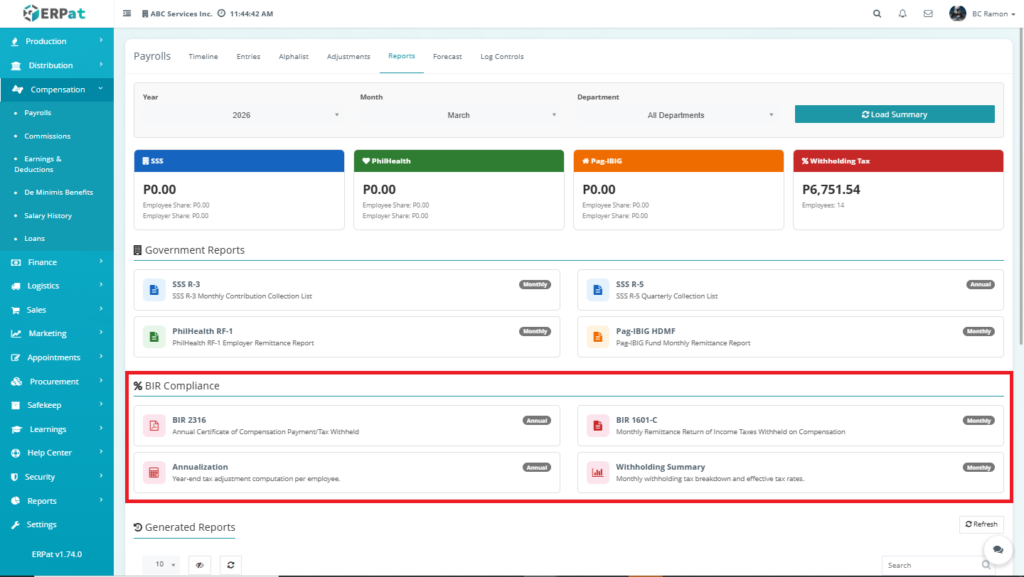
BIR Compliance Section #
Contains tax-related reports required by the Bureau of Internal Revenue:
Available Reports #
- BIR 2316 – Annual Compensation Certificate
- BIR 1601-C – Monthly Tax Remittance
- Annualization – Year-end tax adjustment computation
- Withholding Summary – Tax breakdown report
Functionality #
- Uses payroll deductions and earnings data
- Computes tax obligations based on selected filters
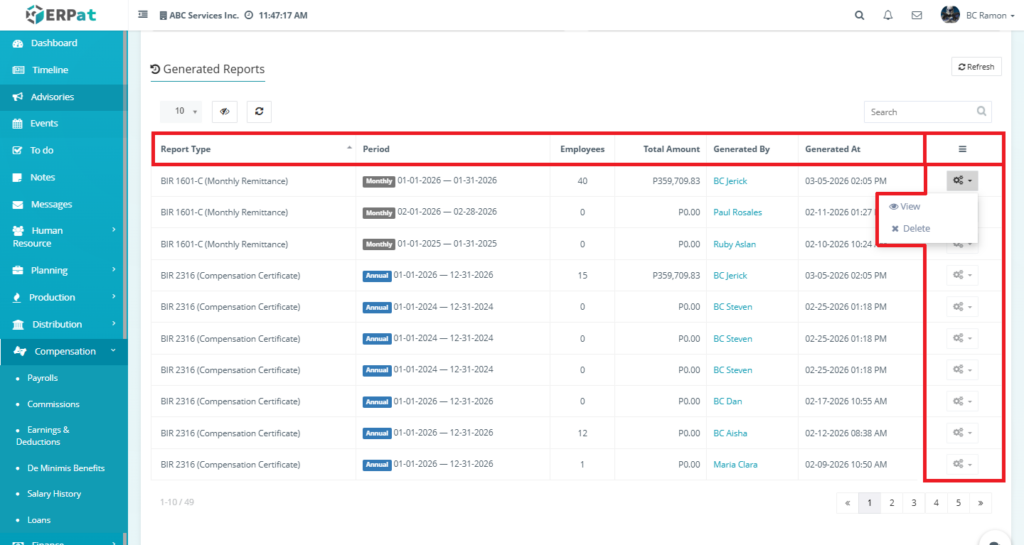
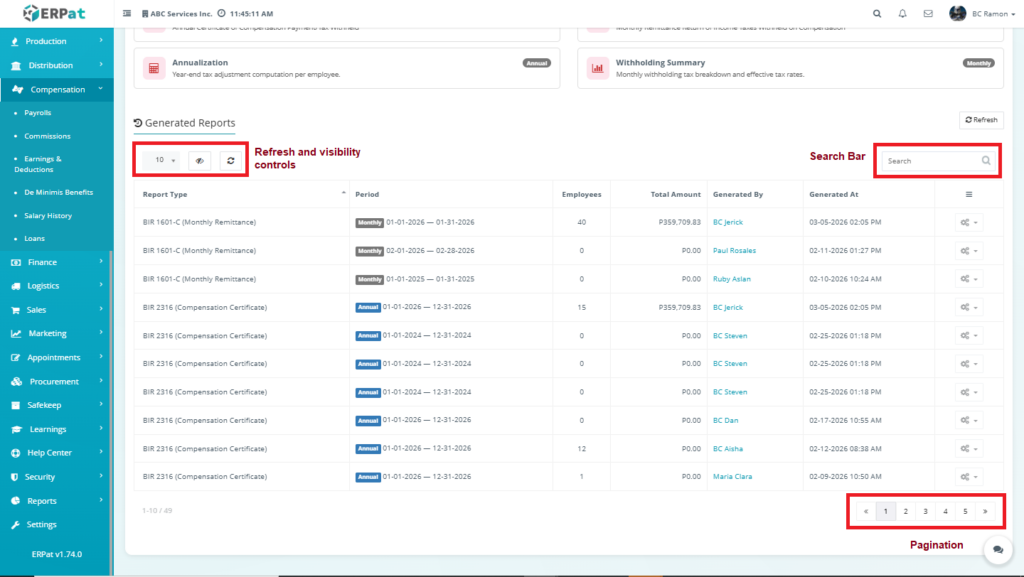
The listing page provides an overview of all generated reports with the following columns:
- Report Type
Displays the name of the report generated (e.g., BIR 1601-C (Monthly Remittance), BIR 2316).
This is based on the selected report template during report generation. - Period
Indicates the reporting period covered by the report.
Includes:- Frequency tag (Monthly / Annual)
- Start and end dates
- Employees
Shows the total number of employees included in the report.
This is computed by counting all payroll records processed within the selected period. - Total Amount
Displays the total computed monetary value of the report.
This may include:- Total tax withheld
- Total compensation
- Total contributions
depending on the report type.
- Generated By
Identifies the user who generated the report.
Pulled from the authenticated session during report creation. - Generated At
Shows the date and time when the report was generated.
Stored automatically upon report completion. - Actions
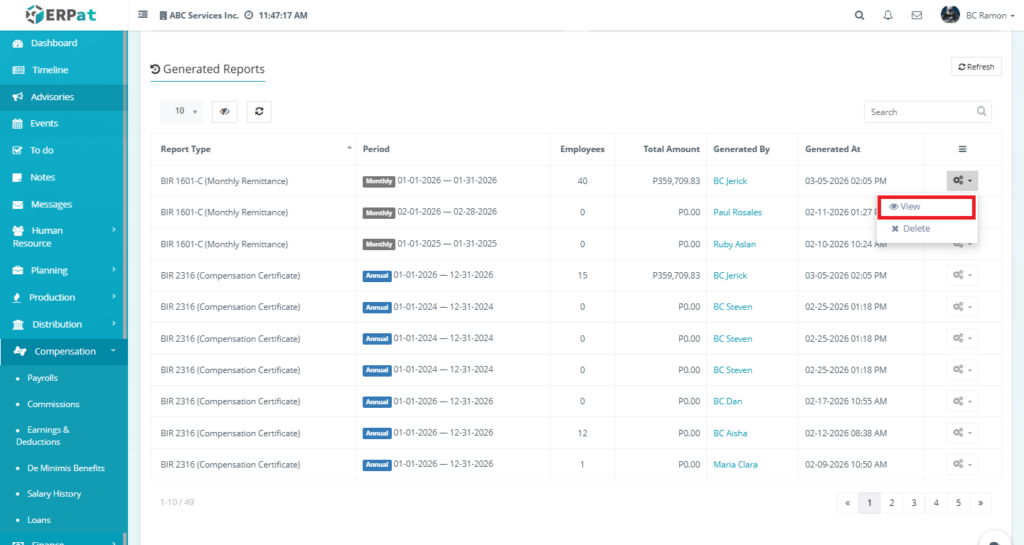
Provides available operations for each report:- View – Opens detailed report preview
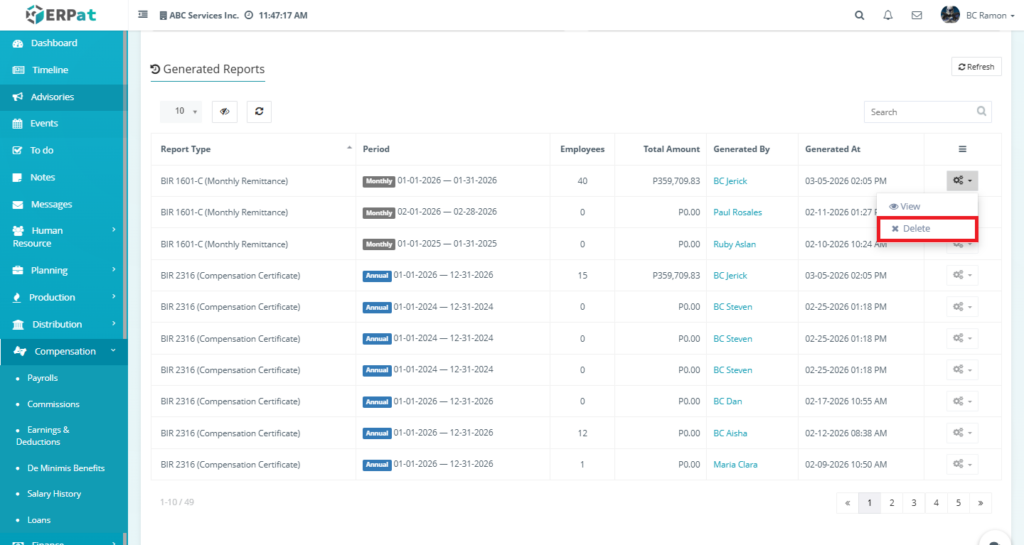
- Delete – Removes the report from the system
Steps for Viewing a Report #
STEPS #
- Locate the report from the listing
- Click the Action (⚙) button
- Select View
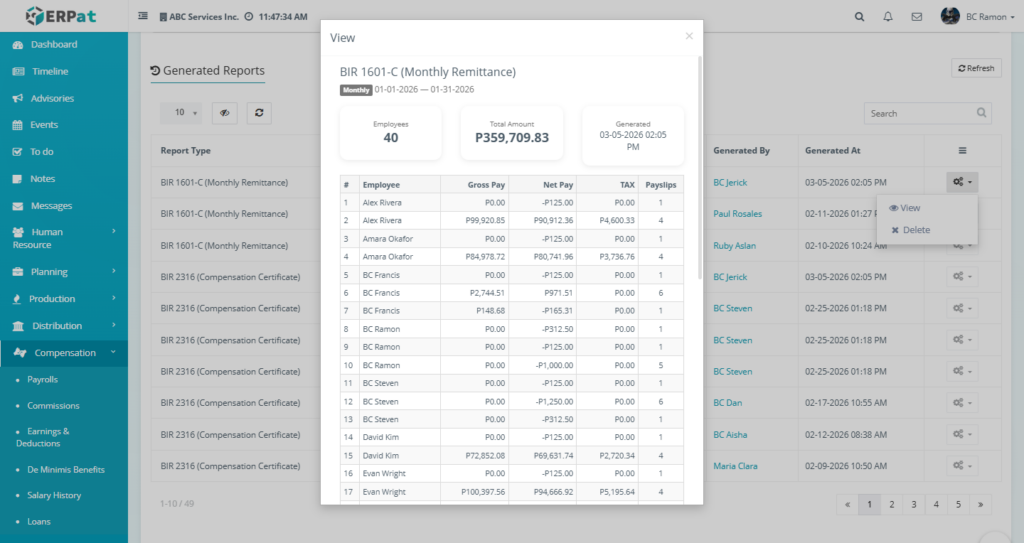
Result #
A detailed modal appears displaying:
- Total employees
- Total amount
- Generated date
- Employee-level breakdown (Gross Pay, Net Pay, Tax, Payslips)
Steps to Delete a Report #
STEPS #
- Locate the report
- Click the Action (⚙) button
- Select Delete
- Confirm deletion in the modal
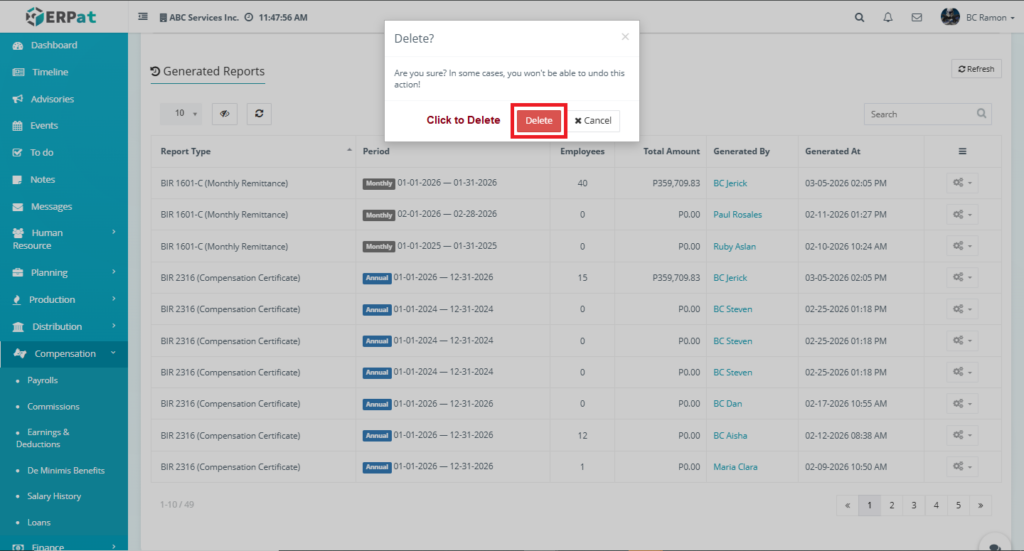
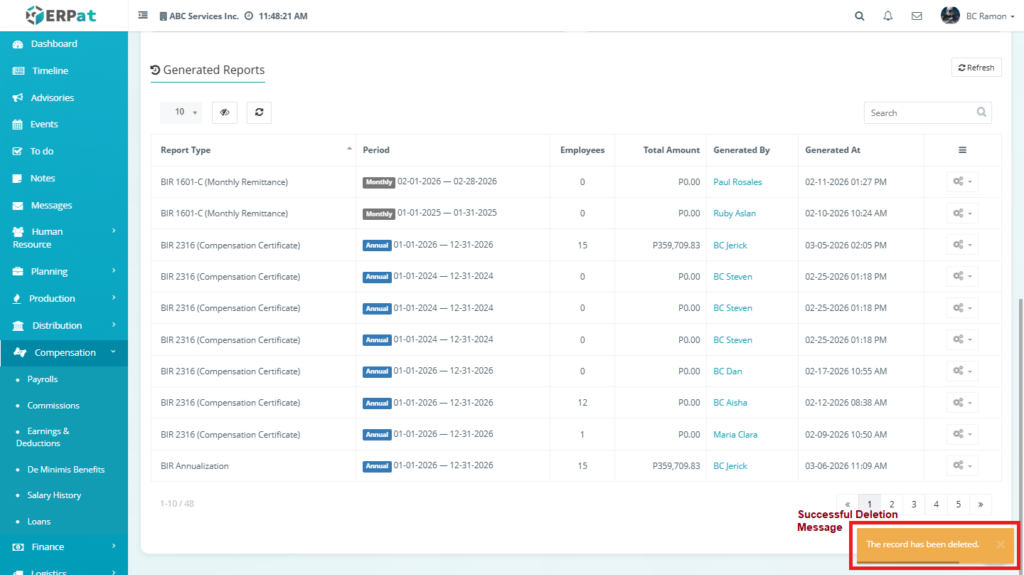
Result #
The report is permanently removed and a confirmation message is displayed.
Additional controls:
- Search bar for quick lookup
- Pagination for large datasets
- Refresh and visibility controls
Payrolls: Forecast Listing Page #
The Payroll Forecast Module is used to project future payroll costs based on current payroll data, employee records, and selected parameters. It provides organizations with a forward-looking view of expenses, allowing management to plan budgets, monitor financial sustainability, and analyze workforce-related costs over time.
The module aggregates payroll components such as basic pay, earnings, contributions, and taxes to generate projected values and visual insights across a selected period.
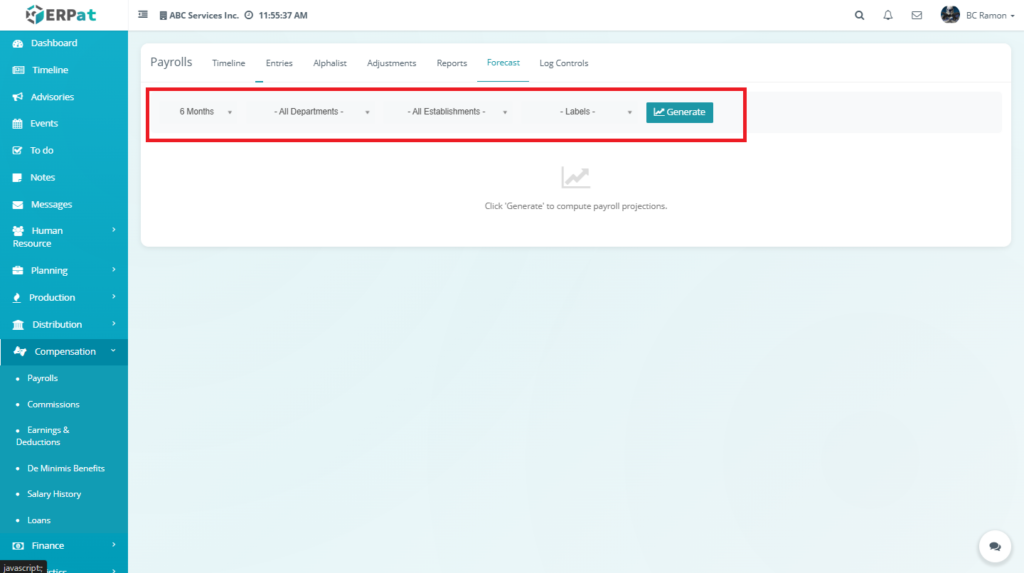
Forecast Filters and Controls #
The top section allows configuration of projection parameters:
- Time Range (e.g., 6 Months) – Defines projection duration
- Determines how many months the system will project
- Data is replicated or extrapolated based on the latest payroll cycle
- Source: Latest finalized payroll entries
- Department Filter – Select specific departments
- Filters employees by department
- How gathered:
- Employee → Department field
- Establishment Filter – Filter by location/site
- Filters employees by assigned location
- How gathered:
- Employee → Establishment assignment
- Labels – Optional classification filters
- Generate Button – Triggers computation of forecast data
- When clicked:
- System queries payroll database
- Applies filters
- Performs aggregation and projection formulas
- Displays computed results
- When clicked:
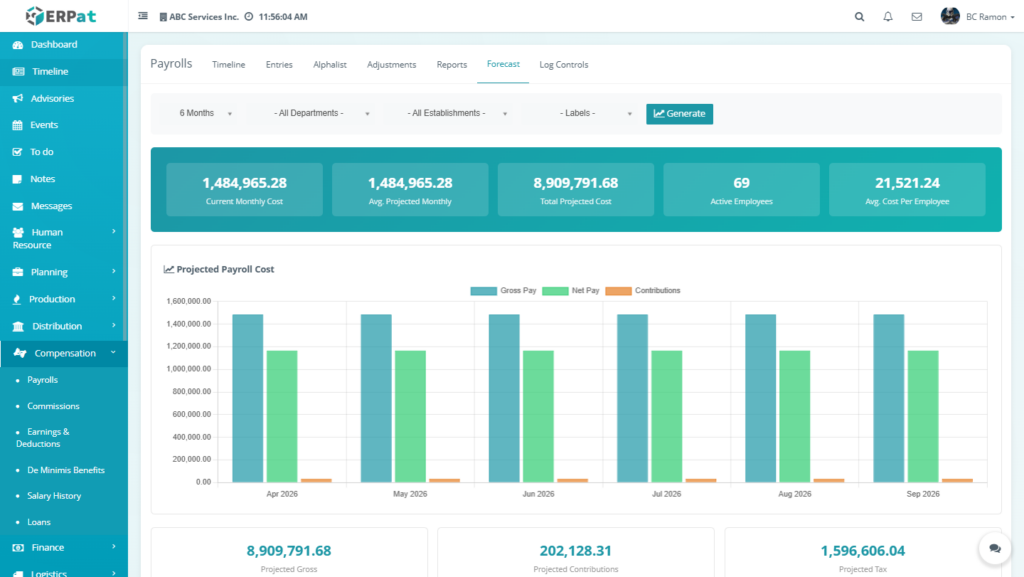
Forecast Summary Dashboard #
This section provides a high-level overview of projected payroll expenses. It aggregates computed values from the Monthly Projection Table.
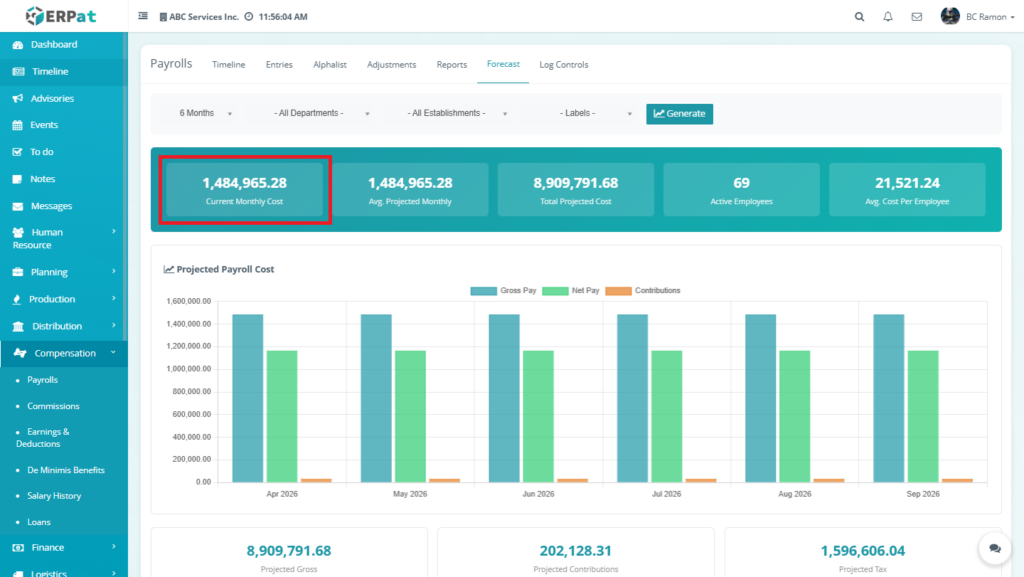
Current Monthly Cost #
Represents the latest actual payroll cost
How gathered:
- Retrieves most recent payroll entry
- Sums all employee Gross Pay
Formula:
Current Monthly Cost = Σ (Employee Gross Pay from latest payroll)
Source Tables:
- Payroll Entries
- Earnings & Deductions module
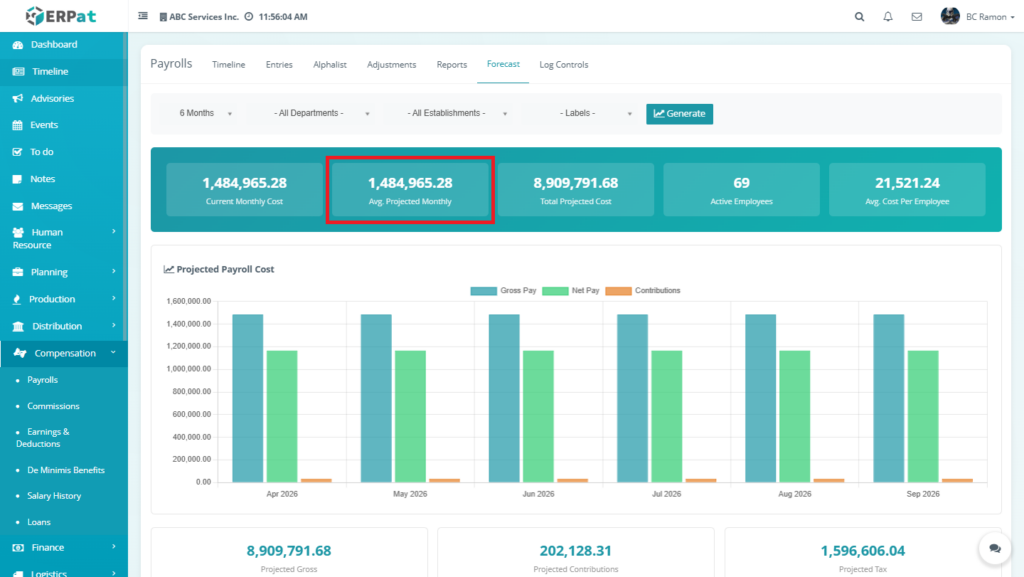
Average Projected Monthly Cost #
Represents the average cost across forecast period
How gathered:
- Uses all projected months from table
Formula:
Average = Total Projected Cost ÷ Number of Months
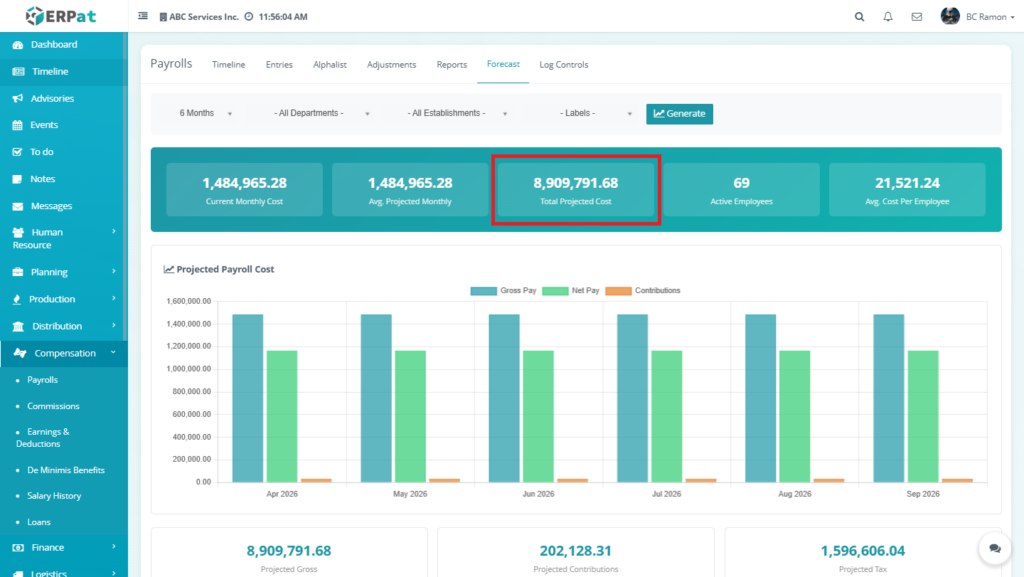
Total Projected Cost #
Represents total payroll expense for entire forecast period
How gathered:
- Adds all monthly Gross Pay projections
Formula:
Total Cost = Σ (Projected Monthly Gross Pay)
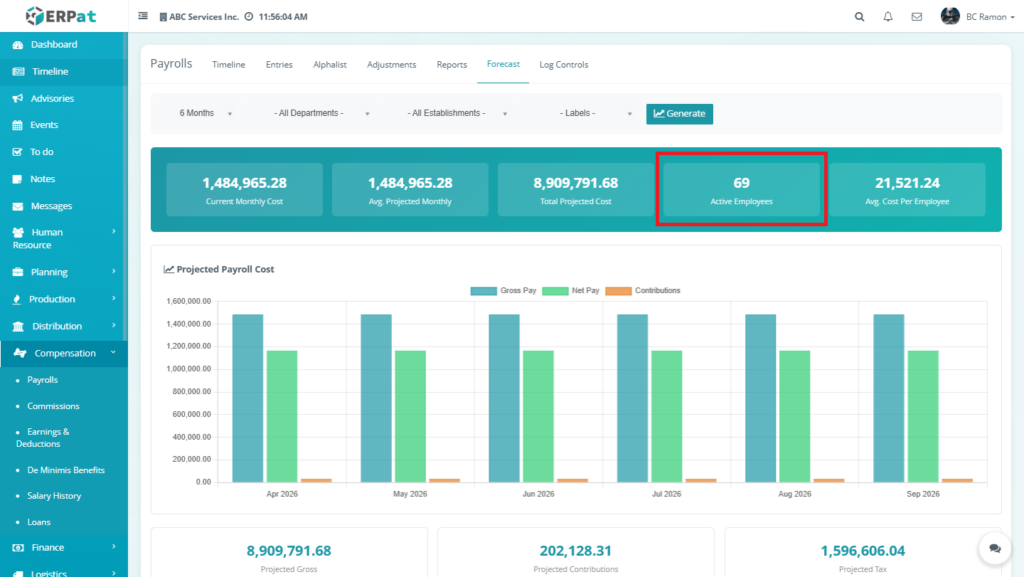
Active Employees #
Total employees included in projection
How gathered:
- Filters employees based on:
- Active status
- Department filter
- Establishment filter
Formula:
Headcount = COUNT(Employee_ID)
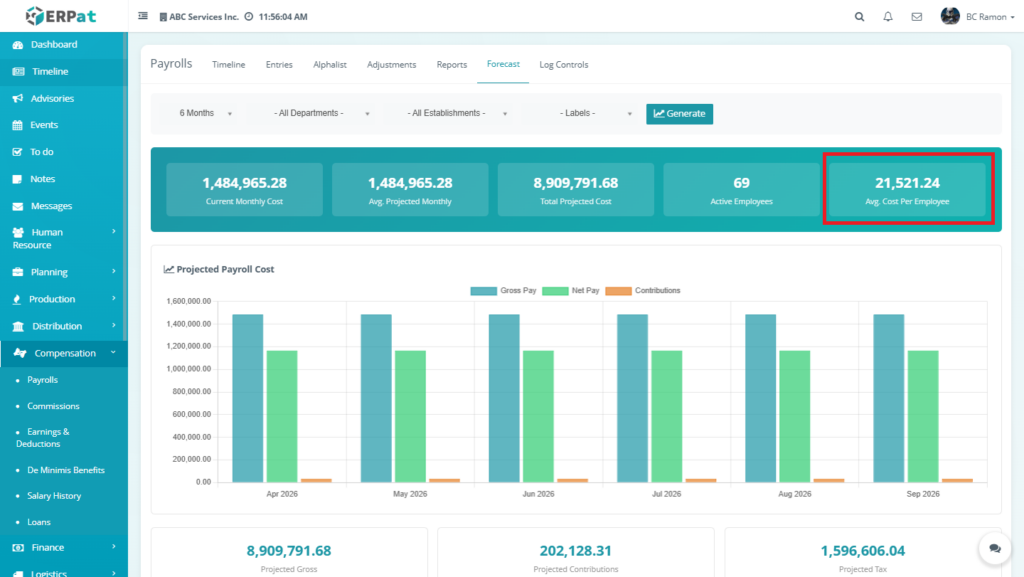
Average Cost per Employee #
Cost efficiency metric
Formula:
Avg Cost per Employee = Total Projected Cost ÷ Active Employees
Projected Payroll Cost #
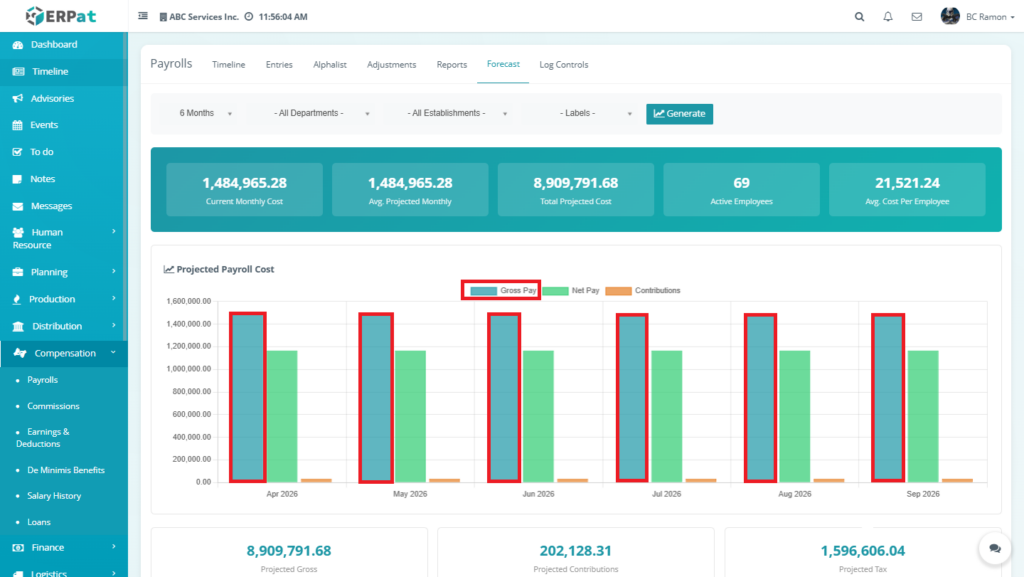
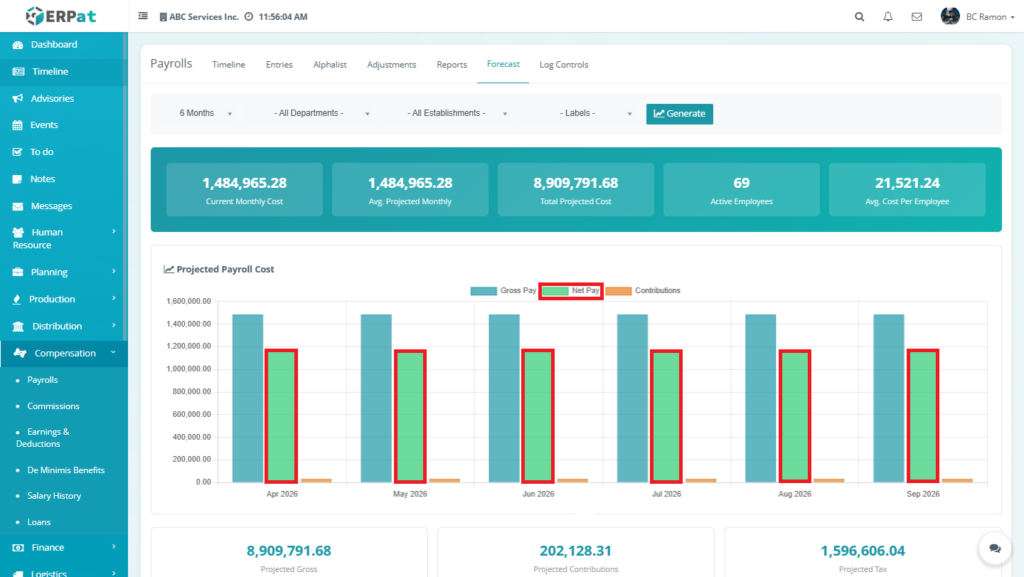
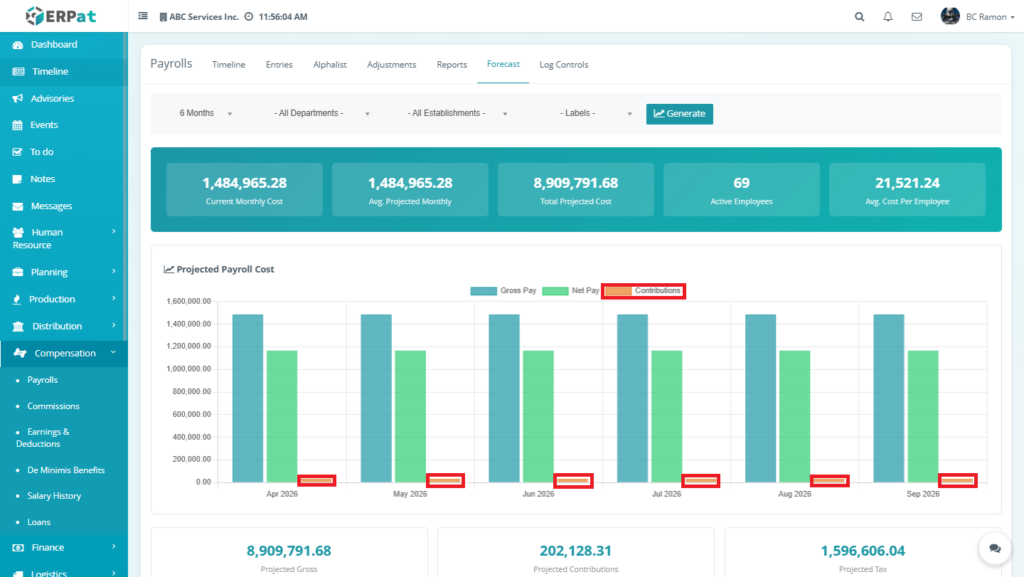
The Projected Payroll Cost visually represents the estimated payroll expenses over a selected forecast period (e.g., 6 months). It provides a comparative breakdown of three key payroll components:
- Gross Pay
- Net Pay
- Contributions
The chart allows users to quickly analyze payroll trends, detect cost patterns, and evaluate the financial impact of employee compensation over time.
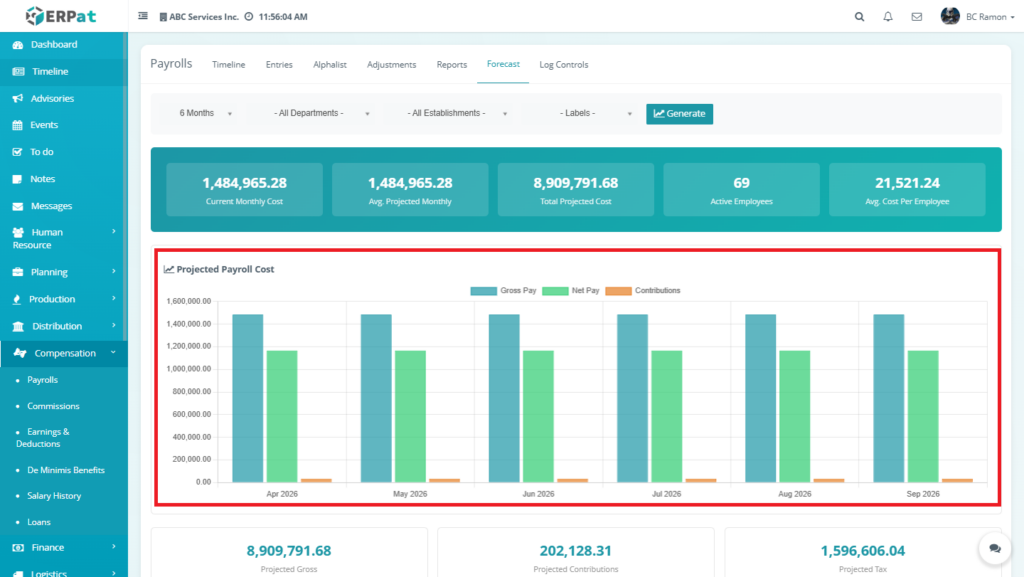
Chart Composition #
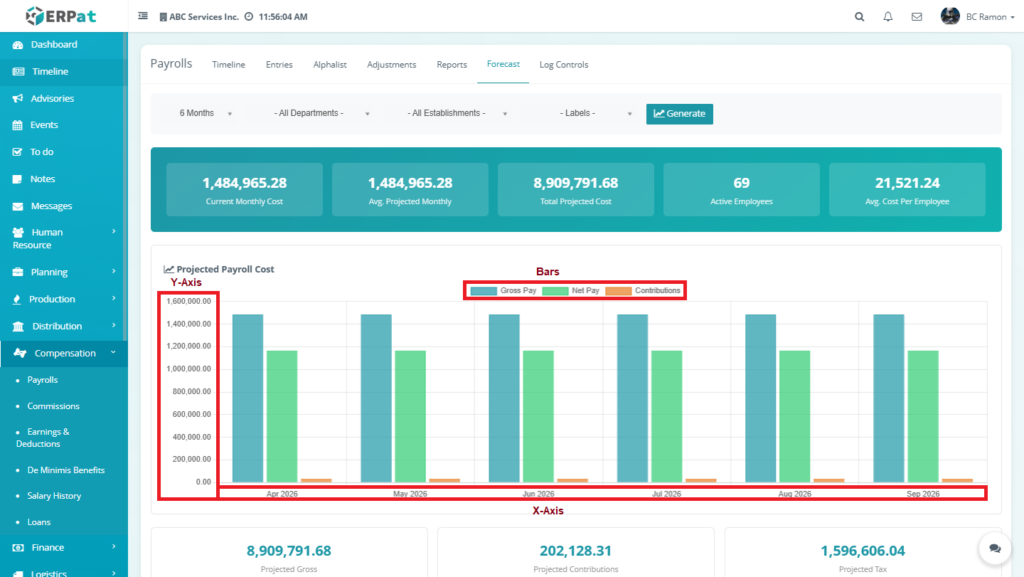
The chart consists of:
- X-Axis → Time period (Months: Apr 2026 – Sep 2026)
- Y-Axis → Monetary values (₱ payroll amounts)
- Bars (3 series per month):
- Gross Pay
- Net Pay
- Contributions
Gross Pay (Blue Bars) #
Represents total payroll before deductions.
Formula:
Gross Pay = Basic Pay + Earnings
How it is used in chart:
- Plotted as the highest bar per month
- Shows total payroll liability before deductions
Net Pay (Green Bars) #
Represents actual take-home pay.
Formula:
Net Pay = Gross Pay − Tax − Deductions
How it is used in chart:
- Plotted as the middle bar
- Reflects actual employee compensation
Contributions (Orange Bars) #
Represents employer government contributions.
Formula:
Contributions = SSS + PhilHealth + Pag-IBIG
How it is used in chart:
- Plotted as the smallest bar
- Shows employer cost aside from salaries
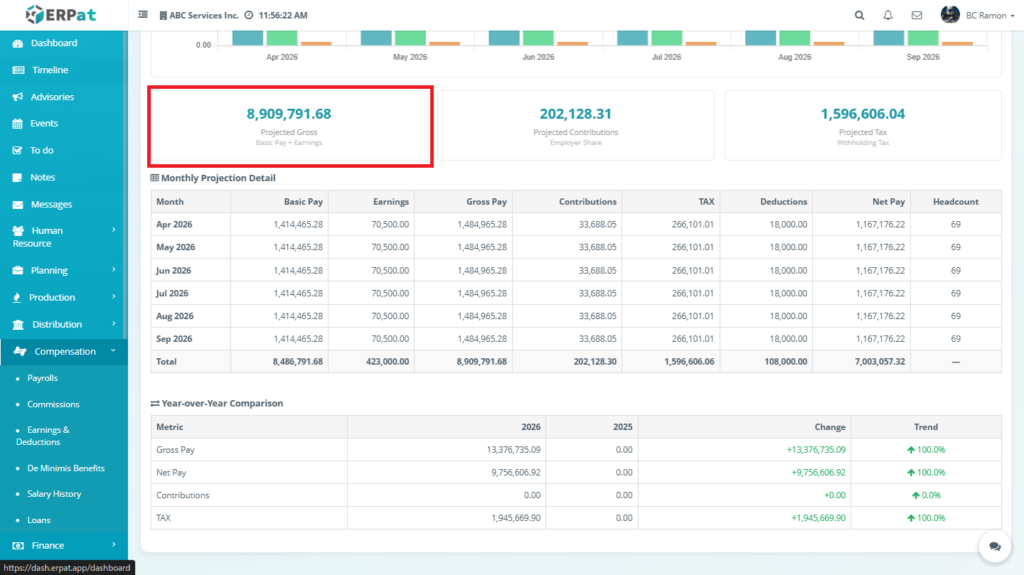
Projected Gross #
How the System Gets the Data #
- Pull employee salary data
- Pull earnings (allowances, bonuses)
- Compute monthly gross per employee
- Aggregate per month
- Sum all months
Formula #
- Gross Pay (per employee) = Basic Pay + Earnings
- Monthly Gross = Σ (Gross Pay of all employees)
- Projected Gross = Σ (Monthly Gross across all months)
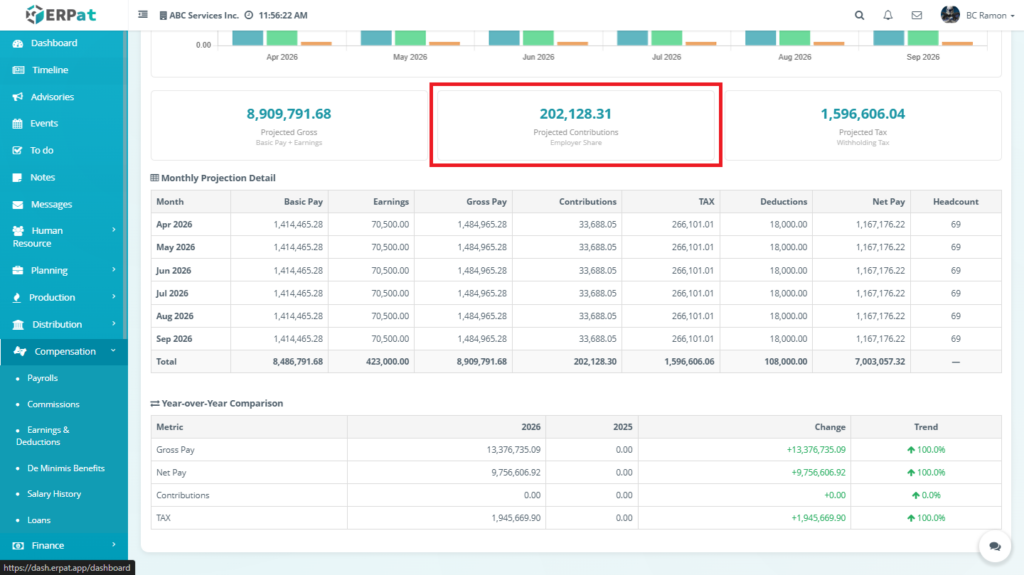
Projected Contributions #
How the System Gets the Data #
- Takes employee Gross Pay / Salary
- Matches it with:
- SSS table
- PhilHealth table
- Pag-IBIG rules
- Computes contributions per employee
- Aggregates per month
- Sums across forecast period
Formula #
- Contribution = SSS + PhilHealth + Pag-IBIG
- Monthly Contributions = Σ (Employee Contributions)
- Projected Contributions = Σ (Monthly Contributions)
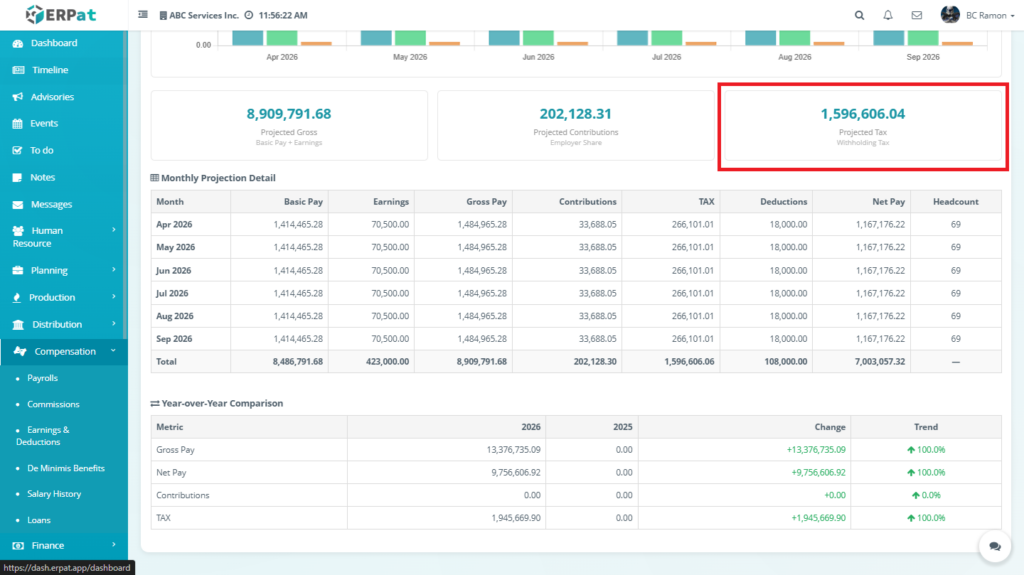
Projected Tax #
How the System Gets the Data #
- Compute Taxable Income
- Apply BIR withholding tax table
- Calculate employee tax
- Aggregate per month
- Sum all months
Formula #
- Taxable Income = Gross Pay − Non-taxable components
- Tax = Based on BIR Tax Table
- Projected Tax = Σ (Monthly Tax)
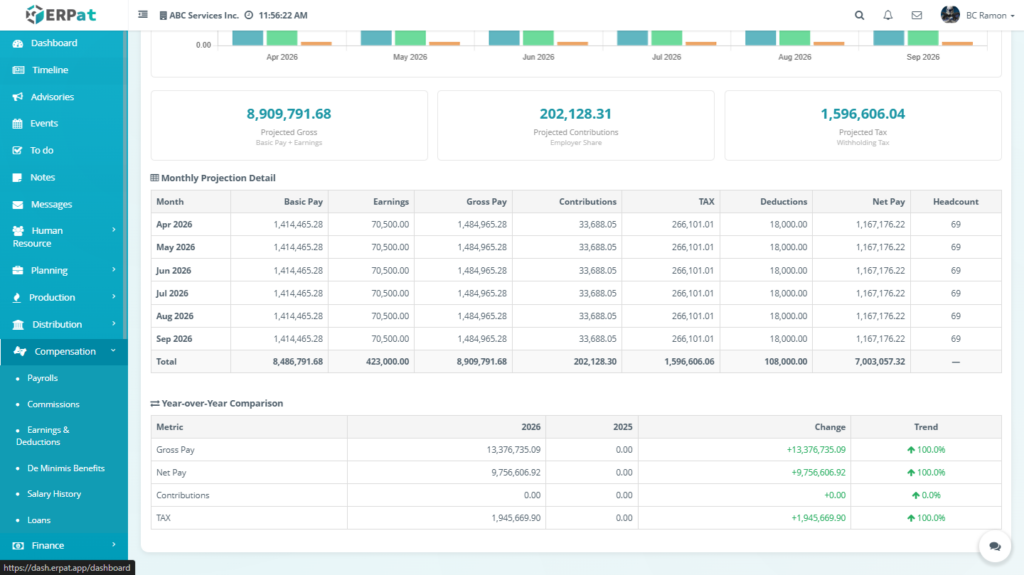
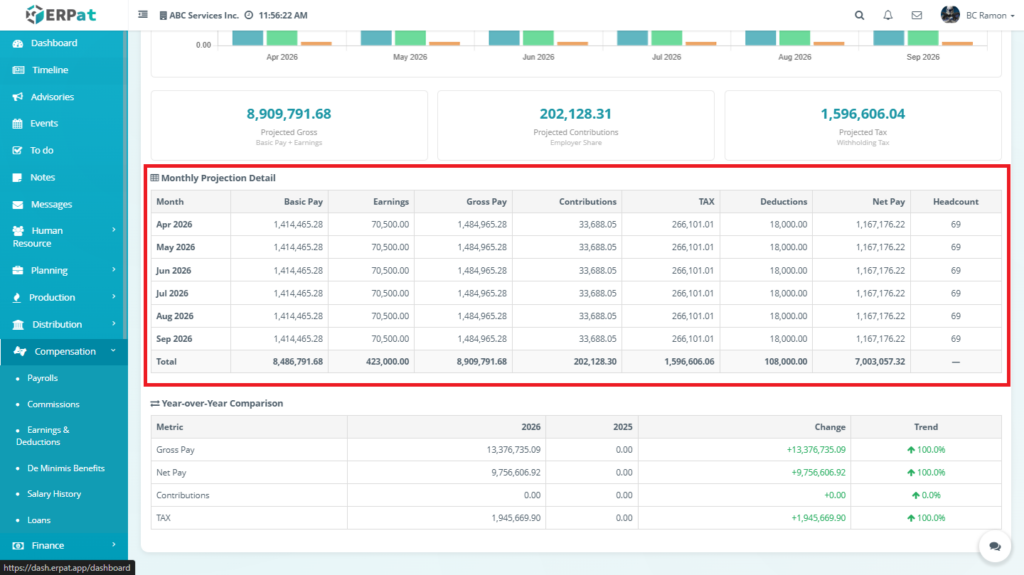
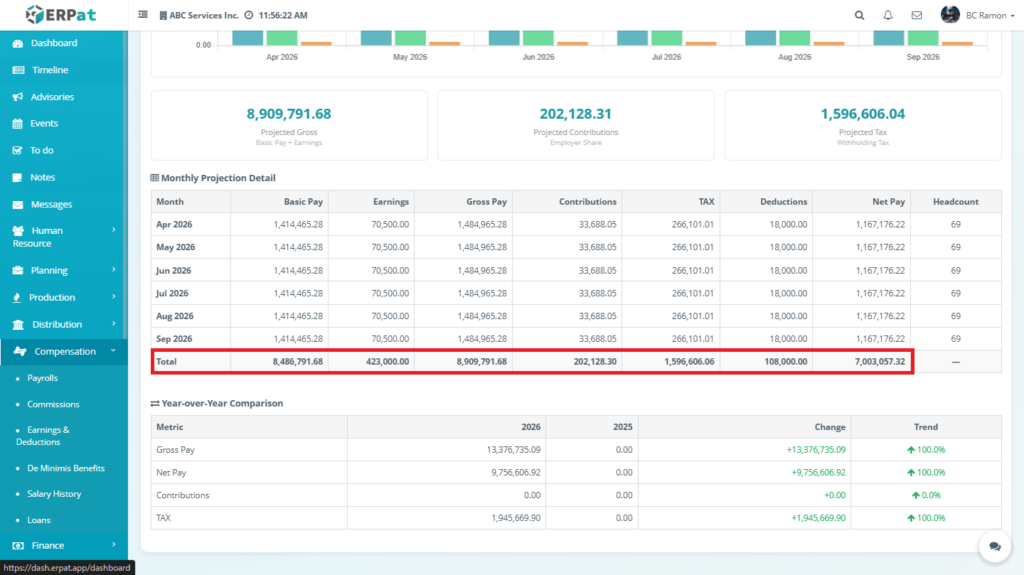
Monthly Projection Detail #
It serves as the core computation layer of the Forecast module, where all payroll values are calculated, aggregated, and structured before being reflected in summary dashboards and analytics.
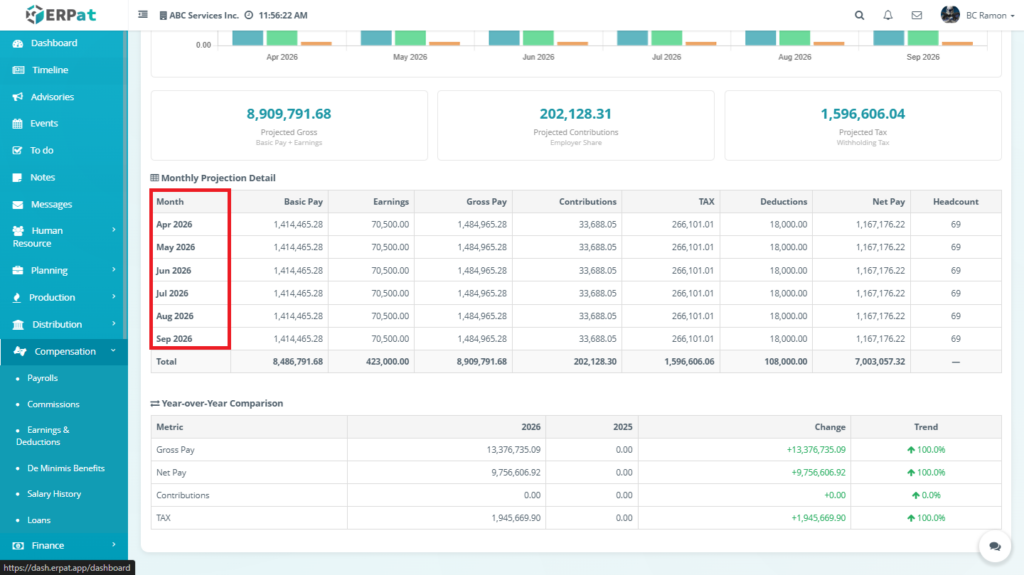
Month #
Represents the forecast period.
How data is gathered:
- Generated from selected forecast range (e.g., 6 months)
- Automatically increments based on starting month
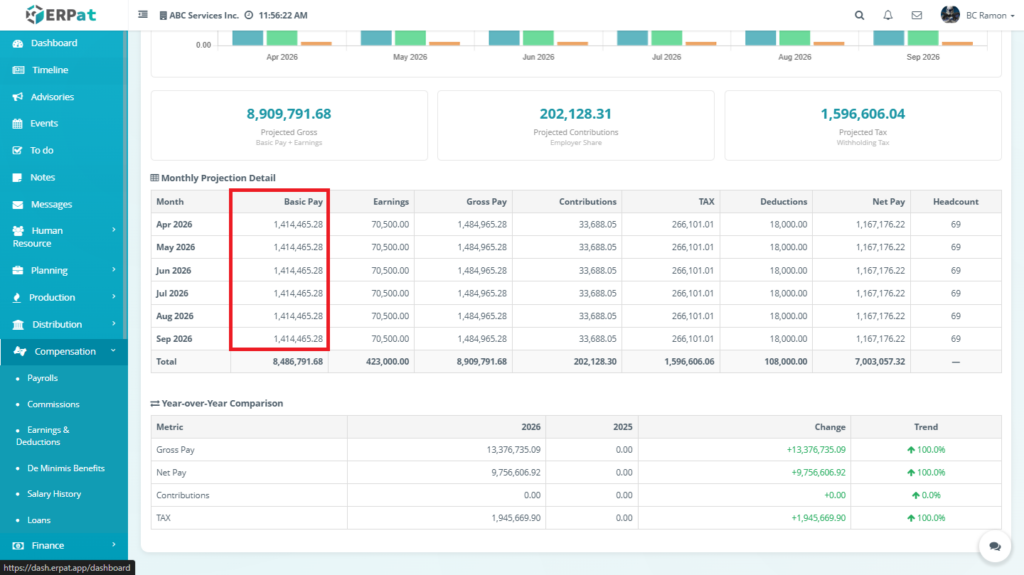
Basic Pay #
Represents the total fixed salaries of all employees for a given month.
How data is gathered:
- Pulled from employee salary records
- Based on:
- Monthly salary rate
- Employment status (active employees only)
Formula:
Basic Pay = Σ (Employee Monthly Salary)
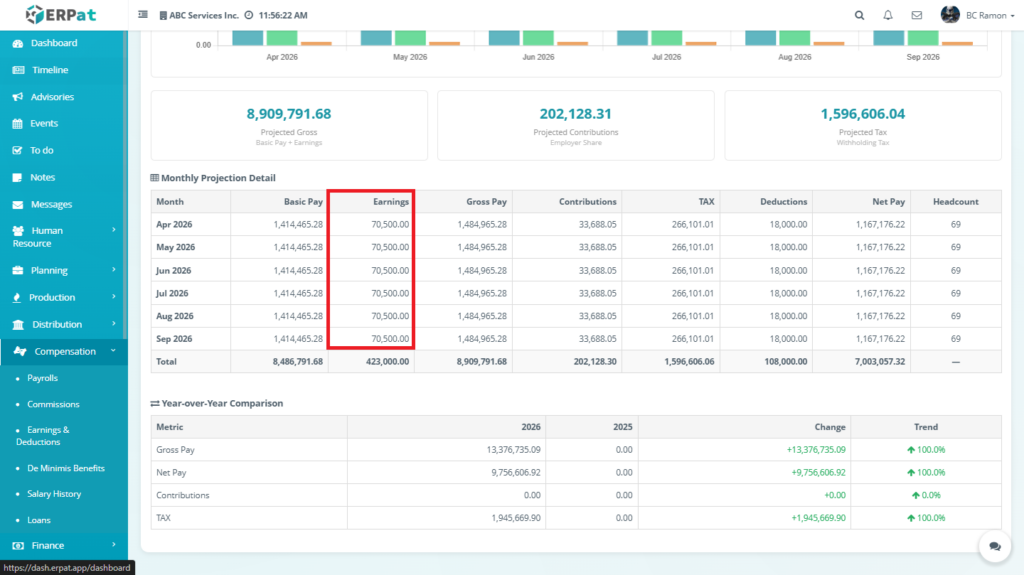
Earnings #
Includes additional compensation such as allowances, bonuses, and incentives.
How data is gathered:
- Pulled from payroll earnings entries
- Includes:
- Allowances
- Incentives
- Other taxable earnings
Formula:
Earnings = Σ (All employee earnings)
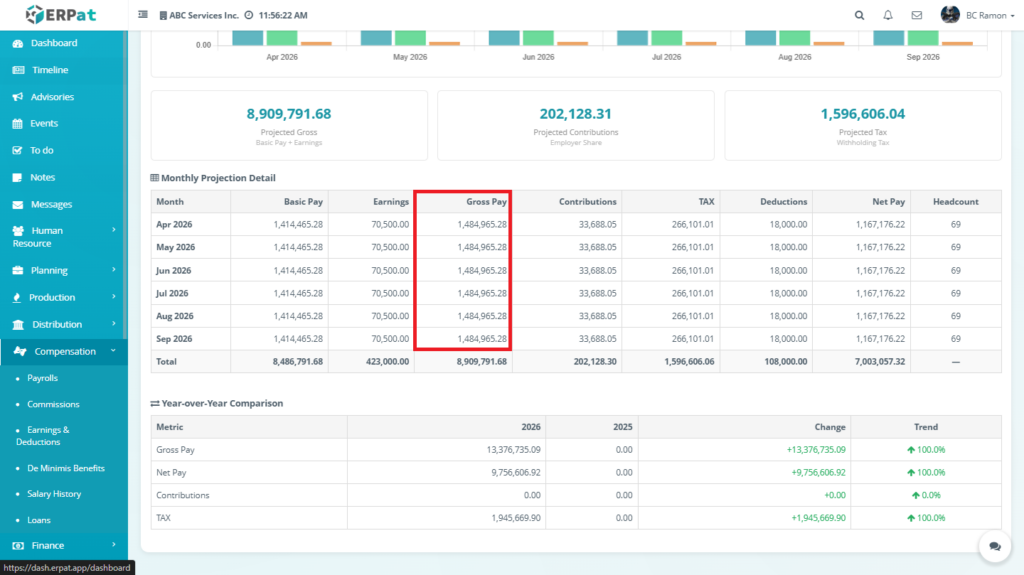
Gross Pay #
Represents the total income before deductions.
How data is computed:
Gross Pay = Basic Pay + Earnings
Example from your data:
1,414,465.28 + 70,500.00 = 1,484,965.28
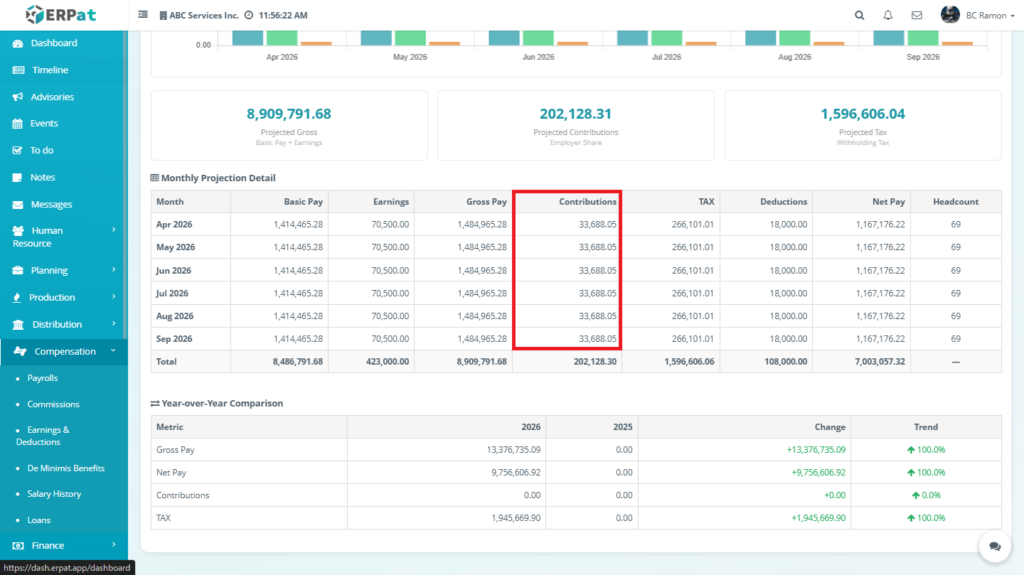
Contributions #
Represents mandatory government contributions.
How data is gathered:
- Computed using:
- SSS contribution table
- PhilHealth rate
- Pag-IBIG rules
Formula:
Contributions = SSS + PhilHealth + Pag-IBIG
How system computes it:
- Based on employee salary bracket
- Applies employer share (as shown in forecast)
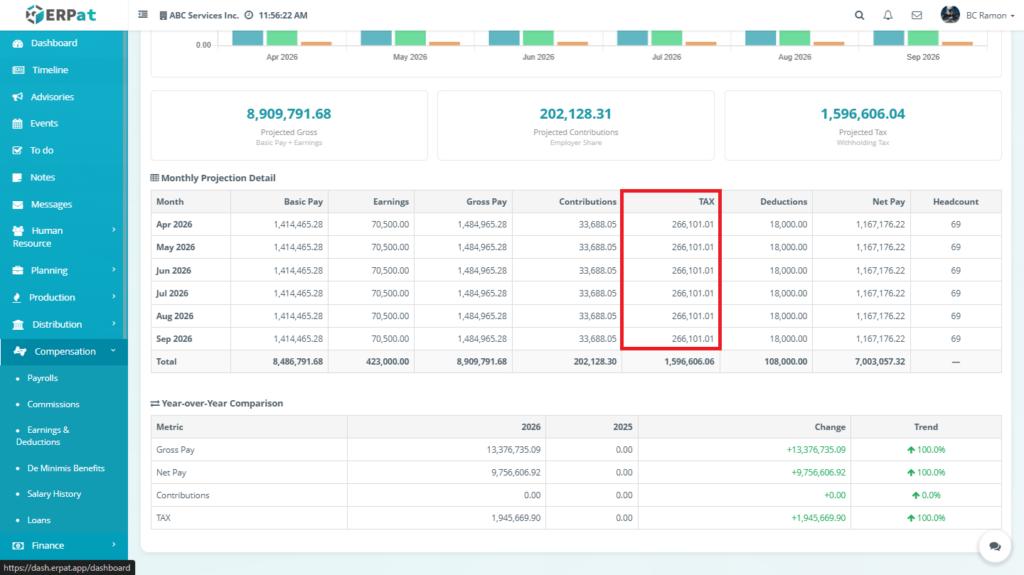
TAX #
Represents withholding tax deducted from employee income.
How data is gathered:
- Based on:
- BIR tax table
- Taxable income per employee
Formula:
Taxable Income = Gross Pay − Non-taxable Benefits
Tax = Based on BIR Tax Table
Aggregation:
Monthly Tax = Σ (Employee tax)
Deductions #
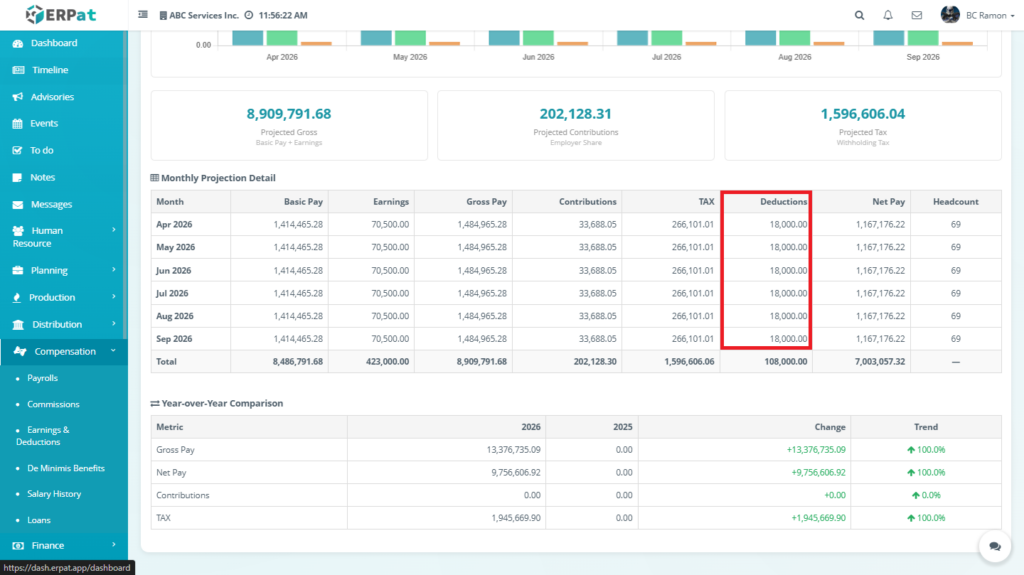
Represents non-tax deductions.
How data is gathered:
- Pulled from:
- Loan records
- Absences / undertime
- Other payroll deductions
Formula:
Deductions = Σ (All employee deductions)
Net Pay #
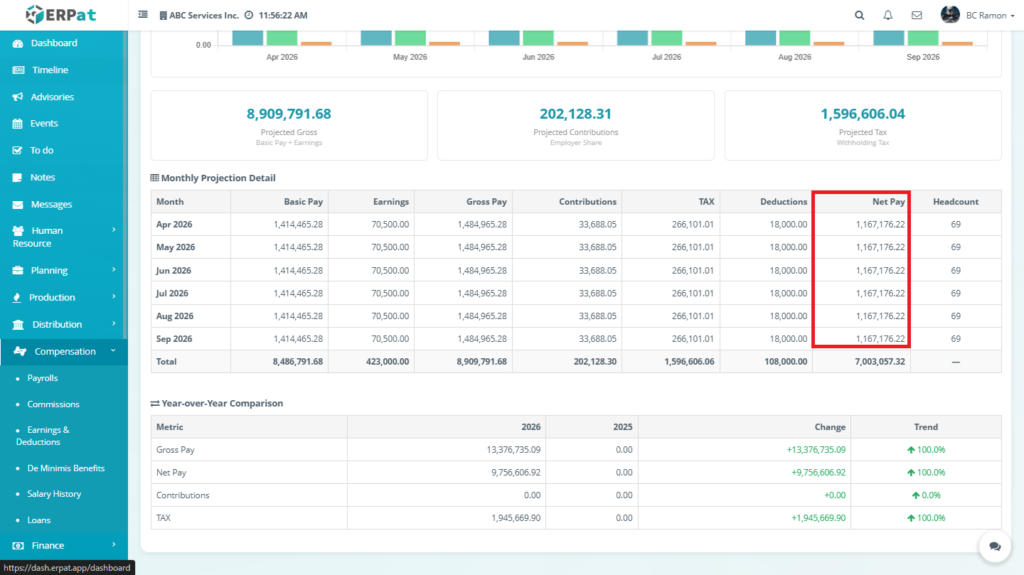
Represents the final take-home pay of employees.
Formula:
Net Pay = Gross Pay − Tax − Deductions
Example (from the table):
1,484,965.28 − 266,101.01 − 18,000 = 1,167,176.22
Headcount #
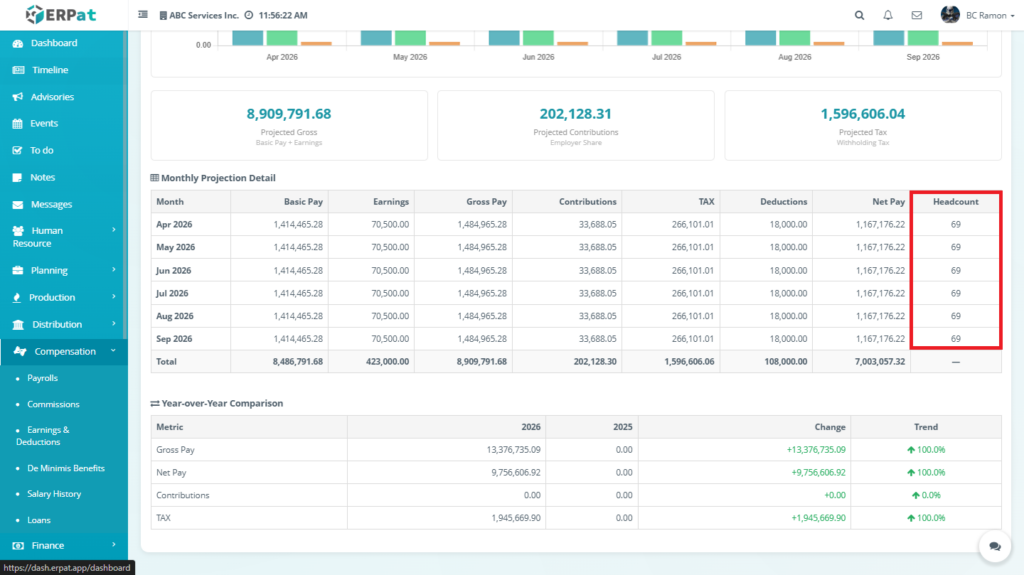
Represents the total number of employees included in the forecast.
How data is gathered:
- Counts all active employees within selected filters:
- Department
- Establishment
Formula:
Headcount = Total Active Employees
Total Row #
The final row aggregates all monthly values and serves as the source for summary dashboard cards.
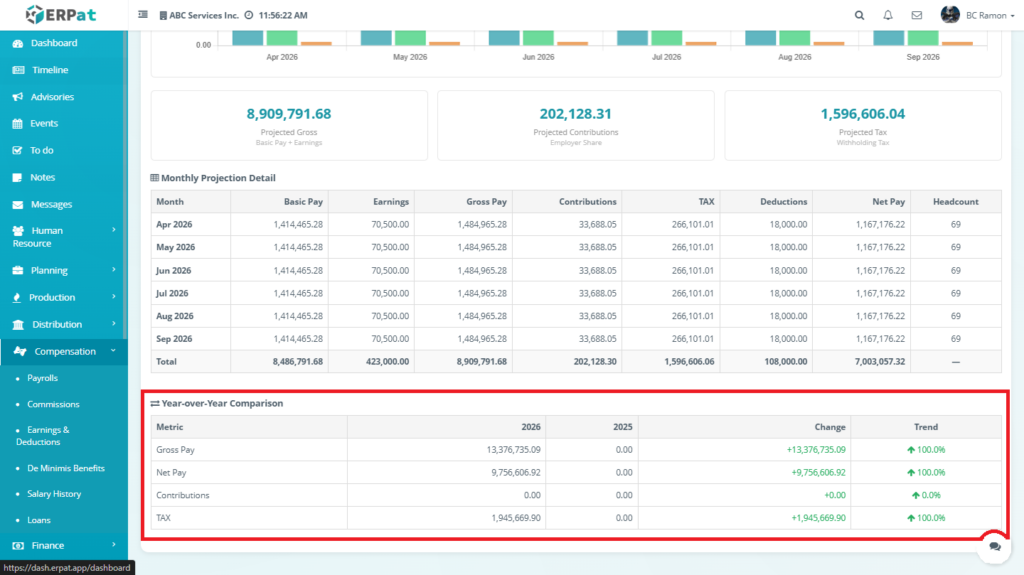
Year-over-Year Comparison #
The Year-over-Year (YoY) Comparison section provides a comparative analysis of payroll metrics between two different periods—typically the current forecast year and the previous year.
This feature helps evaluate growth trends, financial changes, and payroll performance, enabling management to assess whether payroll expenses are increasing, decreasing, or remaining stable over time.
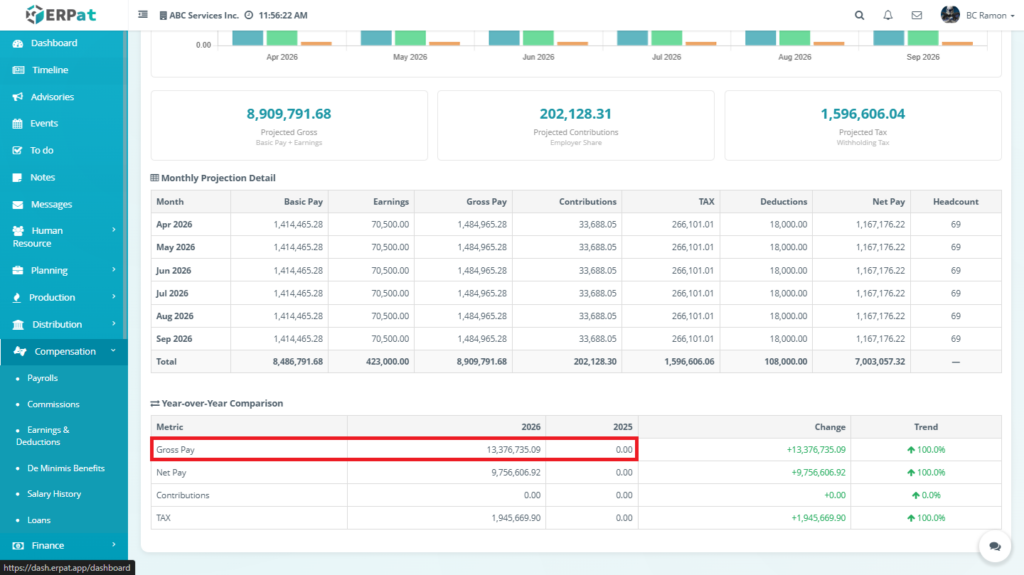
Gross Pay #
Represents total employee earnings before deductions.
How data is gathered:
- Current Year :
- Derived from Monthly Projection Detail Table
- Sum of all monthly gross pay values
Gross Pay = Σ Monthly Gross Pay
- Previous Year :
- Pulled from historical payroll records (actual processed payroll)
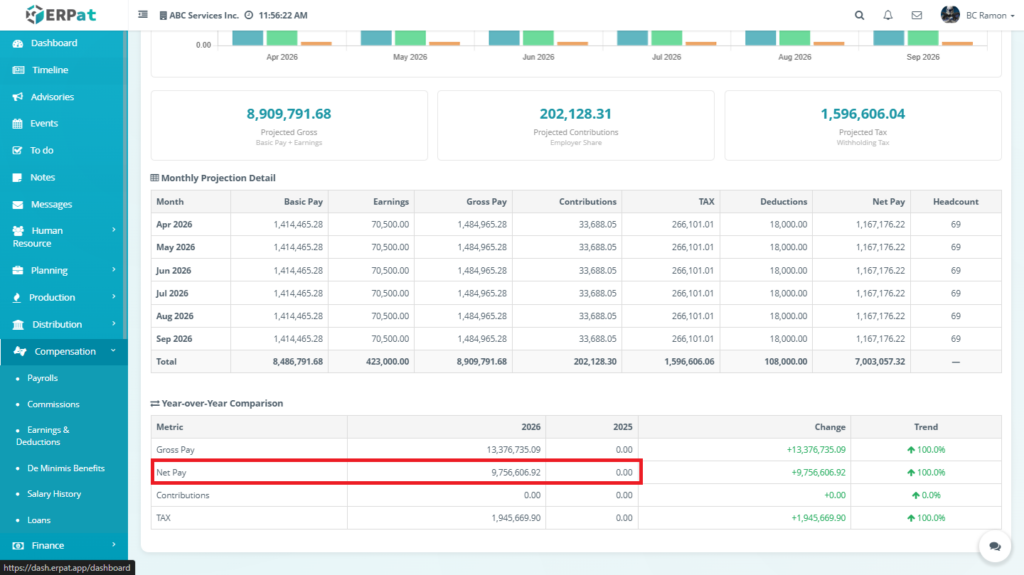
Net Pay #
Represents total take-home pay after deductions.
How data is gathered:
Net Pay = Gross Pay − Tax − Deductions
- 2026 → aggregated forecast values
- 2025 → actual payroll records
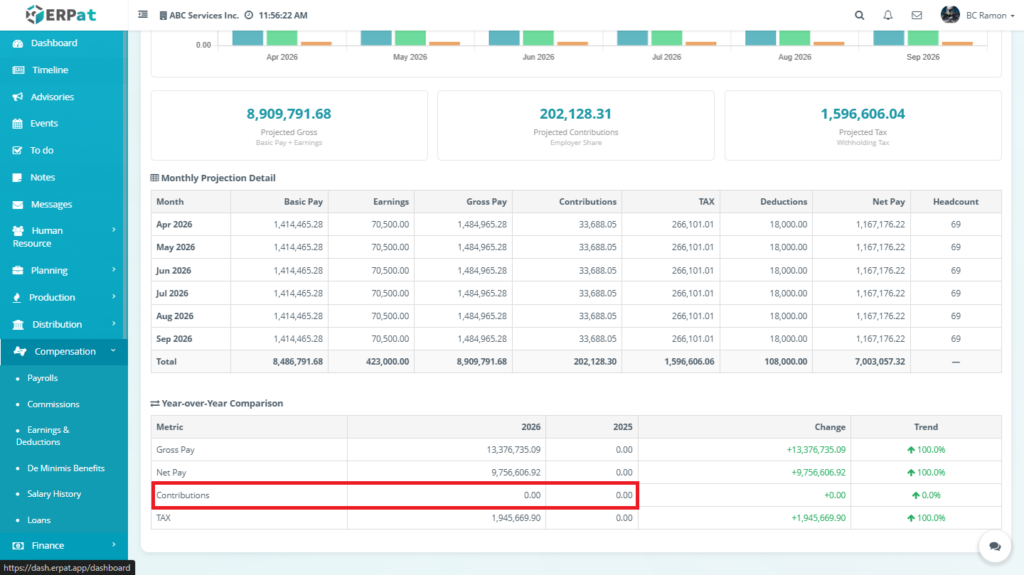
Contributions #
Represents total government contributions.
How data is gathered:
Contributions = SSS + PhilHealth + Pag-IBIG
- Computed per employee and aggregated monthly
- Summed across the selected period
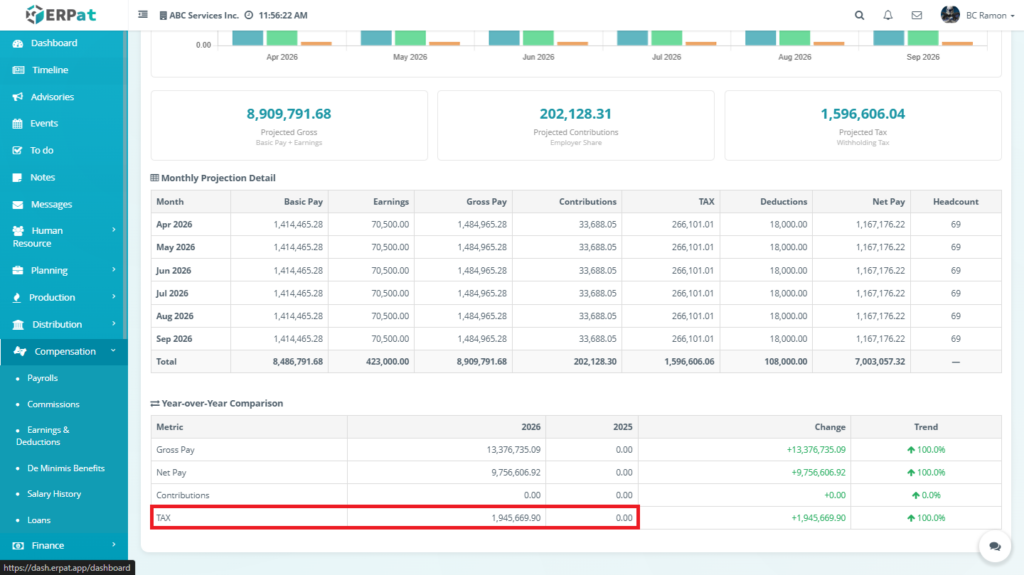
TAX #
Represents total withholding tax.
How data is gathered:
Tax = Σ (Employee withholding tax)
- Based on BIR tax computation
- Aggregated monthly
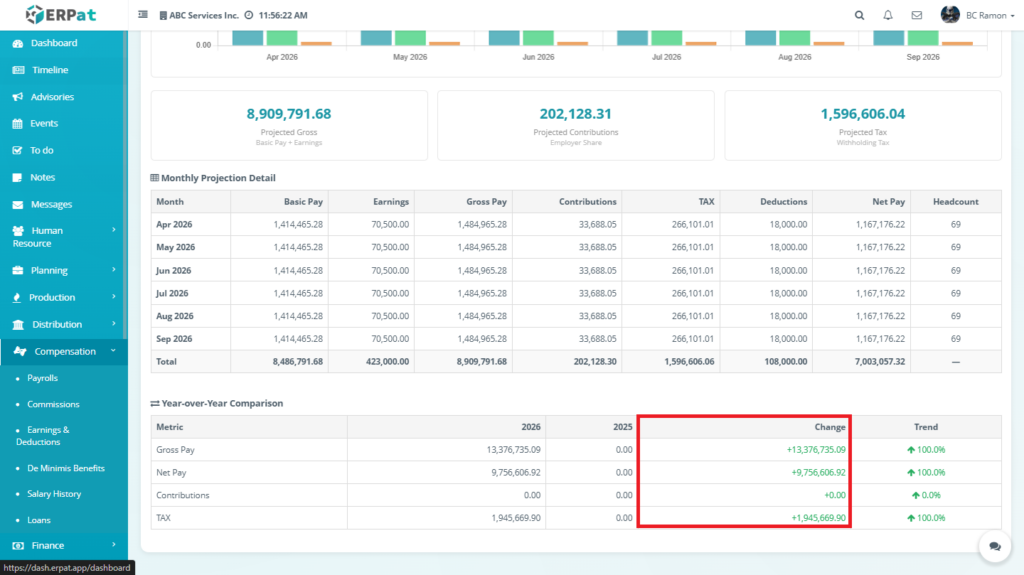
Change #
Represents the difference between the current year and the previous year.
Formula:
Change = Current Year − Previous Year
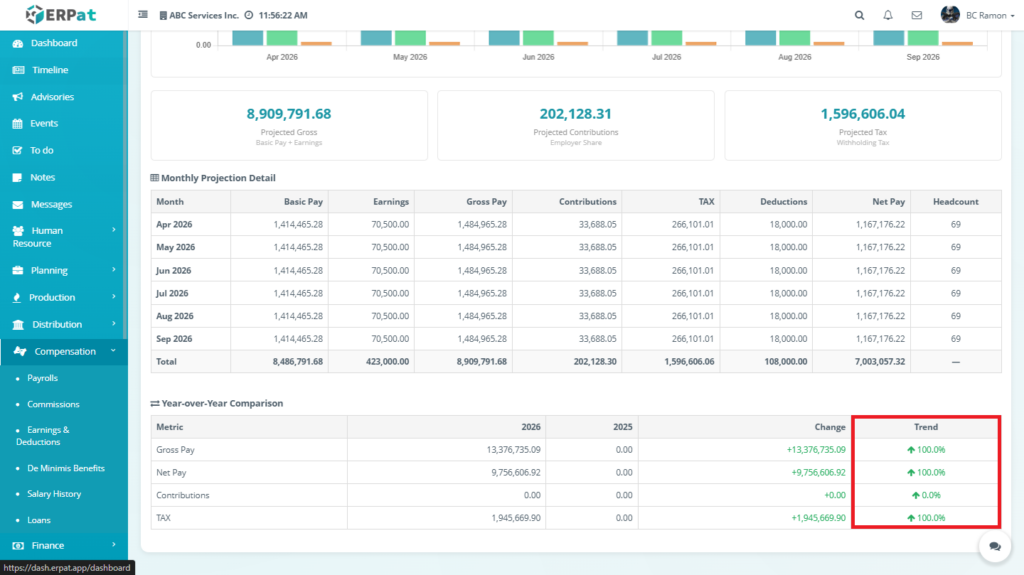
Trend #
Represents the percentage increase or decrease.
Formula:
Trend (%) = (Change / Previous Year) × 100
Payrolls: Log Controls Listing Page #
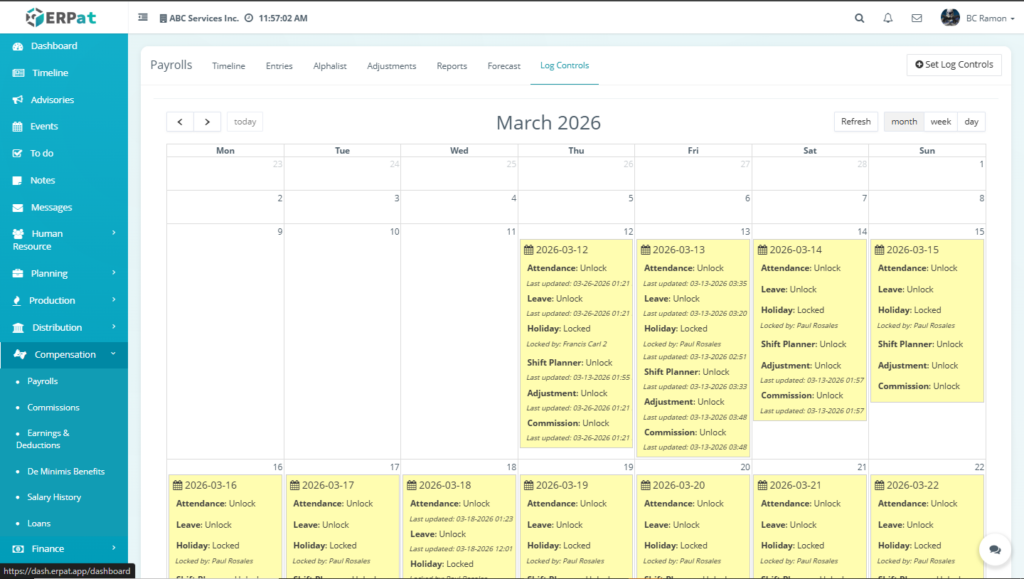
The Log Controls Module provides a calendar-based listing interface that displays and manages payroll-related control statuses on a per-date basis. Unlike a traditional table listing, this module uses a calendar visualization to present daily log statuses, allowing administrators to easily monitor, configure, and audit payroll-related system restrictions.
Each calendar cell represents a single date entry, containing multiple module control statuses such as attendance, leave, holiday, shift planning, adjustments, and commissions.
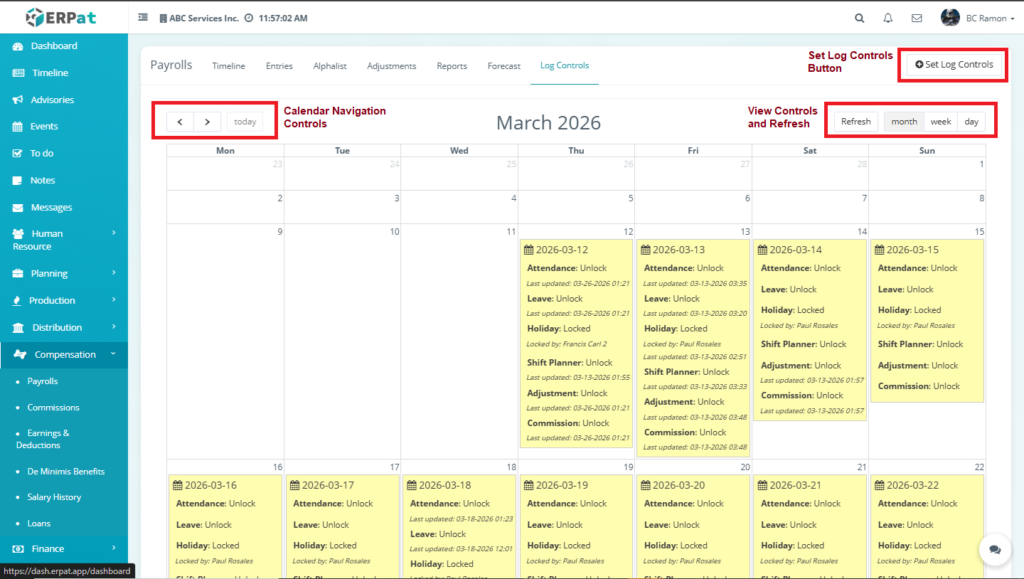
Calendar Navigation Controls #
This section allows users to move between dates.
Components #
- ◀ Previous user
- Load previous month/week/day
- ▶ Next
- Load next month/week/day
- Today button
- Load current date
How Data is Gathered #
- Clicking Previous/Next updates the calendar range
- Clicking Today resets the view to the current date
View Controls and Refresh #
This section controls how the calendar is displayed.
Components #
- Refresh button
- View modes:
- Month =
Display all dates within selected month - Week =
Display 7-day range - Day view =
Display detailed single-day logs
- Month =
How Data is Gathered #
- View mode determines how log data is grouped:
- Month → grouped by month
- Week → grouped by week
- Day → single date view
Set Log Controls Button #
This is the primary action button.
Function #
Opens the Set Log Controls modal, where users can:
- Select date range
- Lock/unlock modules
- Exclude users
- Add remarks
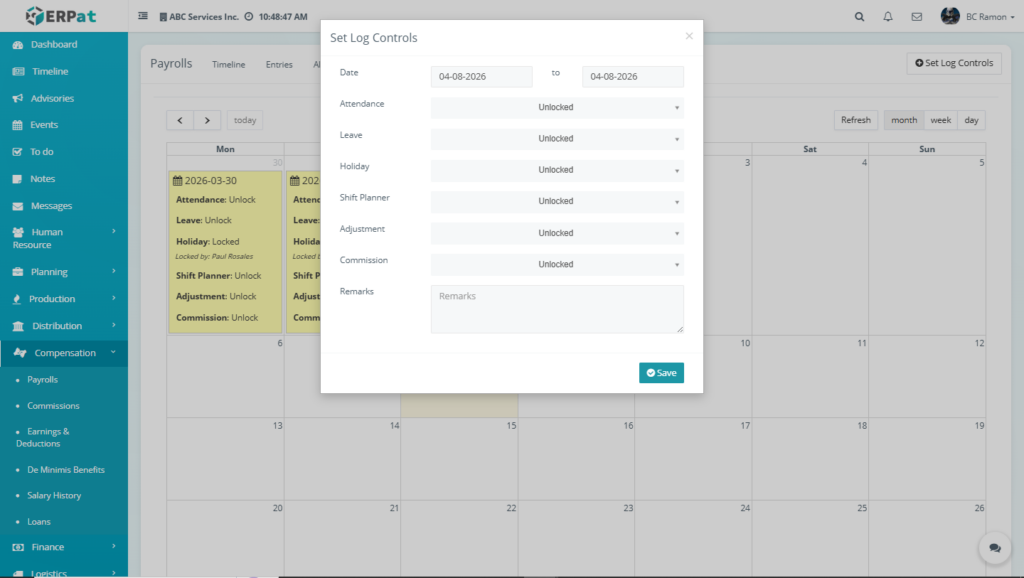
Set Log Controls Modal #
The Set Log Controls Modal is a configuration interface used to define and apply date-based restrictions on payroll-related system activities. It allows administrators to control whether specific modules (e.g., attendance, leave, adjustments) are editable or locked within a selected date range.
This modal serves as the primary control mechanism for maintaining payroll data integrity and enforcing workflow rules.
Date Range #
The Date Range defines the specific period where log control rules will be applied. Meaning all configurations (locked/unlocked states) will affect system behavior only within that date.
How Data is Gathered #
- Selected manually by the administrator through the date picker
- Stored in the system as:
- start_date
- end_date
How the System Uses It #
- The system iterates through each day within the range
- Applies the selected control settings to all payroll-related modules
1. Attendance #
Represents employee daily time logs (time-in/time-out).
Data Source:
- Attendance logs table
- Biometric or manual entries
System Behavior:
- Unlocked → Users can edit time logs
- Locked → Editing is disabled
2. Leave #
Tracks employee leave applications such as vacation or sick leave.
Data Source:
- Leave requests module
- HR approval workflows
System Behavior:
- Unlocked → Leave can be filed or edited
- Locked → Leave records are frozen
3. Holiday #
Represents company-declared non-working days.
Data Source:
- Holiday configuration table
System Behavior:
- Locked → Prevents changes to holiday records
- Ensures consistency in payroll computation (e.g., holiday pay)
4. Shift Planner #
Manages employee work schedules and shift assignments.
Data Source:
- Shift scheduling system
System Behavior:
- Locked → Prevents reassignment or schedule modification
5. Adjustment #
Handles manual payroll changes such as corrections or bonuses.
Data Source:
- Payroll adjustment entries
System Behavior:
- Locked → Disables creation/editing of adjustments
6. Commission #
Represents additional earnings based on performance or sales.
Data Source:
- Commission records linked to payroll
System Behavior:
- Locked → Prevents commission edits
Unlocked vs Locked States #
| Status | Meaning | System Effect |
|---|---|---|
| Unlocked | Editable | Users can create/update records |
| Locked | Frozen | Records cannot be modified |
Purpose #
- Prevent accidental edits
- Protect finalized payroll data
- Ensure audit compliance
Remarks Field #
Provides context for why log controls were applied.
Save Button #
Applies and persists all configured log control settings.
Permissions and Access Control #
- Only authorized payroll, HR, accounting, or administrative users should be allowed to create, edit, approve, finalize, export, or delete payroll records.
- Limited or view-only access may be granted depending on assigned user roles and permissions.
Best Practices #
- Ensure payroll details are complete before initialization.
- Validate attendance, deductions, and earnings before marking payroll as completed.
- Use import templates to maintain consistent file structure and avoid data errors.
- Review adjustments carefully before approval.
- Lock payment and log controls only after confirming payroll accuracy.
- Generate and retain statutory reports for compliance and audit purposes.
Audit & Logs #
All create, update, and delete actions for establishments are logged for audit and compliance purposes within the ERPat System.
Last Updated: [April 8, 2026] Module Owner: Compensation IS – ERPat System


