Overview #
The Commissions Module in the ERPat System is used to record, manage, and monitor performance-based earnings given to employees. These earnings are typically awarded based on sales, achievements, or specific performance metrics and are considered additional compensation on top of regular salary.
This module allows administrators and payroll personnel to create commission records manually or through import, categorize them properly, assign labels, and track commission history. It ensures that all incentive-based earnings are properly documented, traceable, and available for payroll computation and reporting.
Key Features #
- Create and manage commission entries
- Import bulk commission records
- Categorize commissions (percentage, flat, tiered)
- Assign labels for classification
- Timeline and table-based tracking
- Employee commission overview
- Action button controls (Edit, Delete, Logs)
- History logs tracking
- Summary reporting
- Category management integration
Accessing the Commissions Module #
- Log in to the ERPat System.
- Navigate to the Compensation section.
- Click Commissions.
You will be redirected to the Commissions main page.
Commissions – Timeline #
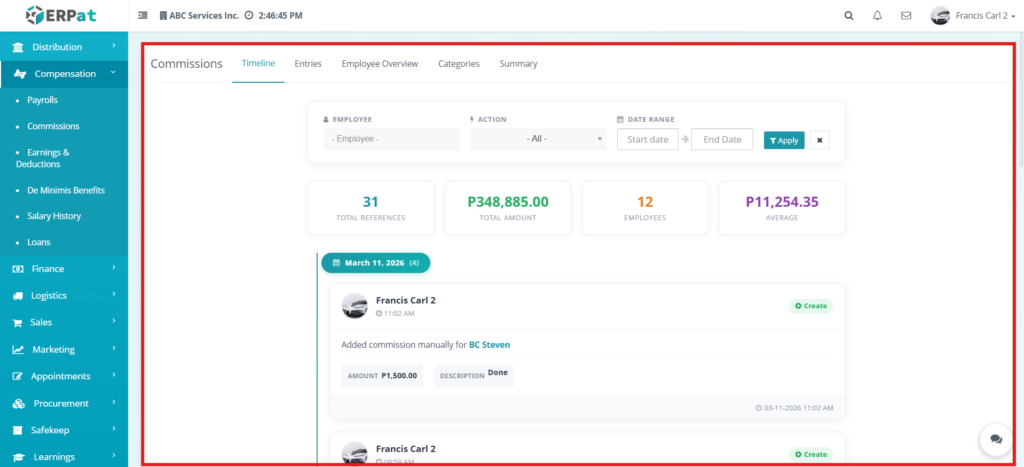
The Timeline view provides a chronological display of all commission records within the system. It allows users to easily track when commissions were awarded and identify which employee received them at a specific point in time.
Each entry in the timeline represents a commission transaction, showing key details such as the employee involved, the type of commission, and the date it was earned. This view is especially useful for payroll personnel when reviewing historical incentive data, monitoring trends, or auditing commission distributions over a period.
By organizing commissions in a time-based format, users can quickly understand the sequence of payouts and verify if commissions were issued correctly and on schedule.
Commissions – Entries #
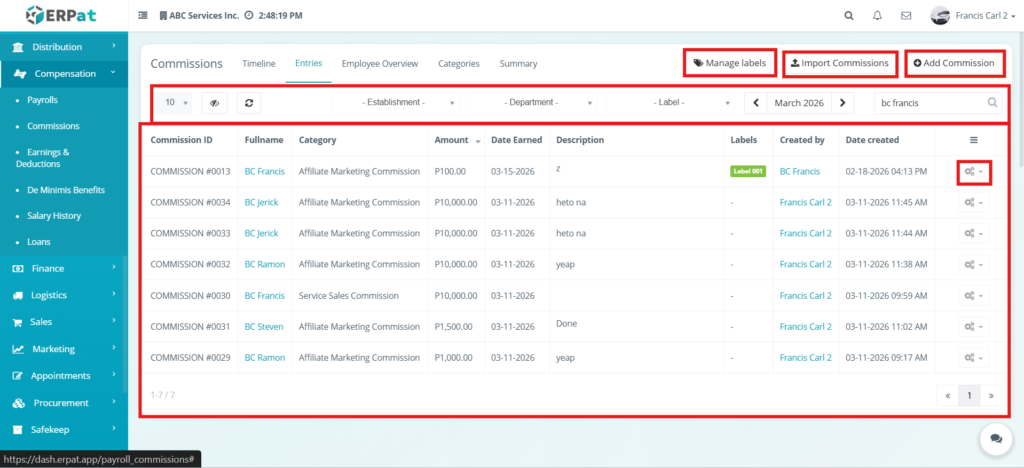
The Entries page serves as the main workspace for managing all commission records in a structured table format. It provides a complete list of all commissions created in the system, allowing users to view, add, edit, and delete records.
Each commission entry contains important information such as the employee name, category, amount, date earned, description, and assigned labels. This structured layout allows payroll administrators to efficiently track and manage incentive-based earnings.
The page also includes tools such as Add Commission, Import Commissions, and Manage Labels, which help streamline the process of handling multiple commission records. Users can easily navigate, search, and filter entries to locate specific records when reviewing or processing payroll.
Page Controls and Tools #
- Add Commissions
- Import Commissions
- Manage Labels
- Action Button (per record)
- Table controls and pagination
Commissions – Entries – Manage Labels #
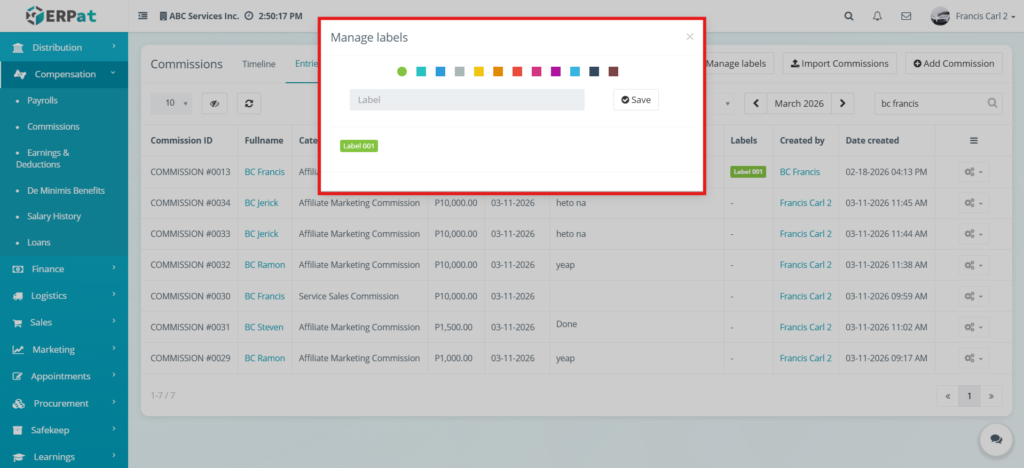
The Manage Labels section allows users to create and organize labels that can be assigned to commission records. A label is a short tag or identifier used to categorize commissions based on their purpose, type, department, campaign, or classification.
For example, labels can be used to identify commissions such as “Sales Incentive,” “Marketing Bonus,” or “Affiliate Campaign.” This helps users quickly filter and locate specific types of commissions within the system.
Using labels improves organization and visibility, especially in environments where large volumes of commission records are managed regularly.
Commissions – Entries – Import Commissions #
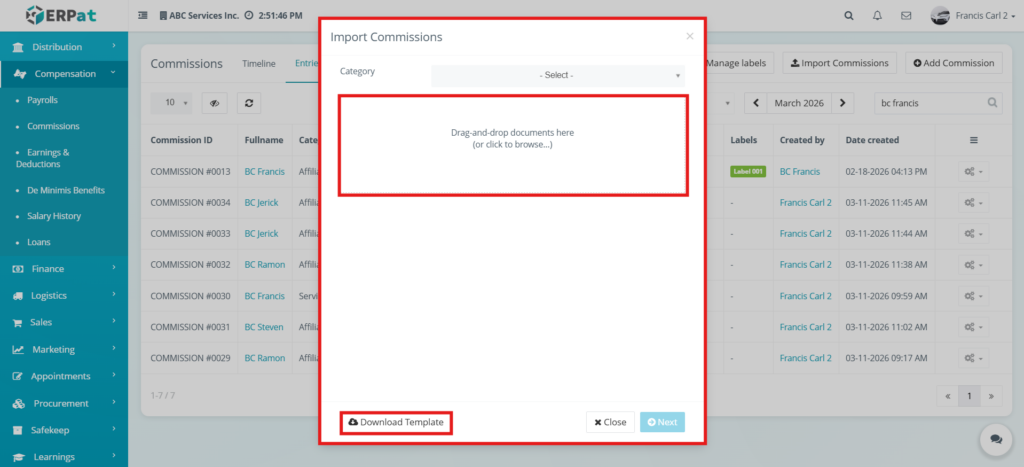
The Import Commissions feature allows users to upload multiple commission records into the system at once using a file. This is especially useful for organizations that handle large volumes of commissions and need a faster way to input data.
Instead of manually adding each entry, users can prepare a formatted file containing commission details such as employee name, category, amount, and date earned, then upload it into the system.
This feature improves efficiency, reduces manual data entry, and minimizes errors when processing bulk commission records.
Steps for Adding a Commission #
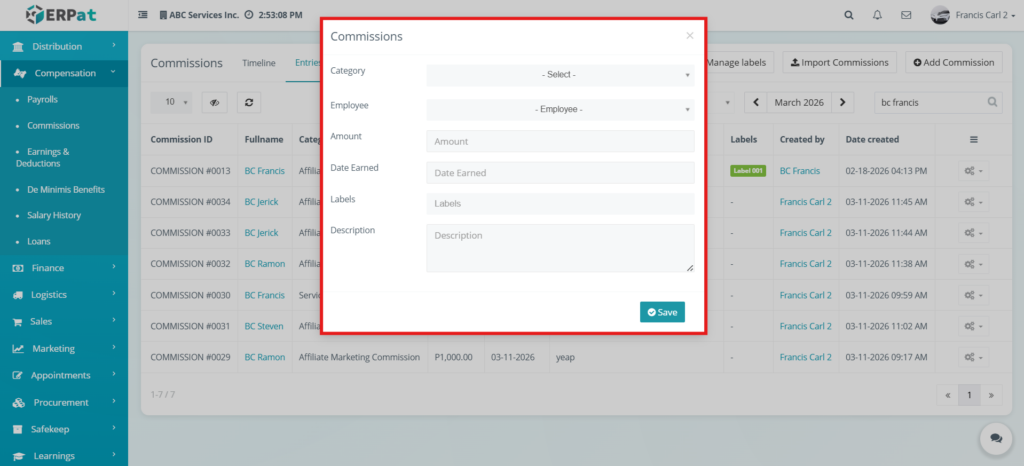
The Add Commissions feature allows users to create a new commission record for an employee. This is where payroll administrators or authorized users input all the necessary details related to a commission earned based on performance, sales, or specific achievements.
When adding a commission, the user is required to provide important information such as the employee name, category that listed in the categories tab, amount, date earned, and description. Labels can also be assigned to help categorize and organize the commission record for easier tracking and filtering.
This function ensures that all additional earnings are properly recorded in the system and linked to the correct employee. It plays a vital role in maintaining accurate payroll data, as these commission entries may later be included in salary computations and financial reporting.
The Add Commissions feature can be used for individual entries, especially when commissions are awarded manually. For bulk entries, users may use the Import Commissions feature instead.
By properly filling out all required fields, the system ensures that each commission record is complete, traceable, and easy to manage within the Entries and Timeline views.
STEPS #
- Click the Add Commissions button.
- Fill in the required commission details.
- Click the Save button.
Result #
The new commission entry will be added to the Entries listing and Timeline view.
Commissions – Entries – Action Button #
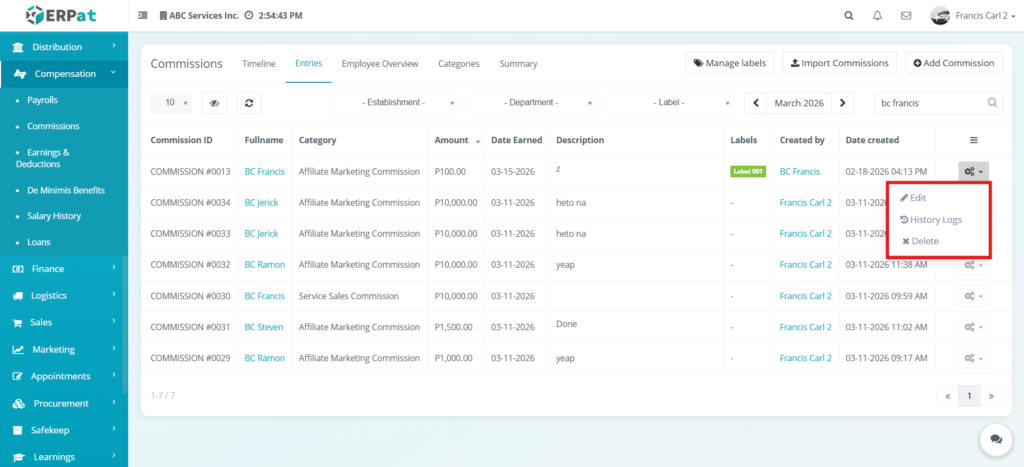
The Action Button provides quick access to key functions for each commission record. It allows users to perform actions such as editing, deleting, or viewing the history logs of a specific commission.
By using the Action Button, users can efficiently manage individual records without navigating away from the listing page. This improves workflow speed and makes it easier to maintain accurate commission data.
Steps for Editing a Commission #
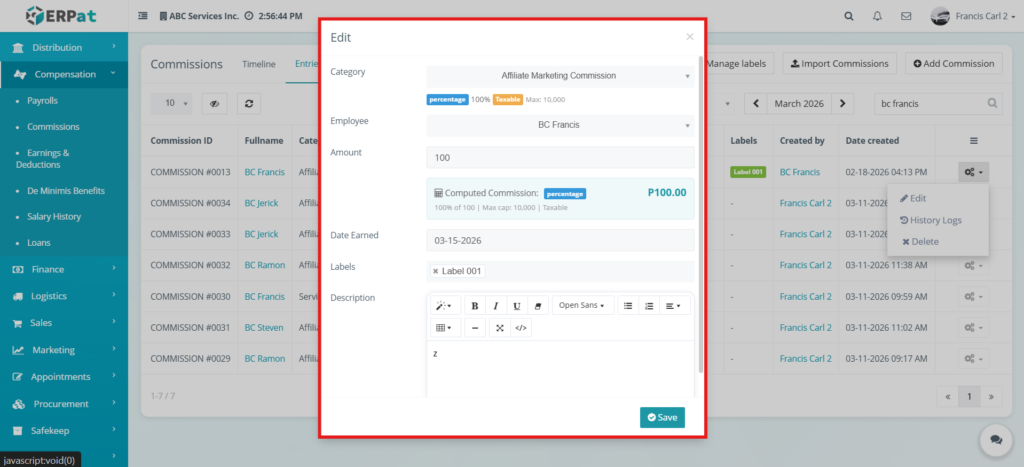
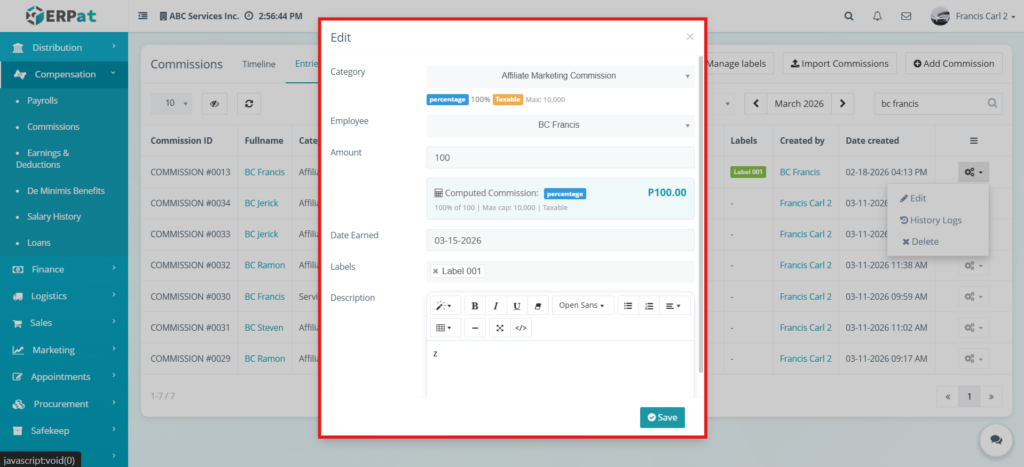
The Edit Commissions function allows users to update or modify existing commission records. This includes correcting information such as the amount, category, description, or assigned labels.
This feature ensures that any errors or changes in commission details can be properly updated, maintaining accuracy in payroll records and reporting.
STEPS #
- Click the Action button.
- Select Edit Commissions.
- Update the necessary fields.
- Click Save.
Result #
The commission record is updated and reflected in the listing.
Commissions – Entries – History Logs #
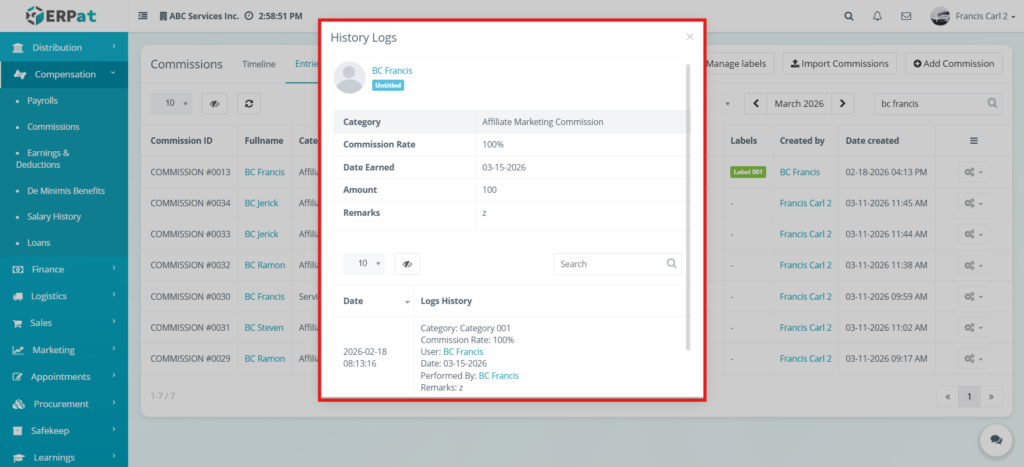
The History Logs section records all changes made to a commission entry. It provides a detailed audit trail showing what changes were made, who made them, and when they were performed.
This feature is essential for maintaining transparency and accountability, especially during payroll audits or when reviewing past modifications to commission records.
Steps for Deleting a Commission #
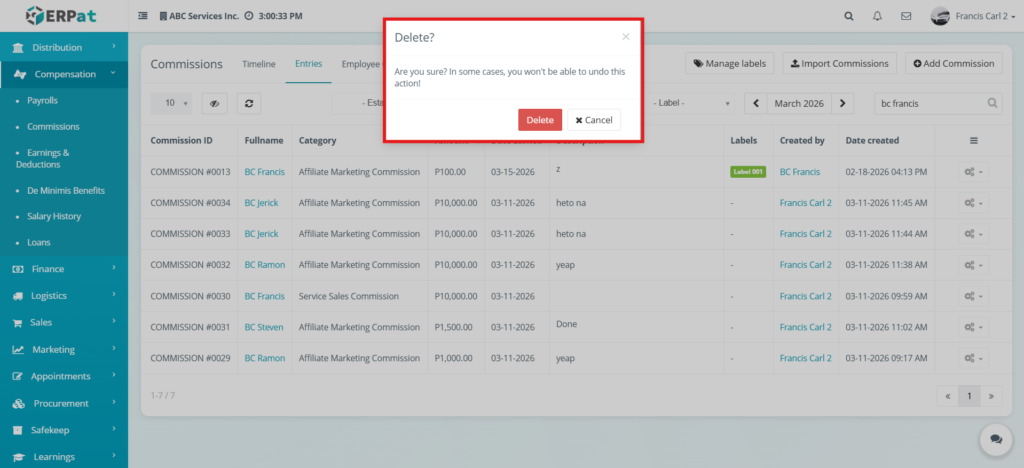
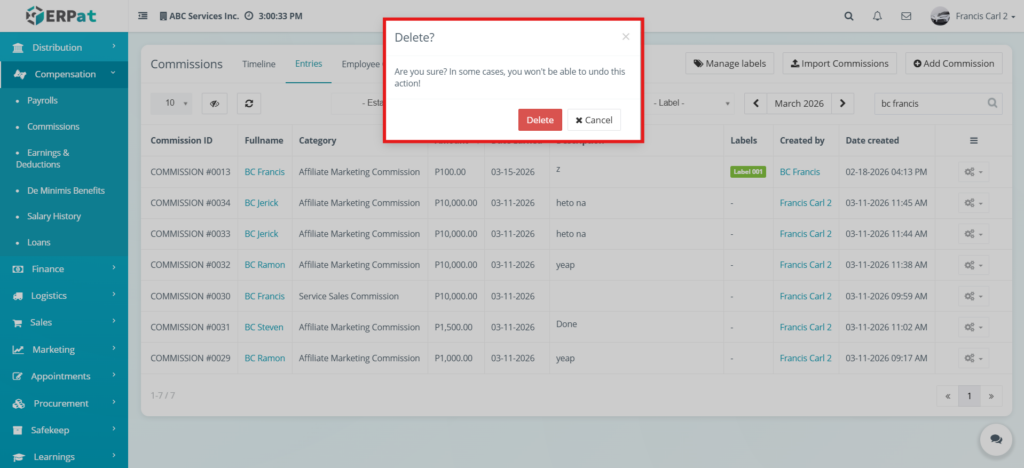
The Delete Commission function allows users to permanently remove a commission record from the system.
This action should be used carefully, as deleted records cannot be recovered and may affect payroll tracking and reporting. It is recommended to only delete entries that were created by mistake or are no longer needed.
STEPS #
- Click the Action button.
- Select Delete Commission.
- Confirm deletion.
Result #
The selected commission record is permanently removed.
Commissions – Employee Overview #
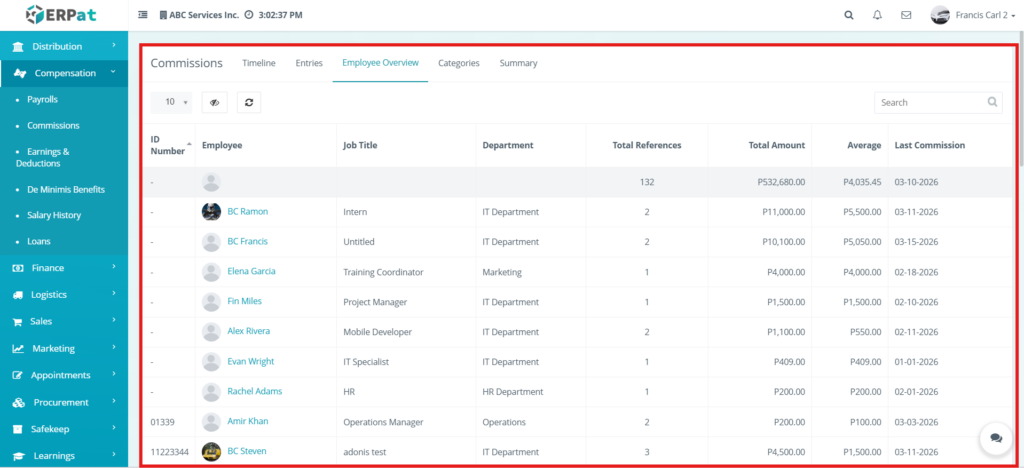
The Employee Overview page provides a summarized view of commissions grouped by employee. It allows users to quickly see how much commission each employee has earned over a period of time.
This helps payroll personnel and management analyze performance, track incentive distribution, and review employee earnings in a simplified format.
Commissions – Categories #
The Categories section is used to define and manage the different types of commissions within the system.
Each category represents a classification of commission, such as Sales Commission, Bonus Incentive, or Affiliate Commission etc. Categories can also include computation methods such as percentage-based, flat amount, or tiered structure.
All categories created in this section are used when adding commission entries, ensuring consistency and proper classification of all records.
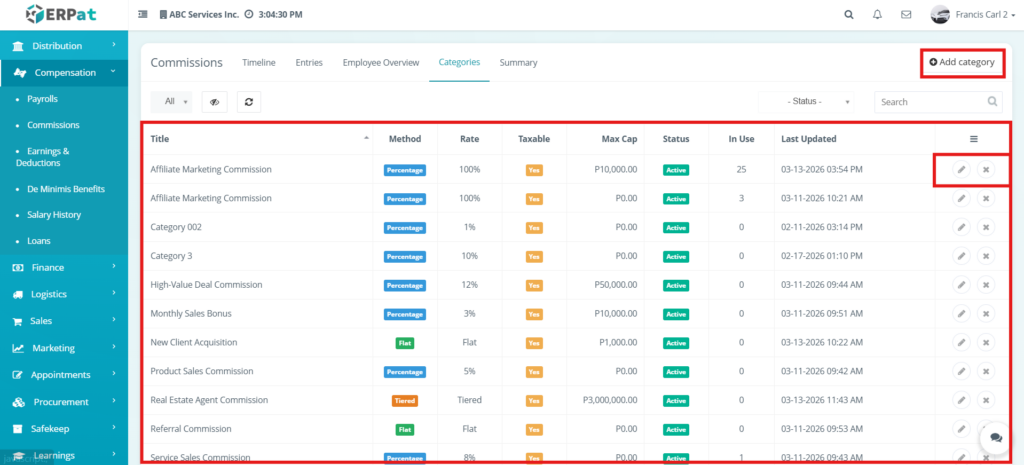
NOTE: All categories created here will be reflected in the Add Commissions form under the Category dropdown.
Steps for Adding a Category #
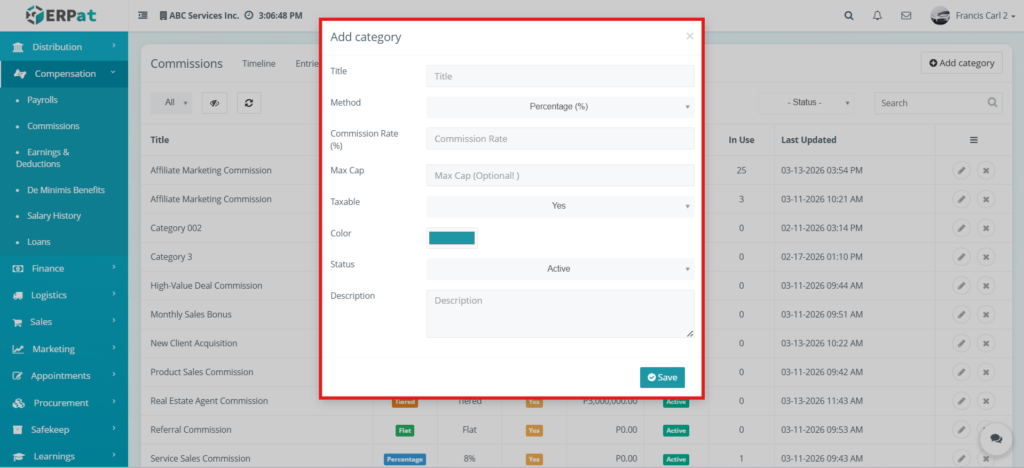
The Add Category feature allows users to create a new commission category that will be used to classify commission entries in the system. Categories help define the type or purpose of a commission, making it easier to organize and identify different kinds of incentives.
When creating a category, users can specify the category name and select the computation method, such as percentage-based, flat amount, or tiered structure. This ensures that each commission type follows a consistent calculation method and is properly defined within the payroll system.
For example, a category can be created for “Sales Commission” using a percentage method, or “Performance Bonus” using a fixed amount. These categories will then appear in the Category dropdown when adding a commission entry.
Using properly defined categories helps maintain consistency, improves reporting accuracy, and ensures that all commission records are correctly classified.
STEPS #
- Click Add Category.
- Enter category details.
- Select method (Percentage, Flat, Tiered).
- Click Save.
Steps for Editing a Category #
The Edit Category feature allows users to update or modify an existing commission category. This includes changing the category name or adjusting the computation method if needed.
This function is useful when correcting errors, updating naming conventions, or modifying how commissions are calculated for a specific category. Any updates made will affect how the category appears and is used in future commission entries.
It is important to ensure that any changes made to categories are accurate, as they may impact reporting, classification, and payroll computations.
STEPS #
- Click Edit icon.
- Modify details.
- Click Save.
Steps for Deleting a Category #
The Delete Category feature allows users to remove a commission category from the system. This action is typically used when a category is no longer needed or was created by mistake.
Before deleting a category, users should ensure that it is not actively used in existing commission records. Removing a category that is already assigned to entries may affect data consistency and reporting.
This action is permanent and should be performed with caution to avoid unintended data issues.
STEPS #
- Click Delete icon.
- Confirm deletion.
Commissions – Summary #
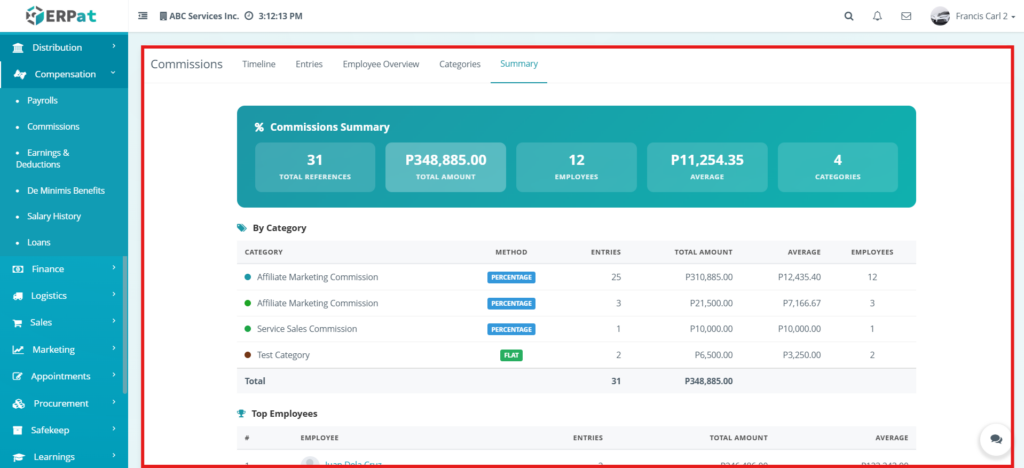
The Summary page provides an overall view of total commissions within the system. It displays aggregated data that helps users analyze total payouts and monitor commission-related expenses.
This section is useful for reporting, financial analysis, and reviewing overall incentive distribution across the organization.
Permissions and Access Control #
- Only authorized payroll users can manage commissions
- Add, Edit, Delete, and Import permissions depend on user roles
- Category management may be restricted to administrators
Best Practices #
- Use clear and consistent commission descriptions
- Assign correct categories for accurate payroll computation
- Use labels for better tracking and filtering
- Avoid deleting records required for audit purposes
Audit & Logs #
All commission-related actions are logged with timestamps and user attribution to ensure traceability and compliance.
Last Updated: [March 18, 2025] Module Owner: Payroll Module IS – ERPat System


